
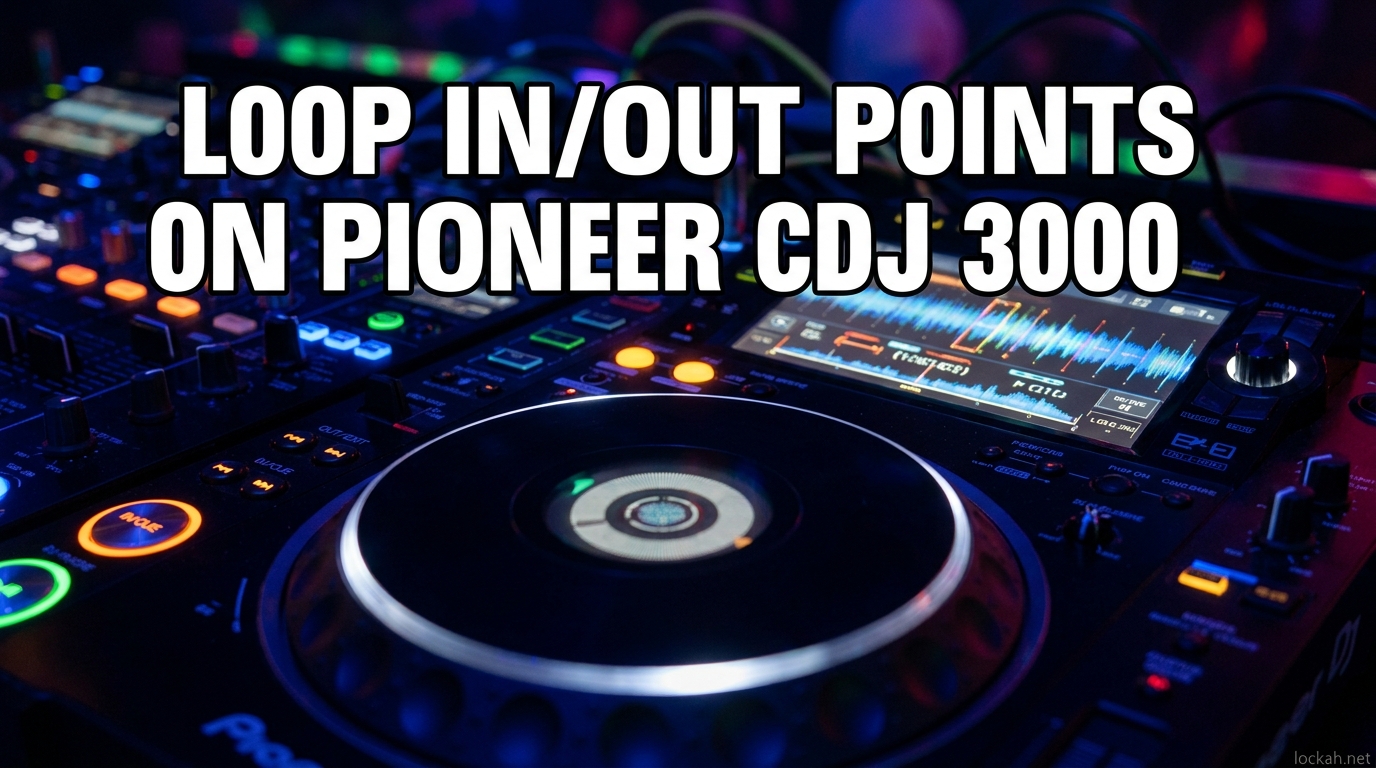
Learning how to use the loop in and out points on a Pioneer CDJ 3000 opens up creative possibilities for your DJ sets. These manual loop controls let you repeat any section of a track precisely, from a single beat to several minutes, giving you total control over your transitions and build-ups.
In this guide, I will walk you through everything you need to know about setting manual loops on the CDJ-3000. You will learn the exact button sequence, how to adjust loop points on the fly, and techniques used by professional DJs to create tension and seamless mixes.
Whether you are preparing for your first club gig or looking to add new techniques to your arsenal, understanding CDJ 3000 manual loop functionality is essential. The CDJ-3000 represents the current standard in club DJ equipment, and knowing its looping features will serve you in virtually any professional DJ environment.
Understanding Loop In/Out Points (2026)
Loop In/Out points on the CDJ-3000 allow you to define custom start and end points for repeating a section of music. Unlike auto loops that snap to predetermined beat lengths, manual loops give you exact control over where the repetition begins and ends.
The IN button marks where your loop starts. The OUT button marks where it ends. Once both points are set, the track continuously loops between them until you exit. This differs from the BEAT LOOP buttons, which automatically create loops of fixed lengths like 4 beats or 8 beats.
On the CDJ-3000, the IN and OUT buttons sit directly above the jog wheel on the left side of the player. You will also see the RELOOP/EXIT button nearby, which controls loop playback after your points are set.
The physical layout places these controls within easy reach of your left hand while your right hand manages the jog wheel and other playback controls. This ergonomic design lets you set and adjust loops without breaking your flow.
How to Set a Manual Loop on CDJ 3000 (Step-by-Step Process)
Setting your first manual loop on the CDJ-3000 takes practice, but the process is straightforward once you know the sequence. Here is exactly how to do it.
Step 1: Load and Play Your Track
Load your track from a USB drive or SD card using rekordbox. Start playback and let the track run until you reach the section where you want to create your loop.
Before you begin, I recommend enabling quantize mode by pressing the QUANTIZE button. This ensures your loop points snap to the beat grid, making your loops tighter and more professional.
Step 2: Press IN at the Loop Start Point
When you reach the exact moment where you want the loop to begin, press the IN button. The CDJ-3000 stores this point as your loop start marker. An indicator on screen will show that an IN point has been set.
You will see a visual marker appear on the waveform display showing your IN point location. The exact frame position is stored in memory, so you can reactivate this loop later using the RELOOP/EXIT button.
Step 3: Press OUT at the Loop End Point
Continue playing the track to where you want the loop to end. Press the OUT button at that precise moment. The CDJ-3000 immediately begins looping between your IN and OUT points. You will see loop indicators on the screen showing the active loop.
The loop activates instantly. The track jumps back to your IN point and repeats the section continuously. You can let it run for as long as you need during your mix.
Step 4: Adjust Loop Points if Needed
If your loop points are slightly off, you can fine-tune them. Hold the IN button and rotate the jog wheel to adjust the start point. Hold the OUT button and rotate the jog wheel to adjust the end point. This is how you get perfectly aligned loops.
This adjustment technique is one of the most valuable features of the CDJ-3000. It saves you from having to release the loop and start over when your timing is not perfect.
Step 5: Exit the Loop
To stop looping and continue normal playback, press the RELOOP/EXIT button. The track will continue playing from wherever it would have been if the loop had not been active.
Timing your exit is crucial for smooth transitions. Practice exiting on beat with the next section of your incoming track for the cleanest mixes.
Reloop/Exit: What It Does and When to Use It
The RELOOP/EXIT button serves dual purposes on the CDJ-3000, and understanding both is essential for smooth performances.
When a loop is currently active, pressing RELOOP/EXIT exits the loop and resumes normal playback. The track jumps to the position it would have reached if the loop had never happened. This is perfect when you want to drop back into the track after extending a section.
When no loop is active but IN/OUT points are stored, pressing RELOOP/EXIT reactivates the stored loop. This lets you jump back into your loop at any time. Many DJs use this to build tension, exit to continue the track, then drop back into the loop for a second build-up.
I learned this technique from playing long sets where you need to extend crowd favorites. Set your loop, exit when the energy is right, then hit RELOOP/EXIT to bring the familiar section back. The crowd responds instantly.
The stored loop remains in memory until you set new IN/OUT points or load a different track. This means you can exit, mix in another track, return to the original track, and immediately jump back into your loop. It is a powerful technique for creative programming.
Loop Adjust with the Jog Wheel
Fine-tuning your loop points with the jog wheel is a technique many DJs overlook. It lets you dial in perfect timing after setting approximate loop points.
To adjust the IN point, press and hold the IN button. While holding it, rotate the jog wheel left or right to move the start point earlier or later in the track. Release the IN button when satisfied. The loop updates immediately.
To adjust the OUT point, press and hold the OUT button and rotate the jog wheel. This moves the end point while the loop continues playing. You can hear the adjustment in real-time, making it easy to find the perfect spot.
This technique saves you during live performances when you set a loop slightly off-beat. Rather than releasing and resetting, a quick jog wheel adjustment fixes it. I use this constantly when the club sound system reveals timing issues that were not audible in headphones.
The jog wheel provides frame-accurate adjustment, meaning you can move your loop points by individual video frames for perfect alignment. This precision is what separates amateur loops from professional-sounding repetitions.
Beat Loop Buttons vs Manual Loop In/Out
The CDJ-3000 offers two ways to create loops: the IN/OUT buttons for manual loops and the BEAT LOOP buttons for automatic loops. Each serves different purposes.
The BEAT LOOP (1/2X) and 8 BEAT LOOP (2X) buttons create instant loops of predetermined lengths. Pressing BEAT LOOP creates a 4-beat loop, and pressing it again halves the length to 2 beats, then 1 beat. The 8 BEAT LOOP button doubles the length to 8 beats, 16 beats, and so on.
Auto loops work fast for standard transitions and rolls. Manual loops excel when you need precise control over exactly which section repeats. Many DJs, including myself, prefer beat loop buttons for quick rolls and IN/OUT buttons for creative transitions.
Forum discussions reveal a common pattern: beginners struggle with IN/OUT buttons because they require timing, while experienced DJs use both systems depending on the situation. My advice is to master both.
Understanding when to use each system will make you a more versatile DJ. Auto loops are perfect for emergency situations where you need a loop immediately. Manual loops shine when you have time to craft the perfect repeated section.
Using Quantize for Tight Loops
Quantize is essential for keeping your loops locked to the beat grid. Without it, your loop points may drift, causing the loop to sound sloppy or out of time.
Press the QUANTIZE button on the CDJ-3000 to enable quantize mode. When active, your IN and OUT points automatically snap to the nearest beat grid marker. This ensures your loops stay perfectly aligned with the track’s timing.
I always enable quantize before setting loops in a live set. The CDJ-3000 analyzes your tracks in rekordbox to create beat grids. Quantize uses this analysis to snap your loop points precisely. Turn quantize off only when you want deliberately off-grid loops for creative effect.
Forum users frequently report loops drifting out of sync. The solution is almost always enabling quantize. Without rekordbox analysis and quantize active, the CDJ-3000 cannot maintain perfect timing across loop iterations.
The quantize function works with the track’s analyzed beat grid. If your track was not properly analyzed in rekordbox, quantize will not function correctly. Always verify your tracks show beat grids in rekordbox before exporting to USB.
Creative Techniques with Loop In/Out Points
Manual loops unlock creative techniques that transform your DJ sets. Here are approaches I use regularly.
Build-ups and Tension Building
Set a loop on a rising synth or vocal phrase right before the drop. Let it repeat for 8 or 16 bars while you tease the crowd. When you exit the loop, the drop hits with maximum impact. This technique works because the loop creates anticipation.
The key is choosing the right section to loop. Look for rising energy, filter sweeps, or vocal phrases that build naturally. Looping these sections extends the tension before your big moment.
Seamless Transitions
Loop the outgoing track on a sustained pad or drum hit. Mix in the incoming track underneath. When ready, exit the loop and the original track continues. This creates smooth blends where the crowd barely notices the transition.
This technique works particularly well with long, sustained notes or ambient pads. The loop masks the transition while you bring in your new track underneath.
Extending Track Sections
When the crowd responds to a particular section, loop it to extend the moment. This works on breakdowns, vocals, or hooks. You control exactly how long the section lasts based on crowd reaction.
Reading the crowd is essential here. If people are singing along or reacting strongly, extend the loop. When energy starts to dip, exit and move to the next section.
Loop Rolls
Activate SLIP MODE before setting your loop. When you exit, the track jumps to where it would have been, creating a roll effect. The CDJ-3000 keeps track of the original playback position while the loop runs.
Slip loops are perfect for quick fills and transitions. You can loop a short section, release, and the track continues as if the loop never happened. This is the secret behind many professional DJs’ seamless mixes.
Common Mistakes and How to Fix Them
Even experienced DJs encounter issues with CDJ-3000 loops. Here are the problems I see most often and how to solve them.
Loops Drifting Out of Sync
If your loop starts sounding off after several repetitions, quantize is probably disabled. Check that the QUANTIZE button is lit. Also verify your track has been analyzed in rekordbox. Unanalyzed tracks lack beat grids for quantize to reference.
Another cause of drift is tracks with variable BPM. Even with quantize enabled, tracks that change tempo mid-song can cause loops to drift. In these cases, manual beatmatching may be necessary alongside quantize.
Emergency Loop Triggering
An emergency loop activates when you touch the jog wheel while a loop is playing. This is designed to prevent train wrecks but can surprise you if unintended. Release the jog wheel and press RELOOP/EXIT to resume normal playback.
Emergency loops are a safety feature. If your track is looping and you accidentally touch the platter, the CDJ-3000 assumes you want to correct something and enters emergency loop mode.
Pre-set Loops Not Activating
Loops you set in rekordbox must be manually activated on the CDJ-3000. They do not auto-play when reached. Use the MEMORY button to access stored loops, then press the corresponding pad or button to activate.
This confuses many DJs coming from controller software. On CDJs, memory loops are stored but inactive until you manually trigger them. This gives you control over when loops start.
Loop Points Misaligned
When your IN or OUT point lands between beats, use the jog wheel adjustment technique described earlier. Hold the IN or OUT button and rotate the wheel to fine-tune the position.
If your loop consistently lands off-beat, check your beat grid analysis in rekordbox. Sometimes the analysis places the first beat incorrectly, causing all subsequent timing to be offset.
Memory Points and Loop Storage
The CDJ-3000 allows you to save loops as memory points for later recall. This is useful for preparing tracks in advance and accessing complex loop setups instantly during live sets.
To save a loop as a memory point, set your IN and OUT points as normal. Then press the MEMORY button while the loop is active. The CDJ-3000 stores this loop to the currently selected memory slot.
During your set, press CALL to cycle through memory points. When you reach a stored loop, press the corresponding performance pad to activate it instantly. This is faster than manually setting IN/OUT points each time.
I prepare memory loops for all my key tracks before gigs. This lets me focus on mixing rather than setting loop points during the performance.
Integrating Loops with Hot Cues
Hot cues work alongside loops to give you complete track control. While loops repeat sections, hot cues let you jump to specific points instantly.
Set hot cues on key moments like the first beat of a breakdown or the start of a vocal. During a loop, you can press a hot cue to jump out of the loop to that specific point.
This combination gives you maximum flexibility. Loop for tension, then hot cue to a drop. Or loop a section, hot cue to the next phrase, then return to your loop using RELOOP/EXIT.
Practice Exercises
Mastering CDJ-3000 loops requires practice. Here are exercises I use to build muscle memory.
Exercise one: Set a 4-beat manual loop on a steady kick drum section. Practice entering and exiting the loop cleanly on the beat. Focus on timing your OUT button press precisely.
Exercise two: Create a 16-bar loop on a breakdown section. Practice adjusting the IN and OUT points using the jog wheel while the loop plays. Listen for the perfect alignment.
Exercise three: Set up memory loops for five tracks in rekordbox. Practice activating them quickly during a practice mix. Time yourself to see how fast you can recall and activate pre-set loops.
Exercise four: Combine loops with hot cues. Set a loop on one track and hot cues on another. Practice jumping between looped sections and hot cue points to build creative transitions.
FAQs
How to set loop on CDJ 3000?
Press the IN button at your desired start point, then press OUT at your desired end point. The track immediately begins looping between these two points. Press RELOOP/EXIT to resume normal playback.
How to loop on Pioneer CDJs?
Pioneer CDJs offer two looping methods: manual loops using IN/OUT buttons for custom lengths, and auto loops using BEAT LOOP buttons for fixed beat lengths like 4 or 8 beats. Enable QUANTIZE for tight timing.
How to use cue points on CDJ?
Cue points let you jump to specific track locations instantly. Press a HOT CUE button to jump to that point. On CDJ-3000, you can set up to 8 hot cues per track in rekordbox, then access them using the performance pads.
How to use slip loop DJ?
Enable SLIP MODE first, then set your loop. When you exit the loop, the track jumps to where it would have been if the loop never happened. This creates loop roll effects while maintaining the original playback position.
Why do loops drift on CDJ-3000?
Loops drift when QUANTIZE is disabled or the track lacks rekordbox beat grid analysis. Enable QUANTIZE to snap loop points to the beat grid. Analyze your tracks in rekordbox before exporting to USB for best results.
How to activate pre-set loops on CDJ-3000?
Pre-set loops created in rekordbox do not auto-activate. Press the MEMORY button to access stored memory points and loops, then select the loop you want using the corresponding pad or button.
Conclusion
Mastering how to use the loop in and out points on a Pioneer CDJ 3000 transforms your DJ sets from basic track playback into creative performances. The combination of IN/OUT buttons, jog wheel adjustment, and RELOOP/EXIT control gives you precise command over your music.
Practice setting manual loops at home before trying them live. Start with simple 4-bar loops, then experiment with jog wheel adjustment and creative techniques. With quantize enabled and your tracks properly analyzed, you will have tight, professional loops that elevate every set you play.
The CDJ-3000 represents professional DJ equipment at its finest. Understanding its manual loop functionality puts you in control of your music in ways that auto loops cannot match. Take the time to master these techniques, and you will hear the difference in your mixes immediately.