
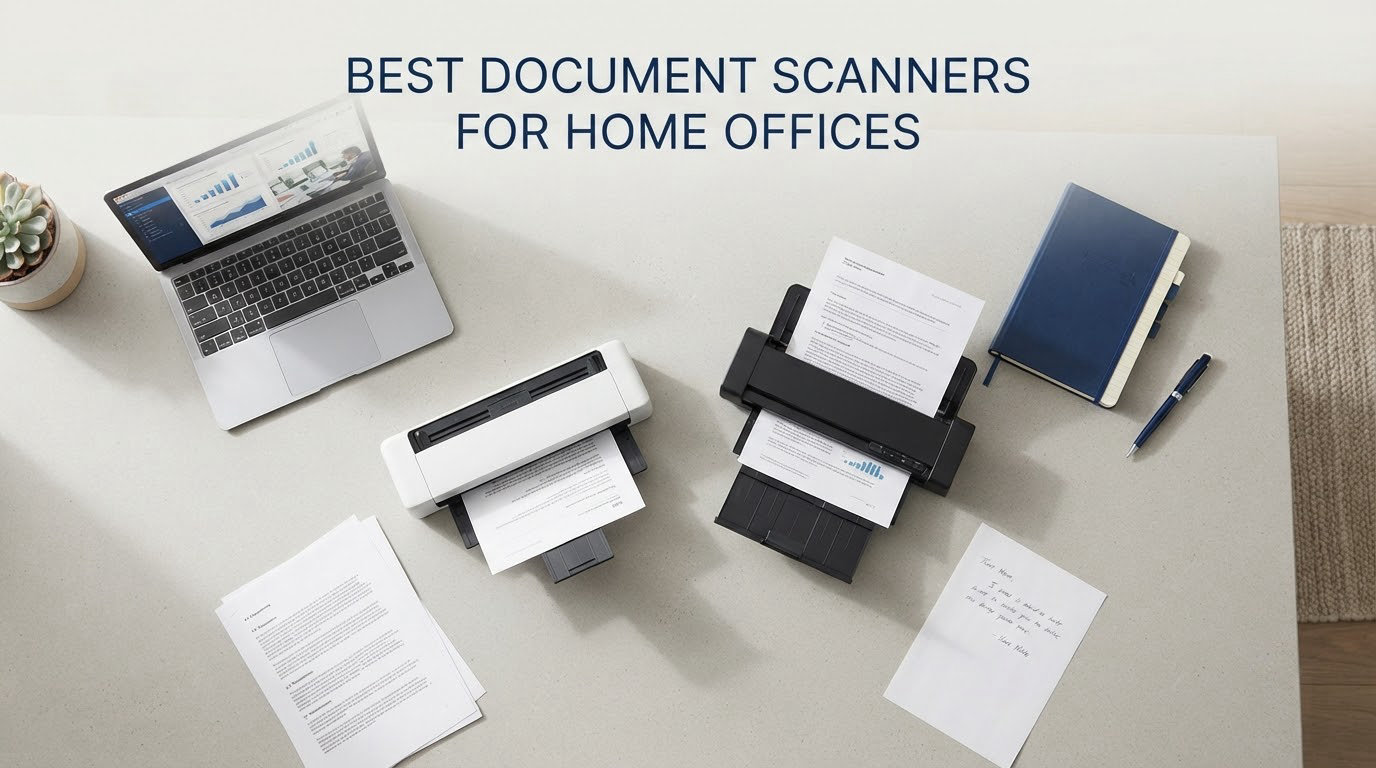
The best document scanner for a home office is the Brother DS-640 if you want proven, low-fuss scanning that thousands of owners rely on, the Doxie Pro DX400 if software quality matters more to you than anything else, and the ScanSnap iX2500 if you are clearing decades of paper at speed. Those three cover almost every home-office situation, and everything else in this roundup fills a specific gap: flatbed glass for photos, wireless desktop scanning, or a body thin enough to live in a laptop bag.
I spent weeks putting these ten machines through the same routine: a stack of mixed paperwork with receipts, double-sided forms and a few sheets of slightly warped card. I cared far more about how often a jam happened and whether the bundled software behaved itself than about the pages-per-minute figure on the box. That ordering matters, because forum users reach the same conclusion repeatedly: software stability and jam rate are what actually decides whether a scanner gets used or abandoned.
This roundup covers dedicated document scanners rather than the scanner built into an all-in-one printer, and it is aimed squarely at desks that have to work for a living. We looked at feeder capacity, duplex handling, optical resolution, connectivity, driver support across operating systems, desk footprint and warranty length. If you also want the wider field of scanners, our [general document scanner roundup](https://lockah.net/best-document-scanners/) covers office-grade machines that go beyond a home office.
Top 3 Picks: Document Scanners for Home Offices in 2026

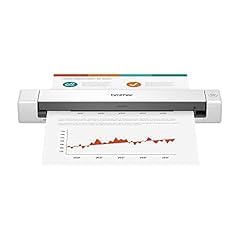
Brother DS-640
- 16 ppm color and monochrome
- One-sheet feed
- USB-powered at about 1 pound
- Windows Mac and Linux drivers
Doxie Pro DX400
- Automatic duplex at 22 ppm
- 20-sheet feeder
- Variable length up to 11x17 inches
- No-subscription software

The DS-640 takes the top slot because its review volume and consistency beat everything else here. The Doxie Pro has the highest average rating of the group at 4.6, but a much smaller owner base, so the DS-640 is the safer recommendation for a reader who just wants paper to go in and files to come out.
Best Document Scanners Compared in 2026
| Product | Specifications | Action |
|---|---|---|
| Brother DS-640 |
|
Check Latest Price |
| Doxie Pro DX400 |
|
Check Latest Price |
| ScanSnap iX2500 |
|
Check Latest Price |
 Epson WorkForce ES-580W Epson WorkForce ES-580W |
|
Check Latest Price |
 Canon CanoScan LiDE 300 Canon CanoScan LiDE 300 |
|
Check Latest Price |
 Epson WorkForce ES-400 II Epson WorkForce ES-400 II |
|
Check Latest Price |
 Brother DS-740D Brother DS-740D |
|
Check Latest Price |
 Canon imageFORMULA R10 Canon imageFORMULA R10 |
|
Check Latest Price |
 Epson WorkForce ES-50 Epson WorkForce ES-50 |
|
Check Latest Price |
 ScanSnap iX1300 ScanSnap iX1300 |
|
Check Latest Price |
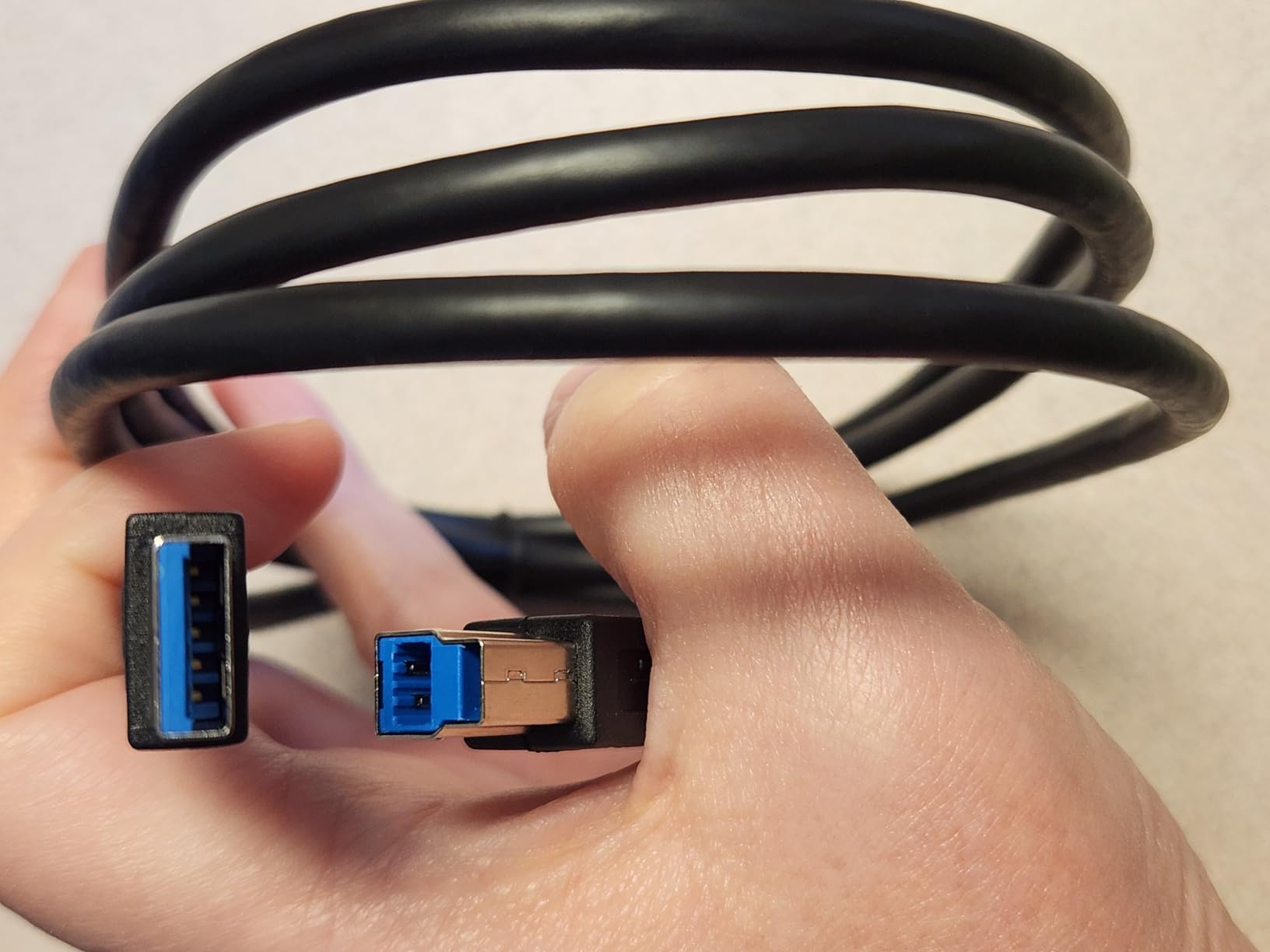
Two numbers in that table deserve a note before the reviews. Feeder capacity tells you how much paper fits in one load, and speed tells you how fast it clears. Neither matters much if the software is unreliable, which is why every review below spends time on the software side.
1. Brother DS-640 Review – the most proven compact scanner
Brother DS-640 Compact Mobile Document Scanner, (Model: DS640)
300 dpi
16 ppm color and monochrome
1 lb
11.9 in wide
Windows, Mac and Linux
Pros
- Very small and lightweight at about 1 pound
- Color scanning runs at the same speed as black and white
- Single USB cable powers and connects
- Automatic color detect and rotation run without intervention
- Clean software with one-tap folder shortcuts
Cons
- Single-sided only so two-sided pages need two passes
- Bundled cable is micro USB
- Some owners report false jam errors on long receipts
The DS-640 is the one I recommend without hesitation to a first-time scanner buyer. It measures under 12 inches long and weighs about a pound, so it disappears into a drawer when it is not being used and fits in a laptop bag when you are working away from home. Nothing else in this roundup has that combination of small size and an owner base large enough that failures would have surfaced.
It scans color and black-and-white at the same 16 ppm, which means a color receipt does not cost you extra waiting time. Automatic color detect, rotation, bleed-through removal and text enhancement all run without intervention, so a mixed stack of receipts and forms comes out tidier than I expected.
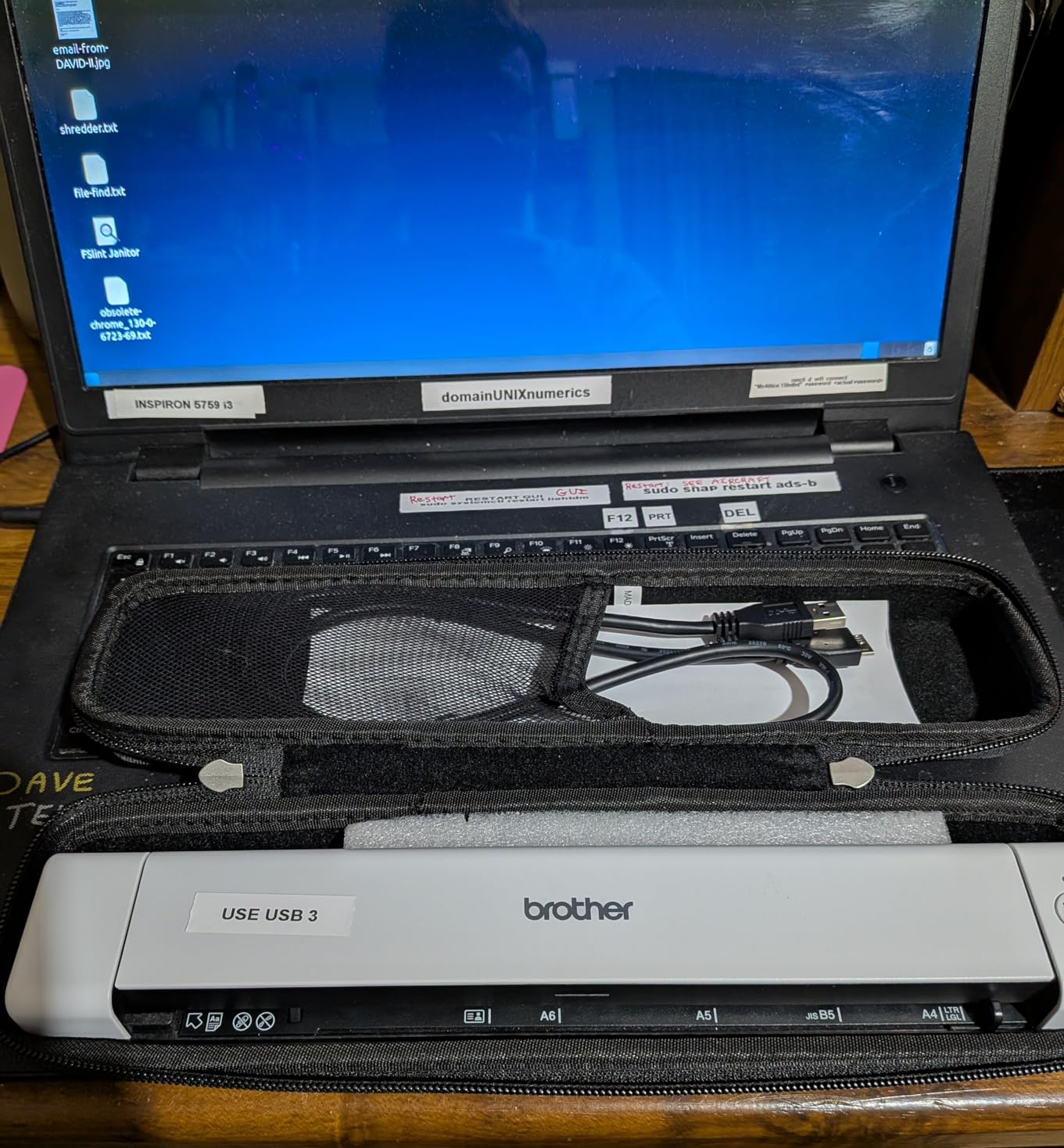
The single included micro USB 3.0 cable both powers the unit and carries the data, so there is no power brick to lose or a socket to find. On a modern USB-C-only laptop you will need an adapter or your own cable, which is the one friction point that catches people out.
Brother’s iPrint&Scan app handles scan-to PC, network, cloud, email and OCR destinations, and the one-tap folder shortcuts are the part I ended up using daily. Automatic blank page removal is not advertised, so blank sides do end up in the output, but a quick preview catches that quickly.
Who the DS-640 suits
Buy this if you scan a few receipts, a signed form or a permission slip at a time and you want something that costs you no desk space. It is the strongest choice for someone who wants a first scanner without committing to a machine that dominates the corner of the desk.
It is also the pick for Linux users. Brother supplies TWAIN/WIA, ICA and SANE drivers, and owners confirm it pairs well with third-party tools like NAPS2.
Where the DS-640 falls short
It is single-sided, so a two-sided form means feeding the sheet twice and merging the files by hand. If double-sided paperwork is your normal week, the Doxie Pro or the DS-740D handles it properly in one pass.
A recurring minority complaint is a false jam error on long receipts, which usually clears by unplugging and reconnecting the cable. Settings are also buried a layer deeper than I would like, so the first session takes a few minutes of clicking.
2. Doxie Pro DX400 Review – best software and true duplex in a small body
Doxie Pro – Duplex Document Scanner and Receipt Scanner for Home and Office with Amazing Software for Mac and PC
600 dpi
Automatic duplex at 22 ppm
20-sheet feeder
12 in wide,3.94 in deep
Pros
- Automatic duplex scanning in a compact body
- 600 dpi at up to 22 pages per minute
- Variable scan length handles 11x17 items
- Software needs no subscription
- Collapsible feeder and direct feed slot
Cons
- Wired USB only
- No official Linux version of the software
- 20-sheet feeder jams if overfilled
- Photos are its weakest area
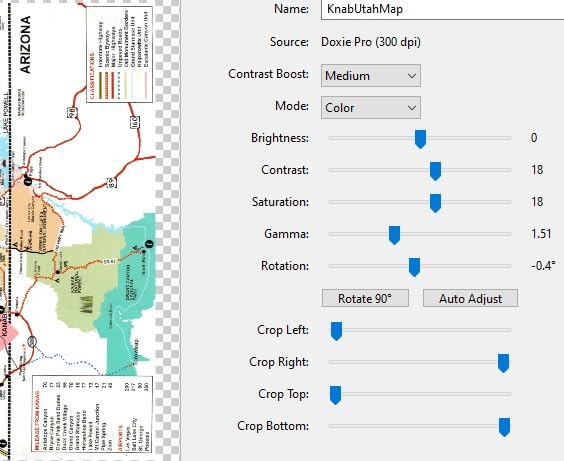
The Doxie Pro DX400 carries the highest average rating in this group at 4.6, with 83% of reviews at five stars, and the reason is the software rather than the hardware. Doxie’s app opens, processes and sends files to Dropbox, Evernote, OneNote and iCloud with stitch, crop, rotate and contrast tools built in, and there is no subscription to remember. On forum threads, bundled software is the single most common reason people abandon a scanner, and this is the one that gets recommended as the antidote.
It scans 600 dpi color or black-and-white at up to 22 pages per minute with automatic duplex, meaning both sides of a sheet are captured without flipping. The 20-sheet feeder collapses flat when you are not using it, and a direct feed slot takes a single thick or delicate item that the rollers would not grip.
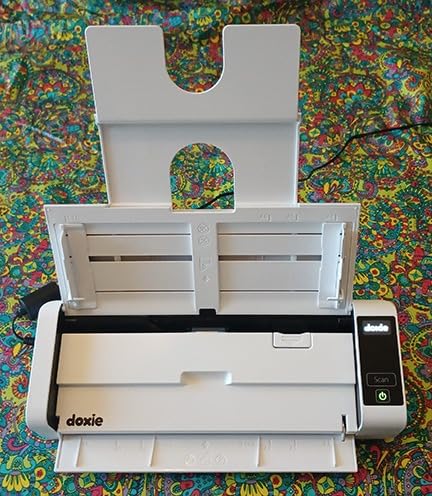
Variable scan length is the quietly useful feature. Documents up to 11 by 17 inches and unusually long receipts scan in a single pass, which is more than most compact feeders manage. The body measures 11.75 by 4 by 3 inches and weighs just over 3 pounds, so it stores in a desk drawer and travels without a case.
USB and USB-C cables plus multi-region power adapters are in the box, which removes the cable guesswork the Brother units create. It is a wired design, so a computer has to be nearby for every session.
Who the Doxie Pro suits
This is the one to buy if you are tired of scanning software and want the finished PDF to look right the first time. If two-sided forms or double-sided contracts are routine, it does that automatically in a body that still fits a modest desk.
Anyone who scans mixed sizes in one session will appreciate the 11×17 variable length. Freelancers handling client paperwork fall squarely into that group.
Where the Doxie Pro falls short
The 20-sheet feeder is the first thing that gives way. Overfill it and you get multi-feed jams, so large archive jobs need several loads. It is also wired only, and there is no official Linux version of the software, which rules it out for a Linux-only machine.
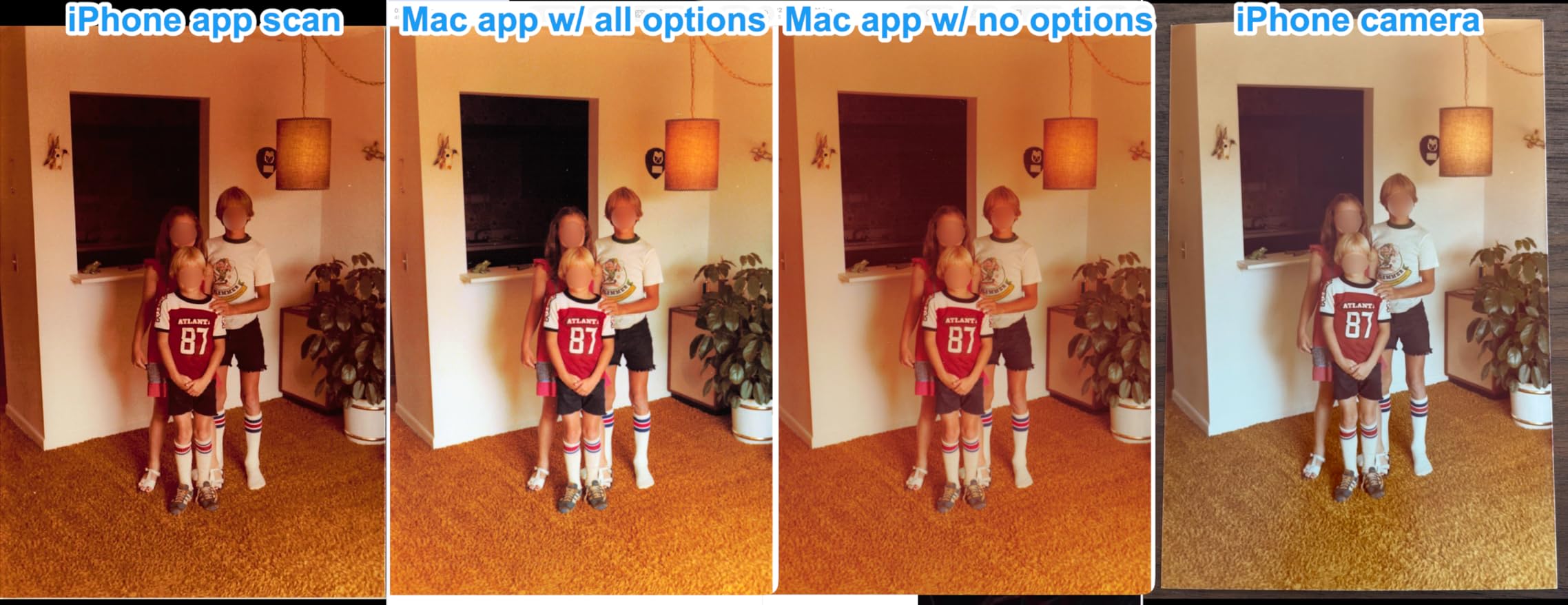
Photos are the weakest area. Reviewers report jams on photographic paper more often than on documents, so if photo digitizing is your main task, the Canon flatbed is the better tool.
3. ScanSnap iX2500 Review – fastest duplex scanning with a 100-sheet feeder
ScanSnap iX2500 Wireless or USB High-Speed Document Scanner, Black
600 dpi
45 ppm double-sided
100-sheet feeder
Wi-Fi 6 and USB-C
7.7 lbs
Pros
- Very fast duplex throughput
- 100-sheet feeder takes thick stacks in one load
- Large touchscreen for named scan profiles
- Brake rollers and multi-feed sensors reduce jams
- Scans to PC
- Mac
- mobile and cloud
Cons
- ScanSnap Home is the required software with no native TWAIN
- Setup and documentation can be demanding
- 7.7 pounds and a wide footprint
- Occasionally stubborn about waking from sleep
When there is a real backlog, the iX2500 is the machine that clears it. It scans 45 pages per minute double-sided from a 100-sheet automatic document feeder at 600 dpi, so a stack of receipts or a thick contract set finishes before you have made a cup of coffee. It is the upgraded replacement for the discontinued ScanSnap iX1600, which matters if you have read older roundups recommending that model.
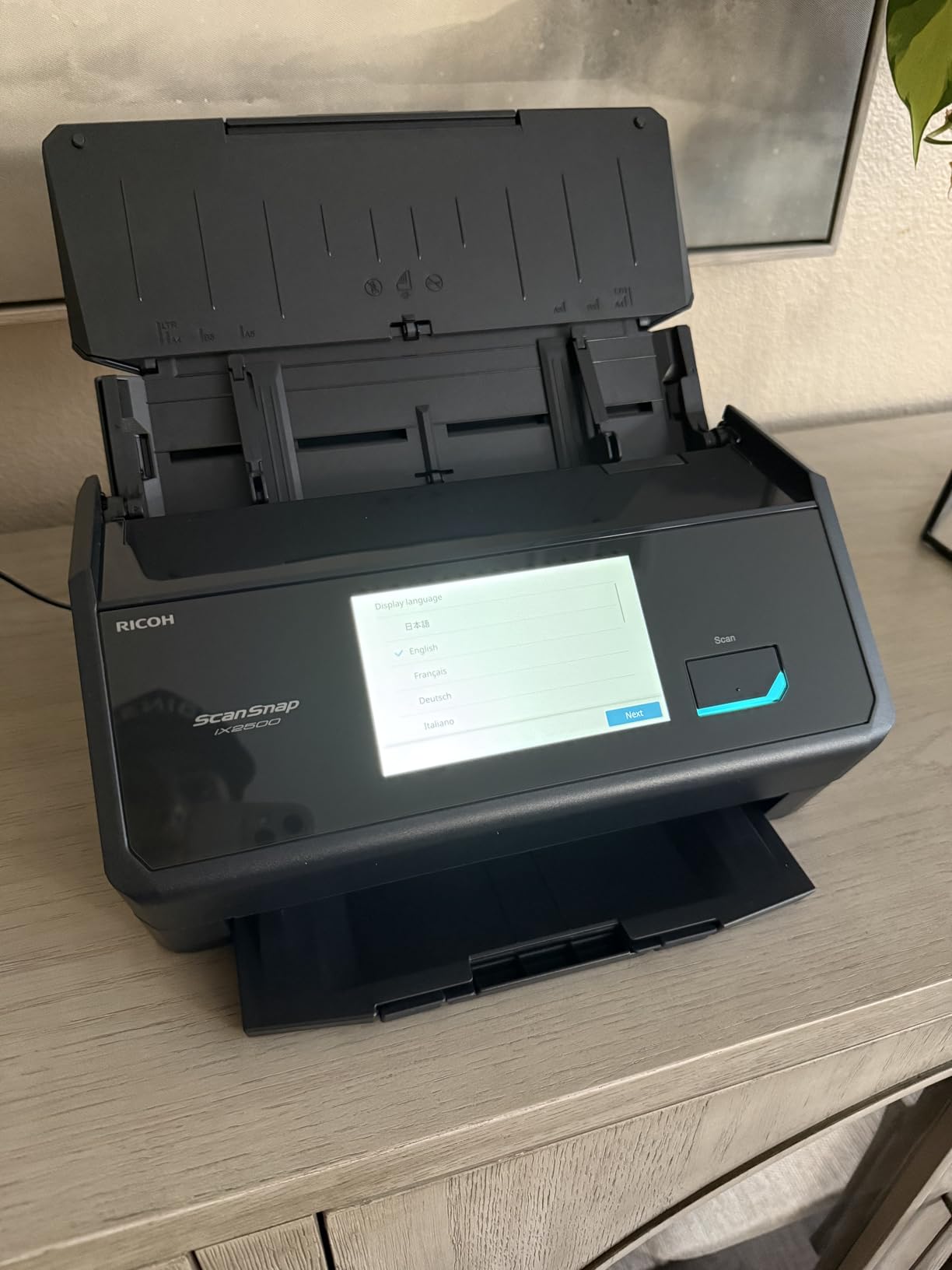
The large touchscreen is used to pick named scan profiles rather than to hunt through menus, and the machine handles automatic optimization, file naming and sorting of the output. Brake rollers, a multi-feed sensor and skew detection work together to cut down the double-feeds that plague cheap feeders.
Wi-Fi 6 and USB-C let it reach a PC, a Mac, a phone or a cloud destination, and it can do that without a computer in the loop. Automatic page detection removes the guesswork from a mixed stack.
Owners report a 34-page stack clearing in seconds and a several-hundred-page document finishing in minutes, and 74% of reviews are five stars. The build feels closer to office equipment than to a home gadget, which is exactly why it is heavy.
Who the iX2500 suits
Buy this if you are converting a decade of tax records, client files or school paperwork into a digital archive in one weekend. The 100-sheet feeder and 45 ppm speed are wasted on a handful of receipts, and this is the honest reason it is not the top pick overall.
It also suits anyone who wants to scan without a computer in the room, since Wi-Fi 6 and the touchscreen handle routing on their own.
Where the iX2500 falls short
ScanSnap Home is the required ecosystem. There is no native TWAIN support and no Linux version, so if your workflow depends on a specific document management package that talks to TWAIN, this will not drop into it.
At 7.7 pounds and 11.5 by 6.26 inches it is a permanent desk object rather than a portable one. Setup and documentation are thinner than the hardware deserves, and owners occasionally report it sleeping deeply enough to need a power cycle. Our [portable document scanner guide](https://lockah.net/best-portable-document-scanners/) covers lighter options if desk space is the problem.
4. Epson WorkForce ES-580W Review – wireless desktop scanning with a touchscreen
Epson Workforce ES-580W Wireless Color Duplex Desktop Document Scanner
300 dpi
35 ppm duplex
100-sheet feeder
4.3 inch touchscreen
Wi-Fi
Pros
- 100-sheet feeder handles mixed paper types and sizes
- Touchscreen speeds up choosing scan destinations
- Wireless scanning to phones
- tablets
- USB and cloud
- OCR plus automatic image adjustments
- Fast 35 ppm duplex throughput
Cons
- Bulky desktop footprint
- Touchscreen is the only control surface so file setup takes learning
- Network folder scanning depends on network configuration
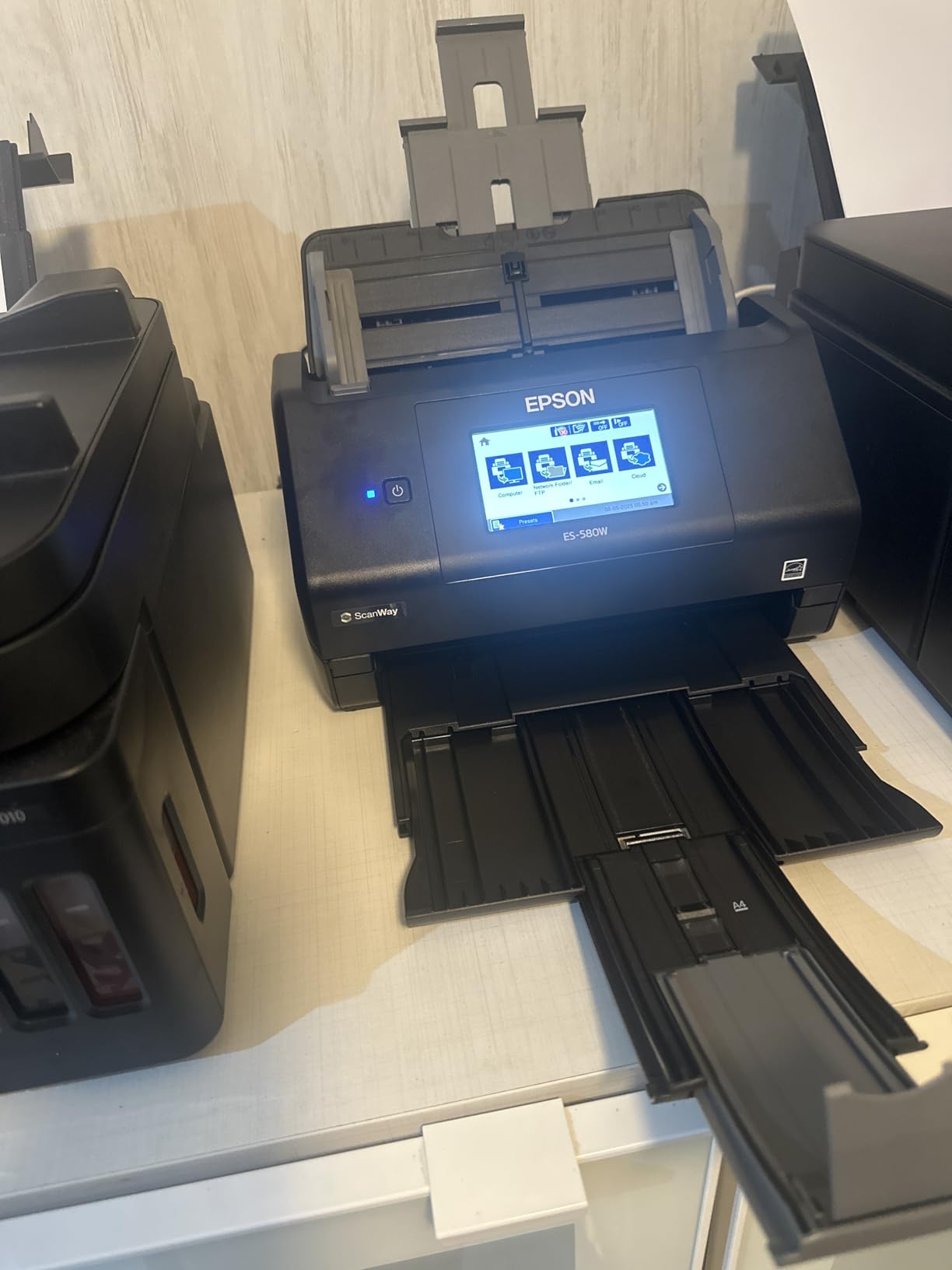
The ES-580W is the Epson answer to a specific home-office problem: a large backlog and a shared room where nobody wants a computer switched on. Its 100-sheet automatic document feeder takes mixed paper types and sizes, and it runs up to 35 pages per minute duplex using Epson’s Single-Step double-sided capture, which grabs both sides in one pass through the machine.
The 4.3 inch touchscreen is the centerpiece. You choose a destination on the panel and start, or scan wirelessly to a phone, tablet, computer, USB drive, email or a cloud service without a computer involved. 77% of reviews are five stars, and OCR produces searchable PDFs plus editable Word and Excel files.
Epson’s image processing does auto crop, blank page deletion, background removal, dirt detection and skew correction, so the cleanup step usually disappears. The 300 dpi optical resolution is right for text documents and receipts; it is not the machine for photographic work.
At 3.7 kg and 11.6 by 11.6 by 6.6 inches, it is the bulkiest desktop unit here. That footprint matters more in a home office than the spec sheet suggests, so measure the space before committing.
Who the ES-580W suits
This is the pick for a household where two adults share one desk and both need to scan without negotiating a USB cable. Wireless destinations mean either person can send a scan straight to their own phone or cloud folder.
Anyone running a side business with weekly paperwork will like the 100-sheet feeder combined with 35 ppm duplex. A TWAIN driver is included for Windows and Mac, which matters more than usual here.
Where the ES-580W falls short
It occupies a large permanent square of desk, and the touchscreen is the only control surface, so the first session of creating scan profiles takes some learning. Scanning to a network folder depends on how your network is configured, which is a common support call.
If your volume is light, you are paying for capacity you will not fill. The USB-only ES-400 II covers similar ground for less if wireless is not on your list.
5. Canon CanoScan LiDE 300 Review – the flatbed for photos, books and receipts
Canon Canoscan Lide 300 Scanner (PDF, AUTOSCAN, Copy, Send)
Optical 2400 x 2400 dpi
Flatbed glass platen
Letter and A4 bed
3.6 lbs
USB powered
Pros
- Genuinely good color and grayscale scans
- 2400 x 2400 dpi optical resolution
- Adds to macOS Printers and Scanners directly
- Slim 1.7 inch body fits a small desk
- USB powered with no adapter
Cons
- No document feeder so every page is placed by hand
- Letter and A4 bed only
- Canon IJ Scan Utility has a learning curve
- Some owners hit scanner busy errors
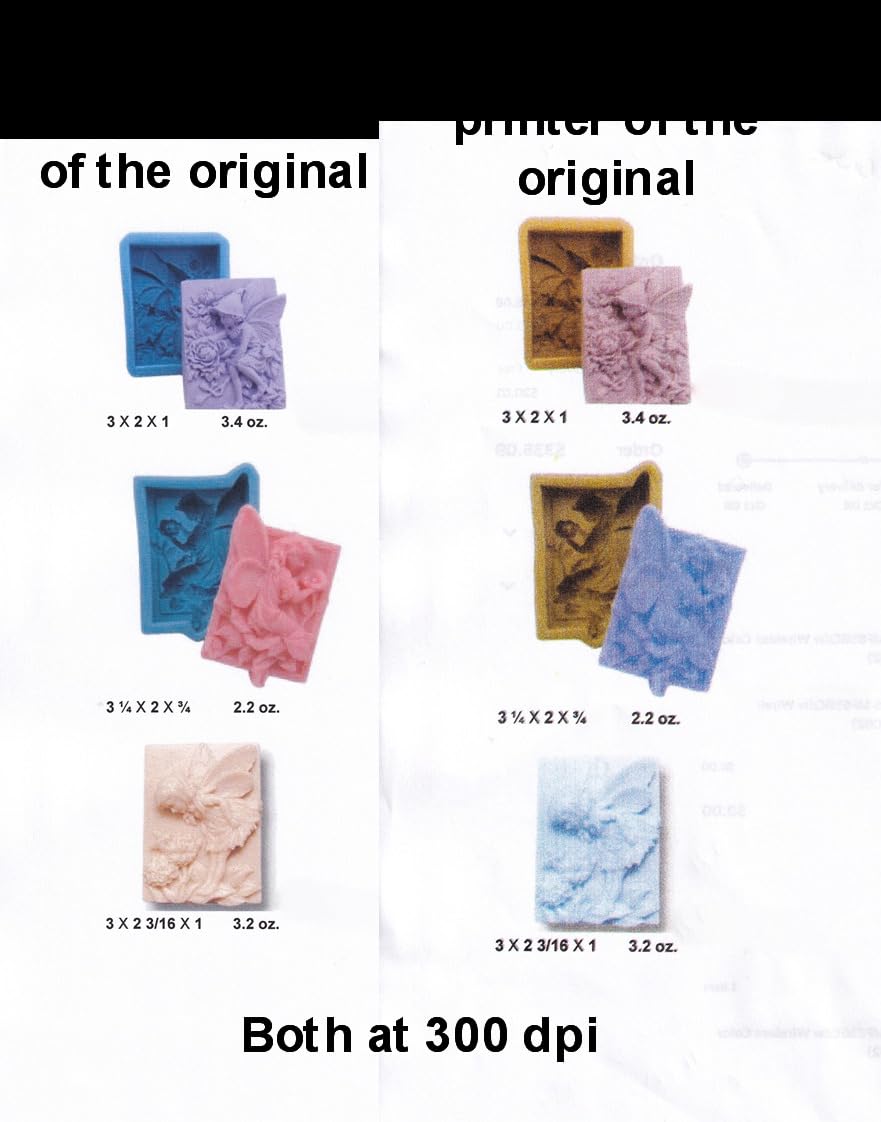
A flatbed is the right tool for anything that cannot survive a set of rollers: photographs, film, artwork, diplomas, a bound book opened face down. The LiDE 300 does that with an optical resolution of 2400 by 2400 dpi, and 66% of its reviews are five stars, which is respectable for a machine this simple.
Auto Scan Mode detects what is on the glass and picks settings for you, which removes most of the decision-making. Canon IJ Scan Utility handles auto crop and multi-page PDF output, and the unit is USB powered so there is no adapter to plug in.
The body is 14.5 by 9.9 by 1.7 inches and slim enough to stand on a shelf beside the printer. At 3.6 pounds it stays put once you set it down. There is a document, photo, receipt and business card mode, and the machine has proven itself for bulk digitizing when you accept the manual page placement.
One thing worth knowing before you buy: on macOS you can add it in Printers and Scanners with no extra software, which is the smoothest Mac setup of any flatbed here.
Who the LiDE 300 suits
Buy this if photos, film or bound material are part of what you digitize. On dpreview forums, Epson’s V600 and V800 are the usual answer when documents and photographs both have to be scanned, and the LiDE 300 plays the same role at a lower resolution and price.
It is also the sensible companion to a sheetfed scanner: run your paper stacks through a feeder and bring the awkward originals to the glass.
Where the LiDE 300 falls short
There is no document feeder, so every page is placed by hand. The bed is letter and A4 only, so larger artwork has to be scanned in overlapping sections.
Canon IJ Scan Utility is described as clunky with a real learning curve, and some Mac owners hit intermittent scanner busy errors that need a software reinstall. Scanning is noticeably loud at the faster speed settings, which matters in a room where you also take calls. Our [executive desk guide](https://lockah.net/best-executive-desks-for-home-offices/) covers setups where a quiet zone matters.
6. Epson WorkForce ES-400 II Review – the dependable USB desktop feeder
Epson Workforce ES-400 II High-Speed Color Duplex Desktop Document Scanner
300 dpi CCD
50-sheet feeder
Color duplex
USB with TWAIN
3.7 kg
Pros
- 50-sheet feeder handles multi-page stacks
- Reliable duplex with ultrasonic double-feed detection
- ScanSmart handles file naming and cloud uploads
- OCR produces searchable PDFs and Office files
- Auto crop
- blank page and background removal
Cons
- USB only so a computer must be nearby
- No wireless or network scanning
- Large desktop footprint
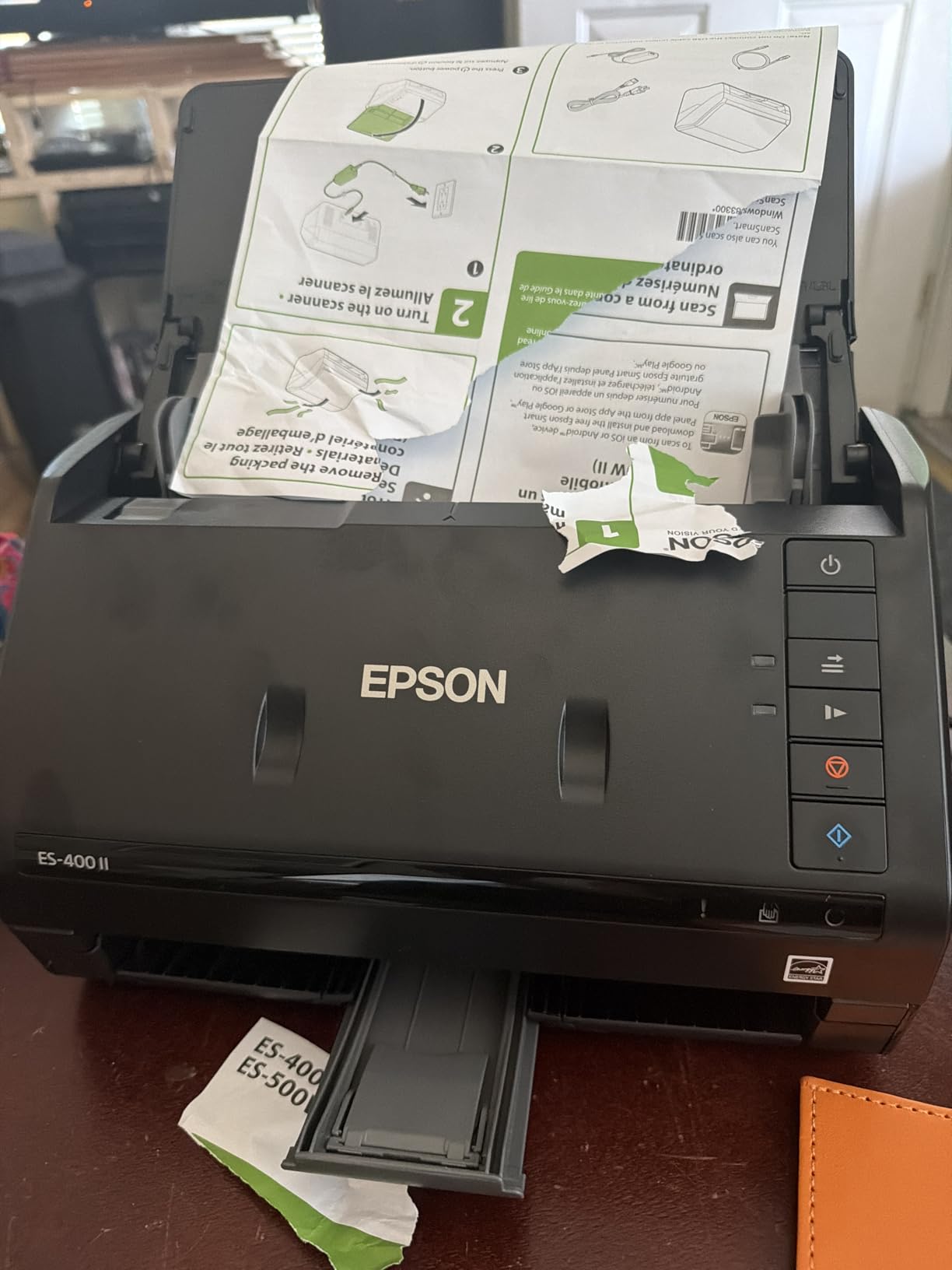
The ES-400 II is the plainest answer to the question of whether a home office needs a dedicated scanner at all, and at 4.5 stars across more than 1200 reviews it is one of the most consistently well-regarded machines in the group. Owners consistently point to the 50-sheet feeder, duplex reliability and searchable PDF output as the reasons it earns its place, with 77% five-star ratings.
Duplex scanning uses ultrasonic double-feed detection and dynamic skew correction, so a two-sided document goes through without the second side landing crooked. The feeder takes 50 sheets, which is enough for most sessions without a refill.
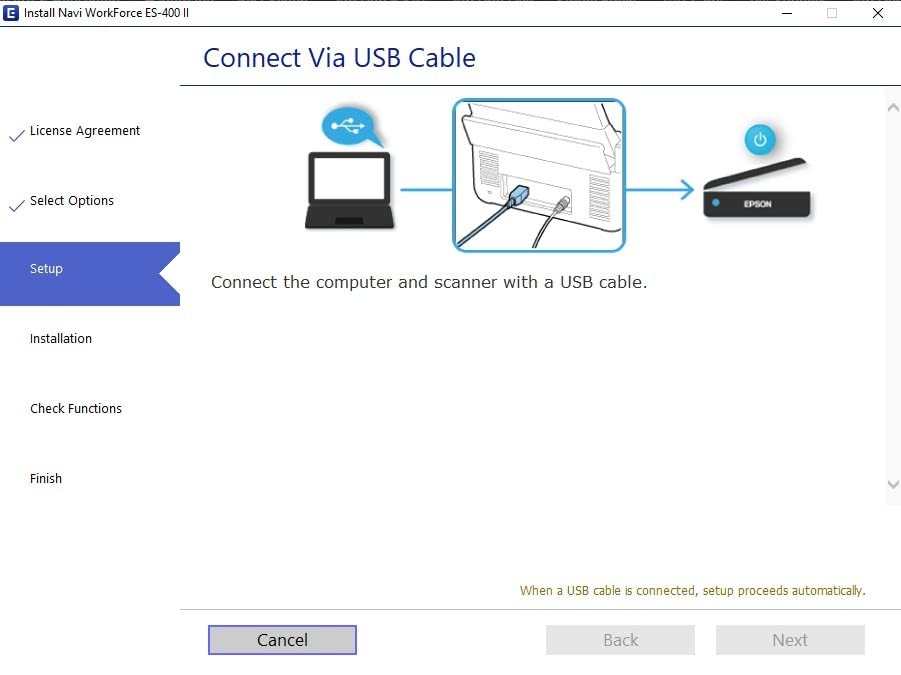
Epson ScanSmart previews the page, names the file and can upload to email, Dropbox, Evernote, Google Drive and OneDrive. OCR output is editable in Word or Excel, and Epson’s image processing handles auto crop, blank page removal and background removal so receipts lift off the page cleanly.
It is a CCD sensor at 300 dpi and 8 bpp, and it is PC and Mac compatible with a TWAIN driver included. The unit weighs 3.7 kg and measures 11.6 inches square by 6.9 inches tall.
Who the ES-400 II suits
This is the pick for someone who wants dependable duplex batch scanning and does not care about wireless. If you work from a laptop at the same desk every day, USB is not a limitation and you avoid any network configuration entirely.
The included TWAIN driver means it drops into third-party document tools, which the ScanSnap models in this roundup do not. Paperless-focused home offices with a steady stream of forms and receipts are the classic case.
Where the ES-400 II falls short
It is USB only. There is no wireless or network scanning option, so a second person in the room cannot use it without walking the cable over, and the ES-580W is the alternative when sharing matters.
The footprint is large for a home desk, and the single-sheet-per-cycle throughput is slower than the higher-end desktop feeders. Firmware that depends on Epson’s software is the other recurring thread, and the data shows a minority of owners noting a larger desk footprint and the wired setup as their only gripes.
7. Brother DS-740D Review – portable duplex scanning
Brother DS-740D Duplex Compact Mobile Document Scanner
300 dpi CCD
Duplex single-pass at 16 ppm
25-sheet feeder
1.4 lbs
11.85 in square
Pros
- Duplex single-pass scanning in a sub-12-inch body
- Desk Saving Design keeps the footprint slim
- One USB cable powers and connects
- Good Linux support with SANE drivers
- Handles receipts
- plastic and odd-sized documents
Cons
- False jam errors often need a USB reconnect
- Included micro USB cable is short and uncommon
- Paper size slider shifts when bumped
- 11x14 paper is out of scope
The DS-740D answers a specific request: duplex scanning in something you can actually carry. It scans both sides of a sheet in a single pass at up to 16 ppm, the same speed in color and monochrome, and the whole body is 11.85 inches square by 1.78 inches tall at 1.4 pounds.
Brother’s Desk Saving Design frees roughly 11 inches of desk space when the unit is in use, which is the trick that makes a duplex feeder live on a small desk. The included micro USB 3.0 cable handles both power and data, so it works in rooms with no free outlet.
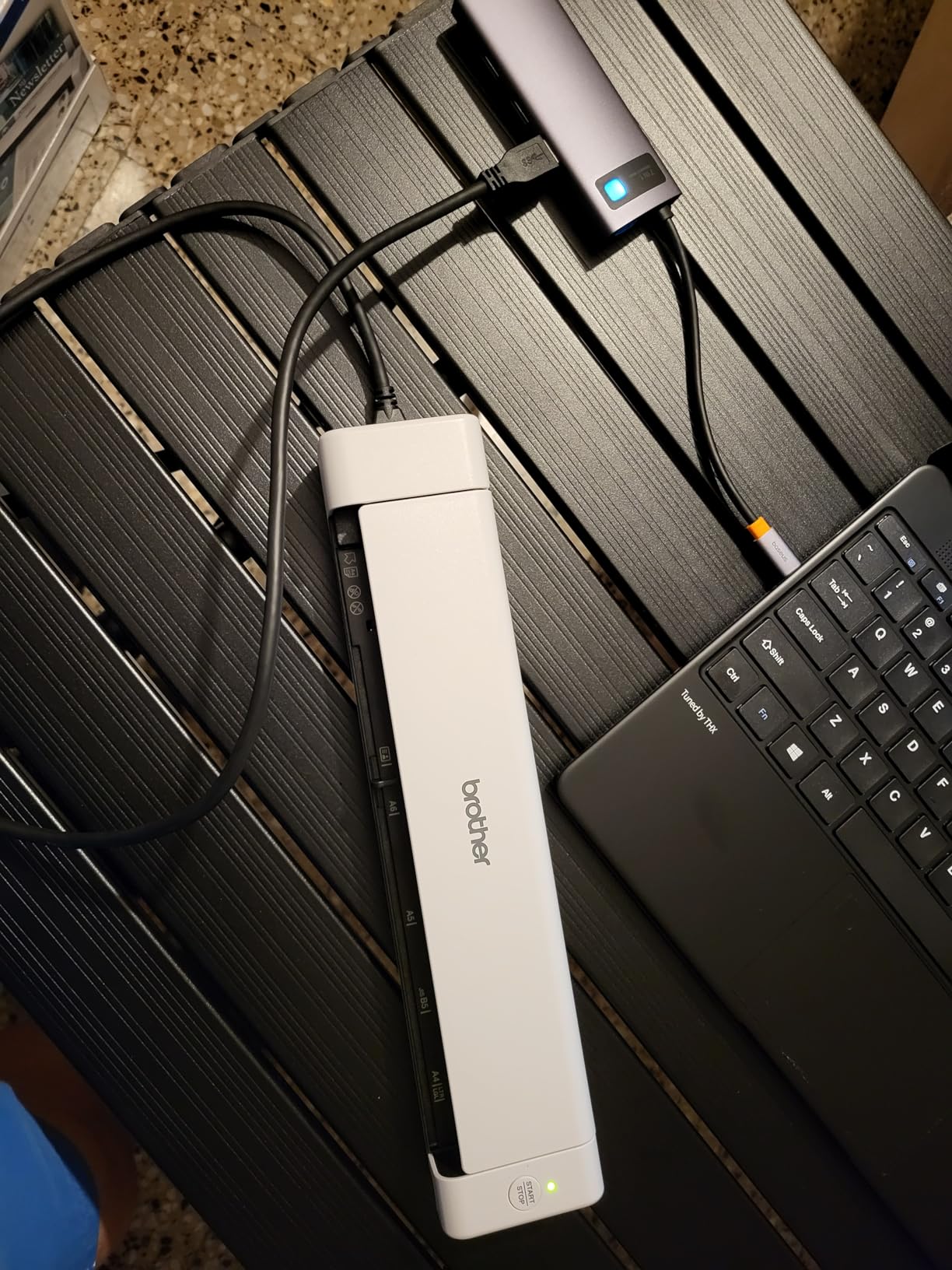
Automatic color detect and adjust, rotation, bleed-through removal and text enhancement run without intervention, and owners confirm the image quality holds up in third-party tools such as NAPS2 and SANE. Windows, Mac and Linux are all supported through TWAIN/WIA, ICA and SANE drivers.
The 25-sheet feeder is small but real, which is more than most portable models offer. It takes business cards, receipts, plastic cards and odd-sized documents, though 11×14 paper is out of scope.
Who the DS-740D suits
Buy this if you need two-sided scanning and have to move the machine between a home desk and a second location. It is also a strong pick for Linux users who want duplex in a portable body.
Anyone with mixed card and receipt scanning will like the feeder that accepts plastic cards alongside paper. The Desk Saving Design is what makes it viable in a shared room.
Where the DS-740D falls short
The most prominent complaint is recurring false jam errors that clear only after a USB reconnect, which is disruptive when you are midway through a batch. The included cable is short and uses a connector that is not common on modern laptops.
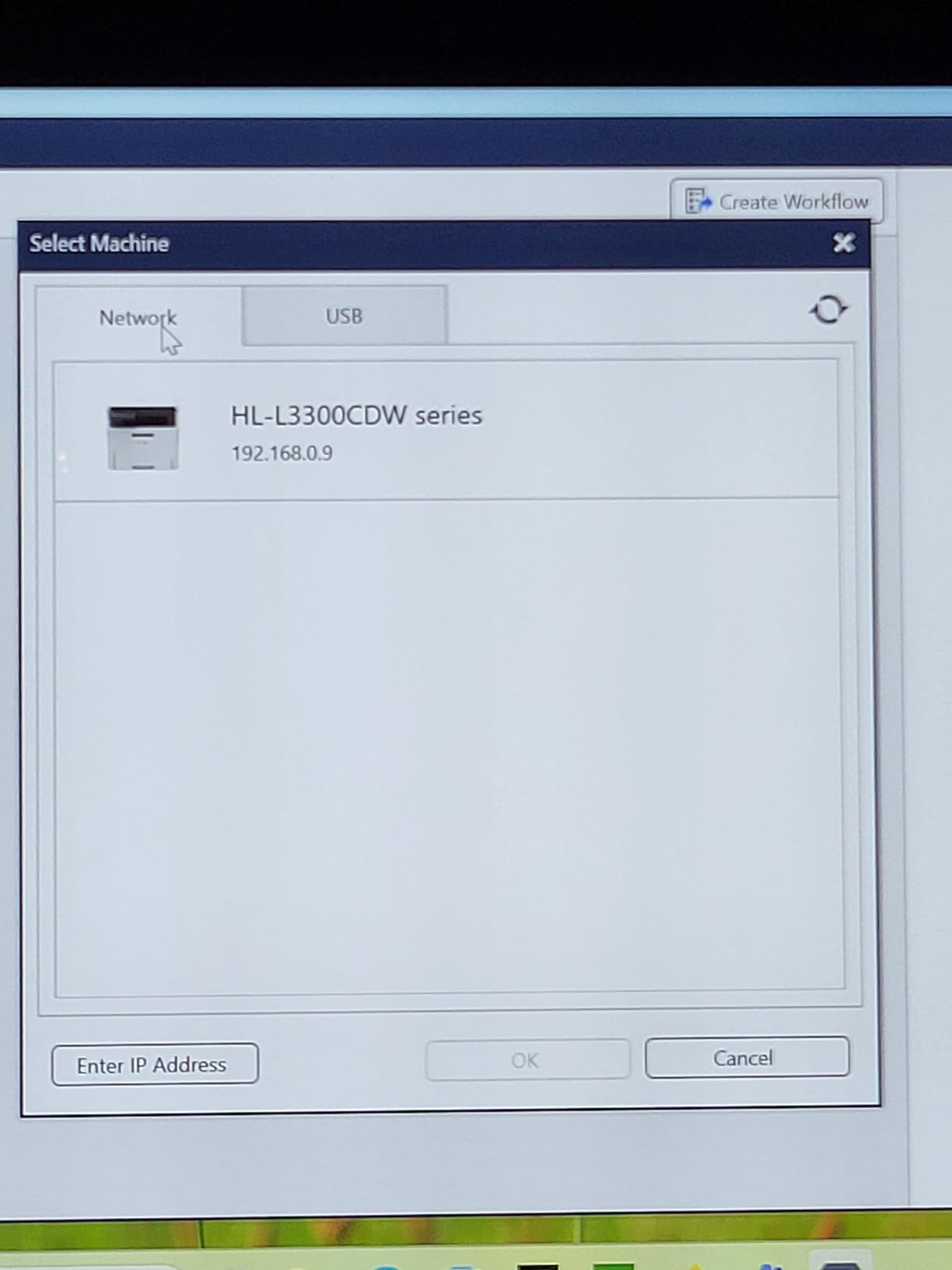
The paper size slider is also easy to bump out of position, and the Brother receipt software is described as clunky with tiny capture boxes that do not resize. For heavier stacks, the DS-640 family or a desktop feeder is a calmer experience.
8. Canon imageFORMULA R10 Review – a 20-sheet feeder with the software already built in
Canon imageFORMULA R10 – Portable Document Scanner, USB Powered, Duplex Scanning, Document Feeder, Easy Setup, Convenient, Perfect for Mobile Users, White
600 dpi
Duplex at 12 ppm
20-sheet feeder
USB powered at 2.5W
998 g
Pros
- Compact and light enough to move between home and office
- Duplex scanning with a 20-sheet feeder
- Built-in CaptureOn 200 software needs no driver setup
- 600 dpi handles receipts
- cards and plastic
- ENERGY STAR certified
Cons
- Not intended for photographs or photo paper
- Slower than desktop feeders in the same class
- Weakest four-star average of the portable feeders here
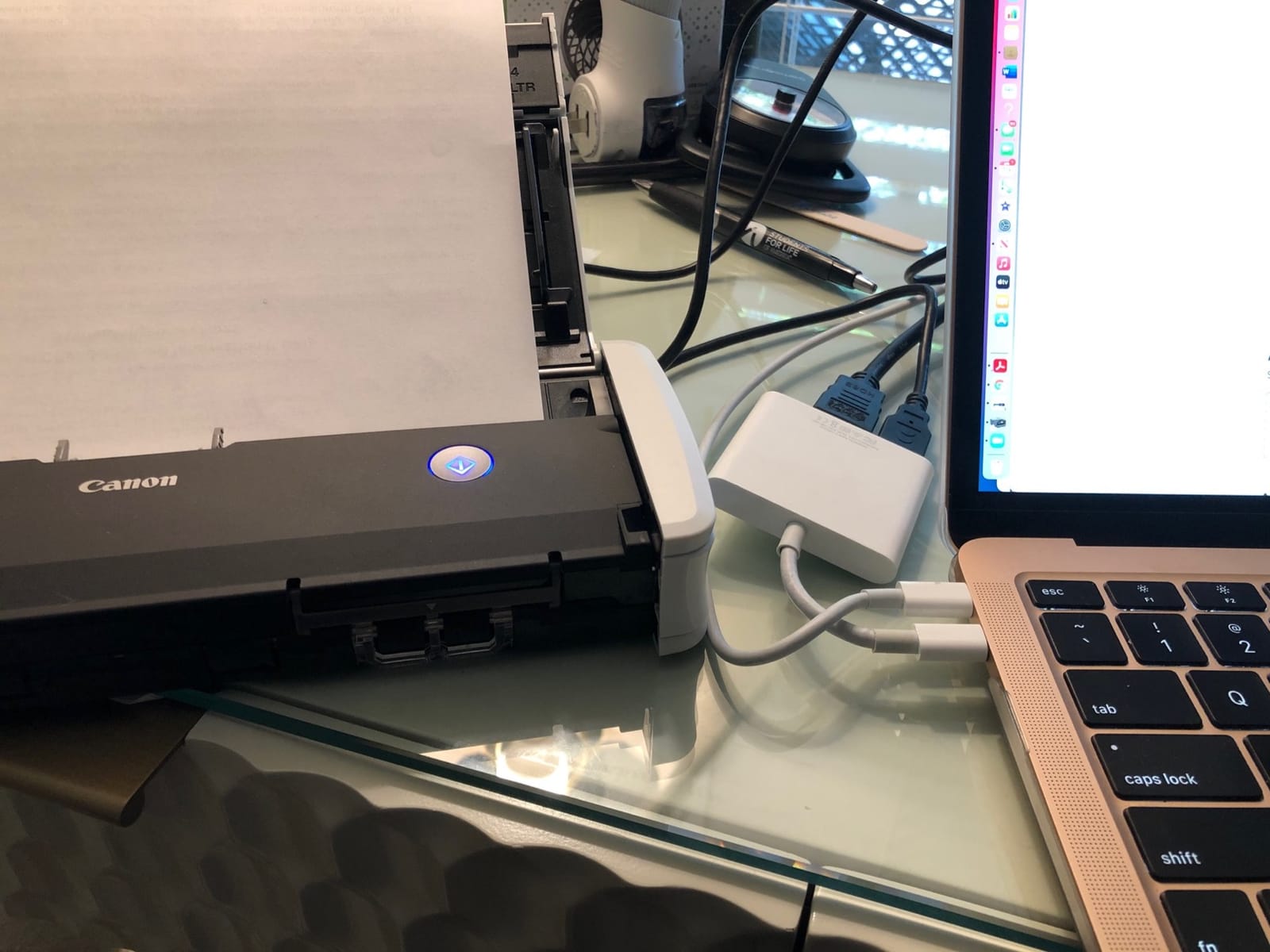
The imageFORMULA R10 is the middle ground between a bare-bones mobile sheet and a full desktop feeder. It scans duplex at up to 12 pages per minute from a 20-sheet automatic document feeder, and the feeder folds away when you want the direct feed path for thick or single items. CaptureOn 200 is built into the unit, so there is no separate driver to install before you start.
It runs off USB power at 2.5W with a 0.7W energy saving mode and carries an ENERGY STAR certification, which is a sensible combination for a machine left plugged in at a home desk. The suggested daily volume is 500 scans, comfortably above what most home offices put through a shared machine.
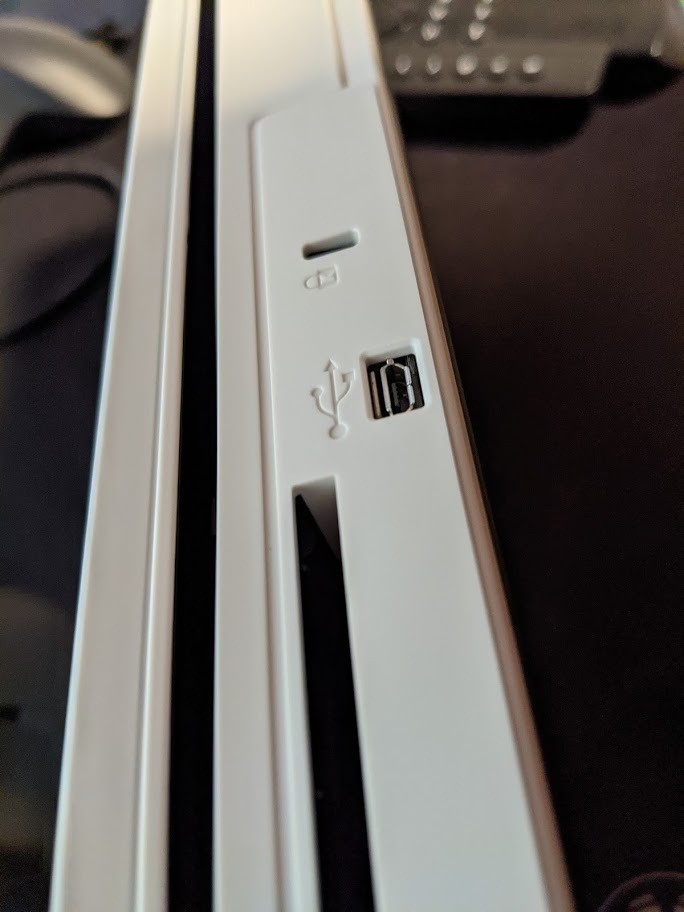
At 600 dpi the output handles receipts, business cards and plastic cards, which is where the extra resolution over a 300 dpi machine actually earns its place. Body dimensions are 11.22 by 3.74 by 1.57 inches at 998 grams, and it works with both Windows and Mac.
The advanced exchange one-year warranty is a better service commitment than the contact-manufacturer terms on some cheaper units. That matters if a feeder roller fails in year two.
Who the imageFORMULA R10 suits
This is the pick when you want duplex in a compact body and you would rather not configure anything. Built-in software with automatic updates removes the installation step that frustrates people with new operating systems.
If your scanning is dominated by receipts, business cards and plastic identity cards, 600 dpi is the right resolution and the feeder takes a real stack rather than one sheet. People who split their week between two rooms will find it light enough to move.
Where the imageFORMULA R10 falls short
It is not intended for photographs or photo paper, so keep it away from your photo digitizing. It is also slower than other units at a similar class level, and 12 ppm is a real wait on a big backlog.
Its 4.1 average is the lowest of the portable feeders here, and the share of one-star ratings is elevated relative to the four-star share, which points to reliability complaints rather than feature gaps. Buyers who want a stronger warranty and higher rated portable duplex should look at the Brother DS-740D instead.
9. Epson WorkForce ES-50 Review – the thinnest and lightest scanner here
Epson Workforce ES-50 Compact & Lightweight Mobile Document Scanner
1200 dpi CIS
One page per pass
Documents up to 8.5 x 72 inches
9.44 oz
USB 2.0
Pros
- Under 1 inch tall and 9.44 ounces
- USB powered with no batteries or power supply
- Handles legal pages and very long receipts in one sheet
- ScanSmart OCR and cloud scanning included
- Single pages in about 5.5 seconds
Cons
- One sheet at a time with no feeder
- No paper alignment guides so pages must be lined up by hand
- Some owners report black streak artifacts
- USB only
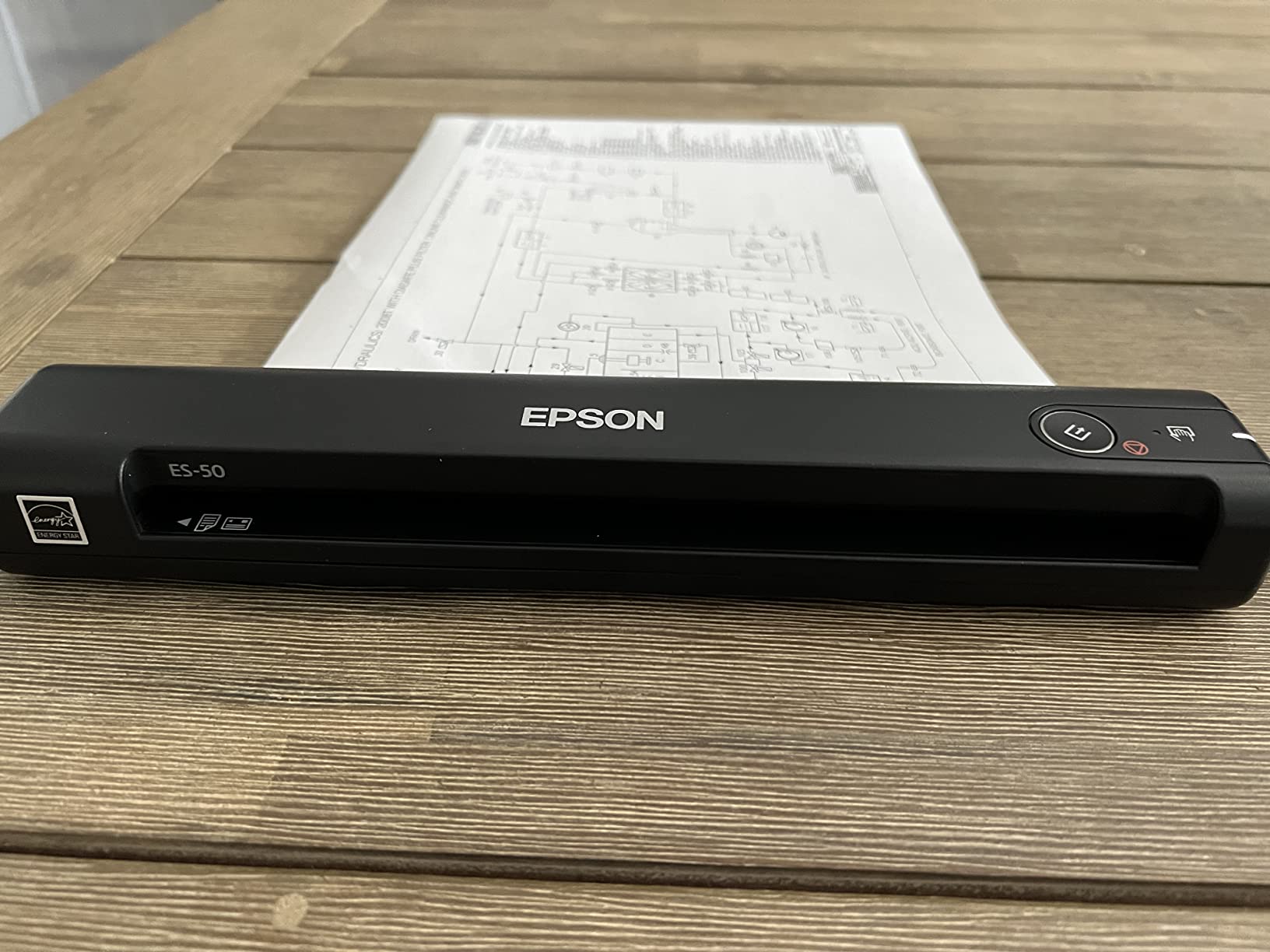
The ES-50 is the extreme of the portable end. It is 10.7 inches square, 1.3 inches tall and weighs 9.44 ounces, so it lives in a drawer and travels in a backpack without becoming a desk object. It is USB powered, with no batteries and no external power supply, and a single page takes about 5.5 seconds.
Resolution is 1200 dpi through a CIS sensor, and it handles documents up to 8.5 by 72 inches in one sheet, which covers long receipts, narrow thermal paper and legal-size pages. Automatic feeding mode keeps feeding pages and merges them into a single file, so you can still produce a multi-page PDF without a feeder, one sheet at a time.
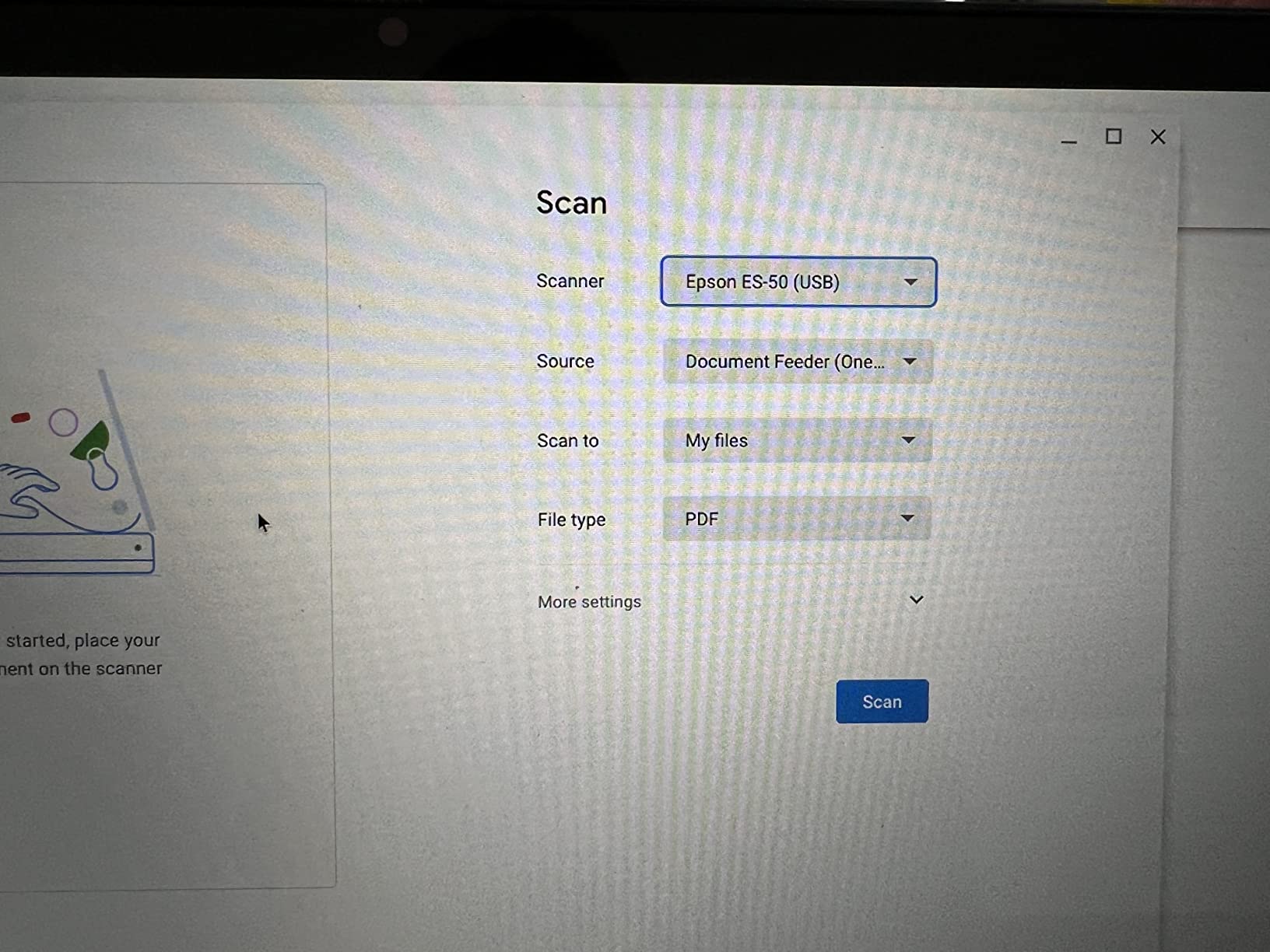
Epson ScanSmart includes Nuance OCR for searchable PDFs and editable Word and Excel files, plus cloud destinations at no extra cost, and a TWAIN driver is supplied for both Windows and Mac. 72% of reviews are five stars, and the enthusiasm clusters around footprint, power and cost of ownership rather than throughput.
What you give up is obvious: there is no automatic document feeder, and there are no paper alignment guides, so every page has to be lined up by hand with care. That is fine for a signed form and frustrating for forty pages.
Who the ES-50 suits
Buy this if you scan a few things a week and want the machine to cost no desk space at all. Storing it in a drawer between uses is the use case it was designed around, and the warranty terms are listed as contact manufacturer, so check the current terms before you rely on it for work.
Anyone archiving unusually long receipts or narrow thermal paper will appreciate the 72 inch maximum length. It is also a good travel companion for someone who works away from home for a few days at a time.
Where the ES-50 falls short
One sheet at a time with no feeder is the whole design, and there are no paper guides to help you line pages up. If you have more than a handful of pages, a feeder model will save you real time.
A minority of owners report recurring black streak artifacts on scans that cleaning did not resolve, which is the single most serious complaint in the reviews. It is also USB only, so a wireless model is required for network sharing. If you want portability with a feeder, the Brother DS-640 is the step up.
10. ScanSnap iX1300 Review – compact Wi-Fi scanning without a computer
ScanSnap iX1300 Wireless or USB Double-Sided Color Document Scanner, Black
600 dpi
30 ppm duplex
20-sheet feeder
Wi-Fi and USB
4.4 lbs
Pros
- 30 pages per minute duplex with automatic image correction
- Wi-Fi plus USB means scanning without a computer
- Vertical design keeps the footprint small
- QUICK MENU makes routing scans to apps quick
- Handles thick items and plastic cards
Cons
- 20-sheet feeder is small for bulk jobs
- ScanSnap Home can feel bloated for basic filing
- Software and firmware updates are frequent and sometimes disruptive
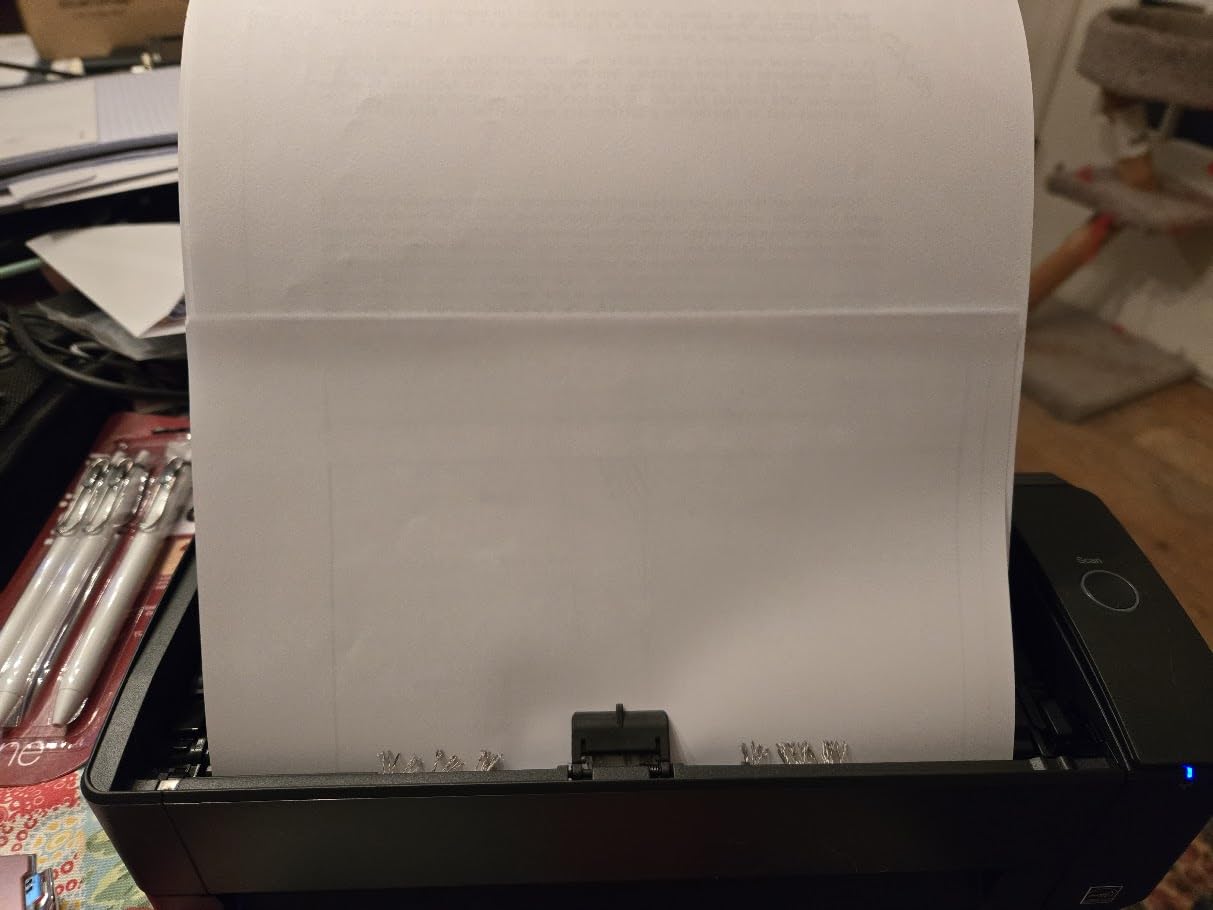
The iX1300 is the compact Wi-Fi option, and it is the one I would pick if a home office has one desk shared by two people who each scan to their own devices. It runs up to 30 pages per minute duplex at 600 dpi with automatic de-skew, color optimization and blank page removal, and the 20-sheet feeder handles documents, photos and plastic cards.
The vertical design is the physical selling point. At 4.5 inches deep by 11.7 inches wide by 3.3 inches tall and 4.4 pounds, it can stand in a vertical storage mode that keeps the desk footprint small, and it can scan to a Mac, PC, mobile device or cloud without a computer anywhere in the chain.
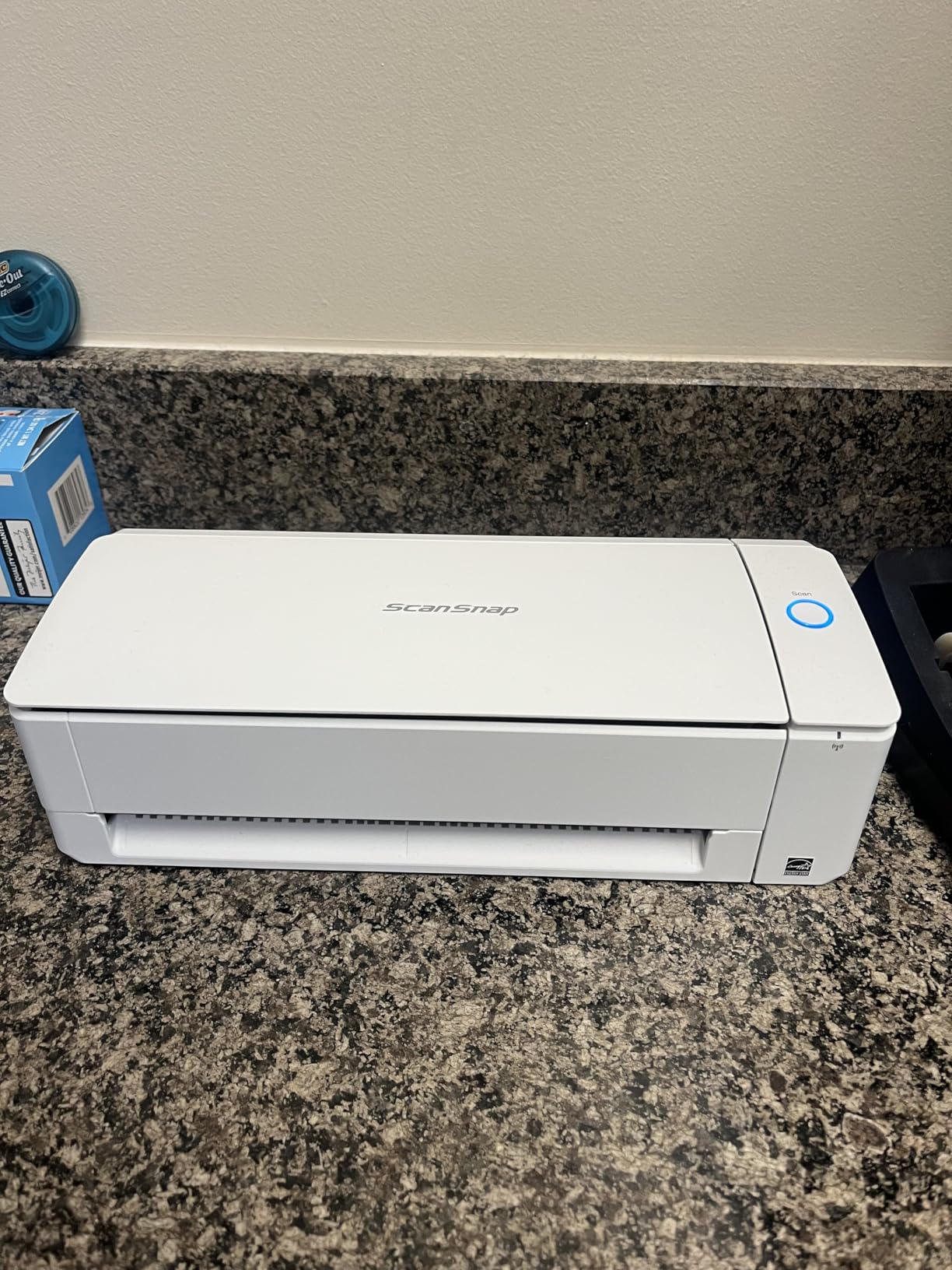
ScanSnap Home with its QUICK MENU drag-and-drop interface is how you route a scan to an application, and Chromebook support comes through the mobile app. Compatibility covers Windows 11 and 10, macOS Monterey 12 and later, iOS 16 and later and Android 10 and later.
69% of reviews are five stars, and the wireless flexibility is the reason most people buy it. The iX2500 is the step up when you need more speed and a larger feeder.
Who the iX1300 suits
Buy this if you want to scan to a phone or laptop without plugging anything in, or if the desk is too small for a machine that has to sit flat. The vertical storage mode is genuinely useful in a shared room.
Chromebook users are a specific fit here, since support runs through the mobile app rather than desktop software. If your scanning includes plastic cards or thicker items, the feeder handles them.
Where the iX1300 falls short
The 20-sheet feeder is small, and that is the first limit you hit on an archive job. It is a fifth of the capacity of the iX2500 and a bit over a third of the ES-400 II.
ScanSnap Home can feel bloated for basic filing tasks, and the 13% share of one-star reviews points at software complexity. Frequent software and firmware updates are another recurring theme, and they occasionally disrupt a workflow mid-task.
ADF or Flatbed: Which One Do You Actually Need?
An automatic document feeder, or ADF, is the roller tray at the top of a sheetfed scanner that pulls loose pages through one at a time. A flatbed scanner is a glass platen you lift a lid for and place a single item on. Choose an ADF when your paper is loose, stacked and already in good condition; choose a flatbed for photos, film, artwork, bound books and anything too fragile to feed through rollers.
Most home offices end up wanting both eventually, and the common pattern is a sheetfed machine for stacks plus a flatbed for the awkward items. If you are choosing only one, think about what is physically on your desk. A stack of clean, unbent, unstapled paper points to a feeder. A box of family photos points to glass.
What resolution do you actually need?
Resolution is measured in dots per inch, and the numbers on the box are not a quality ranking. A receipt only needs enough resolution to read faded thermal print, and doubling it creates a much larger file with no visible gain. Match the setting to the job instead of buying the highest number you can find.
Plain text documents and receipts sit comfortably at 300 dpi, which is what most of the machines in this roundup deliver. Fine print, handwritten notes and records you may need to keep for years are worth pushing to 600 dpi. Photographs and negatives need 1200 dpi or more, and that is where the flatbed options pull ahead.
How to set up a scanning workflow that sticks
Hardware is the easy part. The reason scanners end up unused is usually that nobody decided where the files go. A short, fixed routine solves most of it.
First, choose one destination per document type and stop improvising. A cloud folder for anything that needs to be reachable from a phone, a local folder for tax records you want backed up on your own drive. Second, pick your resolution once per type rather than per scan. Third, adopt a naming convention you can remember six months from now, something built from the document type and the date, and set the scanner to apply it automatically where the software allows.
Fourth, batch your scanning into one session rather than doing it page by page all week. Feeder models reward this because switching a profile on the touchscreen mid-stack wastes more time than the batch cost you. Fifth, open one file and check it before you file the paper away, which is the habit that prevents discovering a bad scan months later. Last, back up the folder once the batch is done, and only then think about recycling the paper.
How Much Scanning Speed and Feeder Capacity Do You Need?
Most home offices scan in small, irregular batches rather than a continuous stream. Forum users describe it consistently: a handful of receipts, one signed form, a school permission slip, maybe a school folder at the end of the term. That pattern argues for prioritizing feeder capacity and reliability over the pages-per-minute headline, which is why the DS-640 wins this roundup despite scanning 16 ppm.
Under about 20 pages a month, a single-sheet portable scanner is genuinely enough, and the ES-50 or DS-640 will cover you. Between roughly 20 and 100 pages a month, a feeder starts saving real time, and a 20 to 50 sheet capacity means you are not refilling mid-session. Above 100 pages a month, or if you are clearing an archive, you want a 100-sheet feeder and duplex scanning, which puts the iX2500, the ES-580W and the ES-400 II in range.
Two other numbers matter once you are past that. Single-pass duplex captures both sides in one trip through the mechanism, and half the time on double-sided paperwork. And a stated daily duty cycle tells you whether a machine is built for a burst or for a sustained shift, so check the suggested daily volume against a realistic day rather than an aspirational one.
Mac, Windows and Linux: Driver Support Before You Buy
This is the criterion most roundups bury, and it is the one people regret most. A scanner that has no TWAIN driver will not appear in the scan dialog of your document management software, and proprietary software can break entirely when a new operating system version lands. Forum coverage notes users reporting driver hiccups after moving to Windows 11, with Epson slower than Canon to publish native drivers, and the recurring theme on r/LawFirm is that bundled software being unreliable is the top reason scanners get abandoned.
The Brother DS-640 and DS-740D have the broadest support in this roundup, with TWAIN/WIA, ICA and SANE drivers across Windows, Mac and Linux. That makes them the safe picks for a mixed machine estate, and the DS-640 works with third-party tools like NAPS2.
The Epson units ship with a TWAIN driver and are PC and Mac compatible, so they will appear in a standard scan dialog. The Canon imageFORMULA R10 works with Windows and Mac and carries its CaptureOn 200 software built in, which removes the installation step, and the LiDE 300 can be added to macOS through Printers and Scanners without extra software.
The ScanSnap models are the exception to check carefully. ScanSnap Home is the required ecosystem on both the iX1300 and the iX2500, with no native TWAIN and no Linux version, so if your workflow depends on a specific document management package, confirm compatibility before buying. Setup and documentation on the iX2500 can also be demanding for non-Windows users, which is worth weighing against the speed and capacity you gain.
What to Do With the Paper After You Scan It
Scanning is only half the workflow. Keeping the paper is a decision, not a default, and a few rules make it easy.
Check the output before you decide anything. Open one file from the batch, search for a word you know appears in the document and confirm it is found, which tests OCR rather than just the image. If text is not searchable, the file is an image and you will not be able to find it later.
Then sort the paper into two piles. Anything with a financial or tax year attached is a record, and the general guidance is to keep what an agency might ask you for, commonly three years for many expense and tax records, and longer where a property transaction or a medical record is involved. Everything else that has scanned and verified is ready to go. Cross-cut shredding on anything carrying a name, an address or a payment number is the right disposal method, and our [paper shredder roundup for home offices](https://lockah.net/best-paper-shredders-for-home-offices/) covers the machines that do it properly.
Originals that matter, such as a birth certificate or a signed original contract, belong in a small fire-resistant box rather than in the recycling pile. The practical benefit of all this is that a verified digital archive means you can stop re-filing the same paperwork every time you need to check a date.
Frequently Asked Questions
What is the best scanner for home office use?
The Brother DS-640 is the best all-round choice for a home office because it weighs about a pound, scans 16 ppm in both color and black-and-white, and supports Windows, Mac and Linux. Choose the ScanSnap iX2500 instead if you have a large archive to clear, the Doxie Pro DX400 if software quality matters most, or the Canon CanoScan LiDE 300 if you scan photos and books as well as paperwork.
Do I need a scanner with an automatic document feeder, or is a flatbed enough?
A flatbed is enough if you scan a few items a month and they are photos, bound books or anything fragile. An automatic document feeder is worth it as soon as you are stacking loose pages, because it turns a page-by-page task into a single batch. A common setup is a sheetfed scanner for paper plus a flatbed for the awkward originals.
How fast a scanner do I actually need for home use?
Under about 20 pages a month, a single-sheet portable scanner is plenty. Between 20 and 100 pages, a feeder with 20 to 50 sheet capacity saves the most time. Above 100 pages a month or for an archive clear-out, look for a 100-sheet feeder with duplex scanning. Single-pass duplex halves the time spent on double-sided paperwork.
Which scanner is better, the ScanSnap or the Epson?
Epson wins on bundled software breadth and TWAIN driver support, which the ScanSnap models do not offer, so Epson fits a workflow built around third-party document tools. ScanSnap wins on speed and capacity, and its Wi-Fi models scan to a phone or cloud without a computer. Choose Epson for software compatibility and ScanSnap for throughput.
Which scanner is better, the Epson scanner or the Brother scanner?
Brother is the stronger pick for portability, Linux support and lower-fuss daily use, with the DS-640 and DS-740D covering 300 dpi work. Epson is stronger on desktop capacity and OCR output into Word and Excel, and the ES-400 II and ES-580W handle larger stacks. For a Mac-only or Linux setup, Brother is the safer bet.
Can a home scanner create searchable PDFs?
Yes. Every machine in this roundup includes OCR software that reads the image and rebuilds the text as selectable content inside a PDF, and the Brother, Epson, Doxie and Canon models also output editable Word and Excel files. Always confirm a word you know is in the document is findable by search before you discard the paper.
The Best Document Scanner for Your Home Office
The Brother DS-640 is the best document scanner for home offices in 2026, and the reason is consistency rather than any single specification. It is small, it is USB-powered, it handles color and black-and-white at the same speed, and it works on Windows, Mac and Linux with a generous owner base that has surfaced its rough edges already. If your scanning is a handful of pages a week, that is the machine to buy.
Match the machine to the job when your needs are heavier. The Doxie Pro DX400 is the pick for true duplex scanning paired with software you will not have to fight, the ScanSnap iX2500 for a large archive, the Epson ES-580W when two people share a desk and want wireless destinations, the Canon CanoScan LiDE 300 for photos and books, and the Epson ES-50 for a scanner that lives in a drawer. Whatever you choose, verify one scan before you file the paper, and the machine will keep working for years.