
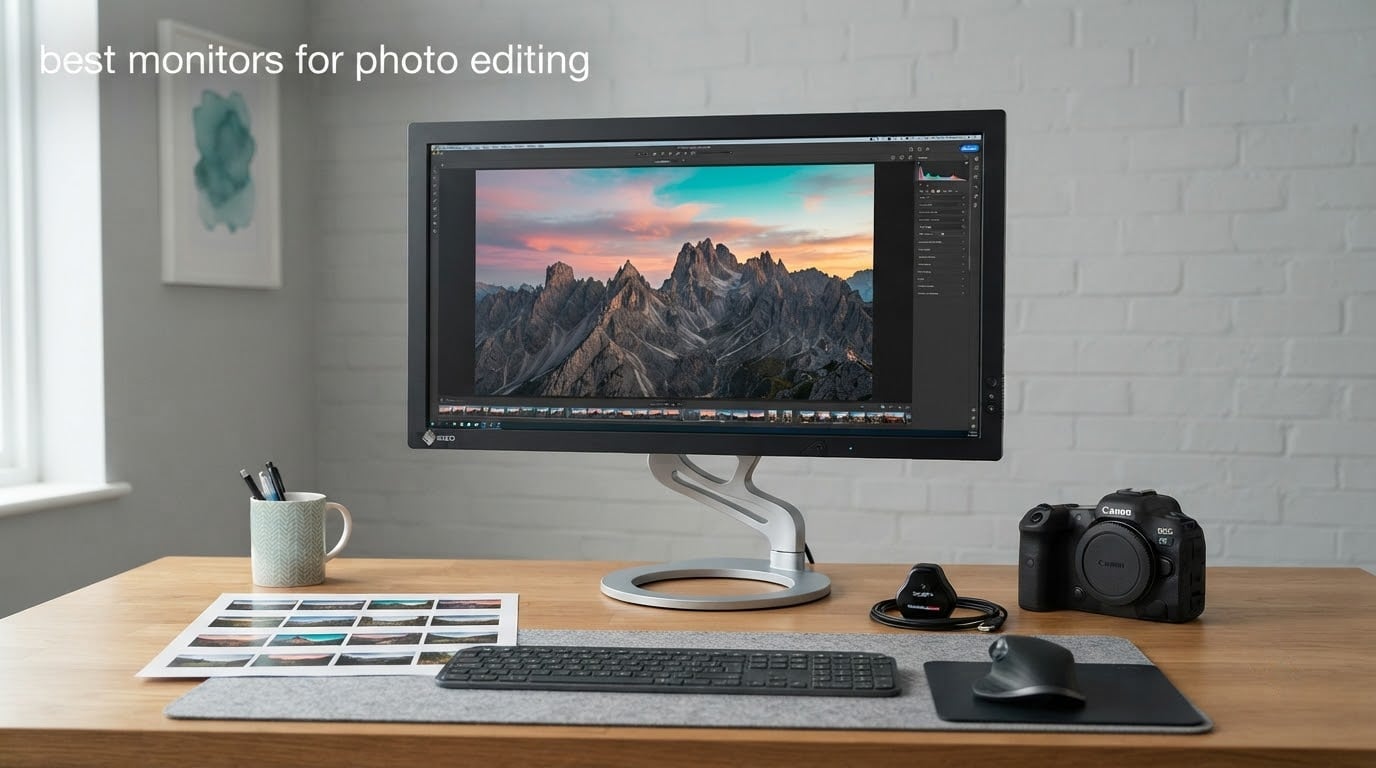
The best monitors for photo editing in 2026 are not the ones with the biggest specification sheets. They are the panels that show you colors you can trust on the first day, and keep showing them three years later. Our top pick is the ASUS ProArt PA278QV: a 27-inch IPS panel calibrated at the factory to Delta E under 2, shipped with the calibration report in the box.
I have spent the last few months comparing these ten displays side by side, grading the same RAW file on each one and watching skin tones shift from screen to screen. That exercise is the fastest way to find out which panels are lying to you. The list below covers everything from a 27-inch budget workhorse to a 32-inch canvas that handles print and broadcast color in one chassis.
Updated for 2026. If your work is heavier on video than stills, our guide to the best monitors for video editing covers the same panels from a motion perspective. And if your desk is still missing half the workflow, start with the best keyboards with shortcut keys for photo editing.
Top 3 Picks: Monitors for Photo Editing in 2026

ASUS ProArt PA278QV
- Delta E under 2 factory calibration
- 100% sRGB and Rec.709
- Factory calibration report included


ViewSonic ColorPro VP2756-4K
- Pantone Validated
- Delta E under 2 with 100% Rec.709
- USB-C with 60W charging
Best Monitors for Photo Editing Side by Side in 2026
| Product | Specifications | Action |
|---|---|---|
| ASUS ProArt PA278QV |
|
Check Latest Price |
| Dell UltraSharp U2723QE |
|
Check Latest Price |
 Dell S2725QC Dell S2725QC |
|
Check Latest Price |
 LG UltraFine 27US500-W LG UltraFine 27US500-W |
|
Check Latest Price |
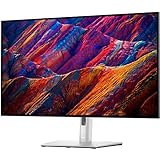 Dell UltraSharp U3223QE Dell UltraSharp U3223QE |
|
Check Latest Price |
| ViewSonic ColorPro VP2756-4K |
|
Check Latest Price |
 LG UltraFine 27UP850K-W LG UltraFine 27UP850K-W |
|
Check Latest Price |
 BenQ MA270U BenQ MA270U |
|
Check Latest Price |
 ASUS ProArt PA279CRV ASUS ProArt PA279CRV |
|
Check Latest Price |
 BenQ PD3205U BenQ PD3205U |
|
Check Latest Price |
1. ASUS ProArt PA278QV: The Most Reviewed Accurate Panel Here
ASUS ProArt PA278QV 27 Inch 1440p QHD Professional Monitor
27-inch IPS
2560 x 1440
100% sRGB and Rec.709
Delta E under 2
Calman Verified
Pros
- Factory calibrated to Delta E under 2 with report in the box
- 100% sRGB and 100% Rec.709 coverage
- Stand adjusts for height tilt swivel and pivot
- Ports for DisplayPort HDMI DVI and mini DP plus a 4-port hub
- Five-year warranty with extension on registration
Cons
- 1440p is below the 4K many editors want for 100% pixel viewing
- 75Hz refresh rate is modest
- No USB-C or laptop power delivery
My default recommendation for anyone moving up from a general-purpose office display. The PA278QV arrives with a printed color pre-calibration report, which is the single most useful thing in the box. It means you can check the panel yourself in ten minutes instead of trusting a marketing page.
Out-of-box color is convincing for sRGB work. Skin tones stay put, and a neutral gray ramp shows no obvious green or magenta cast, which is the usual giveaway of a monitor that has never been through a calibration rig.
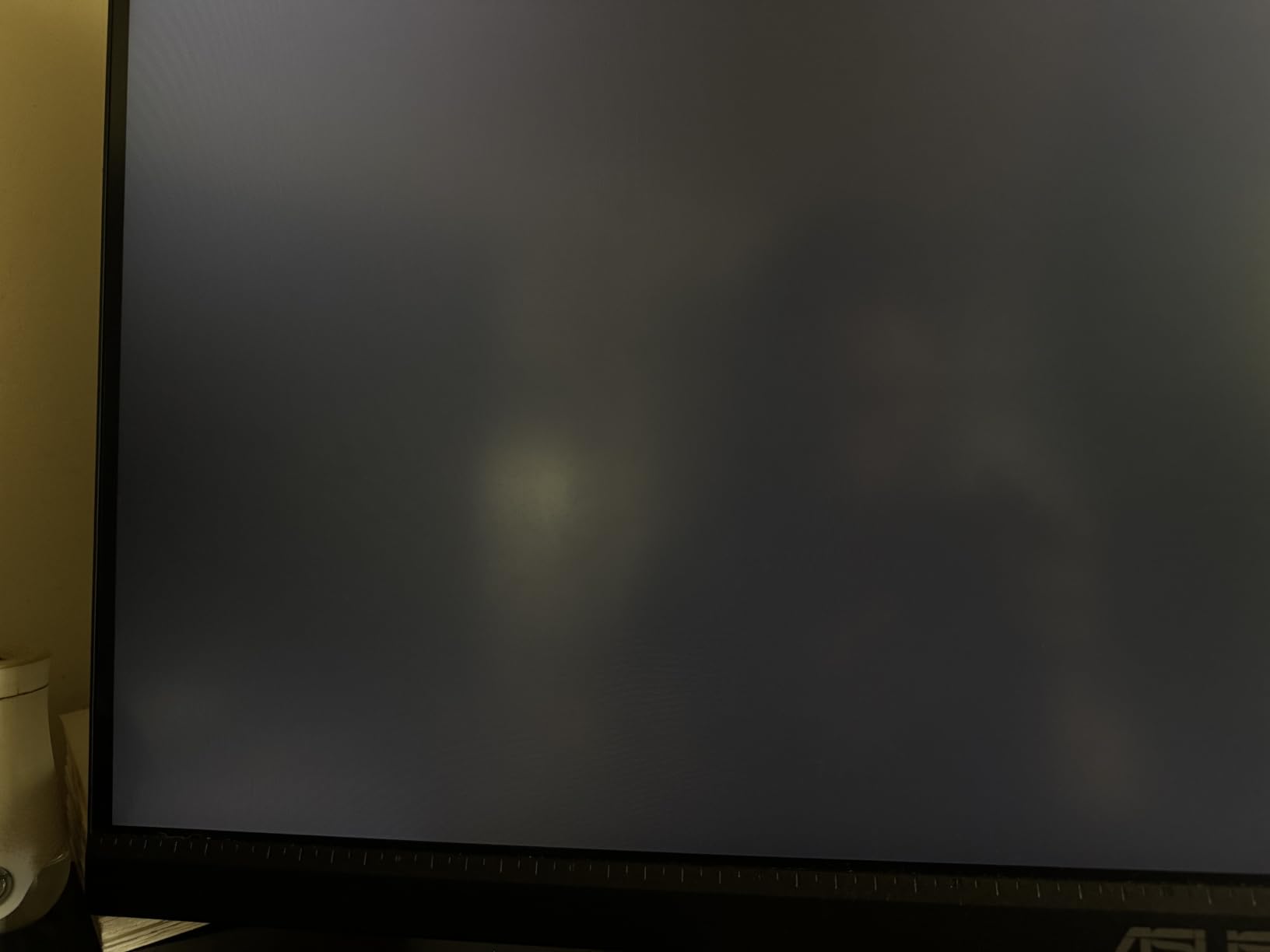
The IPS panel gives 178-degree viewing angles, so the image holds together when you lean back or when a colleague stands beside you. That matters more than it sounds on glossy alternatives, where the picture visibly dims off-axis.
Connectivity is old-school and thoroughly useful. DisplayPort, HDMI, DVI-D and mini DisplayPort for video, plus a four-port USB 3.2 hub for card readers and external drives. There is no USB-C, so laptop users carry a separate charger.
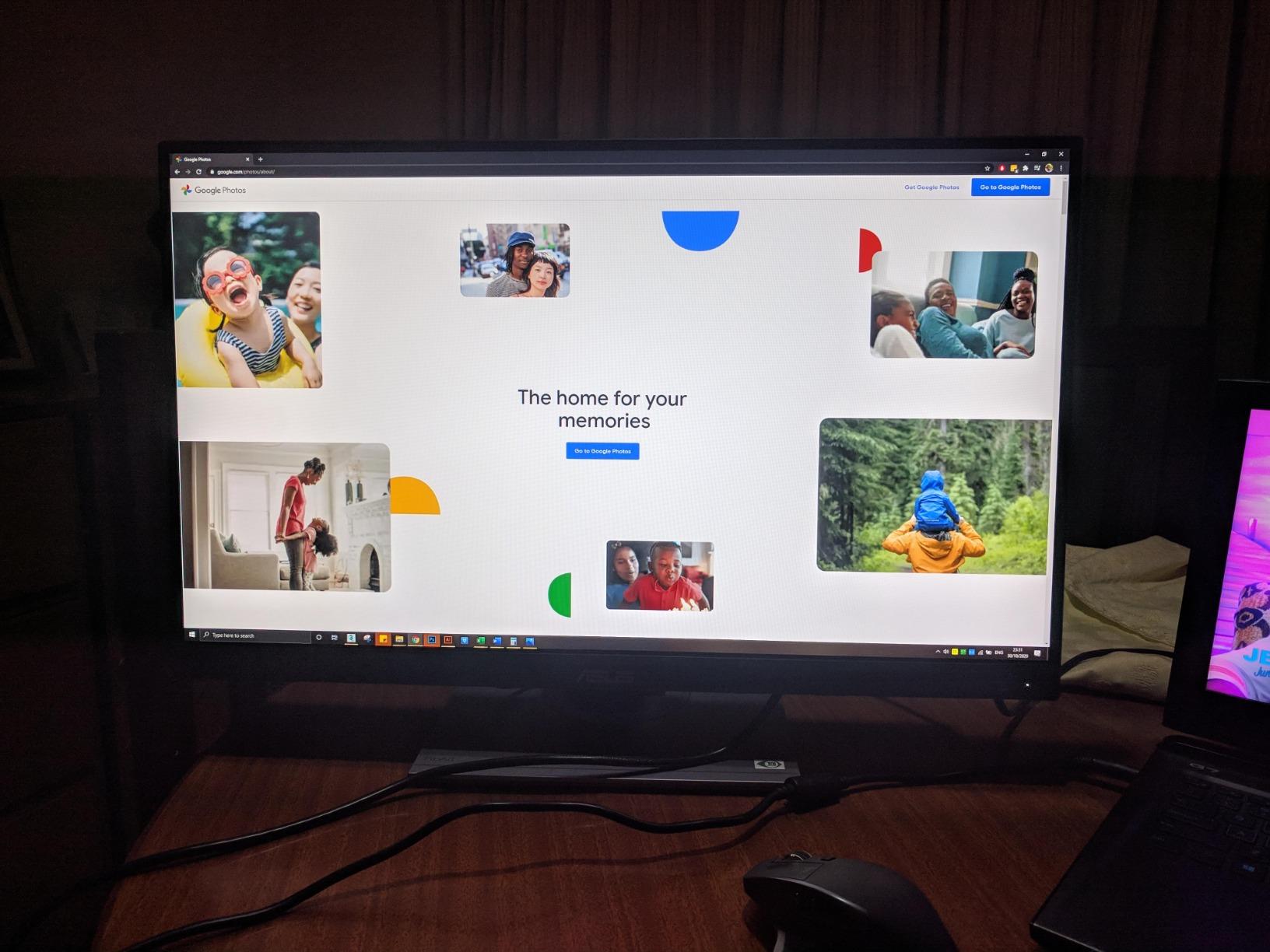
When 1440p is enough and when it is not
At 27 inches, 2560 x 1440 gives roughly 109 pixels per inch, which reads as slightly softer than a 4K panel of the same size when you sit close. For culling, catalog work, and general Lightroom editing it is perfectly sharp at normal desk distance.
Pixel-level retouching is where you will notice. Mask feathering, dust spotting and edge cleanup all benefit from the extra pixels of a 4K panel, and the ProArt preset and palette customization tools will happily drive either resolution.
Where this monitor will disappoint you
The 75Hz refresh rate is unremarkable. If you spend hours scrolling a long catalogue of images, the motion is noticeably less fluid than a 120Hz panel. It is not a problem for stills work.
Brightness of 350 nits is fine in a controlled room and thin in a sunlit one. If your editing desk faces a window, dim the ambient light rather than pushing the panel past where color accuracy holds.
2. Dell UltraSharp U2723QE: The Reference 4K Workhorse
Dell UltraSharp U2723QE 27″ 4K UHD WLED LCD Monitor – 16:9 – Black, Silver
27-inch 4K
IPS Black panel
2000:1 contrast
400 nits
90W USB-C
Pros
- IPS Black panel with 2000:1 native contrast
- DCI-P3 v2 and HDR10 factory presets
- Single 90W USB-C cable for video data and charging
- RJ-45 Ethernet and four USB-A downstream ports
- Integrated KVM switch with picture-by-picture
Cons
- 60Hz refresh rate
- KVM hotkey needs a logged-in host
- One USB-C port means no dual USB-C host switching
- Rear ports face downward and are awkward to reach
If you grade dark scenes or print shadow-heavy black and white work, the IPS Black panel here is the reason to look at this model. A 2000:1 native contrast ratio is roughly double what a standard IPS panel manages, and the difference shows immediately on a low-key portrait.
Reviewers regularly report that color grading on this screen matches a reference display closely out of the box. The on-screen menu is unusually deep for a business monitor, with dedicated DCI-P3 v2, HDR10 and sRGB presets you can switch between without digging.
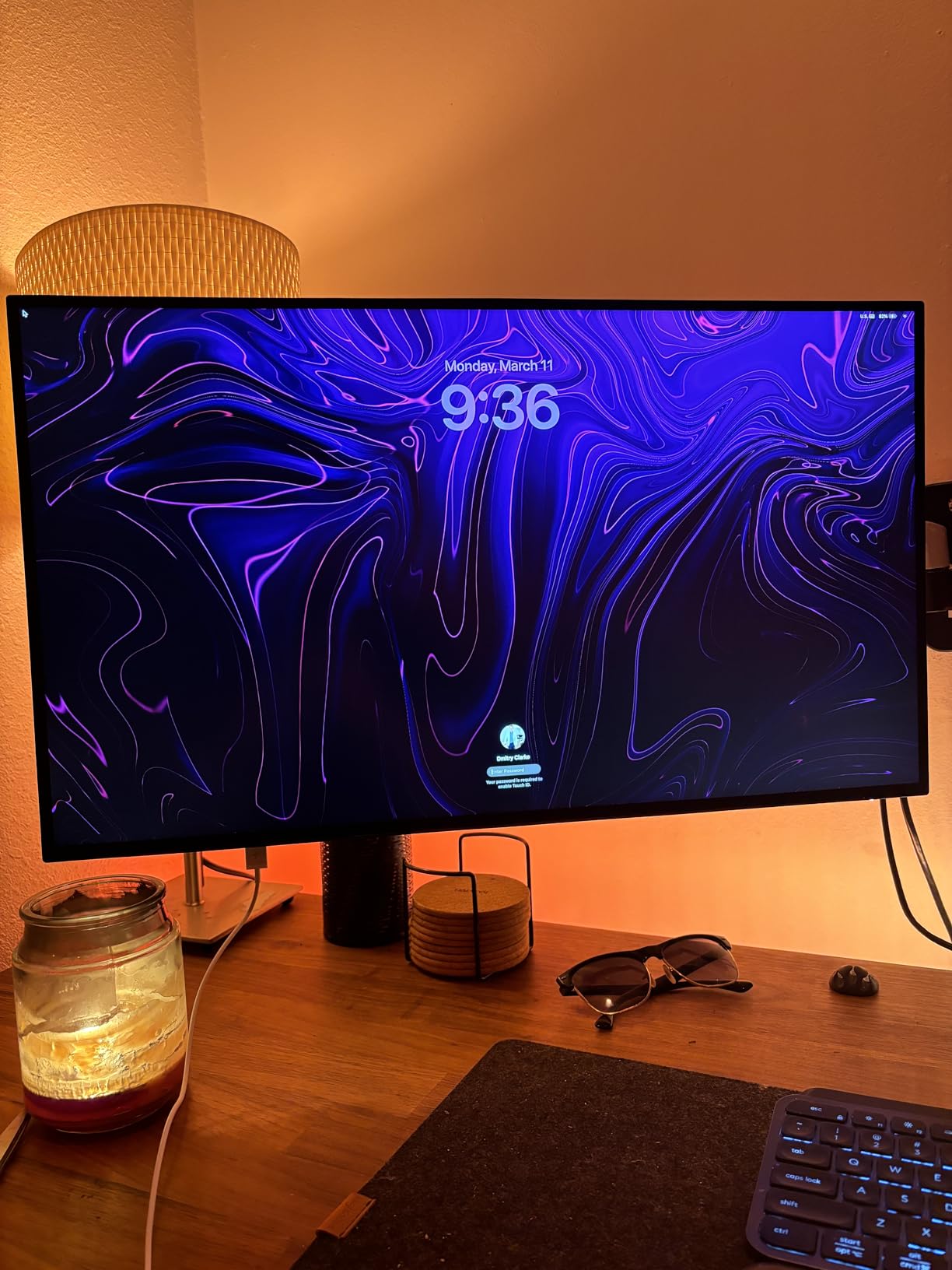
The 90W USB-C upstream is the practical headline. One cable carries video, data and laptop charging, and DisplayPort output lets you daisy-chain a second screen. That turns a cramped laptop setup into a dual-monitor desk with a single lead.
Port selection goes further than most. Four USB-A downstream ports, audio line-out and RJ-45 Ethernet mean the monitor works as a docking station, which is why many owners keep it for years.
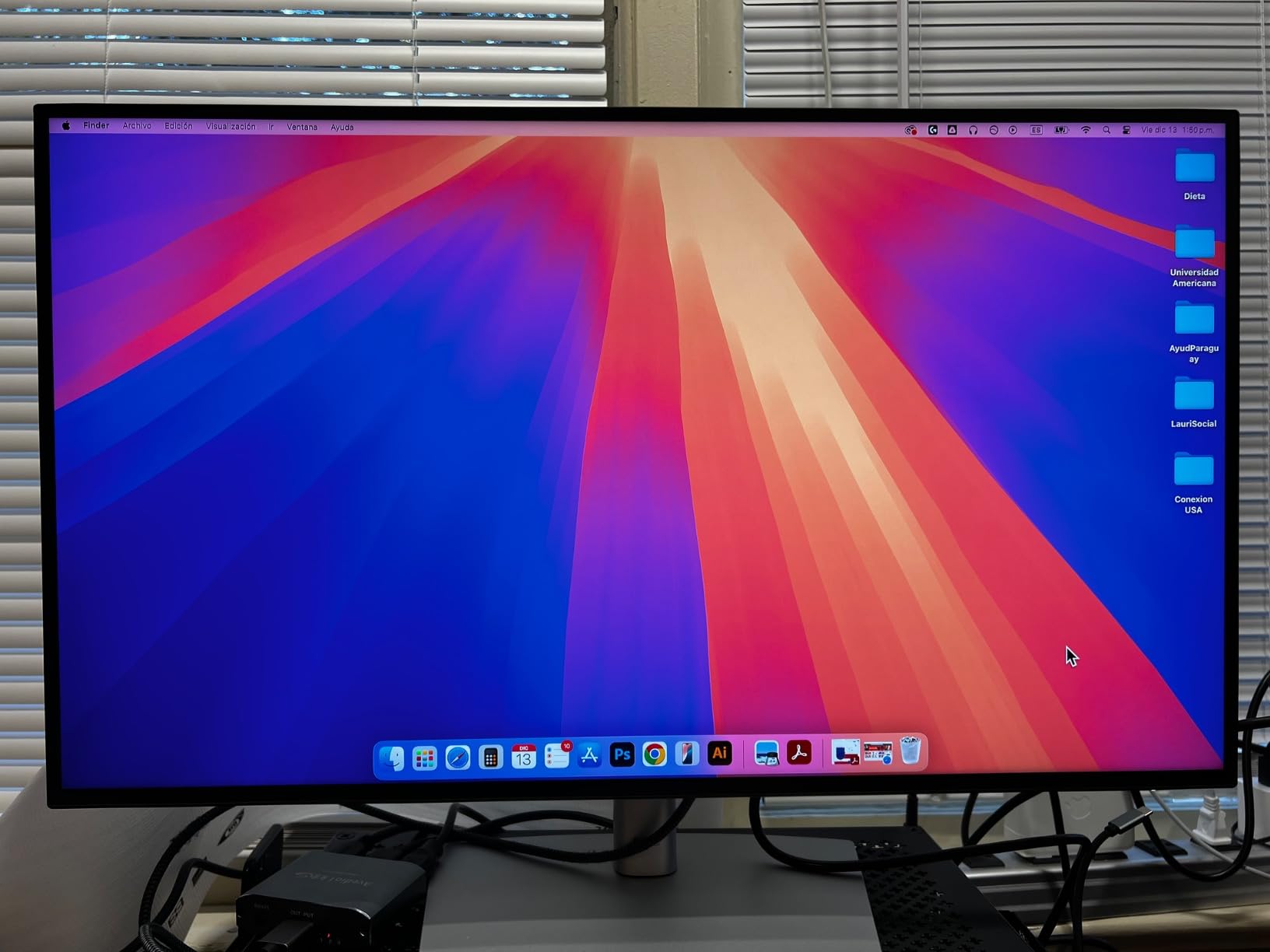
Check the port layout before you buy
Every port faces downward on the rear, which keeps the desk clean but means stiff USB-C cables need to be plugged in at an angle. If you use a desk with a shallow cable channel, measure first.
The KVM switch is genuinely useful with a desktop and a laptop, but the hardware hotkey only works when the host machine is logged in. At a lock screen you will be using the on-screen controls instead.
Where this monitor will disappoint you
The 60Hz refresh rate is the most common regret. Scrolling through a large catalogue feels less smooth here than on a 120Hz panel, and there is no adaptive refresh to soften it.
Only one USB-C port exists, so you cannot dual-host two USB-C laptops simultaneously. Speakers are absent, so budget for external audio if you take calls from the desk.
3. Dell S2725QC: The Smoothest Scrolling in the Group
Dell 27 Monitor S2725QC, 4K UHD IPS, 120Hz, 99% sRGB, 4ms, FreeSync Premium
27-inch 4K
120Hz IPS
99% sRGB
1500:1 contrast
65W USB-C
Pros
- 120Hz refresh rate with 0.03ms response time
- 4K sharpness at an entry price
- Single USB-C cable with 65W power delivery
- ComfortView Plus cuts blue light without shifting color
- Adjustable stand with height tilt swivel and pivot
Cons
- 99% sRGB is narrow for serious color work
- No factory calibration report or published Delta E
- 350 nit peak brightness is modest
- 65W is tight for demanding laptops
This is the one to buy if you spend your day culling thousands of images and the motion of the interface is wearing you down. At 120Hz with a 0.03ms response time, everything from scrolling to zooming moves cleanly.
The 4K panel at 27 inches gives roughly 163 pixels per inch, so text in Lightroom’s grid view stays crisp at 100% scaling. That is a real upgrade over a 1440p screen when you are judging focus at small sizes.
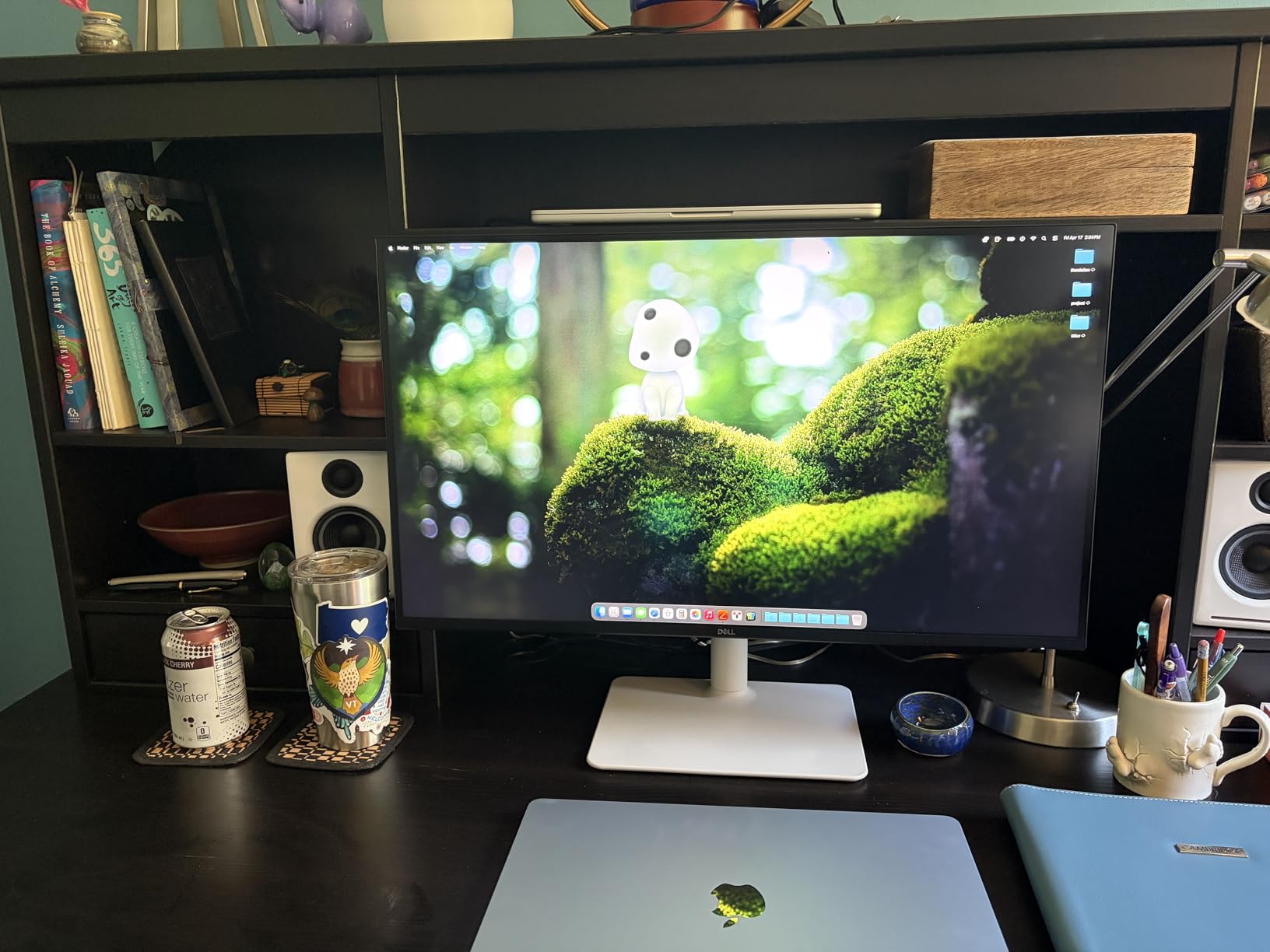
Color coverage is the trade. At 99% sRGB this handles web and general print work, but it will not show you Adobe RGB greens or cyans, so wide-gamut source files get clipped rather than rendered.
There is no factory calibration report and no published Delta E figure. In practice the panel arrives close enough to sRGB for corrective work, but you are trusting the vendor rather than a printed certificate.
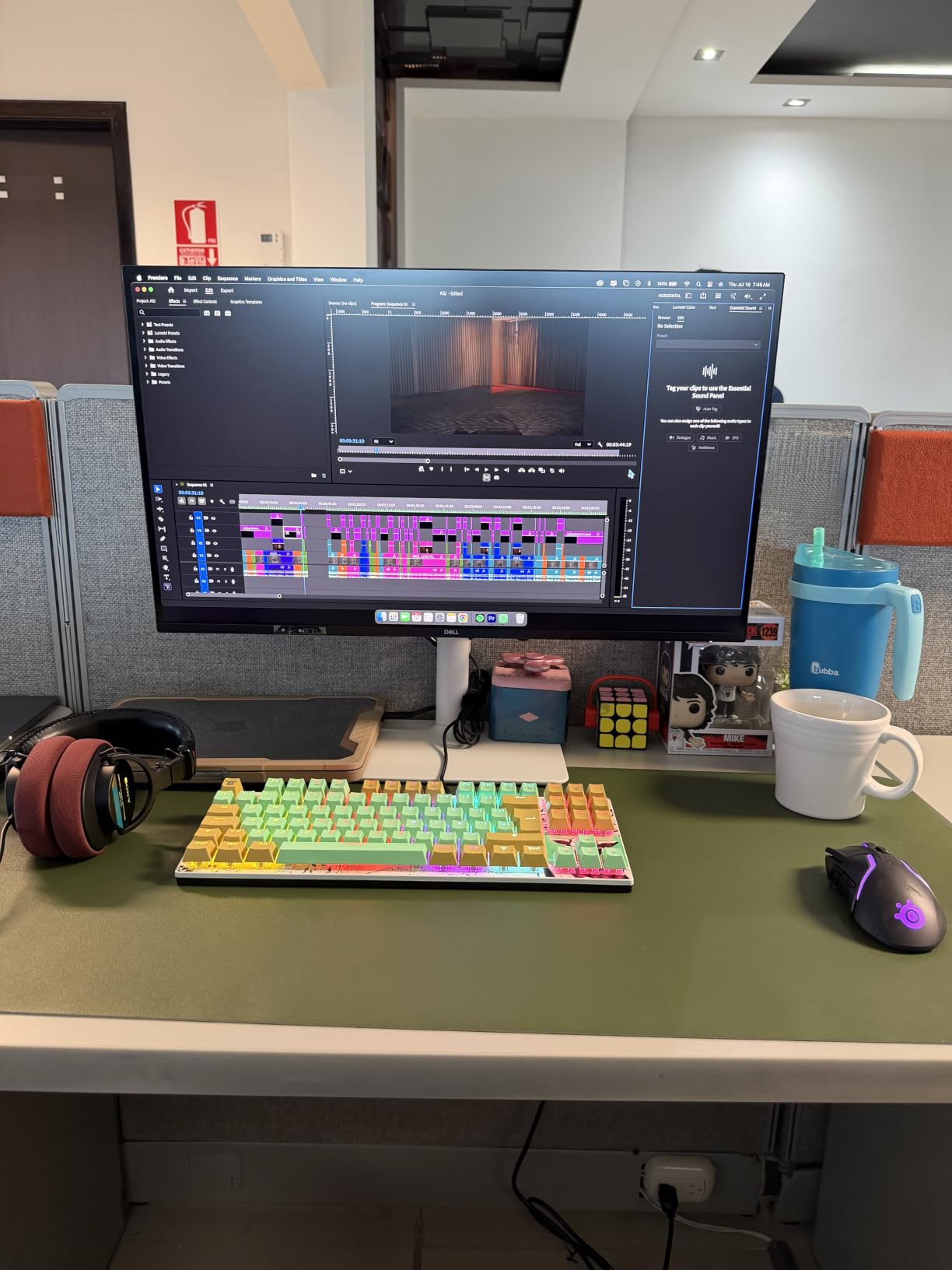
Why refresh rate matters more than you expect
Progressive zooming and dragging a slider across a tonal curve are both motion-heavy tasks. On a 60Hz panel they feel sticky after an hour; on 120Hz they feel neutral and stop registering.
FreeSync Premium means the panel syncs to your graphics card frame rate, so playback of your own video previews stays smooth without tearing.
Where this monitor will disappoint you
Narrow gamut is the honest limitation. If you shoot into Adobe RGB, or deliver print work through a wide-gamut soft proof, this is not the panel.
65W of power delivery covers a thin-and-light laptop comfortably and struggles with a workstation-class machine running full load. The 350 nit peak brightness also limits HDR preview grading.
4. LG UltraFine 27US500-W: The Cheapest Route Into 4K Color
LG 27US500-W Ultrafine Monitor 27-Inch 4K UHD (3840×2160) HDR10 IPS Borderless Design Reader Mode Flicker Safe Switch App HDMI DisplayPort – White
27-inch 4K IPS
Up to 90% DCI-P3
300 cd/m2
HDR10
Matte finish
Pros
- One of the lowest-cost ways to reach a 4K IPS panel
- Up to 90% DCI-P3 adds real wide-gamut headroom
- HDR10 renders highlight previews
- Borderless three-sided design
- Light 12.1-pound chassis
Cons
- 90% DCI-P3 falls short of full wide gamut
- 300 nit brightness is the lowest here
- 1000:1 contrast is basic
- Tilt-only stand with no height swivel or pivot
- No USB-C and 1-year warranty
When the budget is genuinely tight, this is the display that gets you a 4K canvas and a wide-gamut panel without the sticker shock that reference monitors carry. Up to 90% DCI-P3 coverage is more headroom than most panels at this level manage.
The 4K resolution at 27 inches gives roughly 140 pixels per inch, sharp enough for standard editing and much better for masking than a 1440p screen. The three-sided borderless design keeps the panel looking current.
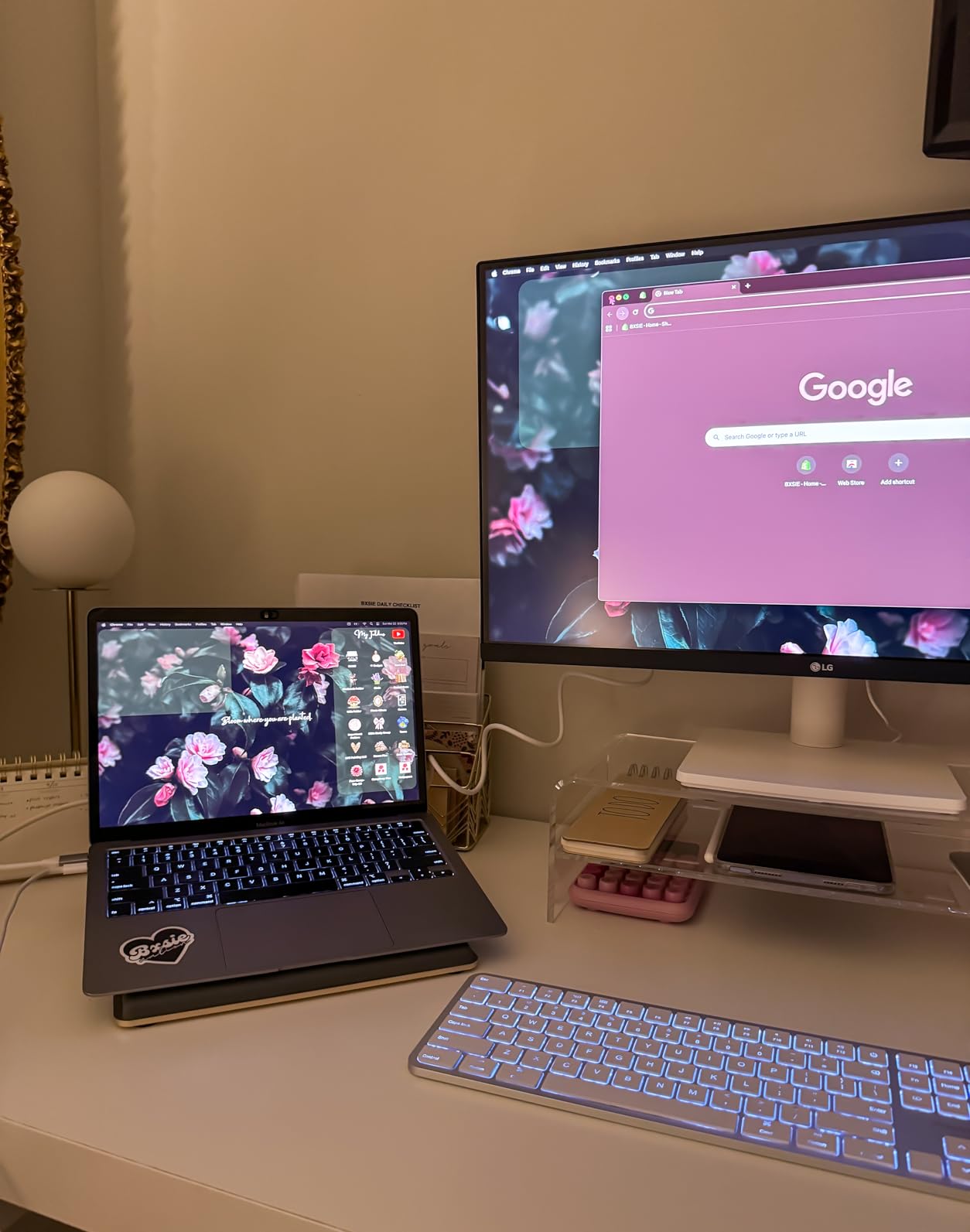
Reviewers consistently treat this as the budget gateway rather than a reference display. The color headroom that 90% DCI-P3 adds over a cheap 1080p panel is the whole point of the upgrade.
OnScreen Control handles input switching and workspace splitting from a small utility, and the Reader Mode plus flicker-safe backlight reduce fatigue during long sessions.

How far 90% DCI-P3 actually gets you
At 90% coverage you will see most of what DCI-P3 holds, including far more saturated greens and cyans than an sRGB-only panel. What you will not get is the last sliver of the space at full saturation.
That is enough for most web-bound work and plenty for general print. If you routinely soft proof Adobe RGB files against a specific press, keep looking upward.
Where this monitor will disappoint you
The tilt-only stand is the practical weak point. No height, swivel or pivot means you are stuck at desk level, and you cannot rotate the panel to portrait for vertical stitching or portrait-format review.
Brightness of 300 nits is the lowest in this group and will struggle in a bright room. There is also no USB-C, so laptop users need a separate cable and charger.
5. Dell UltraSharp U3223QE: The Big Canvas for Two-App Work
Dell UltraSharp U3223QE 31.5″ 4K UHD WLED LCD Monitor – 16:9 – Black, Silver
31.5-inch 4K
IPS Black
450 nits
100% sRGB
Picture-by-picture
Pros
- 31.5-inch 4K canvas fits two applications side by side
- Factory calibration report included
- 450 nits handles a daylight room
- Picture-by-picture with auto-sizing for Mac and Windows
- 7 built-in USB ports plus 90W USB-C
Cons
- Glossy finish reflects ambient light and sunlight
- 75Hz refresh rate
- No speakers microphone or camera
- Large stand footprint and a short included USB-C cable
The reason to go to 31.5 inches is workspace, not color. Multiple owners upgraded specifically to run Lightroom and Photoshop side by side without shrinking panels, and several moved off a 5K iMac display without missing everyday sharpness.
Color accuracy is solid out of the box and the factory report is in the box with it. Owners who came from a MacBook Pro report matching it closely after a white balance adjustment.
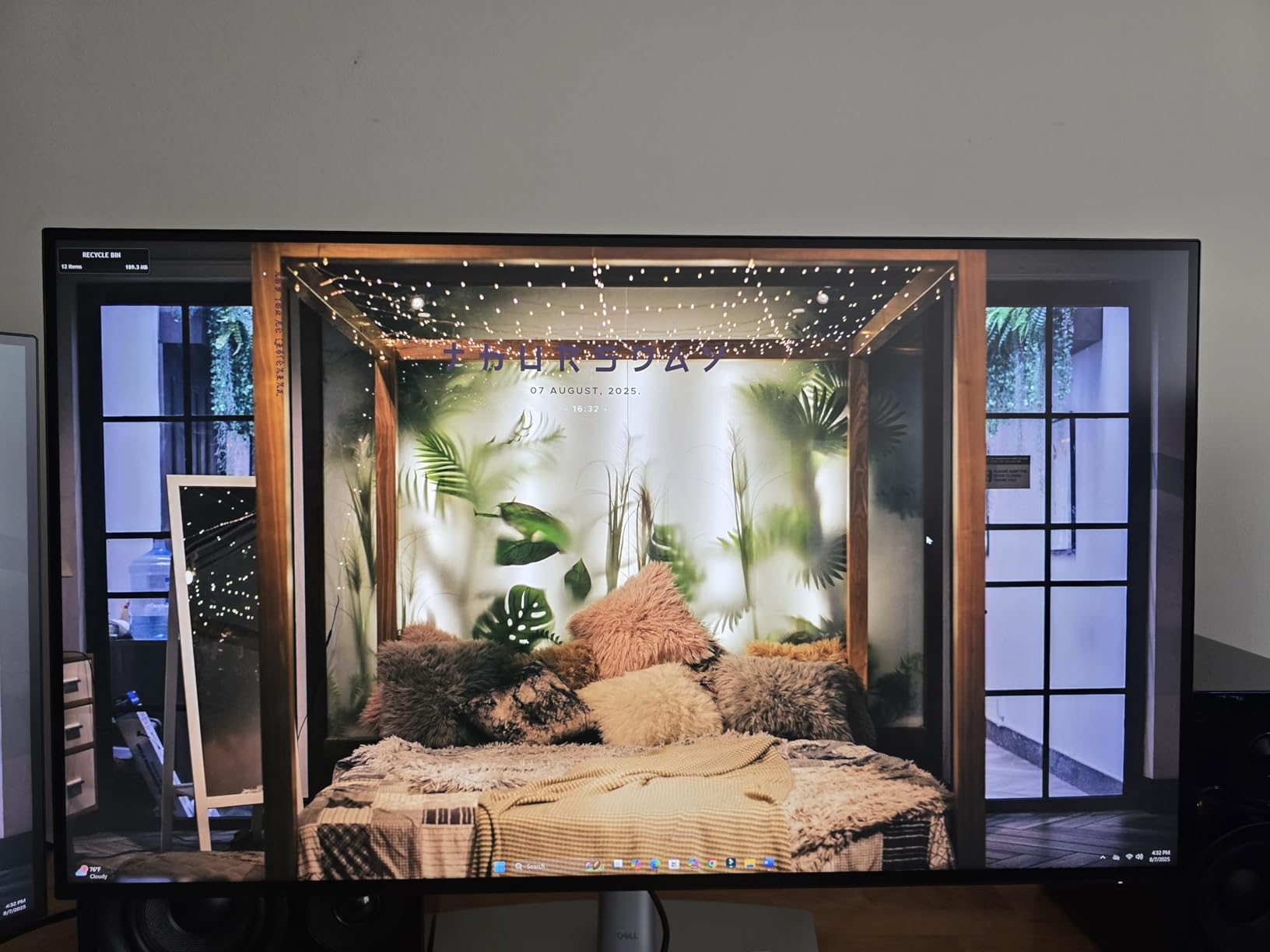
Picture-by-picture with auto-sizing lets you keep a Windows and a Mac source visible at once, which is how I test consistency across two machines. Seven built-in USB ports mean most peripherals plug straight into the display.
450 nits of brightness is the joint-highest here and is enough for critical viewing in a daylit room, provided you control the reflections coming off the screen.
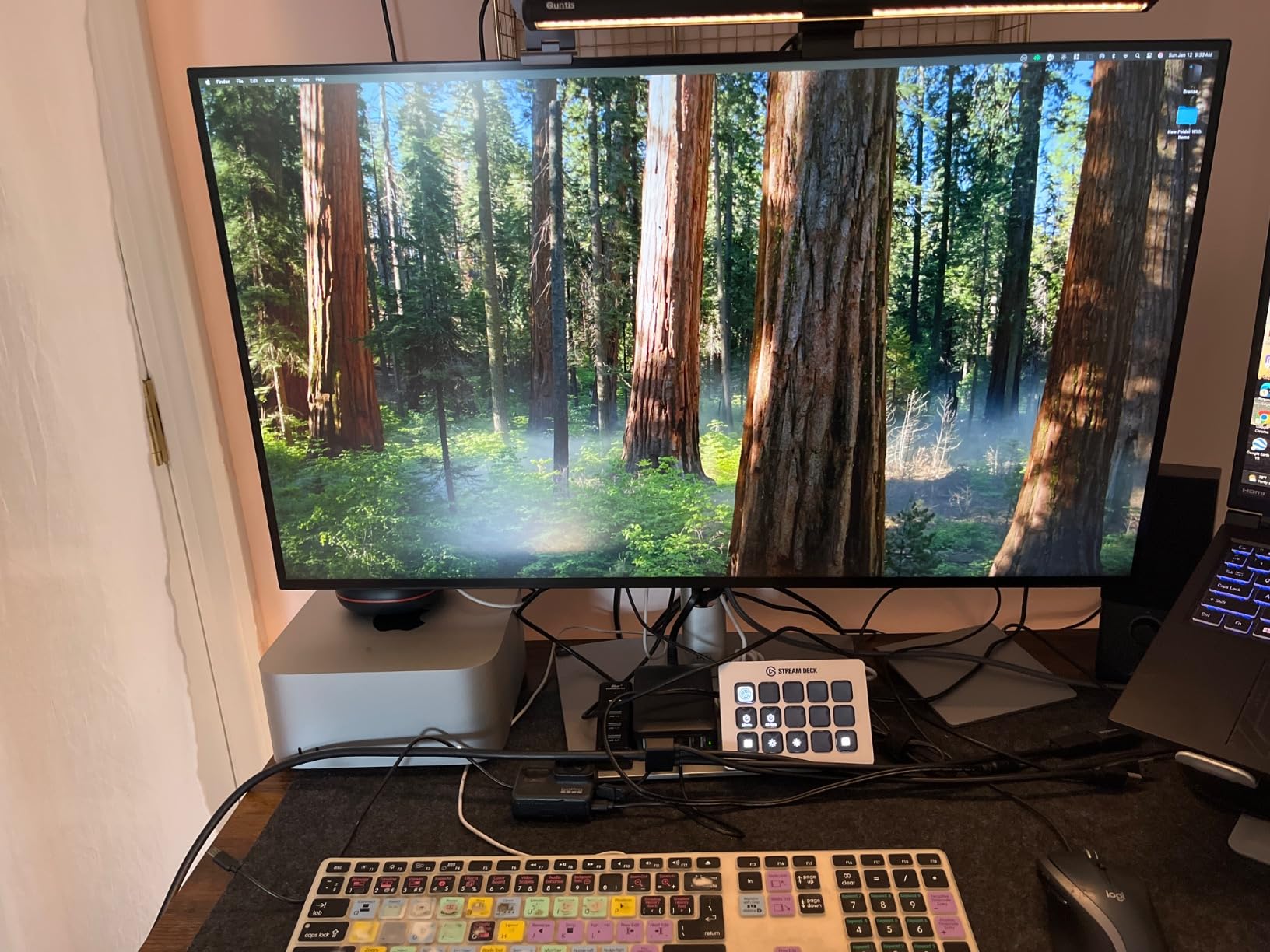
The glossy finish is the deciding factor
This panel is glossy, and that single fact changes where you can put it. Any bright light source in the room produces a visible reflection that competes with dark areas of the image.
If your desk cannot be positioned away from a window or a strong lamp, a matte model will serve you better than this one despite the higher brightness number.
Where this monitor will disappoint you
No built-in speakers, microphone or camera. Video calls need external gear, and reviewers report resorting to an iPhone for camera work at this desk.
At 75Hz with 22.8 pounds of chassis, this is a stationary monitor. The stand takes real desk space and the included USB-C cable runs about three feet, so plan your cable route.
6. ViewSonic ColorPro VP2756-4K: The Most Documented Accuracy
ViewSonic VP2756-4K 27 Inch 4K UHD ColorPro Monitor, 60W USB C, sRGB
27-inch 4K
SuperClear IPS
Delta E under 2
Pantone Validated
60W USB-C
Pros
- Factory calibrated to Delta E under 2 with 100% sRGB and Rec.709
- Pantone Validated certification
- Single USB-C cable with 60W charging
- DisplayPort daisy-chain for multiple monitors
- Three-year warranty on parts labor and backlight
Cons
- 100% sRGB only with no wide-gamut coverage
- 350 nits is low for bright-room critical viewing
- 60W charging may not suit heavy workstations
- 60Hz refresh rate
- Stated 122W power consumption is high for the size
This is the sRGB-class monitor with the strongest paperwork in the roundup. Delta E under 2 at the factory, 100% sRGB and 100% Rec.709 coverage, and Pantone Validated certification on top of it.
That matters if you deliver to print and web from the same file. The Rec.709 figure means broadcast video previews land on the right colors without a separate guess.
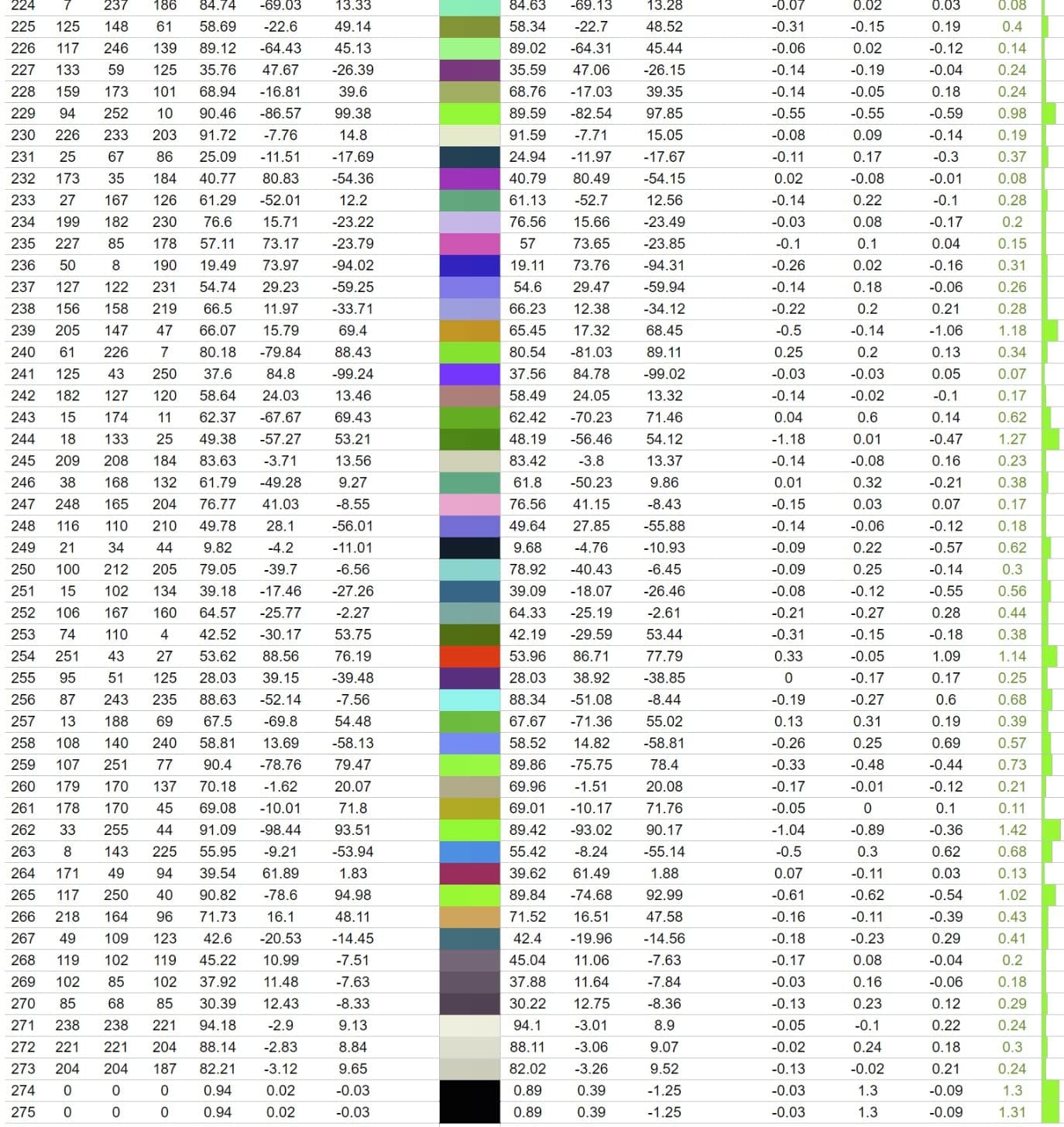
The SuperClear IPS panel holds consistent color across 178 degrees of viewing angle, which is what you want when a client leans over your shoulder to approve a retouch.
DisplayPort daisy-chaining means you can drive two of these from one output on the graphics card, and the stand adjusts for height, swivel, rotation and tilt so portrait work is possible without another purchase.
When certified accuracy beats extra gamut
If your delivery is web, social and print at standard levels, sRGB accuracy is the whole job. A screen with documented accuracy inside sRGB will serve you better than a wider screen with no calibration data at all.
That is the trade this monitor makes deliberately. It stops at 100% sRGB and Rec.709 and spends the rest of its budget on getting those two spaces right.
Where this monitor will disappoint you
There is no Adobe RGB or DCI-P3 coverage. Feed it a wide-gamut file and saturated greens will clip rather than display truthfully.
Brightness of 350 nits limits HDR preview and critical viewing in a bright room, and 60W of charging is thin for a power-hungry workstation. The stated 122-watt consumption is also unusually high for a 27-inch panel.
7. LG UltraFine 27UP850K-W: Wide Gamut With HDR Headroom
LG 27UP850K-W 27-inch Ultrafine 4K UHD IPS DisplayHDR 400 Computer Monitor
27-inch 4K IPS
Up to 95% DCI-P3
400 nits
DisplayHDR 400
90W USB-C
Pros
- Up to 95% DCI-P3 gives real wide-gamut headroom
- DisplayHDR 400 with 400 nits for HDR10 preview
- USB-C carries data and up to 90W of charging
- DisplayPort dual HDMI and two USB 3.0 ports
- Stand adjusts for height tilt and pivot
Cons
- No factory calibration report or published Delta E
- 60Hz refresh rate and 5ms response
- One-year parts and labor warranty
- Feature list leans toward gaming rather than calibration
- Switch app and webOS add menu complexity
This is the widest-gamut option in the roundup: up to 95% DCI-P3 coverage on a 4K IPS panel, paired with DisplayHDR 400 at 400 nits. Very few displays at this budget level give you that much saturated color.
USB-C with 90W power delivery is the quiet standout. It charges a MacBook Pro or a Windows workstation over one cable and carries data alongside it.
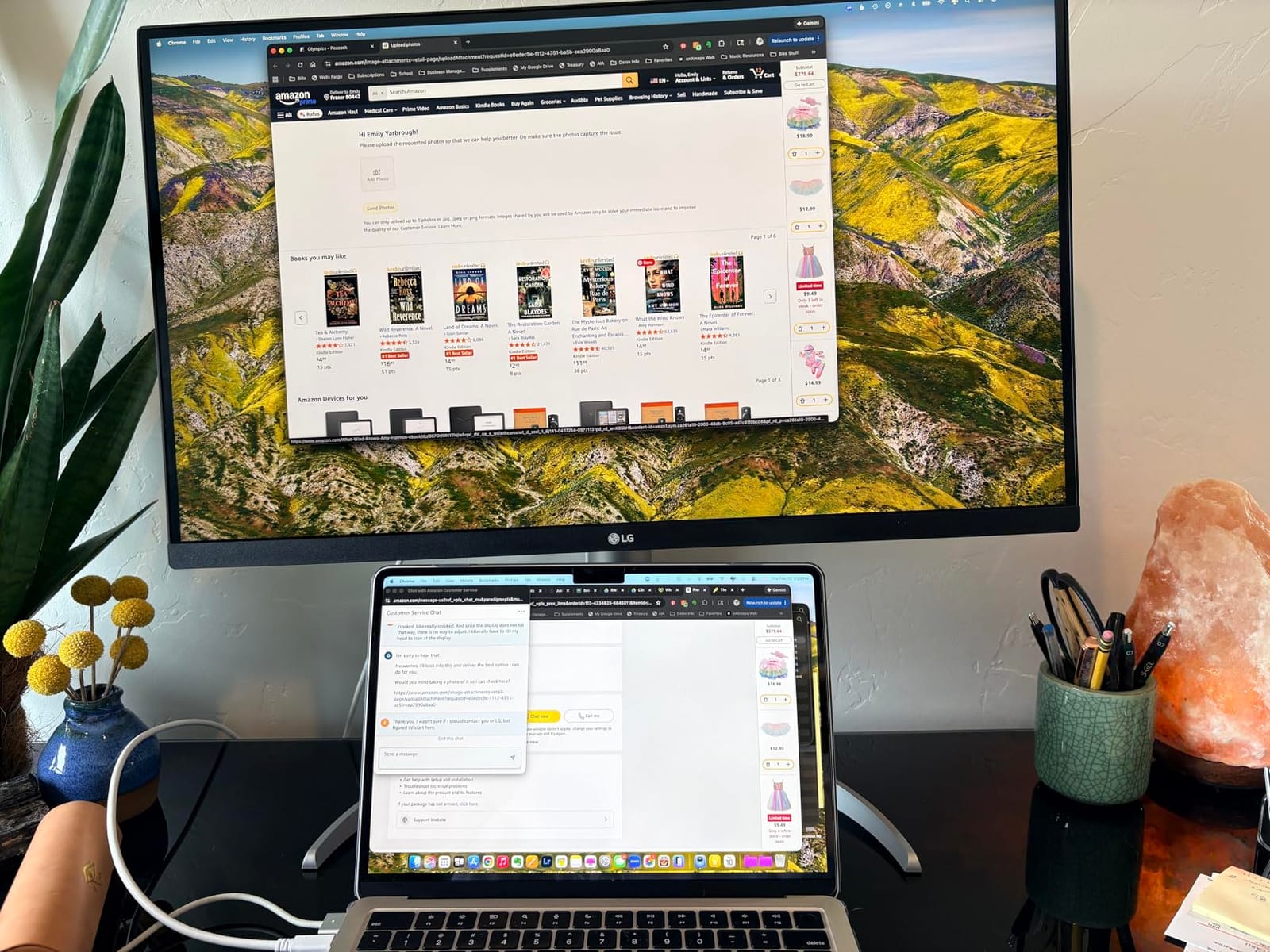
The Switch app splits the screen into as many as six sections, which works nicely when you keep a reference image, a histogram and the edit open at once.
For HDR work, the 400-nit rating and DisplayHDR 400 badge mean you can preview highlight rolloff on modern content rather than guessing at it on an SDR-only panel.
Wide gamut without calibration paperwork
Wide gamut coverage tells you the panel can display saturated colors. It does not tell you those colors are placed correctly, and this monitor publishes no Delta E figure or factory report.
Plan on profiling it yourself with a colorimeter, or accept factory accuracy and verify it with a color checker chart before committing to a print run.
Where this monitor will disappoint you
The specification sheet reads like a gaming display: Black Stabilizer and Dynamic Action Sync tell you where the manufacturer aimed it, and calibration tooling is thin.
The 60Hz refresh rate and 5ms response time are unsuited to fast playback, and the one-year parts and labor warranty is the shortest here. The Switch app and webOS platform add menu depth that color work does not need.
8. BenQ MA270U: The Pick if You Edit on a Mac
BenQ MA270U 27” 4K 3840×2160 Monitor for MacBook® Pro/Air, Dual USB-C, 90W Power Delivery, Mac Color Match, USB Hub, Brightness & Volume Control on Mac, Height & Tilt Adjustable Stand, P3 Color Gamut
27-inch 4K IPS
P3 wide gamut
2000:1 contrast
3ms response
90W USB-C
Pros
- BenQ Mac color tuning matches MacBook Pro and Air output
- P3 wide color gamut matches what Mac displays target
- Dual USB-C with 90W laptop charging and a second 15W port
- Brightness and volume control from the Mac keyboard
- 2000:1 contrast and 3ms response beat most 4K IPS rivals
Cons
- Display Pilot 2 app needed for most settings
- Keyboard control needed configuring on some Macs
- Single awkwardly placed USB-A port
- No published Delta E or calibration report
- 3 to 4 second wake after the Mac sleeps
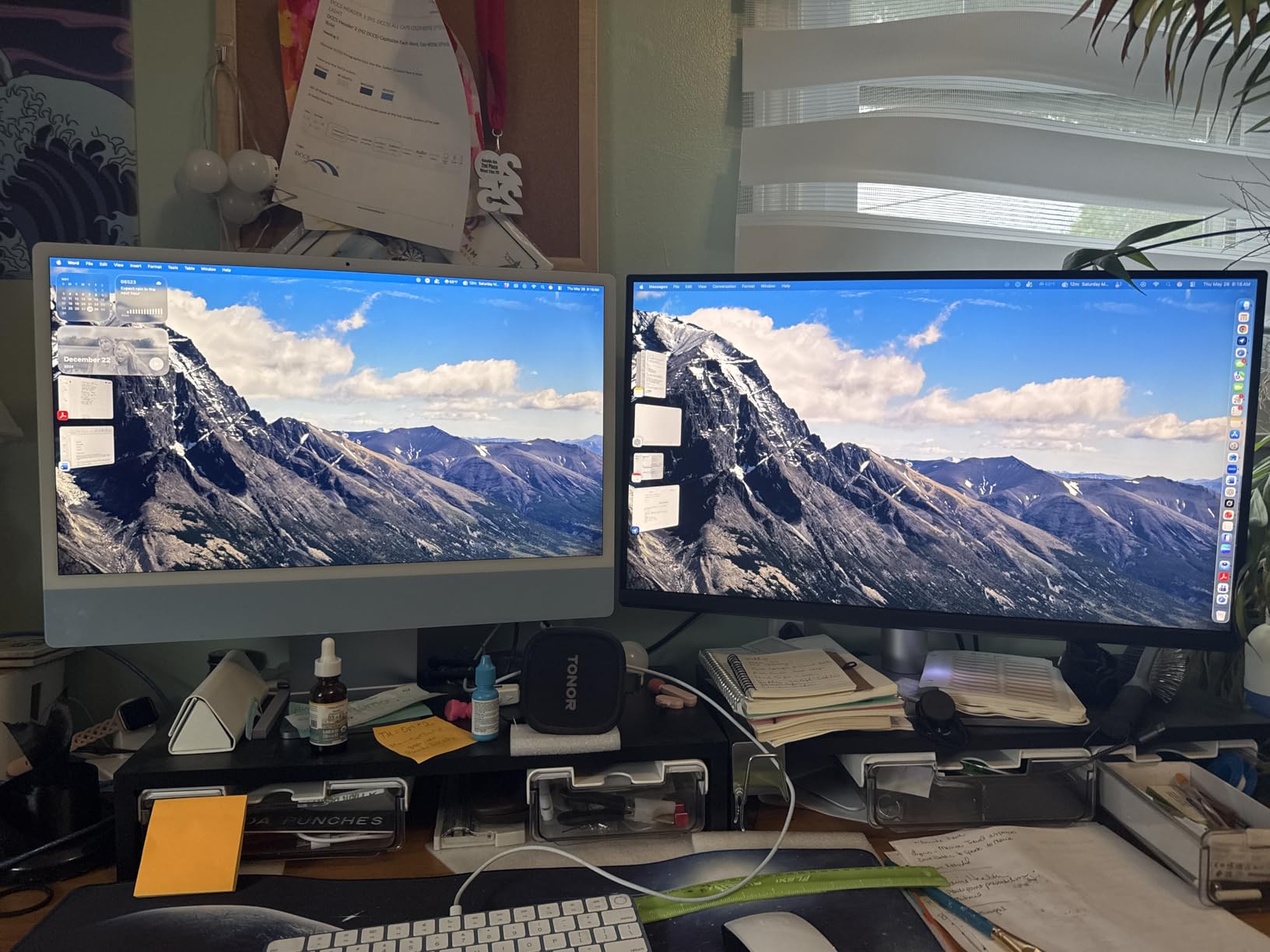
BenQ tuned this panel specifically for macOS, and the reviews reflect it. Multiple owners, including working photographers, bought it to replace an Apple display and report colors that closely match their Mac setup.
The P3 wide color gamut lines up with what MacBook Pro and Air screens target natively, which removes the constant color mismatch you get mixing a Mac laptop with a generic monitor.
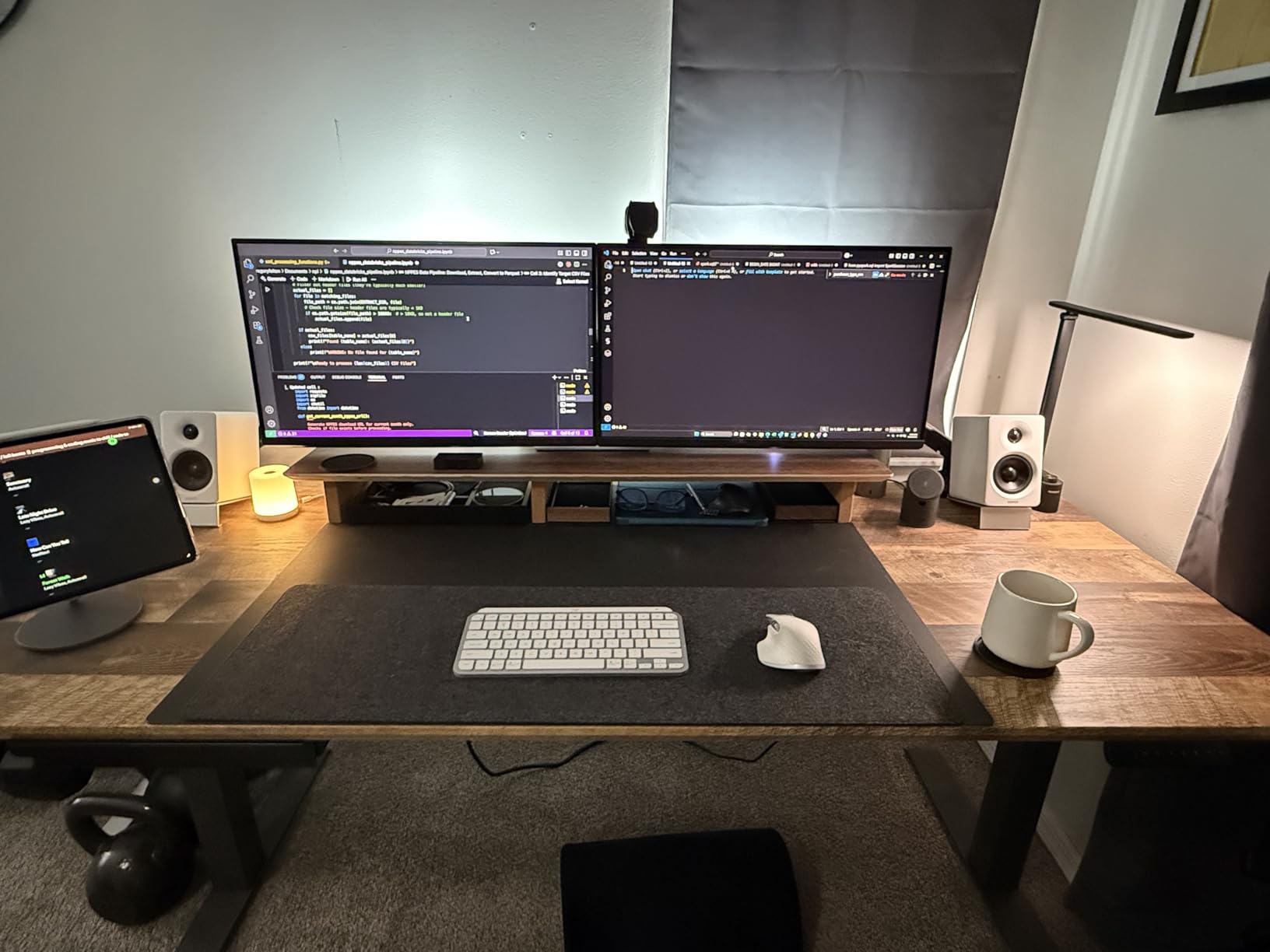
Brightness and volume adjust from the Mac keyboard through Display Pilot 2, so you are not reaching behind the panel mid-edit. Several reviewers compared the image quality favorably to a Dell S2725QC.
Spec-wise it punches above its class too: 2000:1 contrast and a 3ms response time on a 27-inch 4K IPS panel, with a stand that handles height, tilt, swivel and pivot into portrait.
What the Mac tuning actually changes
The tuning shifts the monitor’s white point and gamma curve to sit closer to what macOS assumes. Without it, the same file looks slightly different on the laptop and the external screen, which is where grading surprises come from.
It is a narrow advantage. If your main machine is Windows or Linux, this tuning buys you nothing and the missing Adobe RGB coverage costs you real print accuracy.
Where this monitor will disappoint you
Display Pilot 2 is required for anything beyond on-screen brightness and volume, and basic settings are not reachable from the monitor itself. Some owners had to configure keyboard control after a failed first attempt.
There is one USB-A port, tucked away rather than conveniently placed, and no published Delta E figure despite the color-led marketing. Wake from sleep takes three to four seconds, which is noticeable when you step away briefly.
9. ASUS ProArt PA279CRV: The Adobe RGB Choice
ASUS ProArt PA279CRV 27 Inch 4K UHD USB-C HDR Professional Monitor for Mac
27-inch 4K IPS
99% Adobe RGB and 99% DCI-P3
3000:1 contrast
96W USB-C
Pros
- Genuine 99% Adobe RGB coverage alongside 99% DCI-P3
- Calman Verified and factory Delta E under 2
- 3000:1 contrast ratio
- DisplayPort over USB-C with 96W power delivery
- Five-year warranty with extension on registration
Cons
- Lowest average rating here at 4.2 with a 9% one-star share
- 60Hz refresh and 5ms response
- No hardware calibration support
- Heavier 18.3-pound build with a bulky stand
- Wide gamut needs disciplined color management
If you soft proof Adobe RGB files or deliver to a commercial printer, this is the monitor in the roundup built for that job. Ninety-nine percent Adobe RGB coverage alongside 99% DCI-P3 is a combination nothing else here matches.
It is Calman Verified and factory pre-calibrated to Delta E under 2, with a calibration report in the box and a 3000:1 contrast ratio, the highest figure specified across these ten displays.
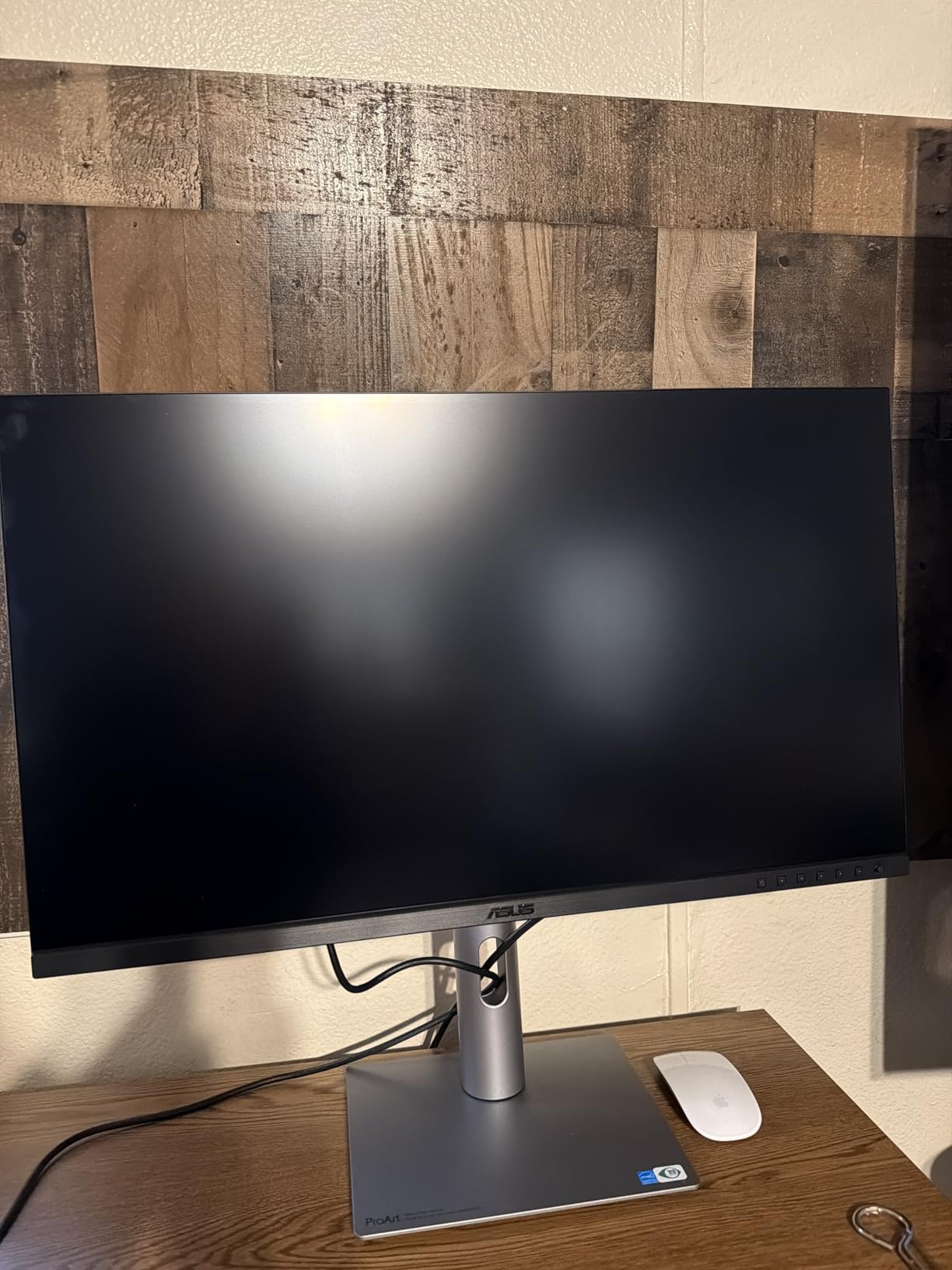
DisplayPort over USB-C delivers 96W, which covers high-end laptops that the 60W and 65W competitors cannot, and DisplayPort daisy-chaining lets a second monitor hang off one output.
The five-year warranty, three years plus two more with online registration, is the longest offered here, and EU spare part availability runs three years past purchase.
Why Adobe RGB coverage changes your workflow
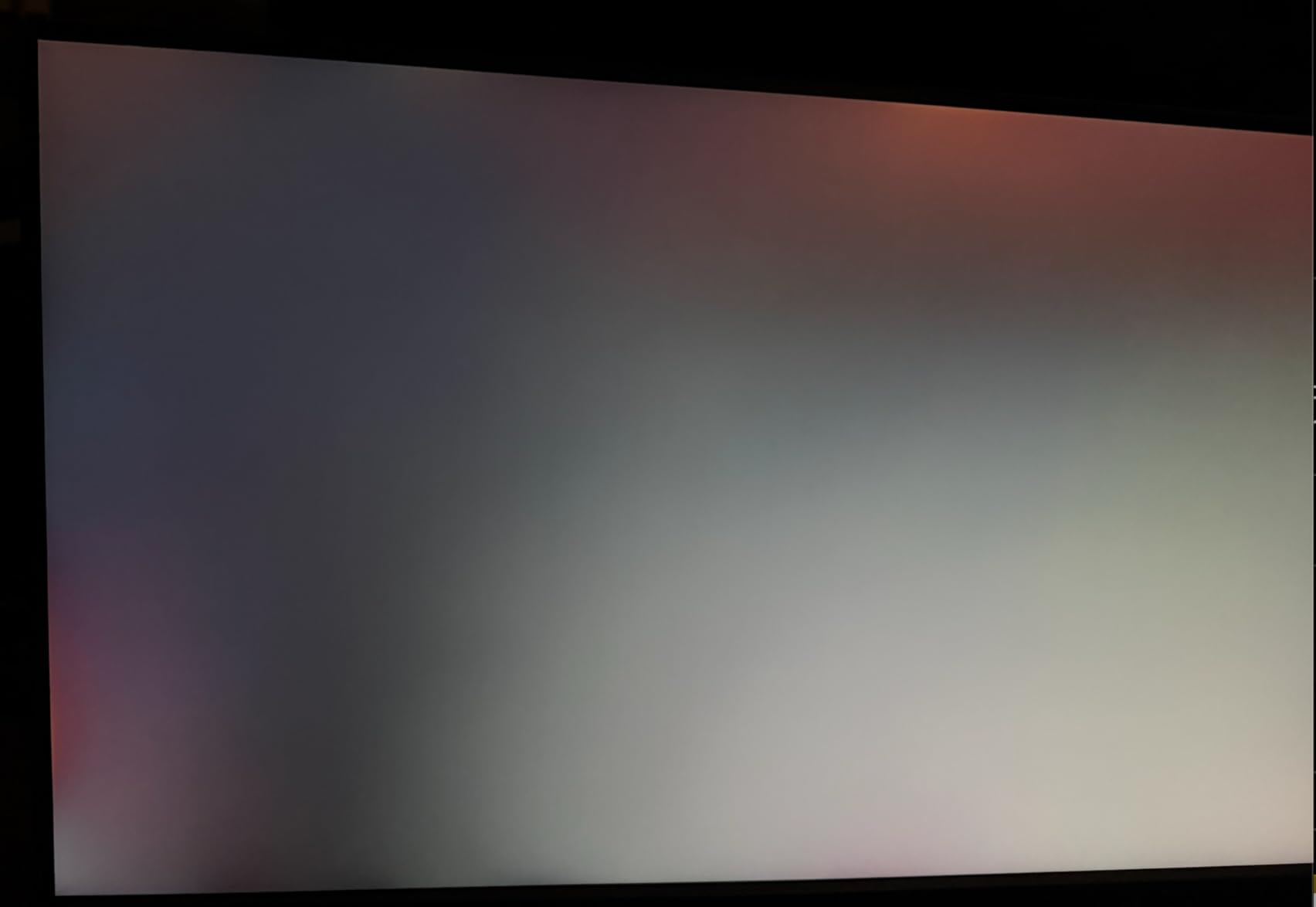
Adobe RGB holds saturated greens and cyans that fall outside sRGB entirely. On an sRGB panel those colors are clipped to the edge of the space, so you make a grading decision on a version of the image that no printer will ever produce.
With 99% Adobe RGB coverage, the colors you see are the colors going to press. The tradeoff is that anything exported for the web must be converted deliberately, or it will look oversaturated to everyone else.
Where this monitor will disappoint you
The rating is the lowest in the roundup at 4.2, with 9% of reviews at one star. Buyers report that the wide gamut needs disciplined color management and that a 60Hz panel feels dated for video work.
There is no hardware calibration support on this chassis, and at 18.3 pounds with a bulkier stand footprint it wants a solid desk with real clearance behind it.
10. BenQ PD3205U: The One Built for Two Matching Screens
BenQ PD3205U Mac-Ready Monitor 32″ 4K UHD 99% Rec.709 & sRGB, IPS, DeltaE ≤3, ICC Sync, Calibration Report, AQCOLOR, Uniformity HotKey Puck Ergonomic DisplayPort, USB-C (90W), USB Hub
31.5-inch 4K IPS
Delta E 3 or less
Pantone Validated
ICC Sync
90W USB-C
Pros
- 99% sRGB and 99% Rec.709 with a published Delta E 3 or less
- Calman Verified plus Pantone Validated and SkinTone Validated
- ICC Sync matches color balance across two units
- Hotkey Puck G2 for profiles and input switching
- KVM switch DualView and HDR10 preview
- Matte non-reflective coating
Cons
- Built-in speakers are thin with almost no bass
- Stand too short for portrait without an Ergo Arm
- Ports sit on a downward-facing narrow ledge
- Puck-based KVM switching can be slow
- 350 nits struggles in a bright room
- Support is heavily automated
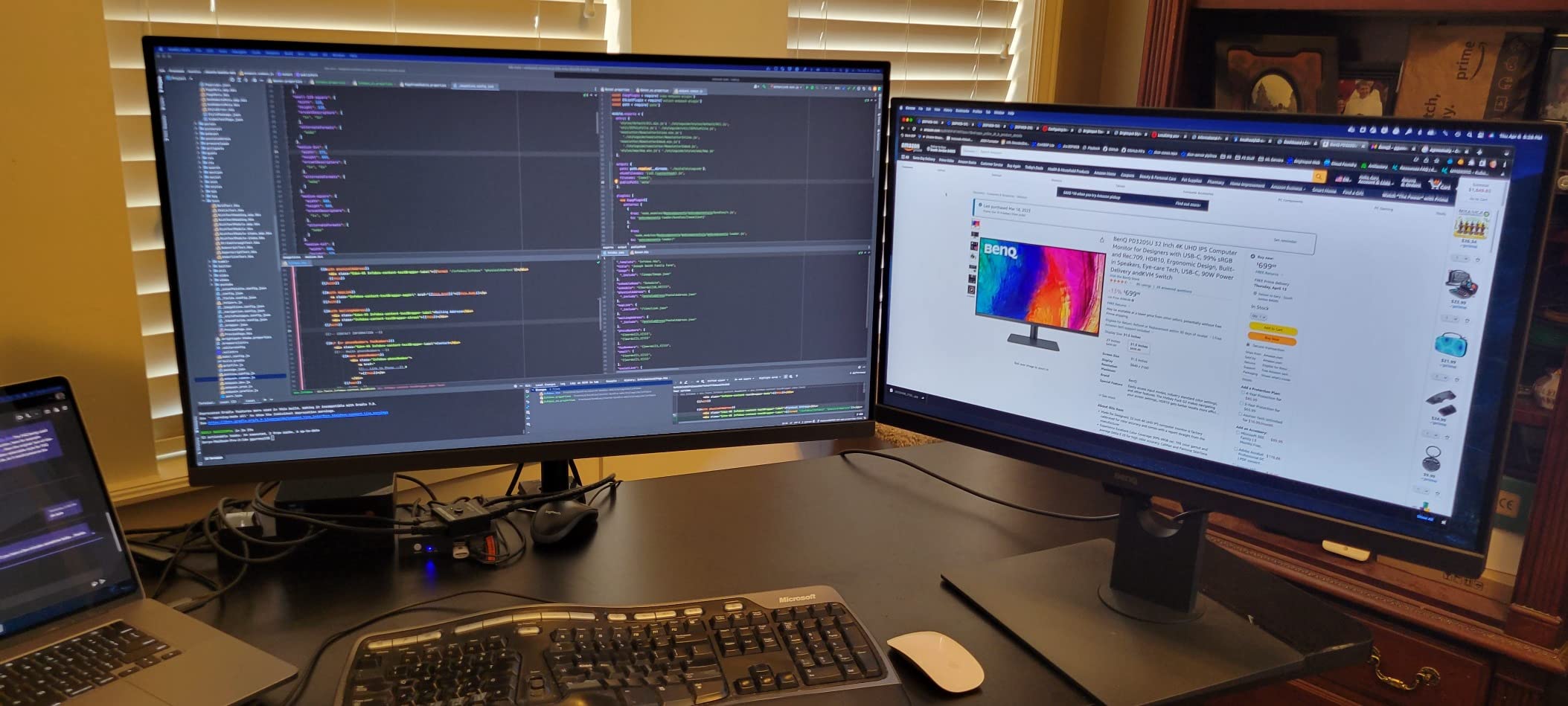
The differentiator here is ICC Sync. Owners running two-head Mac Studio setups specifically praise the ability to match color balance across both units, which is otherwise a painful afternoon with a colorimeter.
The published Delta E of 3 or less, the factory calibration report, and Pantone Validated plus Pantone SkinTone Validated certification make this one of the better-documented sRGB-class displays available.
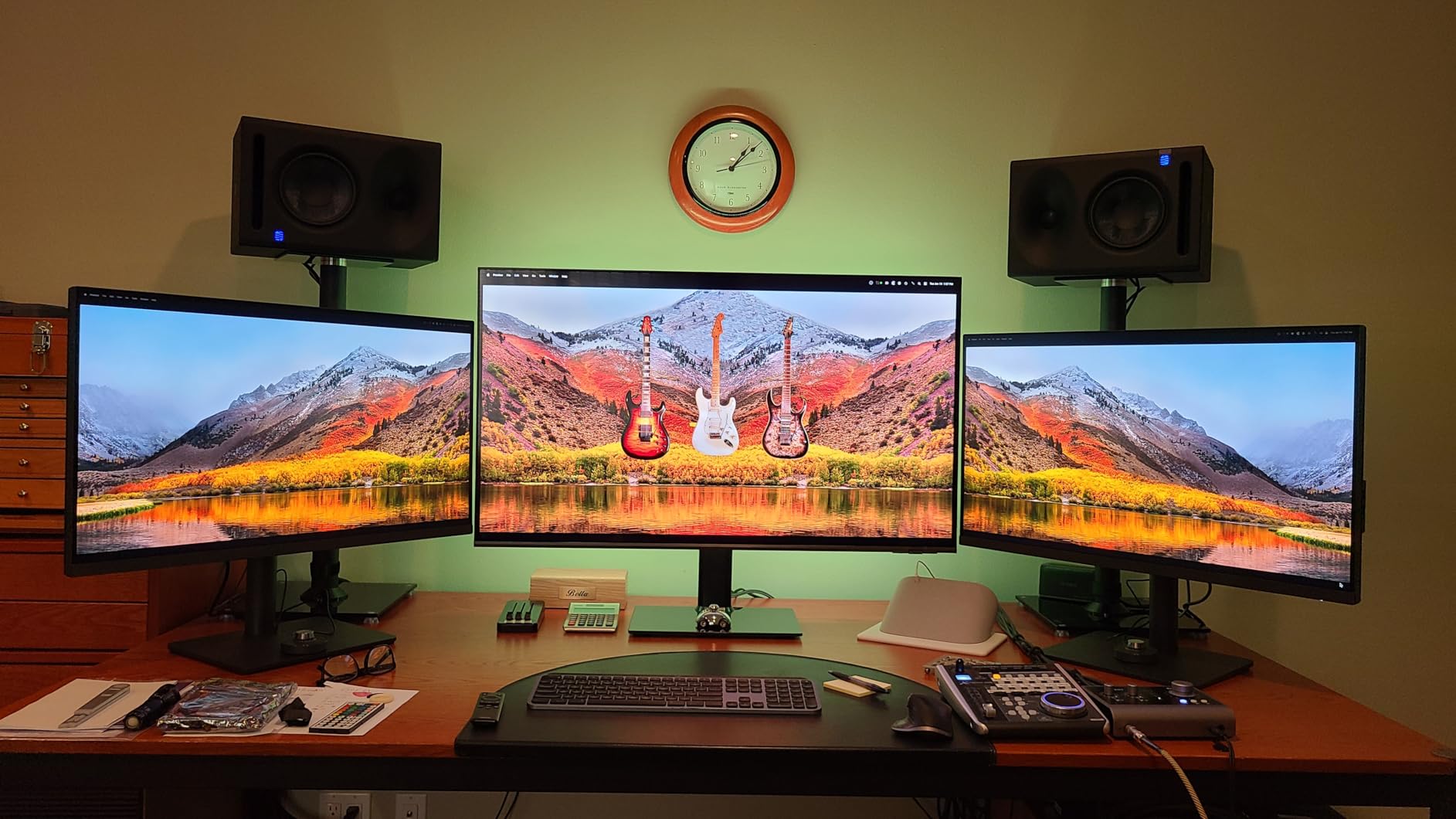
The 31.5-inch 4K canvas solves the side-by-side working problem a 27-inch panel cannot, and owners coming from 1440p screens describe it as a decisive upgrade for color-critical work.
The Hotkey Puck G2 puts profile switching, input selection, brightness and volume on a physical controller. It is the kind of small ergonomic decision that pays off across a long session.
When two matching screens are worth it
Two unmatched screens are worse than one good screen. You end up grading against a display with a different white point, and the retouch you approve is not the retouch you deliver.
ICC Sync removes that problem for sRGB work on matching units. If you need Adobe RGB, no display in this roundup covers that space, and pairing two wide-gamut panels remains a manual calibration job.
Where this monitor will disappoint you
The built-in speakers are thin with almost no bass despite what the marketing implies, and the stand is too short to rotate into portrait without an Ergo Arm. All ports sit on a downward-facing ledge that is awkward to reach and label.
Puck-based KVM switching can be slow and several owners reported it failing outright. At 350 nits the panel struggles in a bright room, and customer support is heavily automated with little real-time help.
What Actually Matters in a Monitor for Photo Editing
Panel technology is the first filter. IPS gives you consistent color and wide viewing angles with no burn-in risk, which is why every IPS Black, SuperClear and standard IPS panel in this roundup qualifies for photo work. TN panels shift color dramatically off-axis and are disqualified immediately. OLED delivers deeper blacks and wider gamut but carries burn-in risk from the static Photoshop interface, so it suits motion work more than catalog editing.
Color gamut coverage is a percentage against a named space, and the space is what matters. 100% sRGB covers everything you publish to a screen. 99% Adobe RGB covers saturated print work. Up to 95% DCI-P3 gives you the saturated color space that Mac displays and modern video use. A panel claiming a wide gamut without naming the space is telling you nothing useful.
Delta E measures how far a displayed color sits from the reference value. Under 2 is invisible in practice and is what the ASUS ProArt and ViewSonic panels ship with. Under 3 is fine for web work. Above 5 and you are grading on a guess.
Resolution and size are a workspace decision more than a color one. A 27-inch 4K panel at roughly 163 pixels per inch is the sweet spot for single-screen editing. A 31.5-inch 4K panel trades pixel density for room to run two applications. Going above 4K matters when you work at 150% scaling on a high-resolution laptop.
Refresh rate is worth paying for if you scroll a lot. Moving from 60Hz to 120Hz is the single biggest interface quality change most editors will notice, and it costs little to get.
Panel finish is where many buyers go wrong. A glossy screen looks stunning in a dark room and terrible in a bright one, because reflections land in the darkest parts of your image. Matte anti-glare coatings lose a little punch and gain a usable working environment. If you cannot control the light, matte is the correct choice.
Ergonics are not a luxury. Look for height, tilt, swivel and pivot adjustment, because portrait orientation is genuinely useful for vertical panoramas and for reviewing tall social formats. For a laptop-driven setup, USB-C with 90W of power delivery turns one cable into a full desktop, and Thunderbolt or DisplayPort daisy-chaining lets a second screen share a single output.
One more practical point: turn off every operating system color filter before you judge a monitor. Night Shift, True Tone and similar features deliberately shift your color temperature and will have you blaming the panel for a problem the software created.
sRGB vs Adobe RGB vs DCI-P3: Which One Do You Need?
The rule is simple and it keys entirely to where your finished images go. Publish to Instagram, a website, or a client proof on a screen, and work in sRGB. Every monitor here covers at least 99% of it, and no wider space will improve your results.
Send work to a commercial printer that asks for Adobe RGB, or handle ink-heavy products, textiles or packaging, and you need a panel that covers Adobe RGB. In this roundup that is the ASUS ProArt PA279CRV, at 99% coverage. Anything less and your saturated greens get clipped before they reach the press.
Work on a Mac and hand off to video, or grade motion content, and DCI-P3 is the relevant space. The LG 27UP850K-W at up to 95% and the BenQ MA270U built around P3 are the wide-gamut options here, and the BenQ PD3205U covers Rec.709 for broadcast preview.
Rec.709 is the video standard and is essentially the sRGB triangle mapped to luminance. If your work includes motion, you want it covered, and 100% Rec.709 appears on both the ASUS ProArt PA278QV and the ViewSonic ColorPro.
One trap worth naming: wide-gamut coverage can make web images look wrong rather than right. An image converted carelessly from Adobe RGB to sRGB oversaturates. Manage the conversion deliberately, or the extra gamut becomes a liability.
Do You Need a Colorimeter?
Factory calibration is not the same thing as accuracy forever. Panels drift as they age and as they warm up, and factory reports describe the day the unit left the factory, not the day you unbox it three years later.
If your display ships with a printed calibration report showing Delta E under 2, you can work accurately for a long time without measuring anything. If it publishes no figure at all, a colorimeter becomes the only way to know what you actually have.
A software colorimeter corrects the display through the graphics card. It handles drift and out-of-box errors well and is the right purchase for sRGB-focused work. Hardware calibration writes directly into the monitor’s own LUT, which survives graphics card changes and operating system changes, and is why the EIZO and BenQ PhotoVue class of display exists.
On recalibration cadence, a monthly check costs ten minutes and catches drift early. Annual is acceptable for a sRGB-only workflow. Recalibrate immediately whenever you move the monitor to a different room, since ambient light changes the target brightness you should be working at.
What to Avoid in a Photo Editing Monitor
TN panels are the first thing to rule out. Color shifts visibly as soon as you tilt the screen, which makes grading unreliable. VA panels are better but still show visible shifts and slower transitions.
A glossy finish in a room you cannot darken is the second disqualifier. It looks like a defect because reflections sit exactly where your shadows are. Reviewers of the 31.5-inch Dell in this roundup report the glossy coating as its dominant complaint.
Wide gamut marketing with no named color space is the third. If a specification reads only “wide gamut” without a percentage against sRGB, Adobe RGB or DCI-P3, assume sRGB coverage and nothing more.
A stand with no height adjustment is the fourth. It is not fatal but it locks you into whatever desk height you happen to own, which then locks your viewing angle, which affects how you judge contrast. A tilt-only stand with no swivel or pivot is worth avoiding outright.
Finally, 60Hz with no hardware calibration support is a fine pairing for browsing, but a poor one for a display you plan to keep for a decade. Buy the panel that can be measured and corrected rather than the one that merely claims a number.
Frequently Asked Questions
What do most professional photographers use to edit photos?
Most working photographers use a 27-inch or 32-inch IPS or IPS Black panel with 99% or 100% sRGB coverage, and they upgrade to wide-gamut displays once they print. The ASUS ProArt PA278QV and the Dell UltraSharp U2723QE cover the majority of professional desks in this roundup because both ship with factory calibration data. Editors who deliver to a commercial printer move to a panel with 99% Adobe RGB coverage, like the ASUS ProArt PA279CRV.
What resolution monitor is best for photo editing?
For most editing desks, 27-inch 4K at 3840 x 2160 is the best balance, giving roughly 163 pixels per inch for sharp masking and text. Choose 31.5-inch 4K when you want to run Lightroom and Photoshop side by side, and choose 32-inch 5K or 6K only if you already work at 150% scaling on a high-resolution laptop. Going above 4K without scaling support adds cost rather than detail.
What type of monitor is best for photography?
An IPS or IPS Black panel is the safest choice for photo work, because color stays consistent across wide viewing angles and there is no burn-in risk from a static Photoshop interface. OLED panels give deeper blacks and wider gamut but can burn in from docked panels left on screen for hours. TN and VA panels shift color when you tilt the screen, which makes grading unreliable.
What is the best monitor for photo editing on a budget?
The ASUS ProArt PA278QV is the strongest budget option in this roundup, shipping factory calibrated to Delta E under 2 with a printed report and a five-year warranty. If you need 4K resolution more than calibration data, the LG UltraFine 27US500-W delivers a 4K IPS panel with up to 90% DCI-P3 coverage at the lowest cost. Both handle sRGB web and general print work without trouble.
Is Adobe RGB or sRGB better?
Neither is better in the abstract, because they cover different delivery media. sRGB is the standard for anything published to a screen: websites, social platforms and client proofs. Adobe RGB is the standard for commercial print, because it holds saturated greens and cyans outside sRGB that would otherwise be clipped before reaching a press. Work in sRGB unless a printer asks for Adobe RGB.
What is the best monitor for color accuracy in photo editing?
Look for a published Delta E figure and a factory calibration report in the box. The ASUS ProArt PA278QV and the ASUS ProArt PA279CRV are both Calman Verified to Delta E under 2, and the ViewSonic ColorPro VP2756-4K pairs Delta E under 2 with Pantone Validated certification. If your display publishes no Delta E number, budget for a colorimeter to find out what you are working with.
Final Verdict: Where to Start and When to Move Up
Start with the ASUS ProArt PA278QV. It has the highest rating and the largest review base in this roundup, it ships with a calibration report you can check in ten minutes, and it covers 100% of sRGB and Rec.709. It is the single best monitor for photo editing for most people starting out or upgrading from a general-purpose display.
If your budget stretches further and you want a 4K panel with deeper blacks, move to the Dell UltraSharp U2723QE. If you print commercially, go straight to the ASUS ProArt PA279CRV for genuine Adobe RGB coverage. If you edit on a Mac, the BenQ MA270U removes the laptop-to-monitor color mismatch that costs you grading accuracy.
Whichever tier you pick, control your room before you trust your eyes, and check the panel with a color checker chart before your first client delivery. For the rest of the desk, our guides to the best photo printers for home and best photo scanners cover the other halves of a color workflow.