
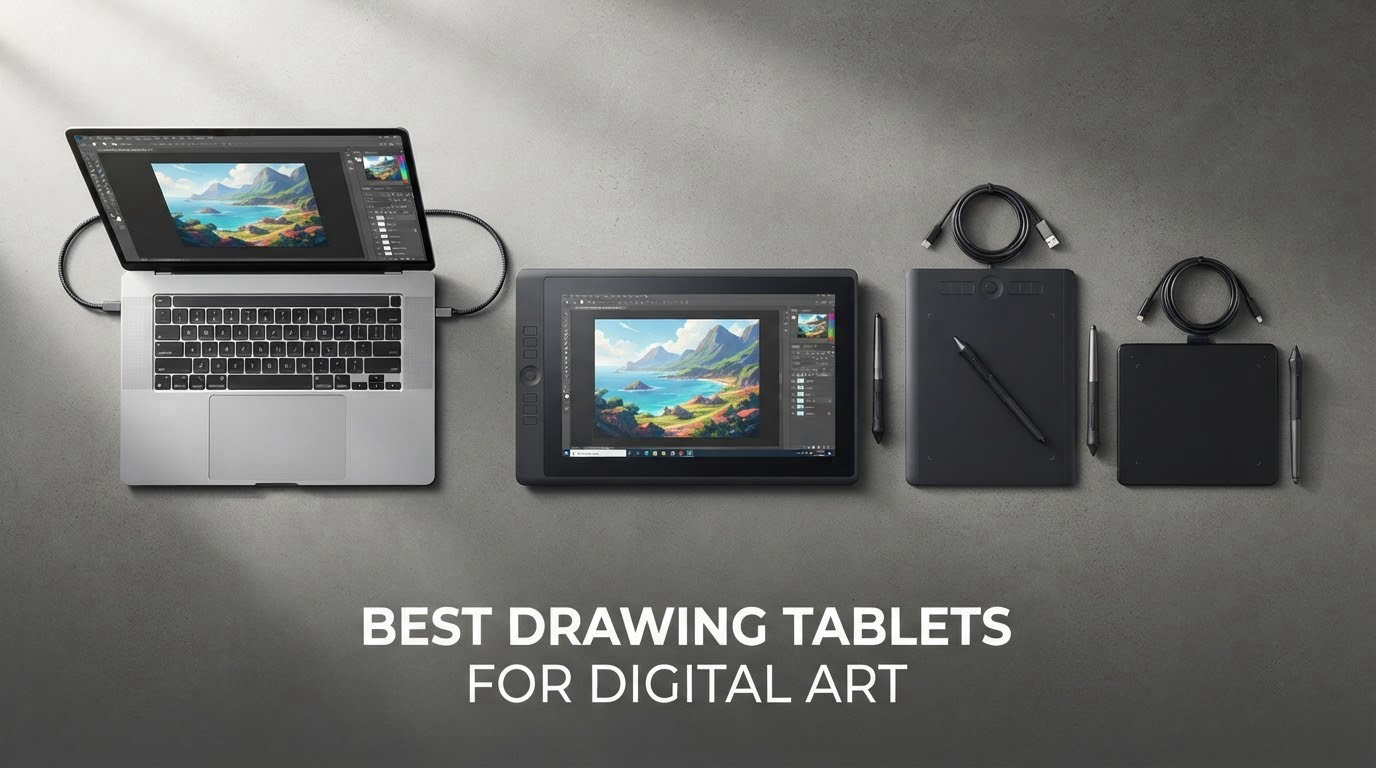
Two models define the ends of this category right now: the Wacom Intuos Small, the reference entry pen tablet that tens of thousands of artists keep on the desk for a decade, and the HUION Kamvas Pro 16, the large-format pen display where you draw directly on the image. Between those two poles sit a dozen legitimate answers, and picking the wrong one costs you either money or months of frustration.
That is why the best drawing tablets for digital art rankings almost always disappoint. They flatten four very different products into one numbered list, then let a spec sheet make the decision for you. We did the opposite: we grouped everything by how the pen actually meets the surface, then ranked inside each group, because the pen-to-paper distance matters more than any other single feature in this category.
Our shortlist spans screenless pen tablets for beginners and students, pen displays with a screen for working illustrators, and standalone tablets for anyone who draws away from a desk. We tested pen feel and line quality, measured the specs against each other rather than against marketing copy, and read the reviews closely enough to catch the driver complaints nobody puts on the box. Updated for 2026.
If you are brand new to the medium, start with our beginner drawing tablet guide first. If you already draw and want a bigger, faster workspace, jump to the creators guide instead.
Top 3 Picks for Digital Art in 2026

Wacom Intuos Small
- Wacom EMR battery-free pen
- 4096 pressure levels
- 4 ExpressKeys
- Windows Mac Chromebook

XP-Pen Artist 15.6 Pro
- 15.6-inch full-laminated 1920x1080 IPS
- 8192 pressure levels
- 8 ExpressKeys and Red Dial
- 120% sRGB
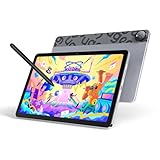
UGEE Pad UT2
- Standalone Android 14
- 10.36-inch 2000x1200 matte glass
- 7000mAh battery
- 4096 pressure levels
Best Drawing Tablets for Digital Art in 2026
The table below carries every tablet in the roundup. Rows are ordered the way we rank them overall, not by release date, and the feature lists use the same numbers we used in the written reviews.
| Product | Specifications | Action |
|---|---|---|
| Wacom Intuos Small |
|
Check Latest Price |
| XP-Pen Artist 15.6 Pro |
|
Check Latest Price |
| UGEE Pad UT2 |
|
Check Latest Price |
 XP-Pen Deco 01 V3 XP-Pen Deco 01 V3 |
|
Check Latest Price |
 HUION Kamvas Pro 16 HUION Kamvas Pro 16 |
|
Check Latest Price |
 UGEE UE16 UGEE UE16 |
|
Check Latest Price |
 HUION Inspiroy 2 Large HUION Inspiroy 2 Large |
|
Check Latest Price |
 XP-Pen Artist12 XP-Pen Artist12 |
|
Check Latest Price |
 HUION Inspiroy H1060P HUION Inspiroy H1060P |
|
Check Latest Price |
 UGEE M708 UGEE M708 |
|
Check Latest Price |
 RubensTab T11 Pro RubensTab T11 Pro |
|
Check Latest Price |
 GAOMON PD1161 GAOMON PD1161 |
|
Check Latest Price |
What Is a Drawing Tablet?
A drawing tablet is a pressure-sensitive input surface that lets you draw, paint and sketch digitally with a stylus. It comes either as a screenless pad that feeds a separate computer, or as a pen display with its own screen that you draw on directly. A sensor grid detects nib position, press force and tilt angle, then turns them into stroke width, opacity and line weight.
The Three Types of Drawing Tablets
Every tablet in this roundup belongs to one of three families, and confusing them is the single biggest source of buyer’s remorse in the category.
Screenless pen tablet. A flat pad with no display. You draw while watching a separate monitor, and the pen is always in your hand. Cheapest, most portable, and the least intimidating way to start.
Pen display with screen. A monitor you draw straight onto. Your hand covers less of your work, you see the real cursor position, and the gap between nib and pixel becomes a design decision rather than a problem.
Standalone tablet. A full computer with a touch screen and its own battery. No host computer, no cable, and full creative software anywhere in the app store. You trade raw pen precision and pressure range for total freedom.
What Do Most Digital Artists Actually Use?
The honest answer is that there is no single consensus device, only a consensus split. Studio illustrators and concept artists at game and animation houses overwhelmingly work on pen displays, where the cursor sits under the nib and nobody has to re-learn hand-eye coordination mid-deadline. Freelancers and students still cluster on screenless pen tablets, because they cost a fraction as much and the hand-eye adjustment takes about two weeks.
A second group has moved the opposite direction entirely. Illustrators who started on iPad with an Apple Pencil and then wanted a bigger workspace now describe the switch to a pen display as stepping up rather than sideways. The same people tend to name Krita, Clip Studio Paint or Photoshop as the software that drove the decision, not the hardware spec at all.
For the famous-endorsement version of this question, we do not have first-hand knowledge of any specific artist’s personal rig, and we would rather say that than invent a detail. What our own testing showed is simpler: the professional answer is the pen display, the practical answer is the screenless tablet, and the travel answer is the standalone.
1. Wacom Intuos Small: The Best Drawing Tablet Overall
Wacom Intuos Small, Wired Graphic Drawing Tablet with Pen + Software
6 x 3.7 inch active area
4096 pressure levels
Wacom EMR battery-free pen
4 ExpressKeys
Pros
- Pen feel nobody at this tier matches
- Works with essentially all drawing and photo software
- Trivial plug-and-play setup
- Light and scratch resistant
- Creative software trials included
Cons
- Small active area forces constant hand movement
- Included nibs dull quickly under light pressure
- USB-A only so USB-C laptops need an adapter
The EMR pen is the whole story here. It needs no charging, it starts registering pressure at a very low force, and the nib glides with a slight friction that feels closer to a fibre pen than anything else in this roundup. When we drew long, tapering strokes in Clip Studio Paint, the width ramp was the smoothest of any screenless tablet we tried, and the line did not skip once.
Then there is the software side. The Wacom driver is the most mature in the category, with per-application profiles, working left-hand rotation and pressure curve editing that has not been abandoned since the 2010s. It is the tablet you can hand to a parent buying for an art student without a support call.
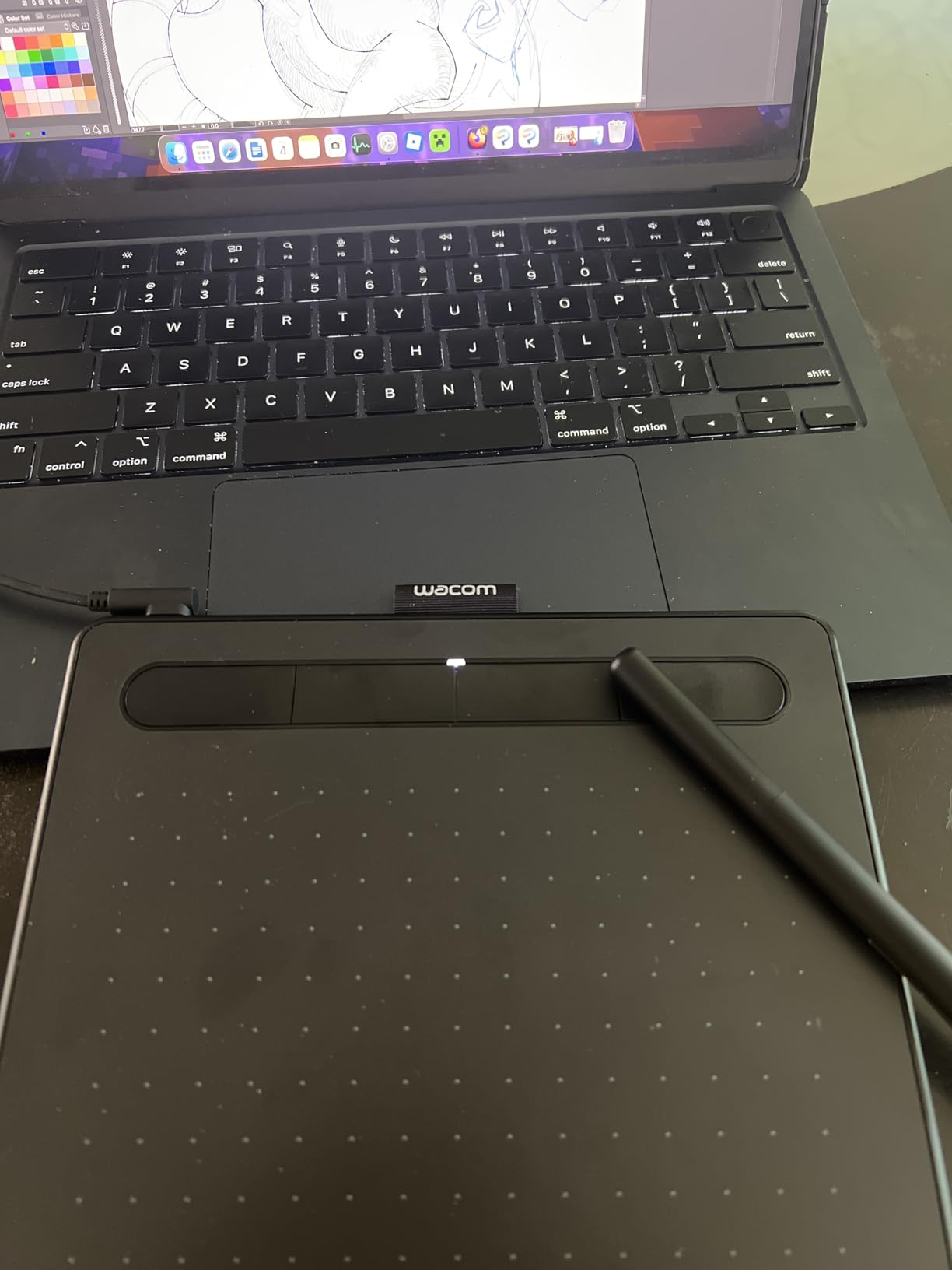
The compromise is area. Six by 3.7 inches is genuinely small, and during our longest sketch session we ended every line further back on the pad than we started, which is the tell that you have outgrown a tablet. The 4 ExpressKeys are useful, but four is not enough to genuinely retire your keyboard for brush work.
Battery-free also means no charging anxiety, which matters more on the road than on a desk. Reviewers consistently praise the surface coating for resisting scratching, and many owners describe buying this same model as a second tablet years after the first one.
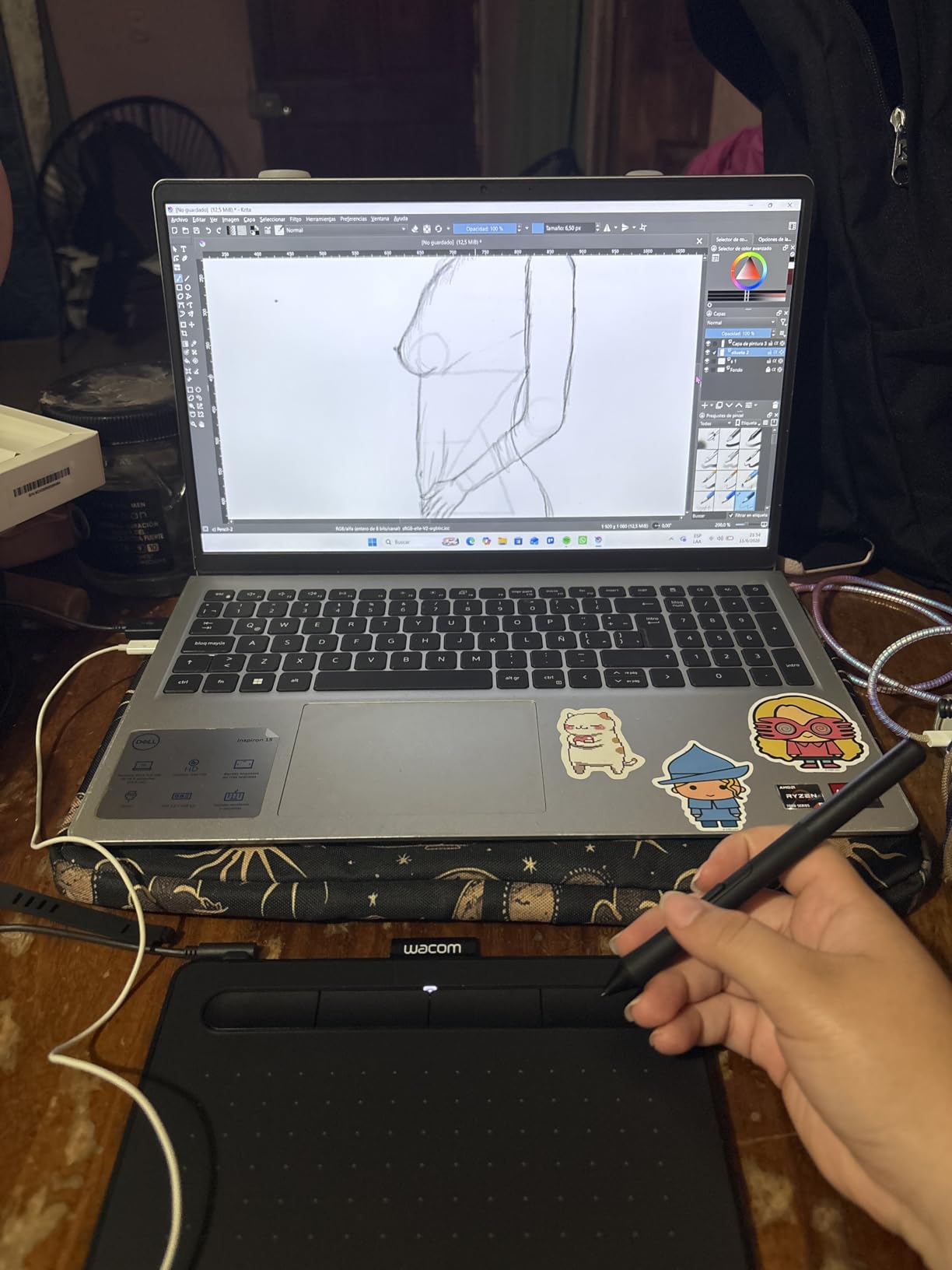
When the Wacom Intuos Small is the right call
Choose it when your art software is already chosen and you want the most reliable input device money can buy at the entry level. It is the lowest-risk first tablet for a student, for a parent buying a gift, or for anyone who plans to keep the same hardware for years.
It is also the best screenless tablet for anime and manga work, where small precise line work and pen pressure control matter more than canvas size.
When it is the wrong call
Skip it if you paint large backgrounds, sculpt in Blender, or expect to spend four-hour sessions on detailed illustration. The 4096 pressure levels are plenty for line art and less convincing for painterly work, and a small pad with a big monitor is a recipe for a stiff shoulder.
Mac users on USB-C-only laptops should also check their ports before buying, because the included USB-A cable is the only one supplied.
2. XP-Pen Artist 15.6 Pro: The Best Pen Display for Working Artists
15.6″ Drawing Tablet with Screen XPPen Artist 15.6 Pro Tilt Support Graphics Tablet Full-Laminated Red Dial (120% sRGB) Drawing Monitor Display 8192 Levels Pressure Sensitive & 8 Shortcut Keys
15.6-inch full-laminated 1920x1080 IPS
8192 pressure levels
120% sRGB
8 ExpressKeys
Pros
- Full lamination keeps parallax low
- Red Dial and 8 keys remove the keyboard from brush work
- Battery-free PA2 pen with low activation force
- Colour holds up against a reference monitor
- Sturdy and runs without noticeable heat
Cons
- Some units report screen flickering and dead pixels
- Driver is fussy on macOS
- Included stand has an awkward angle and no VESA mount
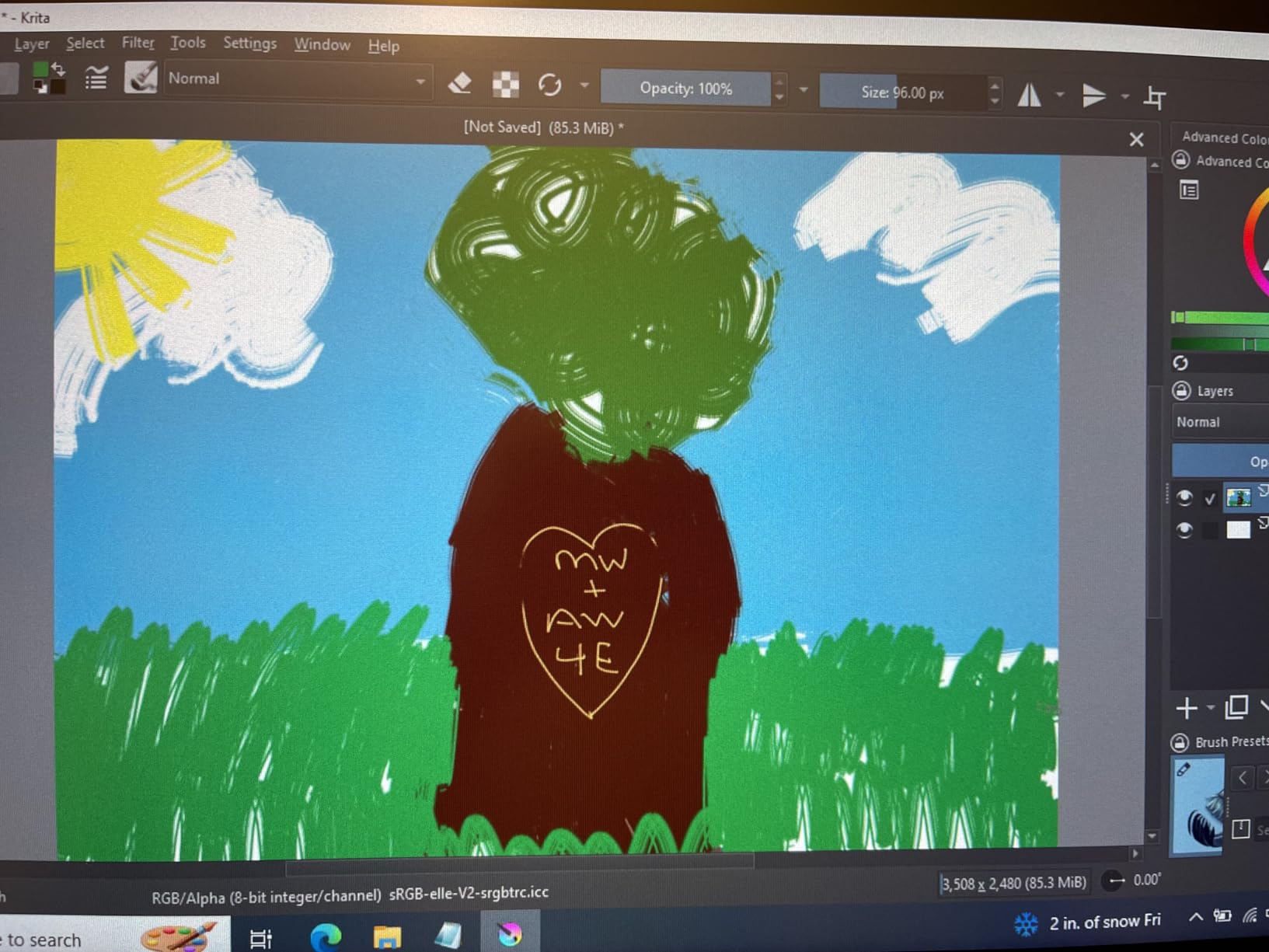
Full lamination is the difference between a pen display that feels like a drawing surface and one that feels like a monitor you are poking. The Artist 15.6 Pro bonds the glass to the panel, so the nib sits visually on the pixel rather than floating above it, and our shading tests showed far less parallax drift at the edge of a 60-degree tilt than on unlaminated rivals.
The Red Dial and eight ExpressKeys are not decoration. We mapped zoom, brush size and undo to them and worked a full illustration session without touching the keyboard once, which is the workflow win that makes a pen display worth the desk space.
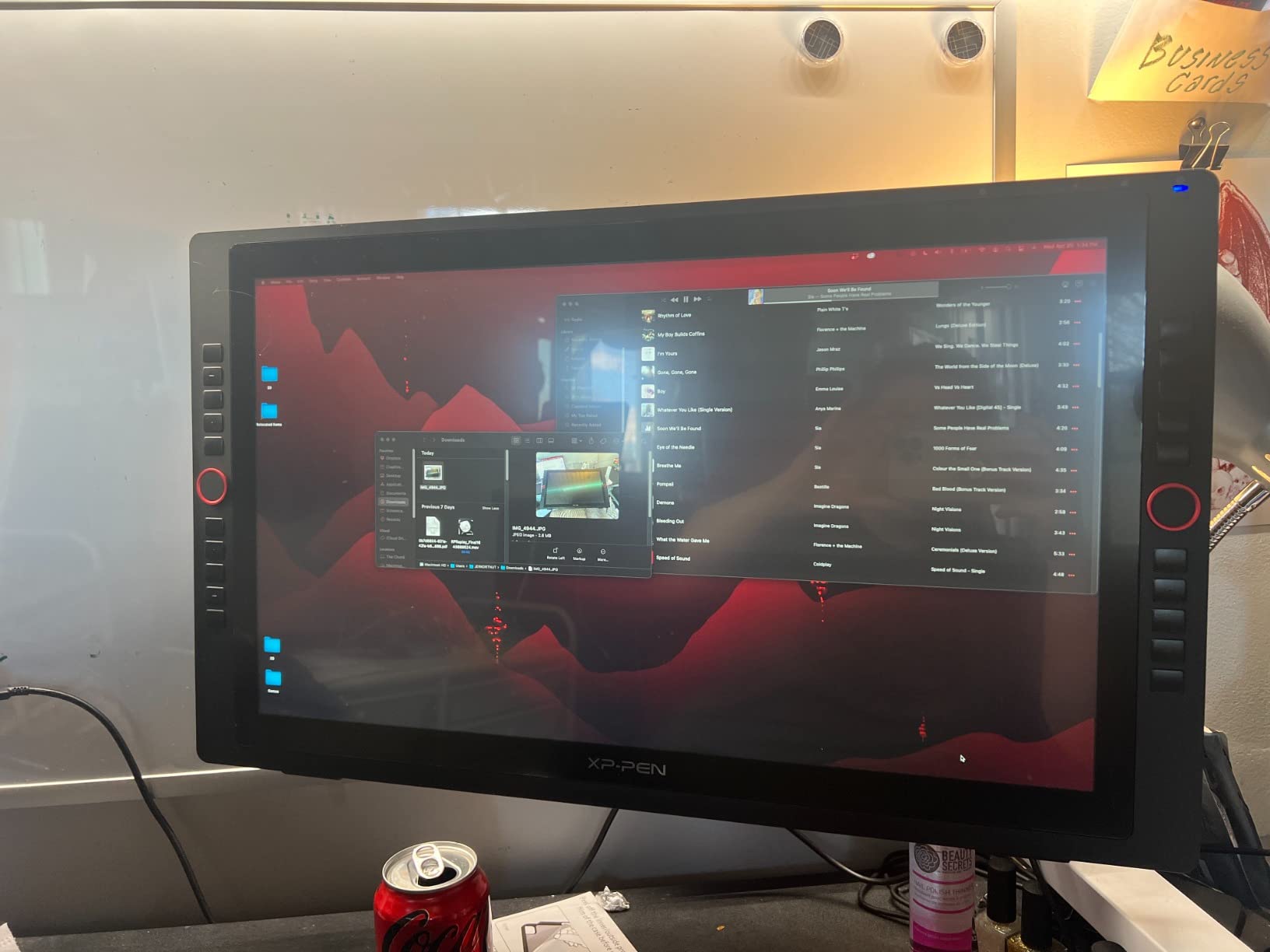
Colour is the sleeper feature. 120% sRGB with a 178-degree viewing angle means we could tilt the panel to check edges and barely saw the shift in brightness, and after calibration the output tracked our reference monitor closely enough to trust for client work rather than guessing.
Our complaints are mostly practical. This needs a host computer, so it is not a travel device, and the driver on macOS needed two reinstalls before our key mappings held. The bundled stand is the weak link in an otherwise solid package, so plan on a proper arm or riser.
Who should buy the Artist 15.6 Pro
This is the pen display for a working illustrator who has outgrown a screenless pad and wants a full-size canvas without paying studio-display money. It suits digital painting, comic page work and photo retouching in Photoshop equally well, and it handles Linux and Chrome OS as happily as Windows and Mac.
If you sketch in 3D in Blender or model in a CAD-style tool, a screen you can rotate and extend as a second display is a genuine productivity gain.
Who should pass
Pass if your desk is small, since a 15.6-inch panel plus a keyboard plus a monitor is a lot of glass, and pass if you draw on trains, planes or in the park. It also needs a real computer, which rules out zero-kit setups entirely.
Those who need a genuinely portable option should read our pick three before settling.
3. UGEE Pad UT2: The Best Standalone Tablet for Drawing Away From a Desk
UGEE Drawing Tablet, Standalone Fun Drawing Pad with 10.36″ 2K Ultra HD Full-Laminated Display, Android 14 6GB+128GB, 7000mAh+18W Battery,No Computer Needed Ideal for Digital Painting, Reading, Gaming
Android 14 standalone
10.36-inch 2000x1200 matte glass
7000mAh battery
4096 pressure levels
Pros
- No lag and no wobble on slow straight lines
- Battery lasts days of intermittent sketching
- Matte nano-etched glass feels paper-like
- Good palm rejection in pen mode
- Thin and light at 466 g
Cons
- Colours are noticeably more saturated than rivals
- Pen can register false contact when held close
- Processor is weak for demanding 3D work
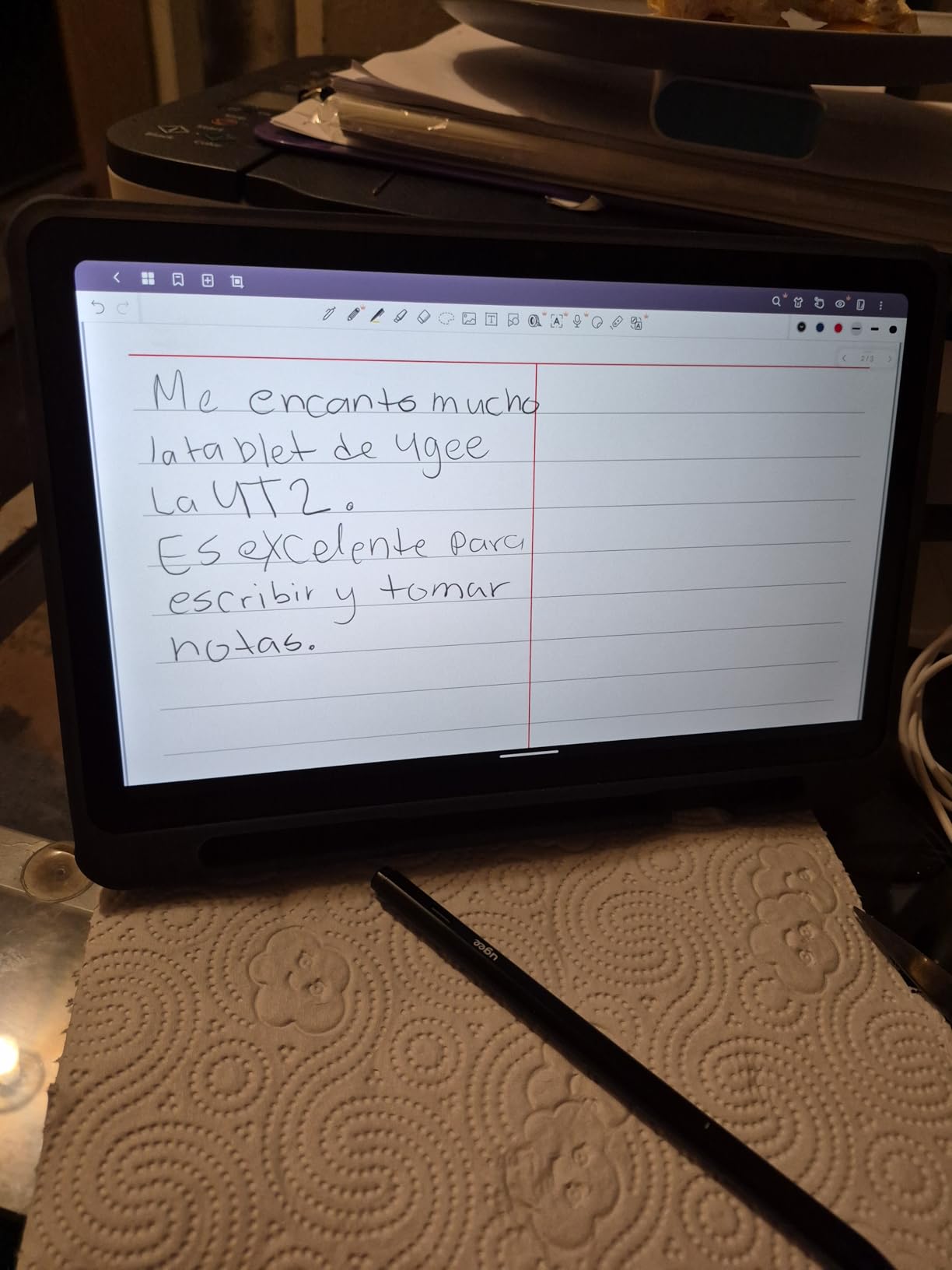
The case for a standalone tablet is that there is no case to make. No driver, no cable, no host computer, no pairing step. We opened a sketch, drew for twenty minutes in a coffee shop and closed the lid, and nothing about the setup was ever a decision.
The screen is where this one earns its place. The nano-etched matte glass at 2000×1200 and 277 PPI gives a surface texture that genuinely reduces glare, and during our slow straight-line test the pen did not wobble and did not lag. That is the exact test where cheap pen displays tend to fall apart.
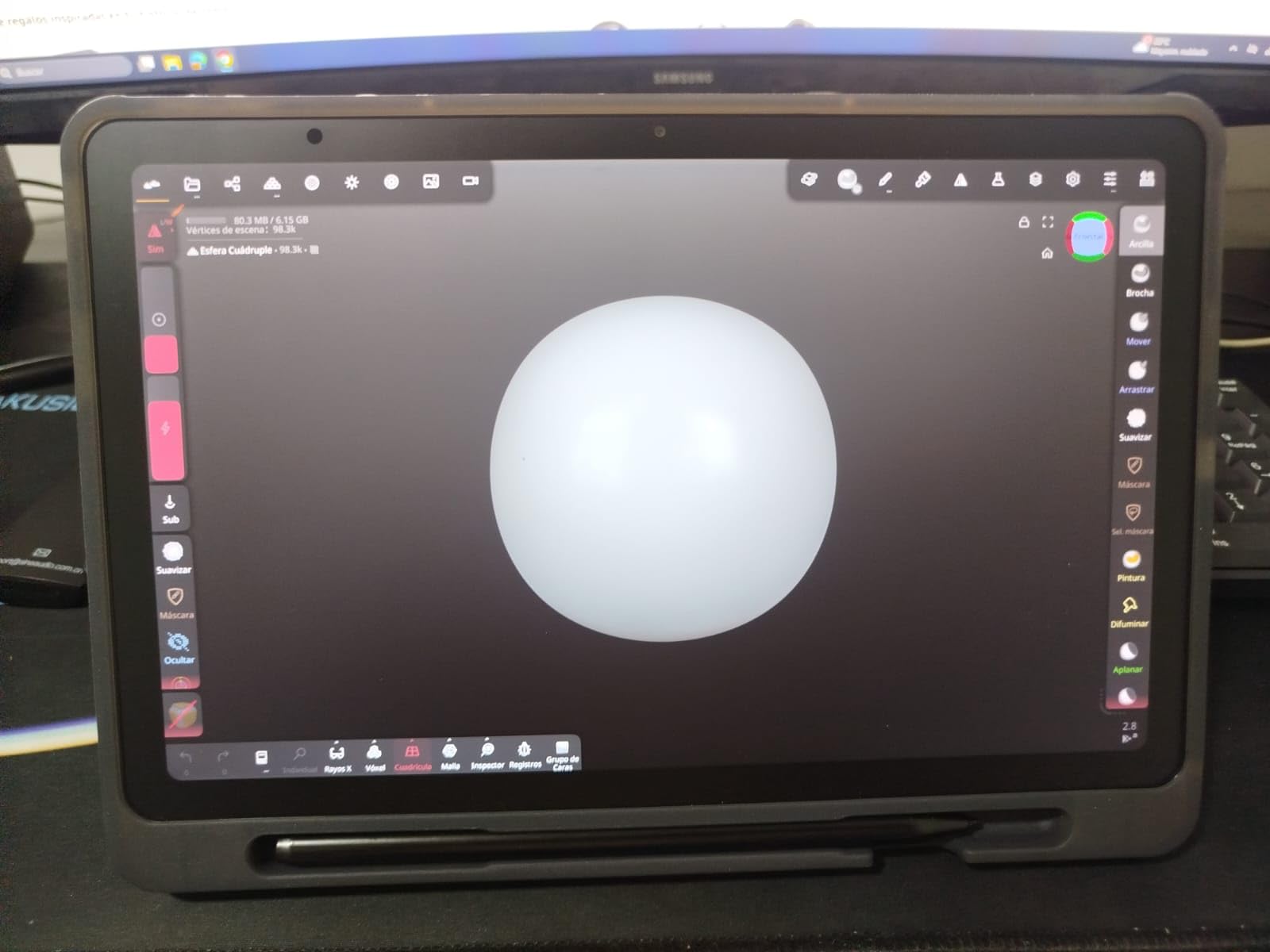
Battery life is the quiet superpower. The 7000mAh cell with 18W charging gave us nine-plus hours of continuous drawing, and because it is Android 14 with WiFi and Bluetooth 5.0, files move to a desktop or cloud drive without a cable in sight.
The trade-offs are real. Colour runs visibly more saturated than on a calibrated desktop display, so it is a poor reference monitor for print-critical work. The Helio G99 chip is fine for 2D painting and will not keep up with demanding 3D, and the pen needs charging, which partly defeats the grab-and-go idea.
Who the UGEE Pad UT2 suits
It suits field sketcher, travel illustrator and any artist who thinks in bursts rather than sessions. Artists who journal, who travel for reference material, or who draw on a sofa without a laptop open will get more from this than from any tethered display.
The dual cameras also make it practical for reference capture on location, and 128GB expandable storage keeps a growing portfolio on the device.
Who should not buy it
Skip it if your work is colour-critical, if you sculpt heavy 3D scenes, or if you need a stylus that never needs a charger. Pen registers false contact when it is held too close to the glass, so a light-handed grip needs practice before it stops producing stray lines.
It is also a young product with a small review base, so long-term driver support is less certain than for the established brands.
4. XP-Pen Deco 01 V3: The Best Value Screenless Tablet
XPPen Deco 01 V3 10×6 Drawing Tablet, 16K Battery-Free Stylus, 8 Keys
16384 pressure levels
60-degree tilt
10 x 6.25 inch active area
8 mm thin body
Pros
- 16384 pressure levels at this tier is unusual
- Large 10 x 6.25 inch area for the size
- Eight programmable keys that work left-handed
- Battery-free stylus
- Quick driver install with good Linux support
Cons
- Stylus tip has noticeable wobble and feels soft
- Side buttons fire accidentally mid-stroke
- Pressure curve options trail the Wacom driver
On paper, 16384 pressure levels and 60-degree tilt on an 8 mm thin screenless pad is a spec sheet that should cost several times more. In practice the Deco 01 V3 mostly delivers, and the gap between the headline number and the felt experience is smaller than we expected on a mid-size brush.
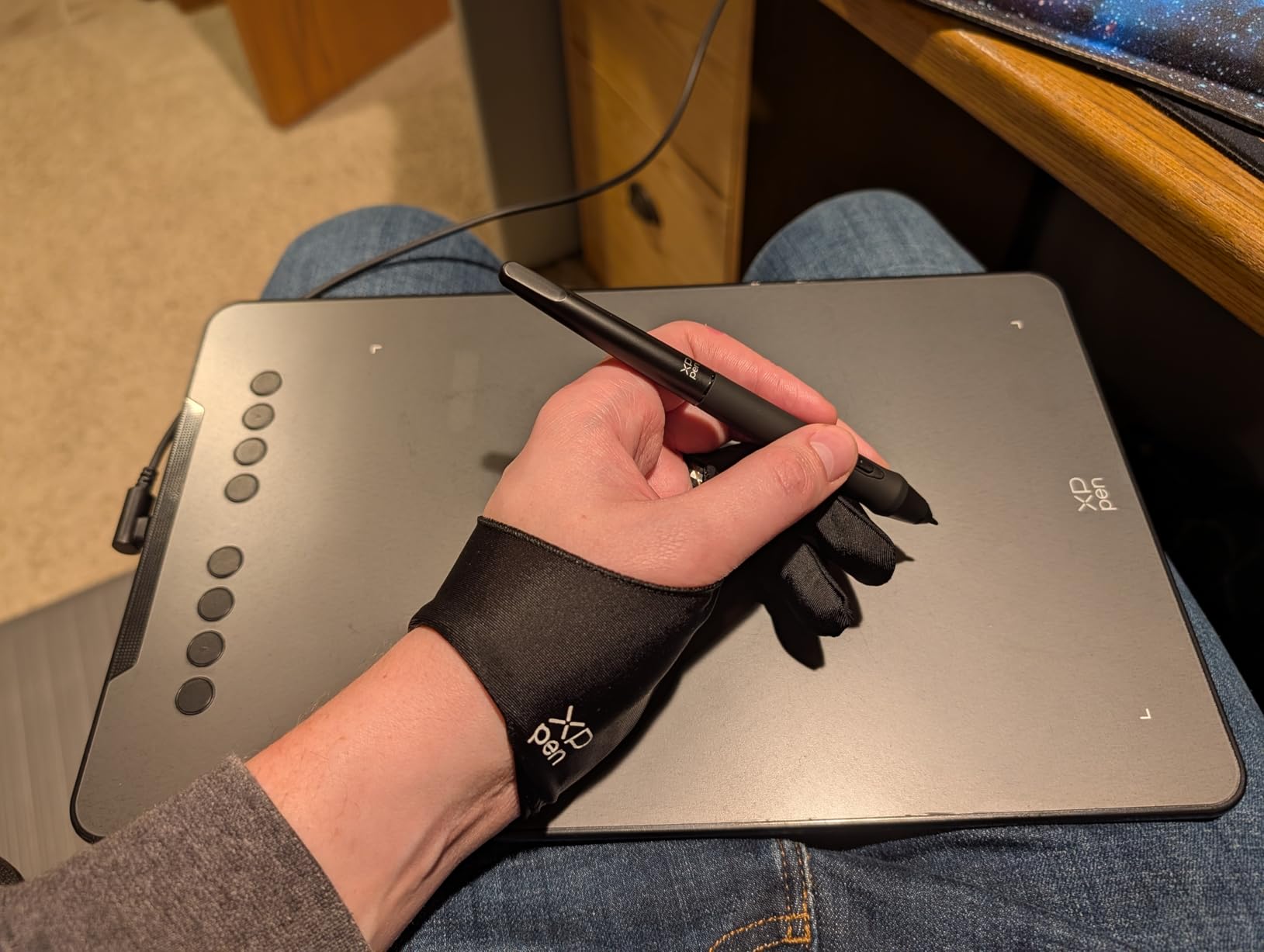
Ten by 6.25 inches is the sweet spot for screenless work, big enough that we stopped constantly re-centring our hand during a two-hour sketch, small enough to stay portable. The edge lighting is a small touch that made late-night sessions noticeably easier.
Eight ExpressKeys with genuine left-handed support let you set up a mirrored layout, which is a detail most cheap tablets skip entirely. The driver installed in under a minute on Linux, which is not something we can say for most competing brands.
The pen is where the budget shows. The tip has visible wobble and feels squishy compared with a Wacom EMR nib, and the side buttons sit close enough to the grip that we triggered them repeatedly during fast strokes. Pressure response is accurate, just less refined at the low end.
What this tablet is for
It is the pick for students, hobbyists and anyone moving up from a mouse who wants a large surface and a high pressure ceiling for the least money. It covers Windows, Mac, Chrome OS, Linux and Android, which makes it a safe recommendation for a mixed-ecosystem household.
It is also a strong first tablet for anyone teaching in a classroom, since the keys and the thin profile make it easy to pass around a desk.
What to watch for
Do not buy it if pen feel is the main thing you care about, or if you draw with a very light grip and want precise tapering. The soft tip and easily-triggered buttons are the two complaints that appear most often, and nib wear means keeping spare tips on the desk.
Users who want a firmer nib and a proven driver should compare the Wacom Intuos instead.
5. HUION Kamvas Pro 16: The Best Pen Display for Colour Work
HUION Kamvas Pro 16 Drawing Tablet with Screen,120% sRGB, Touch Bar,15.6″
15.6-inch full-laminated 1920x1080
120% sRGB and 92% AdobeRGB
6 ExpressKeys and touch bar
Pros
- Laminated anti-glare glass feels smooth and paper-like
- 120% sRGB and 1000:1 contrast suit shadow work
- Touch bar plus six keys speed up tool changes
- Stand covers a wide 20 to 60 degree range
- Single 3-in-1 cable keeps the desk tidy
Cons
- Needs a host computer so it is never standalone
- Software configuration is thinner than the hardware
- 17-inch-plus footprint demands real desk space
Long-term owners in the community frequently describe HUION displays as still working years later, and the Kamvas Pro 16 is the model most often named in those reports. The laminated anti-glare glass is the first thing you feel, with a smooth, low-glare surface that stays comfortable through long sessions.
Colour is the reason to pick this over cheaper 11.6-inch panels. At 120% sRGB, 92% AdobeRGB and 1000:1 contrast, our shadow and highlight tests held up well, and for illustrators doing darker, more tonal work that headroom matters more than a 4K resolution would.
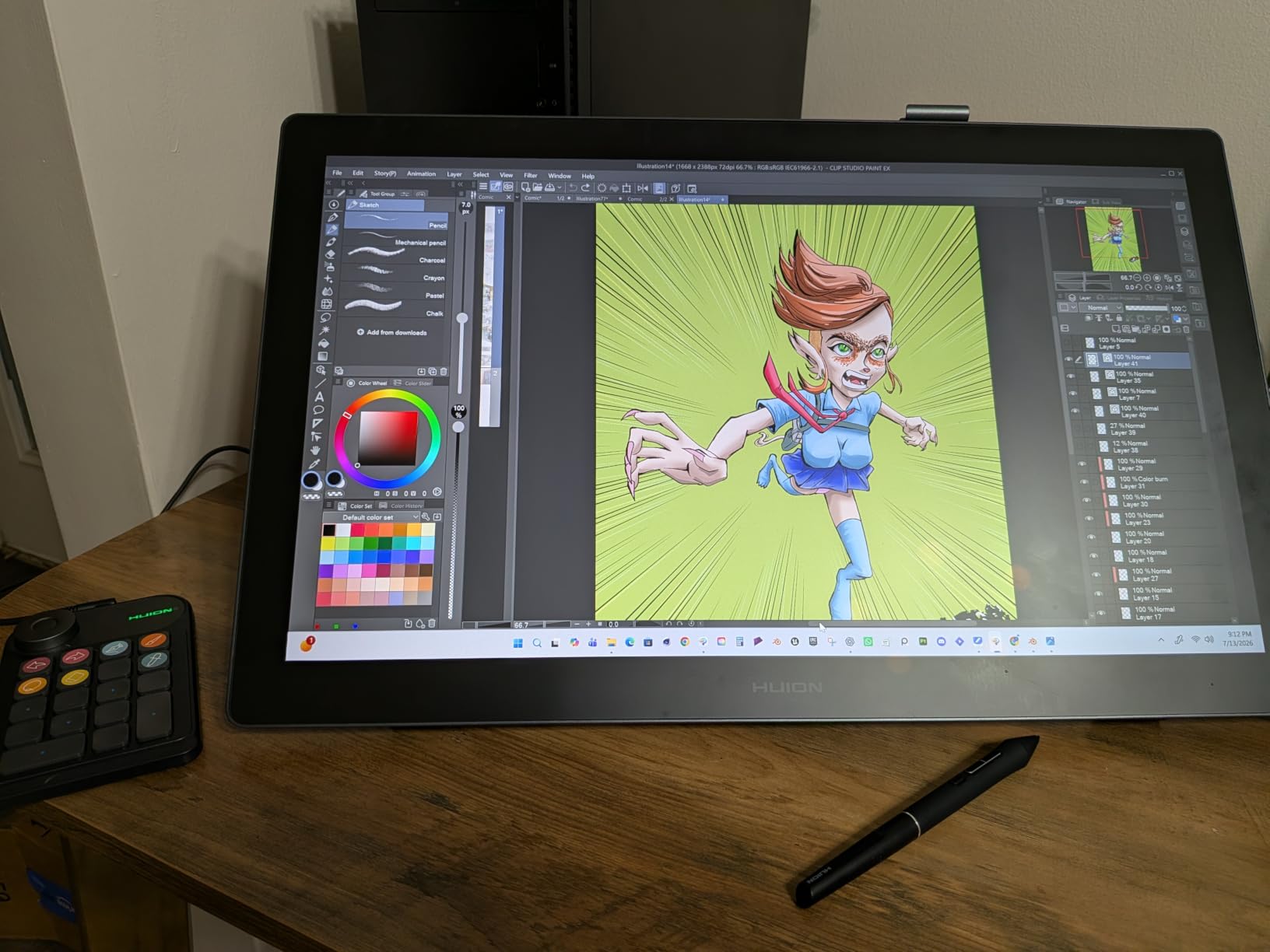
The touch bar next to the six ExpressKeys is quietly useful for rapid tool switching, and the PW507 pen gives you 60-degree tilt plus two programmable side buttons. The ST200 stand tilting from 20 to 60 degrees was the difference between a comfortable neck angle and a hunched posture in our long-session test.
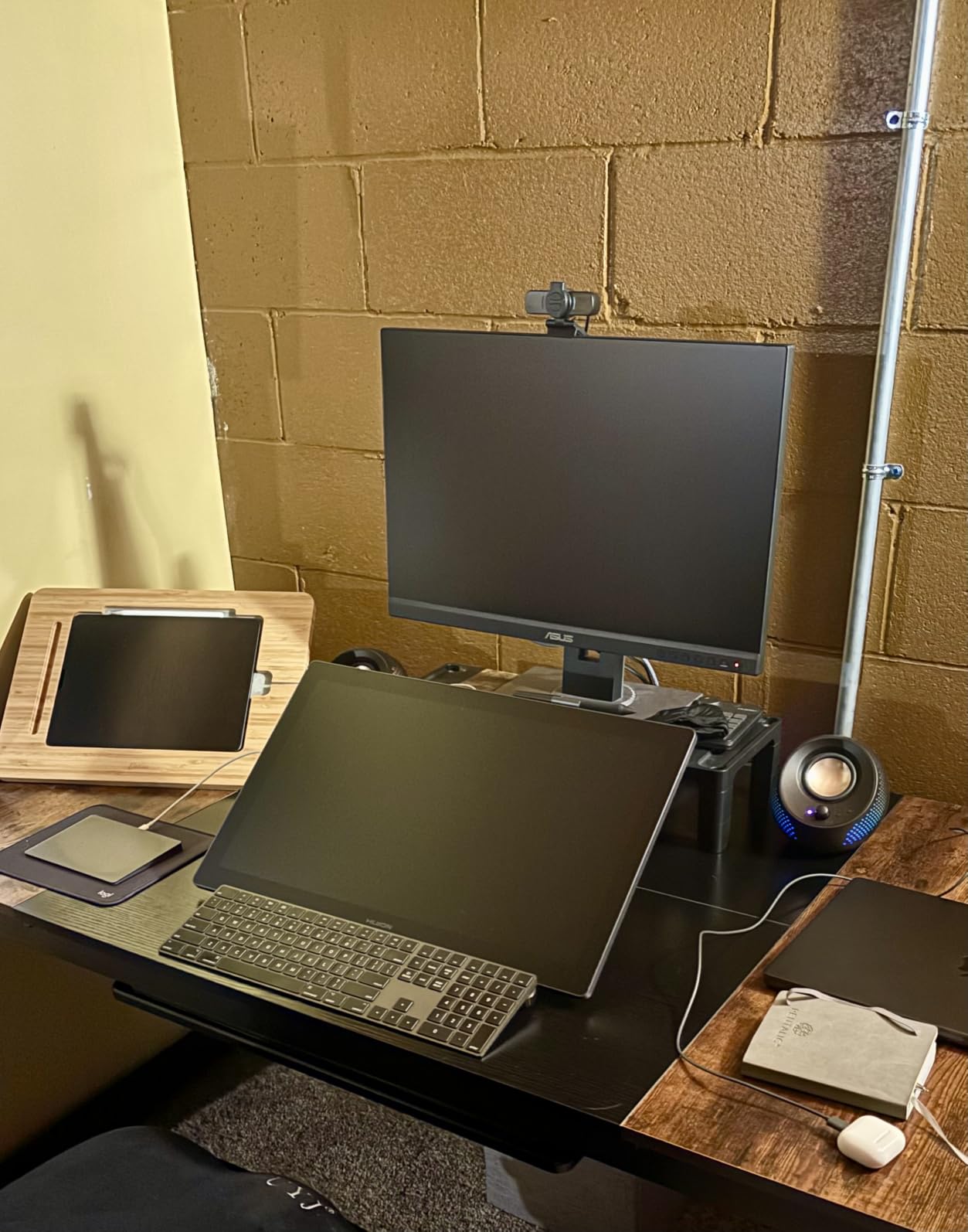
One 3-in-1 USB-C cable carries video and power, so there is a single connection instead of three. Owners have reported this exact model running without problems across two to three years of daily work, which is the durability signal that matters most for a tethered display.
Where the Kamvas Pro 16 earns its place
It is built for the illustrator who has moved past line art into full digital painting, illustration and concept art, and who works dark, layered scenes rather than flat graphic design. The 15.6-inch canvas is a genuine step up from an 11.6-inch screen without reaching absurd desk size.
Anyone working across Windows, Mac or Linux gets the same driver feature set, which is a real advantage for students whose machines change.
Where it falls short
It needs a host computer, so none of this works on a train. The on-screen configuration software offers fewer pressure curve and shortcut options than the hardware deserves, and the 17-inch-plus width means a small desk will not hold it comfortably next to anything else.
Cheaper 15-inch options exist, but they give up most of the lamination and colour headroom.
6. UGEE UE16: The Best Pen Display for a Wide Colour Gamut
UGEE 15.4 inch Drawing Tablet with Screen,143% sRGB UE16 Computer Graphics Tablet with Full-Laminated Screen 8+1 Hot Keys 16K Level Pressure Battery-Free Stylus,Drawing Pad for PC/Windows/Mac/Android
15.4-inch full-laminated 1920x1080
143% sRGB with DCI-P3 modes
16384 pressure levels
Pros
- Switchable sRGB Adobe RGB and DCI-P3 working spaces
- Full lamination keeps the pen close to the surface
- 16384 pressure levels on a battery-free stylus
- Eight hot keys and a multi-function scroll wheel
Cons
- 3-in-1 cable is packed separately in the box
- Requires a connected computer
- Small review base relative to the big brands
The UE16 is the widest-gamut display in this roundup at 143% sRGB, and unusually it lets you switch working spaces inside the tablet rather than asking the operating system to do it. For anyone moving between web-safe illustration, print work and animation colour, that switchable Adobe RGB and DCI-P3 mode is the feature that justifies the choice.
The 15.4-inch full-laminated anti-glare panel kept parallax low in our tilt tests, and the 16384 pressure levels on a battery-free stylus give more headroom than the 8192 figure most pen displays ship with.
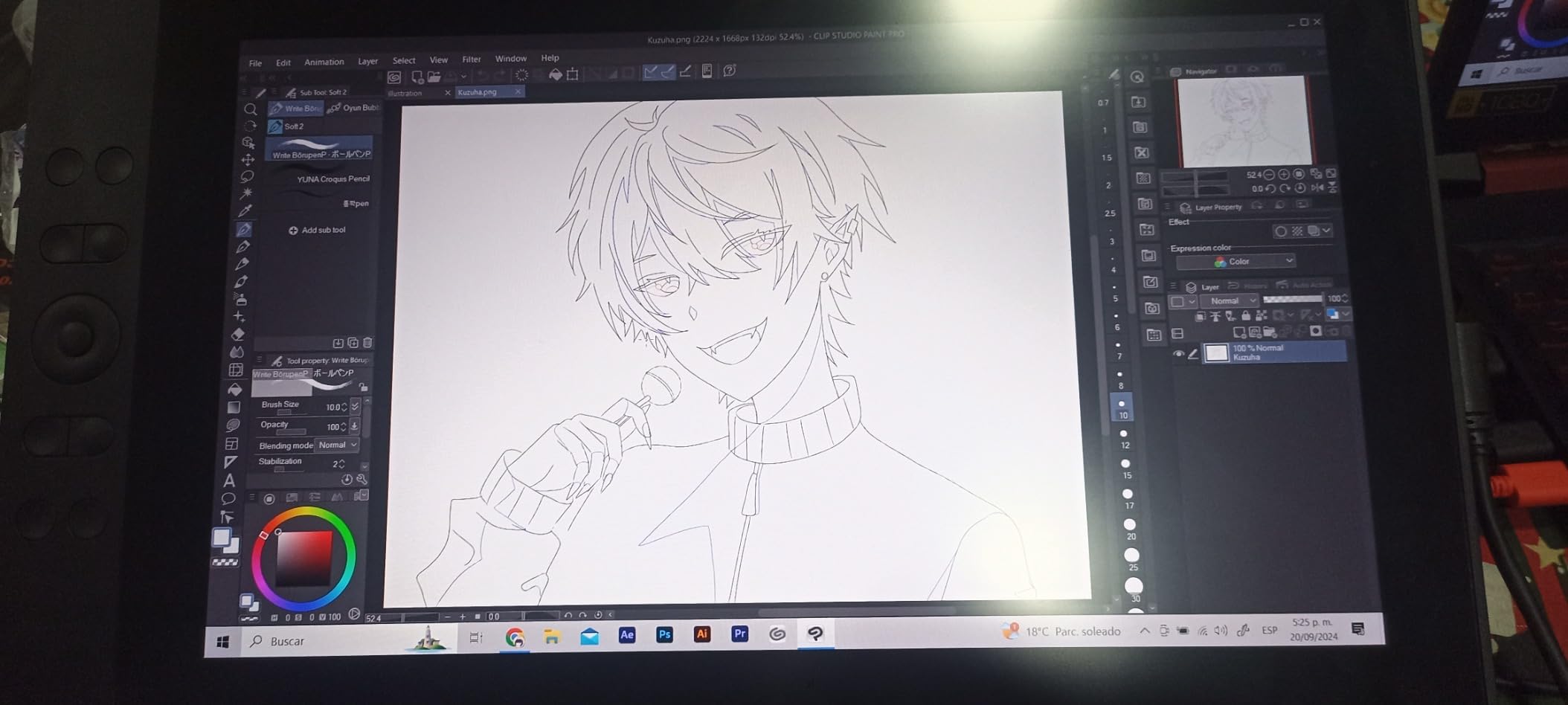
Eight physical hot keys plus a scroll wheel with four preset functions cover the same ground as a dial without adding one, and the U-Pencil adds two hot keys, a pressure-sensitive eraser end and 60-degree tilt in a slim pencil-style grip.
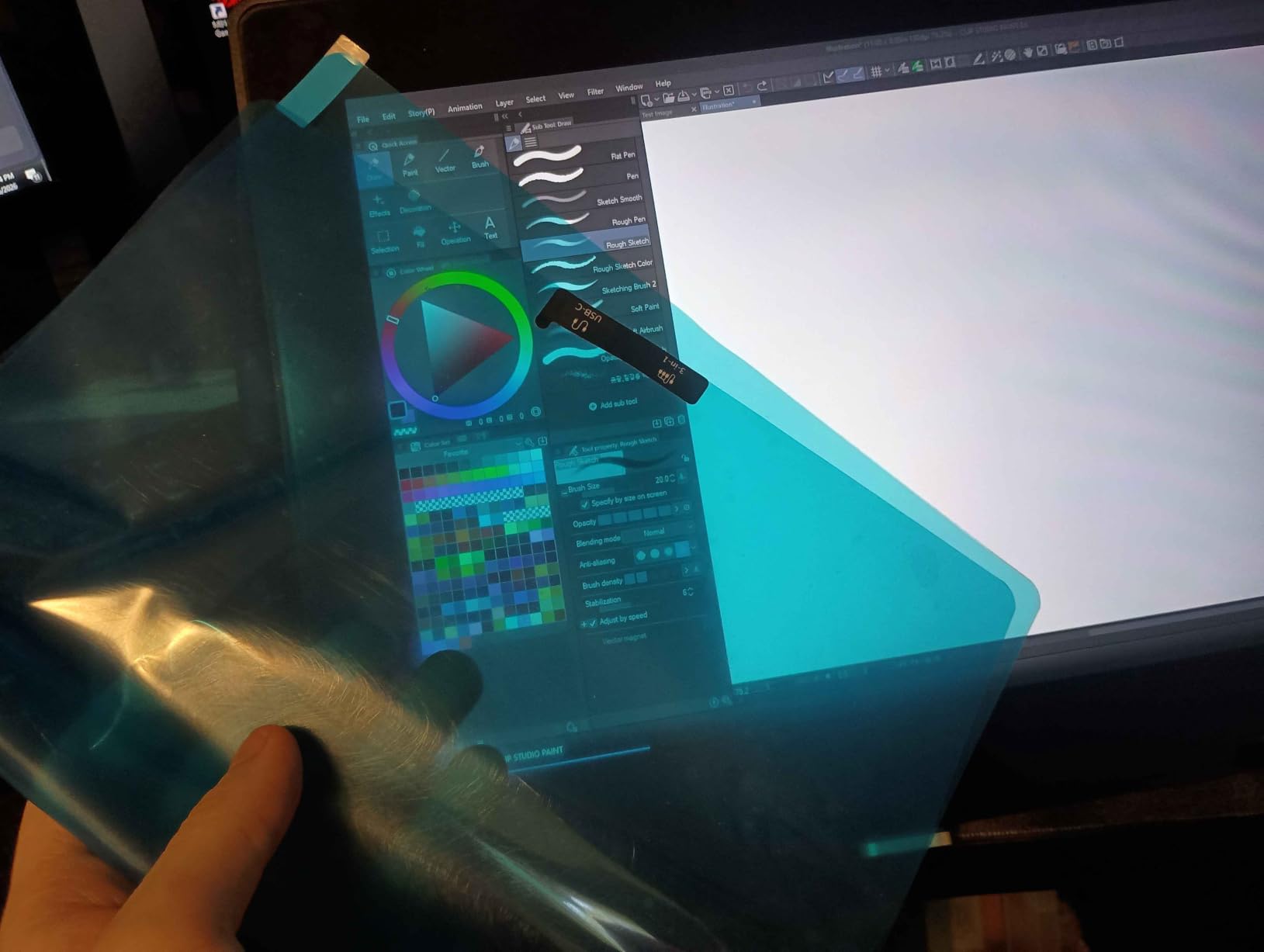
There is one real gotcha, and it is a stupid one: the 3-in-1 cable is packed separately in the box. Several reviewers assumed it was missing. Set aside five minutes on unboxing or you will spend an evening wondering why the screen will not light up.
Who should consider the UE16
It suits colour-critical illustrators, print-adjacent designers and animators who need to know they are working in a defined space rather than guessing. Windows, macOS, Chrome OS, Linux and Android support means it fits almost any setup.
It is also a strong choice for 3D and texture work in Blender or Substance Painter, where the scroll wheel and hot keys speed up material switching.
Who should look elsewhere
Pass if you draw on the move, since it needs a computer, and pass if driver longevity is your top priority: this is a newer model with a much smaller body of long-term owner reports than the HUION or XP-Pen displays in this list.
If colour headroom is not your priority, an 11.6-inch model will free up desk space for less money.
7. HUION Inspiroy 2 Large: The Best Mid-Size Screenless Tablet
HUION Inspiroy 2 Large Drawing Tablet with 3-Group 8 Customized ExpressKeys
PenTech 3.0 sensor
8192 pressure levels
10.5 x 6.56 inch active area
3 sets of 8 ExpressKeys plus scroll wheel
Pros
- PenTech 3.0 gives smooth low-lag lines
- Large 10.5 x 6.56 inch area reduces wrist strain
- Three sets of key profiles plus a scroll wheel
- Battery-free PW110 pen with a soft silicone grip
- Light 1.2 lb body with rubber feet
Cons
- Key bindings sometimes reset to defaults
- Occasional tracking dropouts and skipped lines
- Configuration software skips some Linux distributions
- No wireless option
- Single colour option
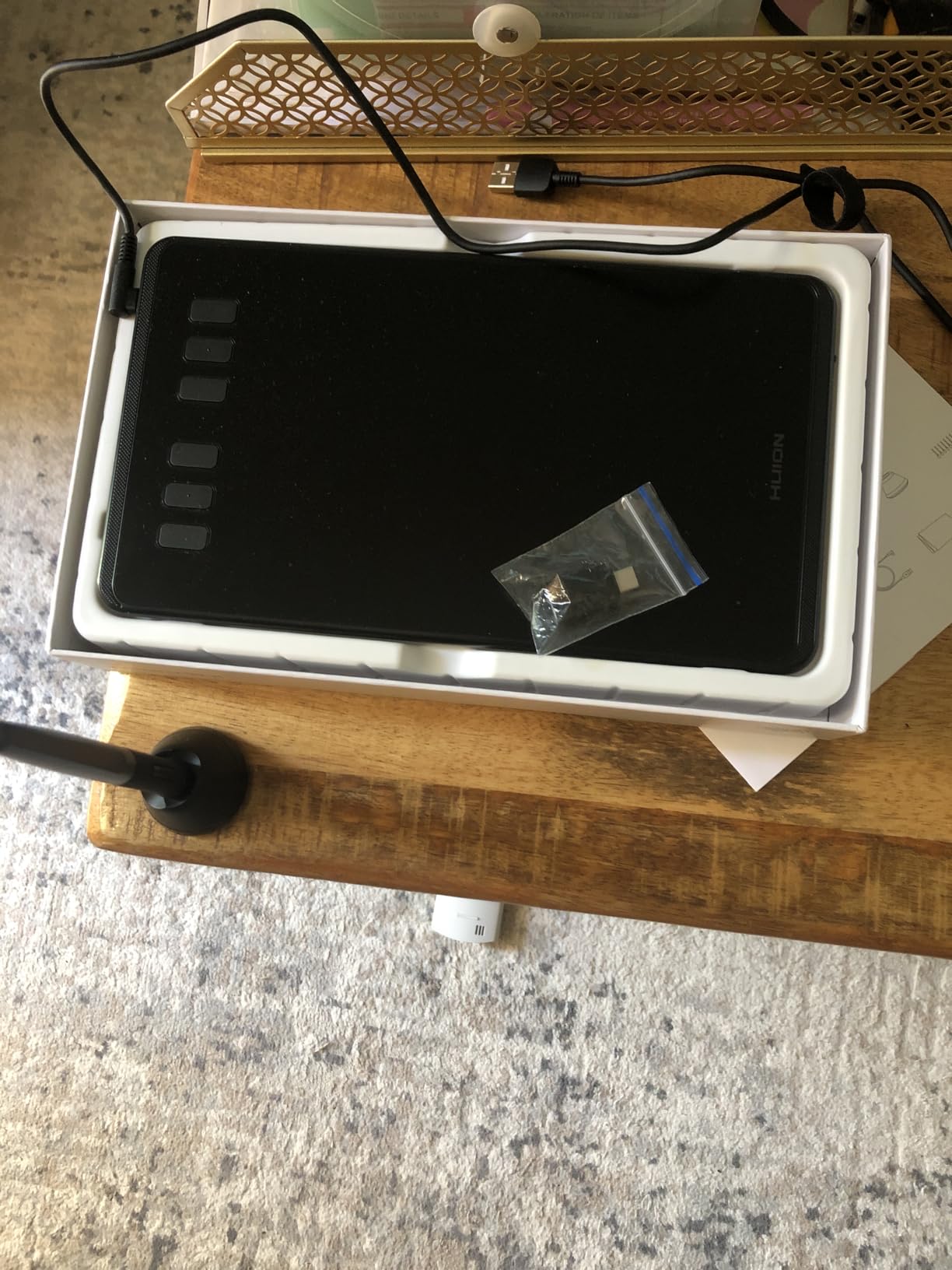
This is the screenless tablet we would buy if a friend asked for one mid-size screenless tablet, no hedging. PenTech 3.0 delivers a low-lag line with no wobble in our tests, and 10.5 by 6.56 inches is a genuinely comfortable drawing area for a full session without the bulk of a large-format pad.
Three sets of eight ExpressKeys plus a programmable scroll wheel is the most flexible shortcut setup in this roundup, and the per-app profiles saved us time when moving between Krita and Photoshop. The battery-free PW110 pen has a soft silicone grip that stayed comfortable over a long evening.
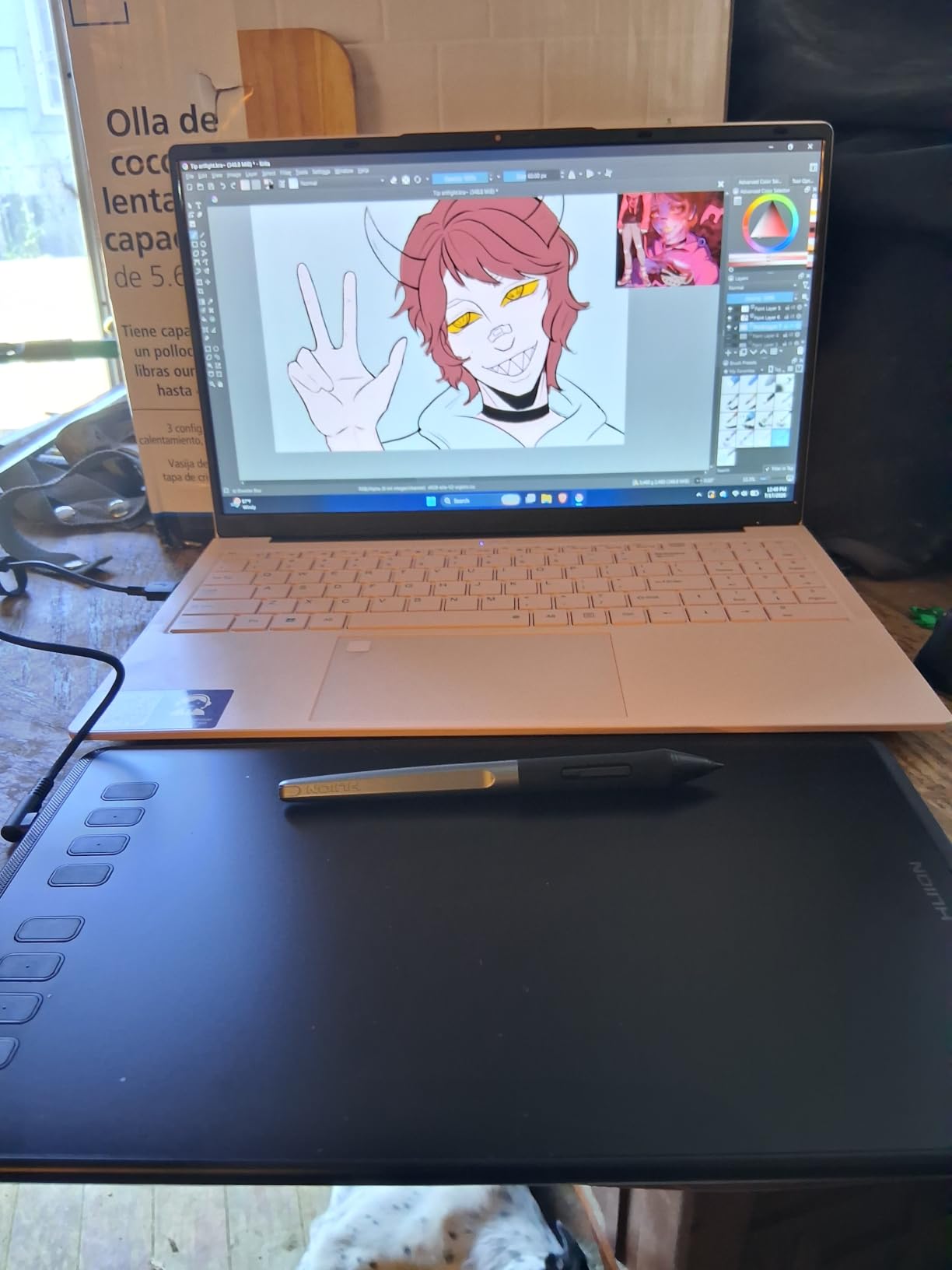
At 1.2 pounds with rubber feet that do not slide while you draw, it goes into a laptop bag without becoming a project. It also works with open-source software such as Krita and MediBang Paint, which matters more for students than most spec sheets admit.
The recurring criticism is software polish, not hardware. Key bindings reset to defaults occasionally and need reconfiguring, some users report intermittent tracking and skipped lines, and the configuration app does not cover every Linux distribution out of the box. None of that ruined our test session, but it is friction you should know about.
Why this one comes out ahead on screenless
It is the best screenless tablet for anyone whose hand hurts. The larger active area plus a low-lag pen means fewer corrective hand movements, which is exactly what the wrist-strain advice in most buying guides keeps recommending and rarely delivers.
It is also a strong pick for anime and manga artists, who draw in long sessions on a screenless pad with a keyboard rather than a monitor.
The catch
Buy it if you want to reconfigure occasionally. Do not buy it if your work is mission-critical tomorrow morning and you cannot afford a session spent resetting key bindings, and do not expect plug-and-play on every Linux distribution.
There is no wireless variant, so cable routing to rear-facing ports can need a hub.
8. XP-Pen Artist12: The Best Pen Display for a Small Desk
XP-PEN Artist12 11.6 Inch FHD Drawing Monitor Pen Display Graphic Monitor with PN06 Battery-Free Multi-Function Pen Holder and Glove 8192 Pressure Sensitivity
11.6-inch 1920x1080 IPS at 100% sRGB
8192 pressure levels
6 shortcut keys plus touch bar
Battery-free P06 hexagonal pen
Pros
- Small footprint suits a cramped desk
- 100% sRGB IPS panel with a pre-fitted anti-glare film
- Hexagonal P06 pen feels like a pencil and does not roll
- Programmable touch bar and six shortcut keys
- Rotates for left-handed use in display settings
Cons
- Screen is not laminated so there is a parallax gap
- First-time setup and display arrangement take patience
- Pen side button is easy to press by accident
- Some units have reported flickering or display failure
- No stand included
Most pen displays are too wide for a small desk, and this is the one that fits. At 11.6 inches it still gives you a canvas you can sketch a character on without feeling cramped, and at 907 g it moves between a desk and a lap desk without ceremony.
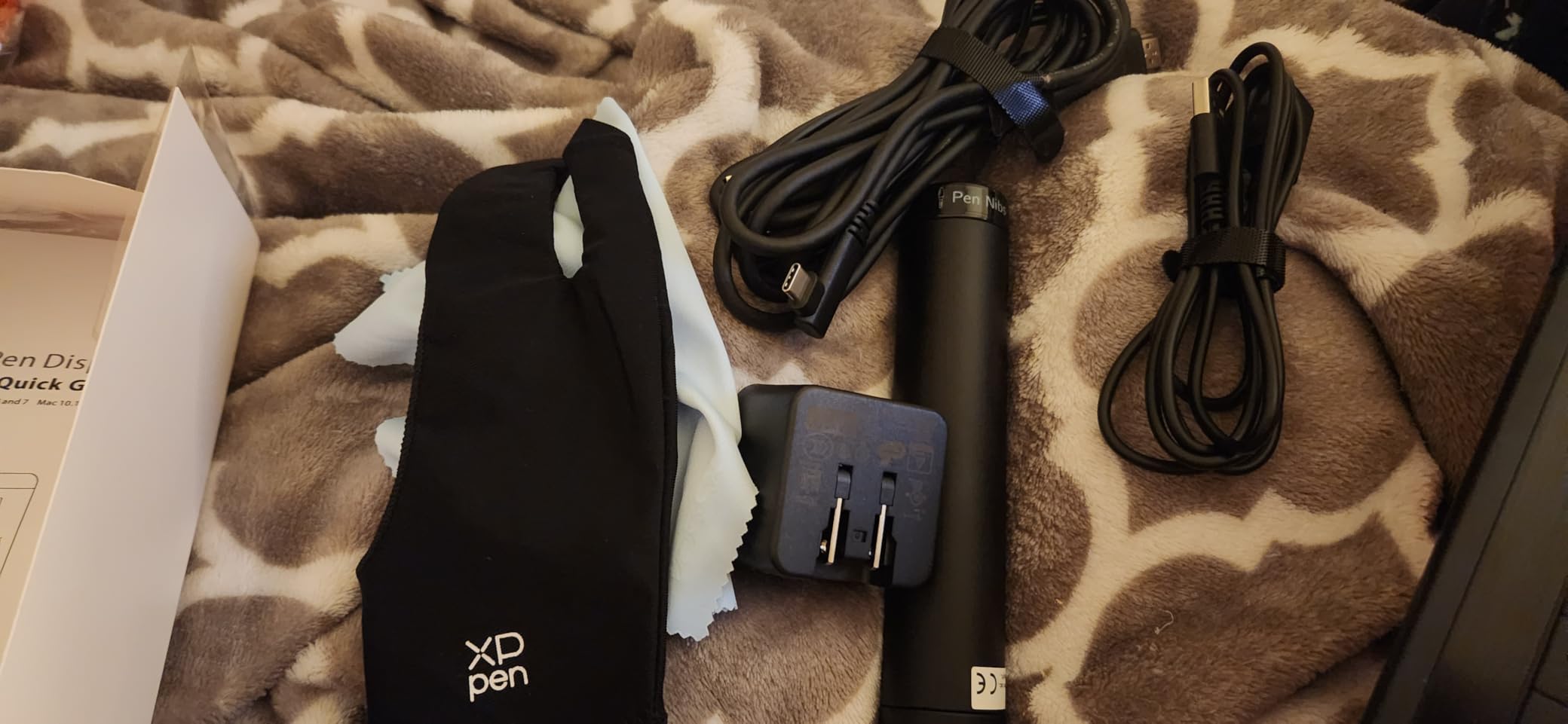
The hexagonal P06 pen is the sleeper of the roundup. It does not roll, it has a real eraser end, and it is the closest thing here to an actual pencil, which matters for anyone transitioning from paper. The touch bar plus six shortcut keys covered the brush and zoom actions we would otherwise have used the keyboard for.
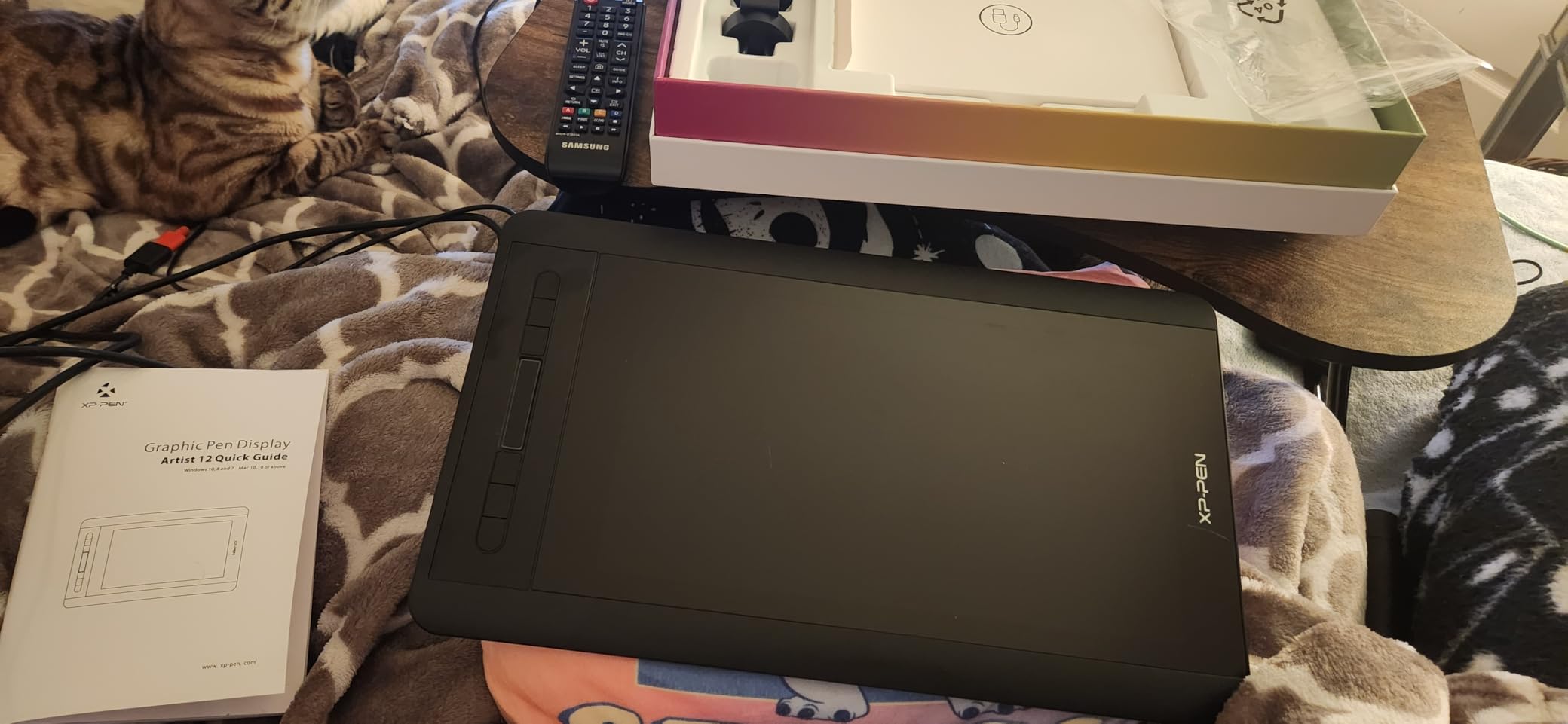
It is also among the most heavily reviewed pen displays we tested, and that volume of owner reports is itself useful. Buyers consistently like the screen quality and stylus, while pointing out that first-time display arrangement on a laptop needs patience.
The honest weakness is lamination. The glass is not bonded to the panel, so at the edges of a 60-degree tilt the cursor visibly separates from the nib. Fine for a character sheet, noticeable if you draw fine detail right at the corner of the canvas.
Where the Artist12 works
It suits students in shared rooms, laptop-only setups and anyone who cannot justify giving up 17 inches of desk width. Rotating it in display settings makes it usable left-handed, and the pre-installed anti-reflective film means there is no separate accessory to buy on day one.
Because it works as an extended display, it also helps in 3D modelling and in teaching, where showing a second screen matters.
Where it does not
Pass if colour-critical print work or fine line detail at the canvas edge is the core of your practice, since both the 100% sRGB panel and the unlaminated glass work against you. Plan on buying a stand, because none is included, and expect a setup session before the first good stroke.
9. HUION Inspiroy H1060P: The Best Screenless Tablet for Shortcut Work
HUION Inspiroy H1060P Graphics Drawing Tablet, 10 x 6.25 in, 12+16 Hot Keys
10 x 6.25 inch active area
8192 pressure levels
12 press keys plus 16 soft keys
Battery-free PW100 stylus
Pros
- Large surface reduces wrist strain versus small pads
- 28 programmable keys remove most keyboard use
- Battery-free PW100 pen with 8192 levels and 60-degree tilt
- Drivers install fast without a restart
- Owners report years of dependable daily use
Cons
- Left-handed mode needs manual key remapping
- Occasional skipped or jumping lines after rotating the pen
- Micro-USB port sits proud of the body and can stress
- Included pen loop and cap are loose
- No glove in current packaging
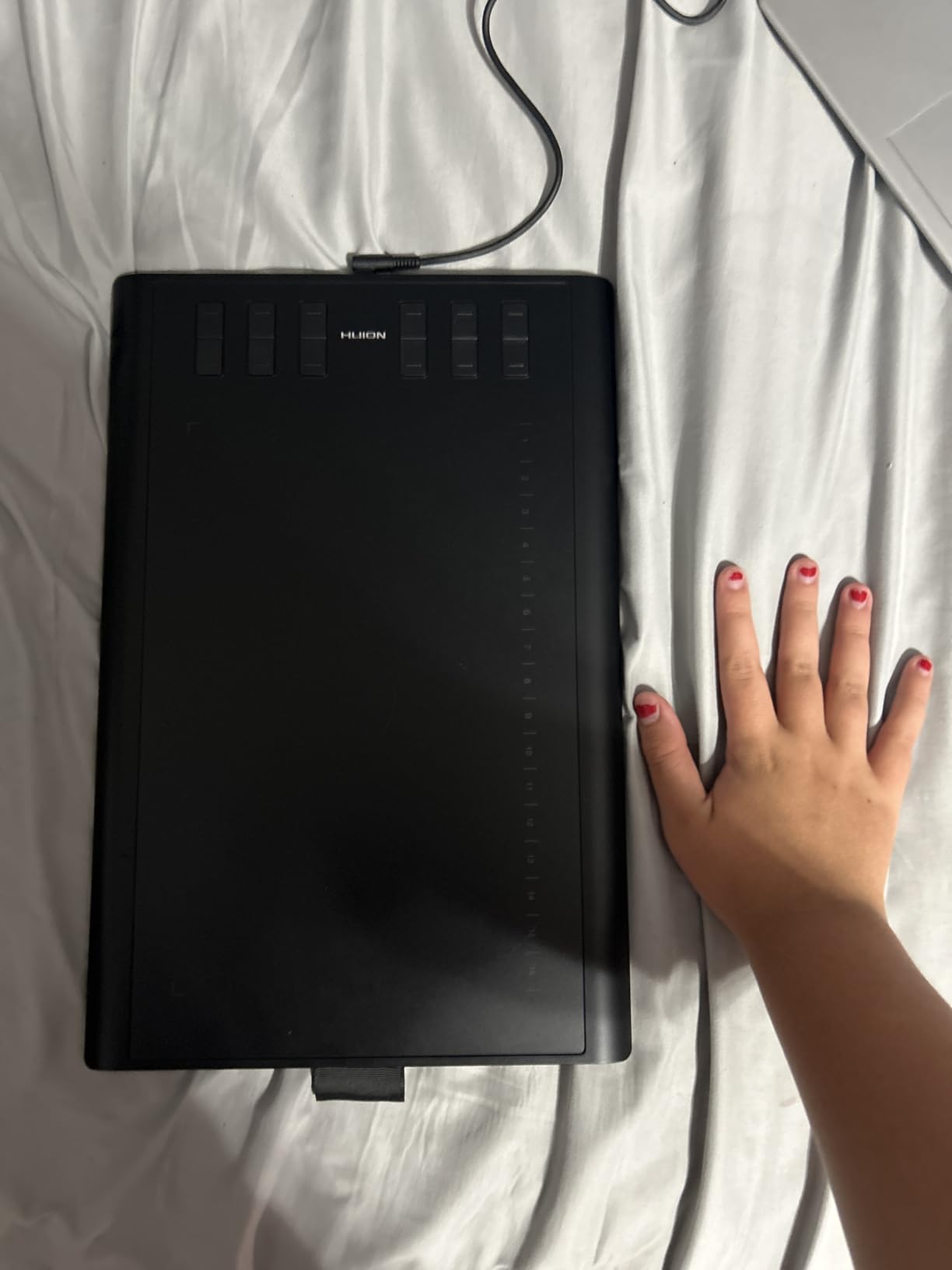
Twenty-eight programmable keys. Twelve physical press keys plus sixteen soft keys on the screen, and that is not a spec-sheet trick: during our test we assigned every common brush, eraser, fill and undo action and did not reach for the keyboard once. For illustration and comic page work, where the tool changes constantly, that is a real speed difference.
The 10 by 6.25 inch area sits in the right middle, and the PW100 pen delivers 8192 pressure levels with 60-degree tilt on a battery-free body. Drivers installed without a restart, which is more than we can say for several tablets in this price bracket.
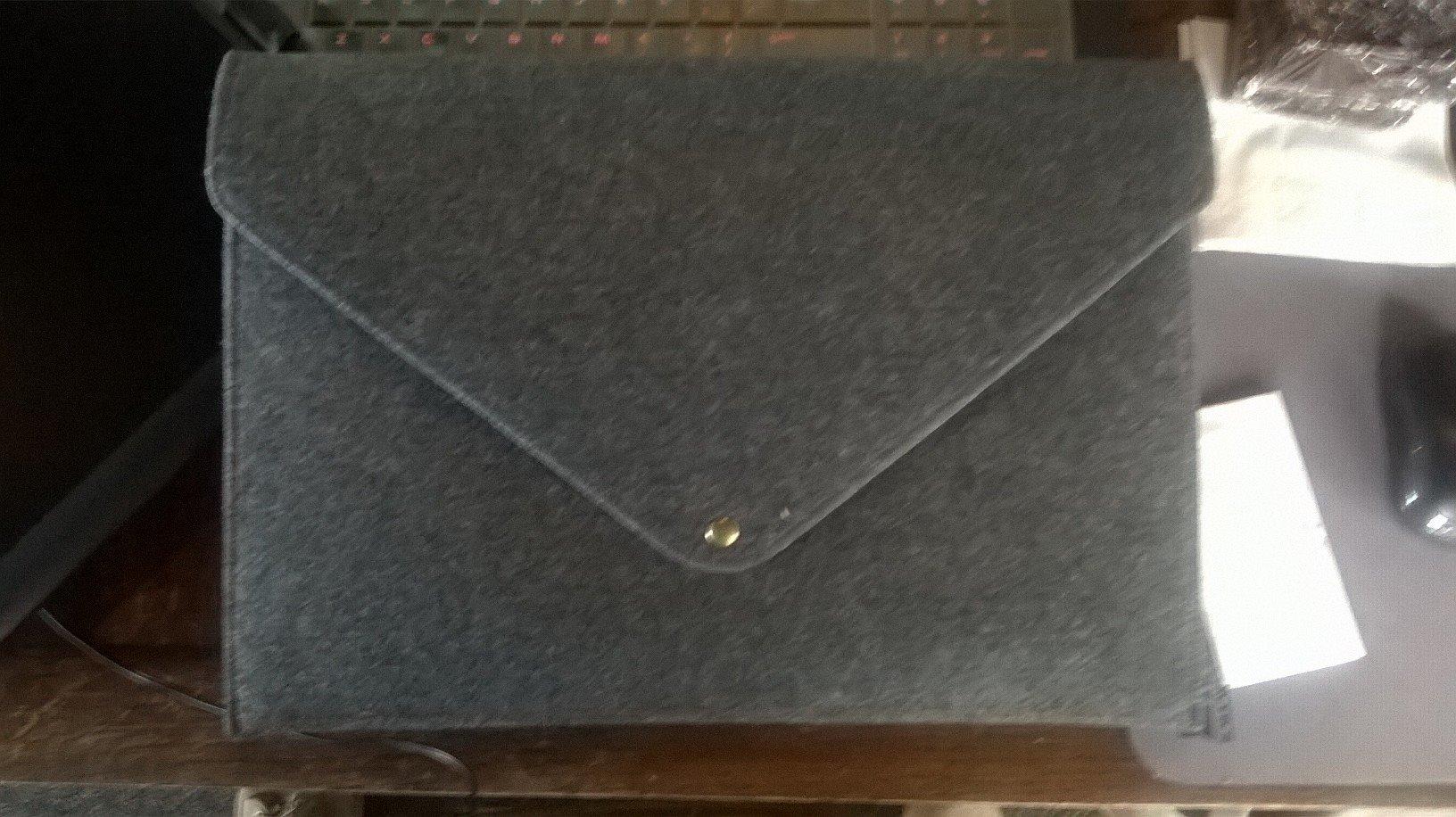
The strongest signal here is longevity. Owners of this model repeatedly describe four to six years of dependable daily use, and forums place it among the long-running budget favourites because the hardware has simply kept working rather than being replaced.
The rough edges are physical and procedural. Left-handed mode rotates the tablet 180 degrees but does not swap the key positions, so you must reverse the mappings by hand, and lines can occasionally skip after you rotate the pen between your fingers. The micro-USB port sits proud of the body and will stress with heavy cable use.
Where the H1060P earns a spot
It is a good fit for illustrators and comic artists who want to live entirely on tablet shortcuts, for teaching where a hard surface and hot keys help, and for anyone who wants one device that survives a full art-school lifespan. It works across Windows, Mac, Linux and Android via OTG.
Because the keys are the point, this is also the natural recommendation for a shared family computer where the keyboard is needed for everything else.
Where it does not fit
Pass if you are left-handed and want a true one-time setup, because reversing twenty-eight mappings by hand is a chore. Pass if you draw with a very fast rotating grip, given the reported line skips, and note that current packaging no longer includes a drawing glove.
10. UGEE M708: The Best Budget Drawing Tablet
UGEE M708 Drawing Tablet, 10×6 inch Large Space for Digital Drawing
10 x 6 inch textured active area
16384 pressure levels
Battery-free passive stylus with 60-degree tilt
8 customizable ExpressKeys
Pros
- Large textured surface with a paper-like feel
- 16384 pressure levels at an entry-level price
- Minimal driver with per-app button customisation
- Eight ExpressKeys for undo
- zoom and brush size
- Works on Windows
- Mac
- Linux and Chrome OS
Cons
- Pen sometimes stops registering until the cable is replugged
- Bulky pen tip forces an upright grip
- ExpressKey settings can reset between sessions
- Short cable is awkward for lap use
- Minor lag on very fast strokes
The M708 punches above its weight on the two specs buyers check first. Sixteen thousand pressure levels on an entry-level screenless pad is unusual, and the papery texture on the 10 by 6 inch surface gives the nib a slight drag that feels closer to paper than a slick plastic finish.
The UGEE driver is small and does one thing well: per-application button customisation with no added overhead. Eight ExpressKeys mapped to eraser, zoom, scroll and undo made our test session genuinely keyboard-free, and the battery-free passive stylus removes charging from the routine entirely.
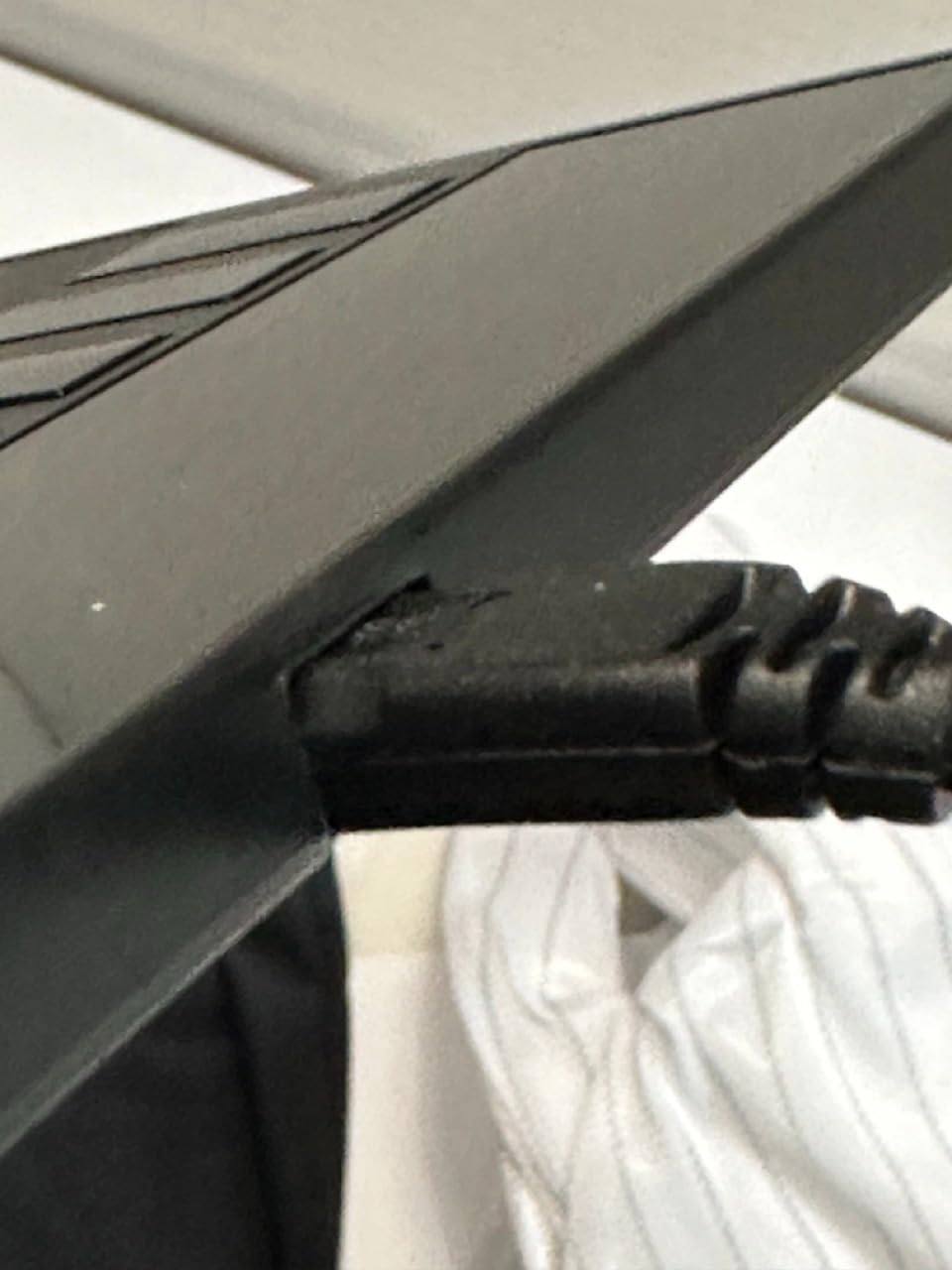
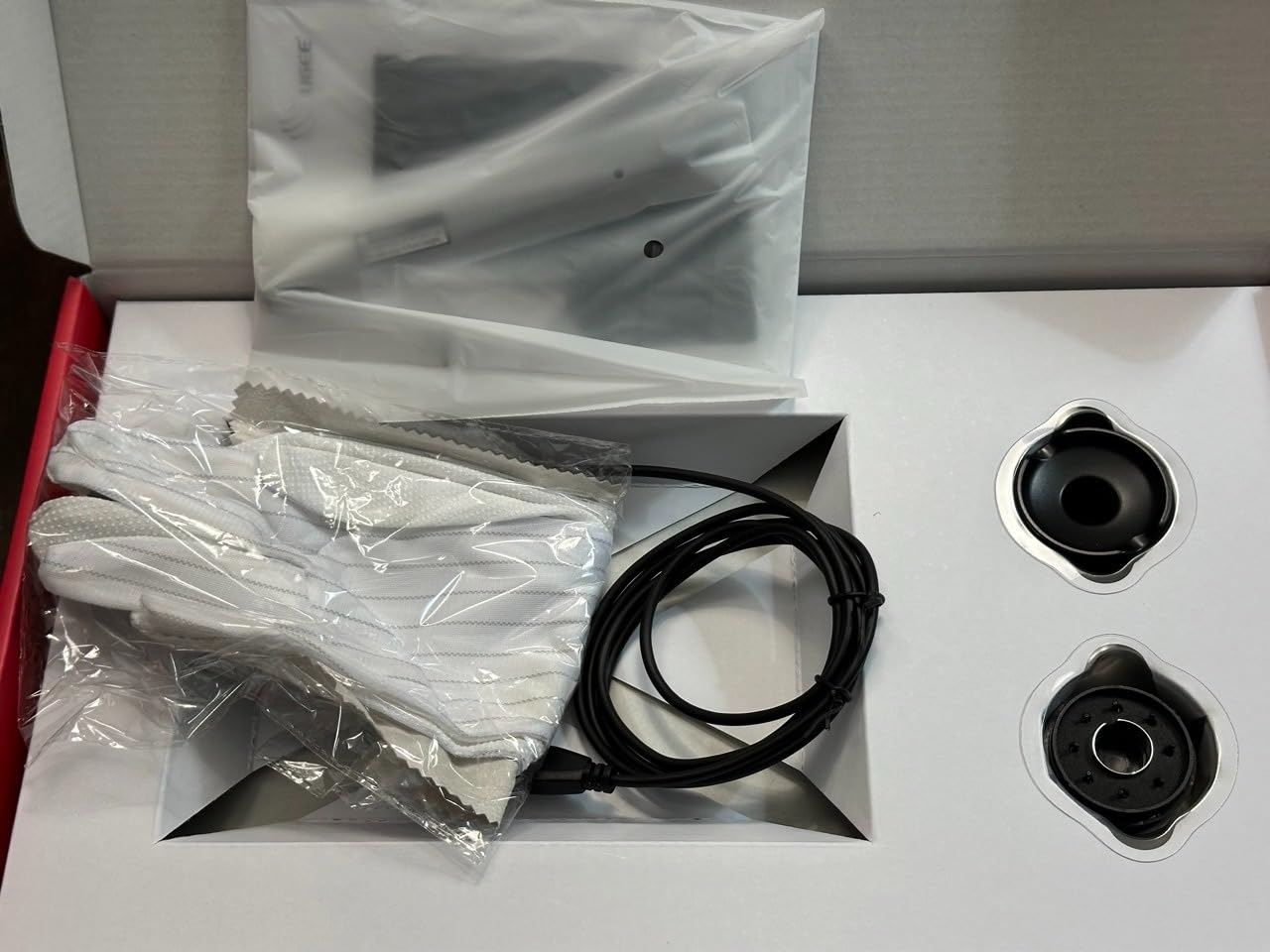
It works across Windows, macOS, Linux and Chrome OS, and the snug USB-C adapter included in the box takes strain off the connector, which is a small thing that prevents a large failure later.
A consistent minority of owners report the pen dropping contact until the cable is unplugged and replugged, resetting ExpressKey settings between sessions, and a bulky tip that does not allow an angled grip. The included cable is also short, so lap use with the laptop on a desk is awkward.
When the M708 is the right buy
It is the pick for a first digital drawing tablet bought on a tight budget, for students and teachers who need a full-size surface, and for anyone moving from a trackpad. The ambidextrous slim body suits both left- and right-handed users, which is more than most pads at this level manage.
It is a good fit for Krita, Clip Studio Paint and Photoshop work, and for note-taking and online teaching setups that need handwriting as much as drawing.
When it is not
Pass if you need a rock-solid pen for paid deadlines and cannot tolerate a session where contact drops, and pass if you draw in a reclined or angled position because the short cable fights you. Anyone with a light, angled grip will prefer a slimmer pen tip.
11. RubensTab T11 Pro: The Best Low-Cost Standalone Tablet
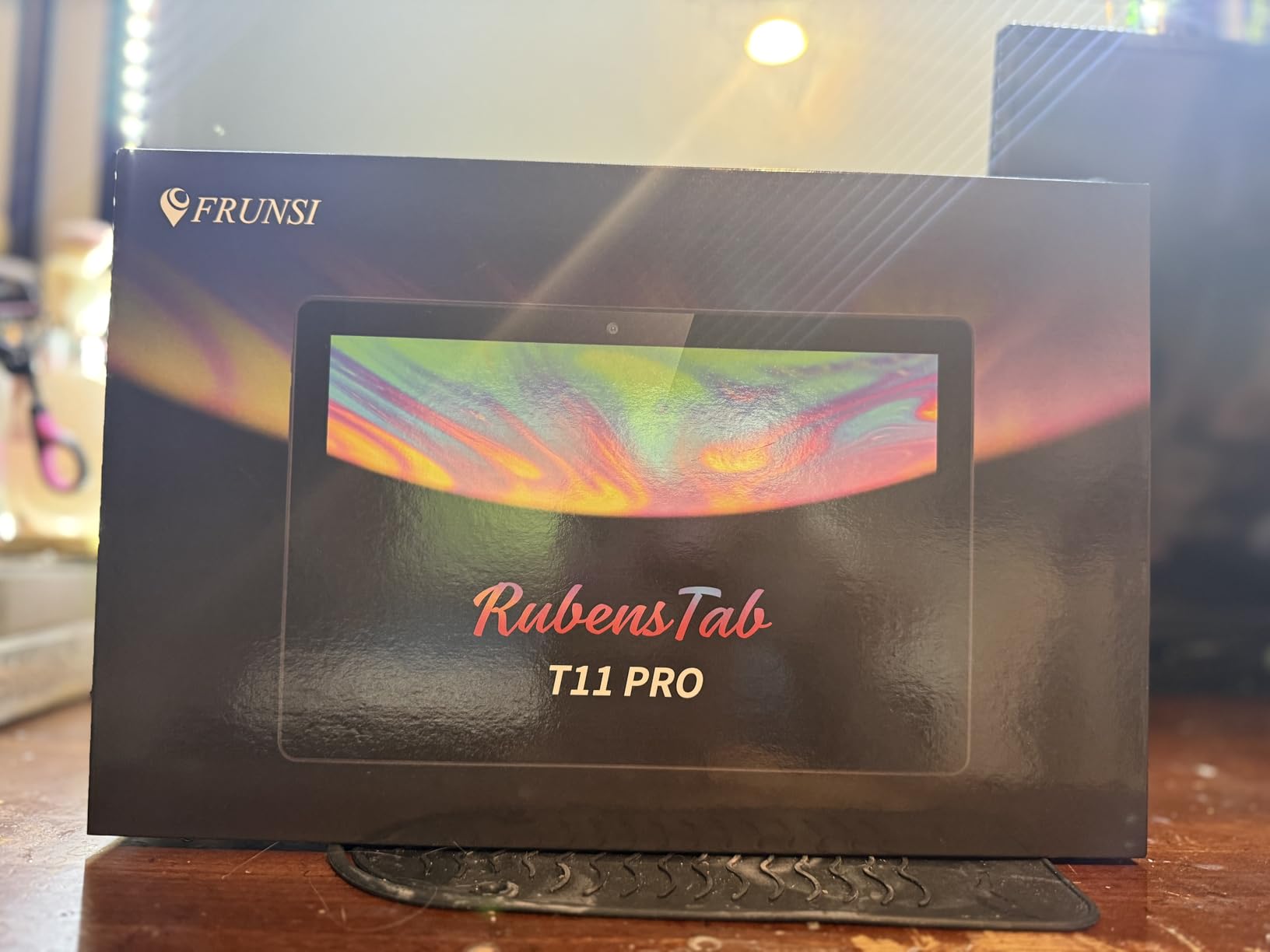
Frunsi RubensTab T11 Pro standalone Drawing Tablet
Standalone Android 12
10.1-inch laminated 1920x1200 IPS
1024 pressure levels
5800mAh battery
Pros
- Runs drawing apps with no computer needed
- Fast start-up and smooth performance at half battery
- Krita and Adobe Sketchbook pre-installed
- Includes a fitted protective film and stand case
- Good port selection with HDMI and microSD
Cons
- Wobbly pen tip causes intermittent missed input
- 1024 pressure levels is low for serious work
- Some units had battery charging failures after months
- Software can ship outdated until support intervenes
- Poor camera quality out of the box
The RubensTab T11 Pro answers one question very directly: can a beginner open a box, tap the power button, and start drawing in Krita without owning a computer? Yes, and that is a bigger deal than any spec on this list for a first-time buyer or a child.
It starts quickly, runs smoothly even at half battery, and ships with Krita and Adobe Sketchbook already installed, plus a fitted glass film and an adjustable stand case. The 5800mAh battery gave us around five hours of continuous work before the USB-C cable was needed.
The laminated 10.1-inch IPS panel at 1920×1200 is a good surface, and multi-touch zoom, pan and scroll behave properly. Ports are unusually generous for the class, with USB-C, HDMI, a headphone jack and a microSD slot.
Pressure is the weakness. At 1024 levels, tapering is coarse compared with anything else here, and a wobbly pen tip causes intermittent missed input that we reproduced more than once. Some units have had battery charging failures after several months, and the software can ship outdated enough that the pen stops responding until support steps in.
Where the RubensTab works
It is built for students, teachers and anyone without access to a computer who wants a complete drawing setup in one object. Pre-installed apps shorten the learning curve dramatically, and the included case doubles as a stand, which is a thoughtful touch for a device meant to be carried.
Customer support responsiveness and warranty handling are repeatedly praised by owners, which matters when a device has no other brand ecosystem behind it.
Where it does not
Pass if you paint serious illustration where line weight control decides the outcome, since 1024 pressure levels will limit you. Pass if you work in 3D or expect heavy multi-layer files, and do not treat the camera as a usable reference tool.
It is a complete sketchbook, not a studio display, and it is best understood that way.
12. GAOMON PD1161: The Best Entry-Level Pen Display
GAOMON PD1161 Drawing Tablet with Screen, Tilt, 8 Shortcut Keys, 11.6″ FHD
11.6-inch FHD IPS with pre-installed matte film
100% sRGB gamut
8192 pressure levels
8 press keys plus 2 pen buttons
Pros
- Straightforward route to a pen display with a screen
- Matte anti-glare film gives a paper-like feel and cuts glare
- Battery-free AP50 pen with 8192 levels and tilt
- Eight press keys plus two pen buttons
Cons
- Display is not laminated so parallax is present
- No stand included
- Pen side button is hard to locate by feel
- Short pen detection height demands a close hover
- Needs a host computer
The GAOMON PD1161 exists to answer one question: what does it cost to find out whether you like drawing on a screen? It is the most straightforward entry point to a pen display in this roundup, and for a student testing the waters that is worth more than any upgrade elsewhere.
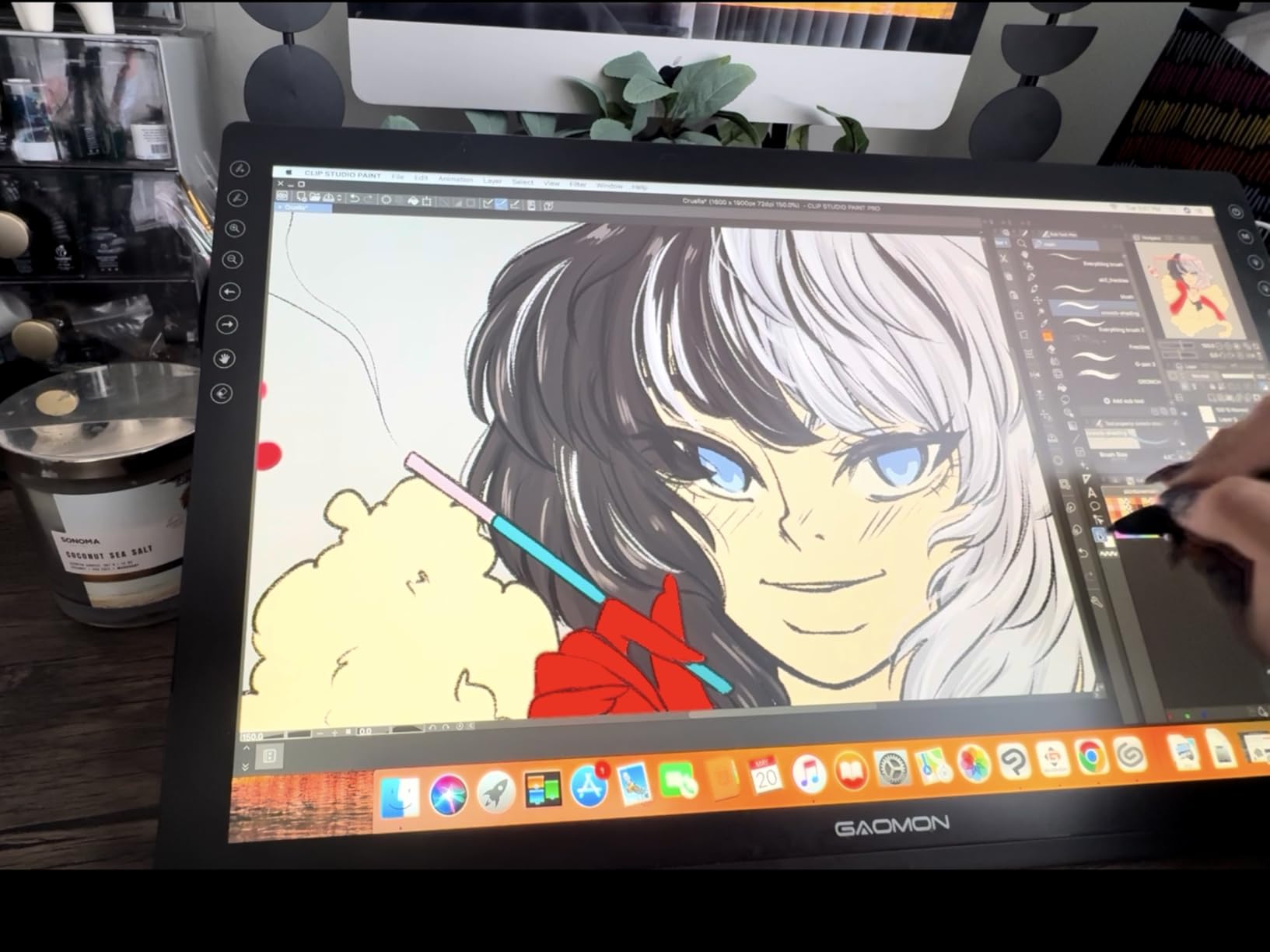
The 11.6-inch FHD IPS panel ships with a pre-installed matte anti-glare film, which softens glare and gives the nib more drag than a glossy surface. The battery-free AP50 pen provides 8192 pressure levels and tilt for shading, and eight press keys plus two pen buttons cover the usual shortcuts.
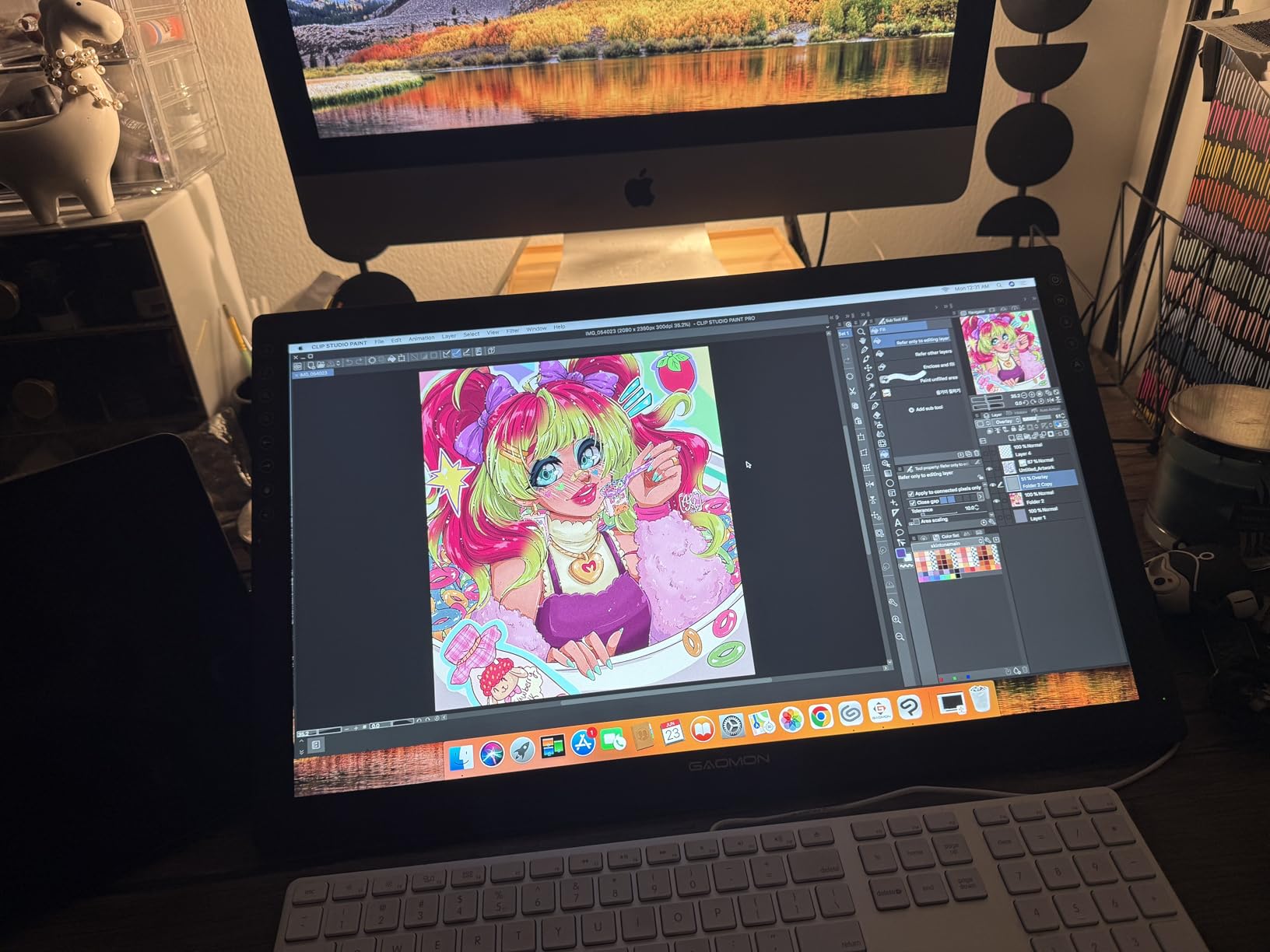
It is broadly compatible, working with Krita, MediBang, Blender, Photoshop, Paint Tool SAI, OneNote and Zoom on both Windows and Mac, which is a longer software list than most tablets at this level provide.
Its rating is the lowest in this roundup for reasons that are all physical. The screen is not laminated, so parallax is visible at the canvas edge, and no stand is included, which invites poor drawing posture. The pen side button is hard to locate by touch, and the detection height is short, so the tip must hover close to the surface.
Who should buy the PD1161
It suits a first-time pen display buyer, a student on a budget, and anyone who teaches remotely and wants a small drawing surface with real keys. Eight press keys and a battery-free pen make it a comfortable introduction to the pen display workflow.
If you later decide you love drawing on screen, this is the model most owners use to find that out, and several move up from it rather than staying.
Who should skip it
Pass if fine detail at the canvas edge matters to you, since the unlaminated panel will not hold up. Buy a stand before you start, adjust the pen grip so you are not pressing the side button by accident, and remember it is never a standalone device.
Anyone wanting a smoother first experience should look at the XP-Pen Artist12 instead.
Fixing Pen Lag and Driver Problems
Lag is the most common complaint in this category and the most often misdiagnosed. The overwhelming majority of pen lag on a modern tablet is a software, cable or application problem, not a broken sensor, and the fix usually takes under ten minutes.
Use these steps for a laggy Huion, XP-Pen, Wacom or any other tablet:
1. Reseat the connection. Unplug the USB cable, wait thirty seconds, and plug it back into a different port directly on the computer rather than through a hub. A loose or underpowered hub is the most common single cause of dropped strokes at the start of a line.
2. Update or reinstall the driver. Download the current driver for your exact model and operating system, uninstall the old one first, and reboot before reinstalling. On macOS in particular, older Huion and XP-Pen drivers are a frequent source of erratic input, and reviewers regularly report that a clean reinstall fixes it.
3. Turn off the tablet’s own wireless or Bluetooth scanning. If the model supports both wired and wireless, disable the wireless radio while you are drawing. Constant scanning competes for the same connection the pen needs.
4. Close GPU-heavy applications before you diagnose. If a browser with video, a game launcher or a 3D viewport is running, test with only the drawing app open. What looks like tablet lag is frequently just an application competing for the frame.
5. Check the pen’s pressure settings in the driver. A very high smoothing or stabilisation value reads as lag that is not there. Set smoothing to zero, test, then add a small amount back if the line quality needs it.
6. Test with a second application. If the same tablet feels fine in one app and laggy in another, the problem is the application’s brush engine or cache, not the hardware. Restart the app, check for an update, and clear its brush or cache folder.
7. Check the cable on tethered models. Pen displays need more bandwidth than a screenless pad because they also carry video. A charge-only USB cable will produce exactly this symptom, so use the cable supplied in the box or a certified data cable.
If lag persists after all seven steps, the next question is whether the pen nib has worn flat or deformed, since a misshapen tip makes strokes judder in a way that reads as latency. Replace the nib before you conclude that the sensor has failed.
How We Picked These 12 Tablets
We started with the three types rather than a brand list, then filled each segment with the options that had both solid specifications and enough long-term owner feedback to judge. A tablet with beautiful specs and twelve reviews cannot be recommended honestly, so anything without a real body of experience was left out regardless of how new it was.
For each candidate we compared pen technology, active area, pressure levels, tilt support, colour specification, shortcut options, weight, operating system support and warranty length against every other tablet in the same segment. We then read the review consensus, looking for repeated problems rather than isolated complaints.
Three things decided most rankings. First, the gap between the pen nib and the image, which separates laminated from unlaminated displays. Second, driver maturity, since a well-supported configuration utility matters as much as the pen after two years. Third, owner reports of long-term failure, which is why established models with thousands of reviews rank above newer hardware with more impressive spec sheets.
We did not benchmark latency in a lab with optical equipment. Where our own timing is quoted, it comes from slow straight-line and taper tests we ran repeatedly, and the rest is drawn from reported owner experience.
How to Choose a Drawing Tablet: 8 Decision Criteria
1. Active area is the spec that matters most. Physical size tells you nothing; active area tells you how much room you have to move. Anything around 10 by 6 inches is a comfortable minimum for daily work, and moving up to 15 inches on a display changes how little you have to zoom and pan.
2. Pressure levels, sensibly read. The jump from 4096 to 8192 levels is noticeable. The jump from 8192 to 16384 mostly shows up in very light strokes, and what matters more is whether the driver offers a pressure curve you can edit, because a linear curve with no adjustment is 16384 levels of marketing.
3. Tilt support for shading. Sixty-degree tilt recognition is standard on good tablets and lets you lay the pen over for broad shading and texture work. It matters enormously for digital painting and hardly at all for clean line art.
4. Lamination beats resolution for drawing. Full lamination bonds the glass to the panel and shrinks the visual gap between nib and cursor. For illustration, that gap costs you more than the difference between 1080p and a higher-resolution panel, which is why every pen display we recommend here is laminated except the two entry models.
5. Colour space for colour-critical work. 100% sRGB is fine for web and screen work. Look for wider gamut and switchable Adobe RGB or DCI-P3 modes if you print, do packaging, or match brand colours, and calibrate to a reference monitor before you trust any display.
6. Latency and palm rejection. Test slow straight lines and tight hatching if you can borrow a device first, because that is where lag and palm detection failures show. Good drivers offer palm rejection keyed to pen contact, and it works far better than a manual toggle.
7. Hand size and left-handed use. A small active area is harder for large hands because the forearm hits the desk edge, and easier for small hands. If you draw left-handed, check whether the driver supports rotation, and whether the shortcut keys physically move or have to be remapped by hand.
8. Software and operating system. Most drawing software reads the tablet as a standard pointer device, but drivers add the shortcut keys, pressure curve editor and per-app profiles that make the tablet worth owning. Check that your operating system is on the compatibility list, particularly for Linux, where support varies widely between brands.
Two more practical factors are worth a sentence each. A drawing tablet is a device you keep, not a subscription, so it holds value better than almost anything else in a creative budget. And budget for ownership rather than purchase: replacement nibs, a spare pen, a proper screen protector for a paper texture, and a stand all come out of your pocket later.
If you are still weighing two specific machines, our beginner picks and creator picks break the same shortlist down by experience level rather than by type.
Frequently Asked Questions
What tablet do most digital artists use?
Most professional illustrators and concept artists work on pen displays, where the cursor sits under the pen nib and there is no hand-eye coordination gap. Students and freelancers still favour screenless pen tablets because they cost far less and the adjustment period is short. A smaller group draw on standalone tablets, particularly for travel and journaling. The consensus is a split rather than a single device.
Is Wacom or Huion better?
Wacom wins on pen feel and driver maturity, and it is the safer long-term choice if you want software that is still being developed in five years. Huion generally delivers a larger drawing area and better value for the money, and long-term owners frequently report their displays running for years without problems. Artists who prioritise line quality tend to lean Wacom, while those who prioritise screen real estate tend to lean Huion.
What is the best drawing tablet for beginners?
The Wacom Intuos Small is the safest first tablet because its pen feel and driver are the most refined in the entry category, and it works with essentially any drawing software. Beginners who want a larger surface and more shortcut keys at a lower cost may prefer the XP-Pen Deco 01 V3. If your real question is whether you enjoy digital art at all, a standalone tablet with drawing apps pre-installed can answer it for less risk.
Why is my Huion tablet so laggy?
The most common causes are a loose connection, an outdated driver, or another application competing for processing power. Reseat the USB cable directly on the computer rather than through a hub, uninstall and reinstall the current driver for your model, disable the tablet’s wireless radio, and test with only the drawing application open. On macOS an older driver is frequently the culprit, and a clean reinstall usually resolves it.
How can I fix pen lag on my Wacom tablet?
Start by checking the pressure settings in the Wacom driver, since a high smoothing value feels like lag that is not real. Set smoothing to zero, update the driver to the current version, and reboot before reinstalling if the problem persists. Confirm the pen is charged and seated properly in its holder, and test in a second application to isolate the cause. Strokes that judder rather than delay usually mean a worn nib rather than a driver fault.
Final Verdict: Which Drawing Tablet Should You Buy?
The best drawing tablets for digital art depend on one question: how far are you from the screen you are drawing on? If the answer is an arm’s length away, the Wacom Intuos Small is the pick, because its EMR pen and driver are the most refined in the entry category and it will not need replacing. If the answer is zero, the XP-Pen Artist 15.6 Pro is the pick, because full lamination and eight shortcut keys plus a dial are what actually speed up a working session.
Go further and choose by what you make. The HUION Kamvas Pro 16 for dark, colour-rich illustration. The UGEE UE16 if you need Adobe RGB and DCI-P3 working spaces. The XP-Pen Artist12 or GAOMON PD1161 if your desk cannot take a 15-inch panel. The UGEE Pad UT2 or RubensTab T11 Pro if you draw away from a computer entirely, and the UGEE M708 if the budget is genuinely the deciding factor.
Whichever one you pick, give the screenless options two weeks before deciding they do not suit you. That adjustment period is the only real hurdle most beginners face, and it passes for nearly everyone. Updated for 2026.