
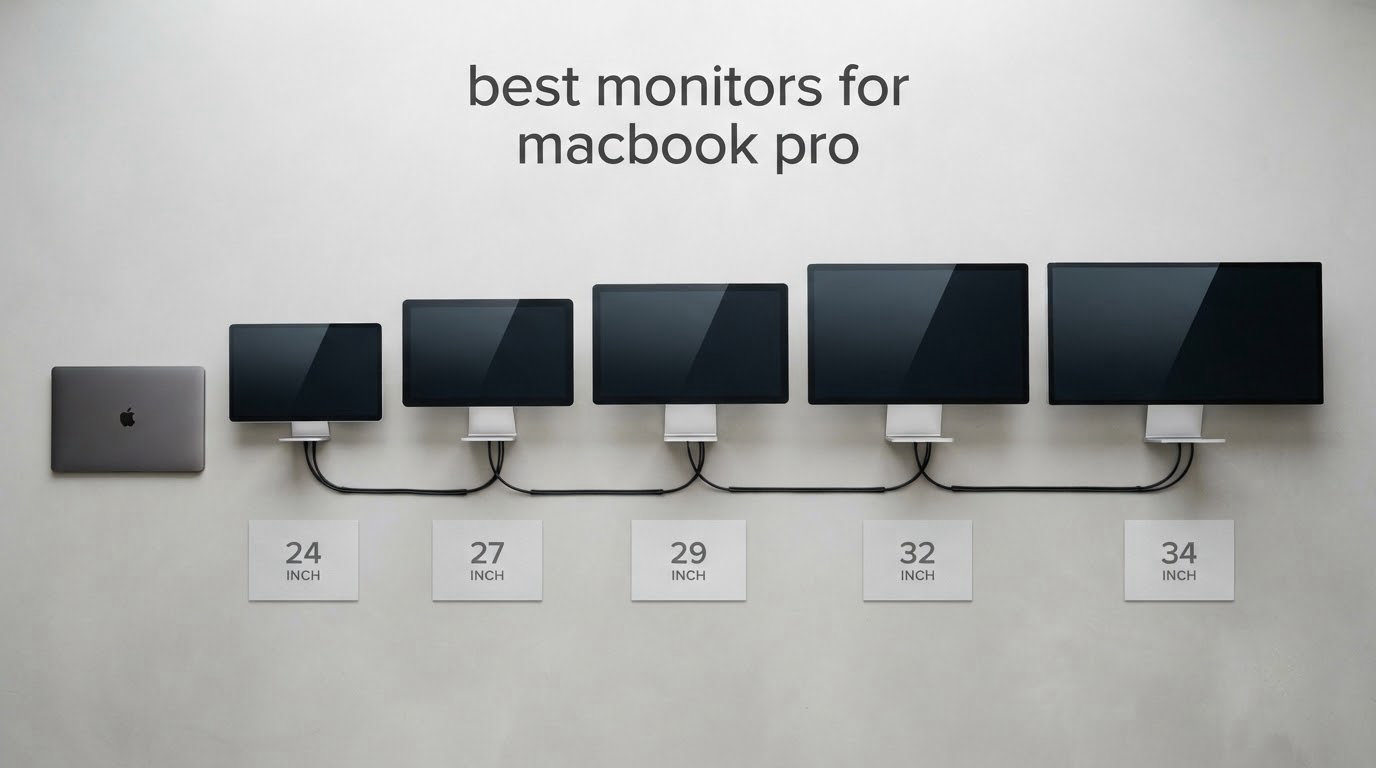
Picking the best monitors for MacBook Pro comes down to three things: pixel density that matches how macOS scales, a USB-C or Thunderbolt port that can charge your laptop on one cable, and a panel that is accurate enough for the work you actually do. Get those right and the external display stops feeling like a compromise and starts feeling like the main screen.
We spent weeks pairing these twelve displays with MacBook Pro machines across base, Pro and Max chips, checking text sharpness at default macOS scaling, whether a single cable carried a full charge, and how each panel behaved in Photoshop, Final Cut and code editors. The list below covers everything from a 24-inch desk monitor to a 49-inch ultrawide and two portable panels you can take on a plane.
Every pick here is a monitor that works well with macOS right out of the box. We lean toward 27-inch 4K and 5K-class panels because they hit the pixel density that makes HiDPI text look right, and we flag every panel where the manufacturer has skipped USB-C, because that is the single most common reason a MacBook Pro desk ends up with a mess of cables.
If your work is audio rather than pixels, our guides to the best monitors for music production and the best studio monitors for producers cover the speaker half of the desk instead.
Top 3 Picks for MacBook Pro Monitors in 2026


ASUS ProArt PA279CRV
- Delta E under 2 factory calibration
- 99% DCI-P3 and Adobe RGB
- 96W USB-C power delivery
Best Monitors for MacBook Pro in October
The table below is the fastest way to see how the twelve panels differ. Pay attention to the USB-C wattage column first, because that number decides whether your MacBook Pro charges while you work or slowly drains.
| Product | Specifications | Action |
|---|---|---|
| Dell 27 Plus S2725QC 4K |
|
Check Latest Price |
| ASUS ProArt PA279CRV 27-inch 4K |
|
Check Latest Price |
 LG 27US500-W Ultrafine 4K LG 27US500-W Ultrafine 4K |
|
Check Latest Price |
 LG 27UP850K-W Ultrafine 4K LG 27UP850K-W Ultrafine 4K |
|
Check Latest Price |
 Dell UltraSharp U2725QE 4K Dell UltraSharp U2725QE 4K |
|
Check Latest Price |
 ASUS ProArt PA247CV 24-inch ASUS ProArt PA247CV 24-inch |
|
Check Latest Price |
 LG 34WR55QK-B 34-inch Ultrawide LG 34WR55QK-B 34-inch Ultrawide |
|
Check Latest Price |
 Samsung 49-inch Ultrawide Samsung 49-inch Ultrawide |
|
Check Latest Price |
 Philips 34-inch Curved Ultrawide Philips 34-inch Curved Ultrawide |
|
Check Latest Price |
 VisionOwl 19-inch 4K Portable VisionOwl 19-inch 4K Portable |
|
Check Latest Price |
 InnoView 23.8-inch 4K Portable InnoView 23.8-inch 4K Portable |
|
Check Latest Price |
 InnoView 15.6-inch FHD Portable InnoView 15.6-inch FHD Portable |
|
Check Latest Price |
1. Dell 27 Plus S2725QC — the one-cable all-rounder
Dell 27 Monitor S2725QC, 4K UHD IPS, 120Hz, 99% sRGB, 4ms, FreeSync Premium
27-inch 4K IPS
120Hz
99% sRGB
65W USB-C
1500:1 contrast
Pros
- Single USB-C cable carries video and 65W charging
- 4K IPS panel with 99% sRGB and 1500:1 contrast
- 120Hz refresh with FreeSync Premium and 0.03ms response
- Stand adjusts for height pivot swivel and tilt
- 1-year Advanced Exchange and Premium Panel warranty
Cons
- 1500:1 contrast is modest against higher-end IPS Black panels
- Built-in speakers stay basic for media use
- 65W is shy of what a 16-inch MacBook Pro wants under load
This is the monitor I recommend to anyone who just wants the best monitors for MacBook Pro experience without a long feature checklist. The S2725QC is a 27-inch 4K IPS panel with 99% sRGB coverage, 1500:1 contrast and a 120Hz refresh rate, and it takes video and 65W of charging through one USB-C cable that ships in the box.
Text rendering is the part that matters most on macOS. At 3840 by 2160 across 27 inches you get roughly 163 pixels per inch, so macOS can render a scaled HiDPI mode where menu text stays crisp instead of the smeared look you get on a 1440p panel. It is not identical to a 5K panel, but the difference is far less obvious than most upgrade guides claim.
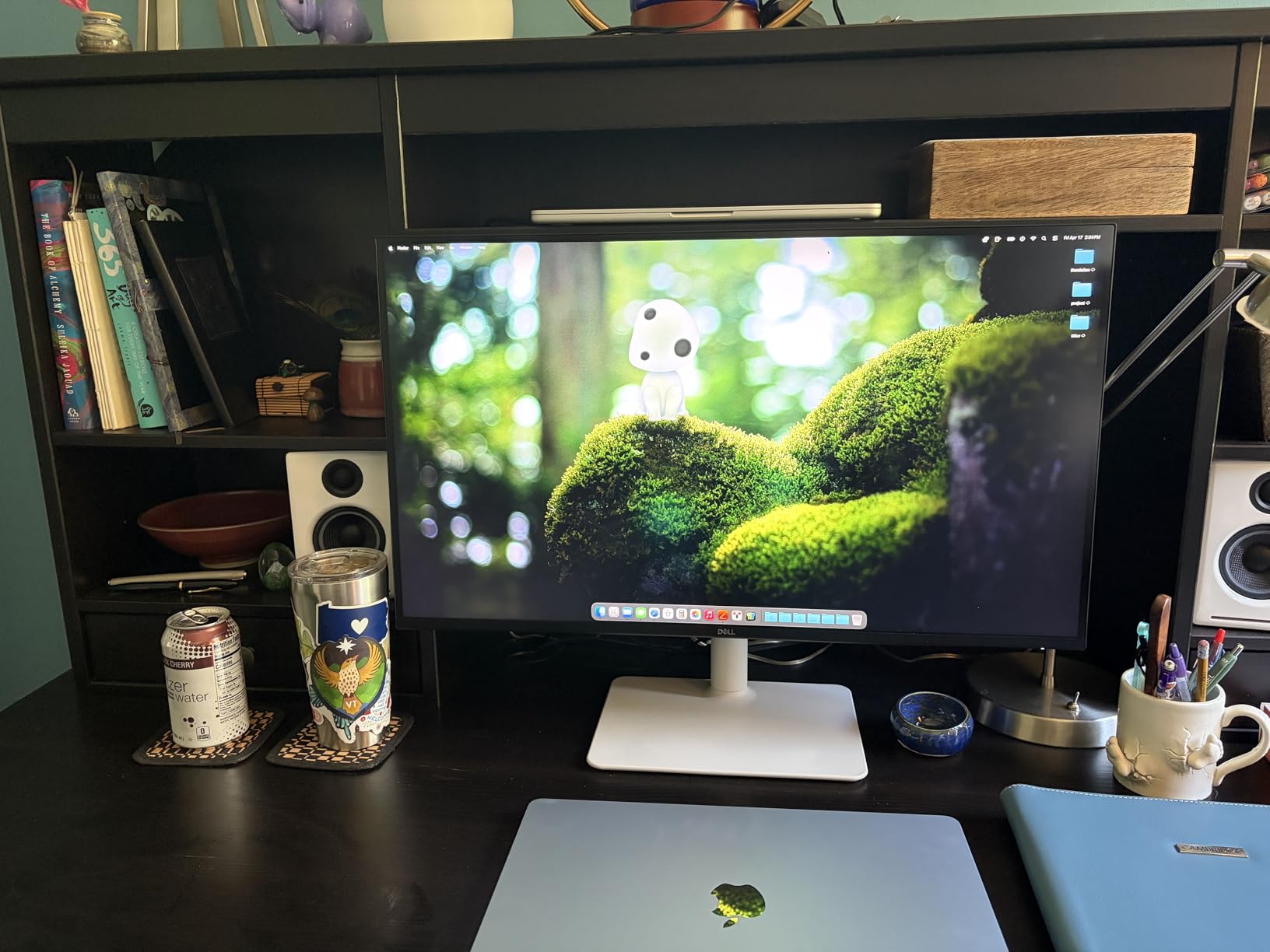
The stand is the other quiet win. Height, pivot, swivel and tilt adjustment are all present, which matters more than it sounds when you are raising a screen to eye level next to a MacBook Pro lid. The panel is matte, so a bright window opposite your desk will not bounce straight into your face.
Refresh rate is a genuine upgrade over most 27-inch 4K panels in this class. 120Hz with FreeSync Premium and a 0.03ms response time makes scrolling in Xcode or Safari feel as close to the ProMotion panel in your laptop as an external display realistically gets.
How the 65W USB-C charging behaves on a MacBook Pro
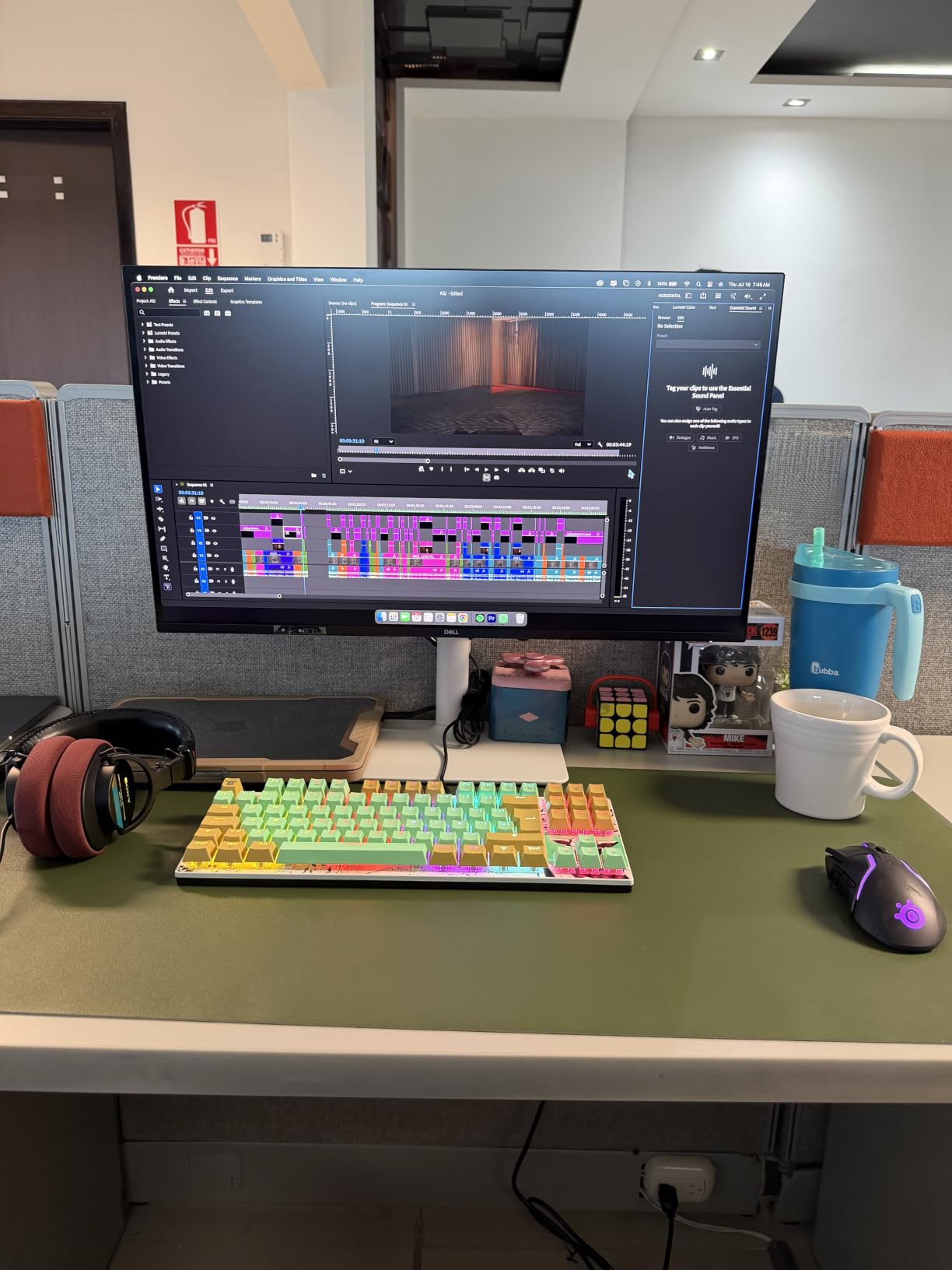
With a 14-inch MacBook Pro, 65W is generally enough to keep the battery level steady while the display is doing the work. With a 16-inch model under a sustained render or compile load, the laptop can still draw more than the monitor supplies, so expect the battery to drift down slowly even while the icon in the menu bar shows a charging state.
Plenty of buyers treat that as fine and top up from the charger during lunch. If you would rather not think about it at all, the Dell UltraSharp U2725QE later in this list pushes 140W over Thunderbolt 4 and removes the question entirely.
Where this monitor is the wrong choice
Colour-critical work is where this panel stops being the answer. 99% sRGB is accurate enough for interface design and general photo work, but it leaves no headroom in a wide gamut, and the 1500:1 contrast ratio will not give you the deep blacks that a good mini-LED or OLED panel delivers when you grade a night scene.
Reviewers also note that the re-engineered built-in speakers are still basic, so plan on headphones or desktop speakers. Everything else here is close to the sweet spot for a mixed-workload desk.
2. ASUS ProArt PA279CRV — the color-accuracy pick
ASUS ProArt PA279CRV 27 Inch 4K UHD USB-C HDR Professional Monitor for Mac
27-inch 4K
96W USB-C
99% DCI-P3
Delta E under 2
60Hz
Pros
- Factory calibrated to Delta E under 2 with a Calman Verified report
- 96W USB-C power delivery covers a MacBook Pro on one cable
- 99% DCI-P3 and 99% Adobe RGB coverage
- DisplayPort daisy-chain for a second display
- Five-year warranty with online registration
Cons
- 60Hz ceiling rules it out for fast motion work
- 5ms response time trails modern gaming panels
The ProArt PA279CRV is the monitor we send to photographers and editors who need the best monitors for MacBook Pro colour work without moving up to a 5K panel. It ships Calman Verified and factory calibrated to Delta E under 2, covering 99% DCI-P3 and 99% Adobe RGB, which is a wider gamut envelope than most 27-inch 4K panels in this group manage.
That wide gamut is the reason the 60Hz refresh rate is less of a problem than it first appears. A colour reference panel that is accurate at its default settings is worth more to a retoucher than extra frames per second, and the 96W USB-C power delivery comfortably carries a 14-inch or 16-inch MacBook Pro over a single cable.
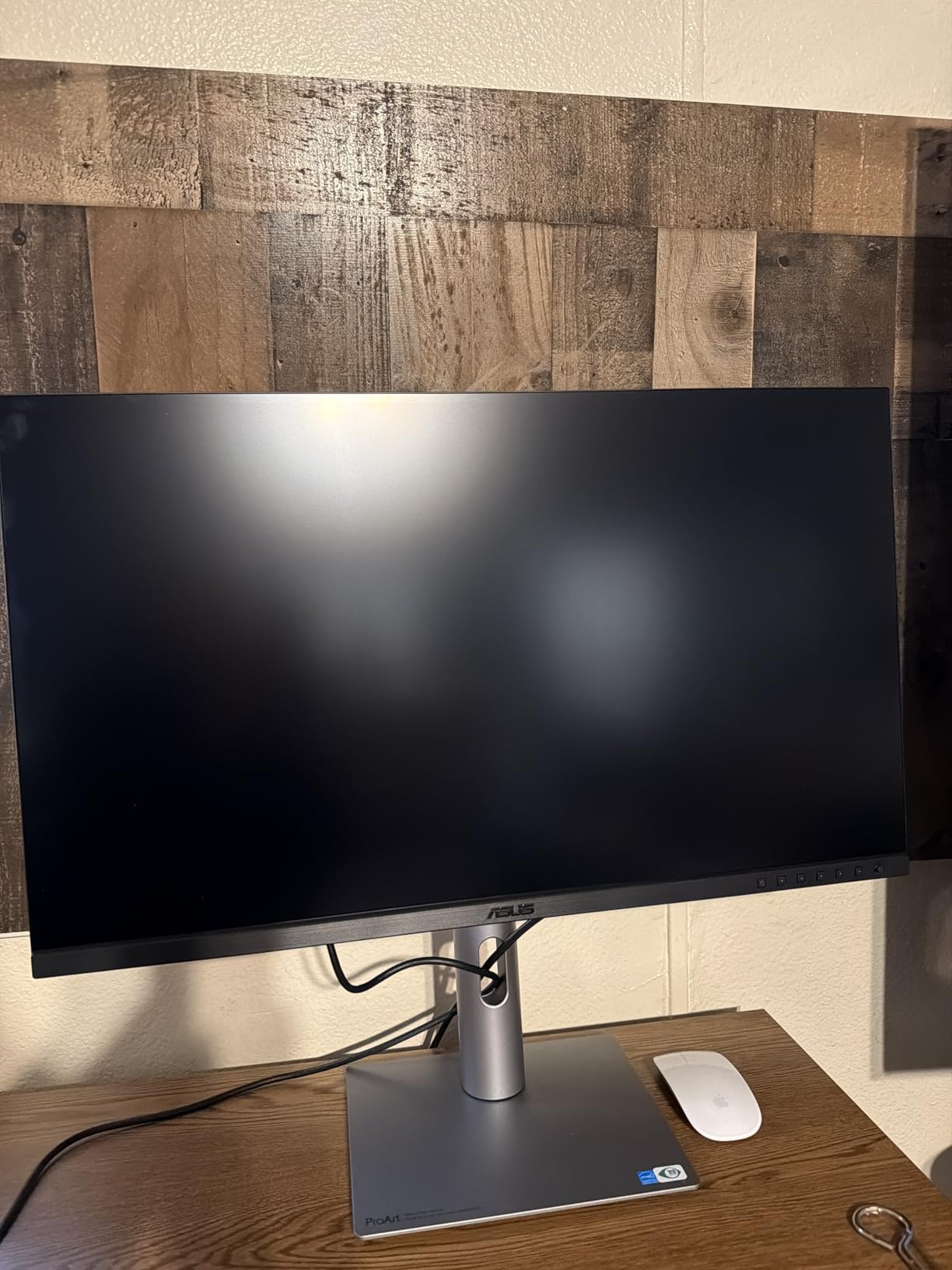
The IPS panel runs at 400 nits with a 3000:1 contrast ratio, which is a solid combination for SDR work in Photoshop and Lightroom. Viewing angles are listed at 178 degrees, so it is usable in a shared studio or a two-person desk where someone sits slightly off-axis.
DisplayPort over USB-C handles video, data and power, and the DisplayPort daisy-chain means you can run a second display from the same port without a dock. A five-year warranty, extended to five years with online registration, is a longer commitment than most rivals in this list offer.

What the wide gamut means for Final Cut and Photoshop work
99% DCI-P3 coverage means video and photo files with a wide-gamut profile display without clipping to sRGB, which is where many cheaper 4K panels start crushing colour in the highlights. Pair it with a colour-managed workflow in macOS and you avoid the washed-out look you get when a saturated image is forced into a narrow gamut.
Because the calibration is documented rather than assumed, this is also the panel we would pick for client work where someone else might question your output. Hardware calibration software is a separate purchase, but the factory report means you are starting from a known point.
Where this monitor is the wrong choice
If you edit high-frame-rate footage or play competitive games from macOS, the 60Hz ceiling and 5ms response time will feel dated the moment you switch. The 3000:1 contrast also falls short of a mini-LED panel when you are grading anything with deep shadow detail.
Reviewers most often name those two trade-offs directly: the refresh rate and response time are what you give up for the colour pipeline. If motion matters more than gamut, the Dell S2725QC at the top of this list is the better all-rounder.
3. LG 27US500-W Ultrafine — the low-cost 4K panel
LG 27US500-W Ultrafine Monitor 27-Inch 4K UHD (3840×2160) HDR10 IPS Borderless Design Reader Mode Flicker Safe Switch App HDMI DisplayPort – White
27-inch 4K IPS
HDR10
90% DCI-P3
Borderless white
Tilt only
Pros
- Three-sided borderless white design suits an Apple-style desk
- 4K clarity with 1000:1 contrast and up to 90% DCI-P3
- Onscreen Control makes split-screen layouts quick
- Flicker Safe Reader Mode for long sessions
Cons
- No USB-C input so charging needs a second cable
- Stand adjusts tilt only with no height or pivot range
The 27US500-W is the value route into 4K for a MacBook Pro, and the white borderless chassis is the reason it looks at home next to Apple hardware. Three thin sides and a matte finish give it the cleanest desk profile in this group.
Picture-wise you get a 27-inch 4K IPS panel at 300 nits, 1000:1 contrast and up to 90% DCI-P3 expression with HDR10. That is a step above sRGB-only panels for anyone editing photos, though it is clearly short of the ProArt’s factory-calibrated accuracy.
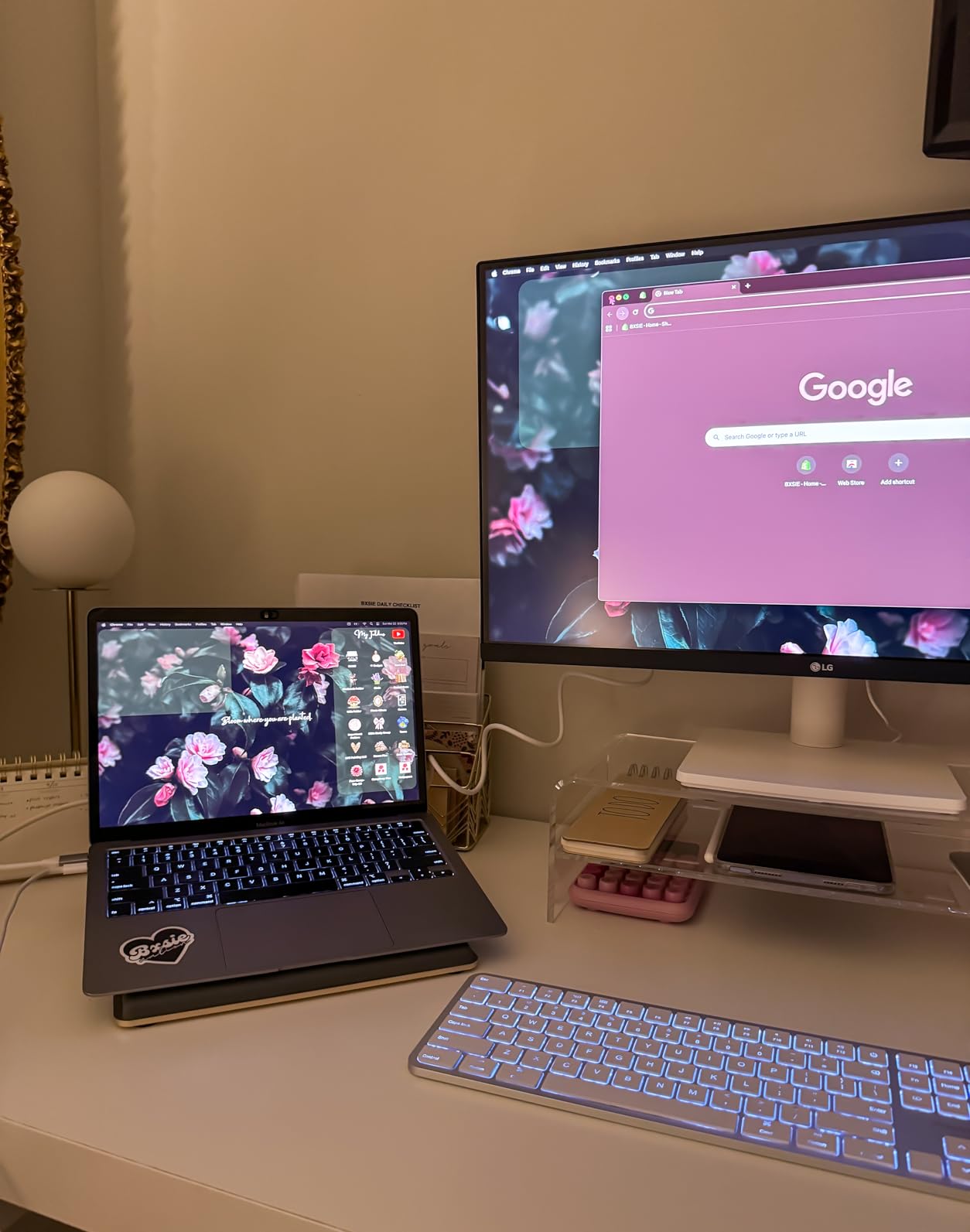
OnScreen Control handles input switching and a split-screen workspace, and Reader Mode plus Flicker Safe cut blue light on long reading days. For code review or writing, a 4K panel at 27 inches gives you enough room for a document column and a terminal side by side.
Refresh rate is 60Hz with a 5ms response time. That is fine for writing, browsing and photo work, and you will feel it only in fast-scrolling animations or gaming.

Why the missing USB-C matters on a MacBook Pro
This is the one real compromise. Connectivity is DisplayPort and two HDMI ports, so a MacBook Pro needs a USB-C to DisplayPort or HDMI adapter for video and Apple’s charger for power, or a dongle that does both. For a desk you sit at every day, that is two cables where one would do.
On the positive side, a MacBook Pro is the one laptop where a native DisplayPort or HDMI output is genuinely reliable, and no driver or dock firmware is involved. If you already own a hub, that gap matters much less.
Where this monitor is the wrong choice
The stand adjusts for tilt only. A fixed-height base on a 27-inch display means you are likely to end up on a monitor riser or an arm, and a lot of the appeal of a borderless design is the clean floating look that a riser breaks.
Colour coverage of up to 90% DCI-P3 is fine for general creative work but not for a graded delivery. If the panel is going to face your clients rather than your own files, the ASUS ProArt is the safer buy.
4. LG 27UP850K-W Ultrafine — the multitasking 4K with 90W USB-C
LG 27UP850K-W 27-inch Ultrafine 4K UHD IPS DisplayHDR 400 Computer Monitor
27-inch 4K IPS
90W USB-C
95% DCI-P3
DisplayHDR 400
60Hz
Pros
- USB Type-C delivers data and up to 90W over one cable
- 4K IPS panel with up to 95% DCI-P3 and DisplayHDR 400
- Switch app splits the panel into up to six sections
- Waves MaxxAudio stereo speakers built in
Cons
- 60Hz refresh limits fast-paced gaming
- 5ms response time is slow for competitive titles
The 27UP850K-W is the model we recommend when the MacBook Pro is a work machine first. The USB Type-C port carries display, data and up to 90W of charging, which is the sweet spot for a 14-inch MacBook Pro and enough to hold a 16-inch model steady in most working loads.
DisplayHDR 400 certification and up to 95% DCI-P3 coverage give you a wide-gamut panel that handles HDR content better than a plain SDR monitor without pretending to be a mastering display. Brightness is listed at 400 nits, which suits a bright office rather than a dim colour suite.
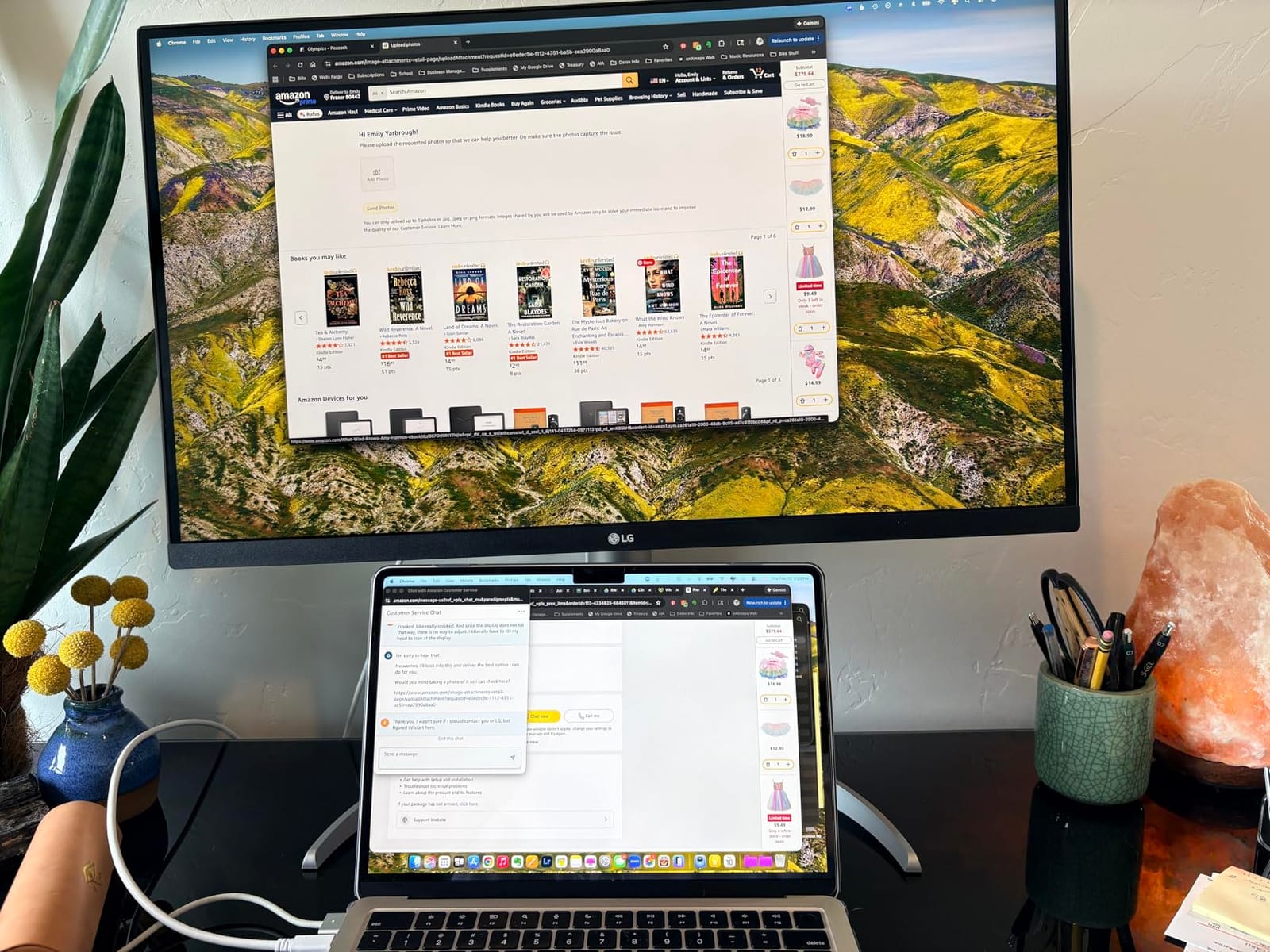
The Switch app is the sleeper feature. It divides the screen into up to six sections and adds webOS streaming, so you can run a mail client, a calendar and a document side by side without arranging windows by hand every morning.
Built-in Waves MaxxAudio stereo speakers are better than the token drivers most monitors ship, which means a quick video review does not require extra hardware. Connectivity is generous too: DisplayPort, two HDMI, two USB 3.0 ports and a headphone jack.
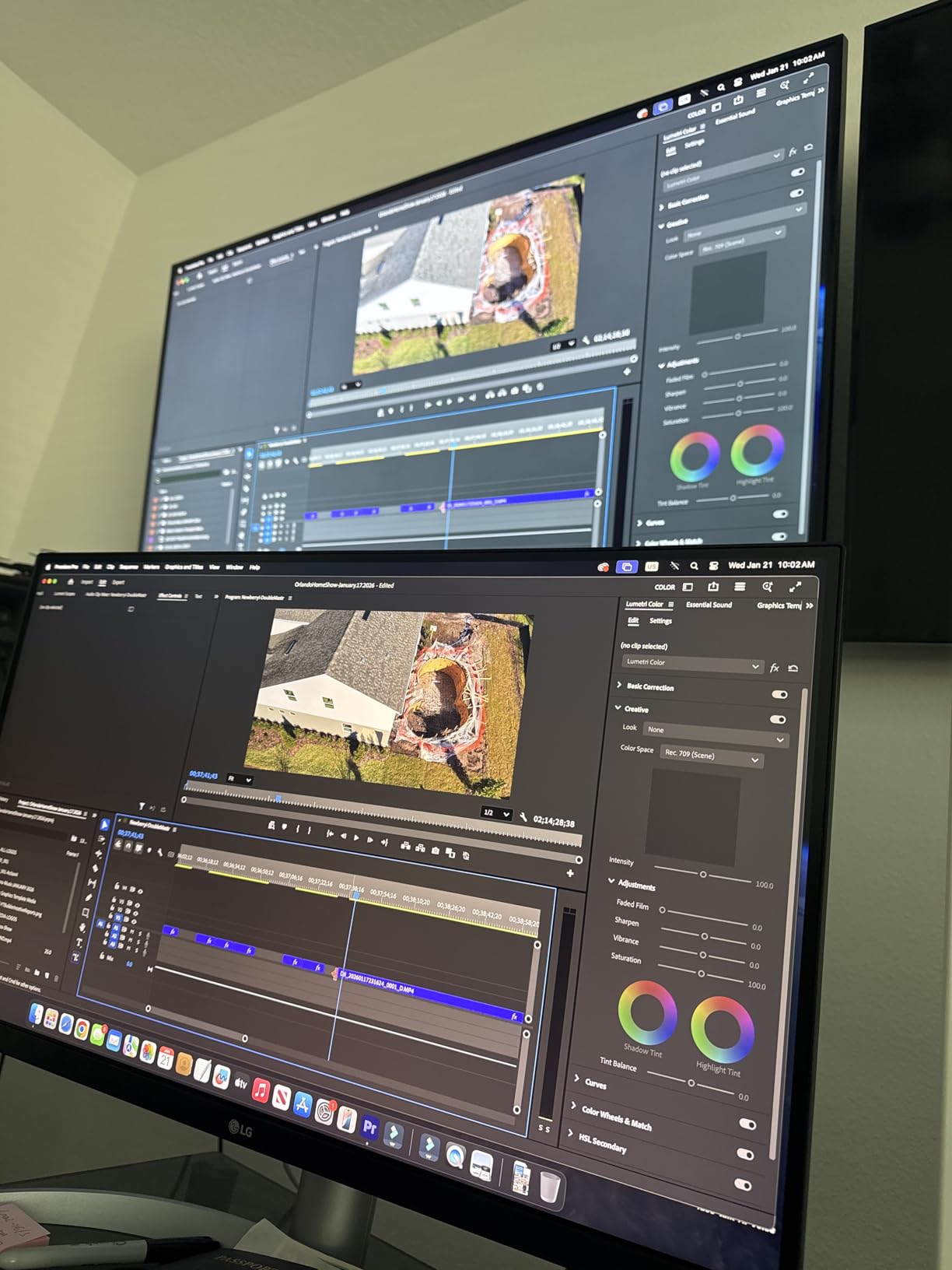
How 90W compares with the other USB-C panels here
Ninety watts sits between the 65W budget panels and the 96W and 140W professional options. In practice that means a 14-inch MacBook Pro runs at a steady level on the display alone, and a 16-inch model doing office work is close to neutral while heavier compiles or exports will pull the charge down slowly.
That middle position is deliberate. If you want certainty rather than a compromise, the Dell UltraSharp U2725QE supplies 140W, and if your 16-inch laptop is your only machine, that gap is worth closing.
Where this monitor is the wrong choice
Sixty hertz is the limit to plan around. It will not matter for writing, spreadsheets or photo retouching, but any motion work or fast game will show it, and the 5ms response time is sluggish next to the 0.03ms panel in the Dell S2725QC.
DisplayHDR 400 is also worth treating cautiously. A badge like this indicates the panel can accept an HDR signal, not that it has the dimming control or peak brightness for grading. Use it for viewing HDR deliverables, not for mastering them.
5. Dell UltraSharp U2725QE — the Thunderbolt 4 dock display
Dell UltraSharp U2725QE 27-Inch 4K UHD IPS Black Monitor
27-inch 4K IPS Black
Thunderbolt 4
140W PD
Delta E under 1.5
120Hz
Pros
- Thunderbolt 4 carries video data and up to 140W
- IPS Black with 99% DCI-P3 calibrated to Delta E under 1.5
- Daisy-chains two more 4K monitors from one port
- 120Hz refresh with G-Sync and a 5ms response time
- Ambient light sensor adjusts brightness automatically
Cons
- Premium tier pricing above mainstream 4K
- 1000:1 contrast is lower than some rival IPS Black panels
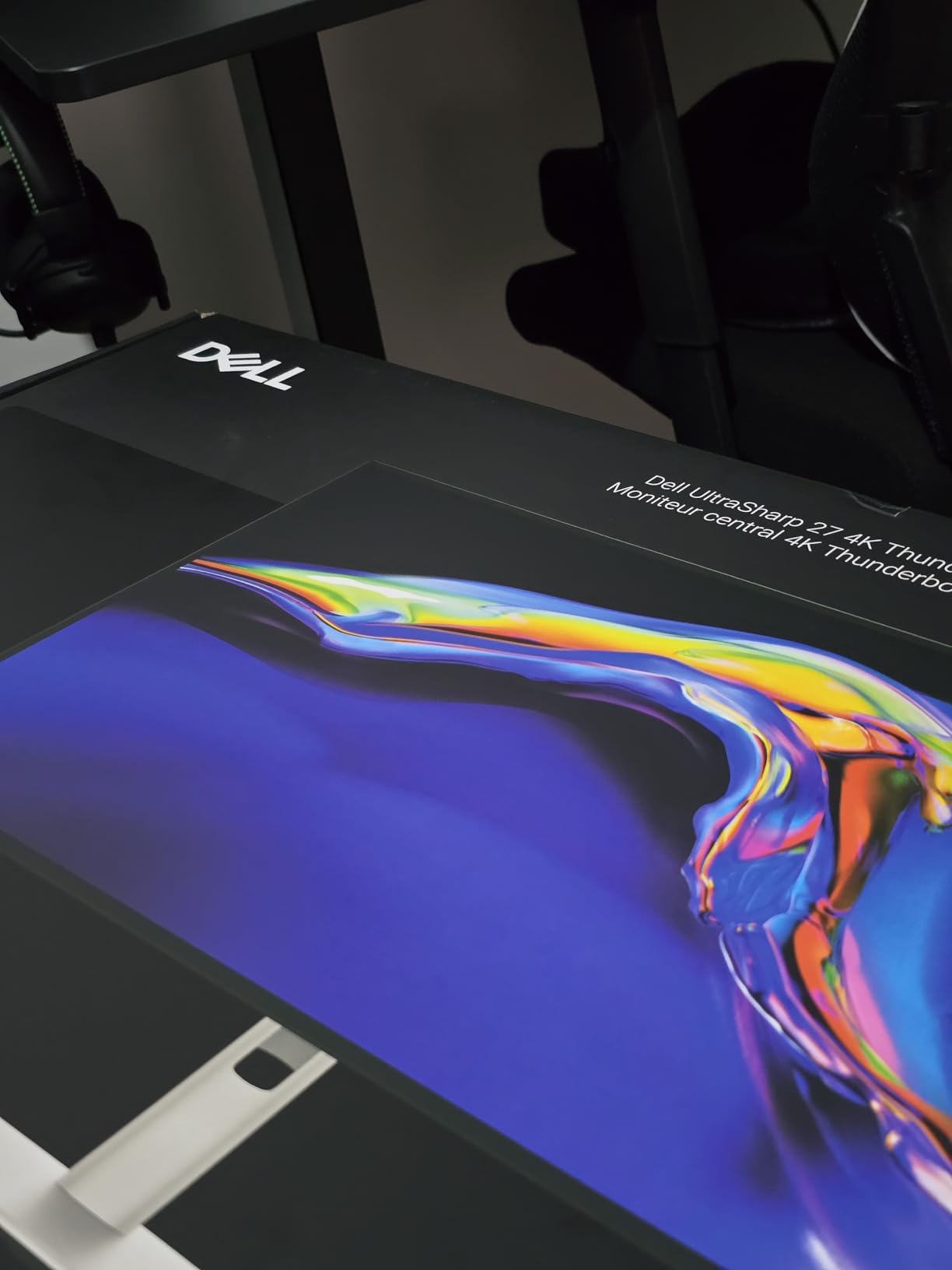
The UltraSharp U2725QE is the most complete single-cable solution in this group. Thunderbolt 4 delivers video, data and up to 140W of charging, which is more than any MacBook Pro draws under a heavy load, so the battery stays level no matter what you are rendering.
The IPS Black panel covers 99% DCI-P3 and is factory calibrated to Delta E under 1.5, the tightest figure in this list. For a designer signing off client work, that documented accuracy is the reason to choose this panel over a cheaper 4K screen.
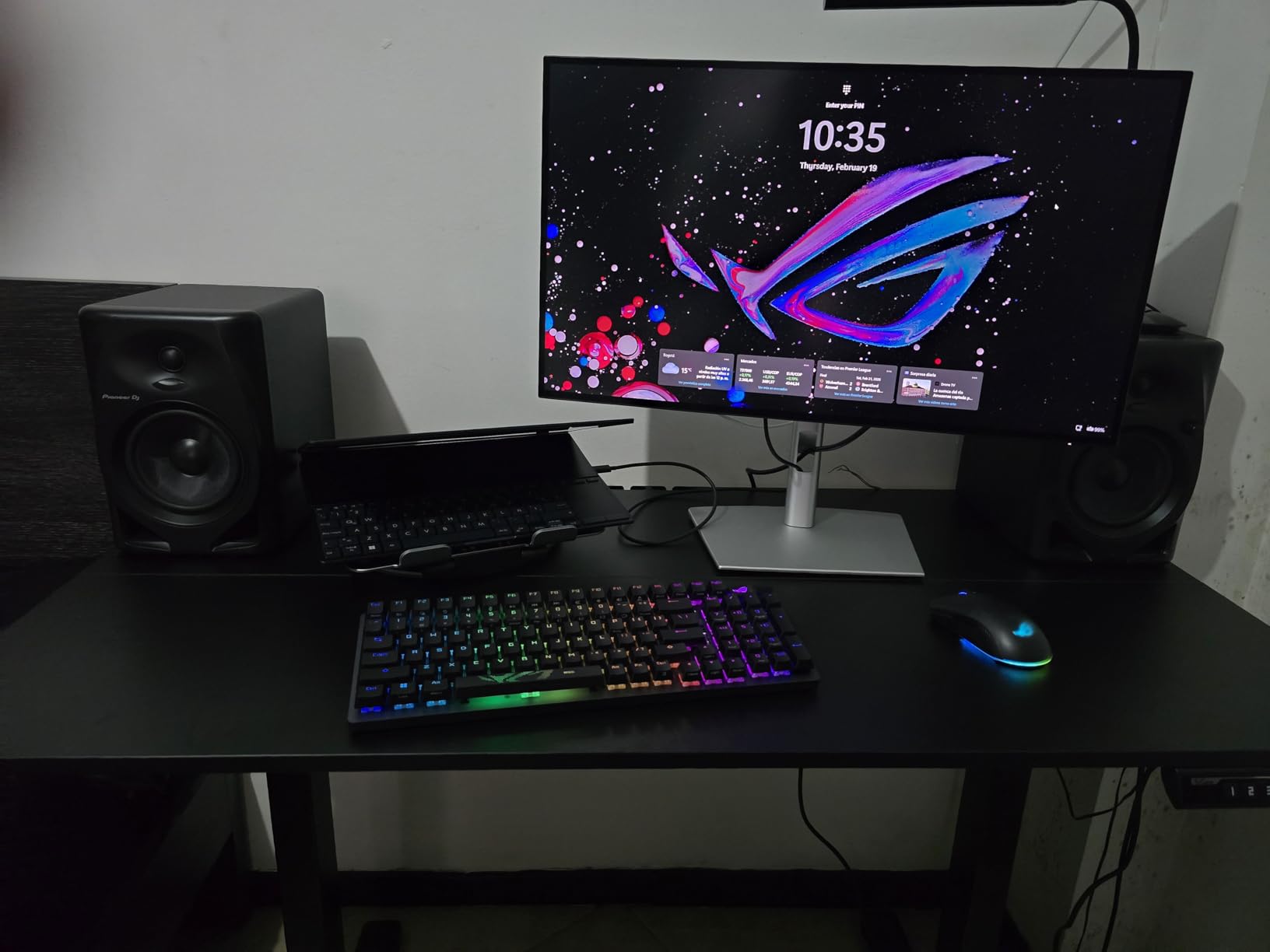
At 450 nits and 120Hz with G-Sync compatibility, it handles motion and scrolling as smoothly as it handles colour. The ambient light sensor adjusts brightness automatically, which is a small comfort feature that turns out to matter during long evening sessions.
The daisy-chain support is the underrated part. From one Thunderbolt port you can add two further 4K monitors, which is how you build a three-screen MacBook Pro desk without a separate dock eating a port.
What 140W changes in daily use
With 140W you can leave the charger at home for a normal day on a 16-inch MacBook Pro. The monitor supplies more than the laptop pulls for browsing, editing, compiling and even sustained exports, so the charge state stays flat instead of walking down an hour at a time.
It also means the display can charge a device while driving a full hub. Eight USB ports plus Ethernet, HDMI 2.1 and USB-C mean the monitor replaces a dock entirely, which matters on a MacBook Pro with only three ports.
Where this monitor is the wrong choice
This is a premium-tier panel and sits well above mainstream 4K pricing, so the maths only works if you were going to buy a dock and a colour reference screen anyway. For a general office setup, the Dell 27 Plus is the same size for far less.
Contrast is listed at 1000:1 despite the IPS Black panel, and review data shows that figure is not exceptional for the class. Grading a dark scene will not give you the shadow separation a mini-LED panel can, so this is a reference monitor rather than an HDR mastering display.
6. ASUS ProArt PA247CV — the compact-desk pick
ASUS ProArt PA247CV 24 Inch 1080p USB-C Professional Monitor
24-inch 1080p IPS
65W USB-C
100% sRGB
Delta E under 2
75Hz
Pros
- 65W USB-C docking plus a four-port USB hub on one cable
- Calman Verified at Delta E under 2 in 100% sRGB and Rec. 709
- Sturdy height-adjustable stand that stays steady while typing
- Five-year warranty with online registration
- DisplayPort daisy-chain for a second screen
Cons
- 1080p looks slightly grainy on a 24-inch panel next to a Retina screen
- Small integrated speakers that only carry audio over HDMI
- No calibration software included or downloadable
The ProArt PA247CV is the answer when desk depth is the constraint. At 23.8 inches it fits beside a laptop on a small desk, and it still delivers 65W of USB-C charging with a four-port hub so the MacBook Pro runs on a single cable.
Colour is the surprise. The panel is Calman Verified and factory calibrated to Delta E under 2 in 100% sRGB and 100% Rec. 709, which is more than most displays at this size and this tier offer, and a photography community group we follow picked a similarly specced ProArt as its value recommendation for Mac users.
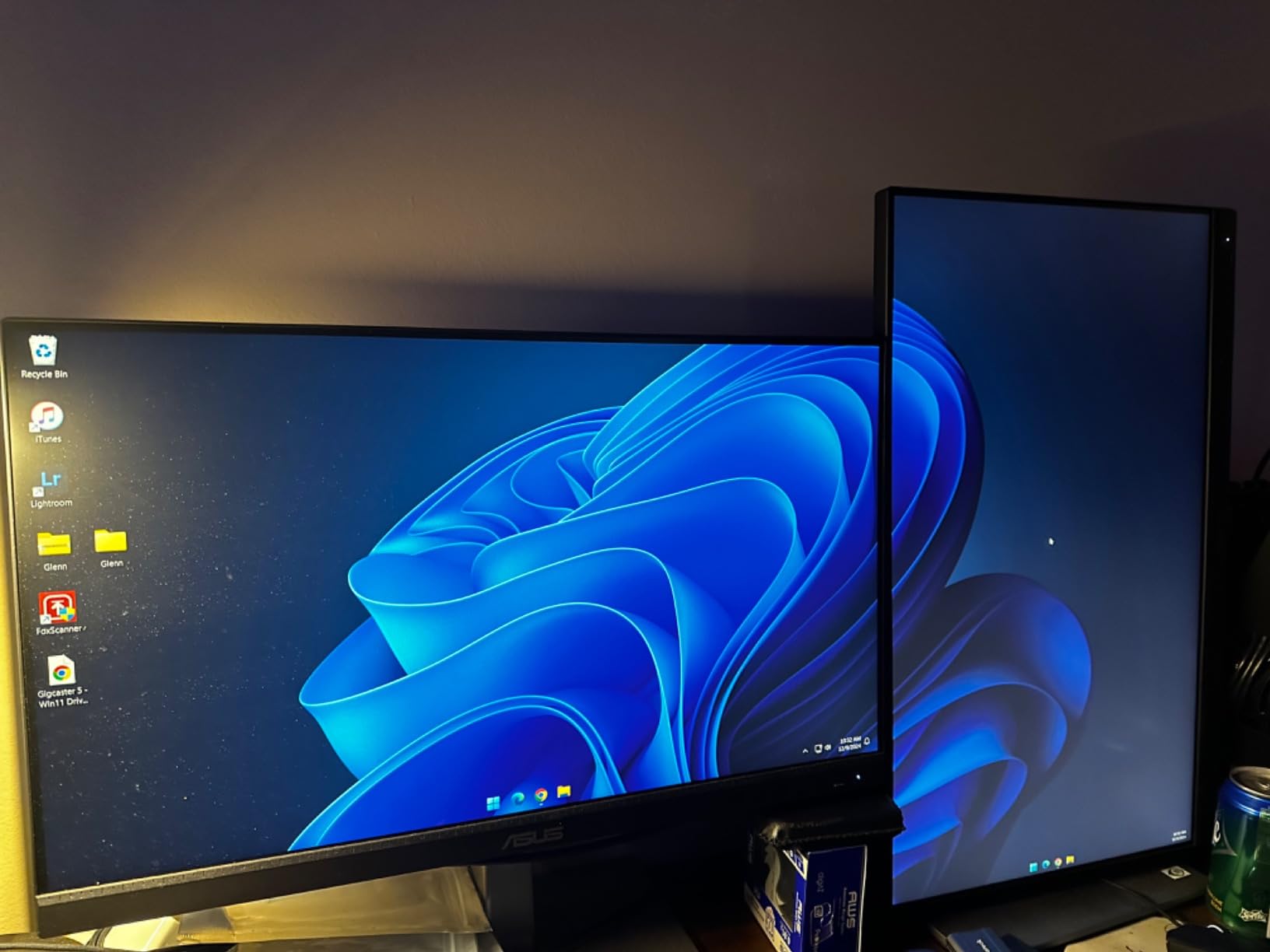
Build quality is a highlight in buyer feedback. The height-adjustable stand holds firm while you type, and the VESA mounting pattern is a standard 100 by 100, so an arm is easy to fit later.
DisplayPort over USB-C carries video, 65W of power and data, and the DisplayPort daisy-chain lets you add a second display. Response time is 5ms and refresh is 75Hz, which is a small step up from a 60Hz office panel.
How 1080p looks next to a Retina MacBook Pro screen
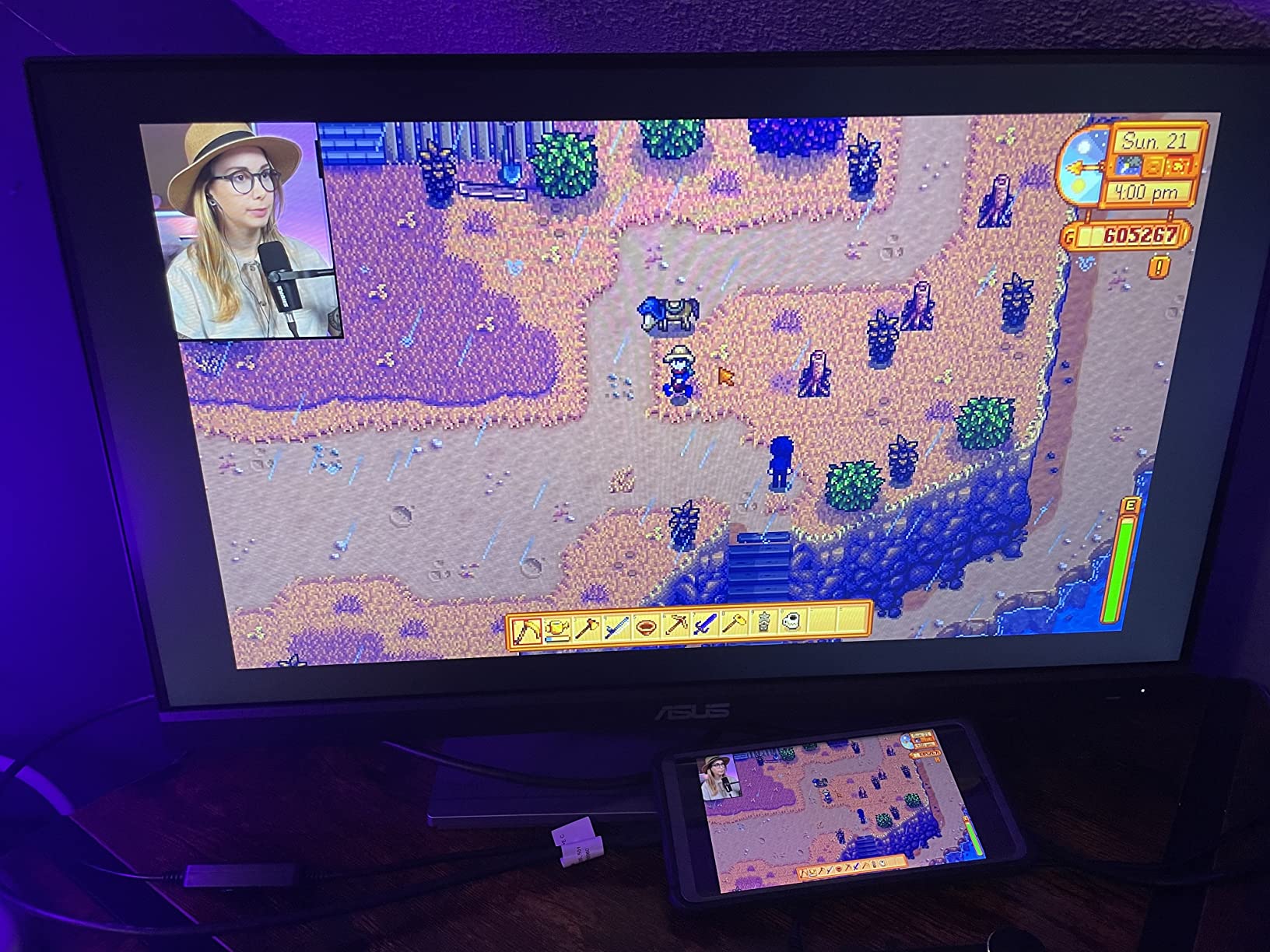
Honest answer: you will notice the difference. The 1920 by 1080 panel across 23.8 inches works out around 92 pixels per inch, so text is noticeably less dense than on the laptop display, and reviewers regularly call it slightly grainy when you sit close.
At arm’s length on a normal desk it is perfectly usable for documents, email, code and photo review thumbnails. What you give up is fine detail in Photoshop zoom views and the ability to run macOS at a scaled HiDPI resolution with the same crispness.
Where this monitor is the wrong choice
It is the wrong pick for a colour-critical desk or a video timeline, where the 100% sRGB gamut and 1080p resolution run out quickly. The integrated speakers are small and only carry audio over HDMI, and there is no calibration software shipped or downloadable from ASUS.
Some buyers also report that a few models arrived without an HDMI cable despite the listing. If you rely on HDMI rather than USB-C, check the box before you commit.
7. LG 34WR55QK-B — the 21:9 workspace for a single display
LG 34WR55QK-B 34-inch UltraWide WQHD (3440 x 1440) Curved Computer Monitor, 100Hz, 5ms, HDR10, Reader Mode, HDMI, DisplayPort, USB Type-C, Tilt/Height Adjustable Stand, Black
34-inch 21:9 WQHD
100Hz
3000:1 contrast
65W USB-C
Curved VA
Pros
- 21:9 canvas replaces a dual-monitor MacBook Pro layout
- 3000:1 contrast is strong for a curved VA panel
- 65W USB-C charging in a single cable
- Picture-by-Picture shows two sources at once
Cons
- VA colour trails IPS for design and photo work
- 65W may not fully charge a larger laptop
The 34WR55QK-B is how we cut a two-monitor setup down to one screen. A 34-inch 3440 by 1440 panel gives you roughly the same width as a 27-inch 4K display plus a second column, so a MacBook Pro timeline, inspector and browser can all live side by side without a second panel.
The VA panel is curved at 3000:1 contrast and runs at 100Hz with a 5ms response time. That contrast figure is far stronger than any IPS option in this list, which gives dark scenes real depth in Final Cut and Premiere.
Picture-by-Picture lets you display two input sources at once, so you can keep a camera feed or a reference monitor alongside your edit. USB Type-C supplies up to 65W, and Reader Mode reduces blue light for long reading sessions.
At 15.2 pounds and roughly 31.9 inches wide, this is a substantial desk object, so measure before you order. The stand offers height and tilt adjustment, which is more than most curved ultrawides at this tier provide.
What a 3440 by 1440 panel means for macOS scaling
This is the resolution question that trips people up. 3440 by 1440 is not HiDPI territory, so macOS renders it at a non-native scaled mode and text will look softer than on a 27-inch 4K or 5K screen. You gain width, not sharpness.
Our advice is to treat the ultrawide as a workspace screen and keep the MacBook Pro display alongside it for reading. That combination gives you crisp text and a wide timeline without the cost of a second 27-inch panel.
Where this monitor is the wrong choice
VA panels deliver weaker colour accuracy than IPS, and that is the repeated complaint in buyer feedback. For photo retouching or design work where colour judgement matters, the IPS options in this list are the safer choice.
The 65W USB-C output is also the limit many 16-inch owners notice. It handles a 14-inch MacBook Pro comfortably but can fall short on a larger machine under a heavy load, so keep the charger nearby if you edit on the road.
8. Samsung 49-inch Ultrawide — the dual-monitor replacement
Samsung 49” Business Curved Ultrawide Dual QHD Computer Monitor, USB-C, DisplayPort, HDMI, 120Hz, VESA DisplayHDR 400, Built-in Speakers, Height Adjustable Stand, Eye Care, LS49C954UANXZA, 2024
49-inch 32:9 Dual QHD
120Hz
90W USB-C
DisplayHDR 400
1000R
Pros
- Dual QHD 32:9 canvas replaces a two-monitor array
- 1000R curve pulls the edges closer to the viewer
- USB Type-C with 90W charging plus built-in hub ports
- 120Hz refresh and DisplayHDR 400 for work and lighter gaming
Cons
- 45.18 inch width and 32.2 pounds demand a deep desk
- At typical desk distance the panel forces constant head movement
The Samsung 49-inch is the big swing. A 5120 by 1440 Dual QHD panel at a 32:9 ratio is functionally two 27-inch screens joined by a thin bezel, and with 90W USB-C charging plus three USB ports on the back you can retire a separate dock.
For a MacBook Pro user editing a feature film, running a code editor beside a browser, or pairing a design tool with a full artboard, having one continuous desktop is simpler than managing windows across two panels with mismatched scaling.
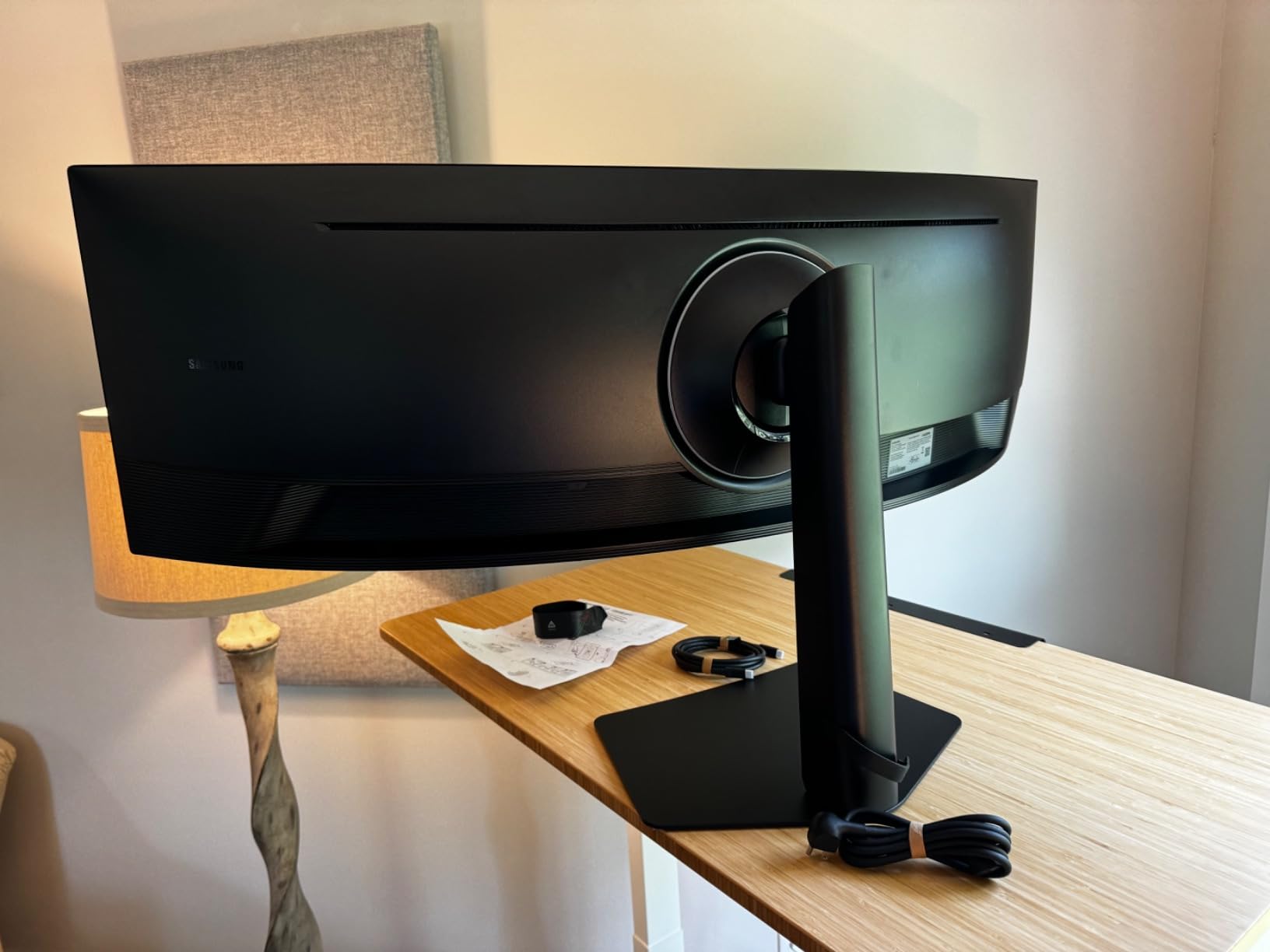
The 1000R curve is the reason ultrawides this wide exist. At that radius the far edges sit closer to your eye than a flat 49-inch panel would, which reduces the amount of head movement needed to read what is on screen.
Refresh rate is 120Hz, brightness is listed at 400 nits and VESA DisplayHDR 400 is supported, so light gaming and smooth scrolling are both fine. Built-in speakers reduce desk clutter, and the stand adjusts for height.
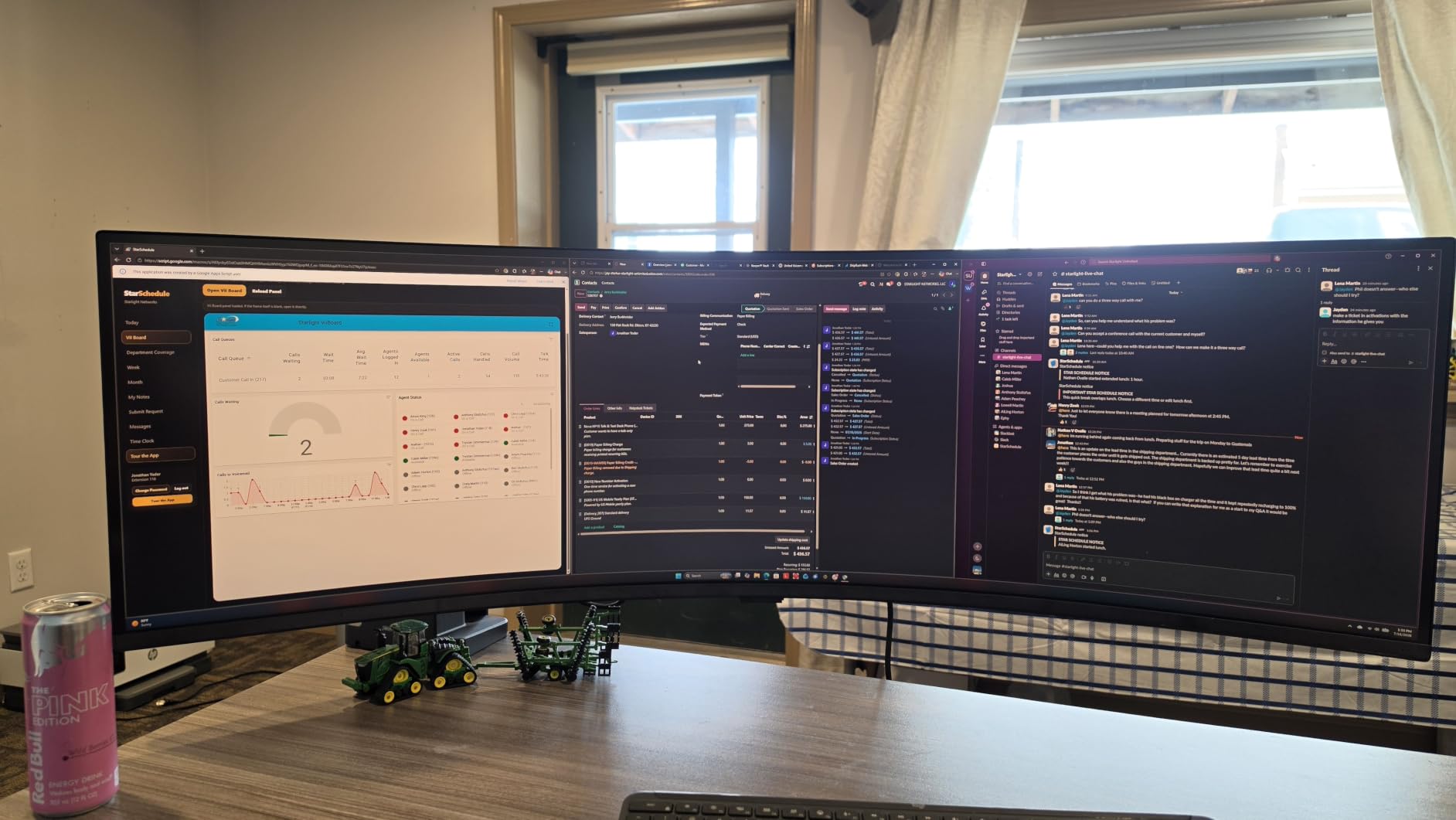
Do you have room for a 49-inch screen?
Measure first. This panel is 45.18 inches wide, 22.38 inches deep and weighs 32.2 pounds, which means a standard 48-inch desk is workable and anything shallower will not be. You also need the stand’s full footprint plus clearance to wall.
The second issue is viewing distance. A 49-inch panel at a normal desk position pushes the outer thirds of the image well past your comfortable focal distance, which is exactly what the 1000R curve is designed to reduce. If your desk is unusually deep, the problem gets easier.
Where this monitor is the wrong choice
Colour accuracy is not the selling point. The 3000:1 contrast is welcome for video, but a business ultrawide at this size is not a reference panel, and a colour-critical Mac workflow will be better served by a 27-inch 4K or 5K screen.
If you mainly write documents, this is a lot of panel for the job. Consider whether a 27-inch screen and a second smaller display would serve you better at a fraction of the desk cost.
9. Philips 346E2CUAE — the value curved ultrawide
Philips 34 Inch Curved Computer Monitor UWQHD 100Hz USB-C PD VA, 346E2CUAE
34-inch 21:9 curved
100Hz
1ms MPRT
USB-C PD
Four USB 3.1 ports
Pros
- 3440 x 1440 curved workspace at a mid-range tier
- USB-C power delivery for single-cable laptop power and video
- 1ms MPRT with 100Hz and Adaptive-Sync for smooth motion
- Four USB 3.1 ports built into the panel act as a hub
Cons
- VA colour is less accurate than IPS for photo work
- Only one HDMI port without a hub
- Limited stand adjustment versus height-adjustable ultrawides
The Philips 346E2CUAE covers the same use case as the LG 34-inch at a lower tier, and it is the pick we suggest when the priority is screen area per pound spent. A 34-inch 3440 by 1440 curved panel is a lot of workspace for a MacBook Pro that normally lives on a 14-inch or 16-inch screen.
USB-C power delivery handles laptop video and power over one cable, and the four USB 3.1 ports on the back turn the monitor into a hub. That matters on a MacBook Pro, where you would otherwise need a separate dock for peripherals.
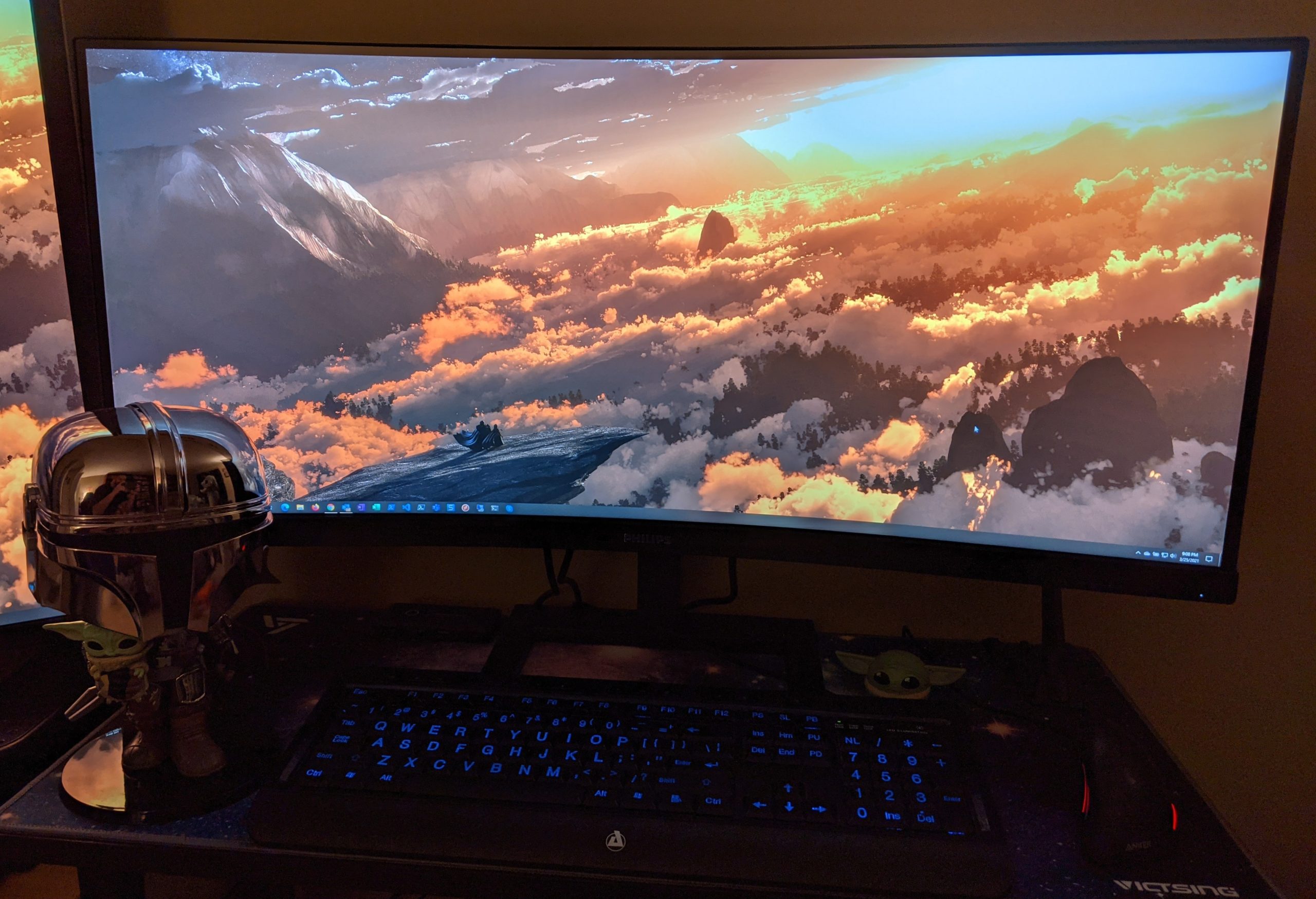
For motion, 1ms MPRT with a 100Hz refresh rate and Adaptive-Sync is unusually quick for a VA ultrawide, and it handles casual gaming without visible smearing. Ultra Wide-Color technology is listed at up to 121.3 percent sRGB coverage.
The 1500R curve is gentler than the Samsung’s 1000R, which some people find less distorting on a mid-sized panel. Build is solid and the four-year manufacturer warranty is longer than most at this tier.
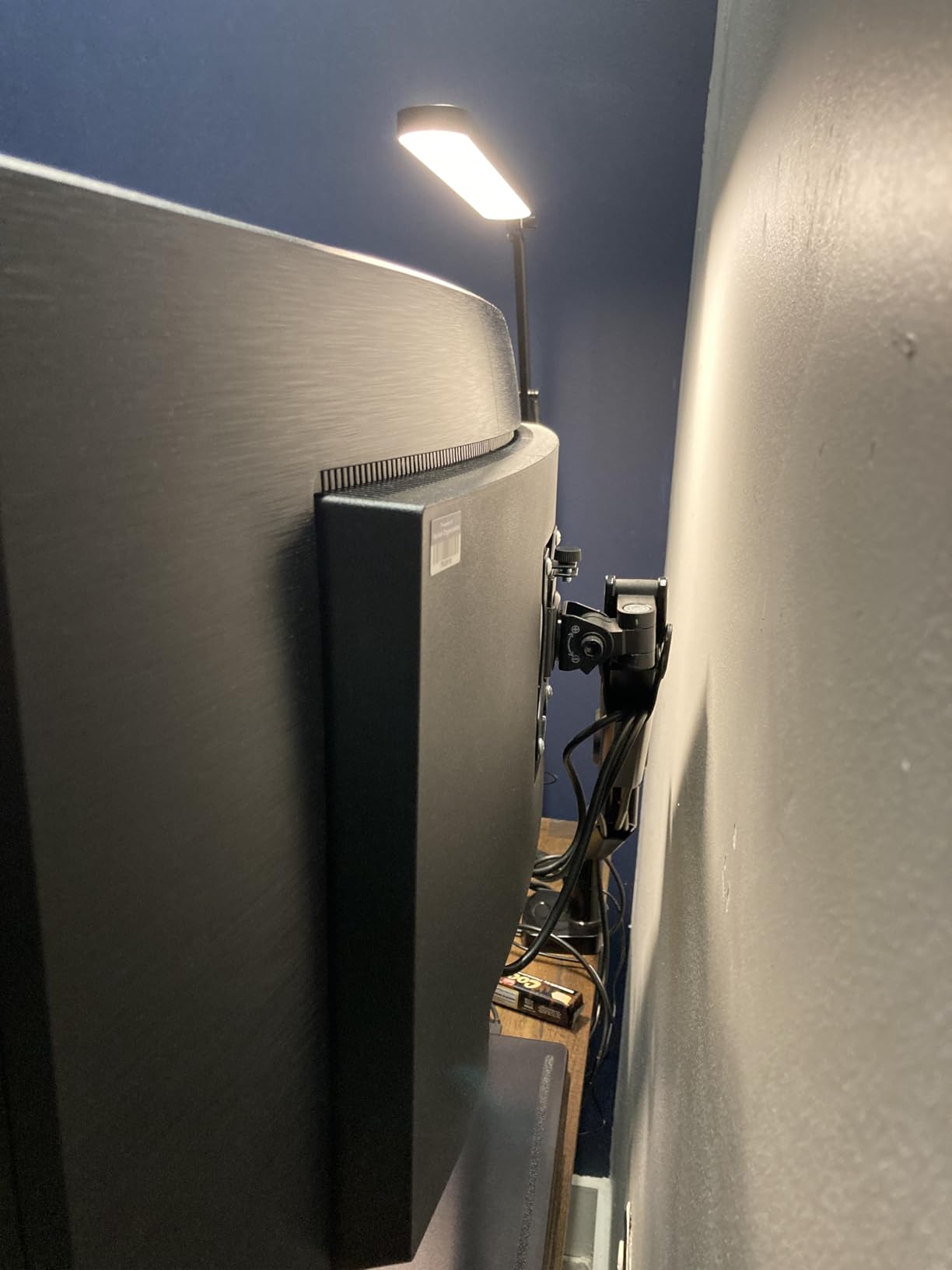
How this compares with the LG 34-inch ultrawide
Both panels are 34-inch 21:9 VA at 100Hz, so the choice comes down to details. The Philips is faster on paper at 1ms MPRT and has a longer warranty, while the LG is a step ahead on listed contrast at 3000:1 and offers height and tilt adjustment on the stand.
For a MacBook Pro desk, USB-C charging on both means one cable either way. Pick the Philips for motion and warranty, and the LG for contrast and a better stand.
Where this monitor is the wrong choice
Colour accuracy on a VA panel trails IPS, and buyers report that plainly. It is fine for general work and video viewing but not the panel to judge skin tones or product photography on.
There is only one HDMI port, and the stand offers limited adjustment compared with height-adjustable ultrawides. If you sit for long sessions, spending the difference on an adjustable stand or an ergo mount is money well spent.
10. VisionOwl 19-inch 4K — the travel pick and highest rated here
VisionOwl Portable Monitor 19 Inch 4K UHD 144Hz 560 nits 125% sRGB Second Screen, USB-C HDMI HDR Travel Monitor for Laptop PC MacBook PS5 Xbox, VESA Mountable, with Speakers, Built-in Kickstand
19-inch 4K IPS
144Hz
560 nits
2.4 pounds
Dual USB-C
Pros
- 4K and 144Hz in a 2.4 pound metal body
- Single USB-C handles video and power on Thunderbolt-equipped Macs
- 560 nit peak brightness reads well in bright rooms
- Grade A panel inspected for dead pixels before shipping
- Kickstand and 75x75mm VESA holes with a carrying case included
Cons
- Brightness capped at 60 percent on a single USB-C cable
- Built-in speakers are poor and mostly decorative
- No auto-brightness so it needs manual changes
The VisionOwl 19-inch 4K is the one we pack for a working trip. At 2.4 pounds with a metal casing and a profile of 0.2 to 0.47 inches, it folds into a backpack, and the included kickstand and carrying bag mean you need no separate stand for a hotel desk.
The panel is the surprise. A 19-inch 4K IPS at 144Hz with 560 nits of peak brightness and 125 percent sRGB coverage is a genuinely good screen, and it is the highest-rated display in this group with more than 3,000 reviews behind it.
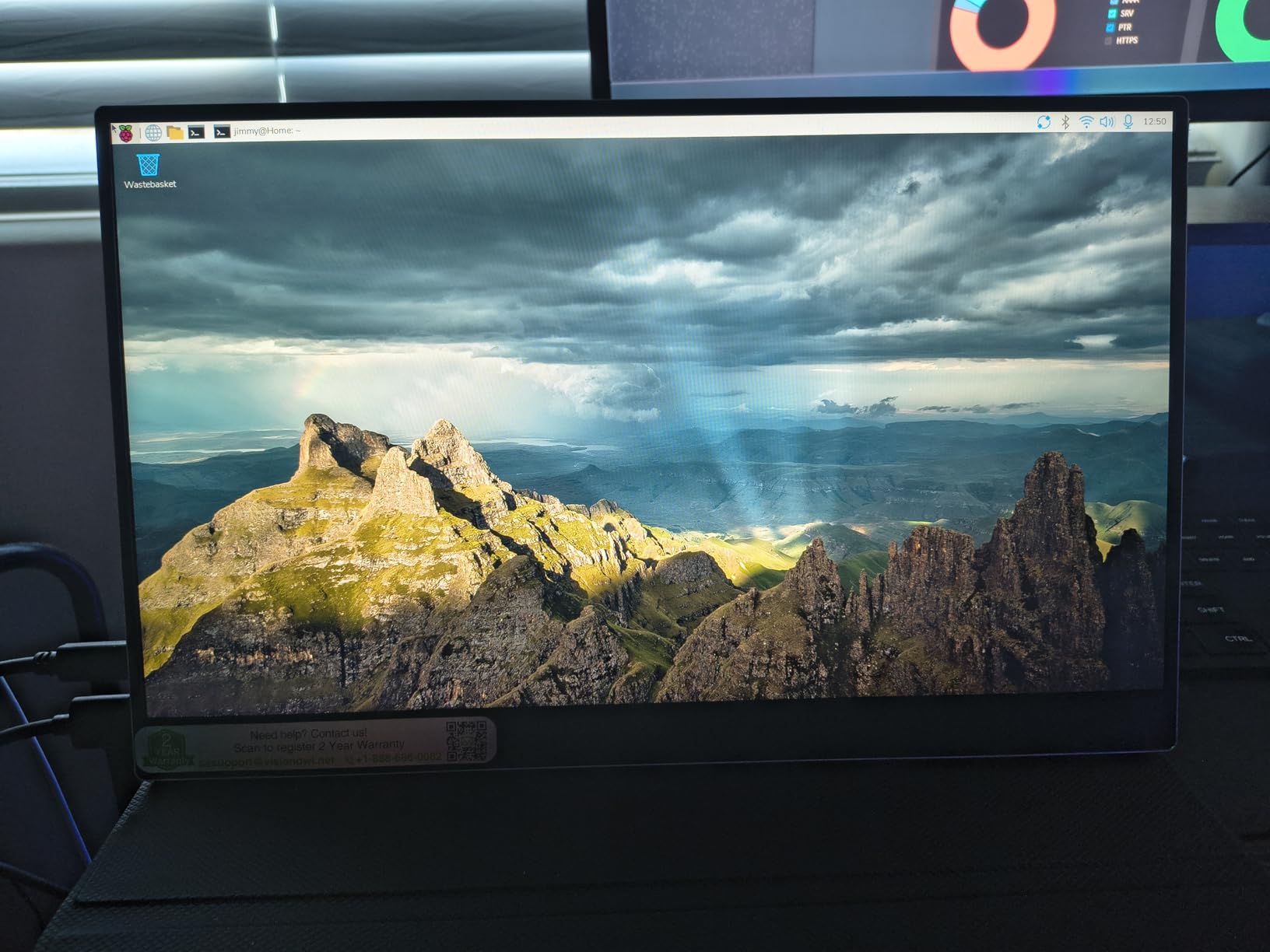
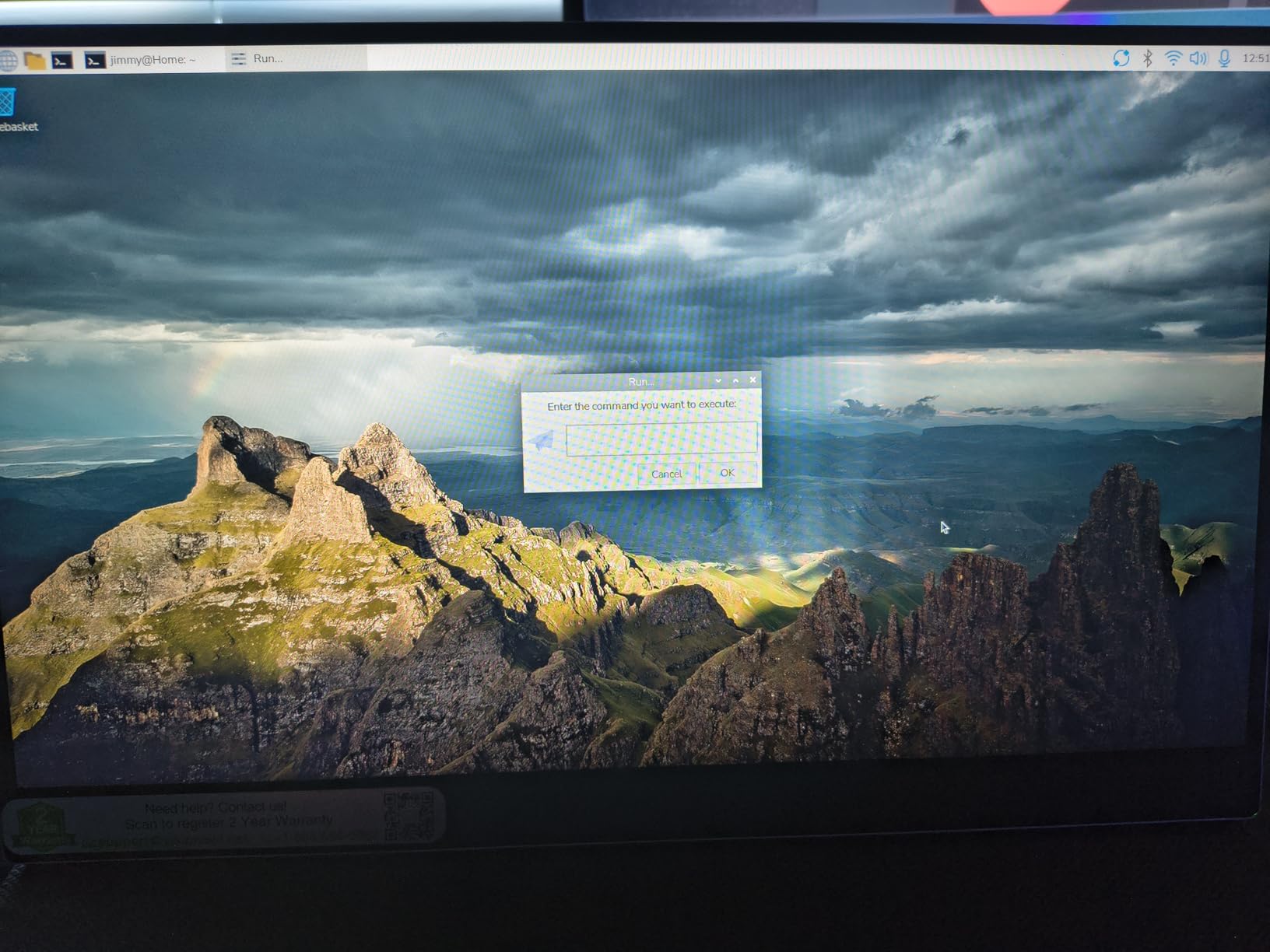
On a Thunderbolt-equipped MacBook Pro, one USB-C cable carries video and power, and a second USB-C port plus HDMI are there for whatever else is in the bag. Grade A panels are inspected for dead pixels before shipping, which removes the most common portable-monitor complaint.
It is also VESA mountable at 75 by 75mm, so it can go on an arm or a clamp at home rather than living on the kickstand permanently. The box includes a power adapter, an HDMI cable and two USB-C cables.
Why the 60 percent brightness cap matters
Peak brightness is listed at 560 nits, but the panel is capped at 60 percent when it is running from a single USB-C cable. In practice that means you are getting roughly a third of the stated brightness, and in a brightly lit room you may be raising it as far as it goes.
Our advice is to carry the power adapter and use it for any session longer than an hour. A portable monitor that throttles to save battery is a sensible design choice, but you should choose it knowing the ceiling exists.
Where this monitor is the wrong choice
At 19 inches it is a companion screen, not a main desk display. Layouts with a lot of text are cramped, and a 4K panel at this size is dense enough that macOS scaling choices matter more than on a 27-inch screen.
The built-in speakers are poor and best treated as decoration, there is no auto-brightness, and the on-screen control dial can be easy to trigger by accident. If you need a larger travel screen, the InnoView 23.8-inch further down is the alternative.
11. InnoView 23.8-inch 4K — the large portable 4K screen
Innoview 23.8” 4K Large Portable Monitor, UHD (3840*2160) 100%sRGB IPS Speakers USB-C HDMI Work Home Second Monitor W/180°Adjustable Stand for Laptop, Desktop, Macbook, Phones, Tablet, PS5/4, Switch
23.8-inch 4K IPS
100% sRGB
60Hz
180-degree stand
2.2 kg
Pros
- 23.8-inch 4K panel is unusually large and sharp for a portable
- 180-degree adjustable kickstand with clamp and hook accessories
- Runs from a single USB-C power brick shared with the laptop
- Works with MacBooks tablets and consoles over USB-C and HDMI
- Support responses reported as fast with replacements shipped
Cons
- 60Hz refresh only
- A minority of models stopped powering on after about a year
- Soft panel that scratches easily in transit
- 18-month warranty is short
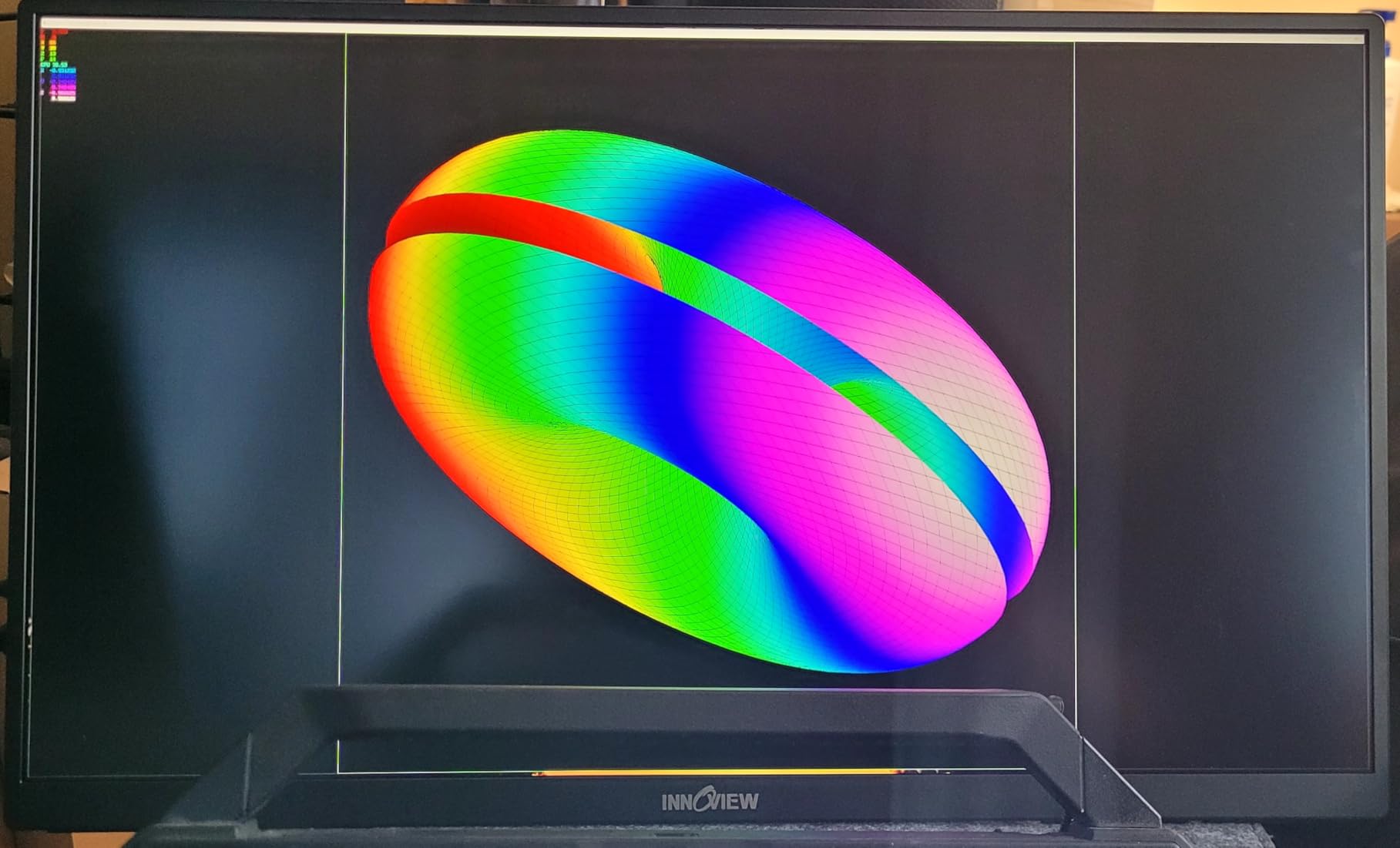
The InnoView 23.8-inch does something most portable monitors do not: it is nearly desk-monitor sized. A 4K panel at 23.8 inches is large enough to serve as a second screen for a MacBook Pro at a fixed desk, yet it weighs 2.2 kg and ships with a 180-degree adjustable kickstand.
Colour is 100% sRGB on an IPS panel, which is more honest than the inflated percentages you see on some budget screens. Response time is listed at 2ms and contrast at 1300:1, with FreeSync support for variable refresh.
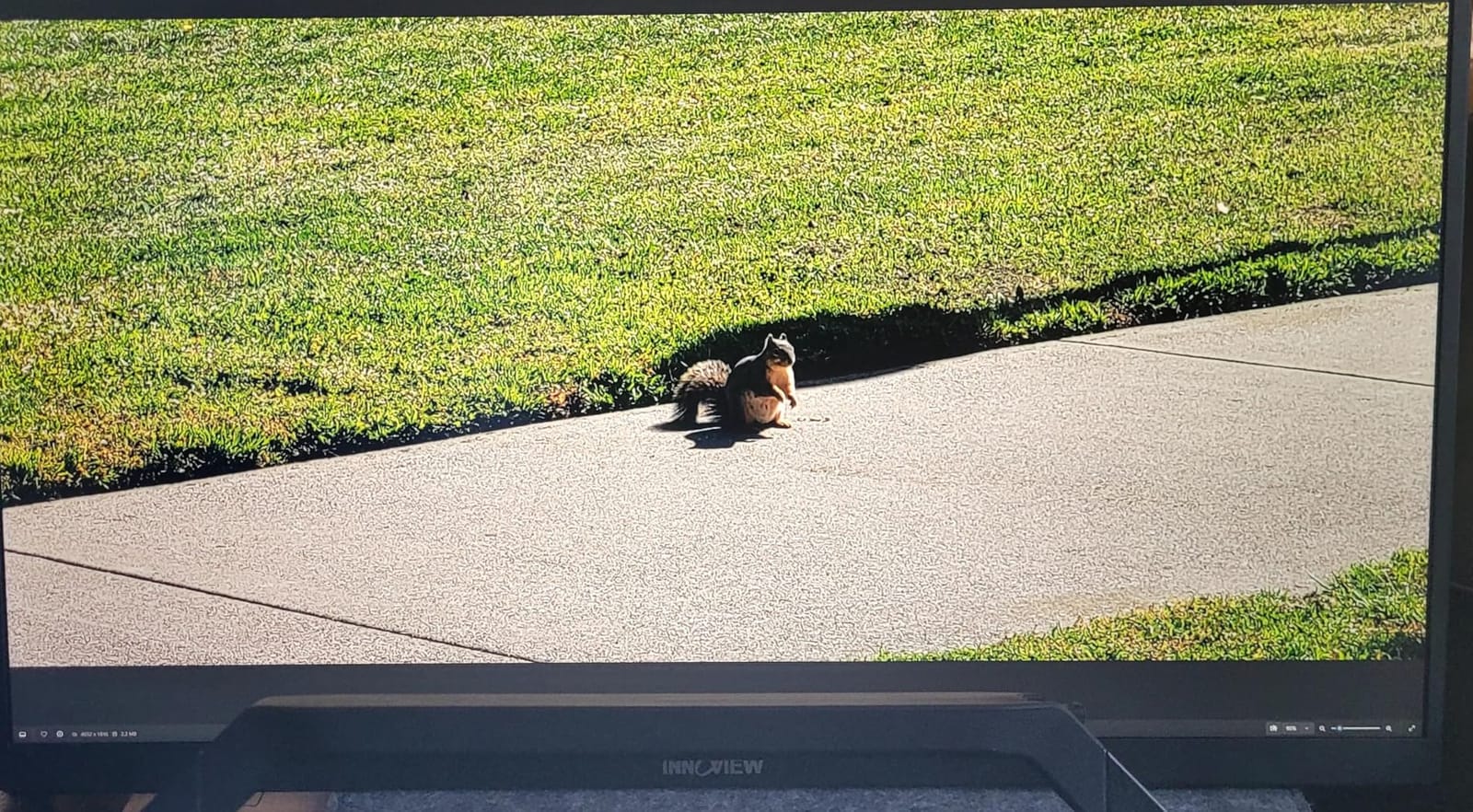
Power is where this design is clever. The monitor runs from a single USB-C power brick shared with the laptop, so a hotel room or a shared desk needs one outlet rather than two. USB-C and HDMI cover laptops, desktops, MacBooks, tablets and consoles.
Accessories include a carrying handle, a height-adjustable C-clamp and a partition hook, so it can be mounted rather than stood. Buyers report responsive support and replacement units shipped within days when something goes wrong.
How does 23.8 inches of 4K handle macOS scaling?
At 4K across 23.8 inches you get around 216 pixels per inch, higher than a 27-inch 4K panel. That means macOS offers sharper scaled options, and the default HiDPI text looks noticeably crisper than on the 27-inch models in this list.
The downside is that 23.8 inches is not much physical screen for that many pixels, so panels can feel small unless you sit close. It suits a laptop-plus-display layout far better than a single-screen desk.
Where this monitor is the wrong choice
Durability is the recurring theme in reviews. A minority of owners report units that stopped powering on after about a year, and the panel itself is soft enough to scratch in transit, which is why some buyers recommend the extended warranty.
Refresh is 60Hz, so this is not a motion display, and the 18-month warranty is the shortest in this group. For a travel companion that stays in a padded bag, that is a reasonable trade. For a permanent desk, buy a panel with a proper stand.
12. InnoView 15.6-inch FHD — the low-cost second screen
InnoView Portable Monitor, 15.6 Inch FHD 1080P HDMI USB C Second External Monitor for Laptop, Desktop, MacBook, Phones, Tablet, PS5/4, Xbox, Switch, Built-in Speaker with Protective Case
15.6-inch 1080p IPS
80% sRGB
Dual USB-C
Case stand
2.7 pounds
Pros
- Low-cost second screen for travel and shared desks
- Plug and play with no apps or drivers over one USB-C cable
- PU leather cover doubles as an adjustable stand
- Landscape and portrait orientation to save desk depth
Cons
- 80% sRGB coverage and 250 nit brightness
- 1080p at 15.6 inches is modest for photo or design work
- Some models flicker or restart when powered only from the host
- Power adapter not included in the package
The InnoView 15.6-inch exists for one job: giving a MacBook Pro owner a second screen for almost nothing. It has more than 6,000 reviews and holds a 4.3 rating, which is remarkable for a display at this end of the market.
Setup is genuinely zero-fuss. Two full-function USB-C ports and an HDMI input, plug-and-play with no apps or drivers, and power pass-through reverse charging, so the laptop still charges from the same brick while the screen is attached.
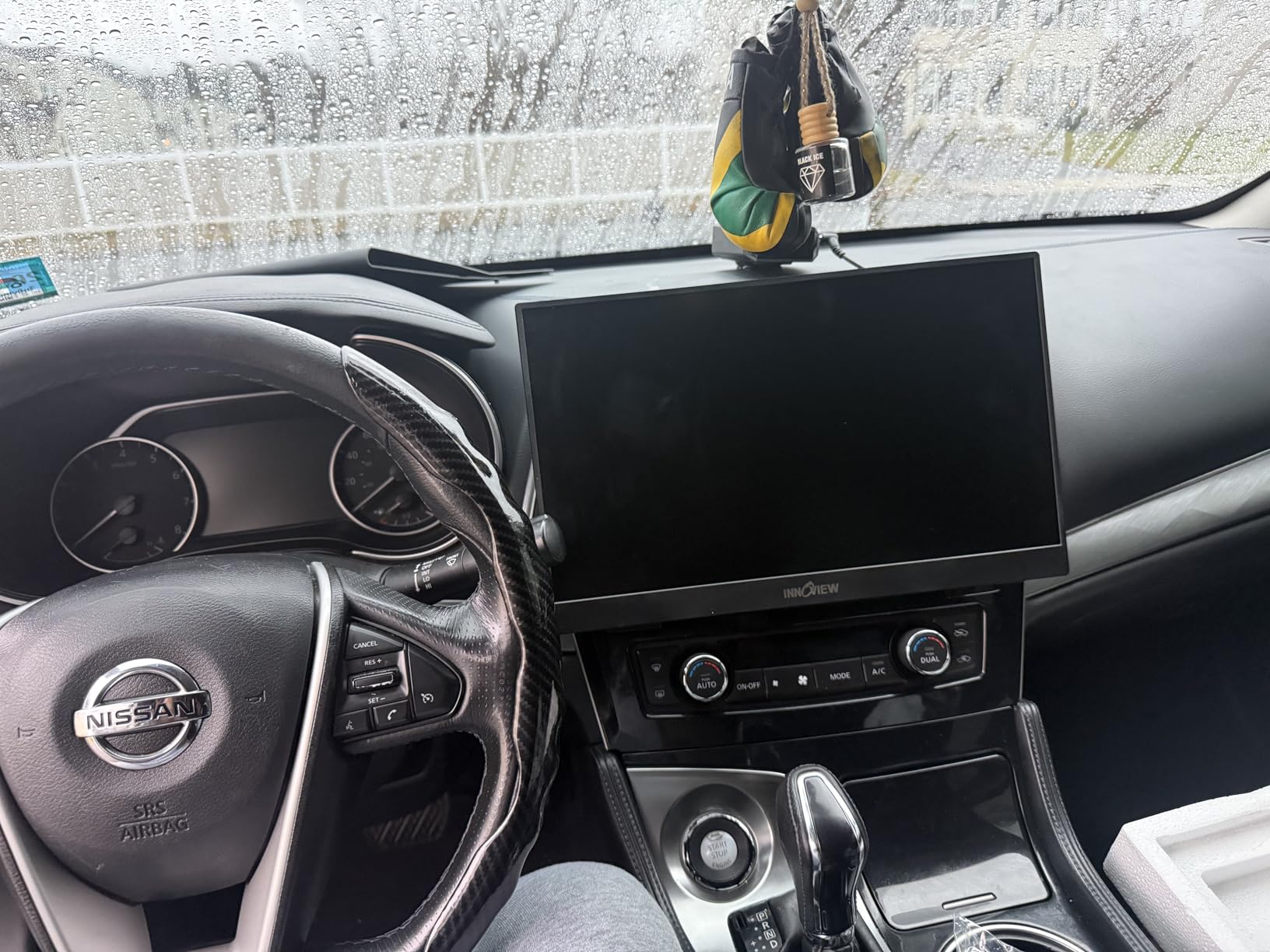
The PU leather cover doubles as an adjustable stand, which is the reason the 4mm profile is workable rather than flimsy. It switches between landscape and portrait, so you can run a long document column beside your laptop or stack it for a reference pane.
Low blue light and flicker-free operation are specified, which matters more than the specification sheet suggests when the screen lives beside your laptop all day. A 2.7-pound body disappears into a bag alongside the charger.
What you give up for the low cost
Colour coverage is 80% sRGB with 250 nits of brightness, and resolution is 1920 by 1080 on a 15.6-inch panel. That combination is fine for mail, chat, a document reference, a Slack window and a media player, and it is not fine for anything where you judge colour or read fine print.
Text rendering is the other limitation. There is no HiDPI scaled mode at this resolution, so macOS renders it 1:1 and the text is clearly softer than on your laptop display when you glance between the two.
Where this monitor is the wrong choice
Some users report flicker or restarts when the panel is powered solely from the host, because laptops output different amounts of USB-C power. If that happens, plug in the power adapter rather than relying on bus power.
Also note the power adapter is not included in the package, and the 18-month warranty is short. This is a screen for occasional travel and overflow windows, not a display to build a working desk around.
How to Choose a Monitor for a MacBook Pro
Start with pixel density, because it is the one decision you cannot fix later. macOS renders a Retina-style look when a display’s native resolution maps cleanly onto a scaled HiDPI mode, which is why 27-inch 5K panels and 27-inch 4K panels feel sharp next to a 1440p screen that does not divide cleanly at all.
The practical rule: treat 27-inch 4K as the value sweet spot, 27-inch 5K as the closest match to your laptop’s own screen, 32-inch 4K as the workspace-first option where you accept softer text for more room, and 21:9 or 32:9 ultrawides as width over sharpness. A 34-inch 3440 by 1440 panel falls into that last group.
If you want to self-match a panel, divide the horizontal pixel count by the diagonal in inches. Around 160 pixels per inch and above is where HiDPI text starts to look properly dense on a 27-inch screen, and higher is better if you sit close.
How much power your MacBook Pro actually needs
A 65W USB-C monitor is the common baseline in this list, and it is enough for a 14-inch MacBook Pro in most working loads. A 90W to 96W panel gives a 14-inch model real headroom and holds a 16-inch machine steady during office work, while 140W over Thunderbolt 4 covers sustained renders and exports on a 16-inch model without the battery drifting down.
The trap is assuming a charging icon means full speed. A monitor advertising 65W may charge a 16-inch MacBook Pro so slowly under load that the percentage barely moves, which is the single most common complaint in Mac owner forums about USB-C monitors. Match the wattage to the machine and keep the charger within reach if you work on a 16-inch model.
USB-C, Thunderbolt and DisplayLink
USB-C with DisplayPort Alt Mode is all most MacBook Pro owners need: video, data and power over one cable. Thunderbolt 4 adds bandwidth for daisy-chaining extra 4K monitors and supplies far more power, which is why the Dell UltraSharp leads the charging figures here.
Display count limits are generational, and the answer is not the same for every chip. Base and Pro chips support fewer external displays than Max and Ultra chips, so check the specification for your exact model before planning a two- or three-screen desk. If you need more displays than your MacBook Pro natively drives, DisplayLink adapters are the established workaround, at the cost of some compression and a driver on the Mac.
On the audio side of a production desk, our guide to the best ultrawide monitors for producers is worth a look if a wide panel is your goal.
HDR labels and colour-critical work
A DisplayHDR 400 badge means the panel can accept an HDR signal at a modest peak brightness, not that it can grade HDR. Real HDR work needs far higher peak brightness and, crucially, local dimming that keeps highlights from lifting the shadows.
For colour-critical Mac work, prioritise documented factory calibration, a Delta E figure, and gamut coverage of 99% DCI-P3 or better. That is what the ASUS ProArt PA279CRV and the Dell UltraSharp U2725QE deliver, and it is a stronger buying signal than any HDR badge.
Matte, nano-texture or glossy
Most IPS panels in this group are matte, which kills reflections and makes them the safe choice beside a window. Glossy panels look richer and deeper in a controlled room, but they mirror lamps and windows, and a reflection on a glossy screen makes colour judgement unreliable. A matte panel is the right default for a Mac desk.
One more detail worth checking before you buy: height adjustment. A fixed stand on a 27-inch display often ends with the screen sitting too low, and a MacBook Pro propped on a stand beside it makes that worse. Panels with height, pivot, swivel and tilt adjustment will fit almost any desk.
Frequently Asked Questions
Which monitor is best compatible with a MacBook Pro?
The most compatible monitor is any 27-inch 4K or 5K display with a USB-C port carrying DisplayPort Alt Mode, because that connection handles video, data and charging over a single cable. A 5K panel matches the pixel density of your laptop’s own screen most closely, while a 27-inch 4K panel is the value route. Whichever you choose, the panel should hit roughly 160 pixels per inch or higher so macOS HiDPI text stays sharp.
Is 1440p or 4K better for Mac?
4K is better for a Mac. A 1440p panel cannot be scaled to a Retina-style HiDPI mode, so macOS renders text at a fractional scale and it looks visibly soft next to the display in your lid. A 27-inch 4K panel gives you about 163 pixels per inch, which is dense enough for crisp interface text, and it costs less than a 5K of the same size. 1440p only makes sense when you need the lowest possible cost or a very high refresh rate.
How much power does a monitor need to charge a MacBook Pro?
Plan on at least 65W for a 14-inch MacBook Pro doing light work, 90W to 96W for a 14-inch under heavier load or a 16-inch in normal use, and 140W over Thunderbolt 4 if your 16-inch machine runs sustained exports or renders. A monitor that supplies less than the laptop draws will show a charging icon while the battery percentage still falls, which is a frequent complaint in Mac owner forums.
Can a MacBook Pro run two external monitors?
Most current MacBook Pro models support more than one external display, but the exact ceiling depends on the chip. Base and Pro chips support fewer external displays than Max and Ultra chips, and the count also depends on resolution and refresh rate. Check the technical specification for your exact model and chip before buying a two-screen or three-screen desk. If you need more than the native limit, DisplayLink adapters add displays through a driver.
Why does my 4K monitor look blurry on macOS?
A 4K monitor looks soft on macOS when the chosen scaled resolution does not map cleanly onto the panel’s native grid. Fix it by opening System Settings, choosing Displays, holding Option and clicking Scaled, then selecting one of the default scaled resolutions rather than a custom setting. A 27-inch 4K panel at its 2560 by 1440 scaled mode is the most common comfortable choice, and a 5K panel avoids the problem entirely.
What monitor does Apple recommend?
Apple does not publish monitor recommendations for the MacBook Pro. It sells its own 5K display, which pairs natively with macOS and matches the density of the built-in screen, and the long-running community argument is that display against a 5K LG UltraFine: the Apple version costs a premium for tight macOS integration while the UltraFine costs noticeably less for comparable sharpness. Third-party 27-inch 4K and 5K USB-C panels deliver the same experience for far less.
Our Final Verdict on the Best Monitors for MacBook Pro
After all of that, the Dell 27 Plus S2725QC is the monitor we would put on a MacBook Pro desk without hesitating. A 27-inch 4K IPS panel at 120Hz, 99% sRGB and single-cable 65W USB-C covers the majority of working setups, and its full ergonomic stand means it will fit the desk you already own.
If your work is colour-critical, move up to the ASUS ProArt PA279CRV for documented Delta E under 2 accuracy and 99% DCI-P3 coverage. If you want one cable to carry 140W and drive two extra screens, the Dell UltraSharp U2725QE is the one to buy. For a screen that travels, the VisionOwl 19-inch 4K is hard to argue with.
Whatever you choose, check the wattage against your MacBook Pro model and set the scaling to a native option before you start judging the picture. Both steps take five minutes and fix most of the disappointment people report with external displays in 2026.