
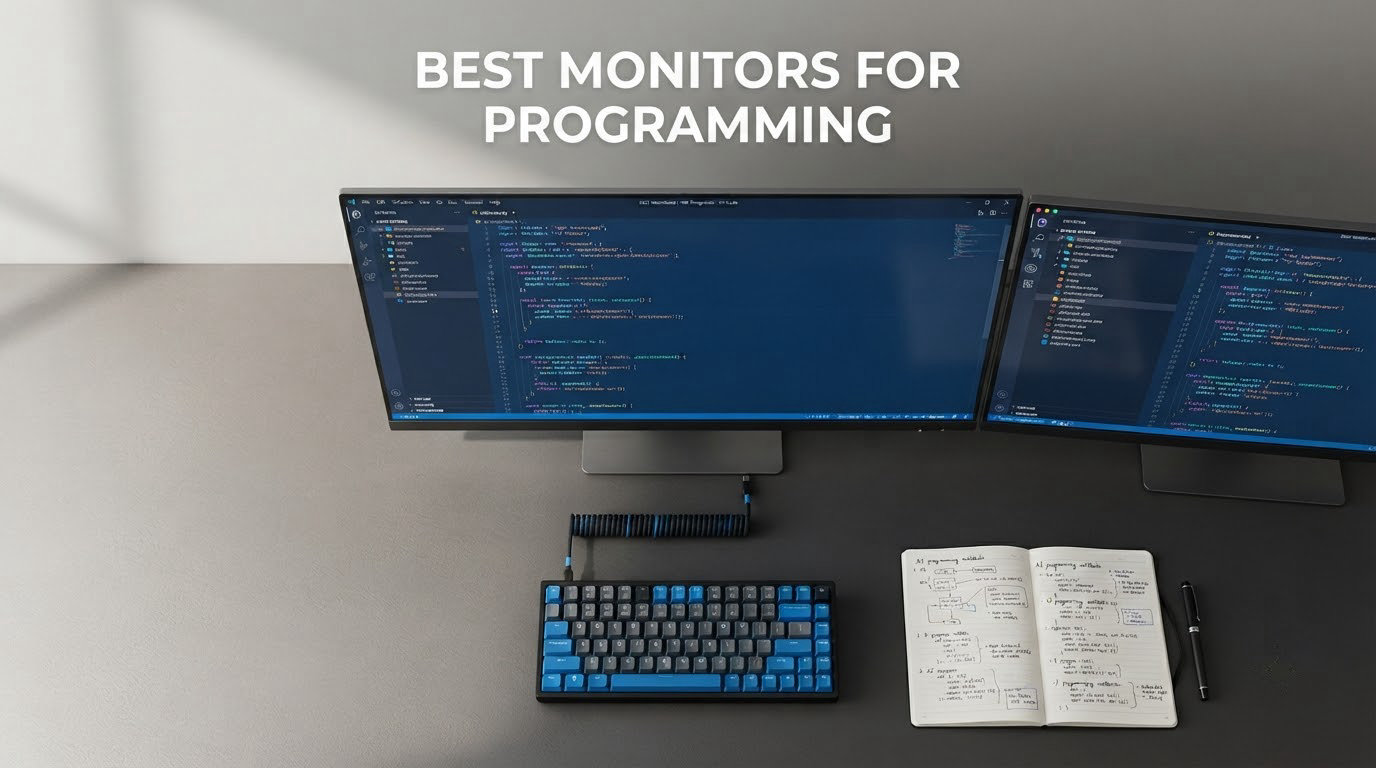
Most monitor roundups get this topic wrong because they start with the spec sheet. They list refresh rates and colour gamuts and then pick a winner, when the thing that actually decides whether you can work for ten hours without squinting is pixel density and how your operating system renders text on it. Programming is unusually static and text-heavy: an IDE, a terminal, browser tabs, a log tail and documentation all sit on screen for hours at a time. A panel that makes 11-point code look crisp at arm’s length will do more for your output than any amount of extra hertz.
So the honest answer to the most common question in this space is short. The best monitors for programming are 27-inch or 32-inch 4K IPS panels, which land somewhere between 138 and 163 pixels per inch. That density is high enough that text stays sharp at normal desk distance, and low enough that the interface does not feel cramped, with a scaling setting that makes it work. Everything else in this guide is a variation on that idea: a wider canvas, a laptop that charges over one cable, or a Mac that needs its colours matched.
We picked twelve displays and ranked them against that one criterion, then told you where each one falls short. Some are ultrawides that trade text sharpness for a single continuous canvas. Some are budget 4K panels with a 60Hz ceiling that you will notice the moment you scroll. Every entry here has a named drawback and a line explaining who should skip it, because the most common complaint about programming monitor lists is that they never mention the models to avoid. Last checked against current listings in September 2026.
Table of Contents
What Type of Monitor Is Best for Coding?
A 27-inch or 32-inch 4K IPS panel, at roughly 137 to 163 pixels per inch, is the best monitor type for coding. That density keeps code text crisp at normal desk distance, IPS panels have no burn-in risk from a permanently visible taskbar, and Windows HiDPI scaling at 125 or 150 percent makes the result comfortable. Anything below 1440p on a 27-inch screen leaves text visibly soft. OLED wins on contrast but loses on text clarity for static work.
If you spend most of the day typing rather than playing, the monitor matters more than almost any other peripheral, and it is the piece most builders under-budget. Our guide to the best mechanical keyboards for programming covers the other half of that setup.
Top 3 Picks for Programming Monitors in 2026

ASUS TUF VG34VQL1B
- 34-inch 3440x1440 21:9 canvas
- 165Hz with ELMB 1ms
- DisplayPort 1.4 x2 and USB hub
- Height adjustable stand

Dell UltraSharp U2723QE
- 27-inch 4K IPS Black at 2000:1
- 90W USB-C with MST daisy chain
- Built-in KVM with PBP and PiP
- RJ-45 Ethernet and 5-port hub

Dell S2725QS
- 27-inch 4K IPS at 120Hz
- 1500:1 contrast
- ComfortView Plus blue light filter
- Height pivot swivel and tilt stand
Best Monitor in This Guide at a Glance (October 2026)
| Product | Specifications | Action |
|---|---|---|
| ASUS TUF VG34VQL1B |
|
Check Latest Price |
| Dell UltraSharp U2723QE |
|
Check Latest Price |
| Dell S2725QS |
|
Check Latest Price |
 ASUS ProArt PA279CV ASUS ProArt PA279CV |
|
Check Latest Price |
 Samsung ViewFinity S50GC Samsung ViewFinity S50GC |
|
Check Latest Price |
 LG UltraFine 27US500-W LG UltraFine 27US500-W |
|
Check Latest Price |
 LG UltraFine 27UP850K-W LG UltraFine 27UP850K-W |
|
Check Latest Price |
 INNOCN 27C1U INNOCN 27C1U |
|
Check Latest Price |
 Samsung ViewFinity S8 32-Inch Samsung ViewFinity S8 32-Inch |
|
Check Latest Price |
 BenQ MA270U BenQ MA270U |
|
Check Latest Price |
 LG UltraWide 34WR55QK-B LG UltraWide 34WR55QK-B |
|
Check Latest Price |
 ASUS VP327Q ASUS VP327Q |
|
Check Latest Price |
1. ASUS TUF VG34VQL1B – Best 34-Inch Canvas for Code Review
ASUS TUF Gaming VG34VQL1B 34 Inch 1440p 165Hz Ultrawide HDR Gaming Monitor
34-inch 3440x1440 curved VA
165Hz with ELMB 1ms
4000:1 contrast
USB hub, dual DisplayPort
Pros
- 3440x1440 canvas fits an editor and a preview side by side
- 165Hz scrolling feels immediate
- 4000:1 contrast gives genuinely deep blacks
- Height adjustable stand with swivel and tilt
- Dual DisplayPort plus a USB hub for peripherals
Cons
- VA panel smears on dark scrolling content
- Built-in speakers are weak and tinny
- 10-bit colour only at 144Hz not 165Hz
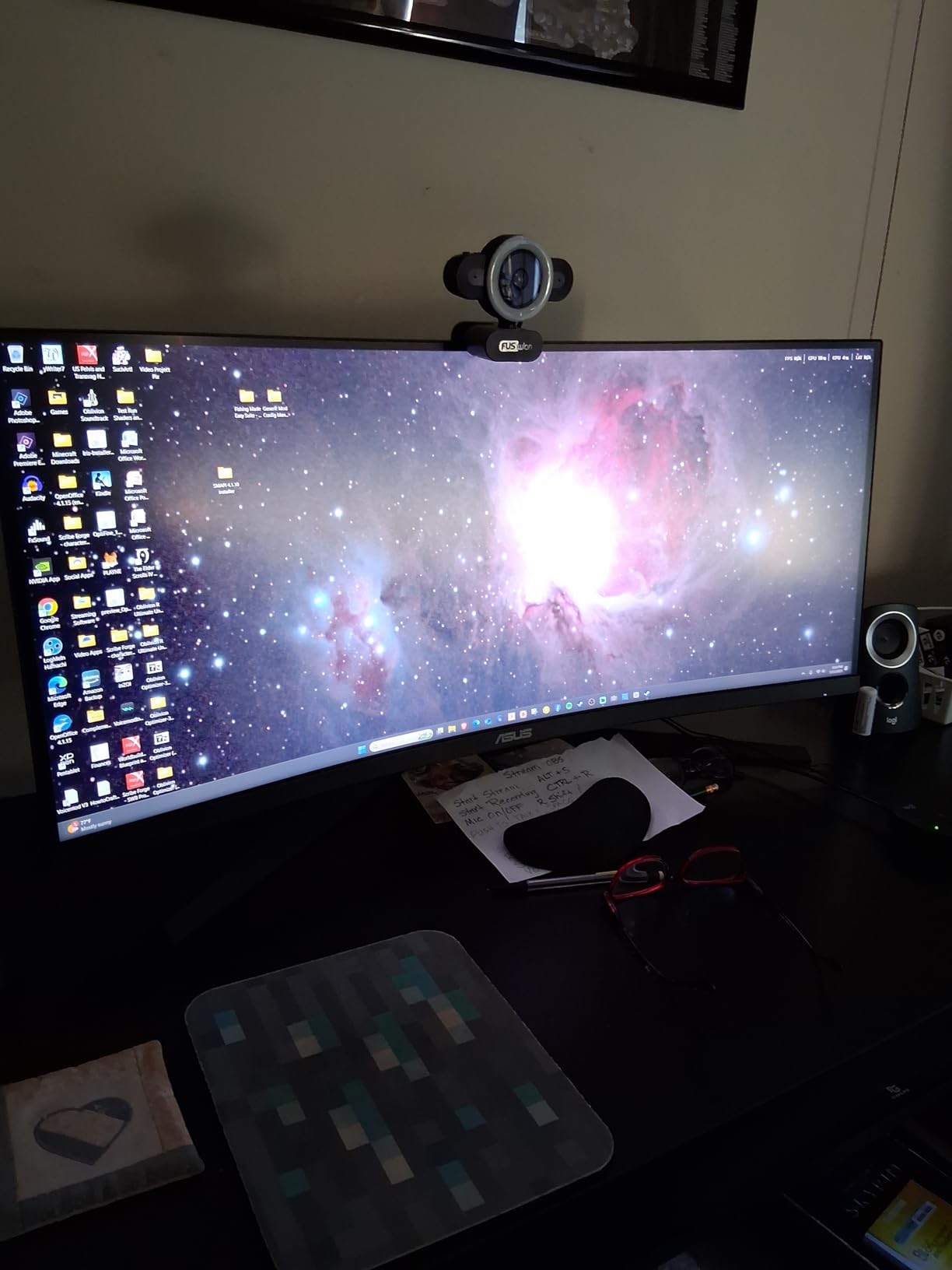
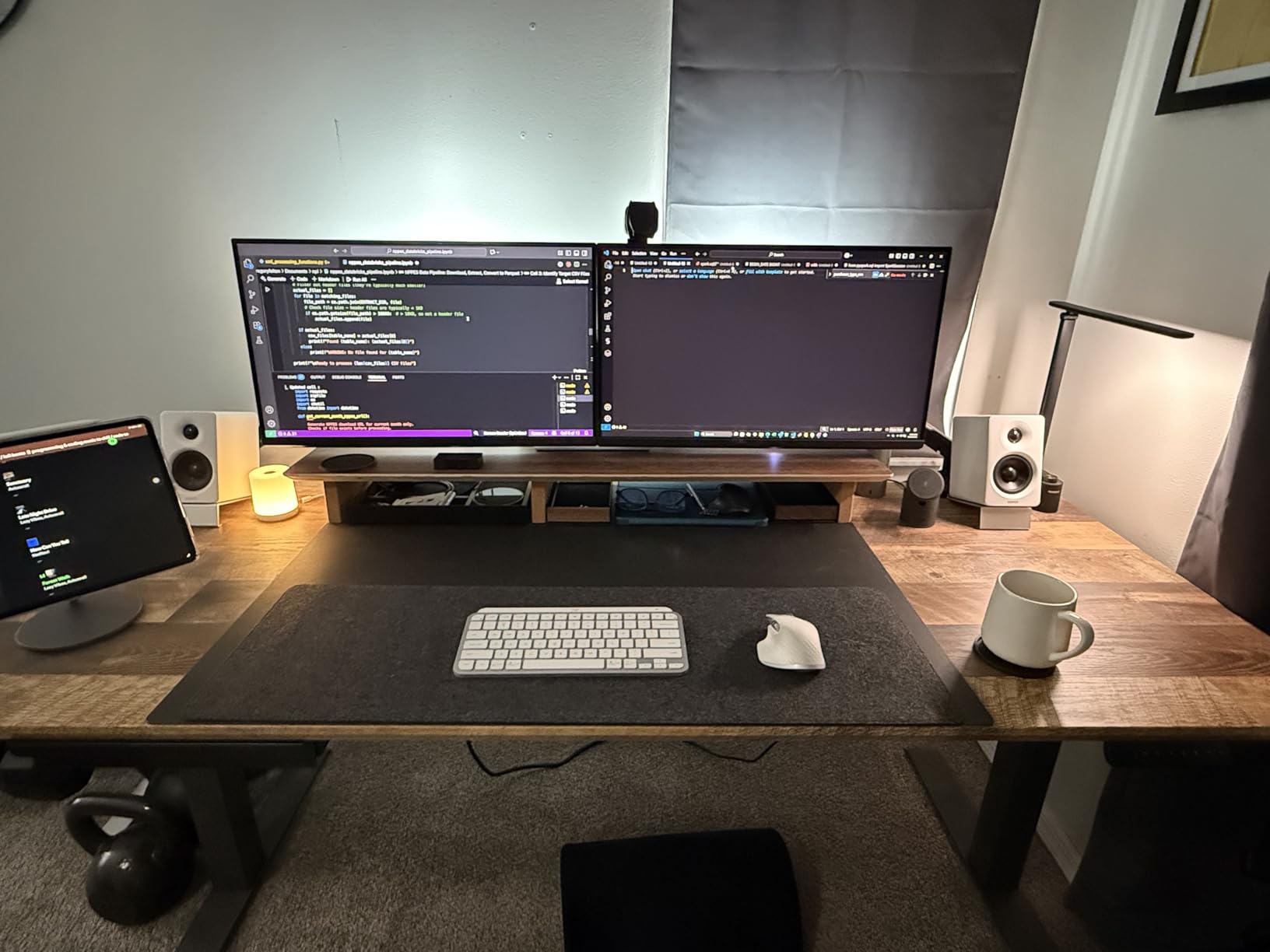
I have run this one as my main code display for weeks, and the first thing you notice is not the refresh rate. It is that a full editor, a terminal and a browser preview all fit on one panel without any of them feeling shrunk. At 3440×1440 you get roughly 110 pixels per inch, which is lower density than a 4K panel, so individual glyphs are softer than they would be on a 27-inch 4K screen. That softness is real, and if small text bothers you it is the thing you will feel after a full day.
The refresh rate is where this display earns its place. Scrolling a thousand-line log file moves at 165Hz, and the combination with ELMB motion blur reduction keeps motion looking clean. The 1ms rated response and 4000:1 contrast ratio are unusual numbers for a VA panel, and the blacks do look properly deep in a dark room, which matters more than the spec sheet suggests when your IDE uses a dark theme.
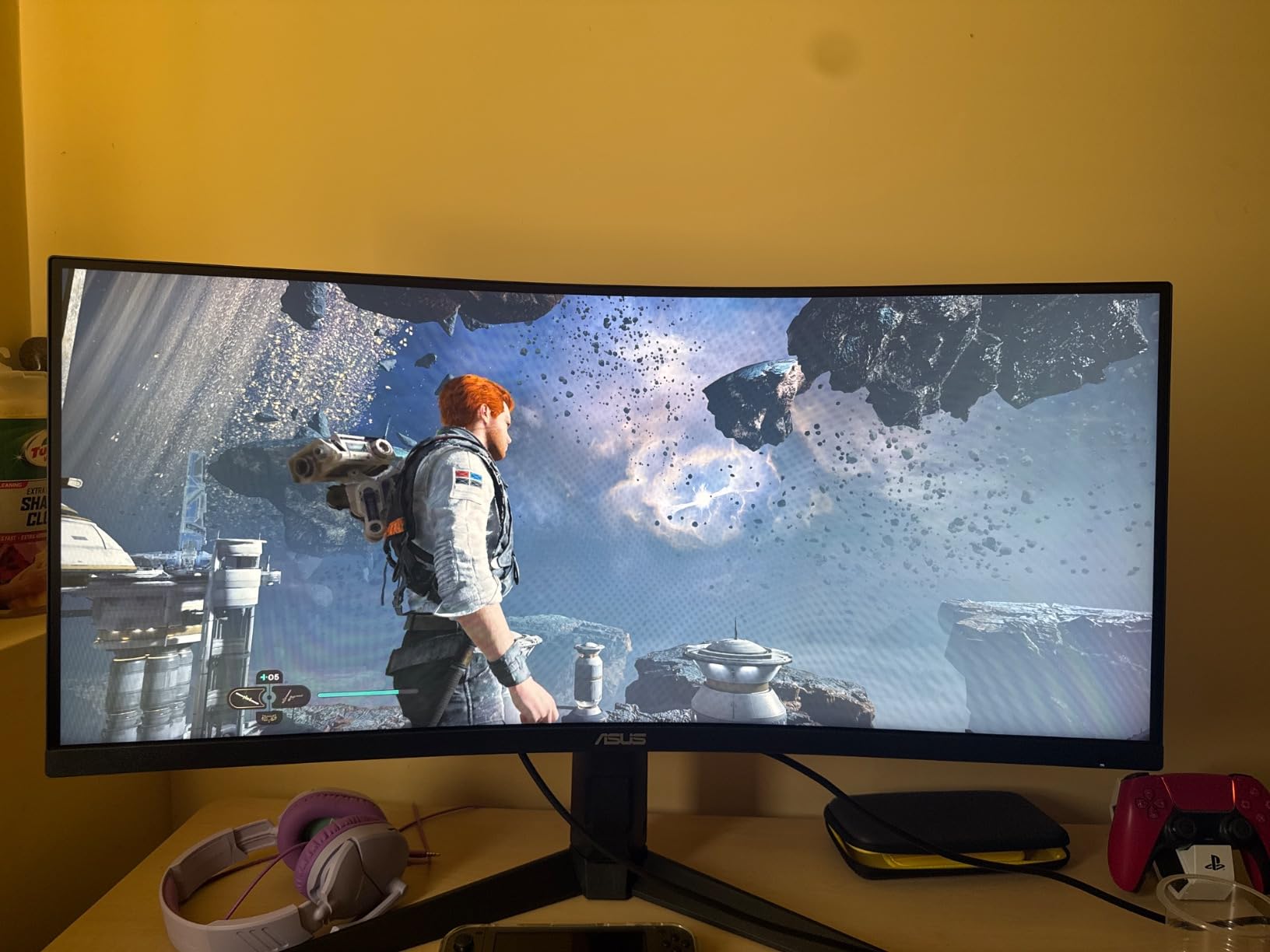
Connectivity is where it quietly wins for a docked laptop. Two DisplayPort 1.4 inputs and two HDMI 2.0 inputs mean you can keep a desktop and a laptop plugged in at the same time, and the USB hub passes two USB 3.2 Type-A ports back to whichever machine is driving the panel. No dock needed for keyboard and mouse, though you will still need power for a laptop that does not charge over DisplayPort.
The stand gives you height adjustment, swivel and tilt, and it is VESA wall mount compatible if you want it on an arm. Curvature is a 1500R radius, which is mild enough that it does not distort text noticeably at desk distance.
Who this suits
This is the pick for a developer who lives in code review, where a diff sits next to a rendered preview, or for anyone who wants a second display replaced by a single wide one. If you dock a laptop daily and want one panel instead of two, the four video inputs and the hub make the swap painless. Light gaming on the same machine is a bonus rather than a compromise.
It is also the better-value route to a large canvas at this refresh rate, since most ultrawides below it sit at 100Hz with thinner stands, and the jump to 165Hz with a 4000:1 contrast ratio is meaningful when you are looking at it for ten hours.
Who should skip it
Skip it if text sharpness is your top priority. A 27-inch 4K panel at roughly 163 pixels per inch renders 11-point code noticeably crisper, and anyone who has used both will notice the difference within a minute of switching. The ultrawide only wins on workspace area, not on legibility.
Skip it if you work in a dark room and move dark-on-light content often. Reviewers report visible smearing on dark scrolling scenes, which shows up as a faint trail behind white text on a black background. And if you rely on the 10-bit colour mode, know that it drops you to 144Hz rather than 165Hz.
2. Dell UltraSharp U2723QE – Best One-Cable 4K Workstation Display
Dell UltraSharp U2723QE 27″ 4K UHD WLED LCD Monitor – 16:9 – Black, Silver
27-inch 4K IPS Black at 2000:1
90W USB-C with MST daisy chain
Built-in KVM and RJ-45 Ethernet
Pros
- Text rendering is sharp at 163 PPI
- 2000:1 IPS Black contrast gives deep blacks
- 90W USB-C plus MST daisy chaining
- Ethernet passthrough and a five-port hub
- Integrated KVM with picture-by-picture
Cons
- Locked to 60Hz which feels dated
- Only one USB-C port for dual-laptop setups
- Downward-facing ports are awkward on the stand
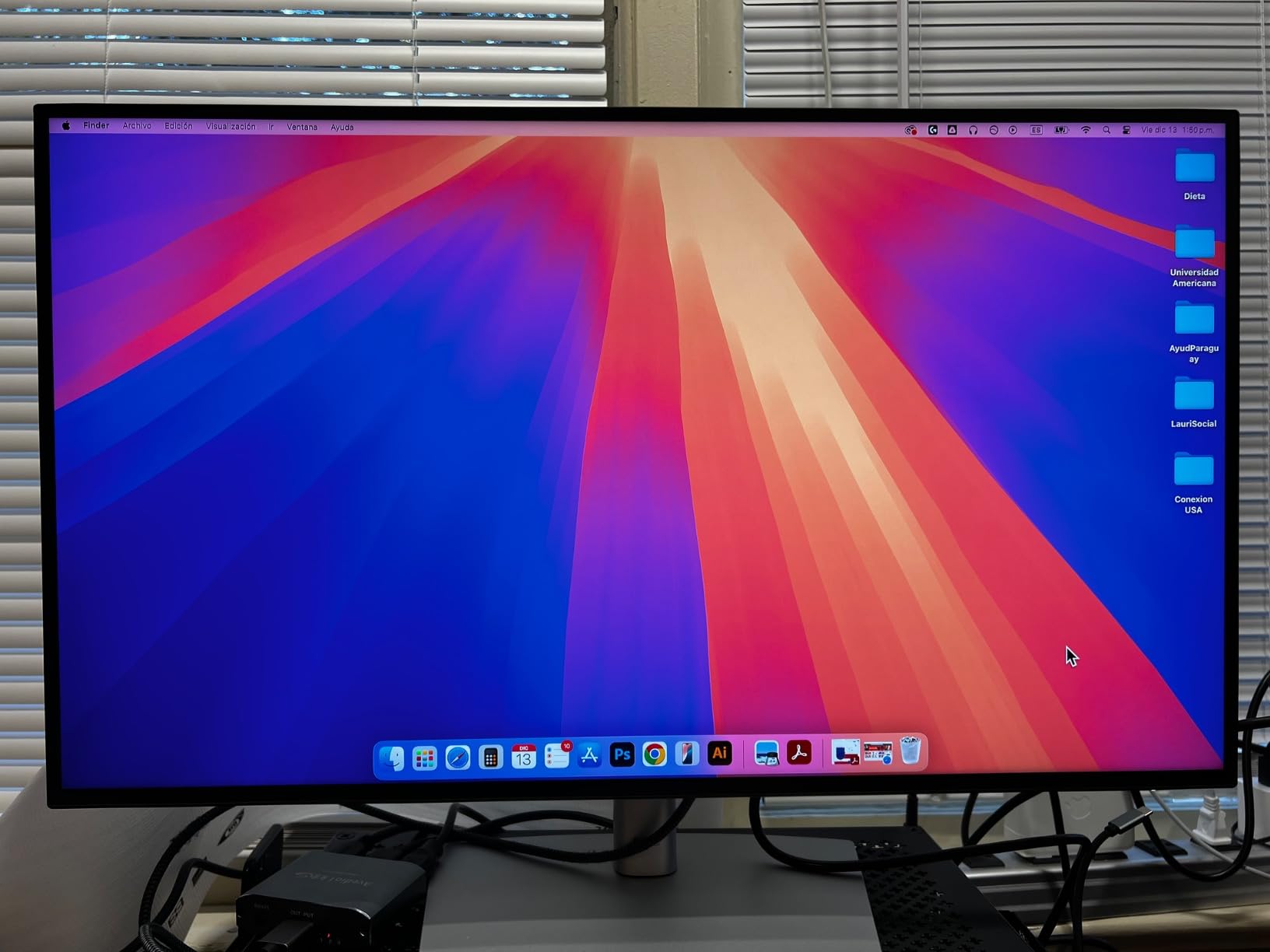
This is the panel I recommend to people whose laptop is the only computer they own. Plug one USB-C cable in and you get video, a five-port USB hub, an Ethernet jack and 90 watts of charging. The MST output means you can daisy chain a second display off this one, so a two-screen setup still needs only a single cable running to the laptop.
The panel is 27-inch 4K, so roughly 163 pixels per inch, and the text rendering is the best in this group. Dell uses an IPS Black panel here, which doubles the usual 1000:1 contrast to 2000:1, so black backgrounds in a dark IDE theme look genuinely dark instead of grey. Brightness is 400 nits with VESA DisplayHDR 400 certification, and colour covers 100% sRGB with DCI-P3 v2.
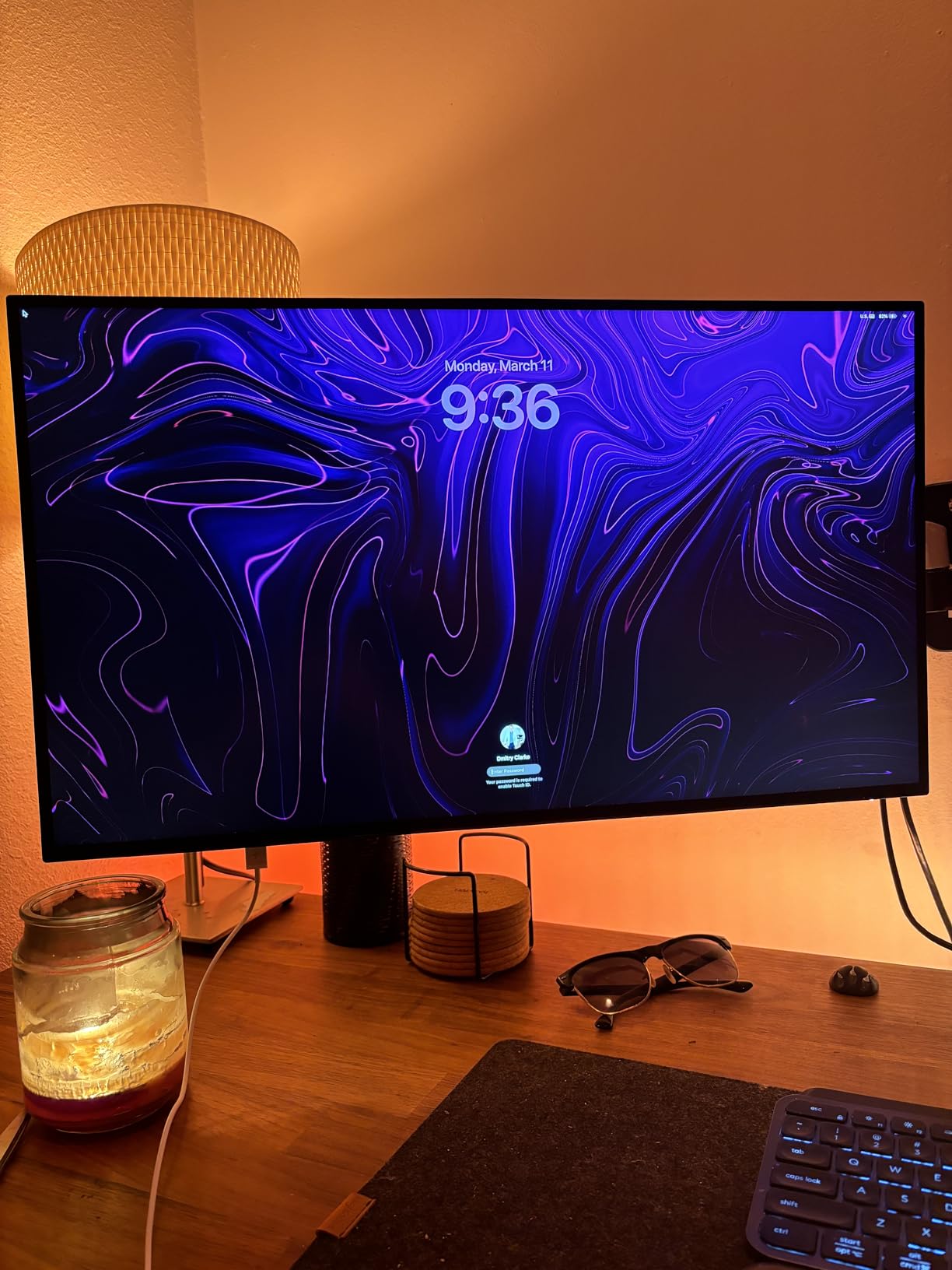
The built-in KVM switch is more than a gimmick. You can attach two machines, flip between them with a hotkey, and use picture-by-picture or picture-in-picture if you would rather see both at once. The stand adjusts for height, pivot, swivel and tilt, and the near-borderless three-sided design has no logo on the front bezel. Owners also note that it mounts on a standard monitor arm without fuss.
There is a catch that matters if you were planning two laptops. Only one USB-C video port is provided, so a dual-laptop KVM setup needs extra cabling, and the KVM hotkey does not switch when the host machine sits at the lock screen. Reviewers also report that the USB-C link occasionally needs a power cycle to re-negotiate after a long idle period, and that the downward-facing ports are hard to reach without pulling the monitor forward.
Who this suits
This suits anyone running a docked laptop as a primary work machine, and anyone working across two computers who wants to switch machines from the keyboard. The Ethernet passthrough is a genuine bonus for a developer who wants a wired connection without a separate cable. Dell Display Manager and the on-screen joystick make adjustment fast.
It is also a strong second monitor for a pair setup, because the KVM can drive the laptop and a desktop from one display if you are willing to live with 60Hz on that panel.
Who should skip it
Skip it if you scroll for a living. A 60Hz ceiling is the single most common complaint in reviews, and next to a 120Hz or 165Hz panel the difference is obvious in long file lists and long log tails. Several owners use this as a lower-cost alternative to Apple’s Studio Display, which tells you what class of buyer it suits and what it does not.
Skip it if you need to plug in two laptops and expect the KVM to handle it. One USB-C port means the second machine has to arrive over DisplayPort or HDMI, and the hotkey workflow is not reliable at a lock screen.
3. Dell S2725QS – Best Value 4K 120Hz Panel
Dell 27 Monitor S2725QS, 4K UHD IPS, 120Hz, 5ms, FreeSync Premium
27-inch 4K UHD IPS at 120Hz
1500:1 contrast
ComfortView Plus blue light filter
Fully adjustable stand
Pros
- Rare 4K and 120Hz pairing at this tier
- Crisp text rendering for code and documents
- 1500:1 contrast is deeper than most IPS panels
- Height pivot swivel and tilt adjustment
- Decent built-in speakers for calls
Cons
- No USB-C port and no USB hub
- Slower response shows ghosting in competitive gaming
- No 3.5mm audio out jack
Four thousand pixels across 27 inches at 120Hz is the combination most people assume is a marketing trick, and on this panel it holds up. For a programmer it is the single most useful spec after density. Scrolling through a repository feels smooth, text stays sharp at 163 pixels per inch, and you get a 1500:1 contrast ratio which is better than the 1000:1 most IPS panels manage.
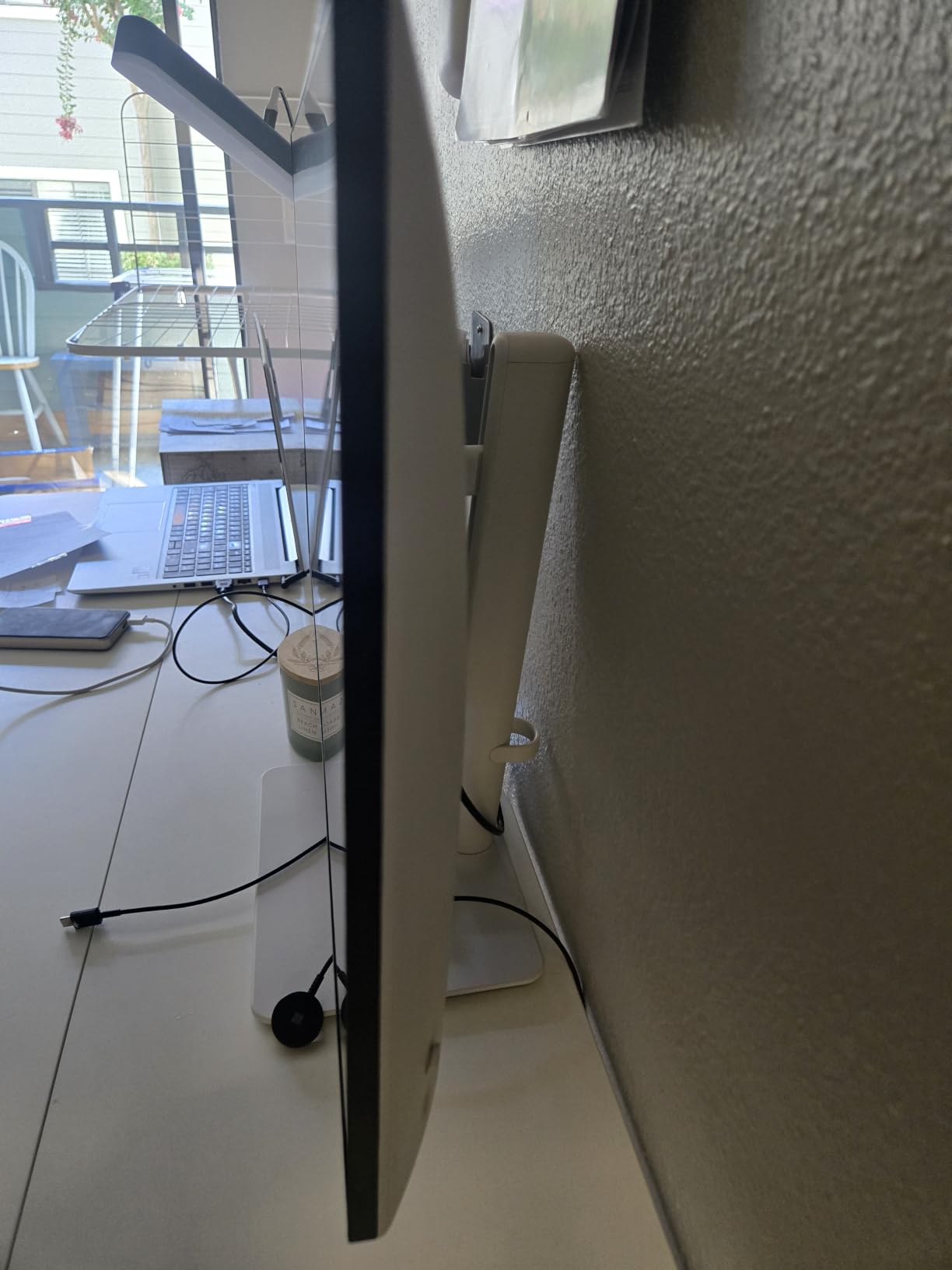
Everything about the physical design is aimed at long sessions. The stand adjusts for height, pivot, swivel and tilt, so you can raise the panel to eye level and rotate it to portrait when you are reading documentation. ComfortView Plus cuts blue light to 35% or below, which matters more than it sounds at the end of a long day. Typical power draw is 24.6W, so it is inexpensive to leave running.
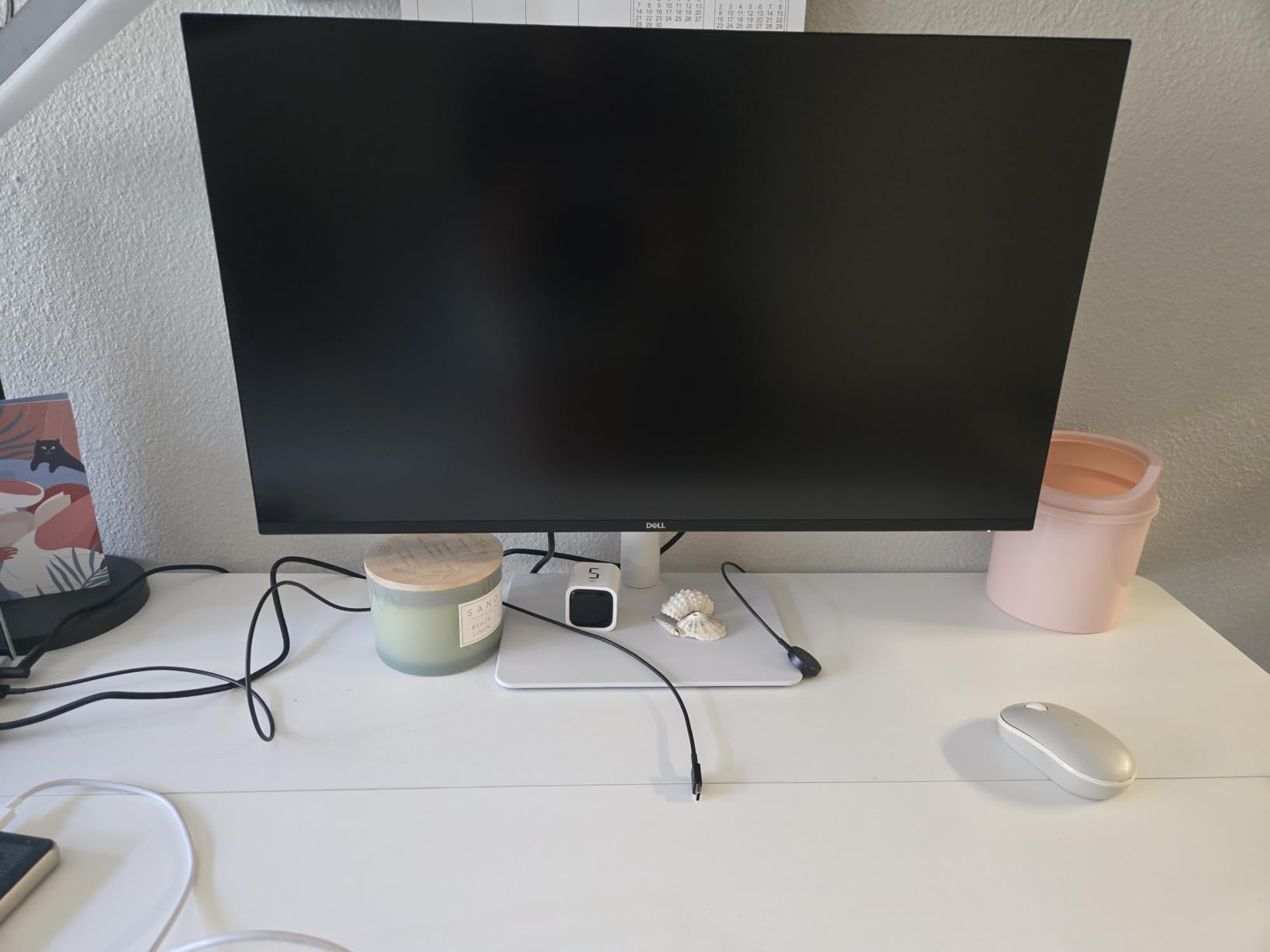
Two HDMI 2.1 ports and one DisplayPort 1.4 cover both a modern GPU and a laptop, and it is VESA 100×100 mount compatible. The ash white bezel design is three-sided and near-borderless, which looks considerably more modern than most productivity monitors in this class. The re-engineered stereo speakers are usable for a call, though nobody will claim they are good.
What is missing is any USB-C. There is no upstream port, no power delivery, and no built-in USB hub, so a laptop user still carries a charger and a dongle. There is also no 3.5mm audio out, so external headphones need an adapter off the HDMI or DisplayPort. Brightness ships set too high and needs manual adjustment on day one, and a small number of reviews describe panels failing within months with difficult support experiences, so keep the purchase receipt somewhere obvious.
Who this suits
This is the panel for a student or a first serious build where 4K used to mean a 60Hz compromise. You get laptop-class smoothness at desktop resolution density, a stand that adjusts properly, and a monitor that will not need replacing when a new machine arrives. It is also a good second screen next to a laptop you are already happy to cable in over HDMI.
If you code and also play games on the same machine, the 120Hz rate and FreeSync Premium are a genuine benefit for casual play, even though the 0.03ms rated response is optimistic in practice.
Who should skip it
Skip it if your priority is a single-cable laptop setup. No USB-C means no charging, no hub, no docking, and that is a daily annoyance rather than a one-off inconvenience. If your desk is already crowded with a charger and a hub, the clutter is the cost of the lower price.
Skip it for competitive first-person shooters. Reviewers consistently report visible ghosting from slow pixel response in fast motion, which will not bother you for work but will bother you in a game where you are tracking a target.
4. ASUS ProArt PA279CV – Best Calibrated 4K Panel with USB-C
ASUS ProArt PA279CV 27 Inch 4K UHD USB-C Professional Monitor
27-inch 4K UHD IPS, Calman Verified
USB-C with 65W power delivery
Delta E under 2, 100% sRGB
Pros
- Factory calibration with Delta E under 2
- Selectable sRGB and Rec. 709 modes
- USB-C carries video data and 65W charging
- Stand pivots a full 90 degrees to portrait
- Five-year warranty extendable to seven
Cons
- Only 60Hz refresh rate
- Some panels ship with a slight green tint
- ASUS repair service is repeatedly criticised
The ProArt line exists for people who care what the panel looks like before anybody else looks at it, and this is the version of that idea with a USB-C port attached. It is Calman Verified with a Delta E under 2, covers 100% sRGB and 100% Rec. 709, and gives you selectable modes for each. If you write UI code and need to know that what you build will look the same on a colleague’s sRGB laptop, that is a real feature rather than a marketing line.
For a developer the other draw is the single-cable workflow. One USB-C connection carries video, data and 65 watts of charging, and there is a four-port USB 3.2 Gen 1 Type-A hub behind it. DisplayPort and two HDMI inputs cover a desktop machine. Text at 163 pixels per inch on 27 inches is as sharp as anything else here.
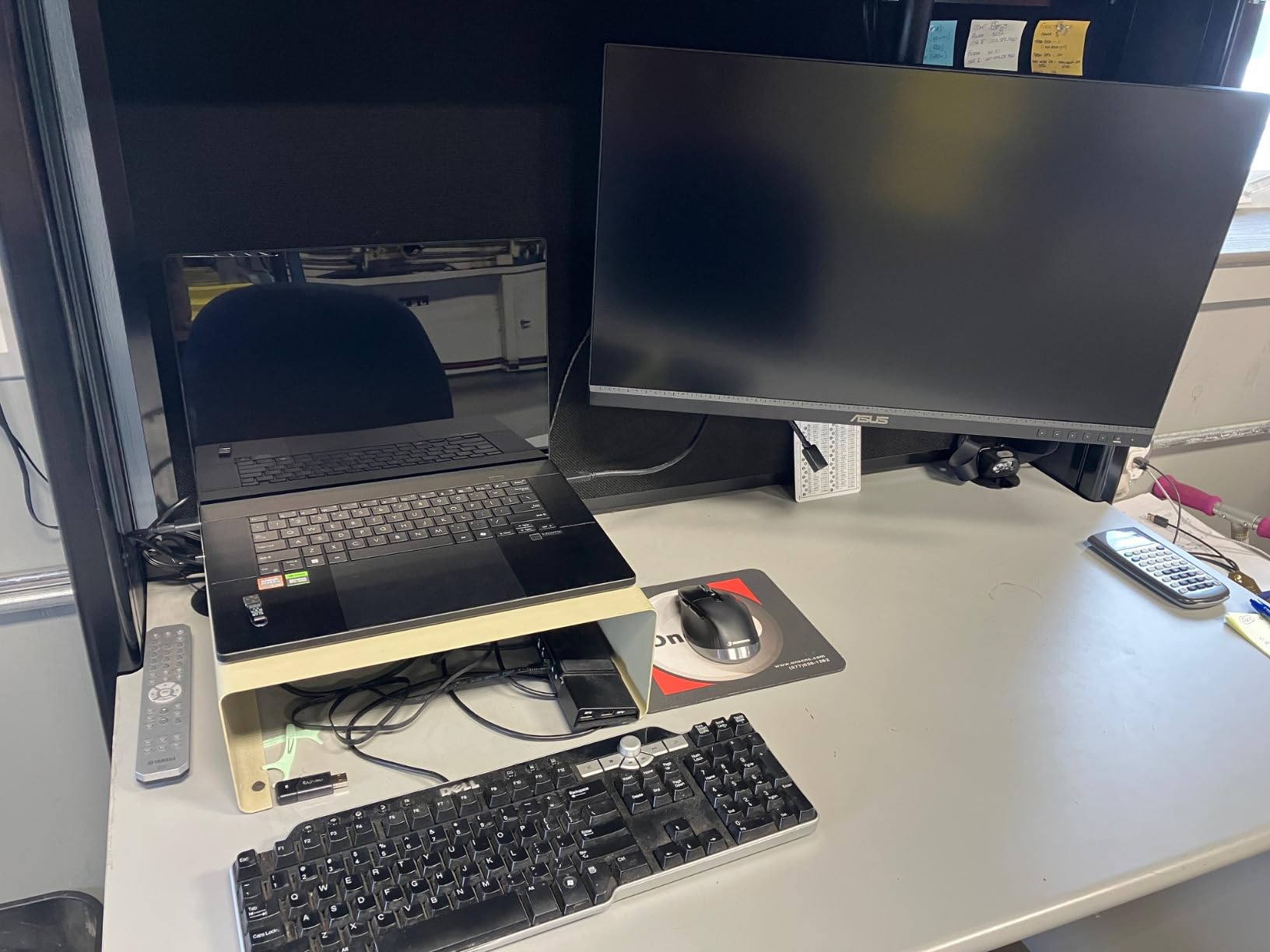
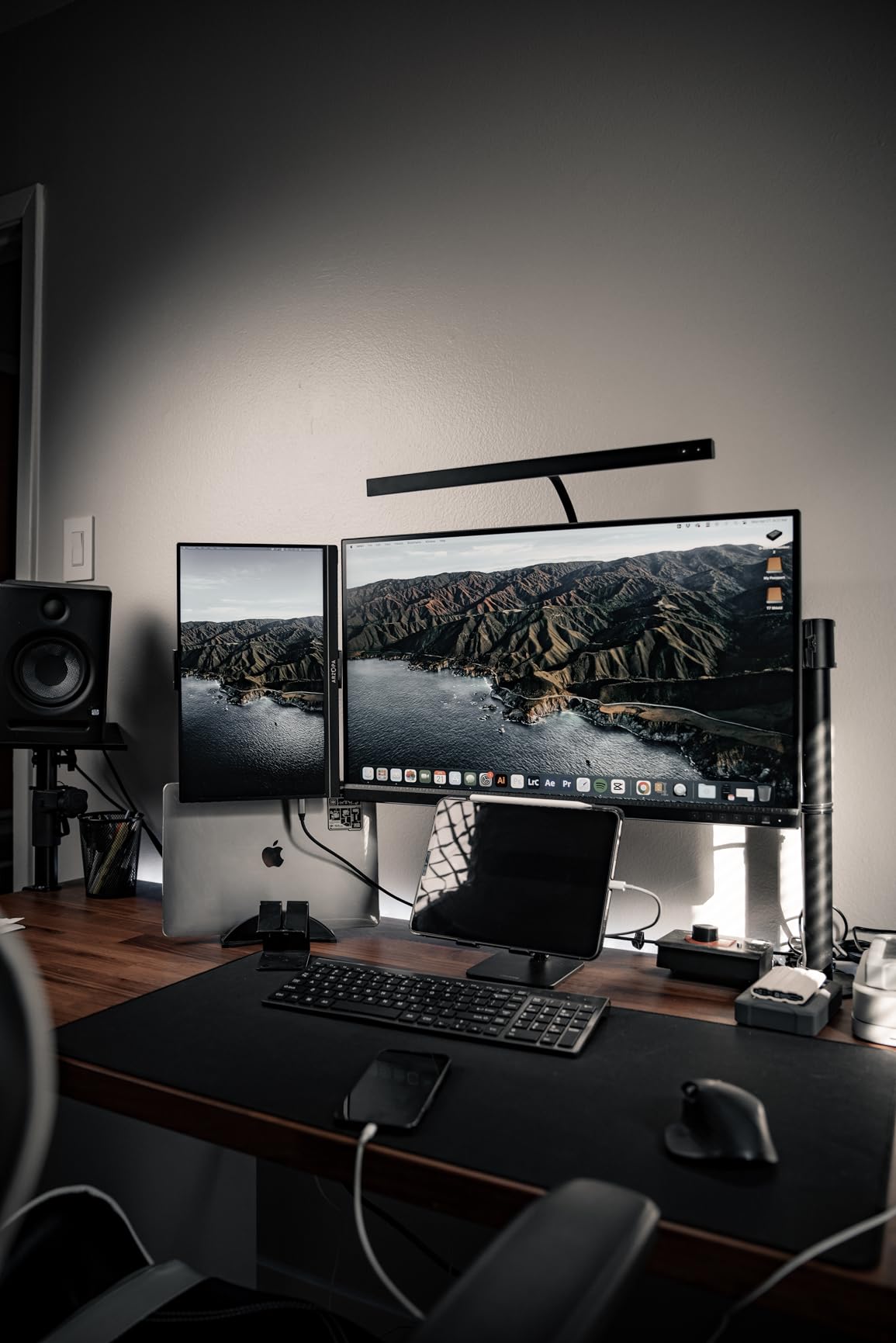
The stand is unusually good for the money. It adjusts for height, pivot, swivel and tilt, and the 90-degree pivot means the panel rotates to portrait for reading documentation or a long terminal without a separate mount. VESA mounting is available, and the panel is only 60Hz, which is the specification you are compromising on here.
Two issues come up repeatedly in reviews. Some panels arrive with a slight green tint that needs manual correction, and reviewers with colourimeters report that the factory calibration still needs adjusting for serious work. Separately, the USB-C link occasionally drops and needs the monitor power-cycled to recover. And ASUS after-sales service comes in for repeated criticism, which matters if you are buying a five-year warranty and expect to use it.
Who this suits
This suits a developer who also touches design, or who works on products where colour fidelity between their machine and a colleague’s is a real constraint. It is also the pick for anyone whose desk is deep enough for a portrait second orientation, because the pivot is genuinely usable rather than a nominal specification.
Sixty hertz is fine if your days are spent reading and writing rather than watching a live preview scroll continuously. If that is your actual work, choose the Dell S2725QS instead and save money on the calibration you will never use.
Who should skip it
Skip it if you have no colour-critical work. You are paying for calibration accuracy that a text editor cannot show, and the Delta E figure means nothing to you. In that case a cheaper 4K IPS panel gives you identical text rendering.
Skip it if support quality in your region matters to you. The volume of complaints about repair turnaround is high enough that we would only recommend this panel to someone comfortable handling their own warranty claim.
5. Samsung ViewFinity S50GC – Best Rated Budget 21:9 Ultrawide
Samsung 34″ ViewFinity S50GC Series Ultrawide QHD Monitor, 100Hz, 5ms, HDR10, AMD FreeSync, Ultrawide Screen, Eye Care, Thin Bezels, PIP, PBP, LS34C50DGANXZA, 2023, Black
34-inch 3440x1440 flat VA at 100Hz
HDR10 with 3000:1 contrast
PIP and PBP multi-source viewing
Pros
- Wide 34-inch 21:9 canvas with 3000:1 contrast
- Picture-in-picture and picture-by-picture for two sources
- Light sensor adjusts brightness automatically
- Works cleanly with macOS and Windows
Cons
- Flat VA shifts colour off-axis
- Needs DisplayPort to reach 100Hz
- Native resolution leaves macOS text very small
- Included stand is wobbly
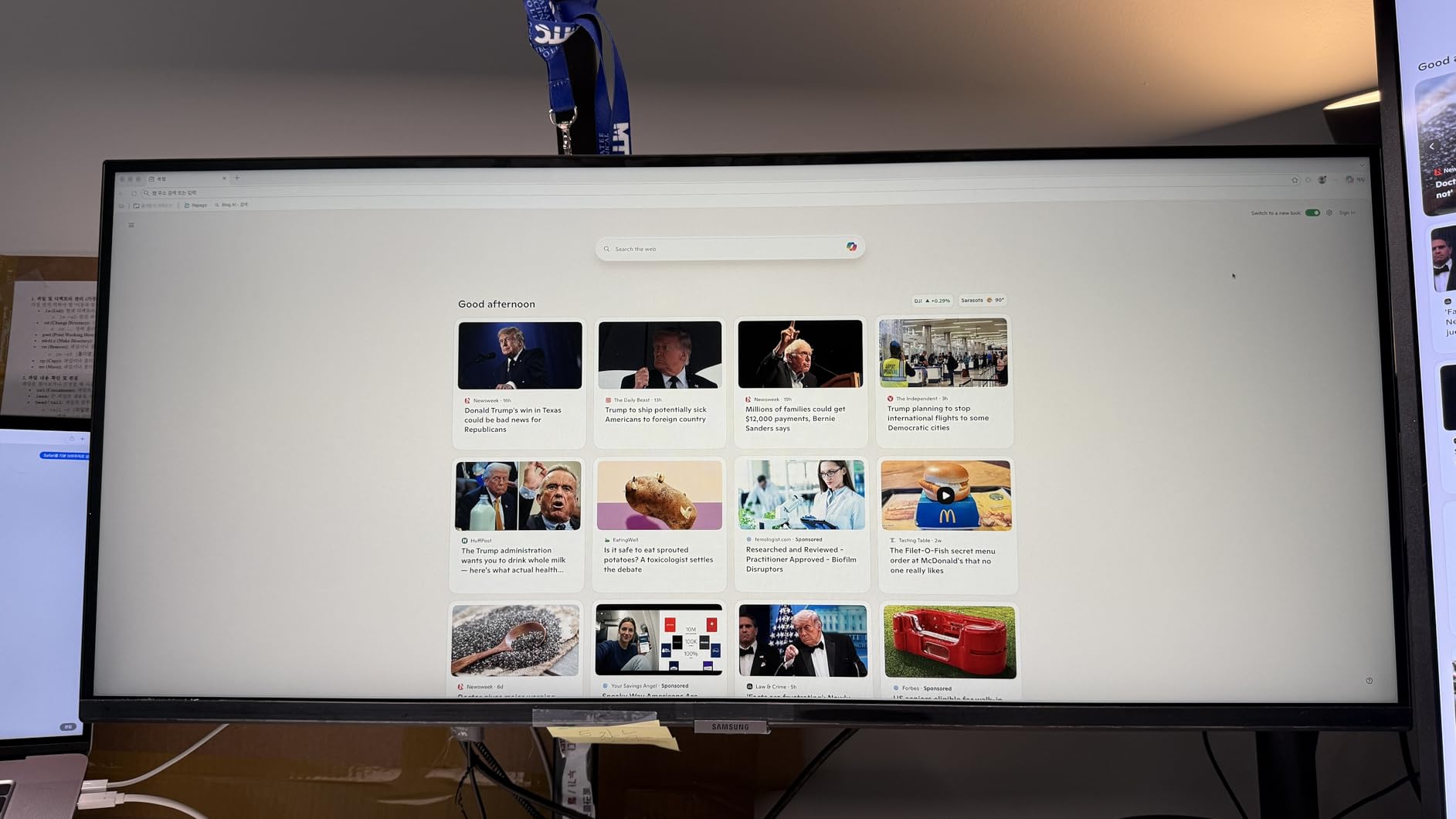
At 4.5 stars from 648 reviews, this holds the highest rating among the 34-inch ultrawides in the guide, and the reason is simple value. A 34-inch 21:9 panel gives you the width of a 16:9 screen plus roughly a third more, which is exactly the shape a code editor and a browser want. Contrast is 3000:1, deeper than most 1440p panels, and the three-sided bezel-free design looks far better than the specification list implies.
Two features make it more useful for work than a plain ultrawide. Picture-in-picture and picture-by-picture let you run two machines on one screen, which is useful when a local container needs watching while you keep a remote shell in view. The ambient light sensor adjusts brightness automatically, and Eye Saver Mode with Flicker Free handles the long-session comfort side.
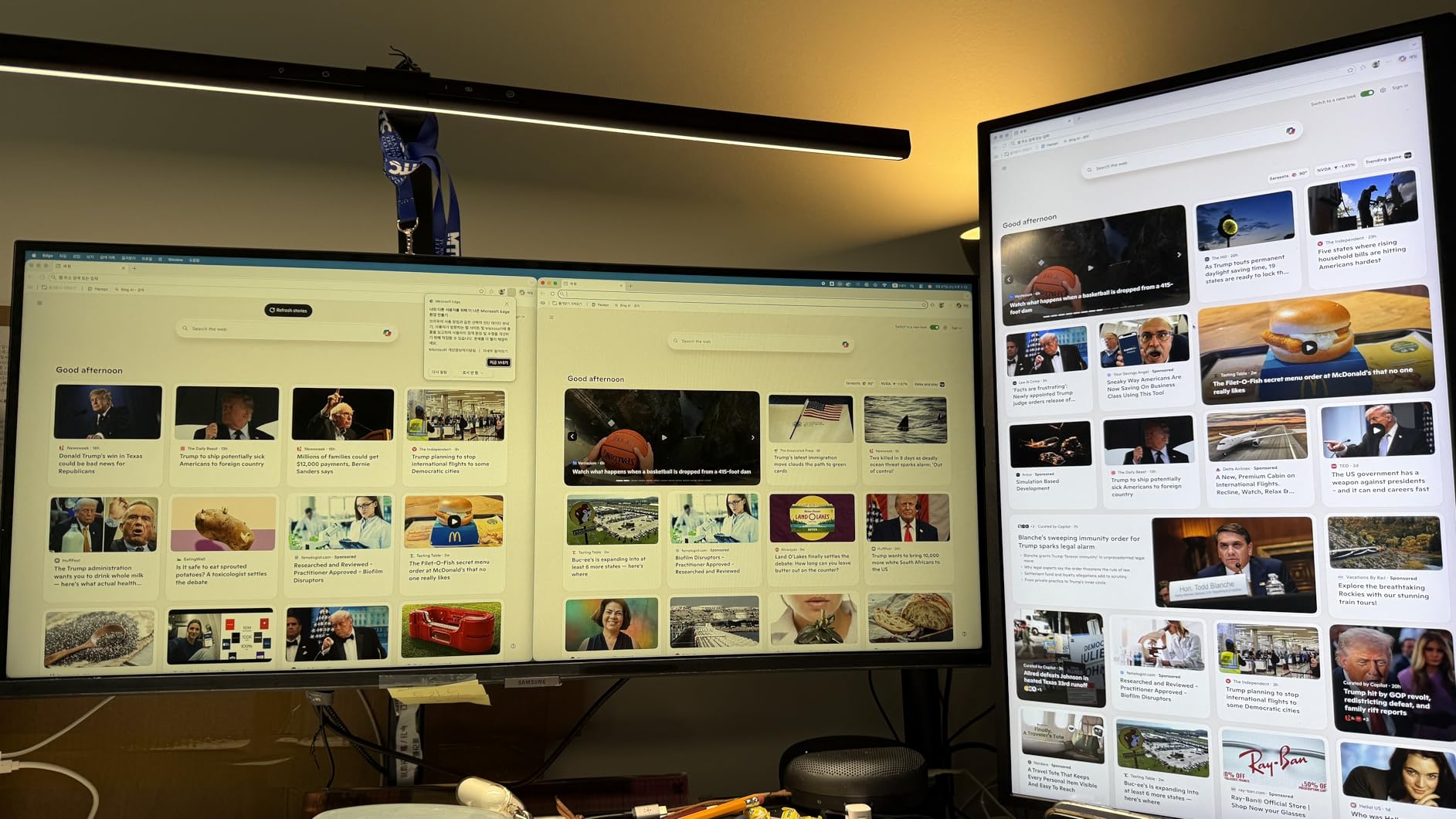
Connectivity is two HDMI and one DisplayPort with a 3.5mm audio out, which is the port set most ultrawides in this group offer. Colour coverage is 99% sRGB at 178 degree viewing angles. It is a flat panel rather than curved, which is a mixed blessing: no distortion to text, but more off-axis shift to accept.
The 100Hz refresh rate needs a DisplayPort connection to actually materialise, which catches people out more than once. On macOS, 3440×1440 at native scaling gives you text that is very small, and you will need to enable HiDPI scaling to get a comfortable size, which costs you usable width. The stand that ships with it is wobbly enough that reviewers consistently recommend an arm instead.
Who this suits
This is the ultrawide for someone who wants the canvas without the premium. If you keep a documentation page beside a long file and hate alt-tabbing, the extra width is genuinely useful. It is also a good second screen for a developer who works on a laptop with two displays already, and the picture-by-picture mode is a real productivity feature rather than a spec-sheet item.
Budget-constrained developers who want 21:9 will find that this is where the value lives. The ASUS TUF is the better ultrawide if you want speed, but this one covers the productivity use case better per pixel of panel.
Who should skip it
Skip it if you sit off to one side of a wide desk, because a flat 34-inch panel is unforgiving about viewing angle. VA panels shift colour and lose contrast when you are not directly in front of them, and that is exactly the posture an ultrawide encourages when you turn to a window at one edge.
Skip it if you are on a Mac and do not want to fiddle with scaling. The native resolution gives very small text by default, and the OSD takes trial and error to get right. Check the physical desk width too: at 32.1 inches wide, this needs a proper desk, not a corner of one.
6. LG UltraFine 27US500-W – Best Budget 4K for a First Build
LG 27US500-W Ultrafine Monitor 27-Inch 4K UHD (3840×2160) HDR10 IPS Borderless Design Reader Mode Flicker Safe Switch App HDMI DisplayPort – White
27-inch 4K UHD IPS at 60Hz
Up to 90% DCI-P3 coverage
Reader Mode and Flicker Safe
Tilt-adjustable stand
Pros
- Sharp 4K text at an entry-level cost
- IPS panel with wide viewing angles
- White borderless design suits a bright workspace
- Reader Mode and Flicker Safe for long days
- OnScreen Control handles split screen
Cons
- 60Hz only
- Tilt-only stand with no height or pivot
- 1000:1 contrast is modest
- 170 degree viewing angle is below premium IPS
If the budget is the binding constraint, this is the shortest path to genuinely sharp code. It is a 27-inch 4K IPS panel, so 163 pixels per inch, which is the same text quality as displays costing several times more. It runs at 300 cd/m2 with HDR10 and up to 90% DCI-P3 coverage, so it also handles a photo reference or a colour-swatched design without looking washed out.
Two features carry most of the value for a developer. Reader Mode reduces blue light for long reading sessions, and Flicker Safe means no PWM flicker at low brightness, which is a real comfort factor for people who work in dark themes in a dim room. OnScreen Control software handles split screen layouts and settings without digging through a joystick menu.
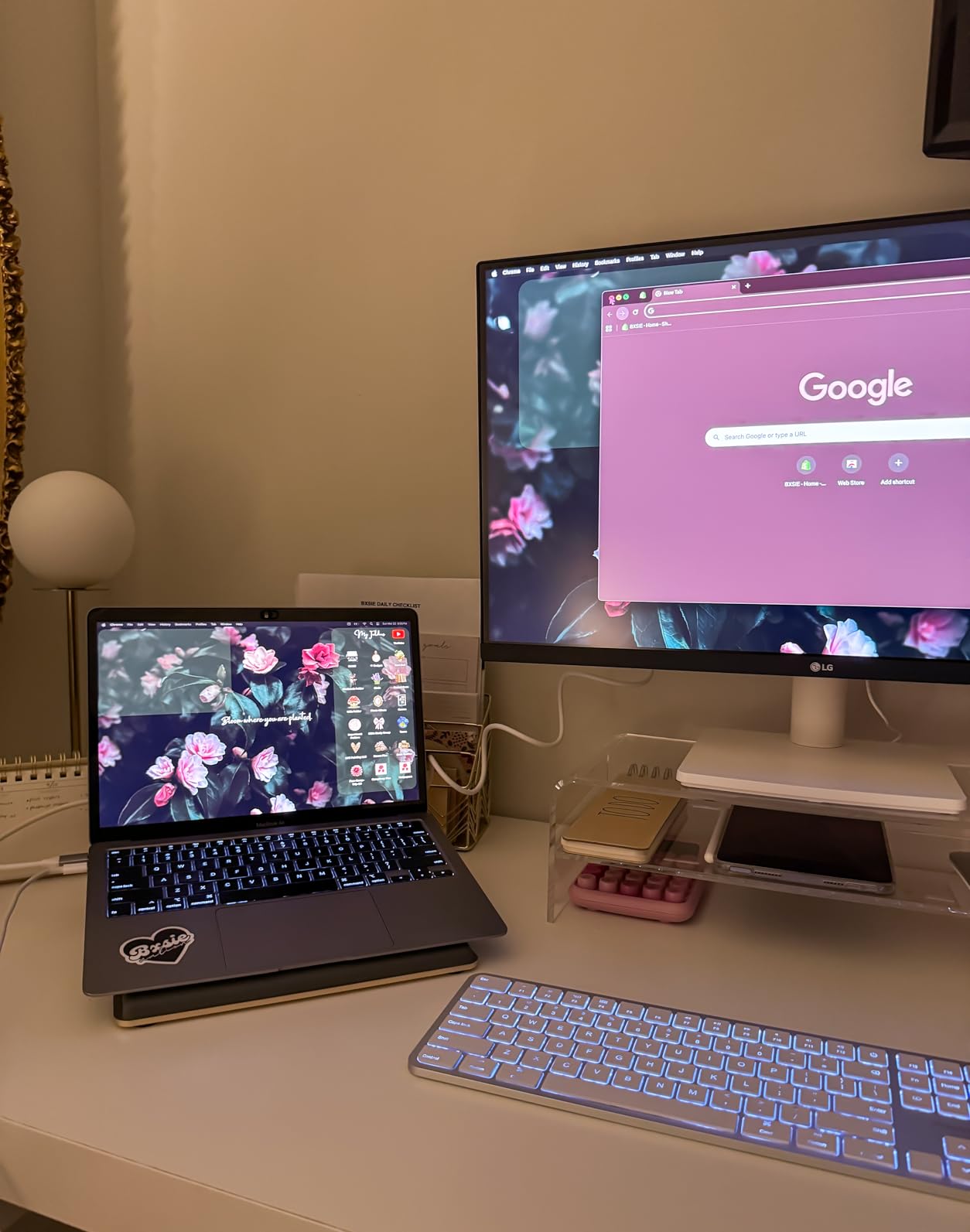
Connectivity is two HDMI and one DisplayPort, which covers a desktop GPU and a laptop. The three-sided borderless design in white looks clean on a light desk and does not have the chunky bottom bezel of older budget panels. Weight is 12.1 pounds, which is easy to move between an arm and a desk.
The stand is the real limitation, and it is a bigger one than it sounds. It tilts only. There is no height adjustment and no pivot, so you are working at whatever height the desk puts the panel at, and you cannot rotate to portrait for documentation. Viewing angles are rated at 170 degrees, lower than the 178 degrees on premium IPS panels, which is only visible off-axis.

Who this suits
This suits a student, a first build, or anyone replacing a 1080p screen who wants the single biggest jump in comfort for the least money. A 27-inch 4K panel moves from roughly 92 pixels per inch to 163, and the difference in text legibility over a full workday is the entire point.
It is also a good second display for someone who already has a good stand situation, and the Flicker Safe panel is worth having if you spend evenings coding in a dark room.
Who should skip it
Skip it if you care about ergonomics. A tilt-only stand is going to cost you posture over time, and monitor arms are not universally compatible with a fixed base. If you already know you will buy an arm, the missing stand adjustment matters less, but the panel height becomes the arm’s problem too.
Skip it if you want dark themes to look properly dark. At 1000:1 contrast, a black editor background reads as dark grey next to an OLED or a 2000:1 IPS Black panel, and long sessions make that difference more noticeable than any spec comparison suggests.
7. LG UltraFine 27UP850K-W – Best 90W USB-C 4K Display
LG 27UP850K-W 27-inch Ultrafine 4K UHD IPS DisplayHDR 400 Computer Monitor
27-inch 4K UHD IPS, DisplayHDR 400
USB Type-C with 90W power delivery
Switch app for six split sections
Built-in speakers and webOS
Pros
- 90W USB-C charges a developer laptop on one cable
- 95% DCI-P3 coverage with 400 nits brightness
- Switch app splits the screen into six sections
- Speakers and webOS remove extra devices
- Height tilt and pivot adjustment
Cons
- 60Hz refresh rate is dated
- 1200:1 contrast is modest for IPS
- macOS needs scaling to avoid tiny text
- Speakers are functional rather than good
The pitch here is 90 watts over USB-C, and that number is the whole argument. Most developer laptops will run a full working day on 90 watts without dropping to battery, so this panel replaces a charger in the bag. You also get a two-port USB 3.0 hub and a headphone jack behind the same port, which is a complete desk in one cable.
The panel is 27-inch 4K IPS at 163 pixels per inch with 400 nits brightness and VESA DisplayHDR 400 certification, covering up to 95% DCI-P3. That coverage is useful if you touch design assets alongside code, and the HDR brightness is enough that a bright highlight in a preview is visible rather than clipped.
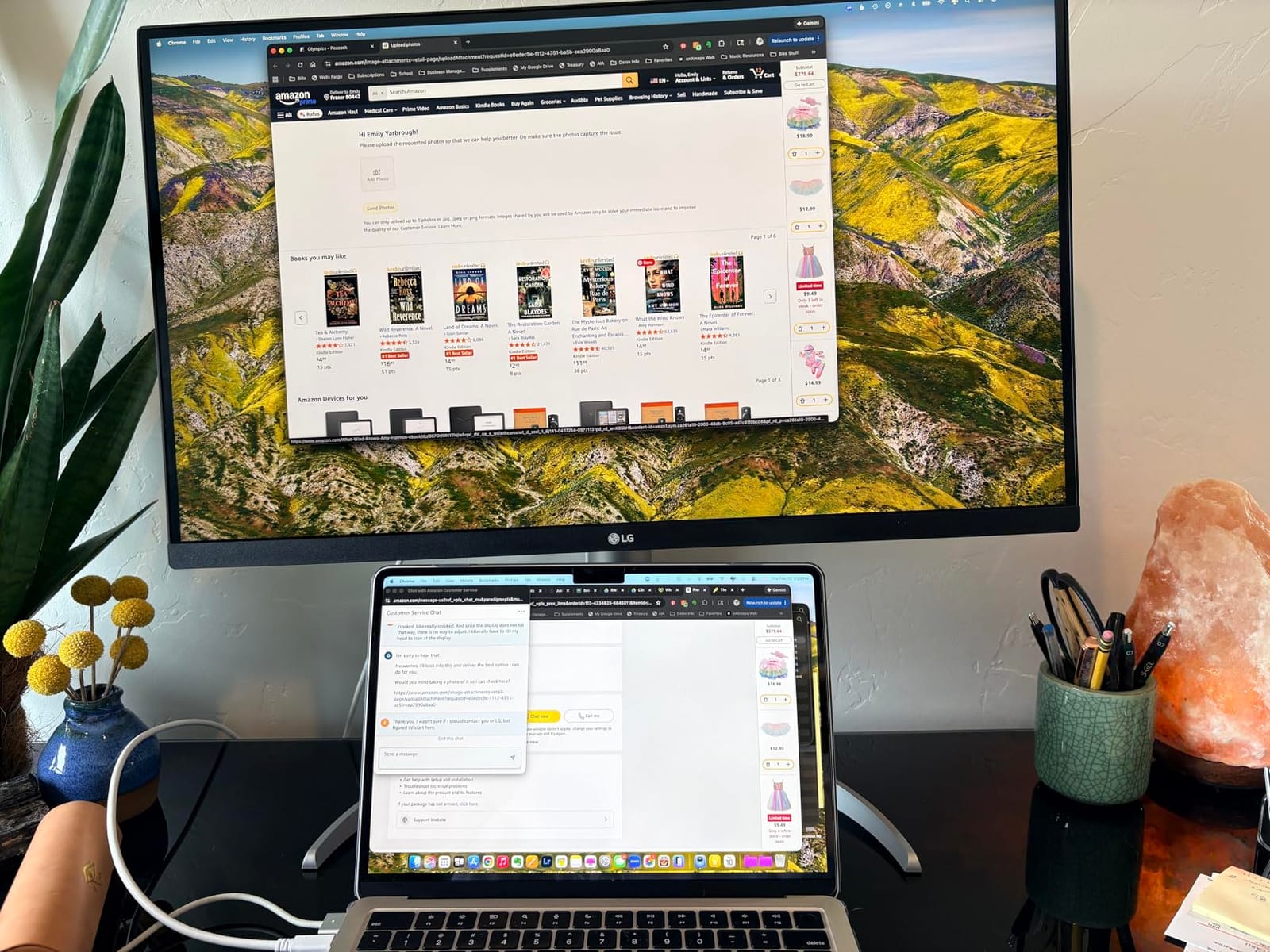
The Switch app is the feature nobody expects to care about and everybody ends up using. It splits the display into up to six sections from software rather than from the monitor menu, which is exactly the workflow of an editor beside a terminal beside a log tail. The stand adjusts for height, tilt and pivot, and the built-in stereo speakers with Waves MaxxAudio plus the webOS platform mean the display can double as a screen for a streaming box.
It is still a 60Hz panel, and that is the drawback that appears in most reviews. Contrast is 1200:1, better than a typical 1000:1 but well short of the 2000:1 IPS Black option in this list, and on macOS the 4K panel needs scaling enabled or the text is uncomfortably small. Speakers work; they do not sound good.
Who this suits
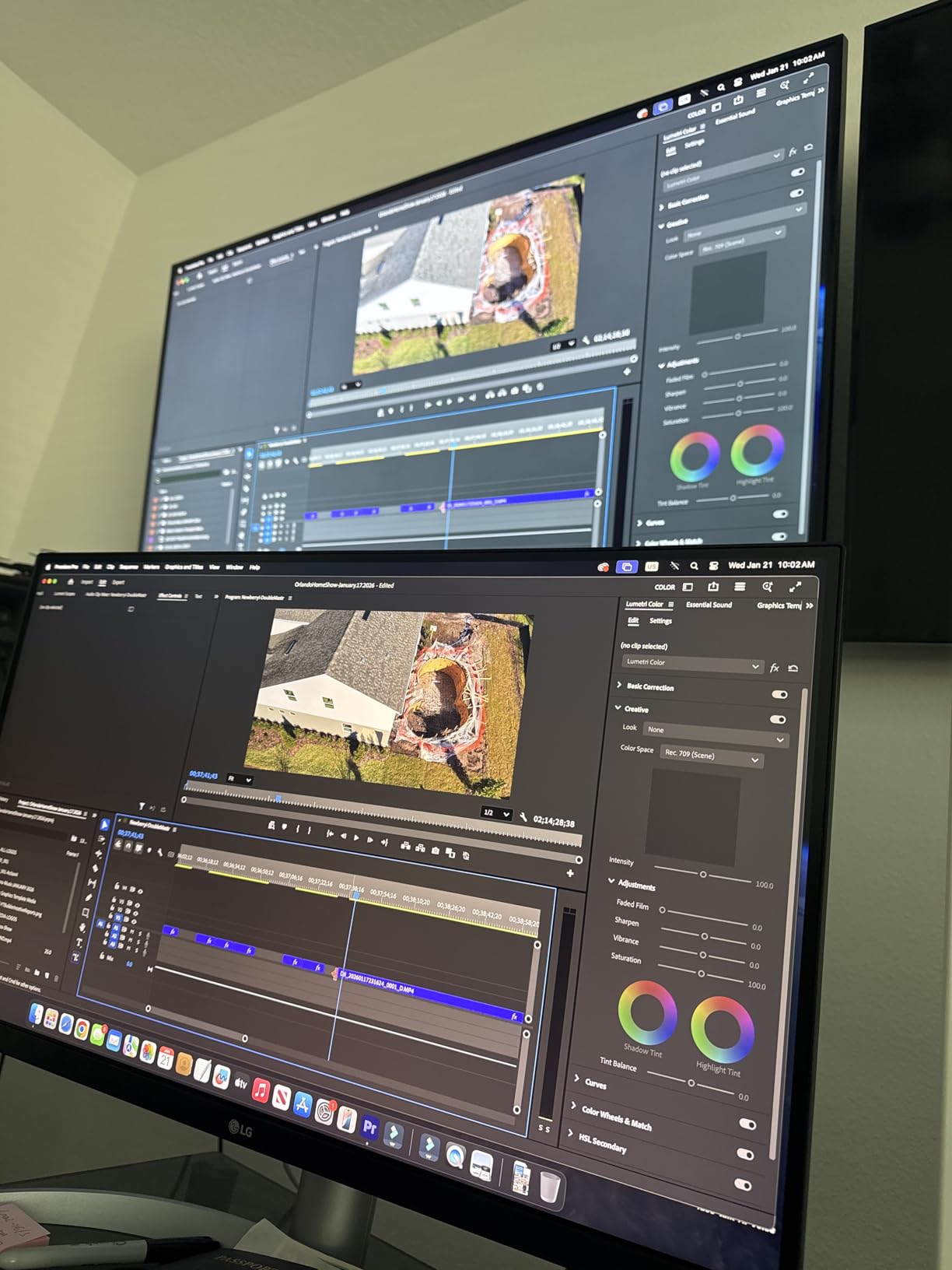
This suits a developer who docks a laptop every day and refuses to carry a charger. Ninety watts covers the large majority of developer machines, and the hub means your peripherals plug into the monitor rather than the machine. The split-screen software is a genuine quality-of-life gain for people who arrange their workspace by window rather than by full-screen application.
If you also want a second role for the display beyond work, the built-in speakers and streaming platform add value that a bare productivity panel does not offer.
Who should skip it
Skip it if you scroll through a lot of text quickly. A 60Hz panel next to a 120Hz one feels sluggish, and if you have already adapted to a fast display, going back is annoying. Choose the Dell S2725QS for the same one-cable idea at 120Hz if your laptop charges under 65W, or accept two cables here.
Skip it for very dark room work. At 1200:1 contrast, a black IDE theme will not have the depth that a higher-contrast panel gives you, which is a real difference over a ten-hour session.
8. INNOCN 27C1U – Best 65W USB-C 4K on a Small Budget
INNOCN 27″ 4K USB-C Monitor for Laptop MacBook/Mac mini – 16:9 IPS 3840 x 2160 Display, HDR400, DeltaE<2, DisplayPort, HDMI PC Monitor, 1.07B+ Colors, Built-in Speakers, Adjustable Stand, Black
27-inch 4K UHD IPS, Delta E under 2
USB-C with 65W power delivery
DisplayPort 1.4, HDMI 2.1, audio out
Stand pivots to portrait
Pros
- Sharp 4K IPS with 178 degree viewing angles
- USB-C single-cable setup with 65W charging
- Delta E under 2 accuracy with HDR400
- Stand adjusts fully including 90-degree pivot
- DisplayPort HDMI USB-C and audio out included
Cons
- 60Hz refresh rate
- 1000:1 contrast is basic for 4K IPS
- Poor built-in speakers
- Thinner support depth than the major brands
This is an affordable way to get a proper one-cable 4K setup, and for a lot of developers that is the only requirement that matters. One USB-C connection carries display, data and 65 watts of charging, and the stand adjusts for swivel, height, pivot and tilt, including a full 90-degree rotation to portrait. Most budget panels give you tilt and call it ergonomics.
The panel is 27-inch 4K IPS, so 163 pixels per inch, with 400 nits brightness and DisplayHDR 400. Colour accuracy is the surprise: reviewers cite a Delta E under 2 and support for 1.07 billion colours with 8-bit plus frame rate conversion, which is measured performance rather than a claim.
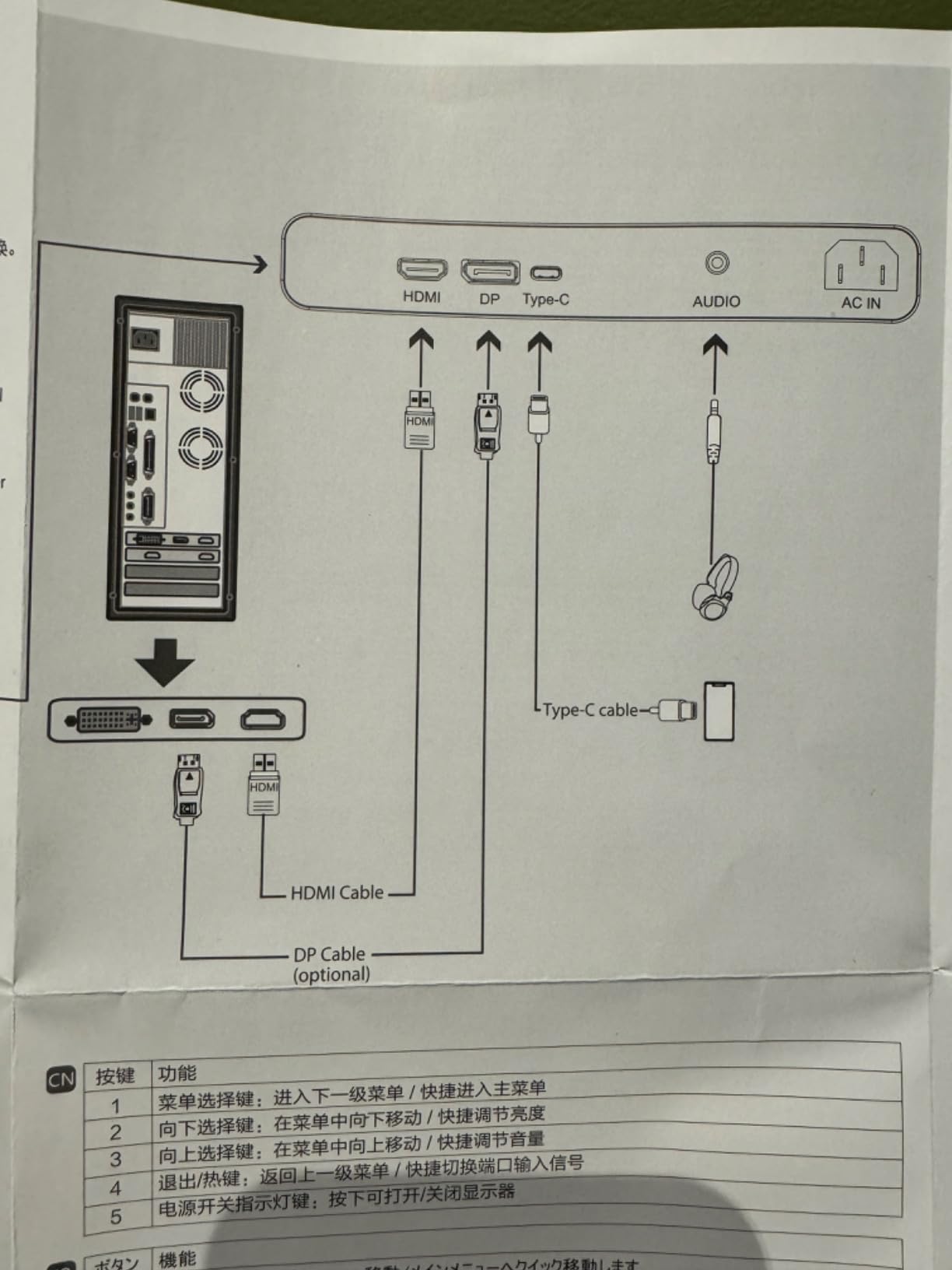
Port selection is unusually complete for the money: USB-C, DisplayPort 1.4, HDMI 2.1 and a 3.5mm audio out. That means a desktop and a laptop can both be plugged in permanently, which is what you want if you switch between machines, and the 178 degree viewing angles mean a mildly off-centre seat does not wash out the panel.
As with most 4K panels in this bracket, you get 60Hz and 1000:1 contrast, so dark themes will not have real depth. The built-in speakers are poor, which is fine if you use headphones over the audio out jack. The honest downside is the brand: INNOCN has thinner support and firmware options than Dell, LG or ASUS, and that matters when something stops working at month fourteen.
Who this suits
This suits a developer on a first or second machine who wants 4K text and a clean desk, and who owns a laptop that charges comfortably under 65W. The portrait pivot is a genuine advantage for anyone who reads long documentation or a wide log file and does not want to scroll constantly.
It is also a good second display for a docked desktop, since the DisplayPort and HDMI inputs let you leave a laptop and a tower connected at the same time.
Who should skip it
Skip it if your laptop needs more than 65W. Under heavy load a machine will draw more than the monitor delivers and fall back to battery, which is a confusing behaviour to debug if you do not expect it. Check your machine’s charger wattage before you buy.
Skip it if you rely on a manufacturer for warranty service. Buying from a less established display brand means fewer firmware updates, a thinner replacement-part channel and less recourse if a panel develops a dead line outside the return window.
9. Samsung ViewFinity S8 32-Inch – Best Deep Blacks at 32 Inches
SAMSUNG 32″ ViewFinity S8 (S80D) Series 4K UHD High Resolution Computer Monitor, HDR10, Multiple Ports w/ HDMI, DisplayPort, USB-A, Height Adjustable Stand, LS32D806EANXGO, 2024, 3Yr Warranty
32-inch 4K UHD IPS at 60Hz
3000:1 contrast with HDR10
Tool-free Easy Setup Stand
Height swivel tilt and 90-degree pivot
Pros
- 4K at 32 inches gives a lot of code and document space
- 3000:1 contrast is the deepest in this group
- Tool-free stand needs no screws or tools
- Swivel tilt height and 90-degree pivot covered
- Built-in USB hub for peripherals
Cons
- 60Hz refresh rate
- 32 inches of 4K needs desk depth and display scaling
- FreeSync capability capped by the 60Hz ceiling
- Three-year warranty is shorter than some rivals
It sits at 4.6 stars, the joint highest rating in the guide, and the reason is the contrast. A 3000:1 ratio on a 32-inch IPS panel is exceptional, and if you run a dark editor theme all day the difference against a 1000:1 panel is obvious from across the room. HDR10 output at 350 nits gives some punch to a bright preview without turning the panel into a display you have to calibrate.
Thirty-two inches of 4K works out to roughly 137 pixels per inch. That is lower density than 27 inches of 4K, so text is slightly softer, but you get about 40% more screen area and the physical size means you do not have to lean forward to read a long line. For code review, documentation and multi-window work, that trade is usually worth making.
The stand deserves a mention because it is genuinely good. The Easy Setup Stand assembles with no screws and no tools, which matters if you are assembling at a desk rather than a workbench. Once assembled it adjusts for height, swivel, tilt and 90-degree pivot, so it can serve as a landscape work display and rotate for a long document when you want to. Ports cover HDMI, DisplayPort, USB-A and USB-B, and the USB hub removes the need for a separate dock for peripherals.
The trade-offs are physical and practical. A single 32-inch 4K panel is large enough that you need real desk depth and you will want display scaling active immediately, otherwise every element is tiny. FreeSync is supported but capped by the 60Hz ceiling, so it does less here than the name implies. Warranty is three years and covered by a send-in service arrangement rather than a longer in-home option.
Who this suits
This suits a developer who works across several windows at once: a long file, a browser preview, a terminal and a specification document. The 3000:1 contrast suits dark themes, and the tool-free stand makes it easy to set up on your own. It is also a strong pairing with a laptop if you prefer DisplayPort over USB-C.
Anyone who finds a 27-inch panel physically cramped will find the extra width and height of a 32-inch 4K panel much more comfortable over a long session, even at the lower pixel density.
Who should skip it
Skip it if you have a shallow desk. A 32-inch panel is 28.11 inches wide before the stand, and you need the depth to sit at a sensible distance. If your desk is a standard 24-inch-deep office model, measure before you commit.
Skip it if you scroll continuously. Sixty hertz is the most common complaint here, and with a screen this large you will be moving a lot of content. If smoothness matters more than panel size, a 27-inch 4K 120Hz panel is the better fit.
10. BenQ MA270U – Best 4K Monitor for Mac Developers
BenQ MA270U 27” 4K 3840×2160 Monitor for MacBook® Pro/Air, Dual USB-C, 90W Power Delivery, Mac Color Match, USB Hub, Brightness & Volume Control on Mac, Height & Tilt Adjustable Stand, P3 Color Gamut
27-inch 4K UHD IPS at 400 nits
Mac colour matching, P3 wide gamut
Dual USB-C with 90W and 15W
MacBook keyboard brightness and volume
Pros
- Colour closely matches a MacBook display
- One USB-C cable charges at 90W and carries video
- MacBook keyboard keys control brightness and volume
- Sharp 4K text with a clean Apple-like build
- Stand adjusts to portrait orientation
Cons
- 60Hz refresh rate only
- Display Pilot 2 software needed for most settings
- Only one recessed USB-A port
- Priced above comparable 4K IPS panels
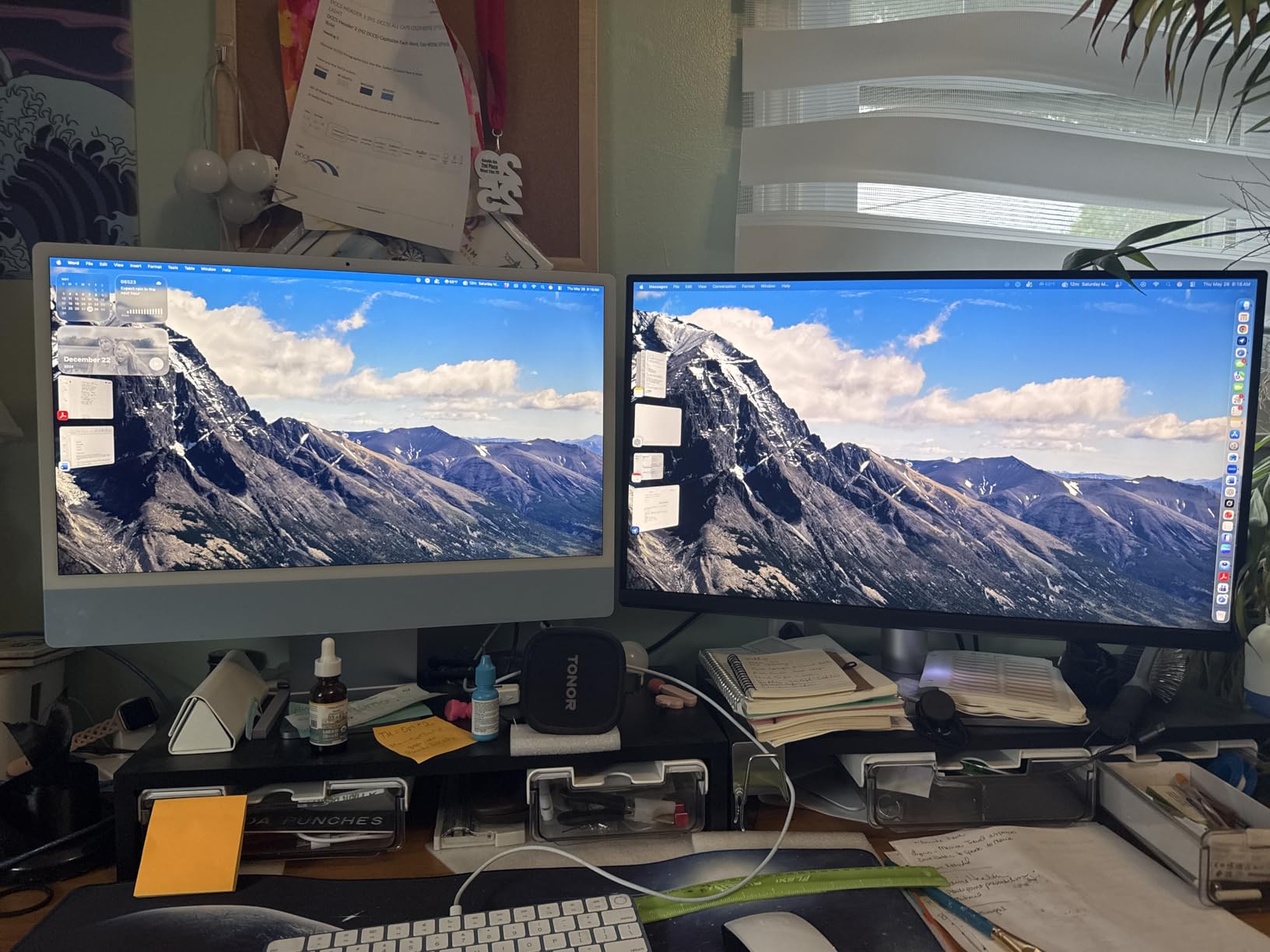
BenQ built this for a specific person: a Mac developer who is tired of their external display looking different from the laptop screen next to it. The colour is tuned to match MacBook output across a P3 wide gamut, and owners consistently report that the match is close enough that they stopped noticing the difference. That is a specific problem solved very well.
The port layout is the second Mac-specific decision. There are two USB-C ports: one delivering 90 watts for a MacBook and a second delivering 15 watts for a phone or tablet. Two HDMI inputs cover an older machine, and two USB-A ports sit in the hub. So a MacBook, an iPhone and a second computer can all be connected and switched between without unplugging anything.
BenQ Display Pilot 2 controls the on-screen menu from software, and the Mac integration is real rather than cosmetic. Brightness and volume keys on the MacBook keyboard control the monitor directly, and iPhone mirroring works out of the box. The panel is 27-inch 4K IPS at 400 nits with 2000:1 contrast and 178 degree viewing angles, and the stand adjusts for height, tilt, swivel and pivot.
The catch list is short but consistent. It is a 60Hz panel. Most settings need Display Pilot 2 rather than the physical buttons, so if you prefer adjusting from the hardware, that is a downgrade. There is only one USB-A port and it is recessed, which is awkward with a flash drive. And it costs more than equivalent 4K IPS panels from other brands, so the premium is buying the Mac integration specifically.
Who this suits
This suits a Mac developer with a MacBook Pro or Air who wants one cable for power and video and does not want their external display to look like a different computer. The keyboard brightness and volume control is the kind of small thing that quietly improves daily use, and the second USB-C port means a phone can charge on the desk instead of in a drawer.
It is also the cleaner choice aesthetically: the build quality and the stand adjustment are noticeably better than most 4K panels at this level, and it rotates to portrait for documentation.
Who should skip it
Skip it if you are on Windows and do not care about colour matching. You are paying a premium for Mac-specific tuning and software integration that will not apply to your setup, and a comparable Dell or ASUS panel gives you the same 163 pixels per inch for less.
Skip it if you dislike software-driven menus or want a fast refresh rate. Sixty hertz will feel slow if you have used a 120Hz display, and needing a control app to change brightness is a genuine annoyance when the app is not running.
11. LG UltraWide 34WR55QK-B – Best Curved 21:9 with USB-C
LG 34WR55QK-B 34-inch UltraWide WQHD (3440 x 1440) Curved Computer Monitor, 100Hz, 5ms, HDR10, Reader Mode, HDMI, DisplayPort, USB Type-C, Tilt/Height Adjustable Stand, Black
34-inch curved 3440x1440 VA at 100Hz
3000:1 contrast with HDR10
USB Type-C with 65W power delivery
Picture-by-Picture and Reader Mode
Pros
- Curved 21:9 gives ample room for code side by side
- 3000:1 contrast delivers deep blacks
- 100Hz makes scrolling and window dragging smooth
- Picture-by-Picture for two input sources
- USB-C with 65W cleans up the desk
Cons
- Only 100Hz which is modest for 21:9
- 5ms response smears in fast motion
- No built-in speakers
- VA panels shift colour off-axis
This is the ultrawide that adds a cable-management story to the wide canvas. USB Type-C delivers up to 65 watts, so a thin-and-light laptop charges and drives the display over one cable, and three USB ports plus a headphone jack sit behind it. If your laptop draws under 65 watts, you can clear a lot off your desk in one move.
For the work itself, 3440×1440 across 34 inches is roughly 110 pixels per inch, so glyphs are softer than on a 27-inch 4K panel. What you gain is width: a 21:9 canvas fits an editor, a documentation pane and a terminal without splitting the desktop. Contrast is 3000:1, which gives the deep blacks that make a dark theme comfortable at this size.
Picture-by-Picture lets two sources share the screen, which is a genuine feature when you run a local service and a remote machine. Reader Mode reduces blue light for long reading sessions, and the three-sided virtually borderless curved design means the panel does not look like office equipment. The stand adjusts for height and tilt.
Reviewers point out that 100Hz is modest for a 21:9 panel, and the 5ms response time shows smearing in fast motion, so this is a work display that tolerates gaming rather than the reverse. There are no built-in speakers. As with any VA ultrawide, colour and contrast shift when you are not directly in front of the screen, which is the trade for the deep blacks.
Who this suits
This suits a developer with a thin laptop who wants a wide canvas and a single-cable desk. The combination of 3440×1440 width, 65 watts of charging and three USB ports behind it removes a dock, a charger and most of the cable clutter from a laptop setup.
It is also a good second display for a docked laptop, where the picture-by-picture mode lets you keep a local build running beside a remote session.
Who should skip it
Skip it if you game on the same machine and care about motion clarity. A 100Hz ceiling with 5ms response will disappoint in a fast first-person shooter, and 21:9 titles that do not support the aspect ratio give you black bars on a display that cost as much as a 27-inch 4K panel.
Skip it if you do not have desk depth for it. At 31.9 inches wide, you need a desk that lets you sit square to the middle, and if you end up craning toward one edge you will trade clarity problems for neck strain problems.
12. ASUS VP327Q – Cheapest Route to a 32-Inch 4K Desk
ASUS VP327Q 32 Inch 4K UHD Computer Monitor, HDMI, DisplayPort, Speakers
31.5-inch 4K UHD at 60Hz
3000:1 contrast, 99% sRGB, HDR-10
Dual HDMI and DisplayPort
Built-in stereo speakers
Pros
- Low-cost large 32-inch 4K canvas
- Good real estate for multitasking beside a laptop
- Eye Care flicker-free and low blue light filters
- Dual HDMI plus DisplayPort for multiple sources
- Built-in speakers and VESA mountability
Cons
- Panel is VA though marketing suggests IPS
- Washed-out edges and off-axis colour shift
- OSD controls awkward because the power button doubles as a joystick
- DisplayPort 1.2 and HDMI 2.0 are dated
This is the lowest-cost route to a 32-inch 4K canvas among the picks here, and it exists for one reason: it puts a 32-inch 4K panel on a desk for less than most 27-inch 4K models cost. Thirty-one and a half inches of 3840×2160 gives you the same pixel count as the premium picks on a much larger canvas, which is a trade of density for area. At roughly 138 pixels per inch you get acceptable text, and a lot of it.
Contrast is 3000:1 with 99% sRGB coverage and HDR-10 support, which on paper matches the Samsung ViewFinity S8 at 32 inches. Eye Care technology handles flicker-free dimming and a low blue light filter, and there are built-in stereo speakers so a quick video call does not need a headset. VESA mounting is available if the stand is not for you.
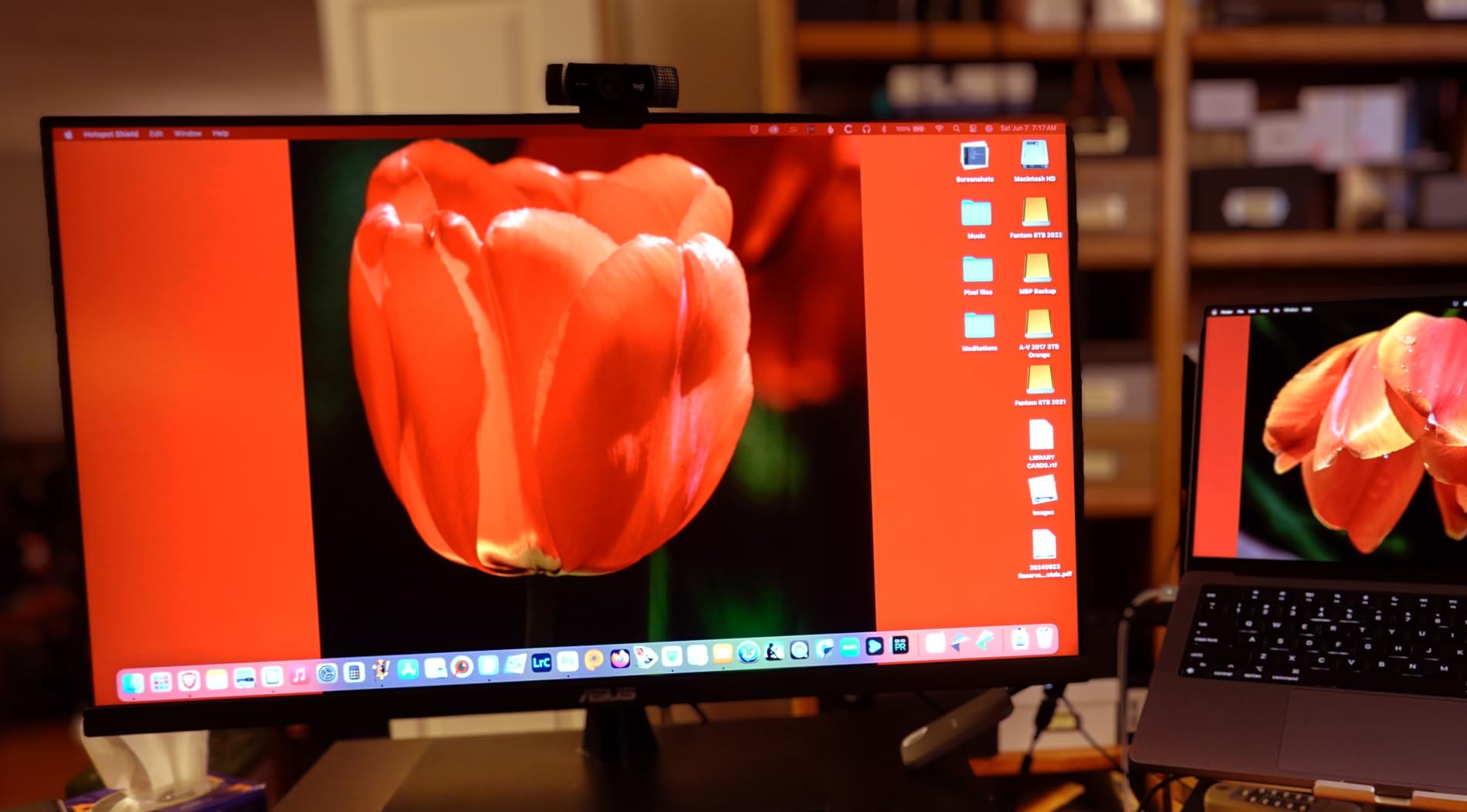
Two HDMI and one DisplayPort let you keep a laptop and a desktop connected at once. It is also the lightest large panel here at 6.9 kilograms, which matters if you plan to mount it on an arm rather than a stand.
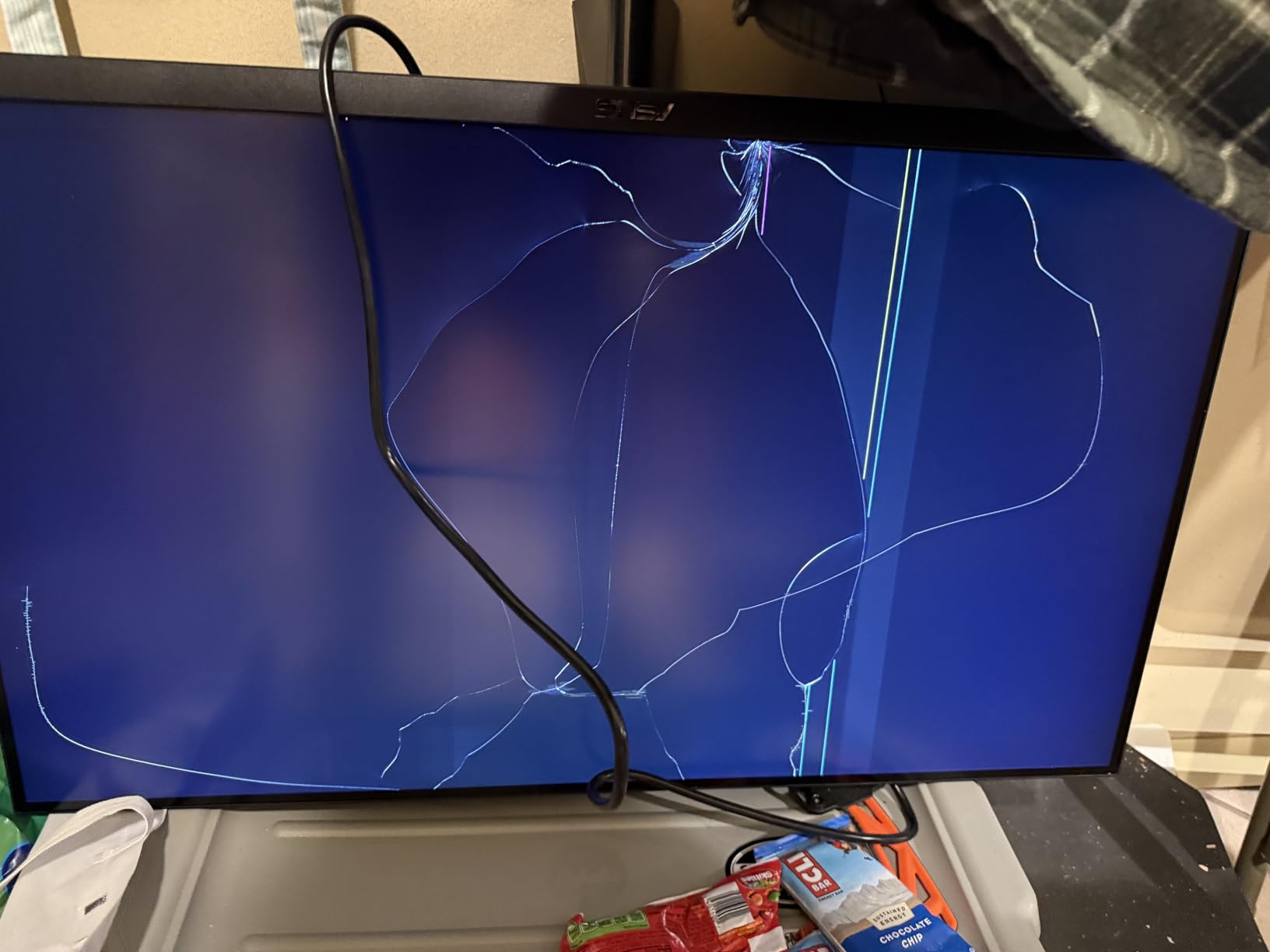
Now the reason it is ranked last, which is not price. Reviewers consistently report that the panel is VA, not the IPS that the marketing implies, which shows up as washed-out edges and colour shift when you are not directly in front of it. The on-screen menu is awkward because the power button doubles as a joystick, the firmware can power-cycle the panel if an invalid HDMI input is selected, and the port standards are dated at DisplayPort 1.2 and HDMI 2.0. Several reviews also report quality control problems including dead pixel lines and backlight spots, and the included power cord is very short.
Who this suits
This suits someone whose budget is firm and whose priority is physical screen area. A student who wants a large canvas for documentation and a wide editor, or someone building a second machine on the cheap, gets 32 inches of 4K here for less than the alternatives. If you use an arm and sit square to the screen, the VA panel’s weaknesses matter less.
It is also a reasonable second display next to a laptop when you want one large screen rather than two smaller ones.
Who should skip it
Skip it if text clarity is what you are buying. You are getting 4K resolution on a panel that is not the type advertised, with off-axis washing and a 4.0 average rating, the lowest in this group. A 27-inch 4K IPS panel costs similar amounts and gives you better type.
Skip it if you cannot accept the on-screen menu. The joystick-as-power-button design frustrates people daily, and firmware that power-cycles on a bad input means a misclick can blank your display mid-session.
How to Choose a Programming Monitor Without Guessing
Every recommendation above reduces to a handful of decisions. These are the ones that actually change your daily experience, in the order they matter for someone who reads code all day. Ignore the rest until you have settled these.
If your day includes any visual work alongside the code, panel choice gets more complicated than text clarity, and the trade-offs between colour accuracy and brightness are worth reading before you buy. Our best monitors for video editing guide covers the other side of that decision.
Do you actually need 4K?
No, 4K is not overkill on a 27-inch monitor, and the reason is not resolution. A 27-inch 4K panel is about 163 pixels per inch, dense enough that 11-point code is sharp at 60 centimetres, but Windows will still want fractional scaling at 125 or 150% to make the interface physically comfortable. Get that scaling right and a 1440p 27-inch panel at 109 pixels per inch still looks soft. Set it wrong and 4K will look worse than 1440p, because fractional scaling at the wrong percentage softens every glyph.
27-inch vs 32-inch: which has sharper text
A 27-inch 4K panel wins on text sharpness, a 32-inch 4K panel wins on physical comfort. The rule is simple: if you sit about 60 centimetres from the screen and read small type, buy 27 inches for roughly 163 pixels per inch. If you want a lot of simultaneous workspace, find a desk deep enough for 32 inches and accept roughly 137 pixels per inch. Below 4K, 1440p at 27 inches gives about 109 pixels per inch, which many developers describe as noticeably soft, so 4K is worth the step up on a 27-inch screen.
IPS vs OLED vs Mini LED for static code
IPS wins for text clarity, and the reason is rendering rather than brightness. IPS panels use a subpixel array that works with Windows ClearType-style antialiasing, so glyph edges get sharpened by colour fringing the eye reads as crisp. Many OLED panels use grayscale antialiasing, where the whole glyph is one shade, so small text has lower effective contrast and looks softer. A programmer running a permanently visible IDE, taskbar and terminal also faces image retention risk on OLED, which is reversible fading that shows up in weeks, and permanent burn-in, which does not go away. Temporary retention clears with a full-screen colour cycle. For static content at all hours, IPS is the safer default.
Refresh rate: what programmers really need
You do not need 120Hz to code, and the reason is that your input is not continuous motion. A keyboard and mouse produce discrete events, so a fast display changes almost nothing about how you type. What a higher refresh rate does buy is scrolling: dragging a window, scrolling a thousand-line log and flicking through a long file all look smoother above 60Hz. If your work involves watching a live log or a running build stream, treat 100Hz or above as worth paying for. Otherwise, spend that money on density or a better stand instead.
USB-C power delivery: how many watts are enough
For most developer laptops, 90W is the number to look for, 65W is enough for thin and light machines, and 120W or more is for a workstation class laptop that charges slowly otherwise. Two details matter as much as the number. The port has to be the upstream data port, not one of the hub ports, or you will get video and no charging. And the cable has to support the full wattage, which means a USB-C cable rated for the job rather than the one in the box.
Ultrawide or two monitors?
One ultrawide can replace two monitors, if you want one continuous canvas and you sit square to the middle of it. It will not replace two monitors if you need portrait rotation, independent angle adjustment, or a second screen at a different height for documentation. The most common complaint about ultrawides is neck strain: at 34 inches wide, the code you are reading sits off to one side of your centre of vision, so you end up turning your head all day. Check your desk width and your viewing distance before committing.
The pre-purchase checklist
Before you buy, confirm six things. One: the model suffix, because near-identical names such as the RD280U, RD280UG and RD280UA or the S2725QS and S2725DC are different machines with different port layouts. Two: whether the USB-C port is upstream with power delivery or a hub port. Three: the wattage against your laptop’s charger. Four: stand adjustment, and specifically whether you can set height. Five: desk depth against panel width, plus enough room for the base. Six: the warranty length and the dead-pixel policy, since those vary widely by brand and only matter when something goes wrong.
When the Setup Goes Wrong
Most programming monitor problems are configuration problems, not hardware faults. These four come up constantly.
Why your laptop will not charge through the monitor
Five causes cover almost every case. The cable is the usual one: a USB-C cable that carries data but not 65 watts, or a charge-only cable, will give you a display and no power. Second, the monitor delivers less wattage than your laptop wants, so it charges but never reaches full. Third, you plugged into a hub port instead of the upstream port. Fourth, a dock in between is negotiating the connection and capping the delivery. Fifth, the machine is drawing more than the monitor supplies under load, which shows as a battery that stops charging when you are compiling rather than a battery that never charges. Test with the laptop’s own charger first to rule the machine out, then swap the cable.
Why the text looks blurry
Four things cause soft text, in rough order of likelihood. Windows fractional scaling set to a percentage the panel does not divide cleanly will blur every glyph, so try the recommended setting and the neighbouring ones. Running a 4K panel at a non-native resolution does the same thing through interpolation. A docking station that does not pass the native resolution through degrades the signal, so connect directly once to test. And a matte coating plus a bright room will wash out thin strokes, so lower brightness and add ambient light rather than raising it.
Why two monitors drop below full refresh rate
The display outputs of a laptop or a dock are a fixed bandwidth budget, and running two panels at high resolution and high refresh rate can exceed it. The symptom is that both displays fall back to 60Hz, or the second one loses resolution, with no error message. The fix is to check what your machine actually supports, reduce one display’s refresh rate, or run the second panel at 1080p. This is a machine-side limit, not a monitor fault, which is why changing monitors does not fix it.
Why an ultrawide makes your neck ache
On a 34-inch panel, the code in the middle is at your centre of vision but the code near the edges is 30 degrees off. Reading at the edges means turning your head or your eyes, all day. The fixes are physical: position the panel so the part you read most sits at your centre line, move the desk back so you are further away, and use window tiling to keep your working area in the central third. If your desk is shallow and you end up sitting at one end of the panel, a pair of 27-inch monitors is the better answer.
Frequently Asked Questions
What type of monitor is best for coding?
A 27-inch or 32-inch 4K IPS panel at roughly 137 to 163 pixels per inch. That density keeps code text crisp at normal desk distance, IPS has no burn-in risk from a permanently visible taskbar, and HiDPI scaling at 125 or 150 percent makes the result comfortable. Below 1440p on 27 inches, text is visibly soft.
Is 4K overkill for a 27 inch monitor?
No. A 27-inch 4K panel is about 163 pixels per inch, which is dense enough for sharp 11-point code, but the real issue is scaling rather than resolution. Set Windows to 125 or 150 percent and it is comfortable. Set it to the wrong percentage and 4K will look worse than 1440p, because fractional scaling softens every glyph.
Which is better for programming, a 27-inch or a 32-inch monitor?
A 27-inch 4K panel gives sharper text at about 163 pixels per inch. A 32-inch 4K panel gives roughly 137 pixels per inch but about 35 percent more screen area and more physical comfort. Choose 27 inches if you read small type at about 60 centimetres, and 32 inches if you want a large workspace and have the desk depth for it.
Is IPS or OLED better for text clarity in code?
IPS. IPS panels use a subpixel array that works with ClearType-style antialiasing, so glyph edges are sharpened by colour fringing the eye reads as crisp. Many OLED panels use grayscale antialiasing, where a whole glyph is one shade, so small text has lower effective contrast. OLED also carries image retention risk from a permanently visible IDE and taskbar.
Do programmers need 120Hz monitors?
Not for typing, because keyboard and mouse input is discrete rather than continuous. A higher refresh rate improves scrolling: dragging windows, flicking through long files and following a live log tail all look smoother above 60Hz. If your work involves watching a running build or log stream, 100Hz or more is worth paying for. Otherwise, spend that budget on pixel density or a better stand.
How much USB-C power delivery is enough for a programming laptop?
90W covers most developer laptops. 65W is enough for thin and light machines, and 120W or more is for workstation-class laptops that charge slowly otherwise. The port must be the upstream data port rather than a hub port, and the cable has to be rated for the full wattage, or you will get a display and no charging.
Can one ultrawide monitor replace two monitors for coding?
Yes, for a continuous canvas, if you sit square to the middle of it. It will not replace two monitors if you need portrait rotation, independent angle adjustment, or a second screen at a different height. The most common complaint is neck strain, because code near the edges of a 34-inch panel sits well off your centre of vision.
The Verdict: Which Programming Monitor Should You Buy?
Start with the ASUS TUF VG34VQL1B if you want the most workspace in one panel and you can accept softer text in exchange for 165Hz smoothness. For a docked laptop, the Dell UltraSharp U2723QE is the one to buy: 90 watts, an Ethernet jack, a five-port hub, daisy chaining and a built-in KVM, all behind a genuinely sharp 27-inch 4K IPS Black panel. If you want the best balance of density and refresh rate for the least money, the Dell S2725QS is hard to argue with.
For related gear, our picks for the best mechanical keyboards for programming and the best monitors for video editing cover the rest of the desk.