
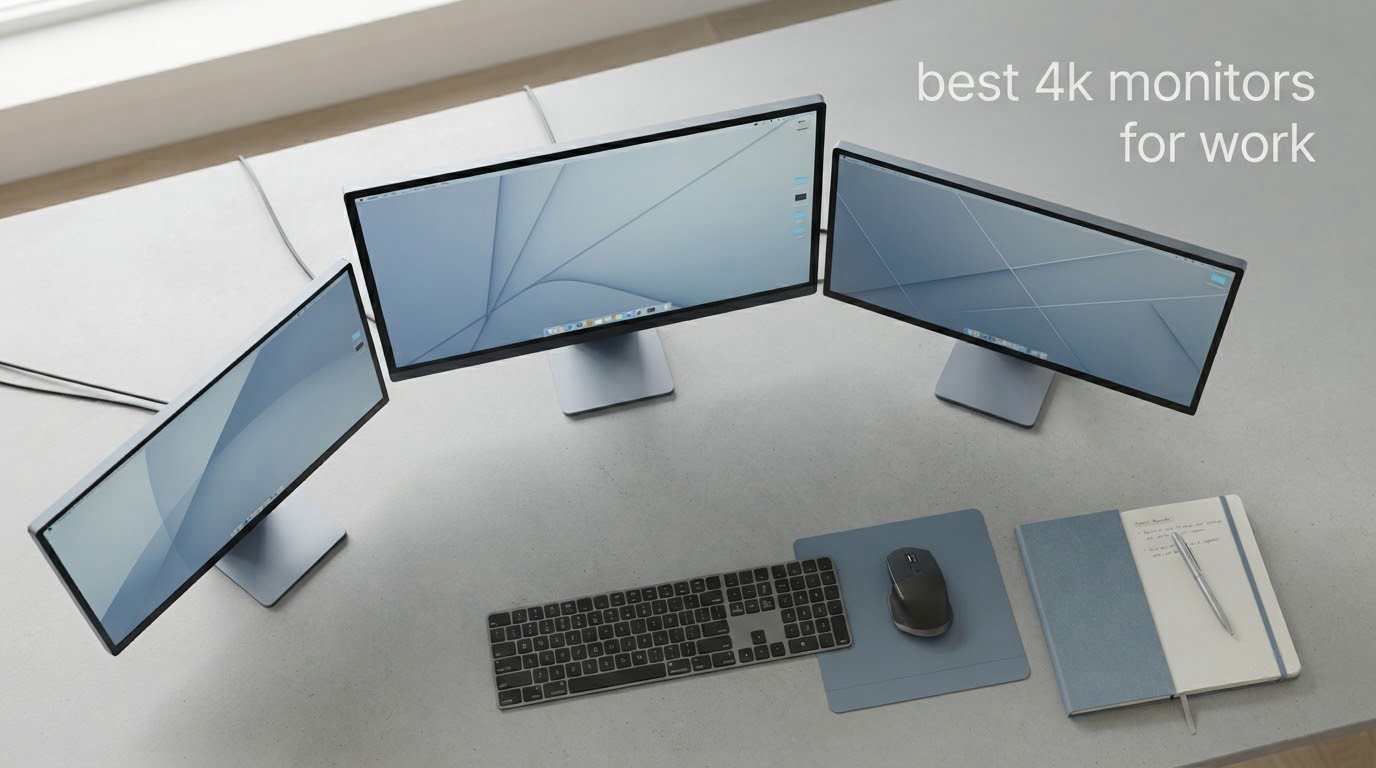
Most office monitors are bought for the wrong reason. People chase refresh rate numbers that do nothing for a spreadsheet, and ignore the one spec that decides whether eight hours of reading feels easy or punishing: pixel density. A 3840×2160 panel packs roughly four times the pixels of 1080p and 2.25 times that of 1440p, so text edges land tighter and more windows fit side by side without shrinking everything.
That makes the best 4K monitors for work a different category from the best gaming monitors. Our picks prioritise sharpness, contrast, USB-C power delivery, a built-in USB hub and a stand you can actually adjust. Our overall winner is the Dell 27 S2725QS, a 27-inch 120Hz IPS panel with a fully adjustable stand. For coders and document heavy workers the LG 32UN650-W gives you more canvas at the same resolution, and for colour critical work the ASUS ProArt PA279CRV ships factory calibrated.
We spent weeks reading owner reviews, comparing panel specs and checking connectivity against real desk setups. This guide covers ten 4K work monitors, what to look for in scaling and USB-C wattage, and the practical questions buyers ask before clicking through. Updated for 2026.
Top 3 Picks for the Best 4K Monitors for Work in 2026

Dell 27 S2725QS
- 27 inch 4K IPS at 120Hz
- 1500:1 contrast
- 99% sRGB
- Height tilt swivel and pivot stand


Our best overall pick, the Dell 27 S2725QS, wins because it is the rare 4K office monitor that refreshes at 120Hz, keeps a 1500:1 contrast ratio and ships with a stand that adjusts in every direction. The LG 32UN650-W takes the coding and document slots because a 32-inch 4K IPS panel fits roughly four standard windows at once and the IPS layer keeps text stable when you lean back. The ASUS ProArt PA279CRV earns its place for anyone whose work is judged on colour, with 99% DCI-P3 and 99% Adobe RGB coverage, a Delta E under 2 factory calibration and 96W USB-C charging.
Best 4K Monitors for Work in October
| Product | Specifications | Action |
|---|---|---|
| Dell 27 S2725QS 27 inch 4K IPS 120Hz |
|
Check Latest Price |
 ViewSonic VX3276-4K-MHD 32 inch 4K ViewSonic VX3276-4K-MHD 32 inch 4K |
|
Check Latest Price |
| LG 32UN650-W 32 inch 4K IPS |
|
Check Latest Price |
| ASUS ProArt PA279CRV 27 inch 4K |
|
Check Latest Price |
 LG 27US500-W 27 inch 4K IPS LG 27US500-W 27 inch 4K IPS |
|
Check Latest Price |
 LG 27UP850K-W 27 inch 4K with 90W USB-C LG 27UP850K-W 27 inch 4K with 90W USB-C |
|
Check Latest Price |
 INNOCN 27C1U 27 inch 4K USB-C INNOCN 27C1U 27 inch 4K USB-C |
|
Check Latest Price |
 LXZ 32 inch 4K VA Monitor LXZ 32 inch 4K VA Monitor |
|
Check Latest Price |
 ZZA 27 inch 4K Z27K 75Hz ZZA 27 inch 4K Z27K 75Hz |
|
Check Latest Price |
 BenQ MA270U 27 inch 4K Mac USB-C BenQ MA270U 27 inch 4K Mac USB-C |
|
Check Latest Price |
1. Dell 27 S2725QS 27 Inch 4K IPS 120Hz – Best Overall for Work
Dell 27 Monitor S2725QS, 4K UHD IPS, 120Hz, 5ms, FreeSync Premium
27 inch 3840x2160 IPS
120Hz with FreeSync Premium
350 nits and 1500:1 contrast
99% sRGB
Pros
- 120Hz 4K IPS makes scrolling and window dragging feel smooth for daily productivity
- Very sharp text rendering at 27 inches
- 1500:1 contrast and 99% sRGB give noticeably better depth than typical 4K IPS panels
- Stand adjusts for height tilt swivel and pivot
- ComfortView Plus cuts harmful blue light for long sessions
Cons
- No USB-C and no built-in USB hub
- No 3.5mm audio out jack
- Basic HDR performance only
The Dell 27 S2725QS is the monitor we keep coming back to. Owners describe it as a straightforward way to get a sharp 4K panel that still feels modern on a desktop, and at 1019 reviews it is by far the most thoroughly reviewed monitor in this list. Scrolling a long spreadsheet, dragging a browser window across the screen and switching between apps all feel fluid because the panel runs at 120Hz rather than the 60Hz that dominates this price bracket.
Text quality is the headline. At 27 inches and 3840×2160 the pixel density is high enough that code, PDF columns and dense tables have clean edges with no visible stair-stepping. The 1500:1 contrast ratio and 99% sRGB coverage mean dark mode interfaces have more depth than a typical entry IPS panel, which usually sits near 1000:1.
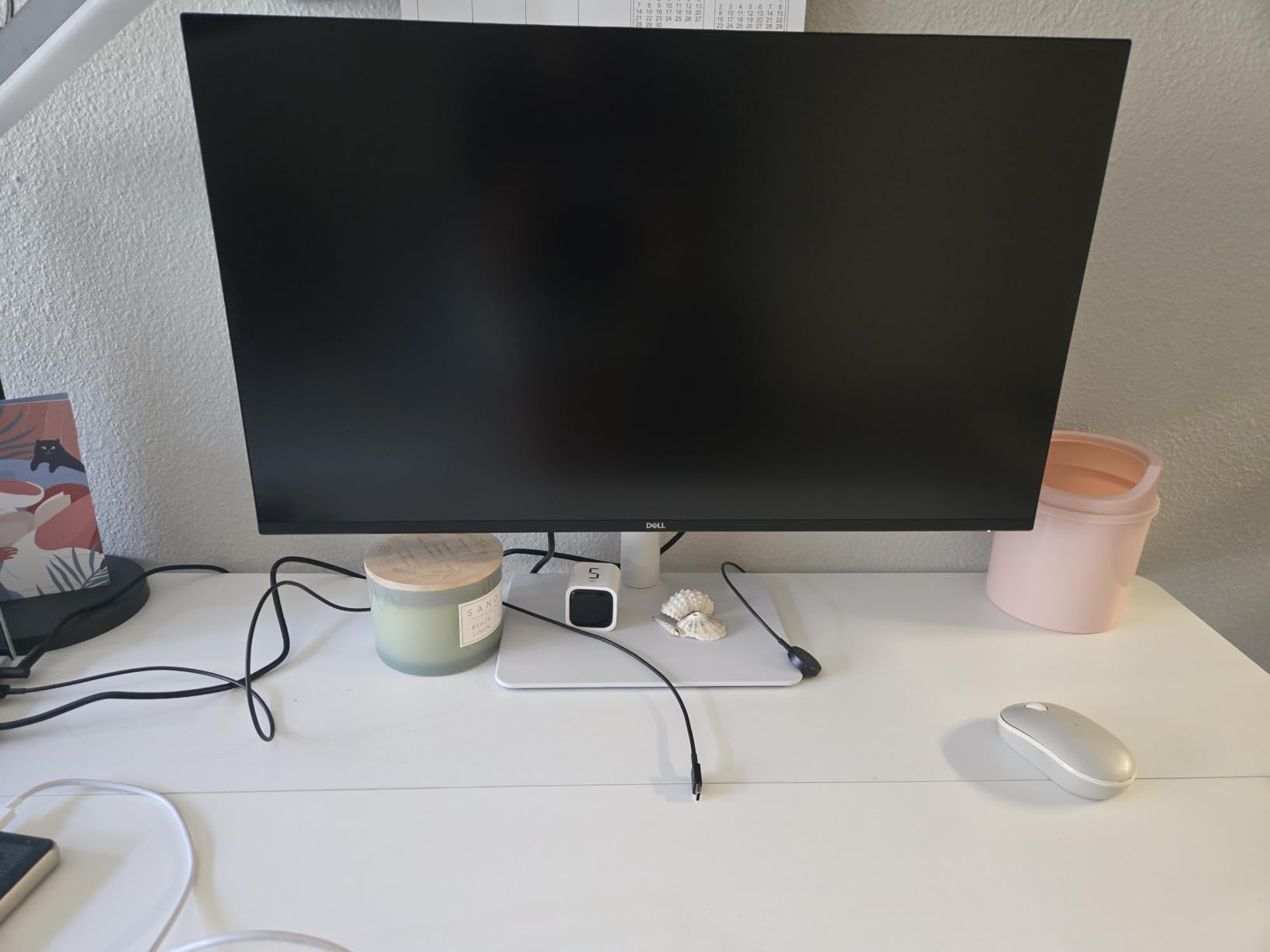
The stand is a bigger deal than most spec sheets suggest. Height, tilt, swivel and pivot are all present, so you can align two of these side by side or drop to portrait for a long document. Owners repeatedly note that ComfortView Plus, which reduces harmful blue light to 35% or less, makes long reading sessions easier on the eyes.
Connectivity is the compromise. There is no USB-C, so a laptop user still needs a separate charger or dock, and there is no built-in USB hub. You also lose the headphone jack, which means pairing external audio gear. The ports on offer are two HDMI 2.1 inputs and one DisplayPort 1.4, and re-engineered built-in stereo speakers are included for quick calls.
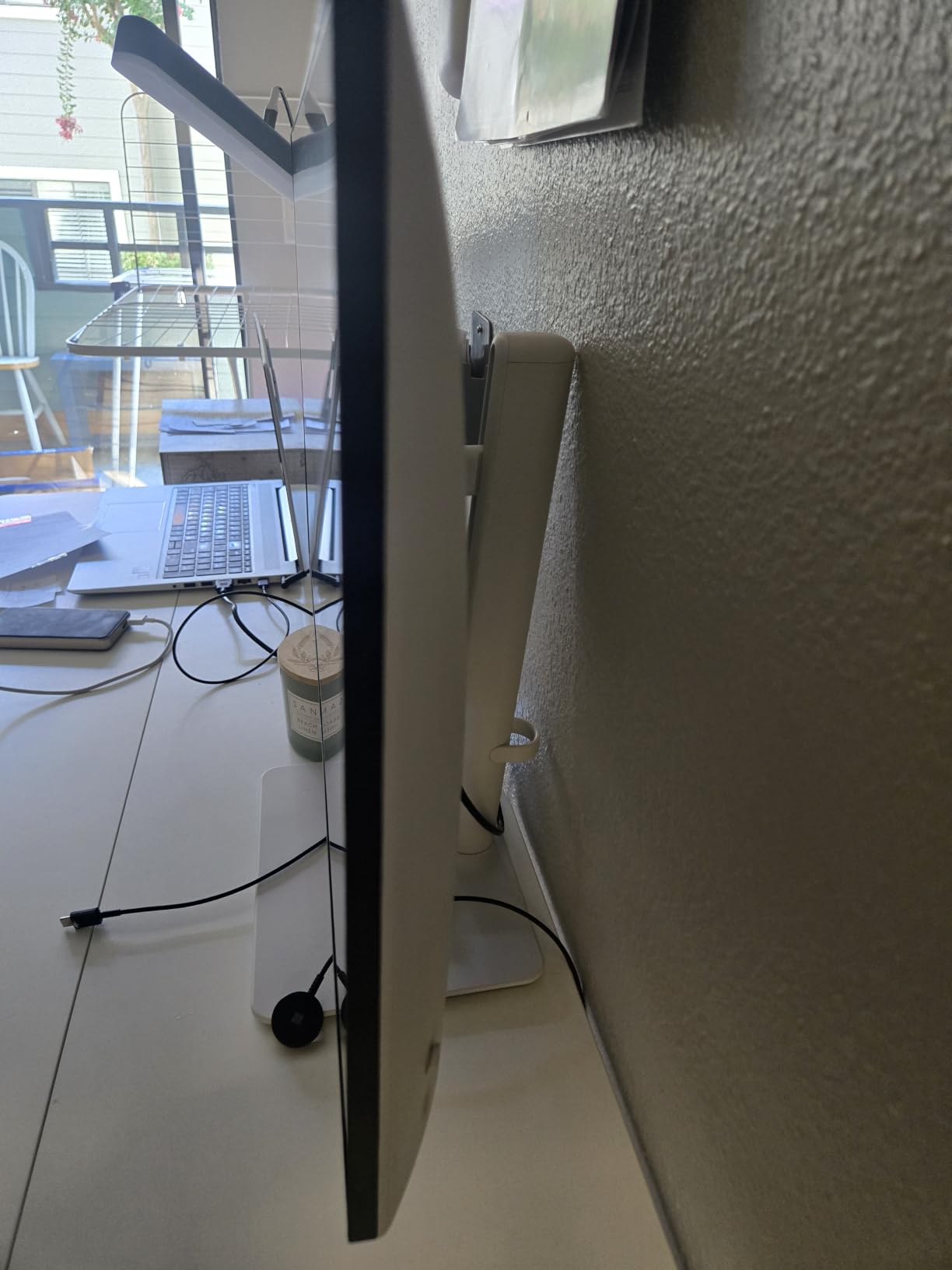
Is the lack of USB-C a problem for a work setup?
For a desktop office workstation with a tower, no. The HDMI and DisplayPort inputs cover everything and the 120Hz panel is a genuine upgrade over a 60Hz alternative. If you regularly undock a laptop, add a USB-C monitor to your shortlist instead, because you will otherwise be carrying two cables and a charger.
The other consideration is motion handling. Reviewers report noticeable ghosting in fast first person shooters, so competitive gamers should look elsewhere. For a productivity monitor this barely registers, and the 0.03ms rated response time keeps ordinary cursor movement tight.
Which desks suit this monitor best?
A standard 120cm desk is comfortable at this size, and the adjustable stand means you can set the top of the panel at eye level without a monitor arm. Several owners still buy an arm later, mostly because they run two displays and want fine alignment. We would plan for that possibility and check VESA 100x100mm compatibility, which this model supports.
A small number of buyers report monitors failing within a few months and frustration with support handling. That is a minority theme against a large body of positive long term use, but it is worth knowing if you are buying for a shared office. Everything is included in the box: an HDMI cable, power cable, stand and a VESA cover.
2. ViewSonic VX3276-4K-MHD 32 Inch 4K – Best for Multi-Machine Desks
ViewSonic VX3276-4K-MHD 32 Inch 4K UHD Monitor, HDR10, HDMI, DisplayPort
32 inch 3840x2160 MVA panel
60Hz refresh
2500:1 contrast and 118% sRGB
Two HDMI DisplayPort and Mini DisplayPort
Pros
- Sharp 4K clarity at an affordable price for a 32 inch panel
- Four video inputs let you connect three machines at once
- Large screen splits into four 1080p quadrants
- Front mounted OSD buttons with adjustable menu size
- Cast aluminium style stand many owners find stable
Cons
- MVA panel means weaker off-axis angles and colour than IPS
- No dedicated input select button
- 60Hz refresh rate only
The ViewSonic VX3276-4K-MHD solves a specific problem: fitting a laptop, a desktop and a streaming box behind one screen. It carries two HDMI inputs, a DisplayPort and a Mini DisplayPort, and owners commonly pair it with a Mac mini or a small form factor PC for exactly that reason. The 32-inch canvas can be split into four 1080p quadrants for multitasking.
Contrast is the surprise. The MVA panel is quoted at 2500:1 with 118% sRGB coverage, which is higher than most IPS panels at this size, and reviewers note the screen splits cleanly into quadrants for document work. The matte finish helps with reflections in a bright room.
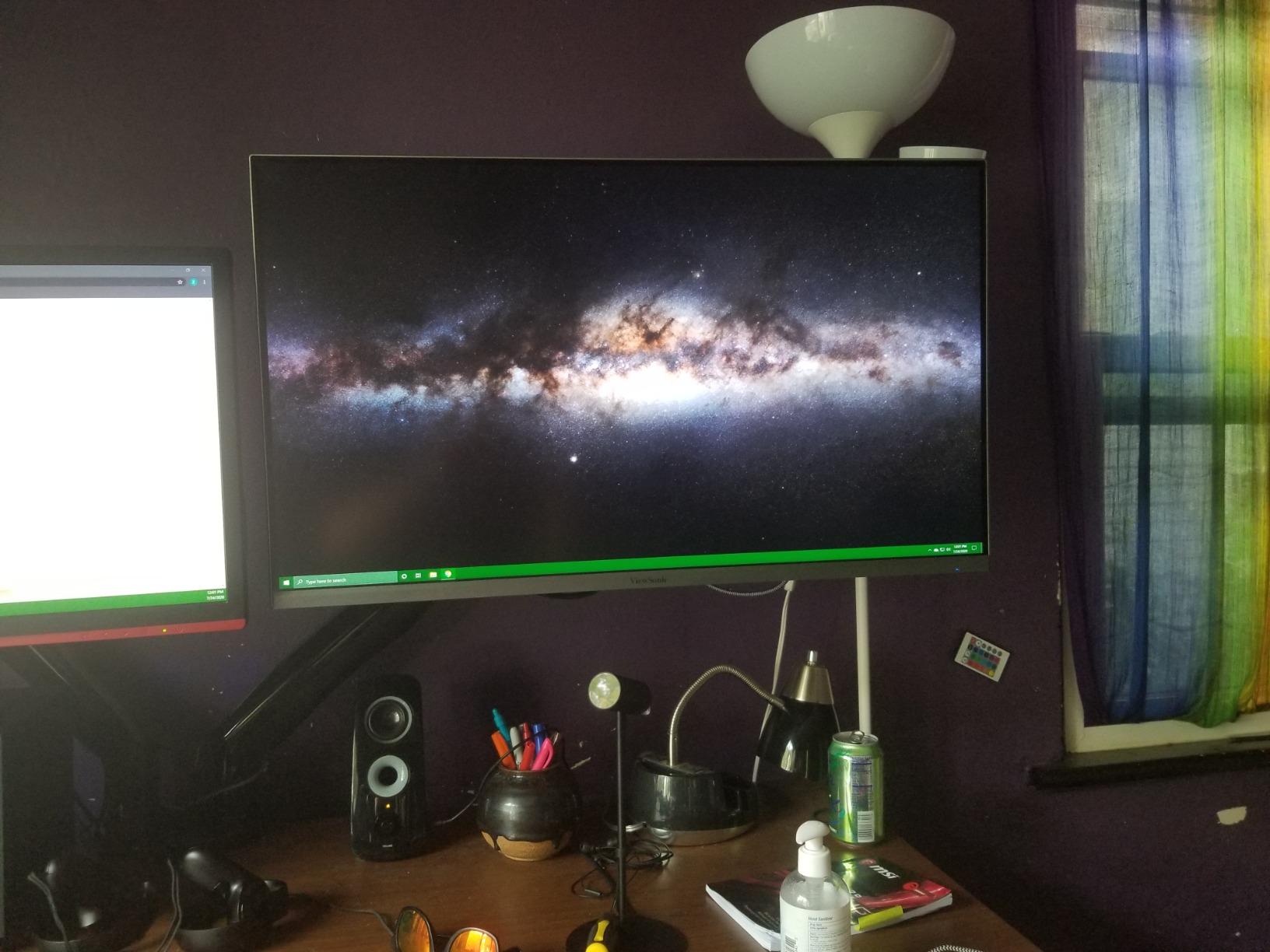
Eye comfort features include Flicker-Free technology and a Blue Light Filter, both aimed at long document sessions. The stand is a cast aluminium style design that owners generally find stable, and VESA 100x100mm mounting is supported if you want to move to an arm. A three year limited warranty covers parts, labour and the backlight, which is longer than most rivals here.
The MVA panel is the catch. Colour accuracy and off-axis viewing angles are weaker than IPS, so if you share a screen with someone sitting at an angle, or you grade colour, this is the wrong tool. Input switching also happens through the on-screen menu rather than a dedicated button, which gets irritating when you rotate between machines daily.
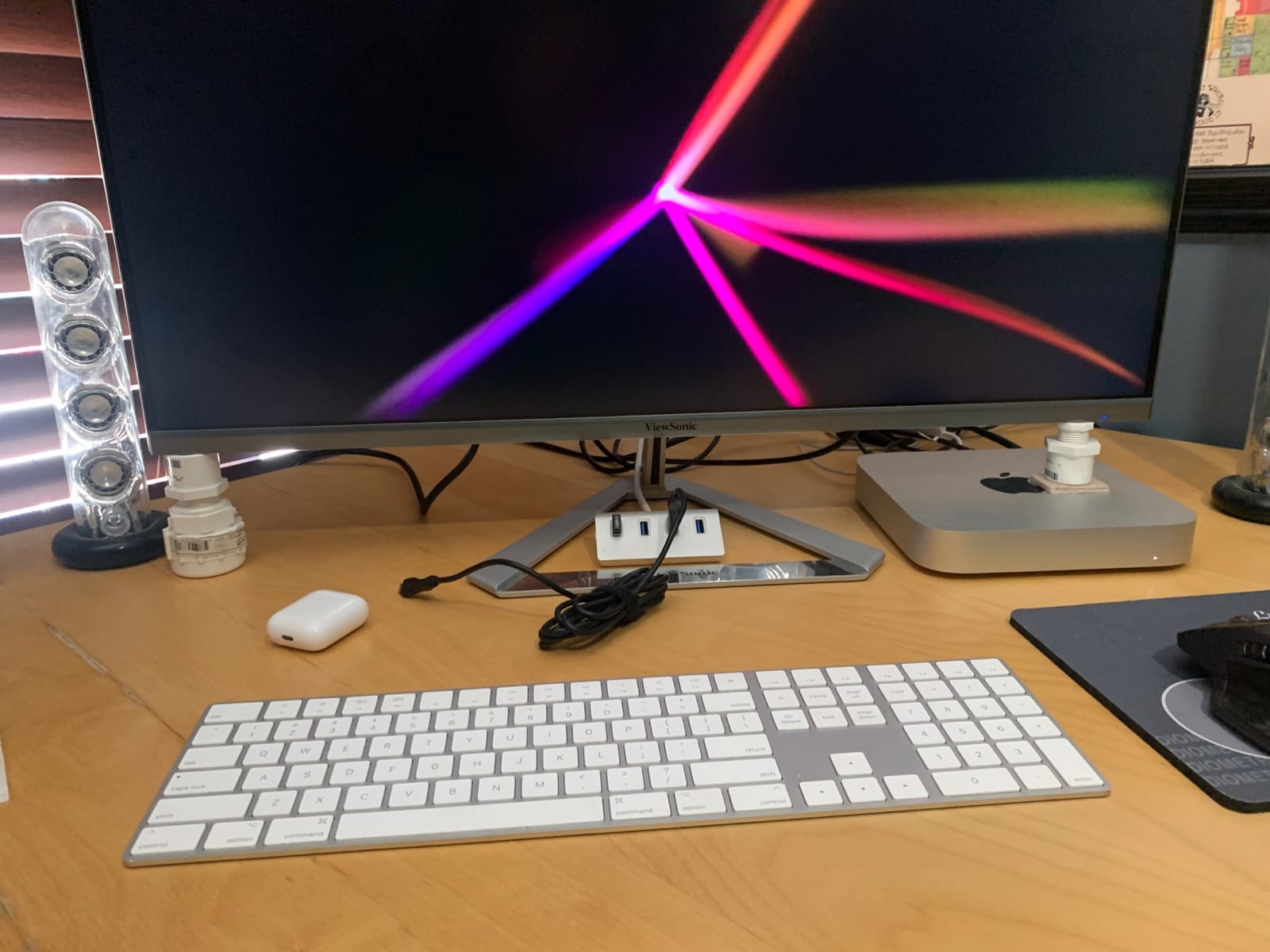
Is MVA good enough for long document reading?
Yes, with one caveat. Text sharpness at 3840×2160 is a function of pixel density, not panel type, so the characters themselves render crisply. The MVA layer mostly changes how the panel behaves when you are not looking straight on it, and it tends to shift colour and contrast at an angle. Straight-on desk use at arm’s length, this is fine.
There is a reliability thread in reviews too. A minority of owners report washed out colours or a vertical line defect on arrival. Check the panel carefully in the first few days so you can act within the warranty window, and expect standard 60Hz scrolling smoothness rather than anything snappy.
What does the 3.5mm audio out actually get you?
It is one of the few monitors in this roundup with a proper headphone or speaker output, so you can route audio from a laptop straight to your desk speakers without a separate interface. Built in speakers are present but weak, so treat them as a convenience for system beeps and casual calls rather than media.
ViewMode presets give you Game, Movie, Web, Text and Mono modes, and the Text preset is genuinely useful when you switch from spreadsheet work to long form reading. The front mounted controls include an adjustable menu size and an option to hide the power indicator, two small touches that matter more in a shared office than they sound.
3. LG 32UN650-W 32 Inch 4K IPS – Best for Coding and Documents
LG 32UN650-W Monitor 32″ UHD (3840 x 2160) IPS Ultrafine Display, HDR10 Compatibility, DCI-P3 95% Color Gamut, AMD FreeSync, 3-Side Virtually Borderless Design, Height Adjustable Stand – Silve/White
32 inch 3840x2160 IPS
60Hz refresh
350 nits typical brightness
95% DCI-P3 colour gamut
Pros
- Large 4K canvas fits roughly four standard windows side by side
- IPS panel with good off-axis viewing and better colour than VA
- Minimal backlight bleed and high brightness
- Built-in speakers decent enough to avoid a soundbar
- Single joystick controller makes menu navigation simple
Cons
- Stand is largely plastic and can wobble when typing
- Short power cable that may not reach a power strip
- No USB hub and no USB-C
- 60Hz refresh rate
The LG 32UN650-W is the pick we recommend to software engineers and anyone who lives in a code editor or a document. At 32 inches and 3840×2160 the screen holds roughly four standard windows side by side, which means an editor, a terminal, documentation and a chat client without any window management tricks. Reviewers consistently single it out for that real estate.
Colour is a step above what the size and price suggest. The IPS panel covers 95% of DCI-P3 with 350 nits typical brightness and 178 degree viewing angles, so colour holds up when a colleague leans in from the side. Reviewers also report minimal backlight bleed, which matters if you use a dark IDE theme.
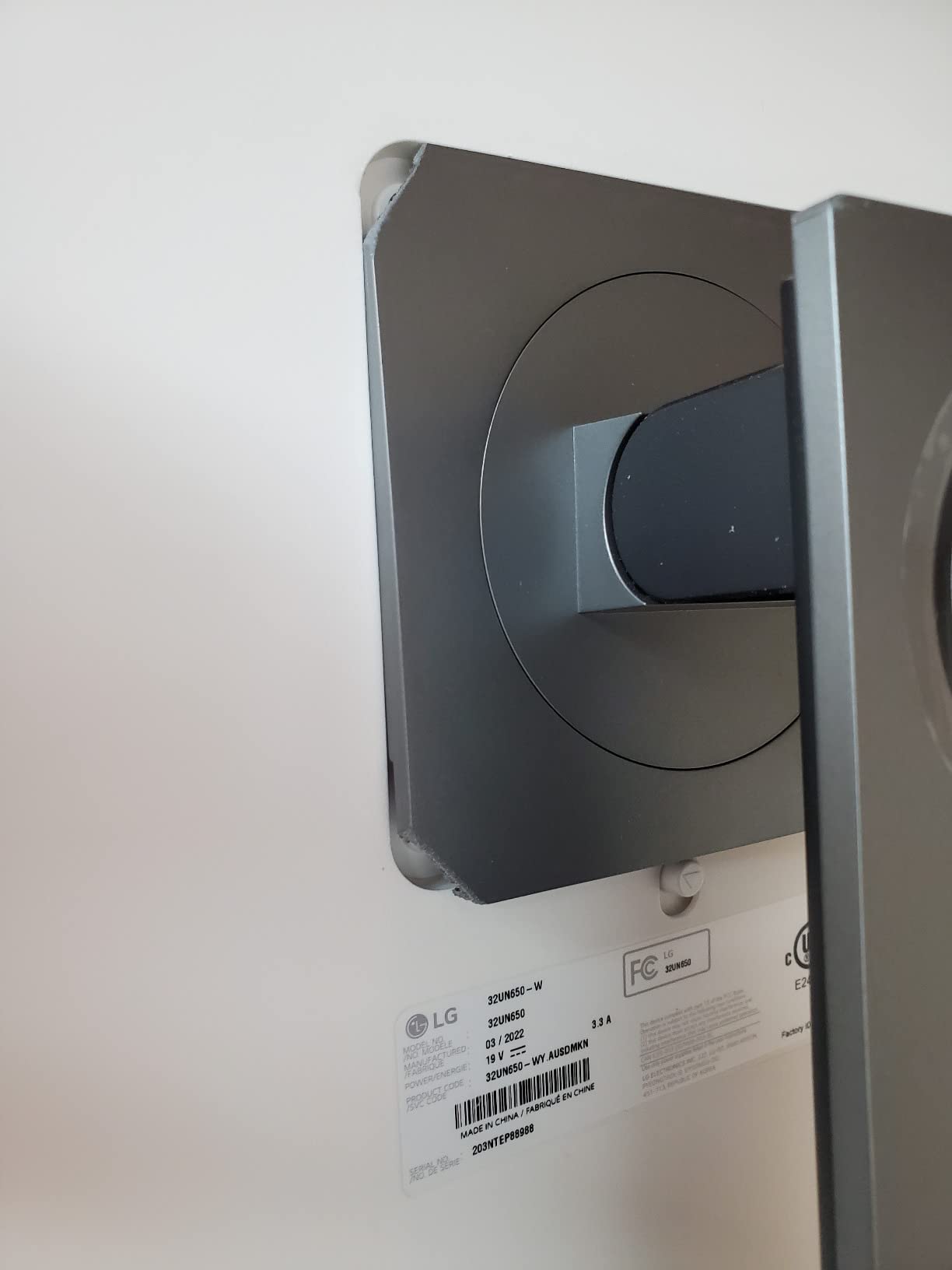
Ownership details are refreshingly simple. A single joystick style OSD controller at the front centre handles every menu, and the 5 watt built-in stereo speakers are good enough that you may not need a soundbar. The stand adjusts for height and the panel is wall mountable. FreeSync and HDR both work once you install the LG driver.
That driver step is the one genuine friction point. Reviewers report that the LG driver must be downloaded manually before Windows recognises the monitor properly, and without it you may be troubleshooting colour or refresh settings that are not the hardware’s fault. The stand is largely plastic and can wobble slightly when you type, and the short power cable may not reach a power strip behind a desk.
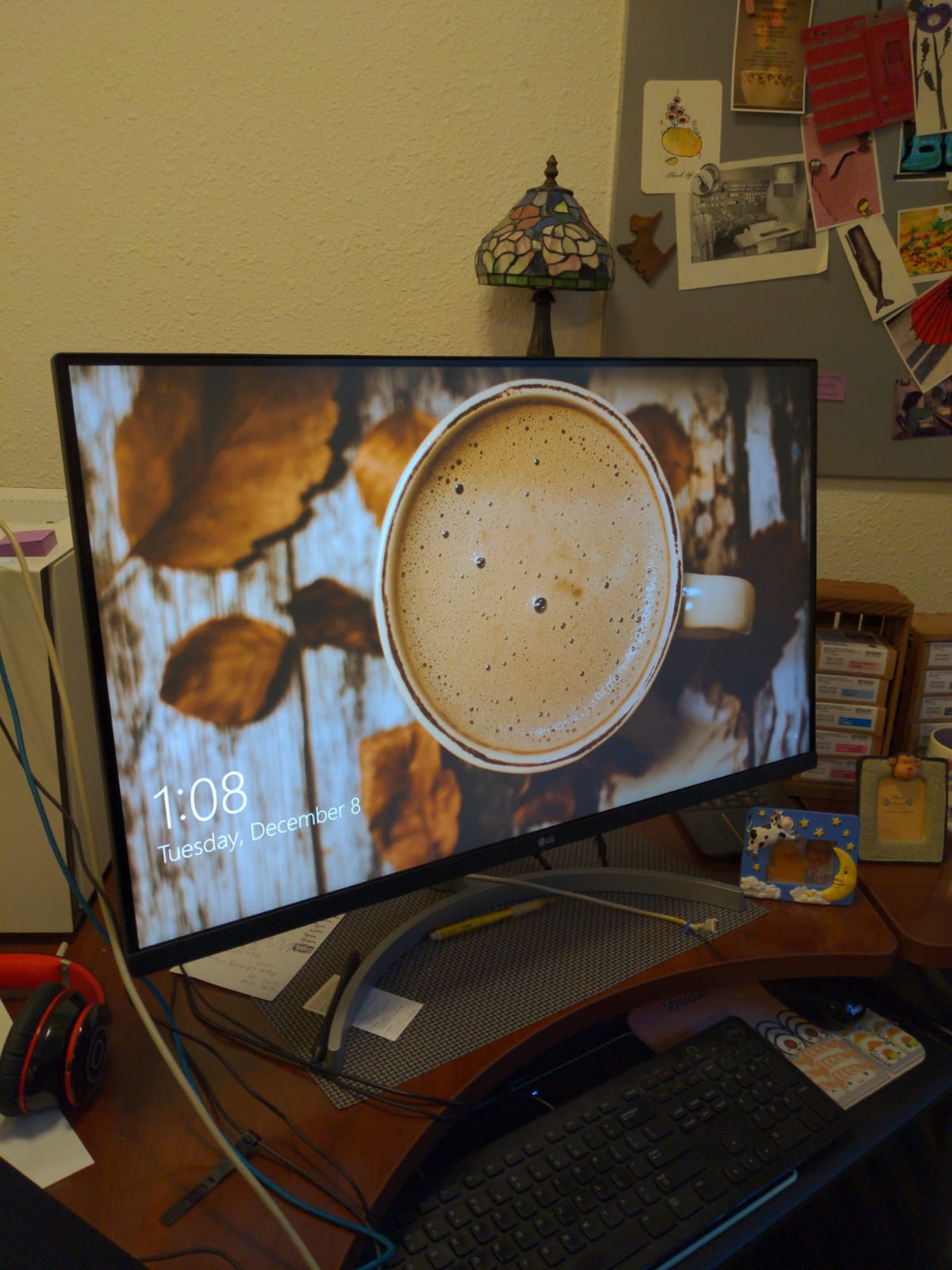
Is 32 inches at 60Hz still smooth enough?
For document and code work, yes. Scrolling a long file at 60Hz is perfectly comfortable, and the panel’s 5ms response keeps text scrolling readable. Motion only becomes obvious when you compare against a 120Hz panel such as the Dell S2725QS, so if you also play games after hours, weight that trade off deliberately.
IPS glow is worth knowing about. A designer working in a dark room noted glow near the panel edges, which is a known characteristic of IPS rather than a defect. In a normally lit office it is invisible, but in a dim editing suite a VA or OLED panel handles black backgrounds better.
Who should skip this monitor?
Skip it if your desk is under about 100cm deep. A 32-inch panel is roughly 71cm across with the stand, and if it overhangs the front edge the viewing distance collapses and you will be looking at the outer thirds of the screen at an angle. Deeper desks or a monitor arm solve this cleanly.
Also skip it if you run a laptop dock workflow. There is no USB-C and no USB hub, so you are back to a separate dock or a port-laden laptop. Warranty coverage is one year for parts and labour, which is the shortest of the monitors with three year or better terms in this list.
4. ASUS ProArt PA279CRV 27 Inch 4K USB-C – Best for Color-Critical Work
ASUS ProArt PA279CRV 27 Inch 4K UHD USB-C HDR Professional Monitor for Mac
27 inch 3840x2160 IPS
400 cd/m2 and 3000:1 contrast
Delta E under 2 factory calibration
96W USB-C with USB hub
Pros
- Factory calibrated to Delta E under 2 with Calman Verified documentation
- 99% DCI-P3 and 99% Adobe RGB coverage
- USB-C with 96W power delivery plus a four port USB hub
- DisplayPort daisy-chain for multi-monitor setups
- Fully ergonomic stand and five year warranty
Cons
- 60Hz refresh rate only
- Costs more than general purpose 27 inch 4K monitors
- Some laptops need an adapter for full 4K over HDMI
The ASUS ProArt PA279CRV is the one to buy when your work has to survive a colour check. It ships Calman Verified and factory calibrated to Delta E less than 2, covering 99% of both DCI-P3 and Adobe RGB. At 400 cd/m2 with a quoted 3000:1 contrast ratio it also has headroom for bright HDR reference material.
For a work desk it is unusually well connected. DisplayPort over USB-C delivers 96W of power delivery, so most laptops charge from a single cable, and there are four USB ports forming a built-in hub alongside two HDMI inputs and a DisplayPort. DisplayPort daisy-chain support means you can run a second 4K panel from the same upstream connection.
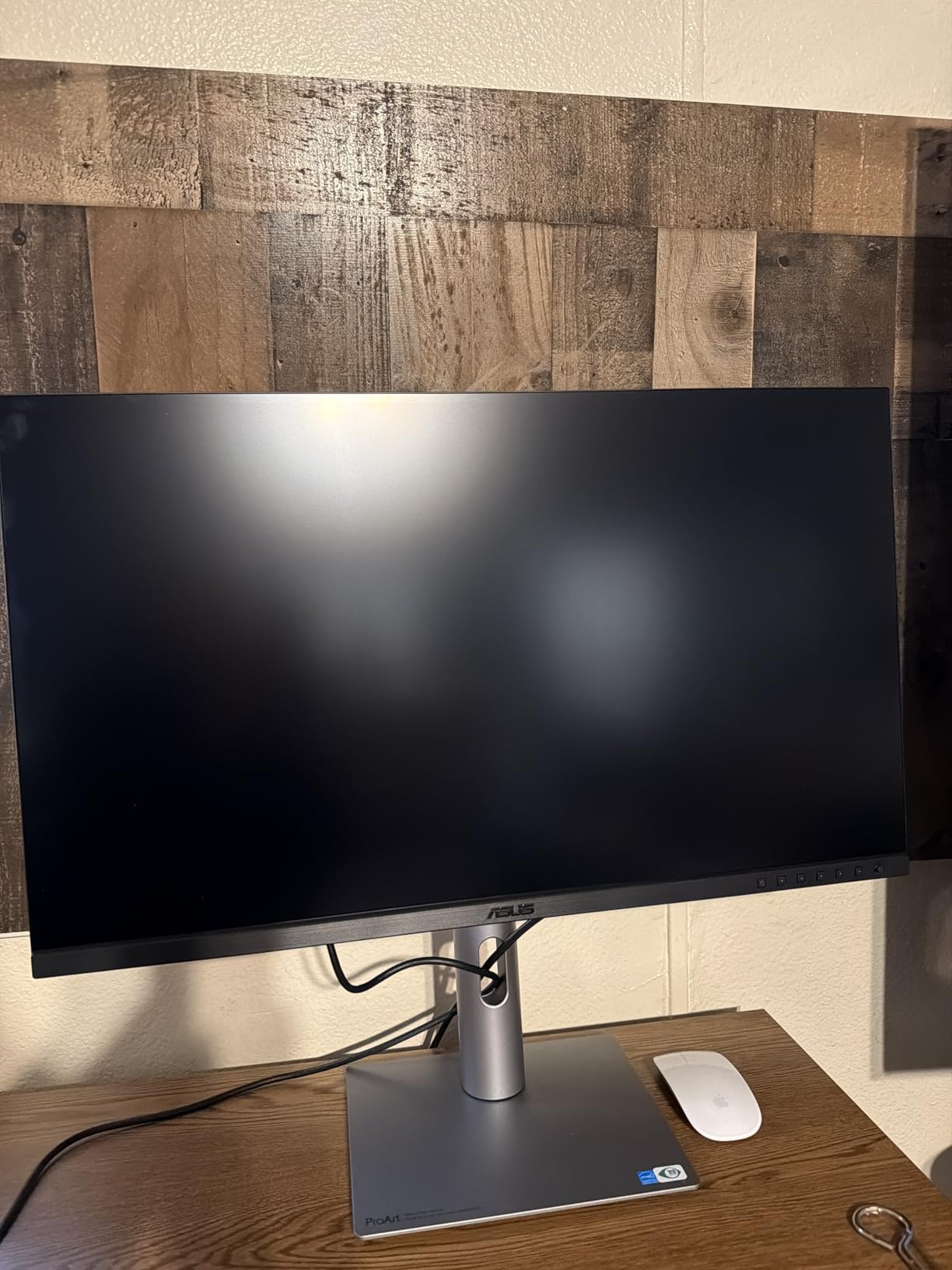
The stand adjusts for tilt, swivel, pivot and height, which is what you want for a monitor you will use all day, and Eye Care features cover low blue light and flicker free operation. Built-in speakers handle quick calls. The warranty runs five years, which is three years plus two more with online registration, and that is the longest coverage we found in this group.
The limitation is refresh rate. At 60Hz it sits at the bottom end for smoothness in this group, and while that is fine for design and editing work it will feel dated next to a 120Hz screen. It also sits at a higher price than general purpose 27-inch 4K monitors, which is a fair trade for calibration documentation but not one you need if you are not grading colour.
Do I need Delta E under 2 for ordinary office work?
No. Delta E is a measure of how far a displayed colour sits from a reference, and a value under 2 is below the threshold most people can see in isolation. It matters for photo retouching, print proofing and anything where a client will judge colour. For documents, email and video calls, a good 99% sRGB IPS panel is more than enough, and several cheaper picks here deliver that.
Buy the ProArt when colour is billable work. If you also do design work on the side, the free three month Adobe Creative Cloud subscription included with purchase softens the cost, and the daisy-chain support makes it a good second display for a developer who also edits images.
Is 96W enough to charge a work laptop?
For most of them, yes. 96W comfortably covers a 13 inch MacBook Pro, a MacBook Air, Dell XPS class ultraportables, most ThinkPad T and X series machines and a wide range of Windows ultrabooks. It will not fully charge a 16 inch MacBook Pro under sustained heavy load, and it is short of the wattage a large mobile workstation expects.
Reviewers also flag that the video input options mean some laptops need an adapter to reach full 4K. Check your machine’s port inventory before you commit, particularly if you are coming from a USB-C only workflow. One year of coverage is standard before the extended registration years are added.
5. LG 27US500-W 27 Inch 4K IPS – Best for Long Reading Sessions
LG 27US500-W Ultrafine Monitor 27-Inch 4K UHD (3840×2160) HDR10 IPS Borderless Design Reader Mode Flicker Safe Switch App HDMI DisplayPort – White
27 inch 3840x2160 IPS
60Hz refresh
300 cd/m2 and 1000:1 contrast
Up to 90% DCI-P3 coverage
Pros
- Sharp 4K IPS picture with vivid colour
- Reader Mode and Flicker Safe help during long reading sessions
- OnScreen Control makes split screen workflows easy
- Borderless three side design looks clean on a desk
- Lightweight build with both HDMI and DisplayPort
Cons
- 60Hz refresh rate only
- Tilt only stand adjustment with no height or swivel adjustment
- No USB hub and no USB-C
The LG 27US500-W is the reading monitor in this group. Reader Mode strips back the blue light and Flicker Safe handles the dimming behaviour that causes discomfort on long sessions, so if your day is PDFs, legal documents or manuscript editing, those two features do more for you than any panel upgrade. Reviewers also highlight OnScreen Control for splitting the display into usable halves.
Picture quality is a clean 4K IPS with 1000:1 contrast, 300 cd/m2 brightness and up to 90% DCI-P3 colour expression with HDR10 support. Viewing angles are listed at 170 degrees, which is narrower than the 178 degree figure on the LG models above, though real world difference is small at desk distance.
Connectivity is two HDMI ports and a DisplayPort, and the box includes the stand body, base, screws, power adapter and an HDMI cable. The three side borderless design keeps the desk looking tidy, and at 12.1 pounds it is one of the lighter 27-inch 4K panels to reposition. It is wall mountable if you want an arm instead.
The stand only tilts, and that is a real ergonomic limit. You cannot raise the panel to eye level on a low desk, and you cannot align it properly beside a second monitor of a different height. If your current desk setup has you looking down, expect neck discomfort within a few days and budget for an arm.

Are 60Hz and a tilt only stand real problems?
For a single user at a fixed desk, neither is usually the dealbreaker people expect. A 60Hz IPS panel renders scrolling documents smoothly, and a tilt only stand is workable if the panel height happens to match your eye level already. The problem arrives when you upgrade later and want two screens aligned, or when you share the desk with someone of a different height.
Our honest take is that this monitor is a strong value choice for a dedicated reading or study desk, where the eye comfort modes do the heavy lifting. It is a weaker choice as a shared workstation, and it is the wrong pick entirely if you want to connect a laptop with one cable since there is no USB-C.
How does it compare with the Dell S2725QS?
Both are 27-inch 4K IPS panels, and the decision comes down to what you value. The Dell runs at 120Hz and has a 1500:1 contrast ratio plus a fully adjustable stand, and it has been reviewed more than twice as often. This LG adds the Reader Mode and Flicker Safe eye comfort features that the Dell covers differently through ComfortView Plus.
If you want the sharper motion and better stand, take the Dell. If your priority is flicker control and a filter for continuous document reading, this LG is the more purpose built option. Both have 1000:1 or better contrast and matte finishes, so neither struggles in a bright room.
6. LG 27UP850K-W 27 Inch 4K with 90W USB-C – Best USB-C All-Rounder
LG 27UP850K-W 27-inch Ultrafine 4K UHD IPS DisplayHDR 400 Computer Monitor
27 inch 3840x2160 IPS
90W USB-C power delivery
DisplayHDR 400 and 95% DCI-P3
Two USB 3.0 ports and headphone jack
Pros
- 90W USB-C removes the need for a separate charger and dongles
- DisplayHDR 400 with 95% DCI-P3
- Built-in USB 3.0 ports and a headphone jack
- Switch app splits the screen into up to six sections with hotkeys
- Built-in Waves MaxxAudio stereo speakers
Cons
- 60Hz refresh rate only
- 27 inch gives less workspace than a 32 inch panel
- Costs more than non USB-C alternatives
The LG 27UP850K-W is the one we would put on a desk for someone who moves between a laptop and a desktop every day. The USB Type-C port carries video, data and up to 90W of power delivery in one cable, so an undocked MacBook or Windows ultrabook is a single-plug setup. There is also a DisplayPort, two HDMI ports, two USB 3.0 ports and a headphone jack.
Buyers rate the Switch app as the quiet hero. It splits the screen into as many as six sections and switches layouts with a hotkey, which turns a 27-inch panel into something closer to a multi-monitor workspace for research or monitoring work. Colour is strong too, with up to 95% DCI-P3 coverage and VESA DisplayHDR 400 certification.
The stand handles height, tilt and pivot, and the panel is matte finished for a bright office. Built-in stereo speakers with Waves MaxxAudio are a genuine step up from the two watt options elsewhere, and Black Stabilizer plus Dynamic Action Sync help in dark scenes. A one year parts and labour warranty is standard for this class.
At 27 inches you simply get less canvas than a 32-inch 4K panel, and 60Hz means scrolling is not as smooth as the Dell S2725QS. Reviewers accept both trade offs because the one-cable workflow saves real desk clutter, which is the whole point of buying a USB-C monitor.
Is 90W the right wattage for my laptop?
It covers most ultraportables and compact pros: 13 and 14 inch MacBook Pros and Airs, ThinkPad T and X series, Dell XPS, HP EliteBook and similar Windows machines. It is below what a 16 inch MacBook Pro or a mobile workstation expects under sustained load, so those users should either accept slower charging or keep a charger on hand.
The real value of 90W is not full speed. It is that your laptop stays topped up across a workday of meetings and browser tabs without you carrying a second brick, and that the same cable carries video and your USB peripherals. Owners consistently report the desk cleanup as the main benefit, not the wattage itself.
How useful is the Switch app in practice?
More useful than we expected. The hotkey layout switching is quick enough that it becomes muscle memory, and it suits workflows like a video call beside a document, or a terminal beside a browser beside a spreadsheet. It does not replace a second physical monitor for anyone who needs to compare two full windows, but it reduces how often you alt-tab.
Set the display to sRGB mode rather than the widest gamut for general office work, since saturated out of the box colour is distracting in documents. For photo and video work the wider DCI-P3 coverage is the reason to choose it. Remember the resolution is still the deciding factor for text clarity, so pair the app with correct OS scaling.
7. INNOCN 27C1U 27 Inch 4K USB-C – Best for Portrait Document Work
INNOCN 27″ 4K USB-C Monitor for Laptop MacBook/Mac mini – 16:9 IPS 3840 x 2160 Display, HDR400, DeltaE<2, DisplayPort, HDMI PC Monitor, 1.07B+ Colors, Built-in Speakers, Adjustable Stand, Black
27 inch 3840x2160 IPS
65W USB-C with DisplayPort and HDMI
400 nits and Delta E under 2
Pivots a full 90 degrees to portrait
Pros
- Real 3840x2160 IPS panel with Delta E less than 2 colour accuracy
- USB-C accepts laptops Macs mini PCs tablets and phones
- 400 nits brightness with HDR400 support
- Stand adjusts including pivot to portrait orientation
- 1.07B colour depth suits photo and video work
Cons
- 60Hz refresh rate only
- 65W power delivery is below some competing USB-C monitors
- One year manufacturer warranty
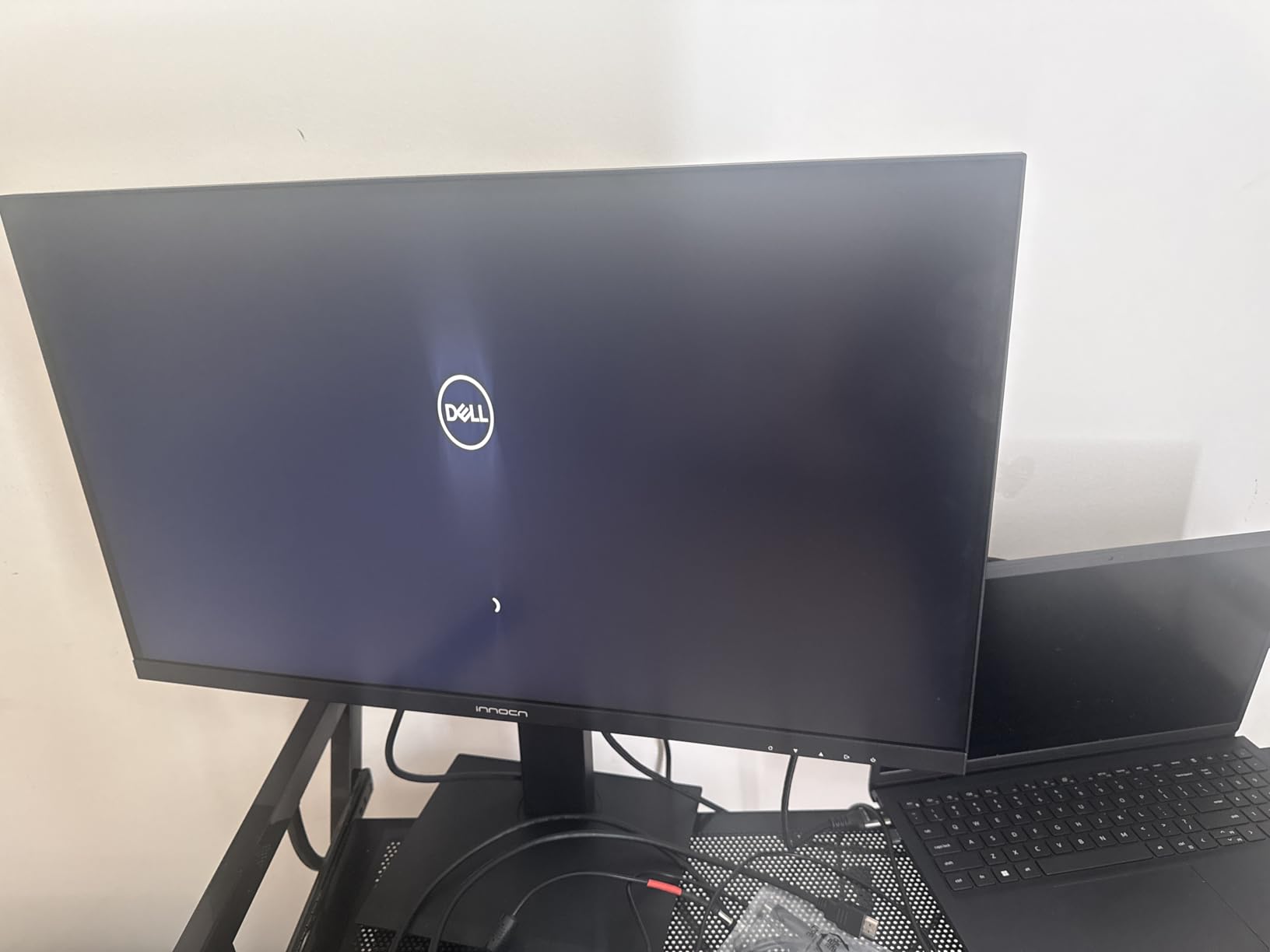
The INNOCN 27C1U is the one in this list that pivots a full 90 degrees into portrait without you having to unscrew anything. For contract review, code review side by side, long spreadsheets or a second vertical panel beside your main screen, that is a genuinely useful capability at 27 inches, because a 4K panel in portrait gives you 2160×3840 of vertical reading space.
Owners highlight the colour accuracy. The panel is quoted at Delta E less than 2 with 1.07B colour depth, 400 nits brightness and 1000:1 contrast across 178 degree viewing angles, which is respectable specification for a 60Hz office panel. USB-C connectivity accepts laptops, Macs, mini PCs, tablets and phones.
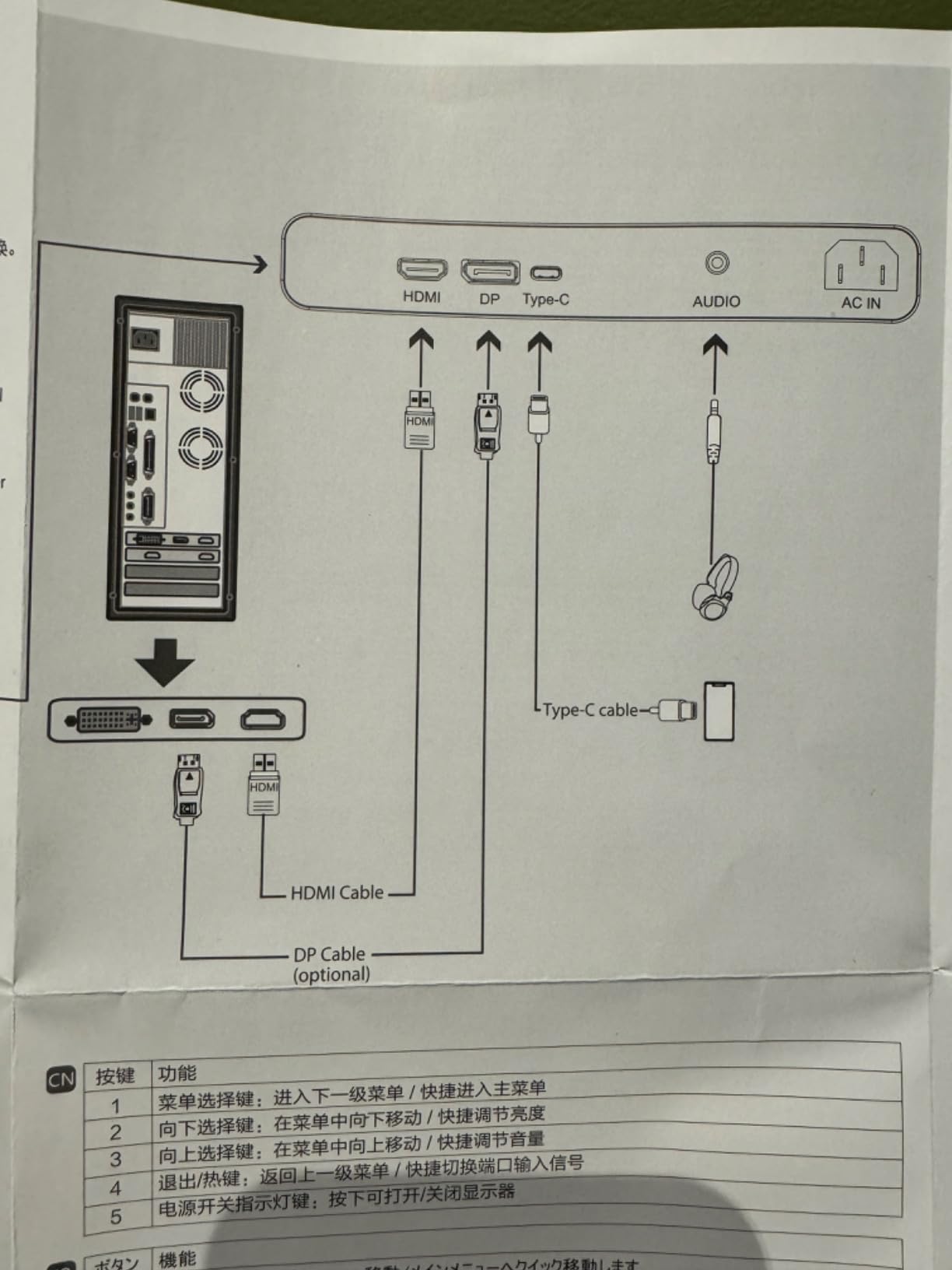
The stand is unusually capable: 45 degree swivel, plus or minus 5 inch height, 5 degree forward tilt, 20 degree backward tilt and plus or minus 90 degree pivot. Anti-glare coating on a frameless three sided design keeps it readable in a lit room, and it is VESA 75x75mm mountable if you would rather use an arm. Built-in speakers handle a quick call.
Two limitations to weigh. Power delivery is capped at 65W, so a larger laptop will charge slowly or drain while working hard, and there is only one HDMI and one DisplayPort, which limits multi-machine hookups. The one year manufacturer warranty is also among the shortest coverage in this group.
Is a portrait 4K monitor worth the desk space?
For specific jobs, absolutely. If you read long documents, review code, or keep a chat client and a terminal permanently open, a pivoted 4K column gives you 2160 pixels of vertical room, which no widescreen panel at this price can match. If your work is mostly wide-format documents, the pivot is a nice-to-have rather than a reason to buy.
The physical constraint is width. A 27-inch panel in portrait occupies about 61cm of desk depth, so you need a deep desk or a monitor arm that lets the panel sit beside your main display rather than in front of it. Many owners use it as a second screen in a two monitor setup, and that is the arrangement we would plan for.
How does 65W compare with 90W and 96W monitors?
It is enough for a 13 inch MacBook Air, a Mac mini user, an iPad or an iPhone, and most smaller Windows ultraportables. It is not enough for a 16 inch MacBook Pro or a heavy mobile workstation, which will draw more than 65W while running a full load and will trickle charge or slowly drain. The ProArt at 96W and the BenQ at 90W both cover more laptop classes.
Reviewers also mention that the manufacturer dropped legacy DVI and VGA ports in favour of USB-C and DisplayPort. That is a good decision for anyone starting fresh, but if you are replacing a monitor in a fixed office with older cabling, check what you have on the wall before you commit.
8. LXZ 32 Inch 4K VA Monitor – Best for Deep-Contrast Dark Interfaces
LXZ 32 Inch 4K Monitor 60Hz, UHD 3840 x2160P, VA Panel, 100% sRGB, HDR10
32 inch 3840x2160 VA panel
4000:1 native contrast
100% sRGB coverage
HDR10 with dual HDMI and dual DisplayPort
Pros
- 32 inch 4K canvas runs multiple windows side by side without tab switching
- VA panel delivers 4000:1 native contrast and deep blacks
- 100% sRGB coverage with sharp text for spreadsheets
- Dual HDMI and dual DisplayPort allow three devices at once
- DC dimming reduces eye fatigue on long workdays
Cons
- 60Hz refresh rate only
- Tilt only stand with no height swivel or pivot adjustment
- No USB hub and no USB-C
- VA panels shift colour off-axis versus IPS
The LXZ 32 inch monitor solves a problem IPS panels never will: dark mode. Its VA panel is quoted at 4000:1 native contrast, roughly three times what most 27-inch IPS panels here manage, so a dark IDE theme, a video editing timeline or a terminal window has genuinely deep blacks instead of a grey wash. If your work lives in dark interfaces, that difference is visible every hour of the day.
Colour coverage is a full 100% sRGB, which is all you need for documents, code and general business work, and text renders sharply at 3840×2160. Connectivity is unusually generous for this class: two HDMI 2.0 inputs, two DisplayPort 1.4 inputs and a 3.5mm audio out, so a laptop, a desktop and a console can share the panel.
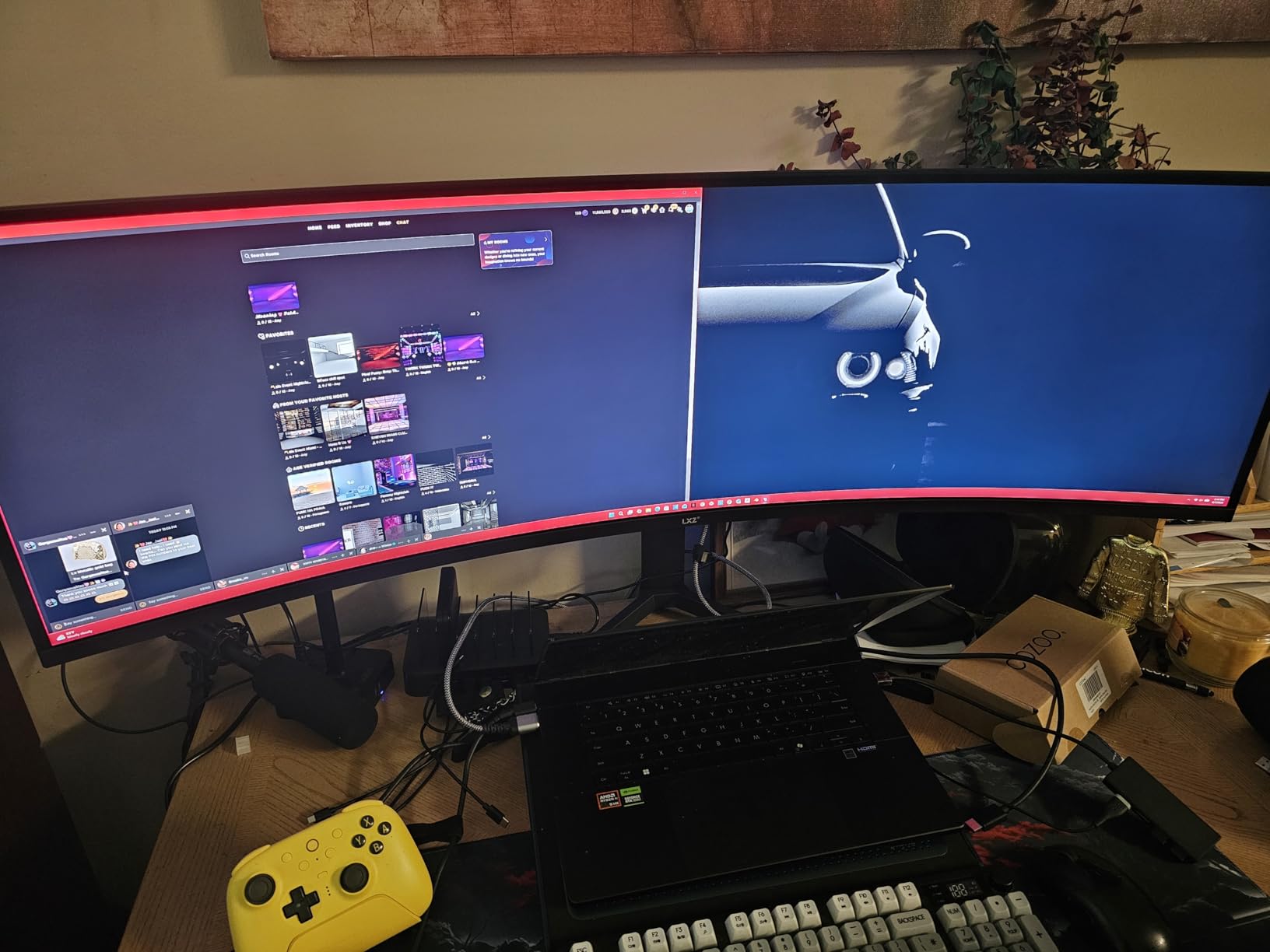
Eye comfort is handled through DC dimming flicker free operation and blue light reduction, which reviewers credit with reducing fatigue over long workdays. There is a built-in Black Equalizer and crosshair overlay for darker scenes, VESA 100x100mm mounting is supported, and the panel works with both FreeSync and G-Sync compatible devices at 60Hz.
The stand only tilts between 5 and 15 degrees, with no height, swivel or pivot. On a 32-inch panel that is the most significant weakness, because getting the top of the screen at eye level usually needs height adjustment or an arm. VA colour also shifts off-axis, so a colleague reading over your shoulder sees a different image than you do.
Is 4000:1 contrast worth giving up IPS viewing angles?
If you work in dark mode, yes. Contrast controls how much detail survives in the dark parts of an image, and 4000:1 against 1000:1 is the difference between a code editor that feels like a printed page and one that looks like glowing text on cardboard. For light document work the advantage largely disappears, and IPS wins on angle stability.
Think about who sees the screen. A solo developer in a dim room gets the most from this panel. A shared desk, a conference room or a bright open office where a client sits beside you is a better environment for an IPS option such as the LG 32UN650-W. Both are 32 inches at 4K, so the size decision is identical.
Is a 60Hz VA panel fine for a full workday?
For document and spreadsheet work, yes, with one caveat. Scrolling a long file at 60Hz is perfectly usable, but if you are used to 120Hz the transition is noticeable for the first day. The 1ms figure in the specifications is not consistent with a 60Hz VA panel, so judge it as a 60Hz screen and nothing more.
The multi-input setup is the sleeper feature here. Two HDMI and two DisplayPort inputs let you keep a laptop, a desktop and a streaming device connected at once and switch between them without replugging, which is a real advantage in a shared or hot-desking environment where the stand is tilt only and you cannot reposition the screen easily.
9. ZZA 27 Inch 4K Z27K 75Hz – Best for Business and CAD Screens
ZZA 27 inch 4K UHD Monitor,75Hz Refresh Rate,HDR10,HDMI 2.0×2/DP 1.2×2,Compatible with Wall Mounting,Ideal for Business & Office Work
27 inch 3840x2160 IPS
75Hz refresh rate
HDR10 with Blue Light Filter
Two HDMI 2.0 and two DisplayPort 1.2
Pros
- Sharp 4K text rendering at an entry level price
- 75Hz refresh is smoother for scrolling than 60Hz
- Two HDMI 2.0 and two DisplayPort inputs give good multi-device flexibility
- Good colour and HDR10 for the money
- Low power draw and well packed protection
Cons
- On-screen menu buttons and navigation are clunky
- Tilt only stand adjustment
- Some units reported with a vertical black line or failure to display
The ZZA 27 inch Z27K is the business and office value pick, and the reasoning is simple. At 27 inches and 3840×2160 on an IPS panel with a matte finish, you get the text sharpness that matters for CAD drawings, tenders and long reports, and the 75Hz refresh rate is a step above the 60Hz that dominates at this level. Scrolling a specification document feels smoother than a 60Hz alternative.
Port selection is better than the price suggests, with two HDMI 2.0 and two DisplayPort 1.2 inputs plus a 3.5mm headphone jack. That means you can leave a laptop, a desktop and a capture device connected. HDR10 support and a Blue Light Filter cover the two things buyers in bright offices usually ask for, and the listed use cases include business, office work, CAD and photo editing.

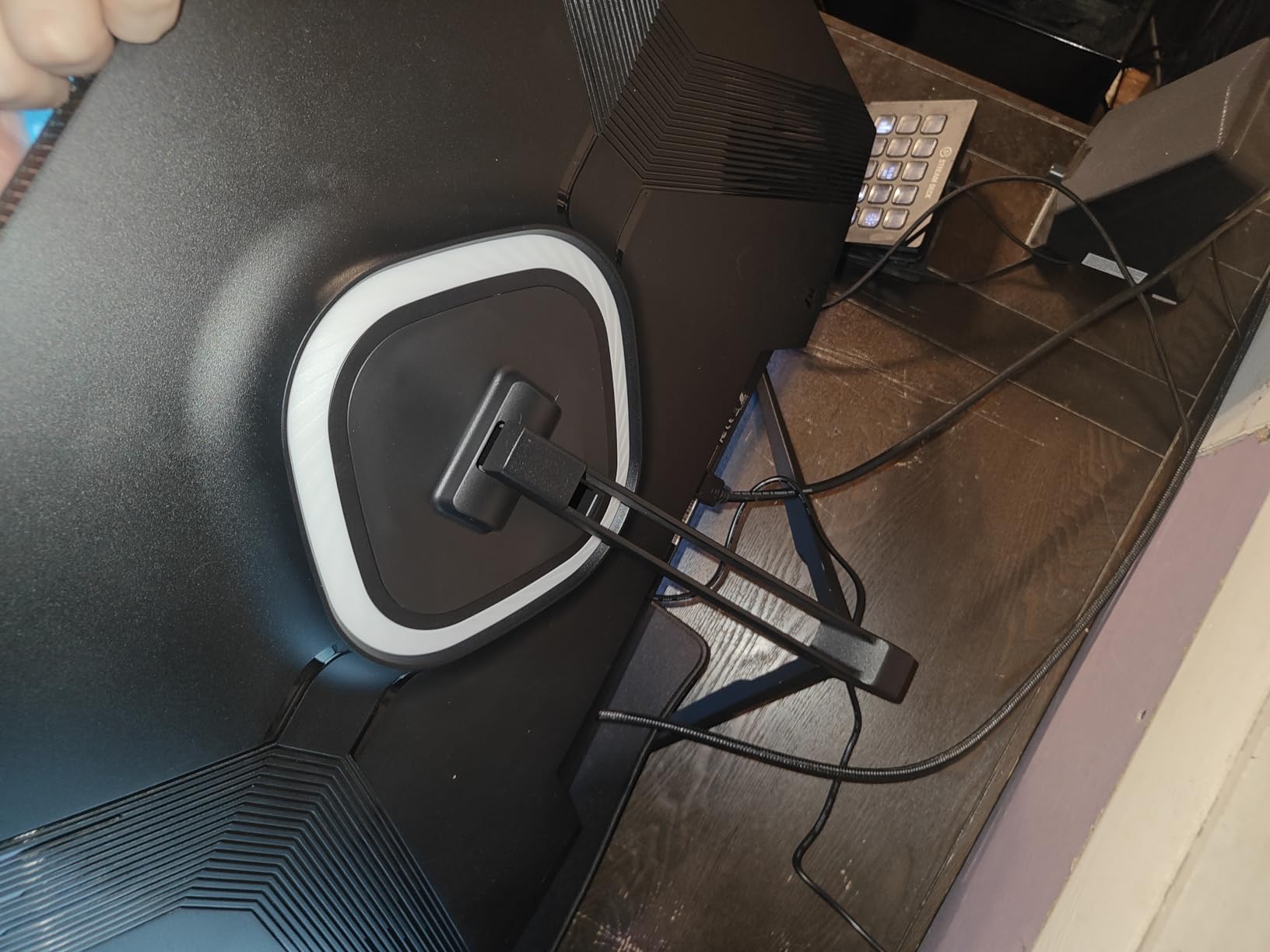
Power draw is low, which matters less at home than in a bank of monitors in an office, and reviewers note the packaging protection is solid for a 27-inch panel. Mounting is VESA 75x75mm and the stand tilts from 5 to 15 degrees. The box includes a DP cable, power cable and manual.
There are two real annoyances. The on-screen menu buttons and the menu system itself are described as clunky, so expect some friction adjusting picture settings. The monitor also uses an external power brick with a small round 12V connector rather than a standard three prong cord, which looks out of place under a modern desk and needs a nearby outlet.
Is 75Hz a meaningful upgrade over 60Hz?
For work, modestly yes. The jump from 60Hz to 75Hz is roughly 25% more frames per second, and on text-heavy scrolling it registers as noticeably smoother, particularly in browsers and spreadsheets. It is nowhere near the doubling you get going to 120Hz, so if your desk also serves as a gaming station, spend the difference on the Dell S2725QS instead.
Something else to check: the HDMI inputs may need certified 4K 60Hz cables to reach full 4K resolution. Older cables that came with a previous monitor often run at a lower resolution or refresh rate without warning. The DisplayPort inputs do not have this quirk, so we would connect through those where you can.
How does it hold up as a secondary display?
Very well, and that is where owners seem to get the most from it. A second 27-inch 4K panel in portrait or beside a laptop is a common use, and mixed work and play setups come up often in reviews. The trade off is a tilt only stand, so plan on a VESA 75x75mm arm if you need height or swivel control.
There is a quality control thread worth noting. A minority of 27-inch panels were reported with a vertical black line or a failure to display at all. That is a small share of reviews, but with a limited warranty on this class it pays to test the panel thoroughly during the return window before you deploy it in a fixed office.
10. BenQ MA270U 27 Inch 4K Mac USB-C – Best for MacBook Setups
BenQ MA270U 27” 4K 3840×2160 Monitor for MacBook® Pro/Air, Dual USB-C, 90W Power Delivery, Mac Color Match, USB Hub, Brightness & Volume Control on Mac, Height & Tilt Adjustable Stand, P3 Color Gamut
27 inch 3840x2160 IPS
90W and 15W dual USB-C
Mac Color Match with P3 gamut
2000:1 contrast and 400 nits
Pros
- Single USB-C cable charges the MacBook and drives the display
- Mac Color Match tuning matches Apple hardware
- DisplayPilot 2 software exposes detailed settings
- Brightness and volume control from the MacBook keyboard
- Stable adjustable stand including portrait mode
Cons
- Most settings require the free DisplayPilot 2 software
- Only a single USB-A port and it is hard to reach
- 60Hz refresh rate only
- Costs more than the rest of this list
The BenQ MA270U is built around one idea: a MacBook should need exactly one cable. The dual USB-C arrangement gives you 90W for the MacBook and a separate 15W port for charging an iPad or iPhone, and there are two HDMI inputs plus a USB hub with two USB 3.0 ports. Close the laptop, walk away, and the desk still works.
The Mac specific work is what separates it. Mac Color Match tuning is applied at the factory so the panel looks consistent next to Apple hardware, and the P3 wide colour gamut covers photo and design tasks. Brightness and volume can be adjusted directly from the MacBook keyboard, which sounds minor until you have used a monitor that does it.
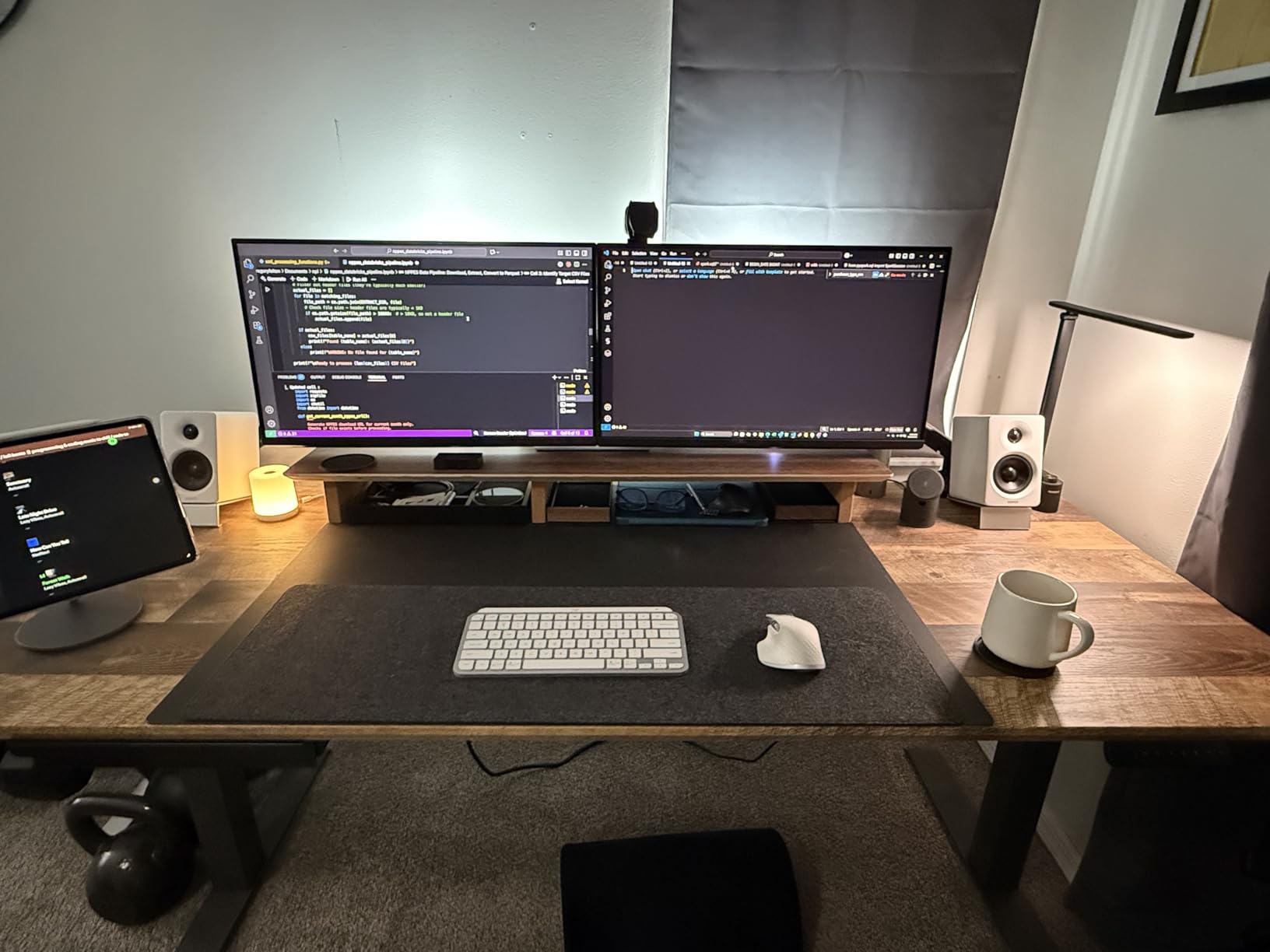
Brightness is 400 nits with a quoted 2000:1 contrast on an IPS panel, and viewing angles are a full 178 degrees. The stand adjusts for height, tilt, swivel and pivot, owners report easy assembly and a stable base including portrait mode, and the matte anti-glare finish keeps a bright room readable. A three year manufacturer warranty is included.
DisplayPilot 2 is the double edged part. Owners praise the level of control it gives, including settings not exposed on the monitor itself, but they equally note that most configuration requires installing the free software first. There is also only one USB-A port, and reviewers describe it as not easy to reach on the back of the chassis.
Is this the right monitor for a Mac mini or Mac Studio?
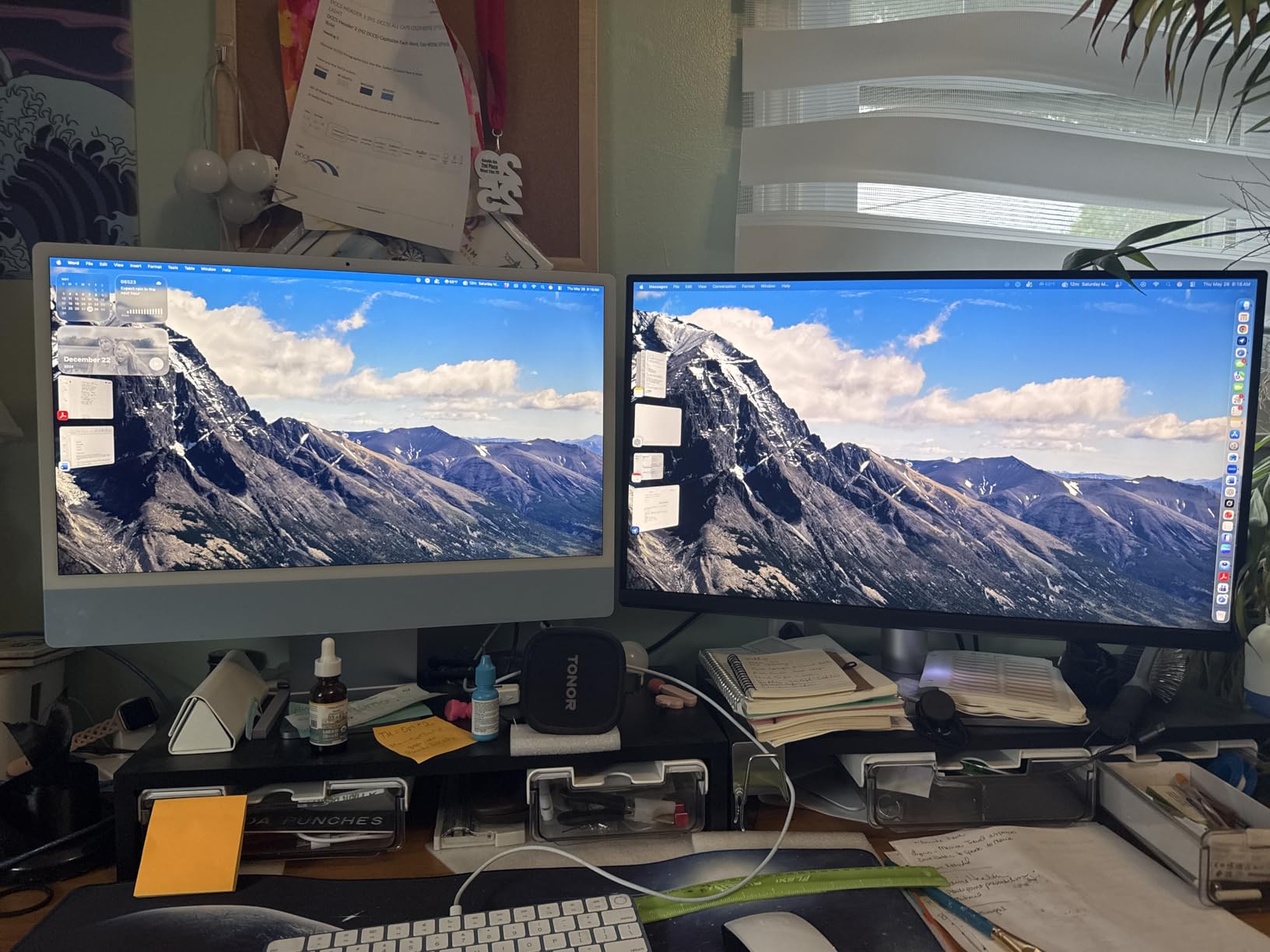
Yes, and it is one of the few 4K panels here tuned for the Mac ecosystem rather than adapted to it. Mac Color Match means the white point and gamma behave the way macOS expects, and the P3 gamut matches the output of recent Macs closely enough for photo work without a full calibration pass.
Reviewers who compared it side by side with a Dell S2725QS report clearly better picture quality, which lines up with the higher brightness and the wider contrast figure. The refresh rate stays at 60Hz, so if you also game on the Mac, that is a compromise to accept knowingly.
Do I need DisplayPilot 2 to get a good picture?
You can get a decent picture without it, but you will leave some control behind. The software exposes detailed settings that the on-screen menu does not, and Mac specific tuning such as brightness and volume key control depends on it being installed. Budget five minutes after unpacking to set it up properly rather than an evening.
Because this is the most expensive option in the group, it is worth being clear about who should buy it. If you run a MacBook or Mac mini as your daily machine and you value one-cable operation plus colour that matches the rest of your Apple hardware, the premium is justified. If you are on Windows, a general purpose USB-C monitor will do the same job for less.
How We Picked and Tested These 10 Monitors
We started from the way people actually work. Every monitor here was assessed against the same list: text sharpness at native 3840×2160, contrast ratio, colour gamut coverage, refresh rate, the exact port selection including USB-C wattage and USB hub count, stand adjustment range, and warranty length. Products that could not clear that bar were dropped from the list regardless of how good they looked in a marketing image.
Then we read the owner reviews, and specifically the long ones. A rating tells you little on its own, so we weighted recurring themes across thousands of reports: stands that wobble, panels with dead pixels, cables that do not reach a power strip, menu software that fights you, and text that stays sharp after six months of daily use. The negative details matter more than the positive ones when you sit eight hours a day in front of a screen.
Forum discussion shaped the emphasis. On r/Monitors and r/buildapcmonitors the recurring questions were text sharpness versus screen size, whether USB-C wattage actually charges a laptop properly, and whether 27-inch 4K is too small to be worth it. Those three questions drive the screen size, USB-C and scaling sections below, and they are the ones we would encourage you to read before choosing.
Two limits worth stating plainly. We have not measured these panels ourselves, so the brightness, contrast and Delta E figures we quote come from the manufacturer specifications and are consistent with what independent reviewers have reported. And we do not list prices here at all, because they move constantly. Check the current price on the product page before you buy.
27-Inch vs 32-Inch: Which Size Fits Your Desk
27 inches at 4K gives you roughly 163 pixels per inch, which is sharp enough that text looks printed rather than rendered. It fits on almost any desk, and at 60 to 70cm away the whole panel fits in your field of vision without head movement. This is the safe default, and it is why six of our ten picks are 27 inches.
32 inches at 4K drops to about 138 pixels per inch, still comfortably above the point where text looks soft, and the extra width lets you run four standard windows side by side. The compromise is physical. A 32-inch panel is roughly 71cm across with its stand, so you need a desk at least 90cm deep to keep a sensible viewing distance, and many owners who underestimate this end up leaning in.
Our rule of thumb: sit at your normal working distance, hold a ruler at arm’s length, and check that the panel edges fall within about 30 degrees of your peripheral vision. If they do not, the screen is too big. Also check that the base footprint fits. Nothing ruins a new monitor faster than discovering the stand overhangs the desk edge.
On refresh rate, 60Hz is genuinely fine for documents, spreadsheets and code. You will feel the difference at 120Hz, but only if you have used one. The Dell S2725QS is the only pick here at 120Hz, and the ZZA at 75Hz is a modest middle step. If you also play games, weigh the refresh rate more heavily. If you do not, spend your attention on ports and stand adjustment instead.
Two sizes worth naming that we did not include. There is a new class of 27-inch 5K dual-mode monitors arriving that switch between 5K for text clarity and 4K for larger windows, which sidesteps this whole argument. And 43-inch productivity panels can be tiled into four quadrants, but they need an arm and roughly 100cm of desk depth, which puts them outside a normal home office.
Panel Technology: Why Contrast Matters More Than You Think
IPS is the default for a reason. It gives accurate colour, wide viewing angles that survive a colleague leaning in, and consistent text rendering. Every monitor in this list except two uses an IPS panel. The tradeoff is contrast, usually quoted at 1000:1 to 1500:1, which means dark grey rather than true black in a dark interface.
VA panels push contrast much higher, and the LXZ at 4000:1 is the clearest example here. If your work happens in a dark IDE, a video editing timeline or a terminal, that difference is visible all day. VA gives it up in off-axis colour stability and viewing angles, so it suits a solo desk in a dim room better than a shared desk in a bright office.
MVA, as on the ViewSonic, sits between the two. It produced the third highest contrast figure in this group at 2500:1 but the weakest off-axis behaviour, so treat it as a VA panel for practical purposes. TN panels do not appear here at all, and that is deliberate: viewing angles and colour are poor enough to rule them out for reading and design work.
OLED and Mini LED deserve a mention even though none made the list. OLED gives perfect blacks and very wide gamut but carries a real burn-in risk with static interfaces, which is exactly what a work display has: a taskbar, a docked file explorer, a permanently visible chat client. Mini LED avoids burn-in entirely and offers high brightness with local dimming, but the panels are large and expensive. For a work-first desk, IPS Black technology, which delivers roughly double the contrast of standard IPS while keeping the viewing angles, is the more sensible upgrade path.
USB-C Power Delivery: What 65W, 90W and 96W Cover
USB-C on a monitor does three jobs at once: it carries video, it transfers data so the monitor can act as a hub, and it charges your laptop. That is why a USB-C monitor can replace a laptop dock entirely, and why it is now the first spec we check for anyone working from a portable machine.
The wattage tells you which laptops you can charge. 65W covers 13 inch MacBook Air, MacBook Pro 14, iPads, phones, most 13 and 14 inch Windows ultrabooks, and small and mini PCs. 90W, as on the LG 27UP850K-W, adds most 14 and 16 inch ultraportables and many business laptops. 96W, as on the ASUS ProArt, covers everything the 90W tier does with margin.
Above roughly 100W you are into mobile workstation territory, and this list does not reach it. A 16 inch MacBook Pro under sustained heavy load will draw more than any monitor here provides, so if that is your machine, keep a charger on hand even with a USB-C monitor. A slow charge is not a broken charge, but it can be annoying at the end of a long day.
The other thing to verify is the data side. A monitor with USB-C video but no downstream hub saves you a cable but not a dock. Look for an explicit USB hub count: the ProArt gives you four ports, the LG 27UP850K-W and BenQ MA270U give you two USB 3.0 ports each, and the INNOCN gives you power and video but no hub. If you plug in a keyboard, mouse, webcam and headset daily, that distinction decides the purchase.
BenQ takes the idea furthest with two USB-C ports, one at 90W for the MacBook and a second at 15W for a phone or tablet, plus keyboard control of brightness and volume from the Mac. It is the most complete single-cable desk here, and also the most expensive, so it suits Apple-only setups best.
How to Make 4K Text Crisp in Windows and macOS
Blurry text on a 4K monitor is almost never a panel problem. It is a scaling setting, and it is the single most common complaint in the forums we read about 4K. Fix it in this order.
On Windows, open Settings, go to System, then Display and choose the monitor you are configuring. Set the display resolution to the recommended 3840×2160 value, then set Scale to 150% for a 32-inch panel or 200% for a 27-inch one. Log out and back in so every application re-renders at the new scale. If text still looks soft, confirm ClearType is enabled under the Display submenu and let the tuner run.
On macOS, the setting lives in Displays and it is called, confusingly, the HiDPI resolution list rather than a percentage. Choose one of the scaled options below the default, not the full 3840×2160 native row, which produces tiny text. For a 32-inch panel pick the second HiDPI option, which is effectively 150% scaling. Recent macOS versions handle fractional scaling well, so the text is rendered at native resolution and then displayed at the requested size.
If text is soft even after that, check the physical connection. A DisplayPort 1.4 or HDMI 2.1 cable at 4K 60Hz or above is the baseline, and a cable that came with an older monitor may not support the full bandwidth. Some monitors also apply a scaling setting of their own through an on-screen menu scaling option, which competes with the operating system setting. Pick one and turn the other off.
Finally, make sure the monitor is running at its native resolution rather than a non-native mode that stretches a lower resolution. A stretched 2560×1440 image on a 4K panel looks soft by definition. The Display settings page shows the mode in use, and 3840×2160 at your target refresh rate is the one you want.
OLED Burn-in and Static Work Interfaces
OLED panels produce perfect blacks and wide colour, which is why they win at entertainment. For a work monitor they carry one specific risk: burn-in from static elements. A taskbar, a docked file explorer window, an always visible chat client, a spreadsheet header row and a stock ticker all sit in exactly the same pixels for eight hours a day, which is the pattern that causes permanent image retention over time.
No OLED panel we would recommend for work is unaffected by this. Modern generations last considerably longer than earlier ones and most manufacturers include burn-in coverage, but the mitigation has not changed. Hide the taskbar, move chat windows rather than parking them, use dark mode which lights fewer pixels, and enable pixel shift or screen saver functions if the monitor offers them. Rotate your dock positions every few weeks.
This is the reason none of the ten picks here is an OLED. Every one is an LCD, and the trade we made is slightly less impressive contrast for a panel that will not degrade while your work sits on it. If you want deep blacks for a mixed work and entertainment desk, the VA option at 4000:1 gets you most of the visual benefit with no burn-in exposure.
For anyone who does buy an OLED for a hybrid desk, the two rules that matter most are to keep brightness moderate rather than running at full output for ten hours, and to make sure the panel refresh and pixel shift features are actually enabled rather than left at their defaults. Backlight or screen dimming on an idle timer helps too.
What PC Hardware You Need to Drive a 4K Monitor
A 4K monitor at 60Hz is easy to drive. Almost any desktop or laptop with DisplayPort 1.2 or better, or HDMI 2.0, will output 3840×2160 without help. Integrated graphics on recent processors handle 4K office use comfortably, including multiple 4K outputs on some workstation-class chipsets.
Higher refresh rates need more. A 4K panel at 120Hz wants DisplayPort 1.4 or HDMI 2.1, and in practice a GPU that supports those output standards. Several office laptops ship with USB-C only, and their ports often negotiate 4K at 30Hz unless you run a DisplayPort adapter or a full featured dock. That is a common and easily missed cause of the problem people report when a 4K monitor seems stuck at a lower mode.
For USB-C power delivery, check the port on your laptop as well as the monitor. A 65W monitor paired with a 96W charging port on your machine will charge the laptop slowly. Some laptops will not charge at all from a monitor that does not identify correctly, so if you already own a charger, verify the setup before you buy.
For multi-monitor work, daisy-chaining changes the hardware maths. A monitor with DisplayPort daisy-chain support, such as the ASUS ProArt, lets you plug a second 4K panel into the first and run both from a single upstream cable, subject to the total bandwidth of the connection. A 32-inch and a 27-inch at 4K 60Hz is usually within reach; add a third panel at 60Hz and you may need separate cables.
No GPU advice is needed for the productivity scenarios in this guide. If you are driving a 4K monitor for spreadsheets, code and documents, integrated graphics is the correct and sufficient answer, and you can put that budget toward a better panel or an ergonomic arm instead.
Other 4K Monitors Worth Considering
If your work is heavily colour critical, look outside this list. Professional grading panels from the EIZO and NEC families ship with scheduled self-calibration and hardware LUT support, which is a different category of accuracy and price from anything here. For finance and data work, a 32-inch panel with a wide 16:10 or 3:2 aspect ratio gives you more vertical room for tables than the 16:9 format used by all ten picks here.
For people who want one screen to do everything, 43-inch productivity monitors are worth a look if you have the desk depth. Tiled into four 1080p quadrants they replace a dual monitor setup on a single cable, and several models include picture-by-picture so you can drive the quadrants from two different computers. They need a monitor arm and about 100cm of desk depth, which is a home office project rather than a drop in upgrade.
The other trend to watch is 27-inch 5K dual-mode monitors. They render at 5K for unusually crisp text and switch down to 4K when you want larger windows, which removes the usual tradeoff between sharpness and usable space on a 27-inch panel. Availability in 2026 is still limited, so it is worth watching rather than planning a purchase around.
If you also care about a large screen for a living room setup rather than a desk, our guide to the best 4K projectors covers that side of things, including the low input lag options in our gaming projector picks. For a desk, the ten monitors above are where we would start.
Frequently Asked Questions
What is the best 4K monitor for office use?
The Dell 27 S2725QS is our best 4K monitor for office use because it combines a sharp 3840×2160 IPS panel with a 120Hz refresh rate, a 1500:1 contrast ratio and a stand that adjusts for height, tilt, swivel and pivot. The LG 32UN650-W is the alternative when you want a larger canvas for spreadsheets and documents, and the ASUS ProArt PA279CRV fits colour critical work.
Is a 4K monitor worth it for office work?
For anyone reading long documents, code or spreadsheets, yes. A 4K panel packs roughly four times the pixels of 1080p, so text edges are tighter and eye strain drops over a full day, and you fit more windows side by side without shrinking text. The benefit depends entirely on setting your operating system scaling correctly, usually 150% on a 32-inch panel or 200% on a 27-inch one.
Is 4K overkill for a 27-inch monitor?
No. At 27 inches, 3840×2160 works out to about 163 pixels per inch, which is dense enough that text looks printed rather than rendered, and 4K gives you more usable screen area than 1440p at the same size. The community view is that 32 inches is the larger sweet spot for 4K, but 27-inch 4K remains the most practical option for a normal desk and a single window arrangement.
Which monitor is best for text clarity?
Text clarity comes from pixel density and a matte finish, not from panel hype. Every 4K panel in this roundup renders text sharply at native resolution, and the 27-inch and 32-inch options here differ mainly in how much you can fit at once. For long reading sessions the LG 27US500-W stands out for its Reader Mode and Flicker Safe eye comfort features, and the BenQ MA270U is the strongest option for a MacBook.
Is OLED burn-in a problem for office work?
It can be, and that is why none of our ten picks is an OLED. Work displays keep static elements such as a taskbar, a docked file explorer, a spreadsheet header and a chat client in the same pixels for hours a day, which is the exact pattern that causes image retention. Every monitor in this roundup is an LCD, and the VA option at 4000:1 contrast is the closest we get to deep blacks without that risk.
Do I need Thunderbolt for a monitor?
Usually not. A standard USB-C port carrying DisplayPort Alt Mode plus 65W to 96W of power delivery is enough to drive a 4K monitor, charge a laptop and run a small USB hub from one cable, which is what the LG 27UP850K-W, ASUS ProArt and BenQ MA270U all do. Thunderbolt matters when you want to daisy-chain a second display or expand to more ports than a monitor hub provides.
What USB-C wattage do I need for my laptop?
65W covers 13 inch MacBook Air and most small ultraportables, 90W adds most 14 and 16 inch business laptops, and 96W gives extra headroom for heavier machines. Anything above roughly 100W is workstation territory that these monitors do not reach, so a 16 inch MacBook Pro under sustained load will still need its own charger even on a 90W or 96W display.
Final Verdict: The Best 4K Monitors for Work in 2026
The best 4K monitors for work share one priority: sharp text, enough contrast to make dark interfaces readable, and connectivity that does not force you to carry a second cable. Our overall pick, the Dell 27 S2725QS, clears that bar and adds a 120Hz refresh rate and a fully adjustable stand, which is why it carries our Editor’s Choice. The most reviewed monitor in this list is also the most complete one for everyday office use.
Match the pick to your job rather than the other way around. Coders and document heavy workers should take the LG 32UN650-W for the 32-inch canvas and stable IPS text. Designers and anyone whose output is judged on colour should take the ASUS ProArt PA279CRV, which is factory calibrated and charges a laptop at 96W over USB-C. MacBook users get the cleanest single-cable desk with the BenQ MA270U, and anyone working in dark mode who values deep blacks should look at the LXZ 32 inch VA panel.
Before you order, set aside ten minutes to configure scaling. Windows at 150% on a 32-inch panel or 200% on a 27-inch one, or a HiDPI scaled option on macOS, is the difference between crisp text and the blurry desktop everyone complains about. Then check your desk depth and your laptop’s charging requirement, and the decision makes itself.
These picks are current as of 2026, and the 4K projector roundup is worth a look if you also want a large screen that is not bolted to a desk. For a workspace though, a 4K panel at the right size with the right ports will do more for your working day than any other display upgrade.