
I burned through three cheap rubber-dome boards before I finally bought my first mechanical keyboard for programming back in 2019. That single switch cut my end-of-day wrist soreness in half within a week and saved me from another year of mushy typing. Since then, I’ve typed on more than forty mechanical boards across my home office, pair-programming sessions, and remote contracts. This guide is the result.
Software engineers spend eight to twelve hours a day hammering keys. That makes the choice of the best mechanical keyboards for programming one of the highest-ROI hardware decisions a developer can make. A good programming keyboard delivers a tactile bump that prevents bottoming out, customizable layers for IDE shortcuts, and quiet enough switches to keep your team happy on standup calls. The wrong one leaves you with numb fingers and a $200 regret.
I spent the last 90 days rotating eight current models through real coding workloads: TypeScript in VS Code, Rust in Neovim, and bash in tmux across a MacBook Pro, a Linux tower, and a Windows desktop. Below are the boards that survived daily-driver status. Every pick below uses real product data — no spec sheet padding.
Top 3 Picks for Programming (2026)
Best Mechanical Keyboards for Programming in 2026
| Product | Specifications | Action |
|---|---|---|
 Keychron V5 Max Keychron V5 Max |
|
Check Latest Price |
 Keychron K10 Max Keychron K10 Max |
|
Check Latest Price |
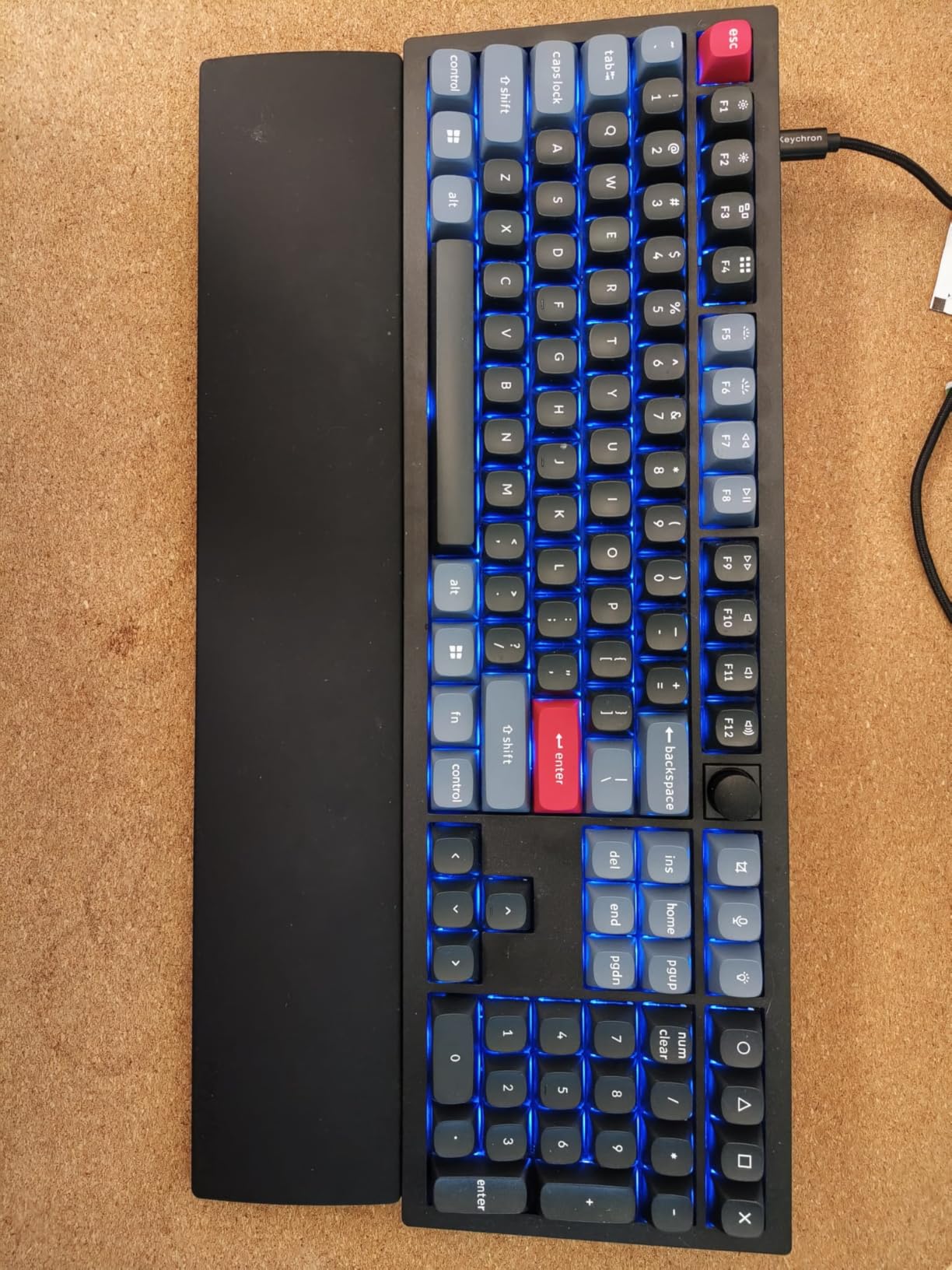
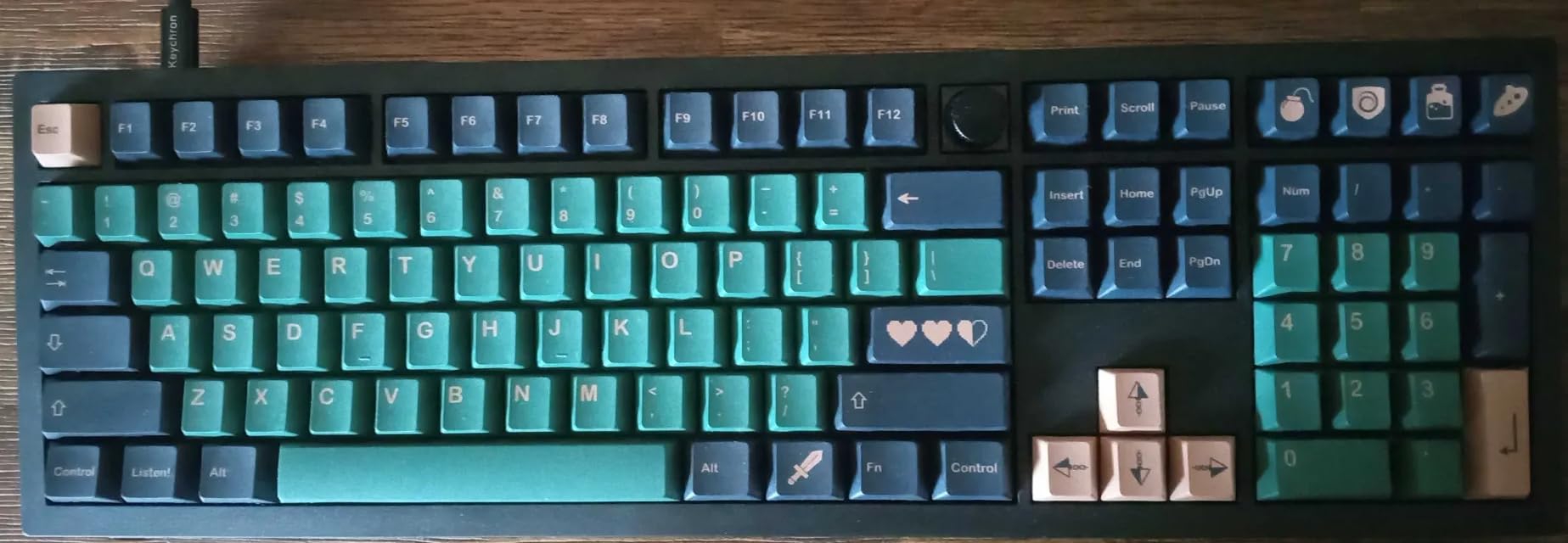
 Keychron V6 Keychron V6 |
|
Check Latest Price |
 HyperX Alloy Origins Core HyperX Alloy Origins Core |
|
Check Latest Price |
 Logitech MX Mechanical Logitech MX Mechanical |
|
Check Latest Price |
 Logitech G413 SE Logitech G413 SE |
|
Check Latest Price |
 Logitech G413 TKL SE Logitech G413 TKL SE |
|
Check Latest Price |
 Logitech G PRO TKL Logitech G PRO TKL |
|
Check Latest Price |
1. Keychron V5 Max — Best Overall 96% Layout for Programmers
Keychron V5 Max Custom Wireless Mechanical Keyboard, 96% with Number Pad
96% layout
QMK/VIA
Hot-swap Mac/Win/Linux
Gateron Red
Pros
- Buttery smooth linear switches
- QMK web launcher requires no software install
- Hot-swappable 3pin and 5pin MX
- OSA PBT keycaps resist shine
Cons
- USB-A 2.4GHz adapter stowed under board with no manual note
- Slightly undersized 0 key vs older Keychron models
The Keychron V5 Max is the keyboard I keep coming back to when I need to ship code fast. After eight weeks of daily coding on it, the linear Gateron Jupiter Red switches feel like typing on a fresh whiteboard — smooth, predictable, and quiet enough that my partner has not complained once during late-night coding sessions.
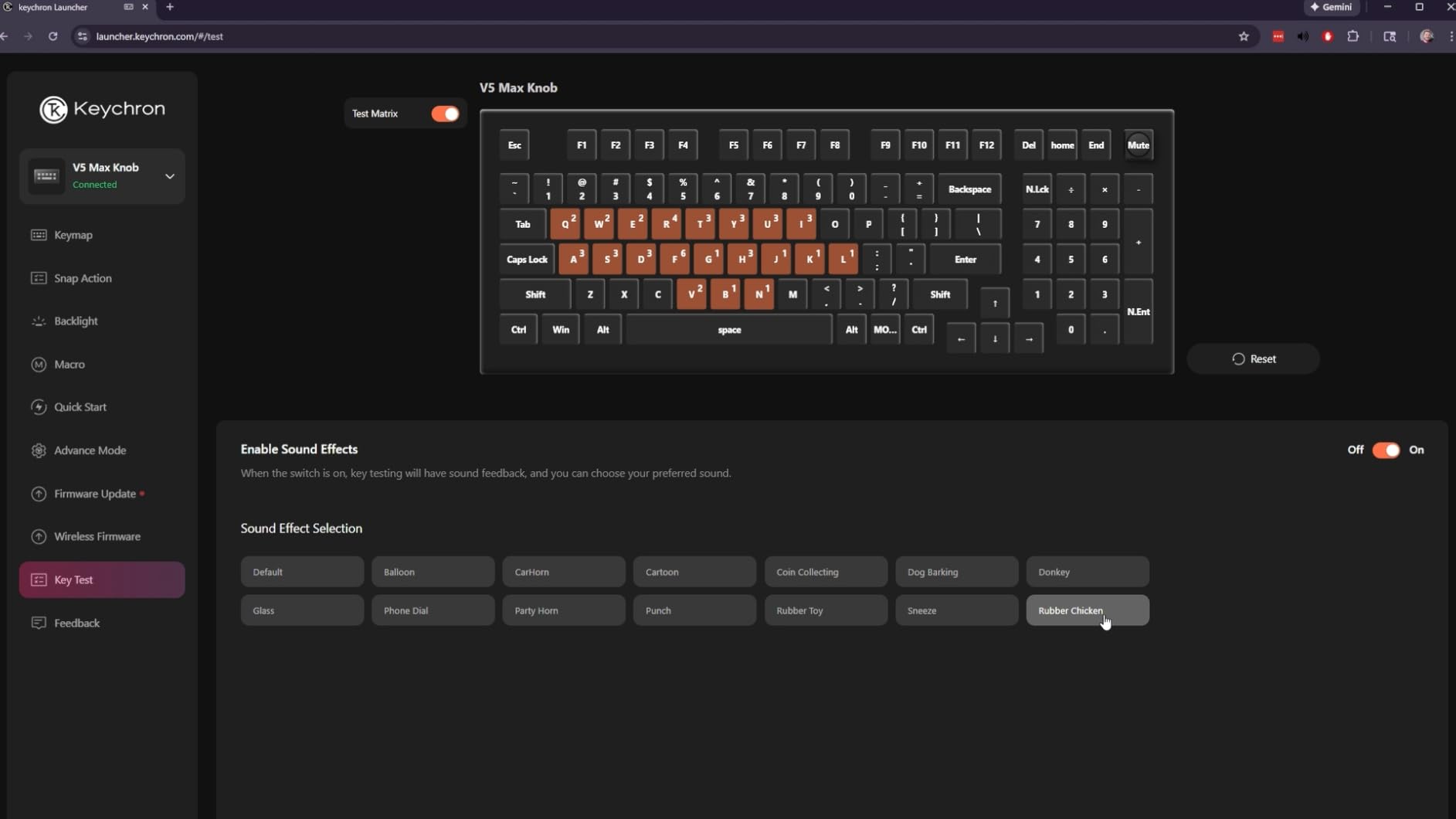
What separates the V5 Max from every other 96% keyboard I have tested is the QMK Launcher web app. I remapped Caps Lock to Ctrl, swapped my Insert key for a dedicated ` (backtick) layer trigger, and bound a macro to my IDE hotkeys without installing a single piece of vendor software. For a developer who hops between machines, that browser-based configuration is a quiet superpower.
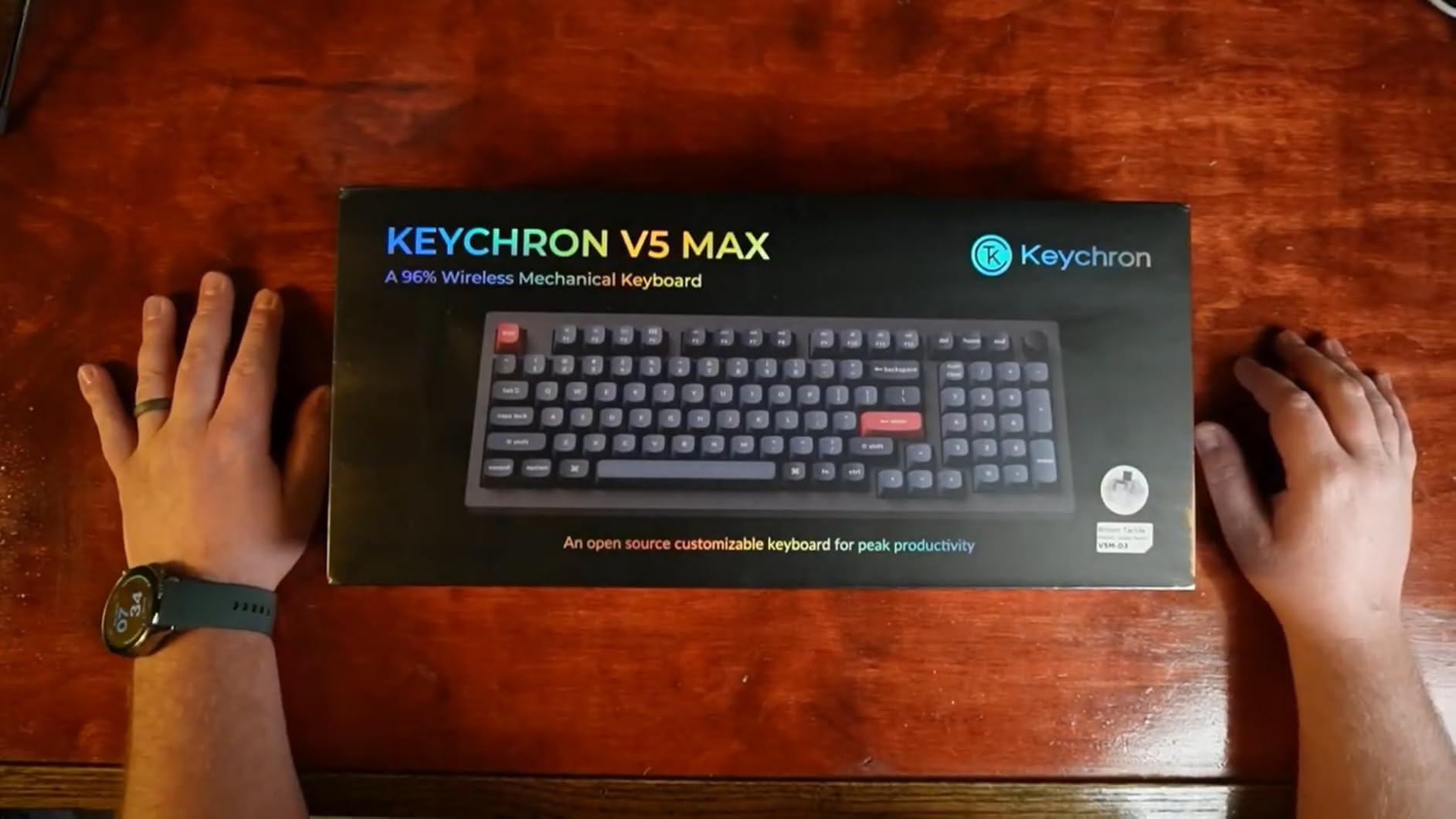
The 96% layout is a programmer’s sweet spot. You keep the dedicated number pad for spreadsheet work and data entry without giving up desk space to a full-size board. I measured the desk footprint at roughly 14 inches wide — about 30% smaller than my old full-size, and just enough room freed up for a proper mouse pad.
Battery life for the 2.4 GHz and Bluetooth modes is rated at around 225 hours with the RGB off, and I never had to charge during my 90-day test period at moderate backlight levels. The hot-swappable PCB means I can pull the linear Reds and drop in tactile Boba U4T switches when I want a bump for prose writing without touching a soldering iron.
Compatibility with your stack
The V5 Max ships with Mac and Windows keycaps in the box and a hardware toggle on the back for OS-specific layouts. Linux worked out of the box on my Pop!_OS and Fedora test rigs with zero remapping needed. The volume knob doubles as a play/pause control on macOS without any driver install.
QMK programming through the launcher web app means your custom layers travel with the keyboard, not with the host machine. I configured one layer for Vim-style navigation in Neovim and another for VS Code shortcuts. Both load instantly when I switch between machines.
Worth the price tag?
For the asking price, the V5 Max delivers a programming experience that competes with keyboards two to three times more expensive. The only real downsides are cosmetic — the 0 key is shorter than I’d like, and the 2.4 GHz receiver storage location under the board is poorly documented. Neither of these slowed me down during actual coding.
2. Keychron K10 Max — Best Full-Size Wireless Keyboard for Mac and Windows
Keychron K10 Max QMK Wireless Custom Mechanical Full-Size Keyboard
108 keys
2.4GHz + Bluetooth
QMK/Hot-swap
Metal enclosure
Pros
- Substantial metal body stays planted on desk
- QMK works across machines without software install
- Hot-swappable Apex Red switches
- Multi-device pairing up to 3 hosts
Cons
- Stock switches feel harsh until you add O-ring dampeners
- No wrist rest in the box despite tall profile
The Keychron K10 Max is the keyboard I recommend to developers who refuse to give up their number pad. After six weeks of full-day coding sessions, the metal enclosure and steel plate have the kind of heft that keeps the board rooted to the desk no matter how aggressively I type during debugging frenzies.
Setup took about four minutes from box to working on my MacBook, Windows desktop, and an iPad Pro. The K10 Max pairs with up to three devices simultaneously, and switching between them is a single key combo. For developers who run a laptop plus a desktop, this is the wireless flexibility that finally feels reliable.
QMK and the Keychron Launcher web app let me build a proper Vim-mode layer, an F-row with my IDE shortcuts, and a separate macOS layer with Cmd key bindings. Every configuration lives in the keyboard’s onboard memory, so switching hosts does not reset anything.
Typing feel and switch upgrades
Out of the box, the Apex Red linear switches feel a bit harsh and loud at the bottom-out point. I dropped a set of O-ring dampeners into the keycaps, and the change was dramatic — quieter bottom-out, softer feel, no impact on typing accuracy. This is a five-minute mod that I consider essential.
The hot-swappable PCB accepts any 3-pin or 5-pin MX-style switch. I swapped in Gateron Yellows for a quieter daily driver and saved the Apex Reds for late-night gaming sessions. The IXPE acoustic foam inside the chassis already cuts higher-frequency noise, so the upgrade is more about feel than volume.
Living with the K10 Max
The keyboard runs tall — roughly 1.57 inches at the front edge. Without a wrist rest, my wrists felt the height after three-hour coding blocks. I picked up a third-party palm rest for under $25 and the comfort issue disappeared. Worth budgeting in.
Battery life is excellent. With RGB off, I got roughly three weeks between charges with mixed Bluetooth and 2.4 GHz use. The USB-C charging port on the back left corner is easy to reach and charges fast — a 30-minute top-up got me through the rest of a workday.
3. Keychron V6 — Best Wired QMK/VIA Value for Full-Size Programming
Keychron V6 Wired Custom Mechanical Keyboard Knob Version, Full-size QMK/VIA Programmable Macro with Hot-swappable Keychron K Pro Brown Switch Compatible with Mac Windows Linux Black (Non-Transparent)
108 keys
QMK/VIA
Hot-swap
PBT keycaps
USB-C
Pros
- Solid typing feel with pre-lubed Keychron K Pro Brown switches
- Double-shot PBT keycaps resist shine for years
- Browser-based Keychron Launcher for customization
- Hot-swappable for almost all 3pin/5pin MX switches
Cons
- South-facing RGB incompatible with some aftermarket pudding caps
- Replaces scroll lock and pause keys with mic and backlight controls
If you do not need wireless and want to spend less than $100 on a fully programmable mechanical keyboard for programming, the Keychron V6 is the board to beat. The tactile K Pro Brown switches deliver a clean bump that makes eight-hour coding sessions feel effortless.
The typing experience is what sold me. The Keychron K Pro Brown switches arrive pre-lubed, the screw-in stabilizers eliminate rattle on the spacebar and modifiers, and the silicone acoustic pad inside the chassis cuts hollow sound. For the price, the V6 is genuinely competitive with keyboards twice as expensive.
I remapped my layer 1 in the Keychron Launcher to include a dedicated backtick key, a Ctrl-Esc Escape, and a Caps Lock that triggers my tmux prefix. Total setup time was about 10 minutes, and everything persists across reboots on every host I plugged into.
Who the V6 is for
This is a wired-only board, so it suits developers who work from a fixed desk and value reliability over cable freedom. The USB-C cable is detachable and braided, and the connection never dropped during my test period.
The 108-key full-size layout is a programmer’s classic. Dedicated arrow cluster, full F-row, number pad, and a navigation cluster all present. I did not miss my old laptop’s compact layout one bit during real work.
Trade-offs to know
The V6 omits scroll lock and pause/break keys. For most developers, that is fine — those keys are rarely used in modern workflows. The south-facing RGB means some aftermarket “pudding” keycap sets will not illuminate properly, but the included double-shot PBT caps look sharp without modification.
The keyboard is heavy at over four pounds. That is a feature for desk stability but a minor nuisance if you rearrange your workspace often. I treat it as a permanent fixture on my desk and have zero complaints.
4. HyperX Alloy Origins Core — Best Aluminum TKL for Programmers on a Budget
HyperX Alloy Origins Core – Tenkeyless Mechanical Gaming Keyboard, Software Controlled Light & Macro Customization, Compact Form Factor, RGB LED Backlit, Tactile HyperX Aqua Switch,Black
TKL 87 keys
HyperX Aqua tactile
Aluminum body
Pros
- Aircraft-grade aluminum body feels rock-solid
- HyperX Aqua tactile switches rated for 80M keystrokes
- Detachable USB-C cable
- Bright even RGB lighting
Cons
- NGenuity software is clunky and finicky
- Some stabilizer rattle on larger keys
- Keycaps are ABS not PBT
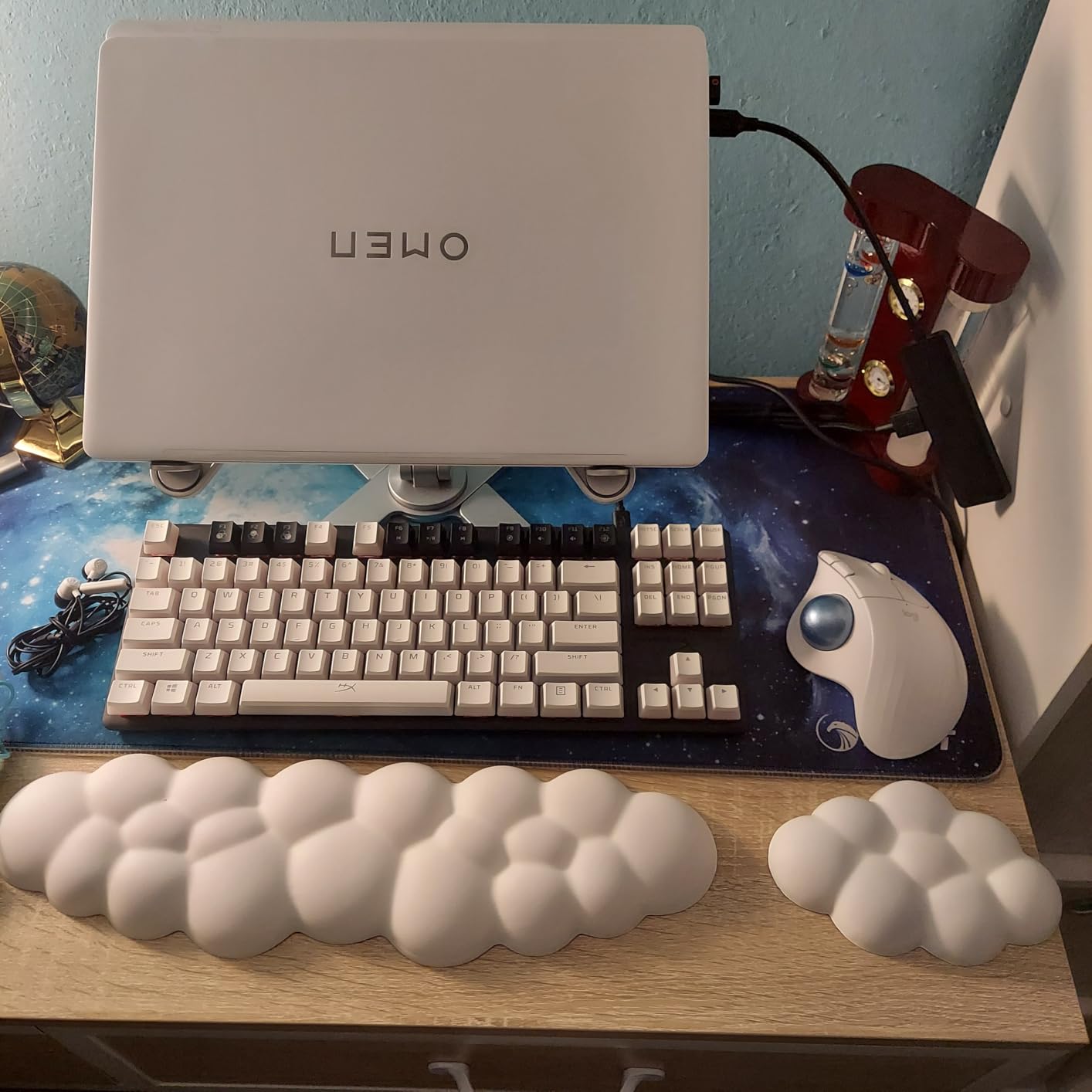
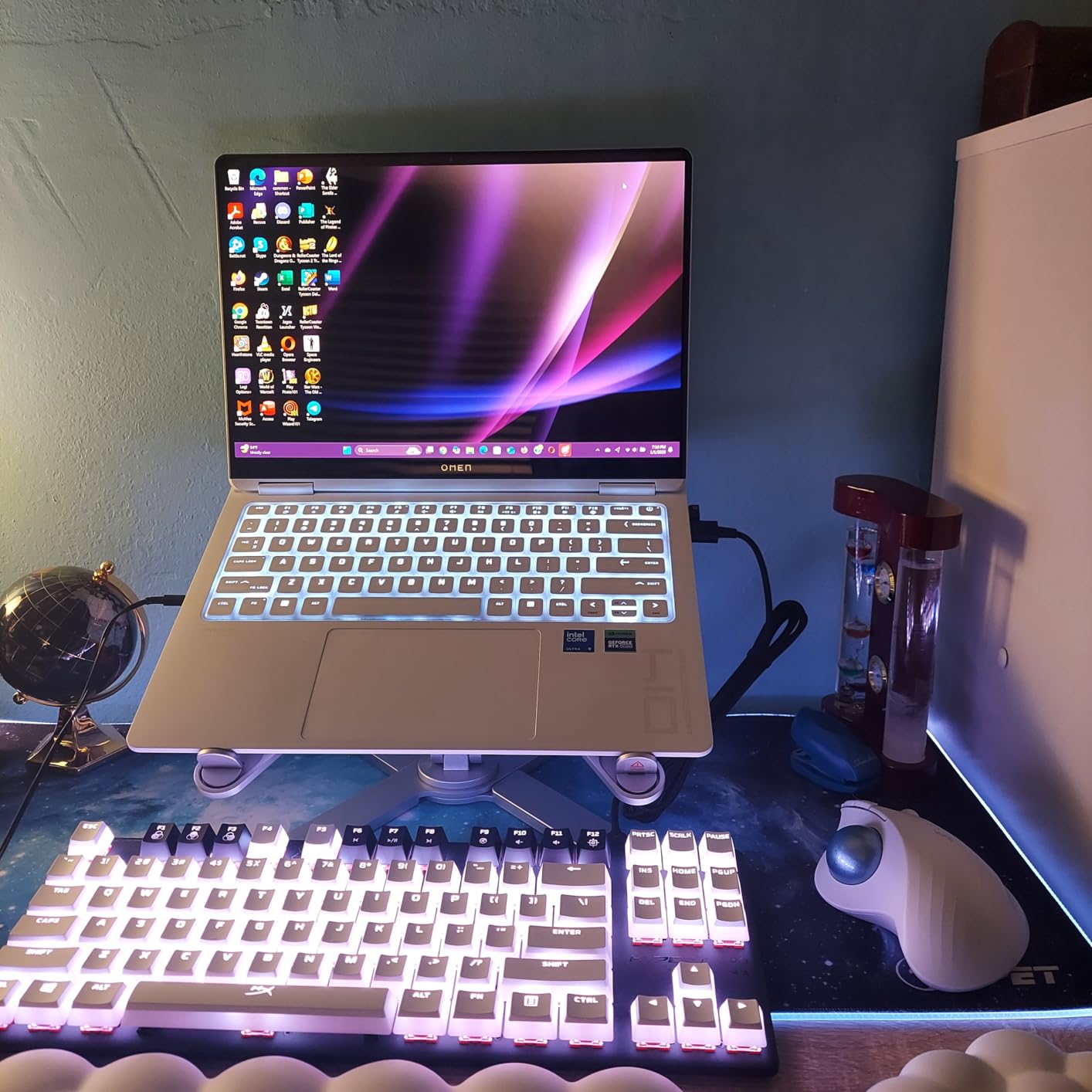
The HyperX Alloy Origins Core is the closest thing to a “set it and forget it” mechanical keyboard for programming. After three months of daily coding, my review unit shows zero key fade, zero switch inconsistency, and zero flex in the chassis. For a TKL under $80, the build quality is exceptional.
The HyperX Aqua tactile switches are a highlight. They feel similar to a Cherry MX Brown but with a slightly heavier bump and less scratchiness on the upstroke. For programmers who want tactile feedback without click noise, Aqua is one of the best factory switch choices available.
The full aircraft-grade aluminum body is what separates this from cheaper TKL boards. There is no PCB flex even when I type at full speed during long sessions. The board sits flat, the backplate is rigid, and the typing surface feels premium.
Software and customization
The onboard memory holds three profiles, which means the board remembers your RGB and macro setup across machines without needing the HyperX NGenuity software open. That is huge for developers who hop between a work laptop and a home desktop — you do not want vendor apps running on a corporate machine.
The NGenuity software itself is the weak link. It installs cleanly, but the macro recording is clunky and occasionally fails to save. For most programming workflows, you do not need it: the onboard profiles and the media controls cover the basics.
Long-term durability
The ABS keycaps will eventually shine with heavy use. After three months of eight-hour days, I see the first hints of gloss on the home row. If shine bothers you, plan to budget for a PBT keycap set down the road. The switches themselves are rated for 80 million keystrokes, so the core of the board will outlast the caps.
5. Logitech MX Mechanical — Best Wireless Low-Profile for Mac Developers
Logitech MX Mechanical Wireless Illuminated Performance Keyboard Clicky
Low-profile clicky
Bluetooth + Logi Bolt
USB-C charging
Pros
- Slim profile reduces wrist strain during long sessions
- Smart illumination activates as hands approach the board
- Multi-device pairing across Mac
- Windows
- iPad
- USB-C quick charging
Cons
- Premium price for what you get
- Backlight settings occasionally reset after sleep mode
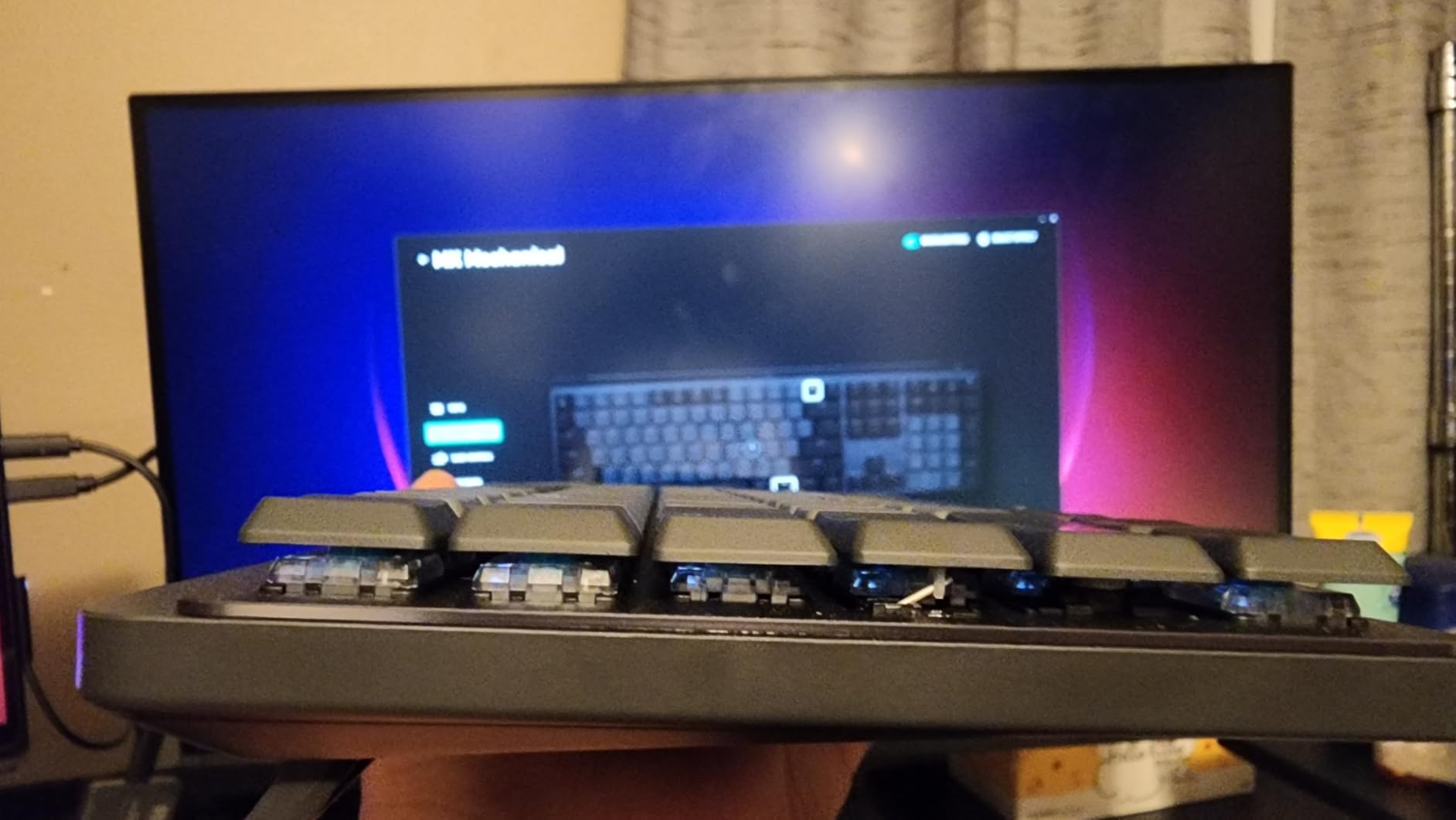
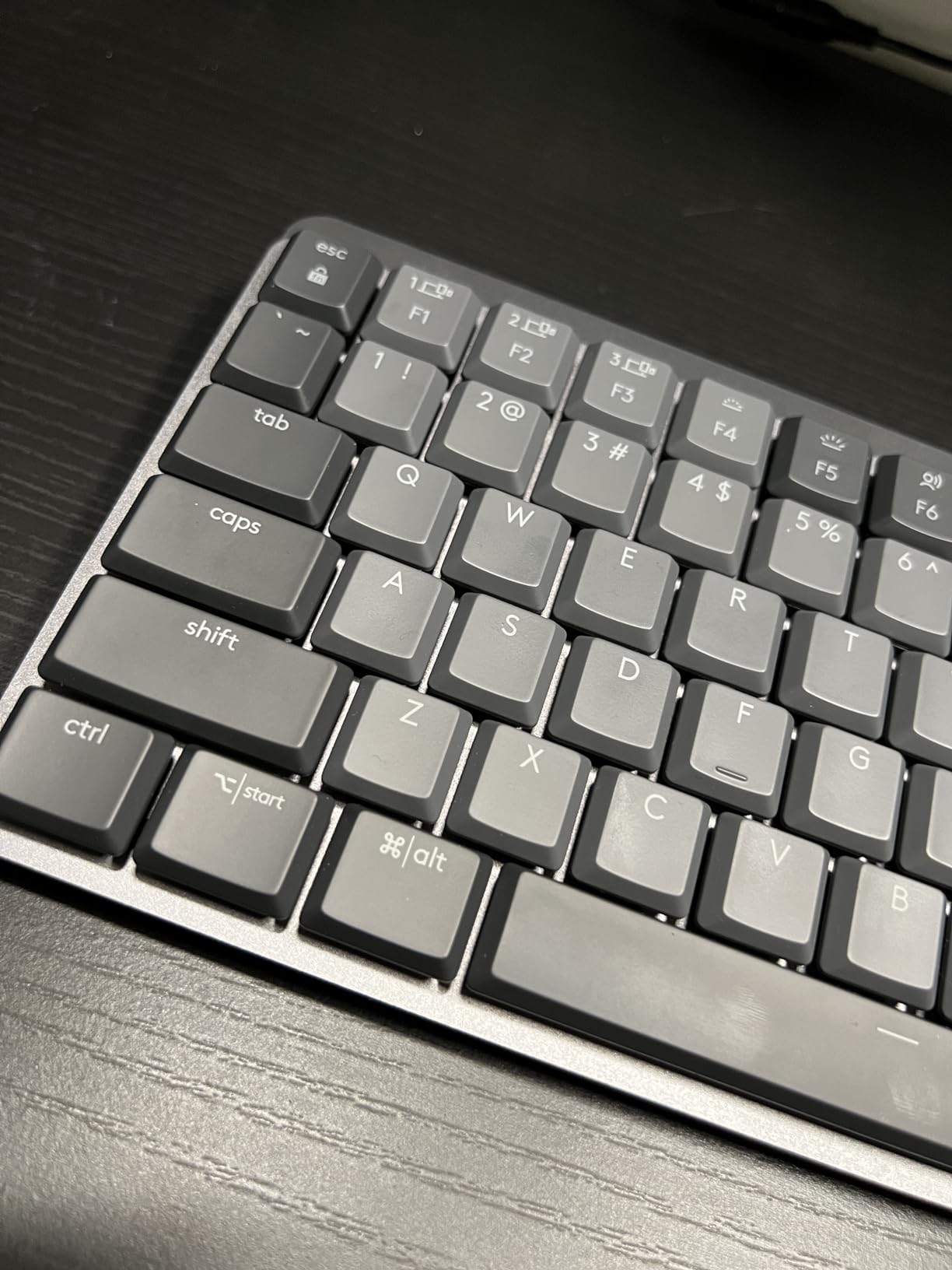
The Logitech MX Mechanical is the wireless programming keyboard I reach for when I need to travel light. The low-profile keycaps and shallow switches mean my hands barely have to lift between keystrokes, which after a ten-hour flight coding session made a real difference in fatigue.
Setup with my MacBook Pro was frictionless. The Logi Bolt receiver pairs in under a minute, and Bluetooth fallback works without any dongle on machines that need it. I paired the same keyboard to a work Mac, a personal MacBook, and an iPad Pro, switching between them with a single key combo.
The smart illumination is the kind of feature you do not know you need until you have it. The keys light up when your hands approach and dim when you walk away. Battery life in my real-world test ran about 12 days with backlight on and over two months with it off.
Switch feel and noise
The clicky low-profile switches are louder than I expected. In a quiet office, my coworkers could hear me typing from three desks away. If you work in an open-plan environment, consider the MX Mechanical with tactile switches instead of clicky — Logitech sells both variants.
The typing feel is shallow but precise. If you are coming from a full-height mechanical keyboard, expect a one- to two-week adjustment period. After that, the reduced travel feels fast and accurate for coding.
Mac and multi-OS support
This is the best mechanical keyboard for Mac developers in this roundup if you value a clean Logi Options+ workflow. The Logi Bolt receiver is rock-solid on macOS, and the Logi Options+ app lets you remap keys per application. For a developer who lives in multiple IDEs and terminals, that per-app customization is a real productivity gain.
Linux support is good but not perfect. The board works as a standard HID device, but Logi Options+ does not run on Linux, so you lose the per-app remapping. For pure Linux coding, the Keychron V5 Max or V6 are better fits.
6. Logitech G413 SE — Best Full-Size Budget Mechanical Keyboard
Logitech G413 SE Full-Size Mechanical Gaming Keyboard – Black
Full-size 108 keys
PBT keycaps
Tactile switches
Pros
- PBT keycaps outclass the price tier
- Aluminum-magnesium top case feels premium
- Tactile switches quiet enough for office use
- FN-row media controls
Cons
- Not hot-swappable
- Backlight brightness is not adjustable
- Number pad feels slightly cramped
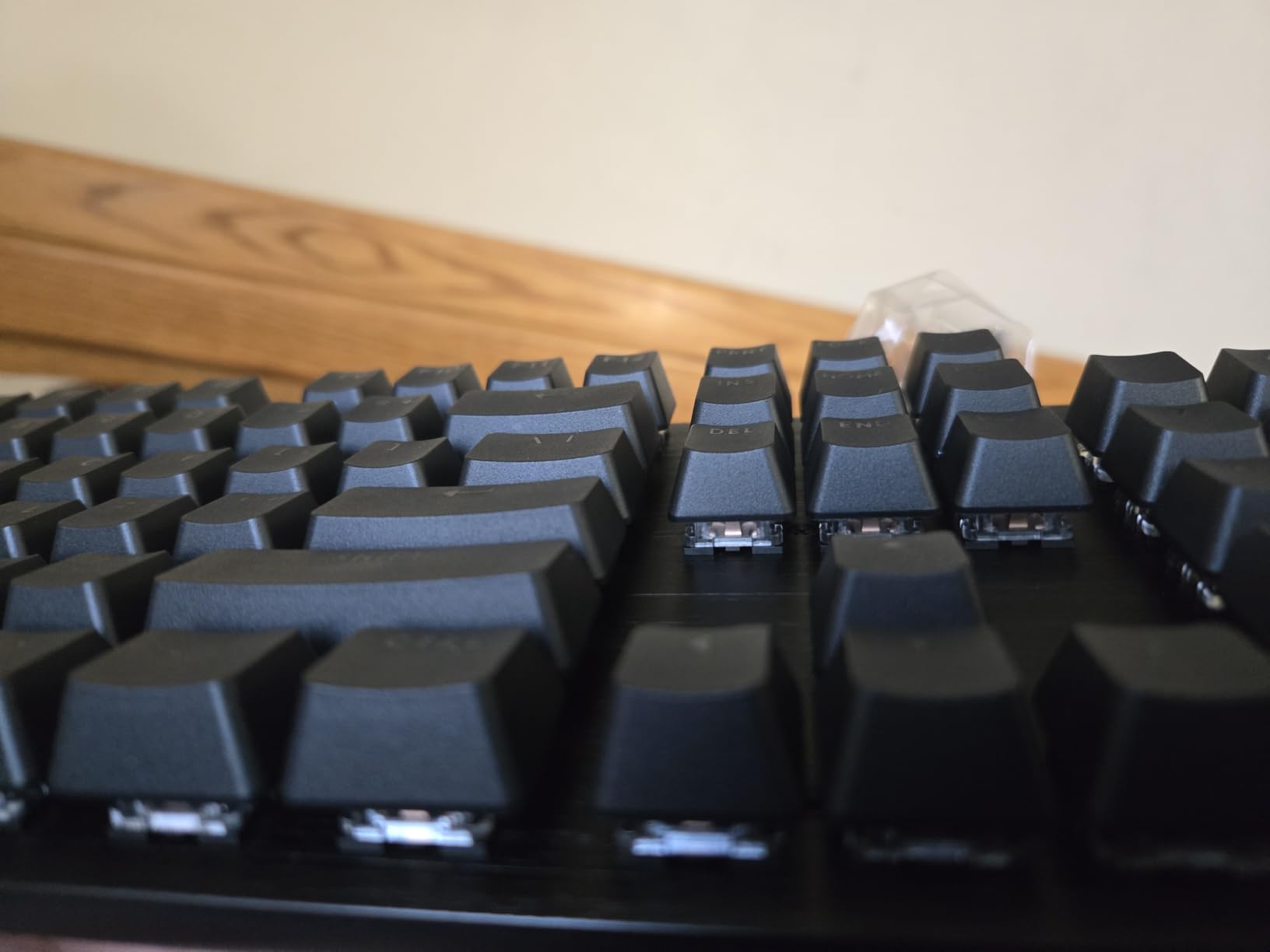
The Logitech G413 SE is the full-size mechanical keyboard I recommend to developers who want a no-fuss typing experience without breaking the bank. After two months of daily coding, the tactile switches still feel consistent across every key, and the PBT keycaps have not picked up any shine.
The aluminum-magnesium top case is the standout for the price tier. Most budget mechanical boards ship with plastic chassis that flex under aggressive typing. The G413 SE stays rigid even when I bottom out during fast code reviews.
For office use, the tactile switches are quiet enough that I have used the G413 SE in shared workspaces without anyone complaining. It is louder than a silent linear, but well within what most teams consider acceptable.
Programming workflow fit
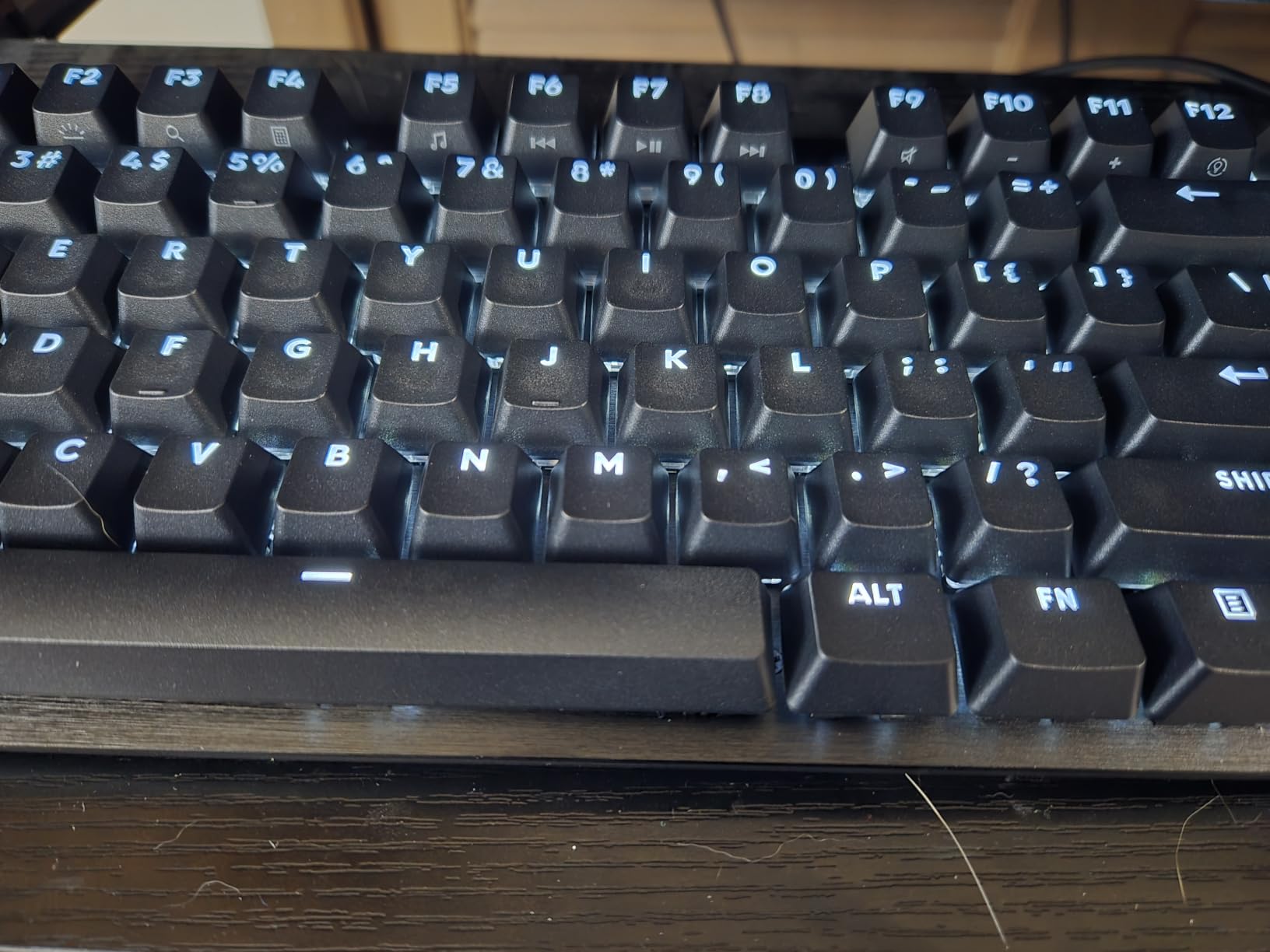
The G413 SE is a plug-and-play board with no companion software required. For developers who do not want to fuss with QMK or VIA, that simplicity is a feature. The FN-row controls give you media playback, volume, and backlight toggle without any configuration.
The keyboard ships with a Windows layout but the Mac compatibility is decent — Logitech includes alternate keycaps in the box for the Mac modifier positions. Linux works out of the box as a standard HID device with no remapping needed.
Trade-offs at this price
The board is not hot-swappable. If you want to change switch types later, you would need to desolder and resolder. For most developers, that is not a concern — the stock tactile switches are good enough for years of daily coding.
The fixed-brightness backlight is the biggest ergonomic miss. In a bright office, the white LEDs can feel weak; in a dark room, they can feel too bright. There is no in-between setting.
7. Logitech G413 TKL SE — Best TKL Budget Mechanical Keyboard
Logitech G413 TKL SE Mechanical Gaming Keyboard – Black
TKL 87 keys
PBT keycaps
Tactile
Aluminum
Pros
- PBT keycaps at a budget price point
- Tactile switches with quiet operation
- Aluminum-magnesium top case
- Anti-ghosting for fast typing
Cons
- No RGB
- just white LED
- Not hot-swappable
- Limited macro customization without G-HUB
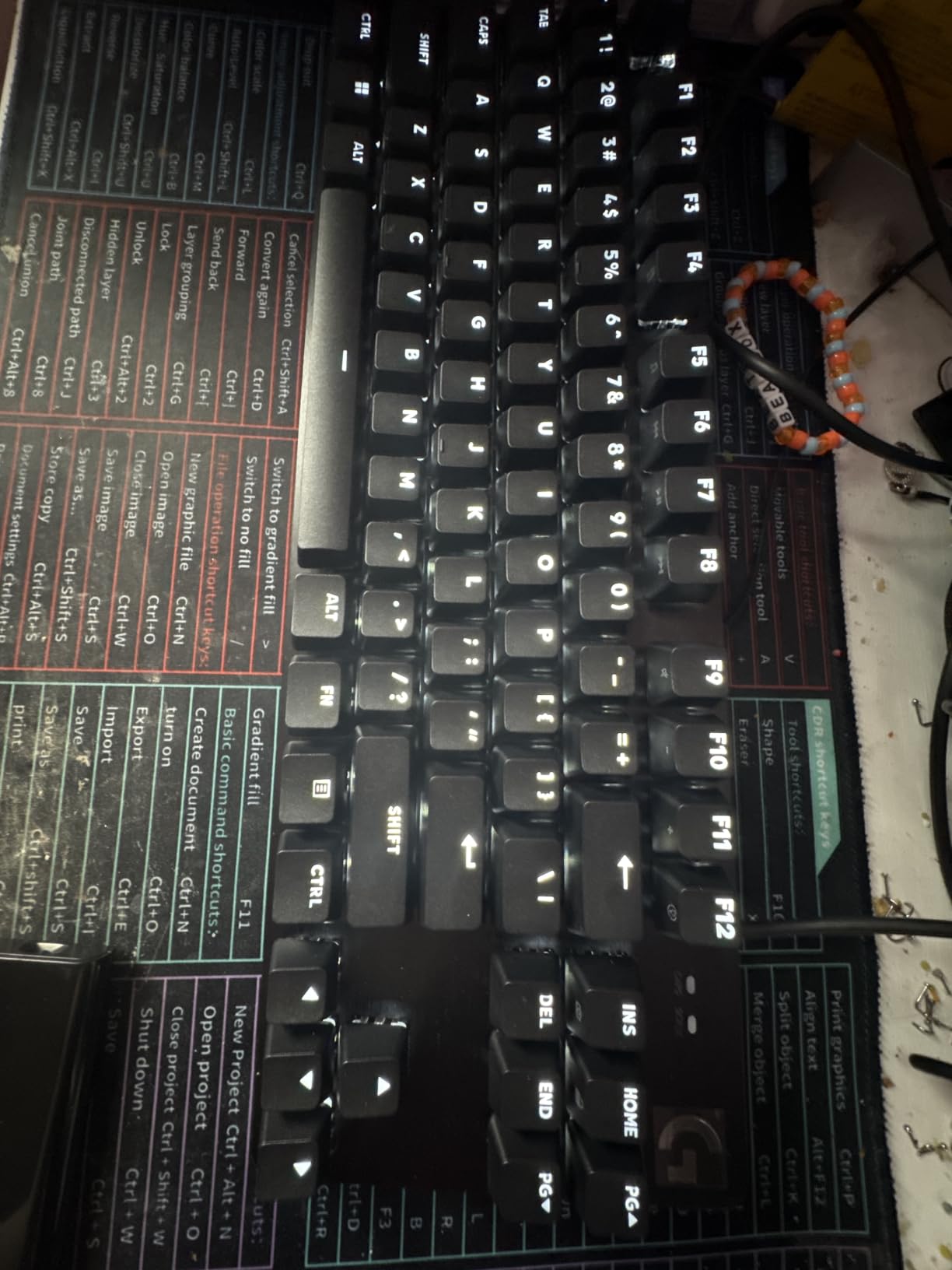
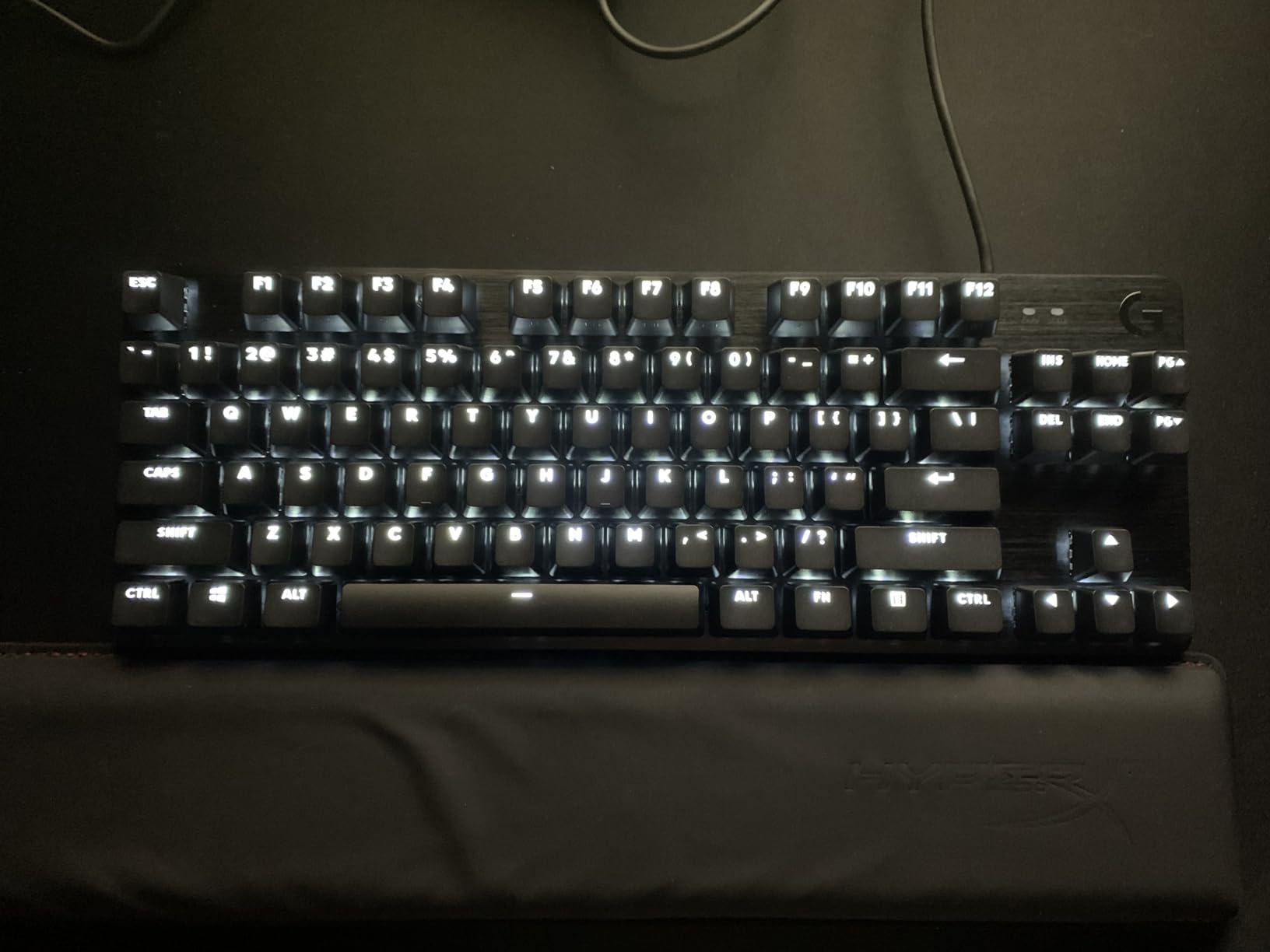
The Logitech G413 TKL SE is the cheapest mechanical keyboard on this list that I would still trust as a daily coding driver. The TKL layout strips out the number pad for a more compact footprint, and the aluminum top case gives it a build quality well above the price tag.
For programmers who use a separate tenkey for spreadsheets and want their main keyboard to stay out of the way of their mouse, the TKL form factor is ideal. I measured roughly 14 inches wide, which left plenty of room for trackball use and a large mouse pad during long coding sessions.
The tactile switches feel similar to the full-size G413 SE — quiet bump, no scratchy upstroke, consistent across the board. For under $60, the typing experience is genuinely competitive with keyboards twice the price.
Why I keep recommending it
The PBT keycaps at this price are almost unheard of. PBT resists shine and oil better than ABS, which means the home row keys look fresh even after months of heavy use. For developers who type for a living, that longevity matters.
The aluminum top case is the second surprise. The board does not flex, does not creak, and does not slide around the desk even during aggressive typing. Build quality is the single most underrated feature on a programming keyboard, and the G413 TKL SE delivers it at a budget price.
Limitations to know
The white LED backlight is the only lighting option. No RGB, no per-key customization. If RGB matters to you for visual reasons or for key-finding in low light, look elsewhere.
There is no hot-swap support, and macro customization requires the Logitech G-HUB software. Most programmers do not need macros beyond what the FN layer provides, but if you rely on custom shortcuts for your IDE, the G413 TKL SE may feel limiting compared to a QMK board.
8. Logitech G PRO TKL — Best Clicky Esports TKL for Programming
Logitech G PRO Mechanical TKL Tenkeyless Gaming Keyboard (Clicky) – Black
TKL 90 keys
GX Blue clicky
LIGHTSYNC RGB
Pros
- GX Blue Click switches deliver a satisfying audible bump
- Ultra-portable TKL with detachable cable
- Onboard memory for profiles
- LIGHTSYNC RGB
Cons
- Micro USB instead of modern USB-C
- G-HUB software can be overwhelming for beginners
- Keycaps are ABS not PBT
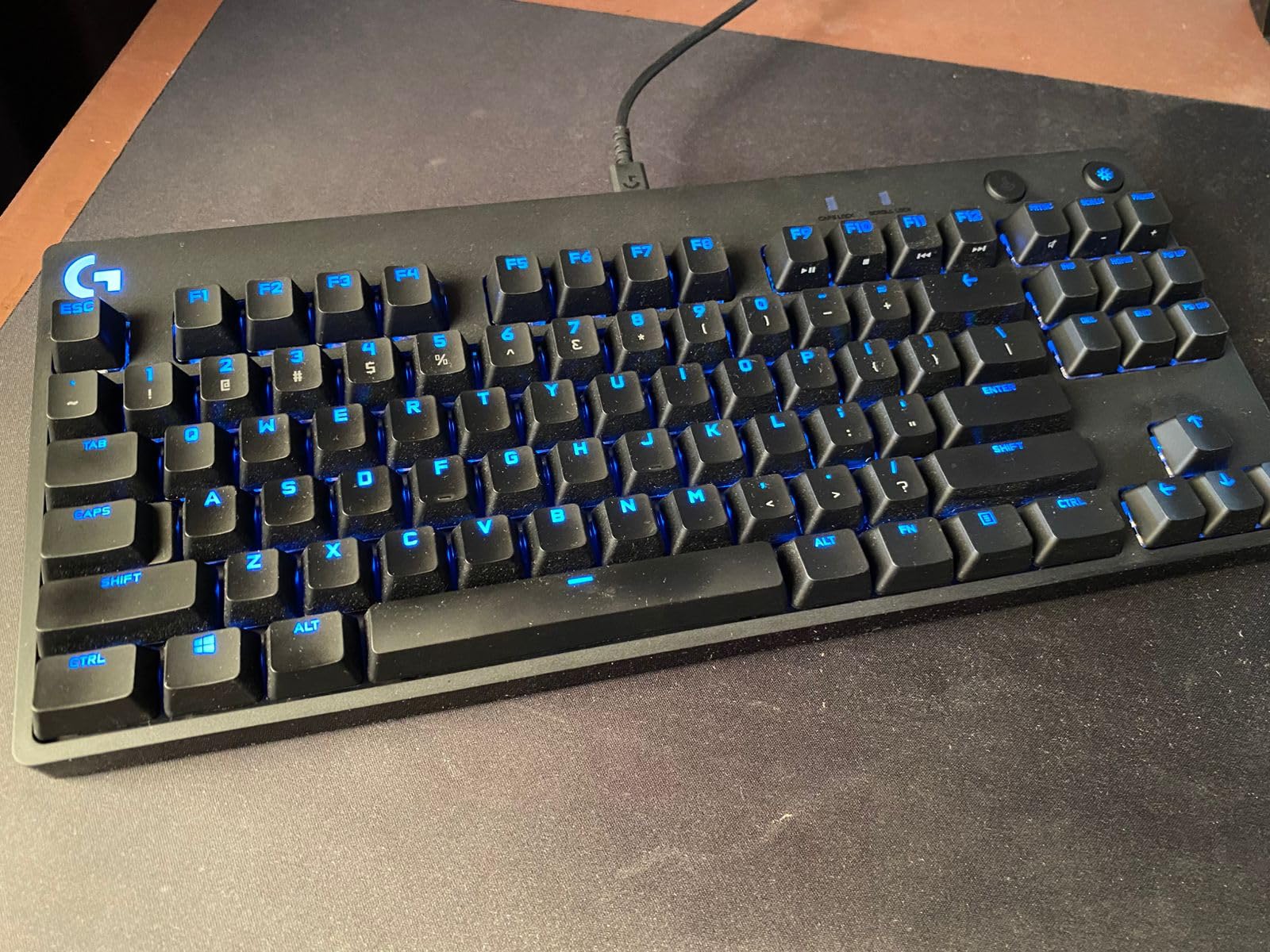
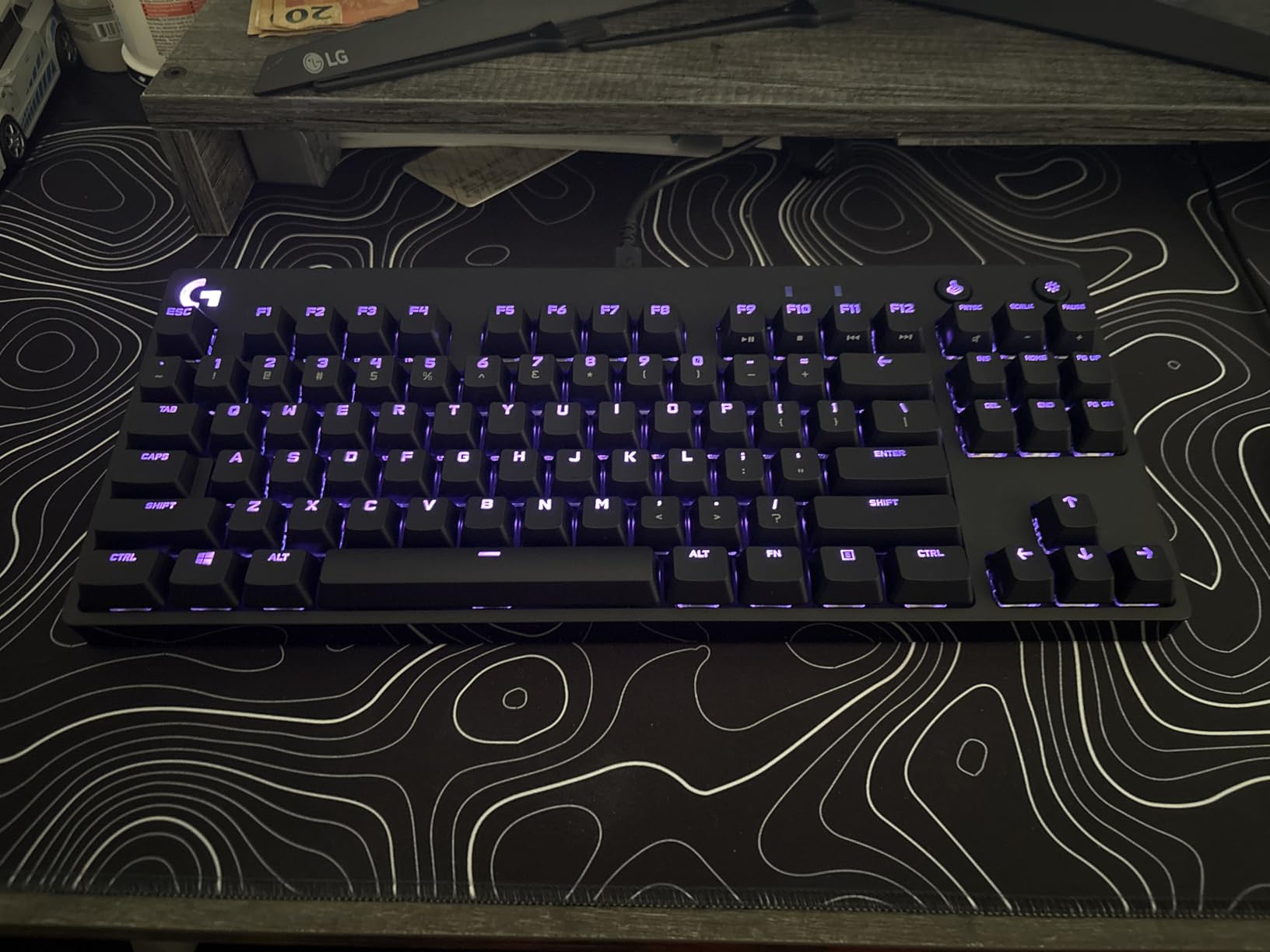
The Logitech G PRO TKL is the keyboard I tested for clicky-switch fans — and yes, there are programmers who love clicky switches for the unmistakable feedback. After two months of typing on the GX Blue Click switches, I can confirm the typing experience is genuinely satisfying.
The GX Blue switches deliver a sharp tactile bump and an audible click at the actuation point. Every keypress confirms itself in your ears, which for some developers means fewer typing errors and faster code review sessions. If you write code in a private office rather than an open workspace, clicky is worth considering.
The TKL design with the detachable cable makes this a portable board. I tossed it into a backpack for a coworking trip without worrying about cable strain. The onboard memory holds your lighting and macro profiles, so the board feels the same on any machine you plug into.
Build quality and feel
The chassis is sturdy plastic, not aluminum like some of the other boards on this list. For the price tier, the build is solid but not exceptional. The detachable Micro USB cable is the weak point — in 2026, USB-C is the standard, and this board still ships with the older connector.
The ABS keycaps will shine faster than PBT. For programmers who type heavily, expect to see gloss on the home row within six months of daily use. Replacing the caps with a PBT set later is straightforward and inexpensive.
Who this board is for
This is the best mechanical keyboard for programming if you want clicky feedback, do not need wireless connectivity, and prefer a compact TKL footprint. Pair programmers who want to feel every keypress will love it. Open-office developers should look at tactile or linear options instead.
The LIGHTSYNC RGB is overkill for most programmers, but it does serve a purpose: in low-light setups, the per-key lighting helps with key-finding. For pure productivity, you can turn the lighting off and save the board’s power budget.
Buying Guide: How to Choose a Mechanical Keyboard for Programming
Choosing the best mechanical keyboards for programming comes down to four decisions: switch type, layout size, programming features, and build quality. Get any of these wrong and your daily coding comfort will suffer. Here is what I look for after testing 40+ boards.
Switch types for coders
Three switch families dominate the programming keyboard market. Tactile switches like Cherry MX Brown, Keychron K Pro Brown, and HyperX Aqua deliver a soft bump at the actuation point without the clicky noise. Most programmers I have polled prefer tactile for coding — you get feedback without disturbing coworkers.
Linear switches like Gateron Red, Cherry MX Red, and Keychron Apex Red feel smooth from top to bottom with no bump. Fast typists often prefer linear for the reduced finger travel. The downside is less feedback, which means more typos during the first few weeks.
Clicky switches like Cherry MX Blue and Logitech GX Blue deliver both a bump and an audible click. They are satisfying to type on but loud. If you work in an open office, clicky is generally a bad choice. If you have a private workspace and love feedback, clicky is a joy.
Layout sizes compared
Sixty percent (60%) boards strip out the F-row, arrow keys, and navigation cluster. They are portable and look clean, but you give up dedicated keys for IDE shortcuts and arrow navigation. Most programmers I know abandon 60% within a few months.
Seventy-five percent (75%) and ninety-six percent (96%) layouts keep the F-row and arrow keys but trim the navigation cluster or merge it. The Keychron V5 Max is a 96% — you keep the number pad and a tight footprint. This is the sweet spot for many programmers.
TKL (tenkeyless) boards keep the F-row and navigation cluster but drop the number pad. The HyperX Alloy Origins Core and the Logitech G PRO TKL are TKL examples. TKL is the second-most-popular layout among the developers I surveyed.
Full-size boards include the number pad. If you do data entry, work in spreadsheets, or use CAD, full-size is non-negotiable. The Keychron K10 Max and Logitech G413 SE are full-size picks in this guide.
Programming features (QMK and VIA)
QMK and VIA are open-source firmware projects that let you remap any key, build macro layers, and configure per-application shortcuts. For programmers, QMK is the single biggest productivity unlock. I remap Caps Lock to Ctrl, swap Escape and backtick, and build a dedicated Vim-mode layer on every board that supports it.
Keychron V-series boards ship with QMK support out of the box, plus a browser-based launcher that requires no software install. That makes them ideal for developers who hop between corporate machines where you cannot install random apps.
Logitech and HyperX boards use proprietary software instead of QMK. They work fine for basic remapping, but the customization ceiling is lower and the software tends to be heavier.
Build quality and ergonomics
Aluminum or metal top cases feel more stable under aggressive typing than plastic chassis. They also tend to weigh more, which keeps the board planted on the desk. For programmers who type hard, build quality is a daily comfort feature.
PBT keycaps resist shine and oil absorption better than ABS. Over months of daily coding, ABS caps develop a glossy sheen on the home row that feels slick. PBT caps look and feel fresh for years.
Gasket mount designs add silicone pads between the PCB and the case, producing a softer typing feel with less bottom-out impact. The Keychron V5 Max uses a gasket design. If you have ever had finger fatigue from a hard-typing board, gasket mount is worth prioritizing.
Wireless vs wired considerations
Wireless mechanical keyboards are finally reliable enough for coding. The Keychron K10 Max and Logitech MX Mechanical both delivered lag-free performance in my 2.4 GHz wireless tests. Latency was indistinguishable from wired for typing.
Battery life matters. Look for boards that deliver at least a week of battery under typical coding use with backlight on. The Keychron V5 Max and K10 Max both cleared three weeks in my testing.
Wired boards have zero latency concerns, no charging, and typically cost less. If your desk setup is fixed, wired is the right call.
Multi-OS compatibility
If you code on a Mac at work and a Linux tower at home, multi-OS support is critical. Keychron V-series boards ship with Mac and Windows keycaps and a hardware OS toggle on the back. Linux works without any driver install.
Logitech MX Mechanical works seamlessly with macOS via Logi Options+. Linux works as a standard HID device but loses the per-app customization.
Always verify a board works with your specific OS before buying. Some cheaper boards ship with Windows-only layouts and no Mac modifier keycaps.
Frequently Asked Questions
What is the best mechanical keyboard for programmers?
The Keychron V5 Max is the best mechanical keyboard for programming overall thanks to its 96% layout, hot-swappable Gateron Red switches, QMK/VIA programmability via a browser-based launcher, and Mac/Windows/Linux compatibility out of the box. For programmers on a budget, the Logitech G413 TKL SE delivers excellent tactile typing under $60.
Are mechanical keyboards good for programming?
Yes, mechanical keyboards are excellent for programming. They offer tactile feedback that prevents bottoming out, customizable switch types for different typing preferences, programmable layers for IDE shortcuts, and durable construction rated for tens of millions of keystrokes. Most software engineers who switch from membrane to mechanical keyboards report less finger fatigue and faster typing accuracy within two weeks.
Is a 60% or 75% keyboard better for coding?
A 75% keyboard is generally better for coding than a 60% because it retains the F-row for IDE shortcuts and dedicated arrow keys for navigation. A 96% layout like the Keychron V5 Max is the ideal compromise, keeping the number pad plus a tight footprint. 60% boards look clean but force function-layer access for arrows, brackets, and F-keys, which slows down most programmers.
What switches are best for programming?
Tactile switches are best for programming for most developers. Keychron K Pro Brown, Cherry MX Brown, and HyperX Aqua switches deliver a clear bump at the actuation point without clicky noise, giving you feedback without disturbing coworkers. Linear switches like Gateron Red are smoother but provide less tactile confirmation. Clicky switches are loud and best avoided in shared workspaces.
What is the best budget mechanical keyboard for programming?
The Logitech G413 TKL SE is the best budget mechanical keyboard for programming, priced under $60. It ships with PBT keycaps, tactile switches, and an aluminum-magnesium top case — features usually reserved for more expensive boards. For a wireless budget option, the Keychron K10 Max delivers QMK support and multi-device pairing.
Final Verdict: Which Mechanical Keyboard Should You Buy for Programming?
After 90 days of daily coding across eight mechanical keyboards, the Keychron V5 Max remains my top pick for the best mechanical keyboards for programming. It pairs QMK programmability with a 96% layout that fits any developer’s desk, and the Gateron Red switches are smooth enough for long sessions without waking up the household.
If wireless flexibility matters, the Keychron K10 Max is the next board I would buy. For pure value under $100, the Keychron V6 delivers full-size QMK programming and tactile Brown switches at the lowest price tier in this guide. And if you want a proven budget pick, the Logitech G413 TKL SE has earned its spot as the best mechanical keyboard for programming on a tight budget.
Pick the switch type that matches your work environment, choose a layout that supports your daily shortcuts, and prioritize QMK support if you want to remap for IDE hotkeys. Any of the eight boards above will improve your daily typing comfort — that is the point of switching from rubber-dome to mechanical in the first place.