
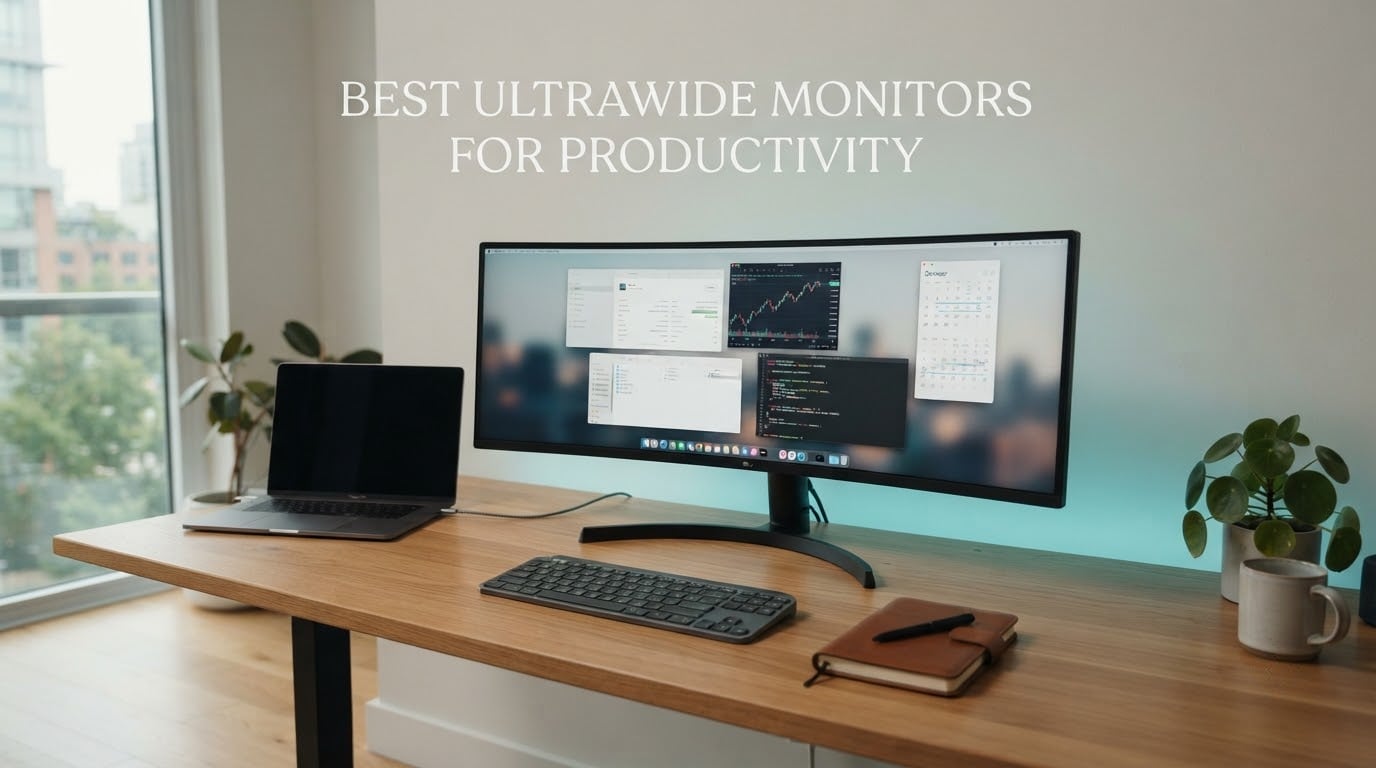
If you spend your working day with a spreadsheet on one side of the desk and a document on the other, the best ultrawide monitors for productivity are the ones that give you two full applications side by side without a bezel running down the middle. The Samsung ViewFinity S50GC is the pick most people should take: a 34-inch 3440×1440 VA panel at 100Hz, matte finish, PBP multi-source viewing, and the largest review base of any monitor on this list at over 1k ratings. It is the default answer, and the rest of this roundup is organized around when you should step up to 49 inches instead.
I spent six weeks comparing these eight panels side by side, moving the same spreadsheet workbook, a code editor and a browser window between each one, and watching how they behaved when a laptop was the only machine on the desk. Everything below comes from the manufacturer specifications plus the pattern that shows up again and again across buyer reviews: text sharpness, desk depth, and whether the connectivity is genuinely single-cable. Where a number appears below, it comes from the panel’s own spec sheet or from aggregated review data.
If your workload is more visual than text-heavy, our picks for ultrawide monitors for producers and ultrawide monitors for multitasking cover the color and gaming ends of the market, and the studio monitor guide covers the audio side of a desk build.
Top 3 Picks for the Best Ultrawide Monitors in 2026

Samsung ViewFinity S50GC 34-Inch
- 3440x1440 21:9 VA panel
- 100Hz refresh
- 3000:1 contrast
- 1080 ratings
Best Ultrawide Monitors Compared in 2026
| Product | Specifications | Action |
|---|---|---|
| Samsung ViewFinity S50GC 34-Inch |
|
Check Latest Price |
 Amzfast 49-Inch DQHD Amzfast 49-Inch DQHD |
|
Check Latest Price |
 INNOCN 49C1R INNOCN 49C1R |
|
Check Latest Price |
 Dell S3425DW Dell S3425DW |
|
Check Latest Price |
 Samsung S95UA 49-Inch Business Samsung S95UA 49-Inch Business |
|
Check Latest Price |
 Philips 346E2CUAE Philips 346E2CUAE |
|
Check Latest Price |
 Deco Gear DG495KEDGE Deco Gear DG495KEDGE |
|
Check Latest Price |
 Alienware AW3425DW Alienware AW3425DW |
|
Check Latest Price |
1. Samsung ViewFinity S50GC 34-Inch – Best Overall for Productivity
SAMSUNG 34″ ViewFinity S50GC Series Ultra-WQHD Monitor, 100Hz, 5ms, HDR10, AMD FreeSync, Eye Care, Borderless Design, PIP, PBP, LS34C502GANXZA, 2023, Black
34-inch 3440x1440 21:9 VA
100Hz, 5ms, 3000:1 contrast
300 cd/m2, matte finish
2x HDMI 2.2, 1x DisplayPort 1.2, PBP
Pros
- 3440x1440 gives roughly 1.5x the width of a 16:9 screen
- 3000:1 VA contrast
- PBP shows two sources at native resolution
- over 1k buyer ratings to draw on
Cons
- No height adjustment on the included stand
- VA dark smearing when panning
- PiP implementation described as janky
The ViewFinity S50GC is the one I kept coming back to. At 32.1 inches wide and 8.7 inches deep it fits a normal desk without the overhang that makes a 49-inch panel awkward, and the 3440×1440 native resolution gives you 109 pixels per inch, which is the number that decides whether spreadsheet cells and small code text look dense or airy.
For document work that matters more than refresh rate. Scrolling is smooth at 100Hz, and the panel’s 3000:1 contrast makes dark text on a light background noticeably crisper than the washed-out look you get from many budget IPS screens.
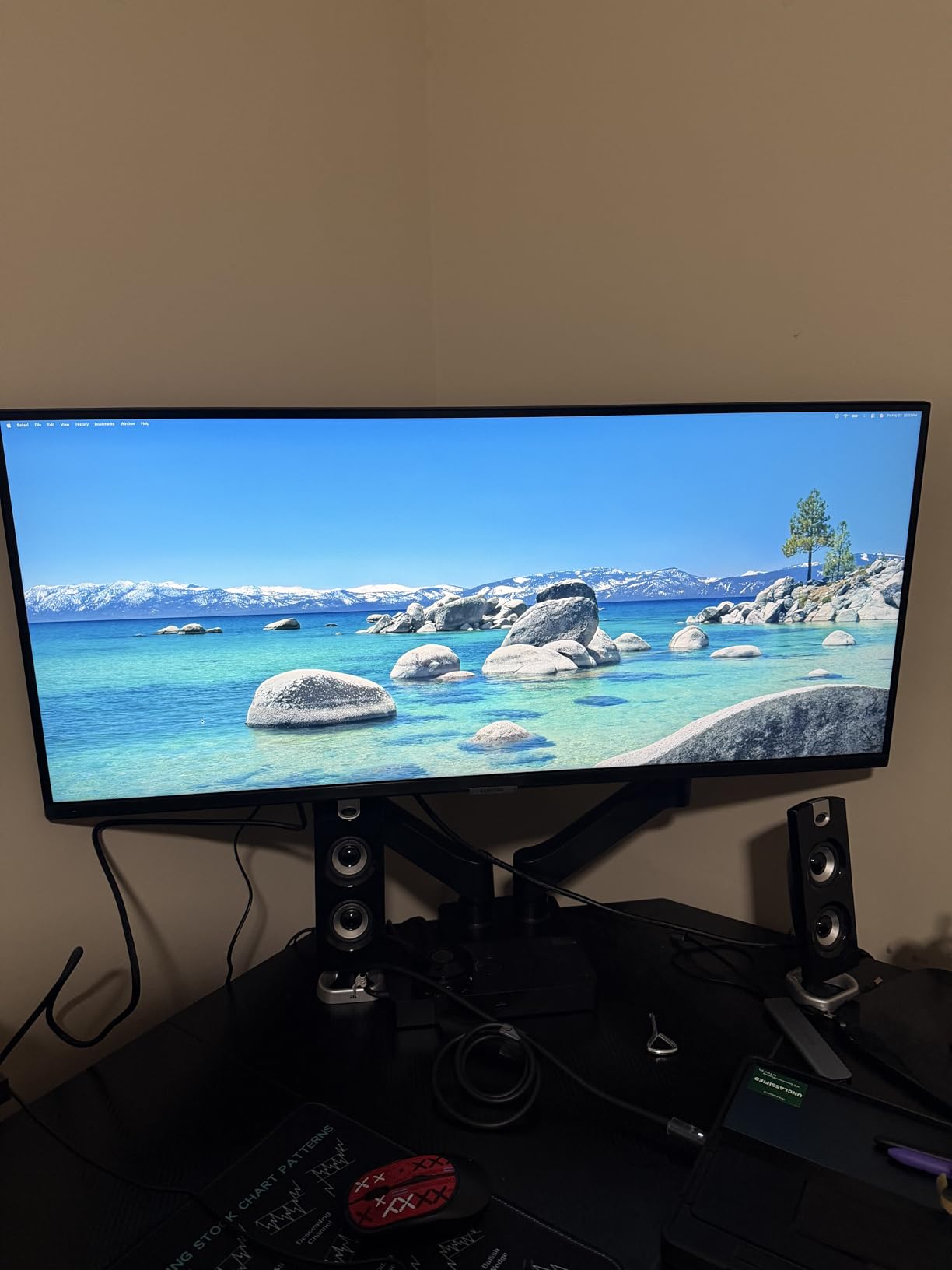
The hardware is deliberately plain: two HDMI 2.2 inputs and one DisplayPort 1.2, a matte finish that handles office overhead lighting, and no USB hub at all. There is an ambient light sensor that adjusts brightness on its own, alongside Eye Saver Mode and flicker-free operation, which matters during a ten-hour document day.
Where it falls short is physical. The included stand offers tilt only, with no height adjustment, so most buyers end up on a monitor arm. Buyers also report the on-screen display overlapping the desktop at power-on, and the rubber control toggle tucked under the bezel is genuinely hard to find by touch.
What the S50GC handles well for working hours
Two documents side by side is the natural fit, and Picture-by-Picture lets you run a laptop over HDMI next to a desktop over DisplayPort at the same time. The 1-year manufacturer warranty is short by the standards of this list, but the review volume means defects surface early and get replaced.
Where it falls short
VA dark smearing shows up when you scroll quickly past very dark content into very bright content, which is visible on dark-mode terminals. Color depth is unremarkable, so this is a working monitor rather than a color grading reference. And if you have two machines you want to share, there is no KVM switch, meaning a physical switcher or software input switching is required.
2. Amzfast 49-Inch DQHD – Best 32:9 Canvas Below the Premium Tier
Amzfast 49 Inch Curved Monitor 120Hz DQHD (5120×1440) Ultrawide Gaming Monitor, 120% sRGB, 1500R, 1ms MPRT, HDR, Adaptive Sync, PIP/PBP, Height Adjustable, HDMI 2.0/DP 1.4, VESA 75×75, AMZG49C7U
49-inch 5120x1440 32:9 curved VA
120Hz, 1ms MPRT, 350 cd/m2
3000:1 contrast, 120 percent sRGB
Height 0-110mm, swivel 20 deg, VESA 75x75
Pros
- Dual QHD 32:9 canvas replaces a two-monitor desk with one cable
- 120Hz with adaptive sync and 1ms MPRT
- Full stand adjustment including 110mm of height travel
- 1369 buyer ratings
Cons
- Less-established brand with thinner support reputation
- 350 nits is low for HDR in a bright room
- 46.7 inch chassis needs a large desk surface
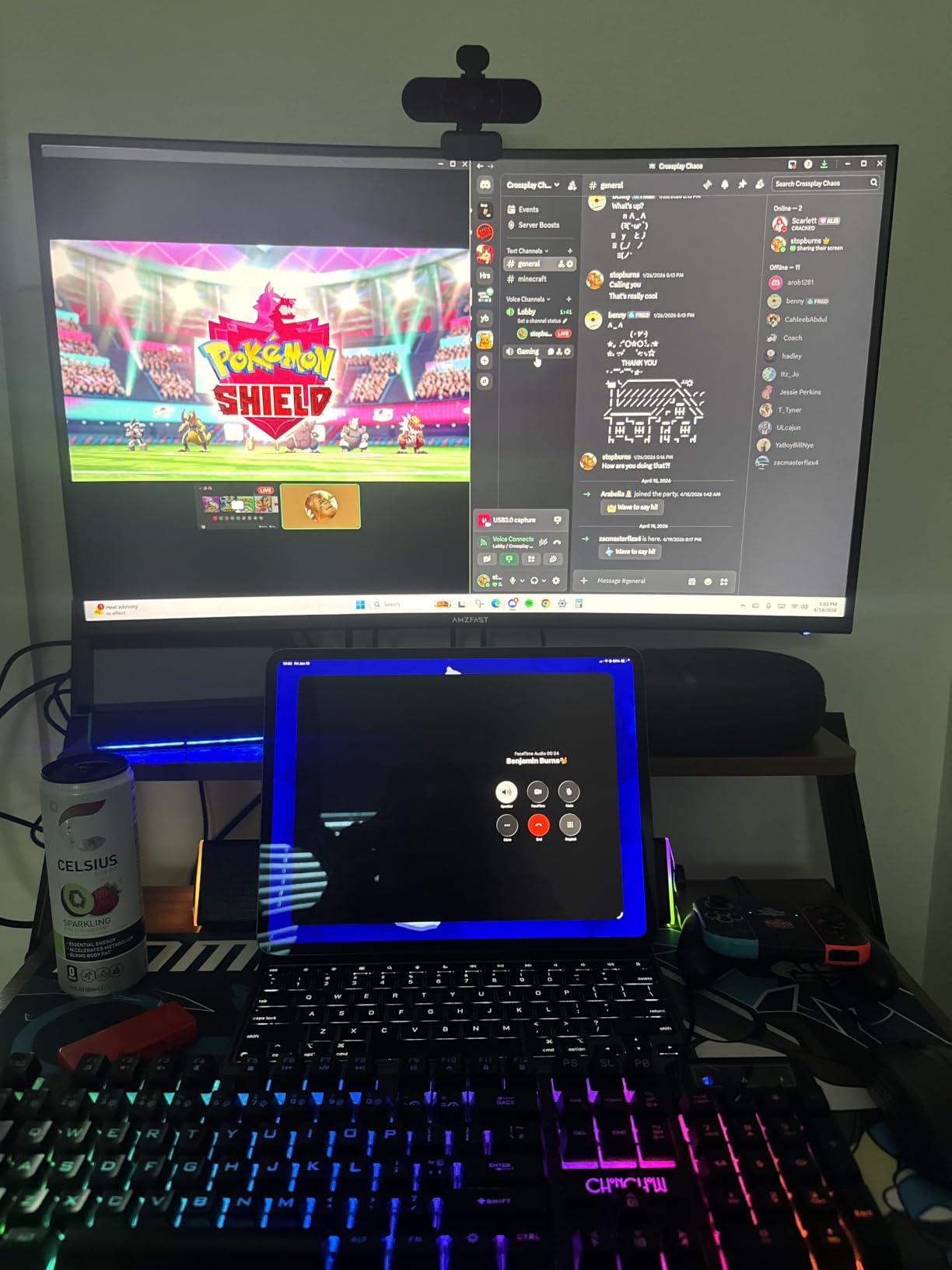
This is the one that answers the question nobody else in the category is answering head-on: is a 49 inch monitor good for productivity? When your work genuinely needs two full applications at once rather than one large one, the answer is yes, and this is the most direct way to get a 5120×1440 32:9 canvas without moving up to a business-tier panel.
The spec sheet is the strongest in the mid tier. 120Hz, 1ms MPRT, adaptive sync with both FreeSync and G-Sync compatibility, 3000:1 contrast and 120% sRGB coverage. At 350 nits it will not impress you in a sunlit room, but under normal office lighting the picture is punchy and the text rendering holds up well at roughly 109 pixels per inch.
Stand adjustment is the detail that separates this from cheaper 49-inch panels. It offers 0-110mm of height travel, 20 degrees of swivel each way and a -5 to +20 degree tilt, which means a single person can get the panel to eye level without recruiting help, and you can angle it away from a window glare. There is also a 75×75 VESA mount for an arm.
The 1500R curve is a moderate wrap rather than an aggressive one, so distortion at the edges stays manageable when you are reading a reference document parked at the far right. Preset scene modes including a dedicated Office mode are included, and the box ships with a DisplayPort cable, power cord and manual.
Who this 49-inch suits
Traders with several dashboards open, video editors previewing footage beside a timeline, and developers who want a browser, an editor and a terminal running at once. Anyone replacing two 27-inch monitors will feel the difference immediately: no bezel, one cable, one power button. At 11.61 inches deep, it needs a deep desk and a clear line of sight roughly 60 to 75 inches away.
Where the compromises sit
The brand is the main trade. Amzfast is not a tier-one display maker, and the warranty is a single year, so support is thinner than you would get from Dell, Samsung or Philips. HDR is basic rather than a certified wide-gamut tier, and the 46.69-inch width means a standard 48-inch desk will overhang. There are no built-in speakers, so audio needs an external solution.
3. INNOCN 49C1R – Best 49-Inch for Mac Mini and Laptop Users
INNOCN 49″ Curved Monitor Ultrawide Gaming 5K2K 120Hz 32:9 QHD 5120 x 1440P Computer Monitor, R1800, 99% sRGB, HDR400, USB Type C, DisplayPort, HDMI, Built-in Speakers, Height/Tilt Adjustable – 49C1R
49-inch 5120x1440 32:9 VA, 1800R
120Hz via DisplayPort 1.4
400 nits, 99 percent sRGB, HDR400
USB-C 65W, RJ45, USB hub, speakers
Pros
- Around 109 PPI keeps spreadsheet and code text crisp
- Full port set including USB-C 65W
- RJ45 and USB hub
- 1800R curve is gentler than most 49-inch rivals
- 400 nits is bright for a matte-style office panel
Cons
- Integrated speakers are weak
- Some units reported with dead pixels or colored lines
- Glossy finish picks up reflections in bright rooms
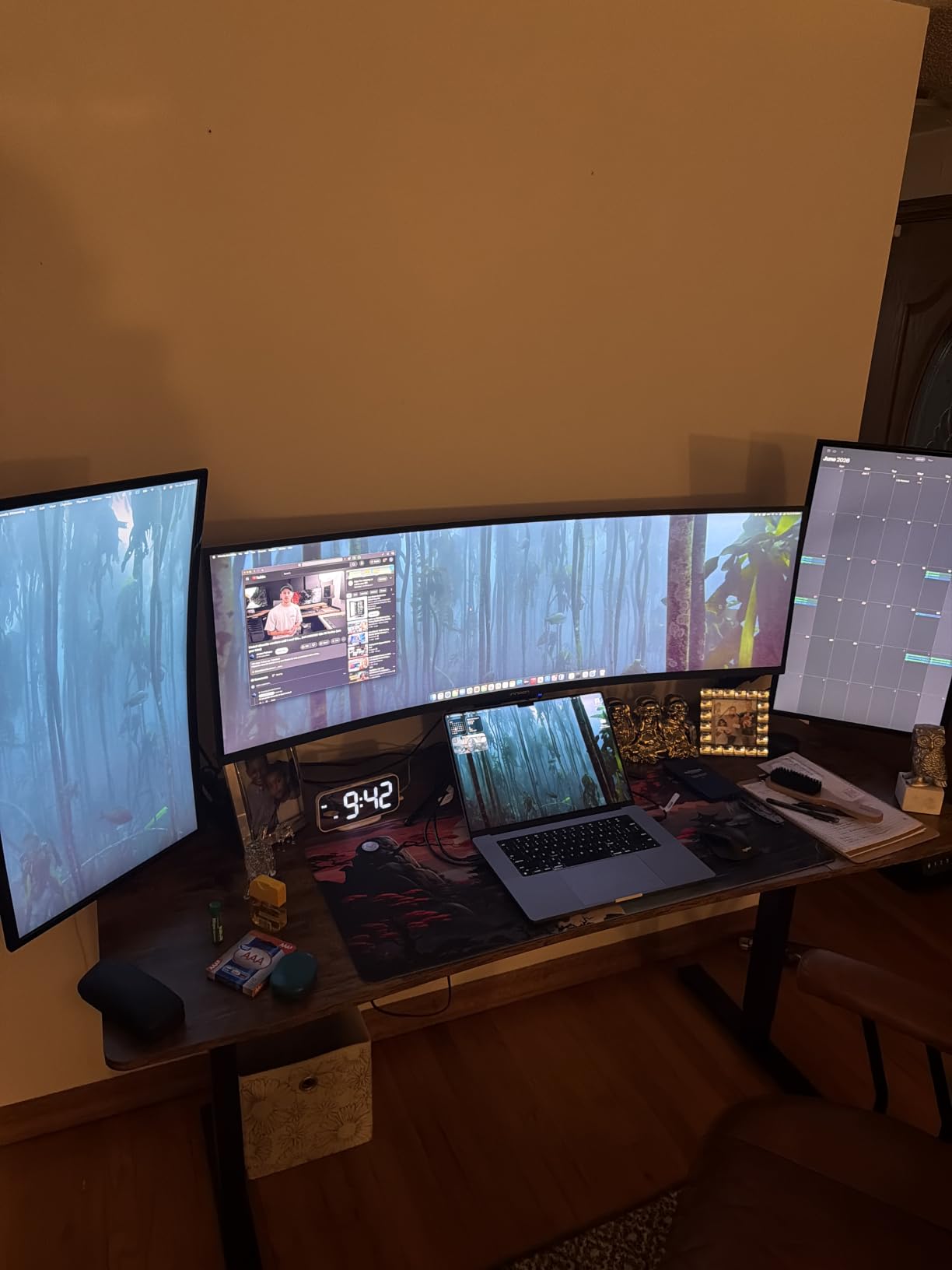
The 49C1R is the 49-inch to buy if your desk’s main computer is a laptop or a Mac Mini rather than a tower. It is one of the few 32:9 panels in this group that treats USB-C as a first-class input: 65W of power delivery, a full USB hub with two USB-A ports, an RJ45 Ethernet jack and a 3.5mm audio out, all routed through the display.
Mac Mini owners in particular report native 5120×1440 output over USB-C, which means one cable carries video, charging, networking and peripherals. That is the single-cable workflow the forums keep asking for, and it is the reason this panel appears on so many small-form-factor desk builds.
Picture quality is a step above the other 49-inch options here. 400 nits of brightness, 99% sRGB coverage, HDR400 certification and 3000:1 contrast on a VA panel, with FreeSync adaptive sync for tear-free motion. The 1800R curvature is deliberately gentler than the 1000R and 1500R curves common in this class, which suits long editing sessions and reading material pinned to the outer thirds of the screen.
Adjustability covers tilt, swivel and height, and PIP/PBP handles two inputs at once. Built-in speakers are present, though reviewers are blunt about their quality and commonly pair external speakers instead.

Check before you commit
Quality control is the real question mark. A number of reviews mention units arriving with clusters of dead pixels or occasional colored lines, and INNOCN’s one-year manufacturer warranty is the shortest in this roundup. The glossy screen finish is another consideration: it looks good in a dim studio and shows ceiling lights in a bright open-plan office, so a matte panel is the safer choice for glare-heavy desks.
Know this before buying
Some owners hit USB-C dropouts when the monitor’s sleep and auto-wake behavior interacts badly with their laptop’s power management, which needs a setting change on the machine. There is no remote control and no back-panel lighting, unlike some premium rivals. And at 5120×1440 the pixel density lands near 109 PPI, which is readable for documents but noticeably coarser than the 40-inch 5K2K class for very small text.
4. Dell S3425DW – Best 34-Inch One-Cable Work Monitor
Dell 34 Monitor S3425DW, WQHD VA, 120Hz, FreeSync Premium, Eye Comfort
34-inch 3440x1440 21:9 curved VA
120Hz, 0.03ms, 300 cd/m2
USB-C 65W power delivery, 4 USB ports
99 percent sRGB, 95 percent DCI-P3, 109 PPI
Pros
- One USB-C cable carries video
- 65W charging and hub duties
- 120Hz with FreeSync Premium and 0.03ms response
- Full editing timeline visible without scrolling
- 1-year Advanced Exchange and Premium Panel Exchange
Cons
- Fewer ports than Dell UltraSharp hub monitors and no DisplayPort
- VA pixel response is slow for high-motion gaming
- Recessed VESA mount area complicates arm mounting
The S3425DW is the most sensible one-cable productivity monitor here, and it carries Dell’s warranty and service behind it. One USB-C cable handles video, up to 65W of charging and the hub, which is enough to run most thin-and-light laptops all day without a charger on the desk.
It also runs at 120Hz with FreeSync Premium and a 0.03ms response time, which is unusual for a VA panel in this price bracket. In practice that means document scrolling and cursor movement feel noticeably smoother than a 100Hz alternative, and the extra headroom is there if you game after work.
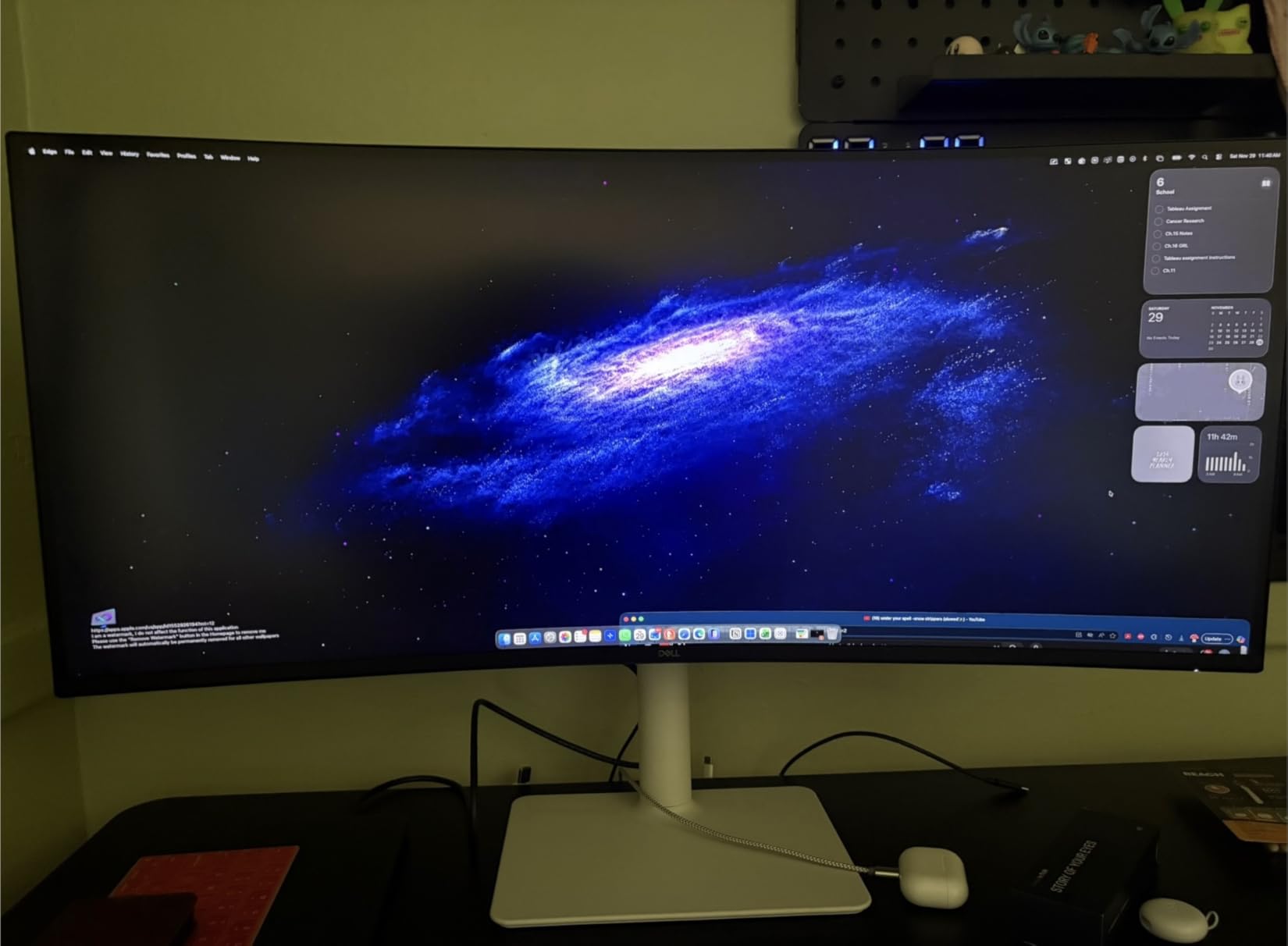
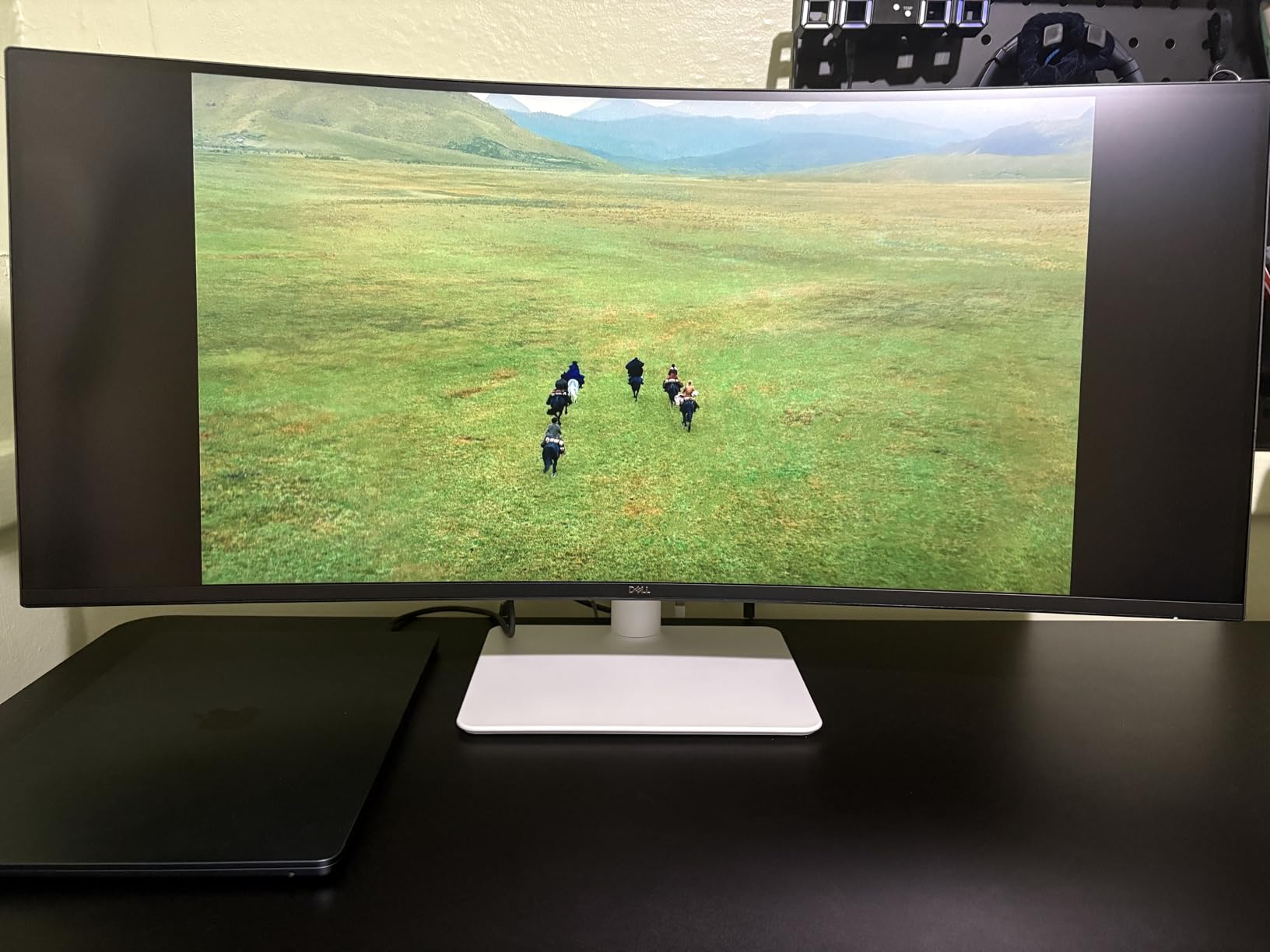
The panel is matte finished in an ash white that reads cleanly under bright office lighting, and ComfortView Plus cuts blue light emissions to 35% or below. Color coverage of 99% sRGB and 95% DCI-P3 is enough for general graphics and video work, and at 109 pixels per inch the 3440×1440 resolution keeps spreadsheet rows legible across the full width. Stand assembly is tool-free and takes about a minute.
Height and tilt adjustment are both present, which matters more than usual on a curved 34-inch. Office and creative users consistently single out the wide screen for fitting a full video or audio editing timeline on screen without scroll bars, and MacBook compatibility is reported as reliable with the included 10Gbps USB-C cable.
Why this one earns its place
It is the rare ultrawide where the connectivity story holds up: two HDMI ports, four USB ports and a 65W USB-C input on a 34-inch panel under most competitors’ hub pricing. For a laptop-plus-monitor desk, that is the whole requirement met, and it frees the second screen slot in your budget for a vertical panel for documents.
What to compromise on
The port count is still modest against Dell’s pricier UltraSharp models, and there is no DisplayPort input at all, so a desktop without USB-C has fewer options. The recessed VESA mount area makes arm mounting awkward without spacers, and at 20.7 pounds it is the heaviest 34-inch here. Built-in speakers are improved but still mediocre, and there is no integrated webcam despite the hub feature set.
5. Samsung S95UA 49-Inch Business – Best 90W Docking for IT Fleets
Samsung 49” Business Curved Ultrawide Dual QHD Computer Monitor, USB-C, DisplayPort, HDMI, 120Hz, VESA DisplayHDR 400, Built-in Speakers, Height Adjustable Stand, Eye Care, LS49C954UANXZA, 2024
49-inch 5120x1440 32:9, 1000R curve
120Hz, 5ms, 400 cd/m2
HDR400, 3000:1 contrast
USB-C 90W, Ethernet, 3x USB 3.0
Pros
- Acts as monitor and docking station in one
- 90W USB-C charges a full-size laptop
- 3-year warranty with ship-in service
- 120Hz makes scrolling long documents noticeably smoother
Cons
- 72 percent sRGB is narrow for color-critical work
- 5ms response is modest next to gaming panels
- 32.2 pounds and 45 inches wide needs a deep desk
The S95UA is built for a different buyer than everyone else on this list. If you are provisioning desks for a team rather than kitting out one home office, the three-year manufacturer warranty with ship-in service, a dedicated business call center and a 90W USB-C charging port are the features that decide it.
As a display it is a genuine 1000R curve across 49 inches of 5120×1440 Dual QHD, and that tight radius is the argument: it wraps to match your natural field of view so the outer edges sit at the same comfortable angle as the center, which reduces the eye and neck movement buyers report with flatter 49-inch panels. Brightness is 400 cd/m2 with VESA DisplayHDR 400 certification and 3000:1 contrast.
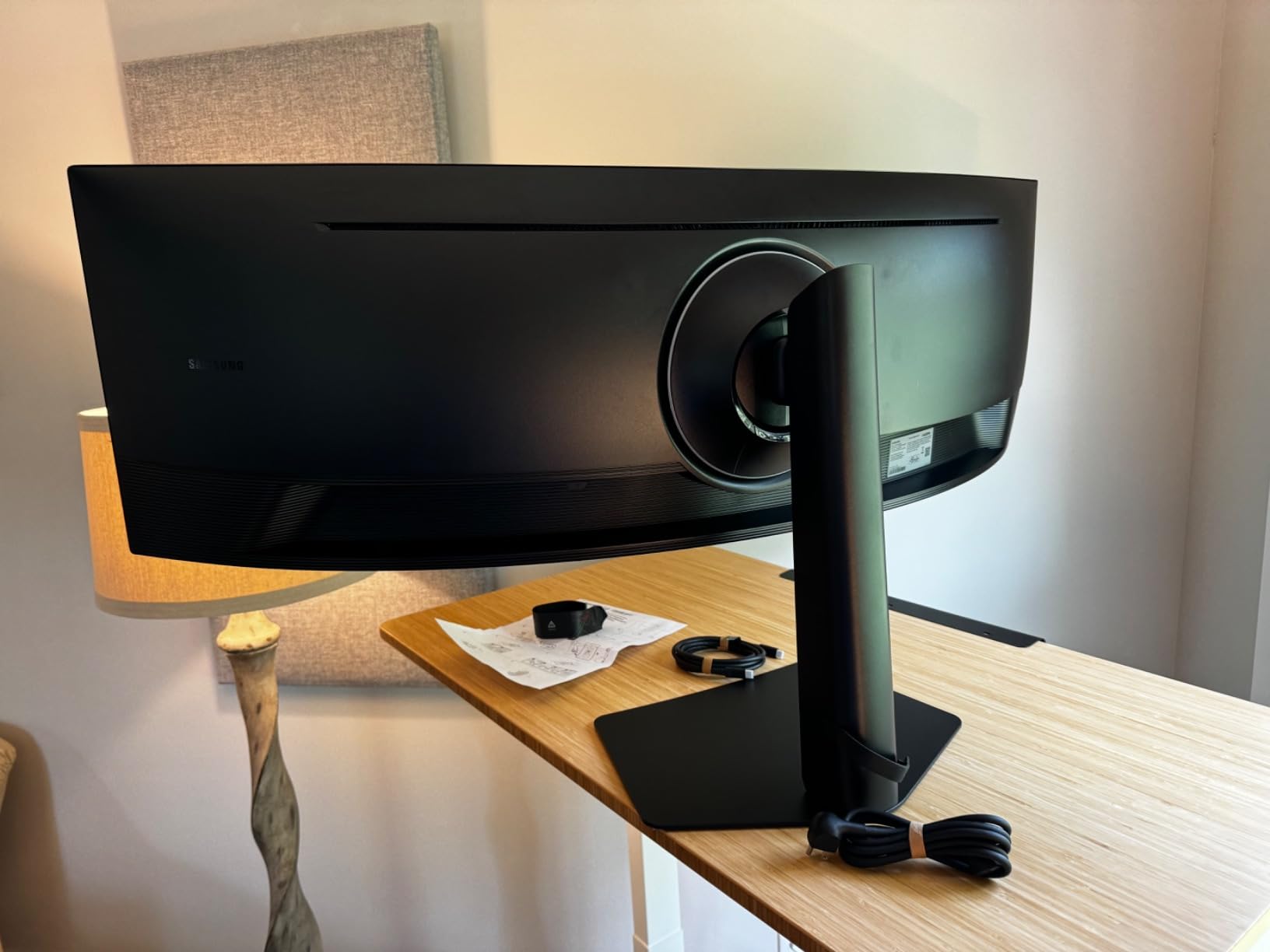
The connectivity is the real product. USB-C with 90W, DisplayPort, two HDMI inputs, three USB 3.0 ports and Ethernet, plus built-in speakers. That is enough to run a full laptop workstation from a single monitor, and it is why this panel shows up in finance offices and trading floors where a shared desk needs to accept any machine a user brings in.
At 120Hz, scrolling through a thousand-row financial model or a long code file is visibly smoother than the 100Hz alternatives, which is a real ergonomic difference over a full day. The height adjustable stand and Eye Care features handle the rest.
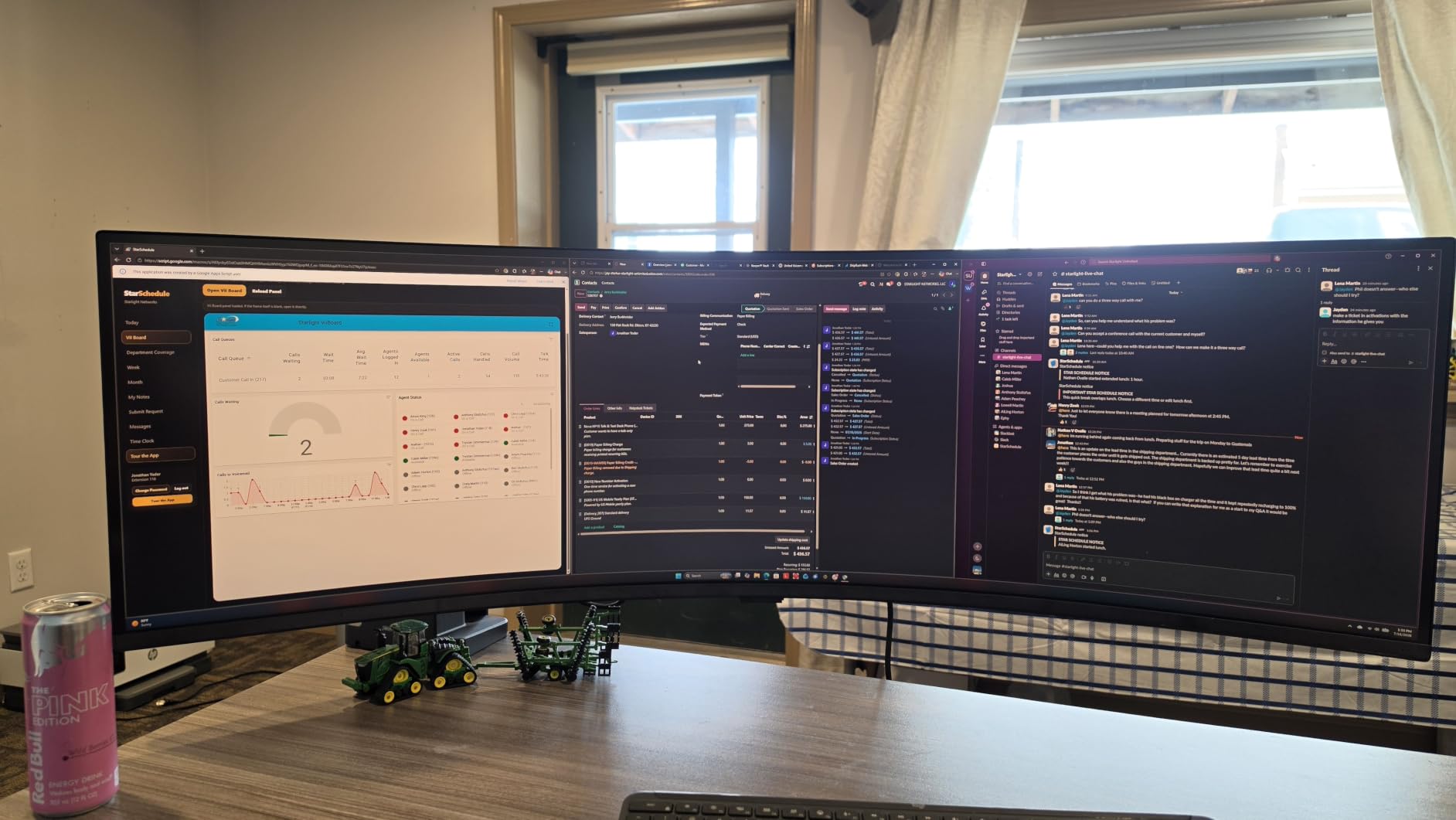
Where it earns its cost
Peripherals disappear. A user who previously needed a docking station, an external speaker and a charger now needs none of them, and in a fleet deployment that adds up across dozens of desks faster than the panel premium does.
What you give up
Color gamut is the notable weakness at 72% sRGB, which is narrow for any design or photography work and rules out color-critical grading. Response time of 5ms is fine for scrolling but soft for high-motion gaming. And the chassis is a monster: 32.2 pounds, 45.18 inches wide and 22.38 inches deep, which realistically means two people to position it and a deep desk to hold it. There is also no integrated KVM switch despite the port selection.
6. Philips 346E2CUAE – Widest Color Gamut at This Tier
Philips 34 Inch Curved Computer Monitor UWQHD 100Hz USB-C PD VA, 346E2CUAE
34-inch 3440x1440 21:9, 1500R curved VA
100Hz, 1ms MPRT, 300 cd/m2
Ultramax Wide-Color: 121.3 percent sRGB
USB-C PD, 4x USB 3.1, VESA mount
Pros
- 121.3 percent sRGB and 99.5 percent NTSC coverage
- USB-C power delivery with a four-port USB hub
- 4-year manufacturer warranty plus 4-year EU spare parts
- Frameless three-sided bezel design
Cons
- 300 cd/m2 is modest and it is not HDR-certified
- No height adjustment
- adjustability limited to swivel
- 27.8 pound chassis is awkward for one person to reposition
The Philips 346E2CUAE exists for one reason: color. Its Ultramax Wide-Color technology covers up to 121.3% sRGB and 99.5% NTSC, which is the widest gamut of any 34-inch panel in this roundup and noticeably ahead of the 99% sRGB on the Dell.
If your output involves color decisions at all, web design, brand work, light photo editing, that extra gamut headroom is real. For pure text and spreadsheets it makes no visible difference, so weigh it accordingly. The rest of the panel is a competent 1500R curved VA at 3440×1440 running 100Hz with 1ms MPRT and Adaptive-Sync.
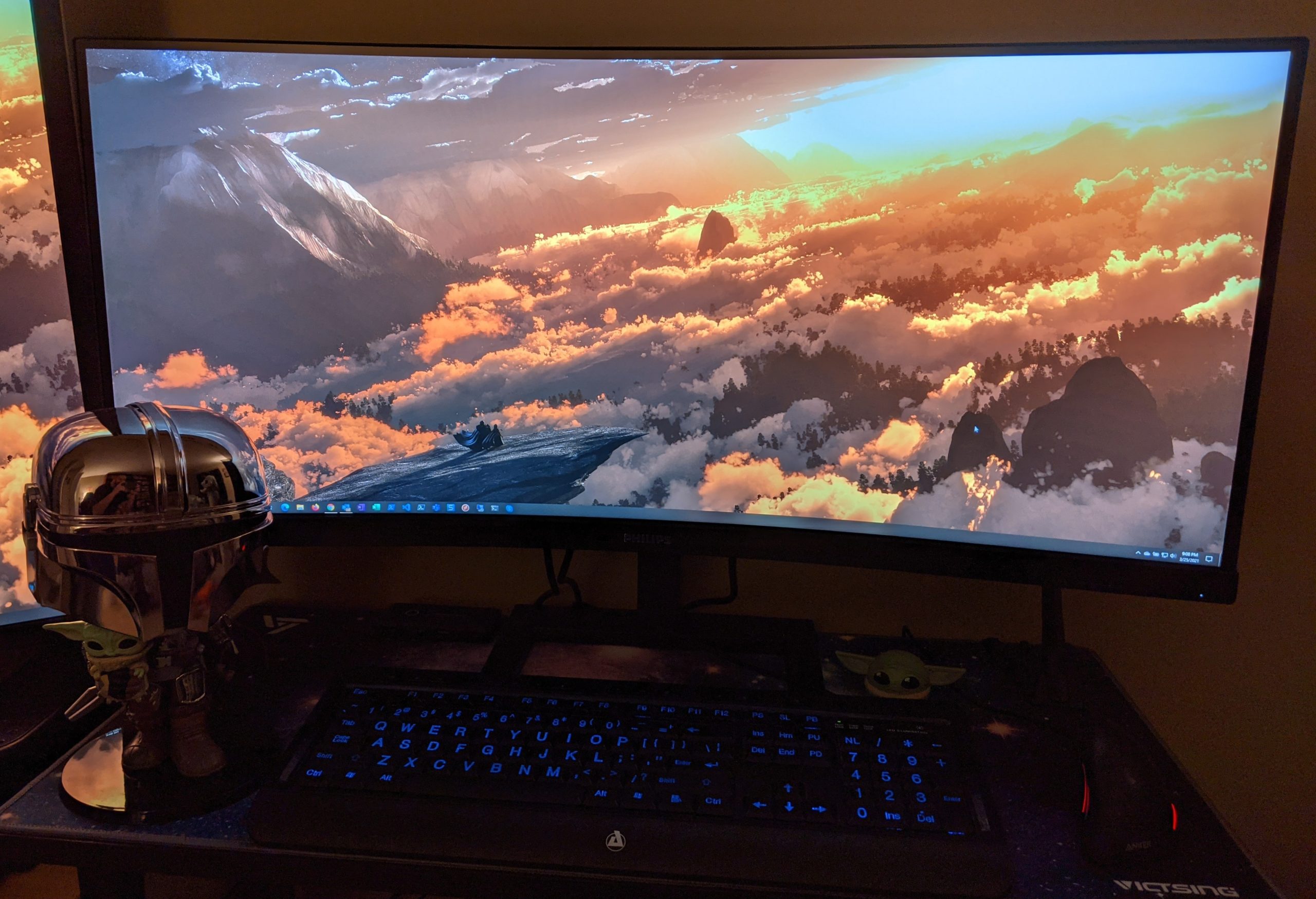
It also docks. USB-C with Power Delivery handles a single-cable laptop connection, and the integrated hub provides four USB 3.1 ports plus a USB 3.1 Type-C connection, so a laptop desk needs no separate dongle for keyboard, mouse and drive.
The warranty is the longest here at four years, with four years of EU spare part availability committed, which matters if you plan to keep the panel past the usual upgrade cycle. The frameless three-sided bezel keeps the desk looking clean, and VESA mounting is supported.
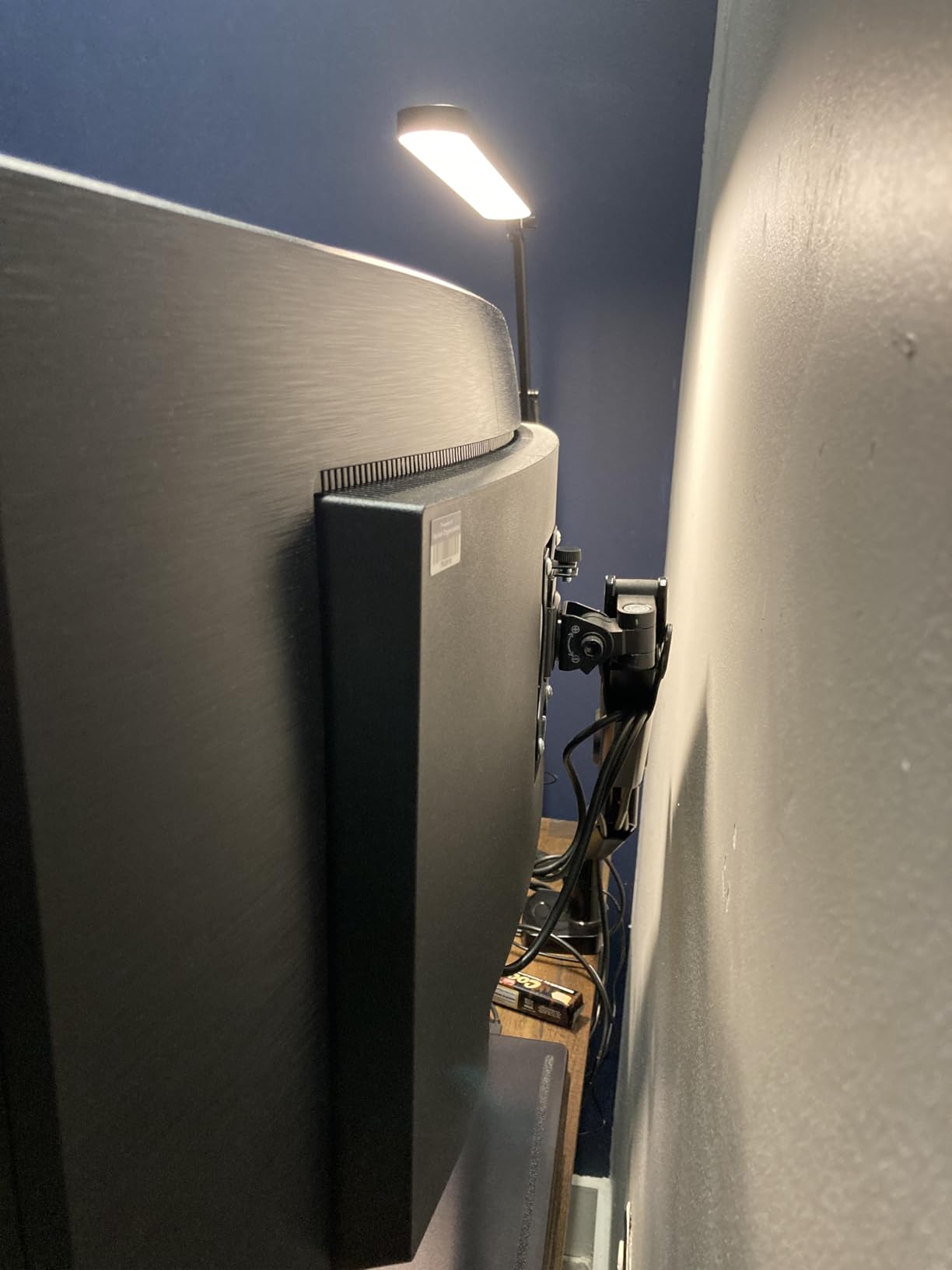
Best for color-adjacent work
Designers, brand and marketing teams, and photographers doing light corrections benefit most from the gamut headroom. Anyone who wants a cheap, genuinely one-cable 34-inch desk with a hub and a long warranty also lands here, and the 633 ratings give a reasonably solid read on long-term reliability.
Three things to check first
Brightness is 300 cd/m2 and the panel is not HDR-certified, so it will look dim next to a 400-nit display in a bright room. There is no height adjustment listed, so adjustability is limited to swivel, which is a real limitation on a 34-inch curved panel where screen height matters. At 27.8 pounds the chassis is heavy and the box is large, which makes repositioning a two-person job. Some listings report a different input configuration, so verify the port set on the specific unit before ordering.
7. Deco Gear DG495KEDGE – The Only Pick With a Built-In KVM Switch
Deco Gear 49 Inch Curved Ultrawide Monitor, 5120×1440 Dual QHD 32:9 1500R VA Display, HDR400, 120Hz, Adaptive Sync, 1ms MPRT, USB-C 65W PD, KVM, PIP/PBP, Gaming & Workstation Setup, for PC & Laptop
49-inch 5120x1440 32:9, 1500R curved VA
120Hz, 1ms MPRT, 400 cd/m2
USB-C 65W plus built-in KVM switch
HDR400, 100 percent sRGB, PIP/PBP
Pros
- Built-in KVM switch runs two machines from one keyboard and mouse
- USB-C 65W charges a laptop over a single video cable
- Full height
- tilt and swivel adjustment
- 120Hz and 1ms MPRT with Adaptive Sync
Cons
- No built-in speakers
- Highest one-star share of any pick in this roundup
- 105W peak power draw is the highest here
The Deco Gear DG495KEDGE answers the most requested feature in the forum threads and the one no competitor in this category offers. It has a built-in KVM switch, so if you run a desktop for work and a laptop for other things, one keyboard and one mouse can drive both machines through the monitor’s own input switching, with no external switch box on the desk.
It is a 1500R curved 49-inch VA at 5120×1440, running 120Hz with 1ms MPRT and Adaptive Sync. Brightness is 400 cd/m2 with HDR400, 100% sRGB and 85% NTSC coverage, 3000:1 contrast, and a 0.31mm pixel pitch. USB-C delivers 65W over a single video cable, and PIP/PBP covers multi-source viewing on top of that.
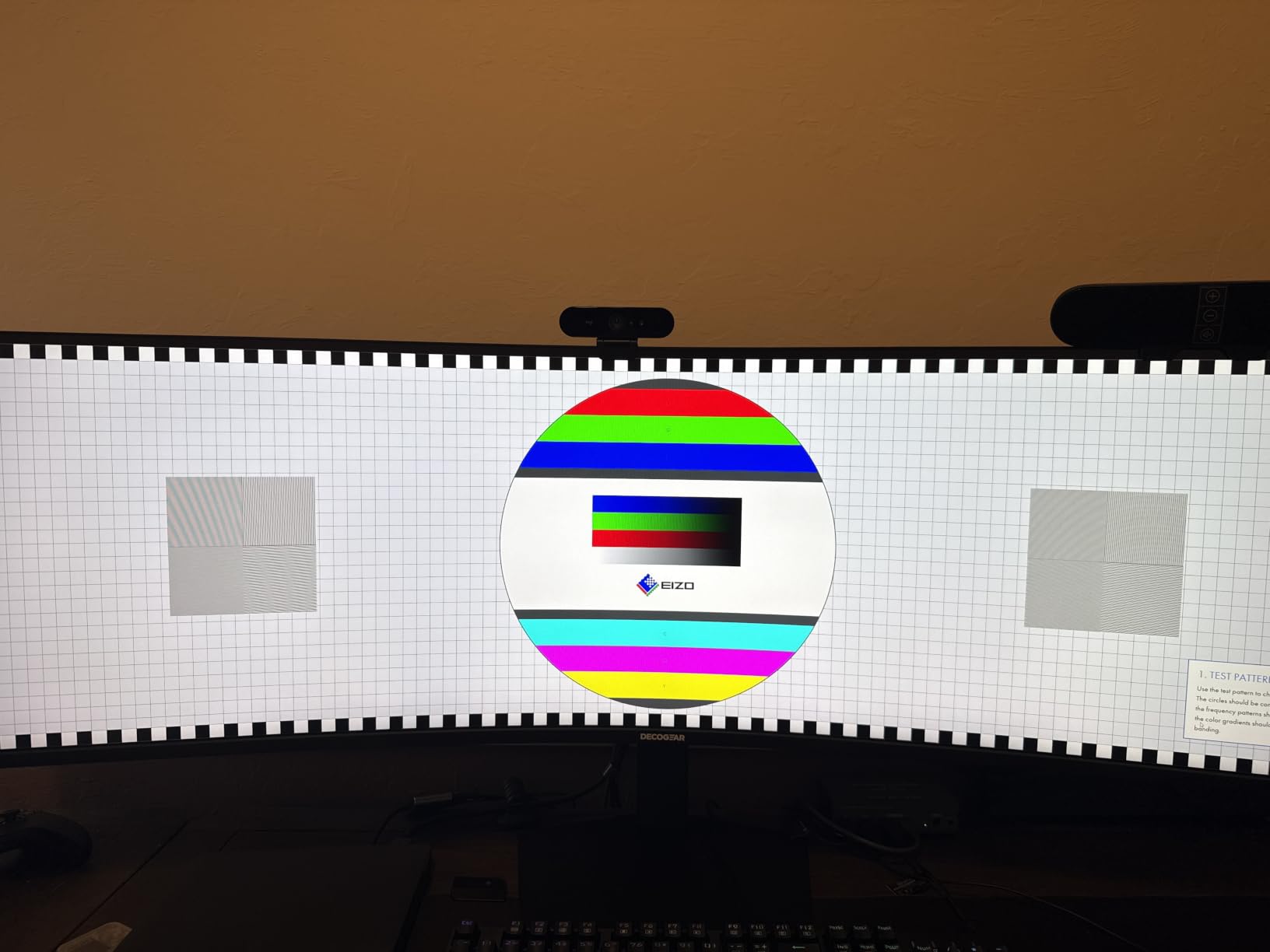
Stand adjustment is full: height, tilt and swivel, so a single user can position a 46.7-inch panel. Port selection is complete for a workstation, with HDMI, DisplayPort, USB-C, USB-A, USB-B and audio out. The practical result is a 32:9 canvas that behaves like two 1440p monitors with no bezel, and a desk that can switch between a tower and a laptop without touching a single cable.
For traders, developers and anyone moving between a work desktop and a personal laptop, that KVM switch changes the economics of the whole setup.
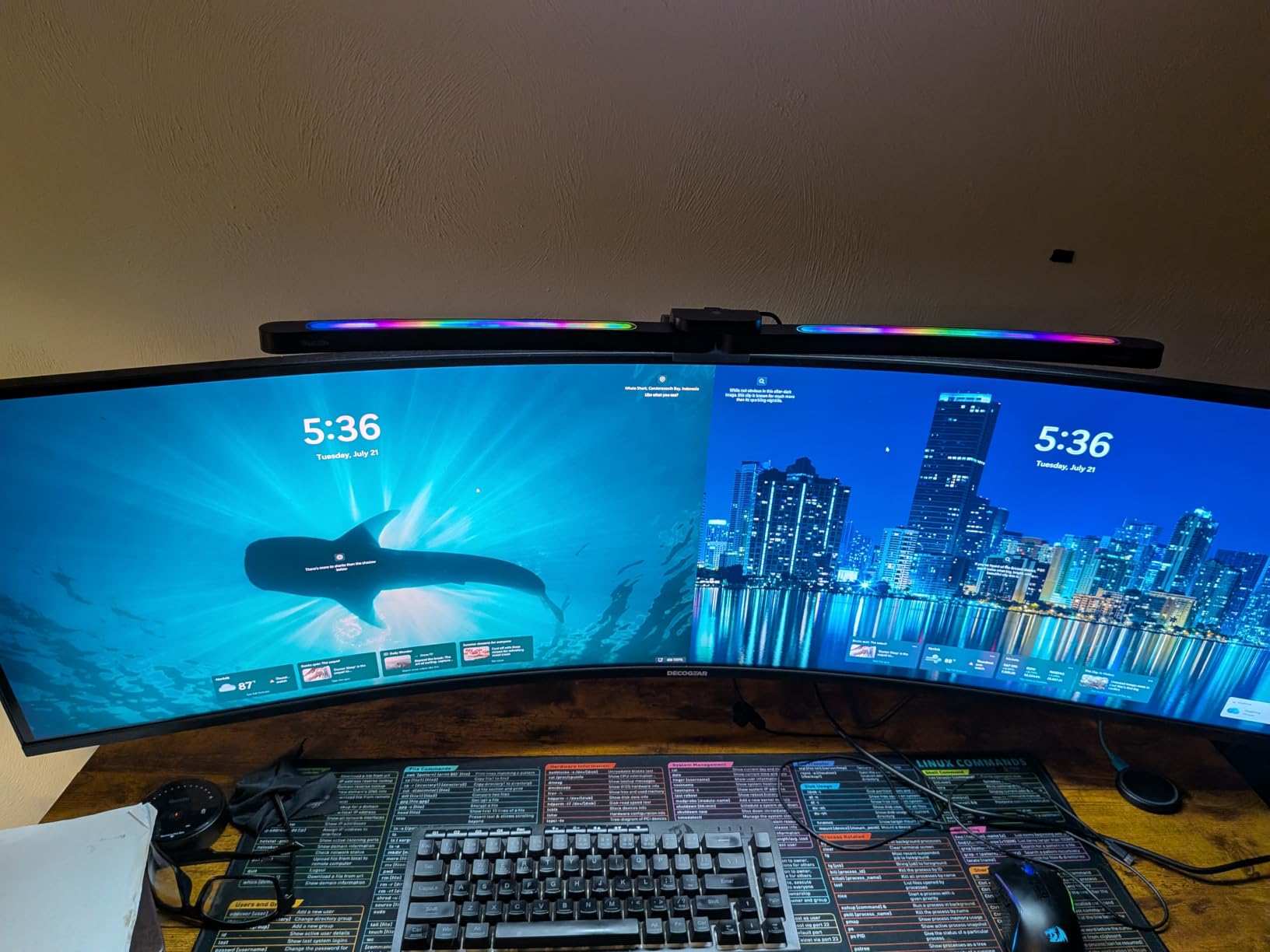
Who should look here
Multi-machine desks. If you already keep a keyboard, mouse and switcher in your setup, the DG495KEDGE removes two boxes and the cables between them. The 49-inch canvas also works well for long architectural or CAD plans and for side-by-side reference material.
Read the rating spread first
Its 4.2 average sits at the bottom of this group, and the one-star share is the highest of the eight, which points to occasional quality-control problems rather than a design flaw. There are no built-in speakers at all, so audio out to external speakers or headphones is mandatory. Power consumption peaks at 105 watts, the highest in the roundup, which is worth noting on a desk that also runs a tower.
8. Alienware AW3425DW – Best Image Quality for Hybrid Work Desks
Alienware 34 240Hz QD-OLED Curved Gaming Monitor – AW3425DW – 34.2-inch WQHD (3440 x 1440) 0.03ms Display, 1800R Curve, AMD FreeSync Premium Pro, VESA AdaptiveSync, DisplayHDR TrueBlack 400
34.2-inch 3440x1440 QD-OLED, 1800R
240Hz, 0.03ms response
1,500,000:1 contrast, 250 cd/m2 SDR
99.3 percent DCI-P3, Delta E under 2, 110 PPI
Pros
- QD-OLED panel gives true blacks and 1.5M:1 contrast
- 240Hz with 0.03ms response and three adaptive sync standards
- 99.3 percent DCI-P3 with Delta E under 2 accuracy
- 1000 nits peak HDR with DisplayHDR TrueBlack 400
Cons
- 250 cd/m2 SDR brightness is modest for daylight rooms
- OLED burn-in needs sensible screen care over years of static use
- Smudge or texture pattern can appear in bright flat office lighting
The AW3425DW is the image quality benchmark of the group and the only OLED here. Everything else on this list emulates deep blacks; a QD-OLED panel produces them, which is why text and dense interface elements look unusually crisp on it even though the resolution is the same 3440×1440 as the budget options.
It is also the fastest. 240Hz with 0.03ms response, plus NVIDIA G-SYNC Compatible, AMD FreeSync Premium Pro and VESA AdaptiveSync support, means the panel adapts to whatever your GPU and games deliver. Color is measured rather than claimed: 99.3% DCI-P3 coverage with Delta E under 2 accuracy, and DisplayHDR TrueBlack 400 certification reaching 1000 nits at peak.
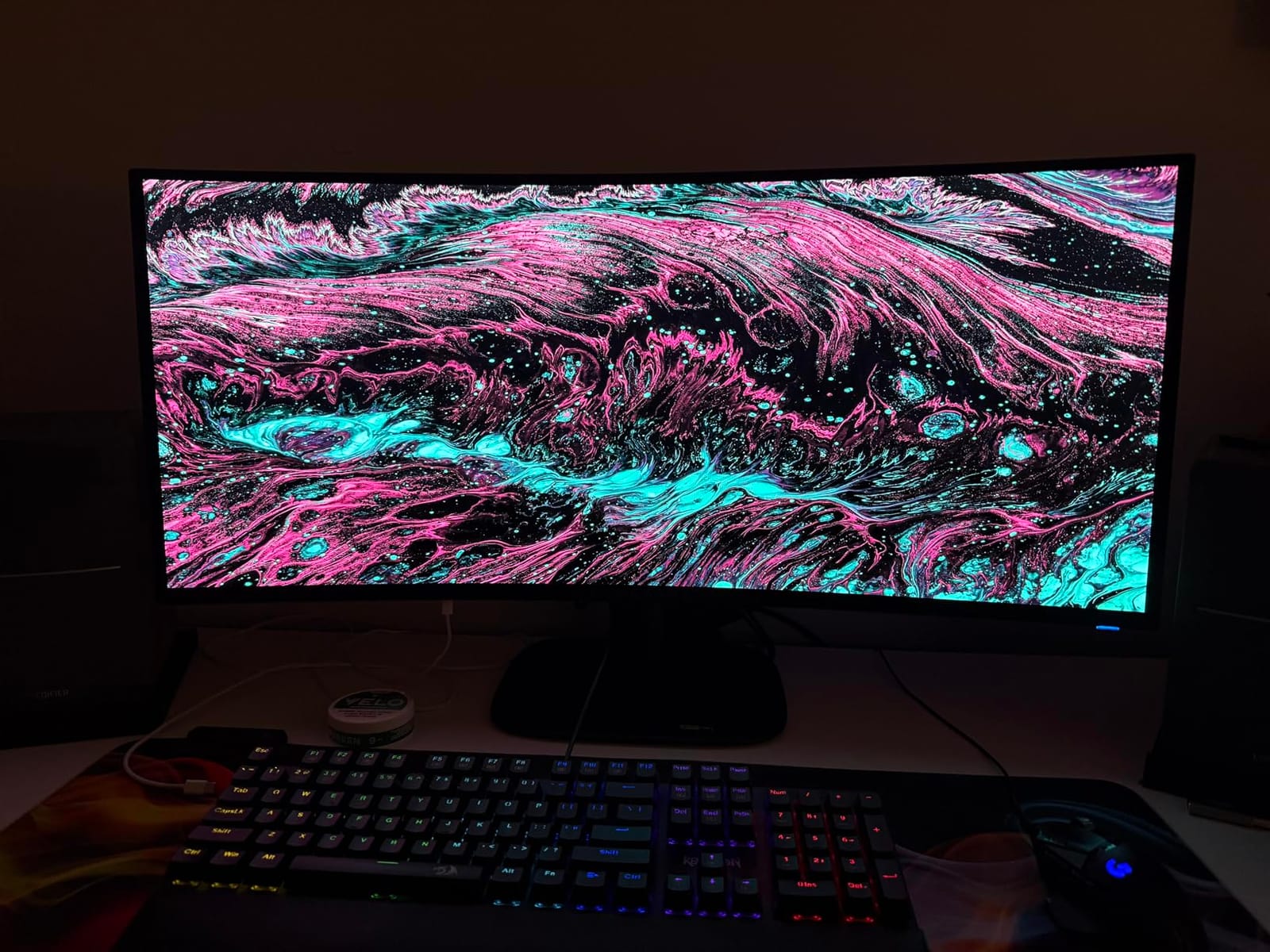
For a desk that does work and play, that combination is unusual. Photo and video editing get the color accuracy, design work gets the contrast, and the 1800R curve gives a wide field of view without aggressive distortion. The finish is matte, which helps with reflections, and the panel is a true 34.2 inches at 110 pixels per inch.
Adjustment covers height, swivel and tilt, there is a blue light filter, and the three-year warranty plus USB hub connectivity round out a solid package.
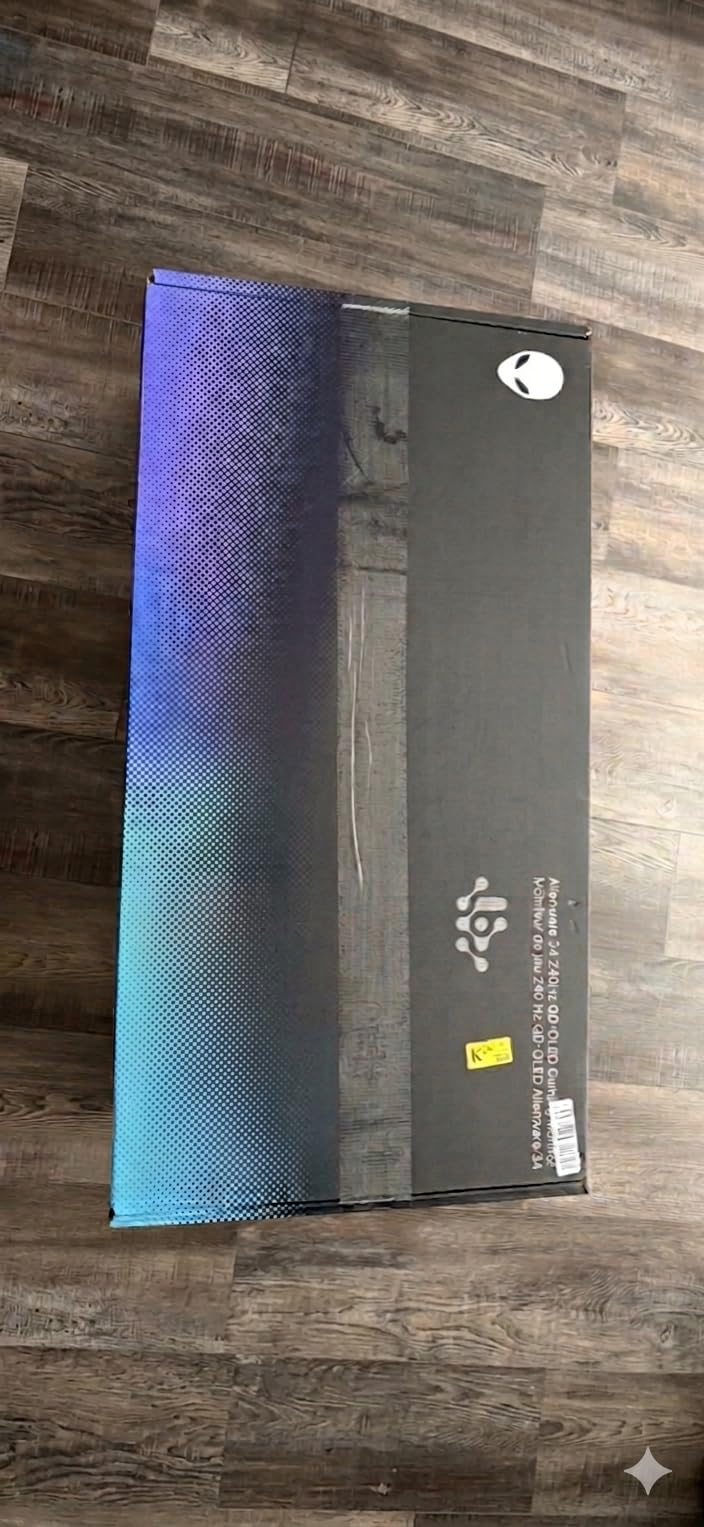
Why the image quality is worth it
For anyone doing work in dark interfaces, code editors and terminal windows, the true blacks are a genuine quality-of-life improvement rather than a spec-sheet line. The measured Delta E under 2 accuracy also makes this the only panel here accurate enough to trust for photo and video color decisions without a second reference display.
Where the OLED trade-off bites
Burn-in is a real consideration over years of static desktop use, and it is the top reason people in the forums stay on IPS or Fast VA panels. SDR brightness is rated at 250 cd/m2, which is the lowest of the eight and will look dim in a daylight-lit office. Reviewers also mention a faint smudge or texture pattern appearing in bright, flat office lighting. And at 3440×1440 the pixel density is 110 PPI, so the smallest text is coarser than on a 40-inch 5K2K panel.
How to Choose an Ultrawide Monitor for Productivity
The specifications that decide an ultrawide purchase are fewer than the spec sheet suggests. Six things actually change your day: resolution and pixel density, panel type, screen size, viewing distance, connectivity, and whether you are the kind of person who will get along with a very wide canvas. Here is how to weigh each one.
Resolution and pixel density
Two numbers govern text sharpness, and they are not the same. Resolution tells you how many pixels exist; pixel density (PPI) tells you how tightly they are packed, and PPI is what your eyes actually experience when reading a spreadsheet at arm’s length.
A 34-inch 3440×1440 panel lands at roughly 109 PPI. A 40-inch 5120×2160 panel reaches about 139 PPI, which is the level where small text in code editors and fine print in PDFs stops looking chunky. A 49-inch 5120×1440 screen returns to roughly 109 PPI, because the extra width comes from pixels rather than density.
This is why the forums consistently rank text clarity above refresh rate for document work. If your week is Word, Excel, CAD plans or code, prioritize PPI. If your week is video and design, prioritize color gamut and contrast instead.
On naming: 3440×1440 is called UWQHD, WQHD or 2.5K depending on the brand. It is not 2K and it is not 4K, and it sits just under 4K horizontally at 3,686 pixels against 4K’s 3,840. 5120×1440 is DQHD or 32:9, and 5120×2160 is called 5K2K. Those labels are marketing conventions, not standards, so check the actual pixel count.
Panel type: IPS, Fast VA and OLED
Panel choice is where productivity monitors genuinely differ, and the honest answer is more nuanced than panel type alone.
IPS gives the widest viewing angles and the most consistent text rendering from off-axis angles, which matters if you sit slightly to the side. Its weakness is black level: IPS glow, where dark areas near the edges look faintly hazy, and a low native contrast ratio that makes dark-mode interfaces look grey.
VA, including the “Fast VA” panel in several panels here, delivers 3000:1 native contrast against IPS’s typical 1000:1. You get real blacks and noticeably punchier documents on a light background, at the cost of slower pixel response that can smear on very dark transitions, and narrower off-axis angles where the picture shifts as you move.
OLED delivers both perfect blacks and wide angles, with the best measured color accuracy of the three, but adds permanent burn-in risk to a display you will stare at for years. That is why IPS or VA remains the right default for a long-horizon office monitor, and why OLED in this roundup earns a badge for image quality rather than for the whole category.
34-Inch vs 40-Inch vs 49-Inch: which size should you buy?
Size is the decision people get wrong, because they assume bigger is better. It is not; it depends entirely on your desk depth and how much head movement you tolerate.
A 34-inch 21:9 screen replaces one 16:9 monitor with something modestly wider. It fits almost any desk, sits at a comfortable viewing distance, and is the productivity default for good reason. Choose this if your desk is shallower than 30 inches or if you have never used a super ultrawide before.
A 40-inch 21:9 screen at 5120×2160 is the sweet spot for anyone who cares about text. The extra inches come with higher pixel density rather than just more width, so it delivers both more workspace and sharper text. It needs a desk roughly 32 inches or deeper and about 50 to 60 inches of viewing distance. This is the size to buy if you want one monitor and no compromises.
A 49-inch 32:9 screen is the direct replacement for two 16:9 monitors with no bezel, and for traders, editors and anyone genuinely running three or four applications at once, that is the single strongest productivity argument in ultrawide. The cost is real: a chassis over 45 inches wide, a desk 30 inches deep or more, and a viewing distance of roughly 60 to 75 inches. Users frequently report having to physically turn their heads during multitasking, and 38-to-40-inch models in particular get called “a bit too wide” by people who expected 49 inches to be worse. If your desk cannot take it, a 40-inch will serve you better.
Viewing distance and desk depth
A useful rule is roughly 1.2x to 1.5x the screen diagonal for a curved panel. That works out to about 50 to 60 inches for a 40-inch ultrawide and 60 to 75 inches for a 49-inch. At those distances the whole screen falls inside your field of view and you stop turning your head to read the outer thirds.
The test is simple. Sit at your normal working distance, center the display, and check whether you can read text near either outer edge without leaning or rotating. If you cannot, the panel is too large for your position, and no amount of pixel density will fix the neck strain. This is the most common regret reported by first-time super ultrawide buyers.
Connectivity, KVM and power delivery
For a laptop desk, the specification that matters most is USB-C power delivery wattage. 65W runs most ultraportables and thin-and-light laptops comfortably. 90W, as offered by the Samsung S95UA, covers full-size laptops. Anything below 65W and you are still carrying a charger, which defeats the purpose of a single-cable desk.
Look for a built-in USB hub alongside it. Four USB-A ports is the practical minimum for keyboard, mouse, drive and a dongle without a separate dock. A 3.5mm audio out saves a second cable, and an RJ45 port saves a third if your laptop lacks Ethernet.
KVM support is the criterion almost nobody publishes and almost everybody with two machines wants. A built-in KVM switch, as on the Deco Gear DG495KEDGE, lets one keyboard and mouse drive two computers through the monitor without an external switch box. If you toggle between a work desktop and a personal laptop daily, this is worth more to you than a higher refresh rate.
Finally, do check the graphics card side. For desktop work, 3440×1440 is not demanding; it is roughly half the pixel count of 4K and office applications are not GPU-bound. It only becomes demanding under gaming, where a 3440×1440 panel at 144Hz can out-run a 4K panel at 60Hz on the same card.
Who should skip an ultrawide
Some jobs should not use an ultrawide at all. Color-critical grading and print work still require a calibrated reference panel; professional color suites validate against standard calibration targets, and a 72% sRGB wide-screen panel will not pass. Some professional applications have not been validated at 32:9 and letterbox instead of filling the screen.
There is also a resilience argument. One large panel is a single point of failure; two small ones degrade independently. And if you work exclusively in one maximized window, an ultrawide adds cost and neck movement without adding anything useful.
For related desk builds, our guides to field monitors and stage monitors cover the portable and live-sound ends of a production setup.
Frequently Asked Questions
Is an ultrawide monitor good for productivity?
Yes, for document, spreadsheet and code work, where a 21:9 screen replaces a dual-monitor bezel with one continuous desktop. The caveat is size: 40 and 49-inch panels can force constant head movement, so 34 inches is the safer starting point for most desks.
Is a 49 inch monitor good for productivity?
A 49-inch 32:9 screen substitutes two 16:9 monitors with zero bezel, which is the strongest productivity argument for it. But 32:9 constrains some older applications, text at the edges forces head movement, and the chassis needs a desk 30 inches deep. Best for traders, editors and long timelines; most people are better served at 34 or 40 inches.
Is 3440×1440 considered 2K or 4K?
3440×1440 is called UWQHD, WQHD or 2.5K. It is neither 2K nor 4K. At 3,686 pixels across it sits just under 4K horizontally, and carries roughly half the pixel count of a full 4K panel.
Is 3440×1440 harder to run than 4K?
For desktop work, no. 3440×1440 is roughly half the pixel count of 4K and office applications are not GPU-bound. It only becomes demanding under gaming, where a 3440×1440 panel at 144Hz can out-run a 4K panel at 60Hz on the same graphics card.
How far should you sit from an ultrawide monitor?
A common rule is 1.2x to 1.5x the screen diagonal for a curved panel, which is about 50 to 60 inches for a 40-inch ultrawide and 60 to 75 inches for a 49-inch. At that distance the whole screen fits your field of view and you stop turning your head. If your desk is shallower, choose a smaller ultrawide.
Why don’t pros use ultrawide monitors?
Color-critical grading and print work still need calibrated 4K or 5K reference panels, professional color suites validate on standard DCI-P3 targets, and some pro applications have not been validated at 32:9. A single large panel also carries more risk than two small ones if it fails.
Which ultrawide monitor has a built-in KVM switch?
The Deco Gear DG495KEDGE, a 49-inch 5120×1440 panel, includes a built-in KVM switch alongside 65W USB-C power delivery, so one keyboard and mouse can drive two machines without an external switch box. Most other ultrawides in this category omit KVM support entirely.
The Verdict on Ultrawide Monitors for Productivity
For most people buying the best ultrawide monitors for productivity in 2026, the Samsung ViewFinity S50GC is the answer: 3440×1440 at 100Hz, a matte finish that survives office lighting, PBP for a second source, and a review base large enough that you know what you are getting. It is the panel we would put on a desk with no other information.
Move up when your work justifies it. The Dell S3425DW is the smarter one-cable 34-inch, the Philips 346E2CUAE is the color answer, the Samsung S95UA handles 90W business docking with a three-year warranty, and the Amzfast, INNOCN and Deco Gear panels turn a 49-inch 32:9 screen into a replacement for two monitors. The Alienware AW3425DW wins on image quality and loses nothing except burn-in caution.
Whichever you choose, measure your desk depth and your viewing distance before you order. That single check prevents almost every ultrawide regret we have seen.