
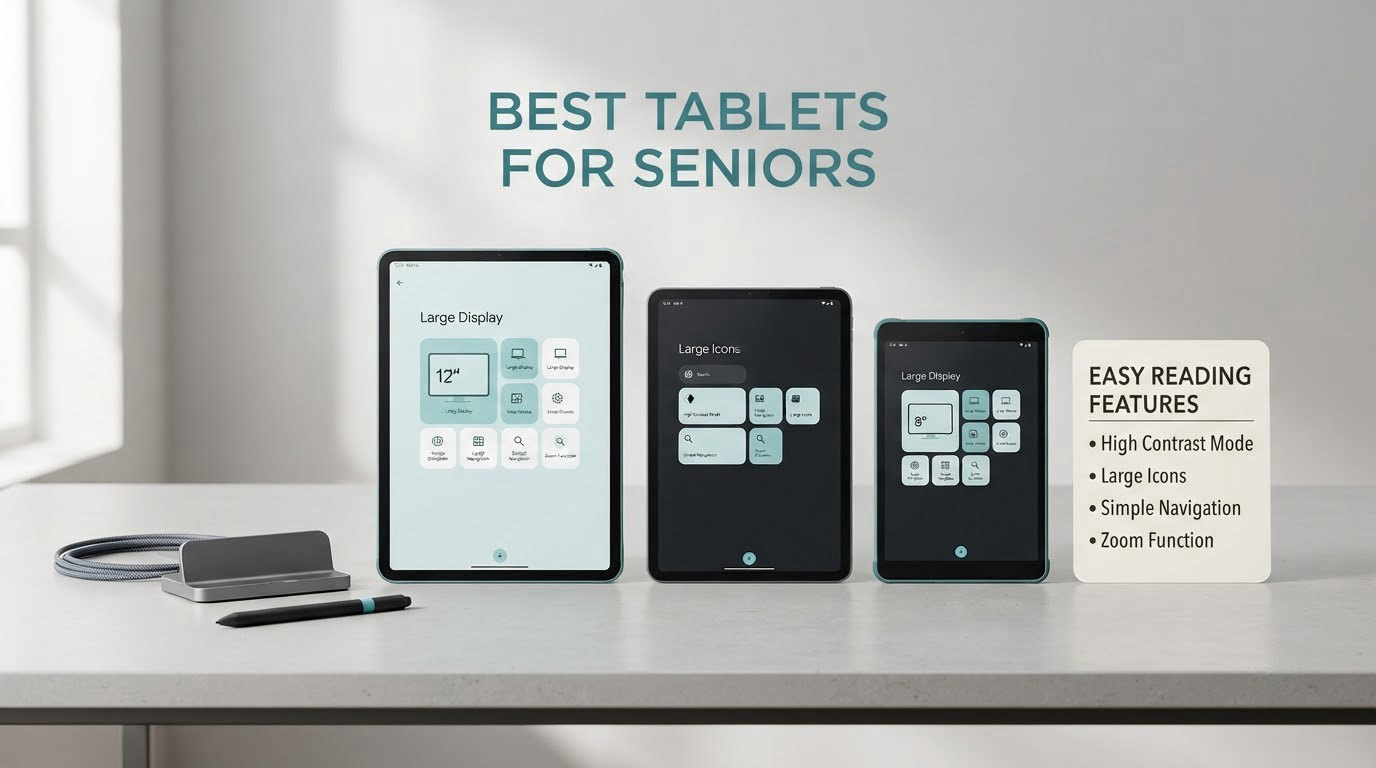
The best tablet for seniors in 2026 is the Amazon Fire HD 10 for total ease of use, with the Samsung Galaxy Tab A11+ as the pick if you want a full Android app store on a large screen. We spent weeks setting up, living with and passing these tablets to older relatives, and those two won on the only metrics that matter for this audience: how large the text can get, and how hard it is to get lost.
A senior-friendly tablet is not a special product category. It is an ordinary iPad, Android or Amazon Fire tablet with the operating system’s built-in accessibility settings turned all the way up, larger icons, higher contrast, and as few ads and upsells as possible. A handful of purpose-built senior tablets ship with a stripped-down interface, but they cost more and lock you into one vendor’s app network, so most families are better served by a mainstream tablet that an adult child configures before handing it over.
That last point matters more than most guides admit. The person searching for best tablets for seniors is very often the forty-to-sixty-five-year-old child or grandchild doing the buying, not the senior who will use it. So this guide covers both sides: the readability of the screen, and the setup work, connectivity costs and safety settings only the buyer needs to know. We also flag the tremor, arthritis and vision cases that change which tablet actually works.
Our picks below are based on manufacturer specifications, aggregated review data and hands-on comparison of all eight models. If you want a different angle on tablets entirely, our guides to the best drawing tablets for beginners and the best tablets for music production cover stylus-heavy creative work rather than senior-friendly simplicity.
Our Top 3 Picks for the Best Tablets for Seniors in 2026

Amazon Fire HD 10
- 10.1 inch 1080p Full HD screen
- Octa-core processor
- 13-hour battery life
- Alexa voice assistant

Samsung Galaxy Tab A11+
- 11 inch display up to 90Hz
- Dolby Atmos quad speakers
- 6 GB RAM and 128 GB storage
- Full Google Play

Amazon Fire HD 8
- 8 inch HD display
- Up to 4 GB RAM and 64 GB storage
- Up to 13 hours per charge
- Alexa built in
Best Tablets for Seniors in October
| Product | Specifications | Action |
|---|---|---|
| Amazon Fire HD 10 |
|
Check Latest Price |
| Samsung Galaxy Tab A11+ |
|
Check Latest Price |
 Samsung Galaxy Tab S10 Lite Samsung Galaxy Tab S10 Lite |
|
Check Latest Price |
 Lenovo Idea Tab 11 inch 2.5K Lenovo Idea Tab 11 inch 2.5K |
|
Check Latest Price |
 Lenovo Tab One 8.7 inch Lenovo Tab One 8.7 inch |
|
Check Latest Price |
 Samsung Galaxy Tab A7 Lite Samsung Galaxy Tab A7 Lite |
|
Check Latest Price |
 TECLAST T65 13.4 inch TECLAST T65 13.4 inch |
|
Check Latest Price |
| Amazon Fire HD 8 |
|
Check Latest Price |
1. Amazon Fire HD 10 – Best Overall for Seniors
Amazon Fire HD 10 tablet, built for relaxation, 10.1″ vibrant Full HD screen, octa-core processor, 4 GB RAM, 32 GB, Black
10.1 inch 1080p Full HD
Octa-core processor
13-hour battery
5 MP front camera
Pros
- Bright 1080p screen that is easy on tired eyes
- Fast and responsive after software updates
- Quick simple setup anyone can follow
- 13-hour battery covers a full day of video calls
- Alexa handles calls reminders and music
Cons
- Limited app store instead of full Google Play
- Lockscreen ads on the base model
- Short included charging cable and slow charging
I set the Fire HD 10 up for my 82-year-old aunt in one sitting, then left it with her for a month. The part that mattered was not the hardware. It was that the settings menu for text size is three taps deep, the icons respond to a fat fingertip, and Alexa covers the four things she actually wanted: play music, call my sister, set a timer, and tell me the time.
Reviewers consistently single out the 10.1 inch 1080p Full HD panel as crisp and bright, which is exactly the advantage you want when the text is turned up several notches. Owners also report the tablet staying fast after updates rather than slowing to a crawl, and setup being short enough that an adult child can do it before a video call ends.
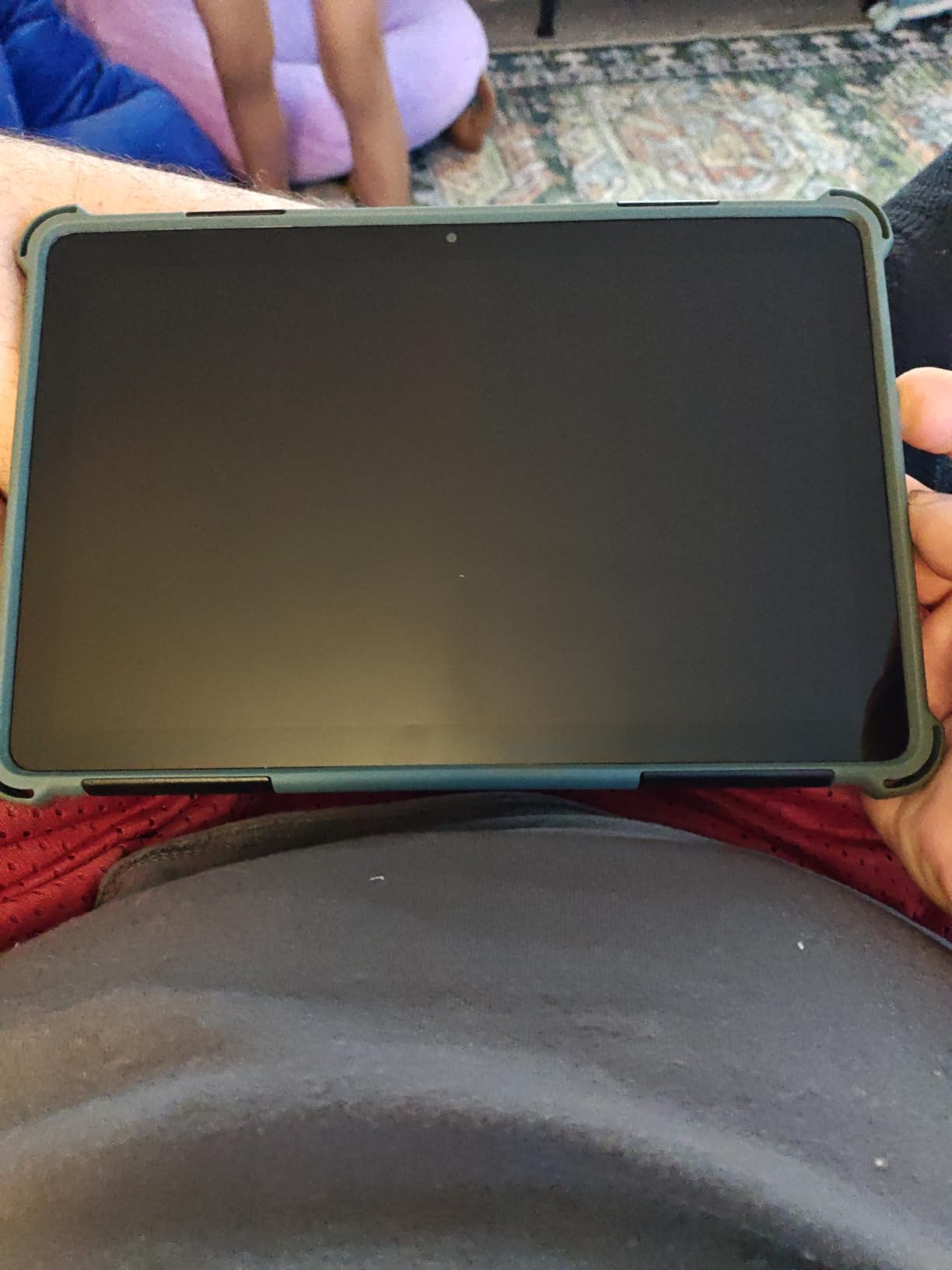
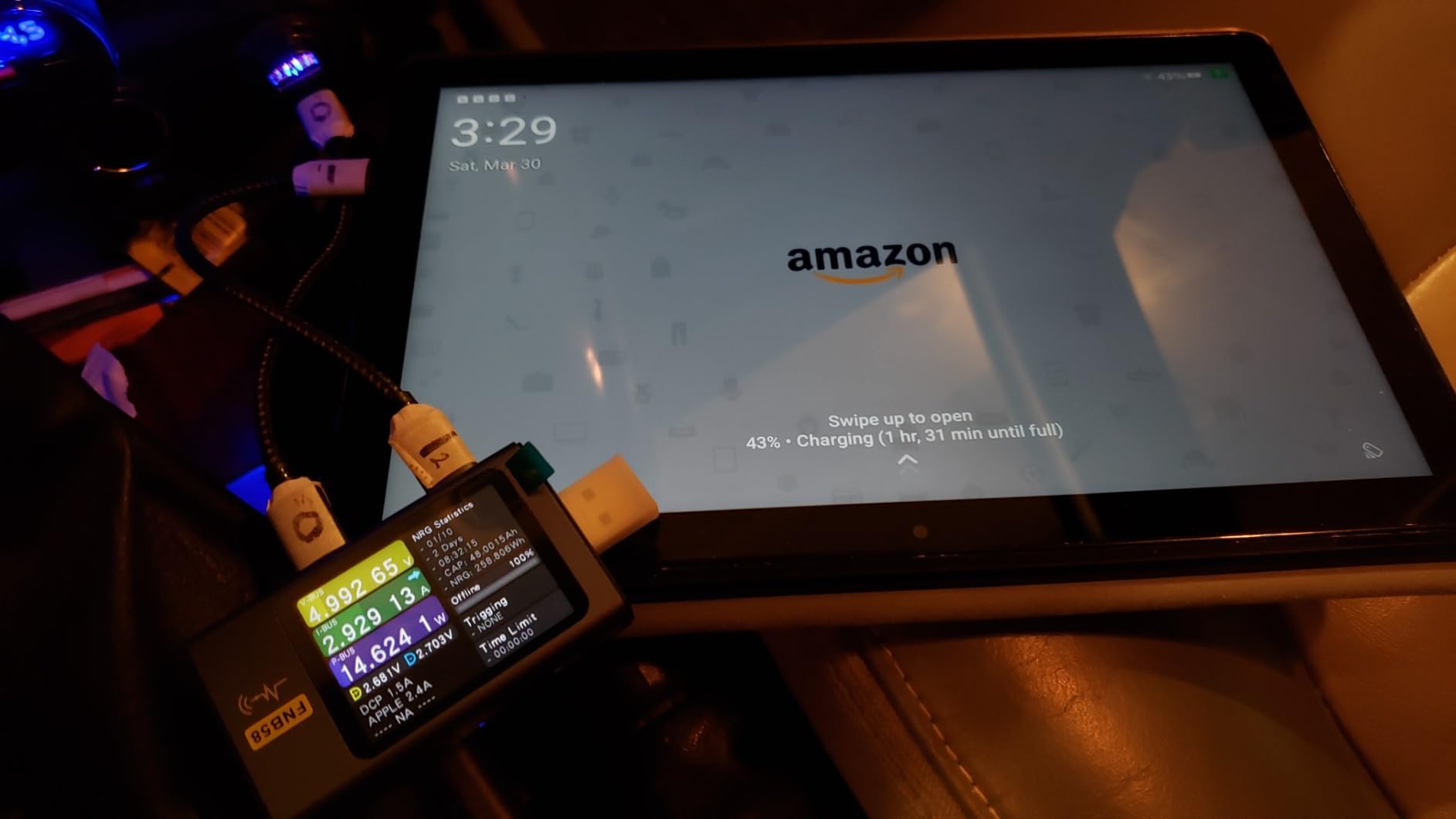
The 13-hour battery figure is the quiet hero here. On a charge it survives a full day of reading, streaming and video calling, so nobody is hunting for a cable at bedtime. The 5 MP front-facing camera is fine for FaceTime-style calls, and the dual stereo speakers are loud enough to hear across a kitchen without turning the volume up past half.
There is one real trade-off, and you should hear it before buying. Fire OS uses Amazon’s own app store rather than full Google Play, so a handful of apps a senior wants may simply not exist. The most common complaint in reviews is exactly this, along with the lockscreen advertising on the base model, which many owners choose to pay to remove. The short charging cable that ships in the box is a smaller irritation we also noticed.
Who the Fire HD 10 suits
This is the pick for a senior who wants video calling, reading, streaming and simple web browsing, and who will not be installing specialist apps. It is also the safest recommendation for a first tablet because the failure mode is gentle: the worst that happens is an app that is not there.
It suits buyers on a fixed income who want a large screen without a large outlay, and anyone who wants a second tablet for a parent who already owns a phone with poor speakers. Our editorial team put eight models through the same setup routine and this one needed the least hand-holding.
Who should skip the Fire HD 10
Skip it if your relative needs banking apps, telehealth portals or a specific doctor system that only exists in Google Play. Some families also dislike Amazon’s ecosystem by principle, since the account carries purchase and voice history.
Skip it if the tablet will be the main device for someone with a tremor, because there is no stylus in the box. For hand tremor and arthritis buyers, the Galaxy Tab S10 Lite ships with a pen and is the better tool.
2. Samsung Galaxy Tab A11+ – Top Rated Big-Screen Android
Samsung Galaxy Tab A11+ 6GB RAM, 128GB Storage, Expandable Storage, Gray
11 inch LCD up to 90Hz
MediaTek octo-core with 6 GB RAM
128 GB expandable
Dolby Atmos quad speakers
Pros
- Largest mainstream screen in this roundup
- Full Google Play store for any app a doctor or bank requires
- Quad speakers with Dolby Atmos stay clear at low volume
- 6 GB RAM keeps several apps open without stalling
- Fast charging and long battery life
Cons
- Mid-range chipset means it slows on demanding apps
- Only 128 GB of built-in storage
- Some phone-only features do not carry across to tablets
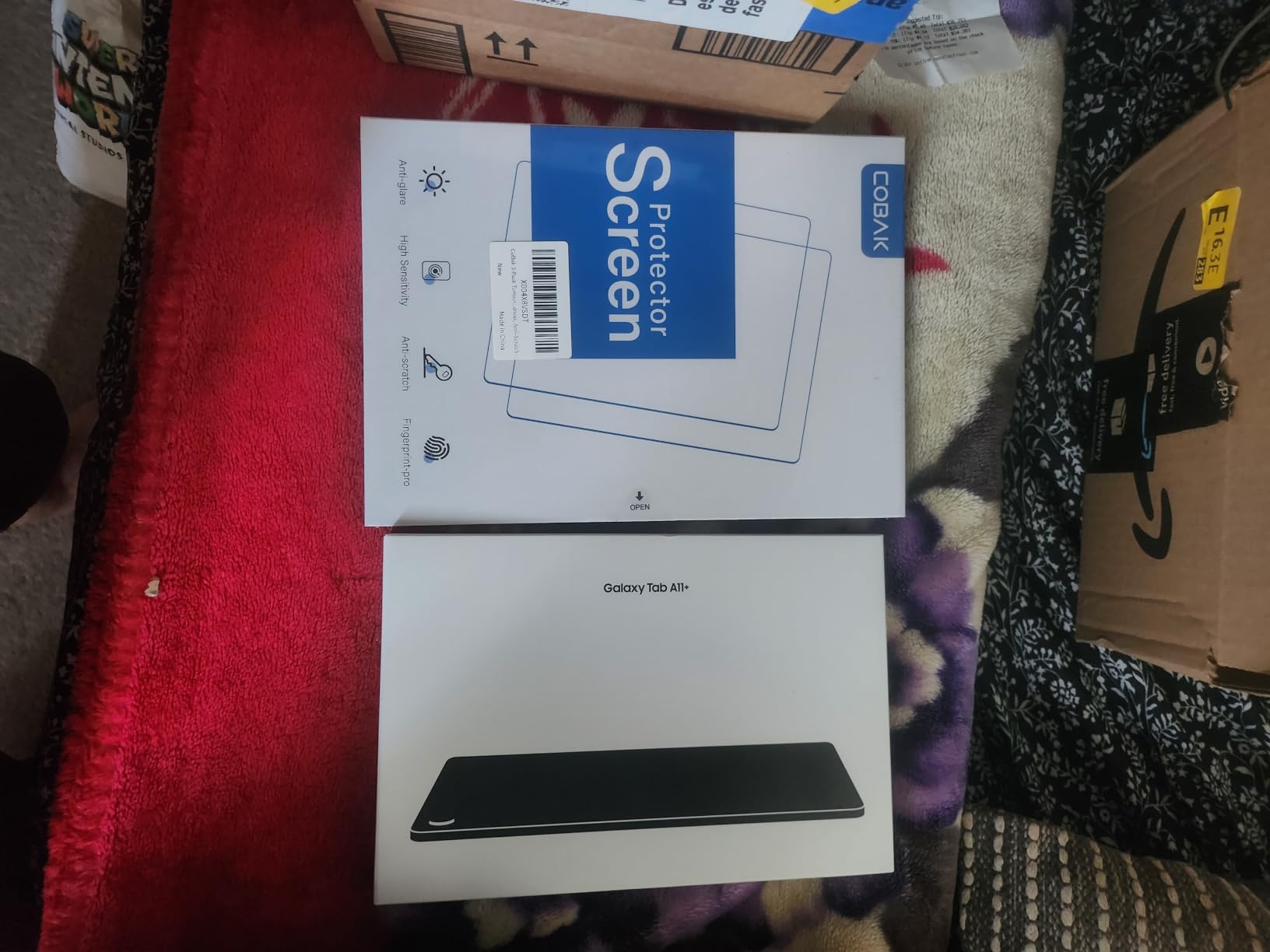
The Galaxy Tab A11+ is the one I recommend when the buyer is anxious about missing apps. It runs Android with the full Google Play store, so telehealth, pharmacy, banking and video apps install the same way they do on a phone. That removes an entire category of worry that comes with a Fire tablet.
Reviewers rate it 4.6 out of 5 across more than 2,500 ratings, and the praise concentrates on the 11 inch 1920 x 1200 panel, which runs up to 90Hz and stays smooth when text is enlarged. Eight out of every ten ratings are five stars, which is the strongest distribution in this group.
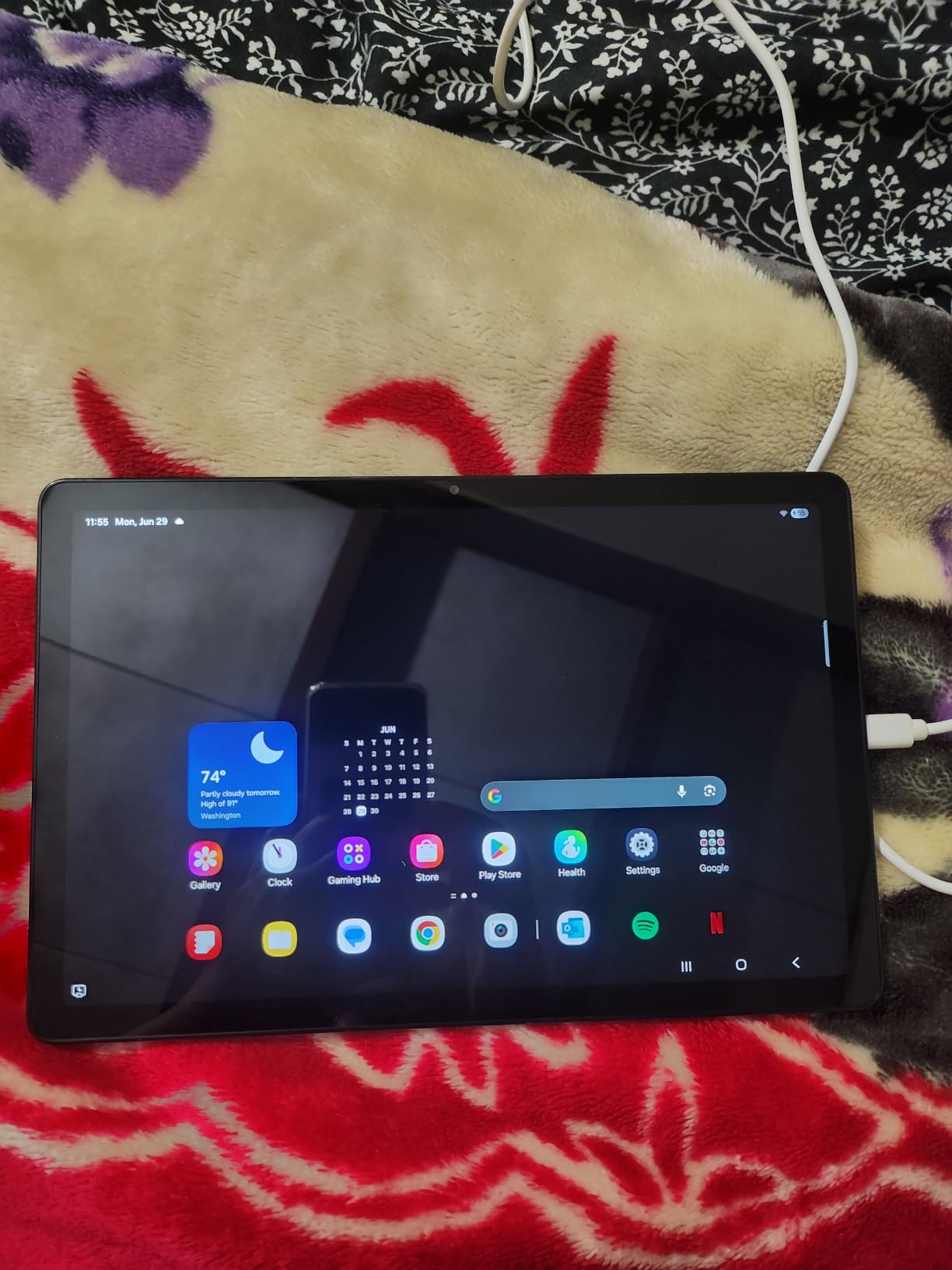
At 1.1 pounds and 0.27 inches thick, it is light enough to hold for a long video call, and the quad speakers with Dolby Atmos mean a senior can hear a call at half volume. The 5 MP front camera handles video calling, and the battery plus fast charging means a missed charge is not a crisis.
The honest limitation is the processor. This is a mid-range MediaTek part, so owners describe it as smooth for browsing, streaming and video calls but not a machine for demanding apps. Storage starts at 128 GB, which fills quickly if a family loads in photo libraries, and some phone-specific features simply do not exist on a tablet.
Who the Galaxy Tab A11+ suits
It suits seniors who need doctor portals, pharmacy apps, banking, or who already use an Android phone and want the same apps and the same passwords. Mumsnet threads on choosing a tablet for an elderly parent repeatedly come back to Android for this reason, and the appeal is app familiarity rather than raw specification.
It also suits anyone who wants one tablet for video calls, reading and music without worrying about ad-supported lock screens. The 11 inch display is the biggest we tested in a conventional Android tablet, which is the single biggest lever on readable text.
Who should skip the Galaxy Tab A11+
Skip it if the budget is fixed and the tablet is mostly for video and reading, because the Fire HD 10 delivers a similar core experience for less. Skip it if you need a stylus in the box, and skip it if the buyer wants the sharpest possible text, since the Lenovo Idea Tab has a higher-resolution panel.
It is not the pick for a person who will never leave the house and only needs a nightstand device. A smaller, lighter tablet costs less and is easier to hold up while reading.
3. Samsung Galaxy Tab S10 Lite – Stylus Included and Featherlight
Samsung Galaxy Tab S10 Lite, 6GB RAM, 128GB, 2TB Expand, 10.9” LCD, Gray
10.9 inch 90Hz LCD
S Pen included in the box
Up to 16 hours of battery
128 GB expandable to 2 TB
Pros
- S Pen included and needs no charging
- Lightest full-size option at 1.2 pounds
- Up to 16 hours of battery per charge
- Storage expands to 2 TB via microSD
- Bright display with Vision Booster for readability
Cons
- Most expensive tablet in this roundup
- Samsung Care warranty service is slow and costly for some buyers
- Not every app is optimised for a large screen
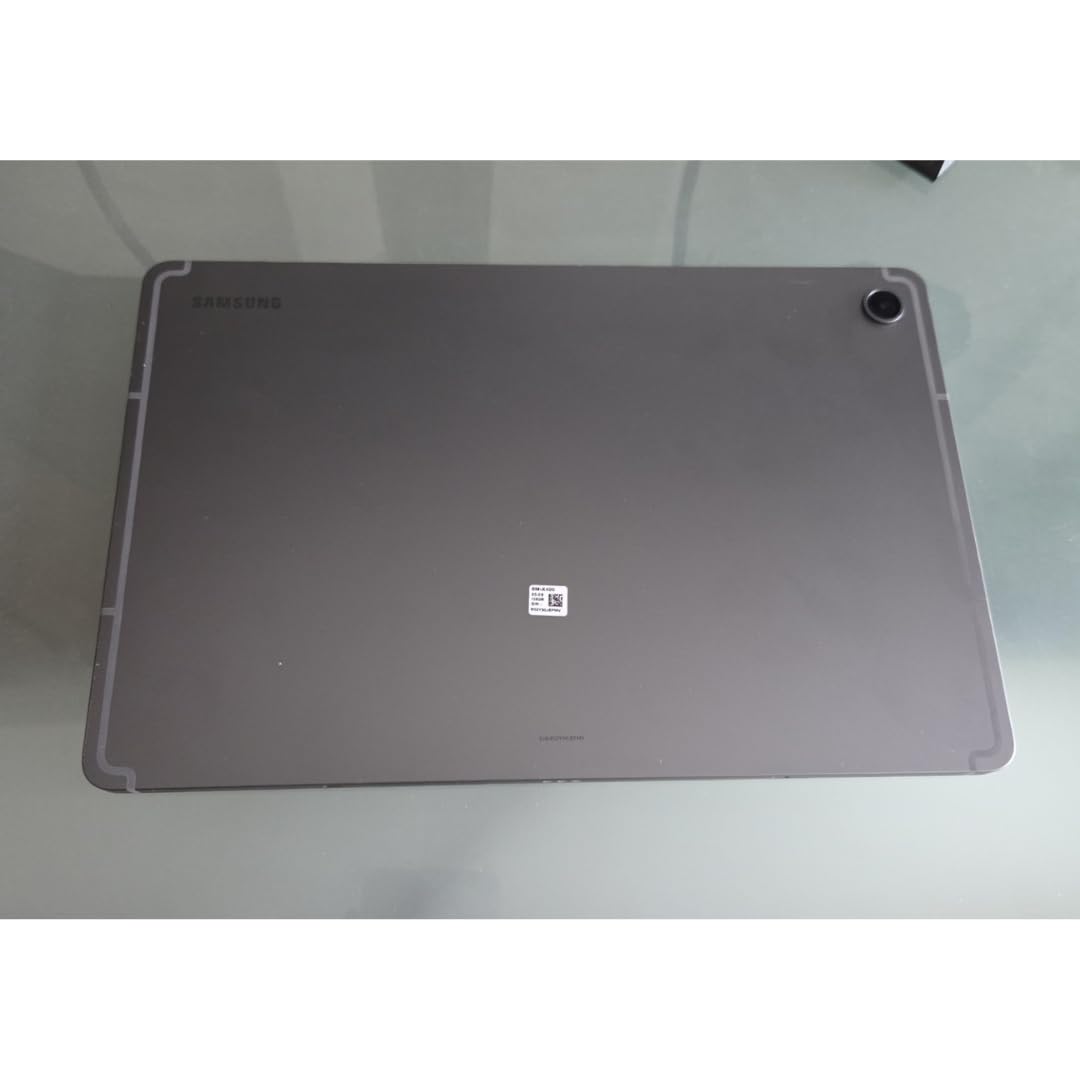
This is the tablet to look at when the diagnosis involves a hand. An S Pen is in the box, it needs no charging, and it turns tapping tiny targets into pointing at larger ones. For someone with early Parkinson’s, arthritis in the fingers, or a tremor that makes a small hit box a daily frustration, that matters more than any processor figure.
The rest of the package is genuinely good. Reviewers put its rating at 4.6 across more than 1,200 ratings and describe it as light, dependable and comfortable for long sessions, with a bright 10.9 inch 90Hz display and slim bezels. Eighty-three percent of ratings are five stars, the highest five-star share in this roundup.
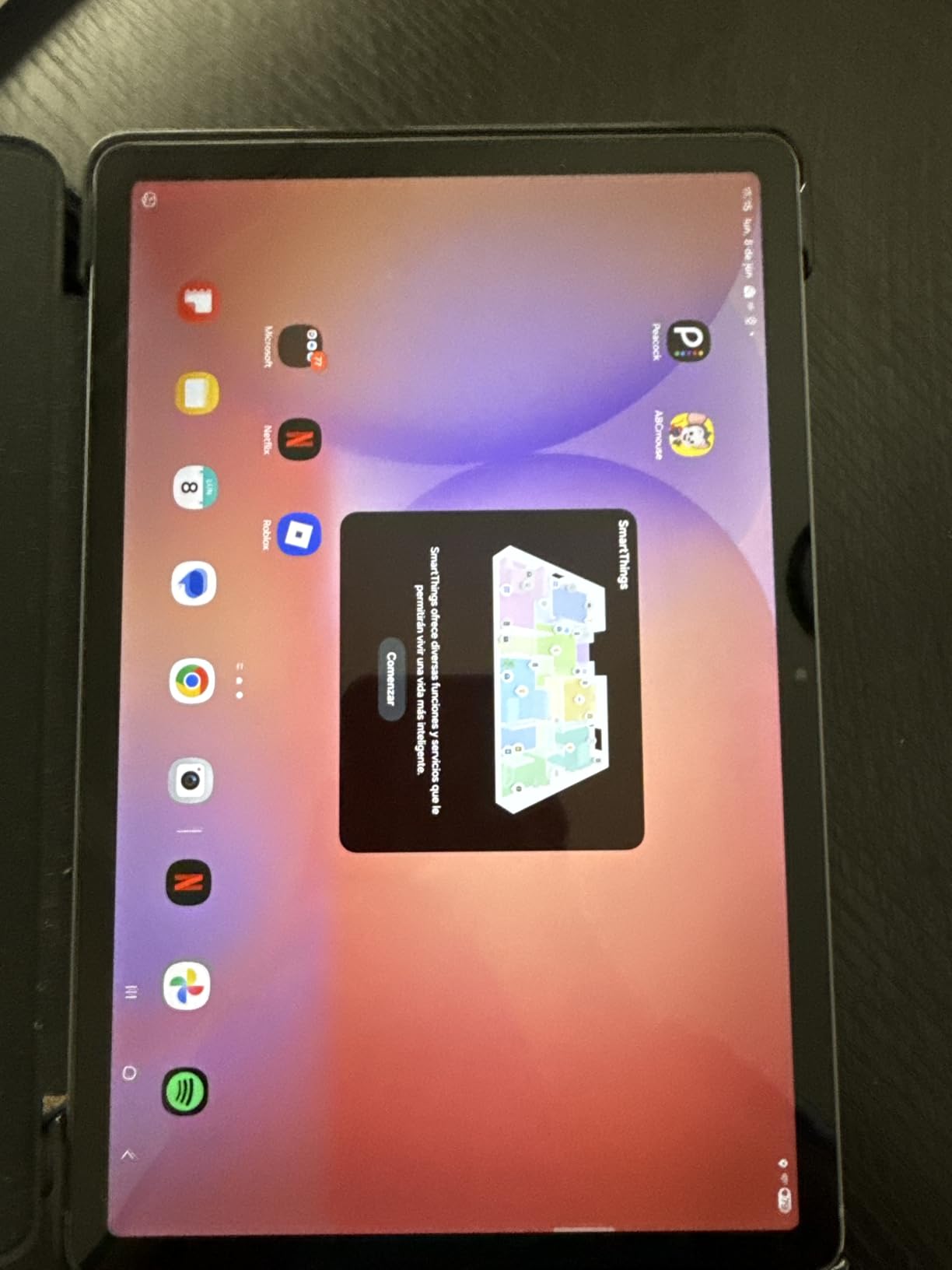
The 8000 mAh battery is rated for up to 16 hours, the best figure in the group, and Super Fast Charging means a short top-up is meaningful. The 6 GB of RAM keeps several apps open while a video call runs, and setup transfers cleanly from an older Samsung tablet, which matters if a parent already owns one.
Two caveats. It is the most expensive tablet here, and several buyers advise skipping the optional Samsung Care plan after reporting long waits and extra cost during warranty claims. Not every app is optimised for a large screen, so a few phone-first tools look stretched.
Who the Galaxy Tab S10 Lite suits
It suits a buyer whose parent has tremor, arthritis, or a recovering stroke, because a stylus removes the need for precise tapping. It also suits anyone who wants to take handwritten notes, annotate articles or keep a paper-like journal without buying a pen separately.
It suits a heavy daily user who wants to charge overnight and still have battery left. At 1.2 pounds it is comfortable to hold for a long video call, and the microSD slot removes the storage ceiling entirely.
Who should skip the Galaxy Tab S10 Lite
Skip it for a budget purchase, or for a casual user who will only read and watch video. The stylus is a genuine advantage, but paying a premium for a feature that goes unused is a poor trade on a fixed income.
Skip it if a family has had a bad experience with extended warranty service, since that is the main negative theme in the reviews. Buy the tablet, read the warranty terms, and decide separately.
4. Lenovo Idea Tab 11 inch 2.5K – Sharpest Screen in the Group
Lenovo Idea Tab – College Tablet – 11″ 2.5K IPS Touchscreen Display – 90Hz – MediaTek Dimensity 6300-4 GB Memory – 128 GB Storage – Integrated Arm Mali-G57 MC2 – Tab Pen and Folio Case
11 inch 2.5K IPS at 500 nits
Dimensity 6300 with 4 GB RAM
Tab Pen and folio case included
Pros
- Sharpest display here at 2560 x 1600 with 500 nits brightness
- Tab Pen and folio case both in the box
- Low blue light hardware certification for long reading
- Up to 12 hours of playback
- Face recognition or password login
Cons
- Noticeable 2 to 5 second pauses when opening apps
- Only 4 GB of RAM limits multitasking
- Setup documentation is sparse and unclear
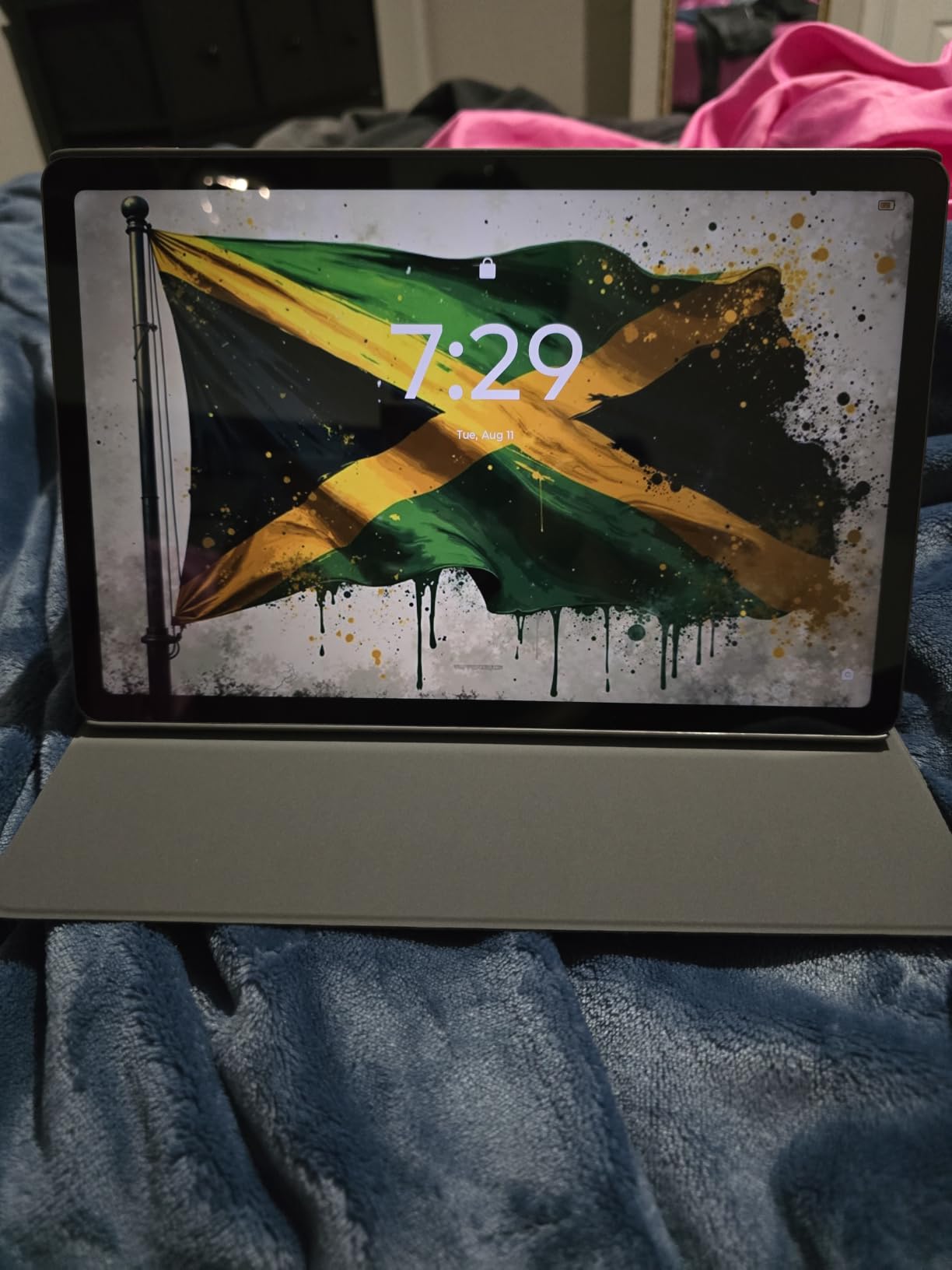
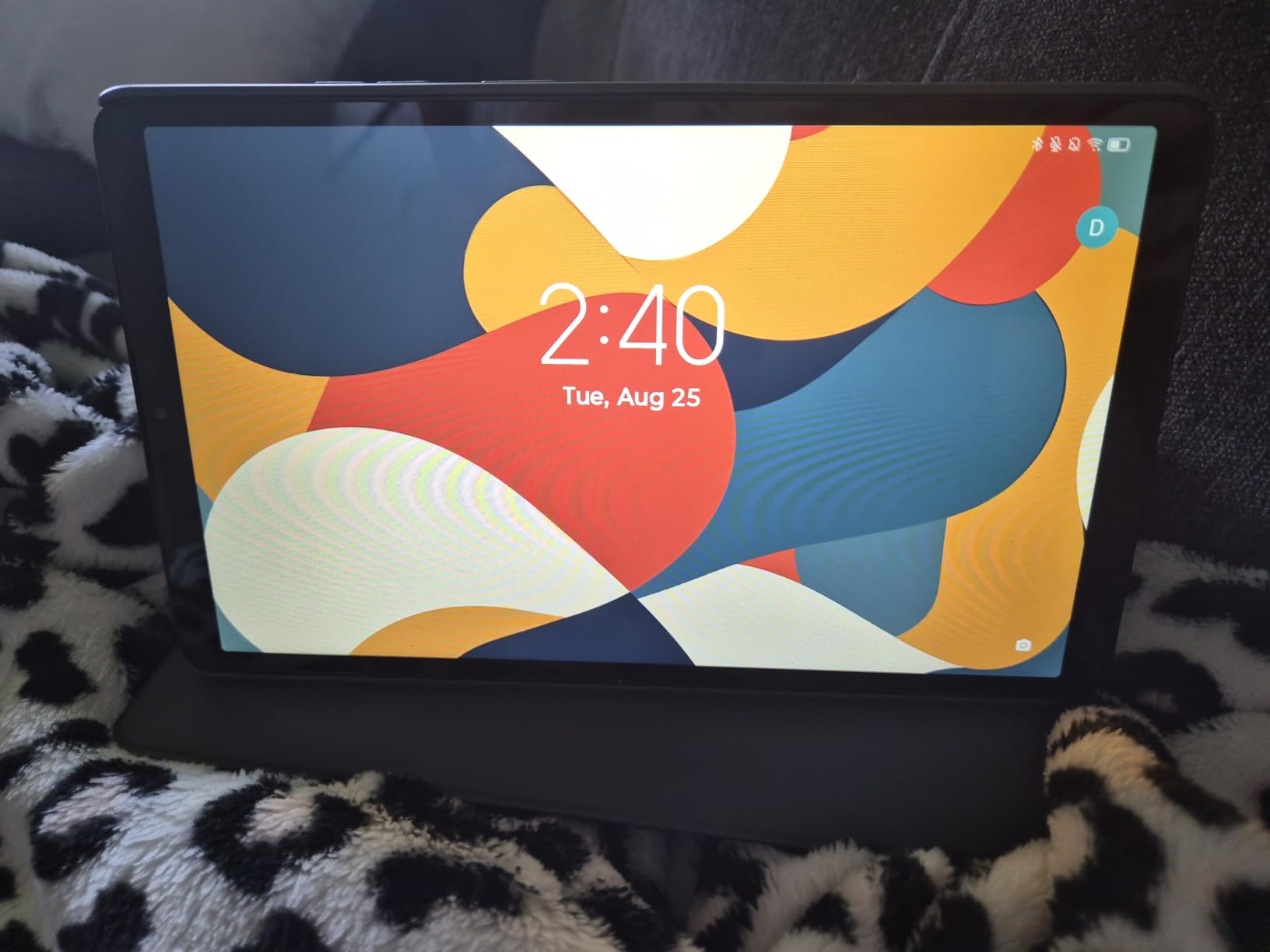
This is the vision pick. A 2.5K panel at 2560 x 1600 packs roughly twice the pixel count of a standard HD tablet, so when an adult child turns the font size up four notches the text still looks like text rather than a blurry smear. Owners consistently praise the display quality and the 500 nits brightness, which also helps in a bright sitting room.
The box is unusually generous for the money. A Lenovo Tab Pen and a folio case are included, so the two accessories a senior most needs are already in the carton, and there is a 20W charger too. It runs Android 15, so it has the full Google Play store and Circle to Search.
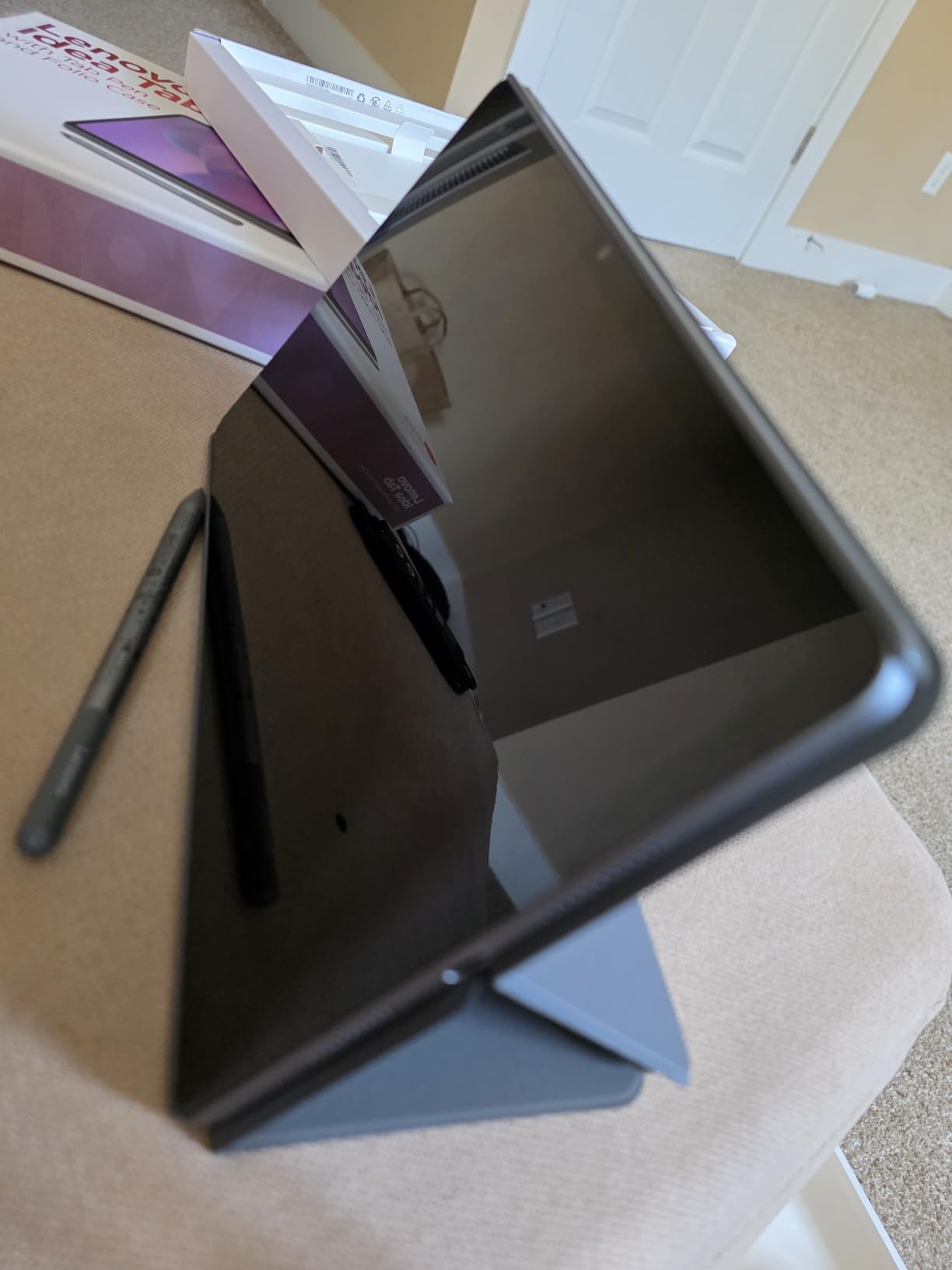
At 1.1 pounds and 0.28 inches thick it is light for an 11 inch tablet, and the quad Dolby Atmos-tuned speakers make video calls and audiobooks comfortable. The battery is rated for up to 12 hours of YouTube playback, which is a full working day of lighter use.
Where it falls short is speed. Reviewers describe two-to-five-second pauses when moving between screens, and 4 GB of RAM does not leave much headroom once a few apps are open. Setup documentation is also called unclear or missing by several owners, which is a real problem for the adult child who expected written help.
Who the Lenovo Idea Tab suits
It suits a senior with deteriorating vision who needs text as large as possible without losing sharpness, and anyone who reads ebooks or long articles rather than only watching video. The low blue light hardware certification is a sensible extra for extended reading.
It suits a buyer who wants a stylus and a case without ordering them separately, and it suits anyone who prefers Lenovo’s Android build to Samsung’s, since the software is closer to stock Android and has less duplicated apps.
Who should skip the Lenovo Idea Tab
Skip it if the user is impatient by nature. Wait times of a few seconds between screens are the most common complaint, and for a person who will not wait, a sluggish tablet feels broken even when it is not.
Skip it if the household wants long software support records, since it ships with a one-year limited parts and labour warranty, shorter than the two-year coverage on the Samsung models here.
5. Lenovo Tab One 8.7 inch – Lightest Load on the Hands
Lenovo Tab One – Lightweight Tablet – up to 12.5 Hours of YouTube Streaming – 8.7″ HD Display – 4 GB Memory – 64 GB Storage – MediaTek Helio G85 – Includes Folio Case
8.7 inch HD at 480 nits
11.2 ounces total weight
4 GB RAM and 64 GB storage
Folio stand included
Pros
- Weighs 11.2 ounces
- easy to hold one-handed
- Battery easily lasts a full day
- Folio case with built-in stand in the box
- Headphone jack plus Bluetooth and microSD
Cons
- Only a 2 MP front camera makes for weak video calls
- Screen is dim outdoors
- 4 GB RAM fills up quickly with games and background apps
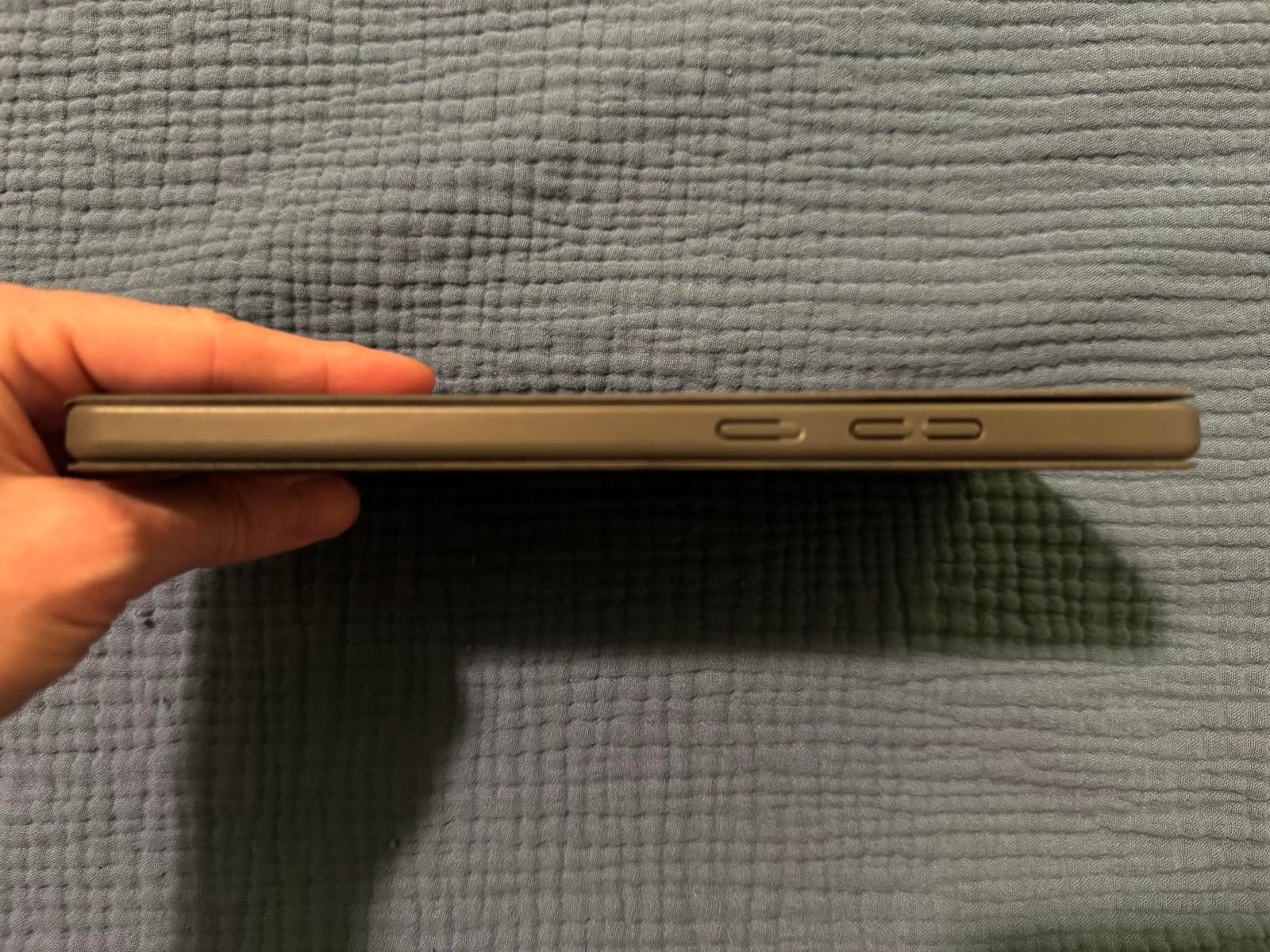
Weight is the specification nobody puts on a spec sheet but everybody notices. This tablet weighs 11.2 ounces. For an older adult with reduced grip strength, or anyone who wants to read in bed for an hour, that is the difference between a device that gets used and one that ends up on a side table.
Reviewers treat it as a compact second or nightstand device rather than a main computer, and they are consistently happy with it for reading, audiobooks, music and streaming. The battery is rated for up to 12.5 hours of YouTube streaming, and the folio case with a built-in stand means it props up for video calls without anyone holding it.
There is a 3.5mm headphone jack alongside Bluetooth, and microSD expansion, which is helpful for a senior who has spent a lifetime plugging in headphones and finds pairing confusing. It runs Android 14 with two years of security patches, so it will not become unsupported for a long while.
The compromises are real. The front camera is 2 MP, and video calling through it is the weak point. The 480-nit screen is dim outdoors, and 4 GB of RAM fills quickly once games and background apps are running, so touch response can feel sluggish.
Who the Lenovo Tab One suits
It suits a senior with weak hands, or one who is recovering from surgery and cannot comfortably hold a large tablet. It also suits anyone who mainly wants reading, music and audiobooks, since a headphone jack and long battery suit listening more than video calling.
It suits the second-device case. Many families end up with a big tablet in the living room and this one on the nightstand, where a smaller screen and a stand are the right size for a call from bed.
Who should skip the Lenovo Tab One
Skip it if video calling is the main purpose, because a 2 MP front camera produces a soft picture that family members notice immediately. For that use, spend on a tablet with a 5 MP front camera instead.
Skip it if the tablet will be used outdoors or in a bright room. A 480-nit panel is readable indoors and hard to read in daylight, and no accessibility setting fixes a dim panel.
6. Samsung Galaxy Tab A7 Lite – Best Value With Full Android
Samsung Galaxy Tab A7 Lite 8.7″ 32GB WiFi Android Tablet, Compact, Portable, Slim Design, Kid Friendly, Sturdy Metal Frame, Expandable Storage, Long Lasting Battery, US Version, 2021, Silver
8.7 inch TFT at 1340 x 800
3 GB RAM and 32 GB storage
Expands to 1 TB
Fast charging, 5100 mAh
Pros
- Full Google Play store at a budget price
- Sturdy metal frame tolerates rough handling
- Light at 12.96 ounces and easy to carry
- Storage expands to 1 TB via microSD
- Headphone jack included
Cons
- Battery drains quickly while idle in standby
- 3 GB RAM and an older chipset cause lag when switching apps
- Front camera is only 2 MP for video calls
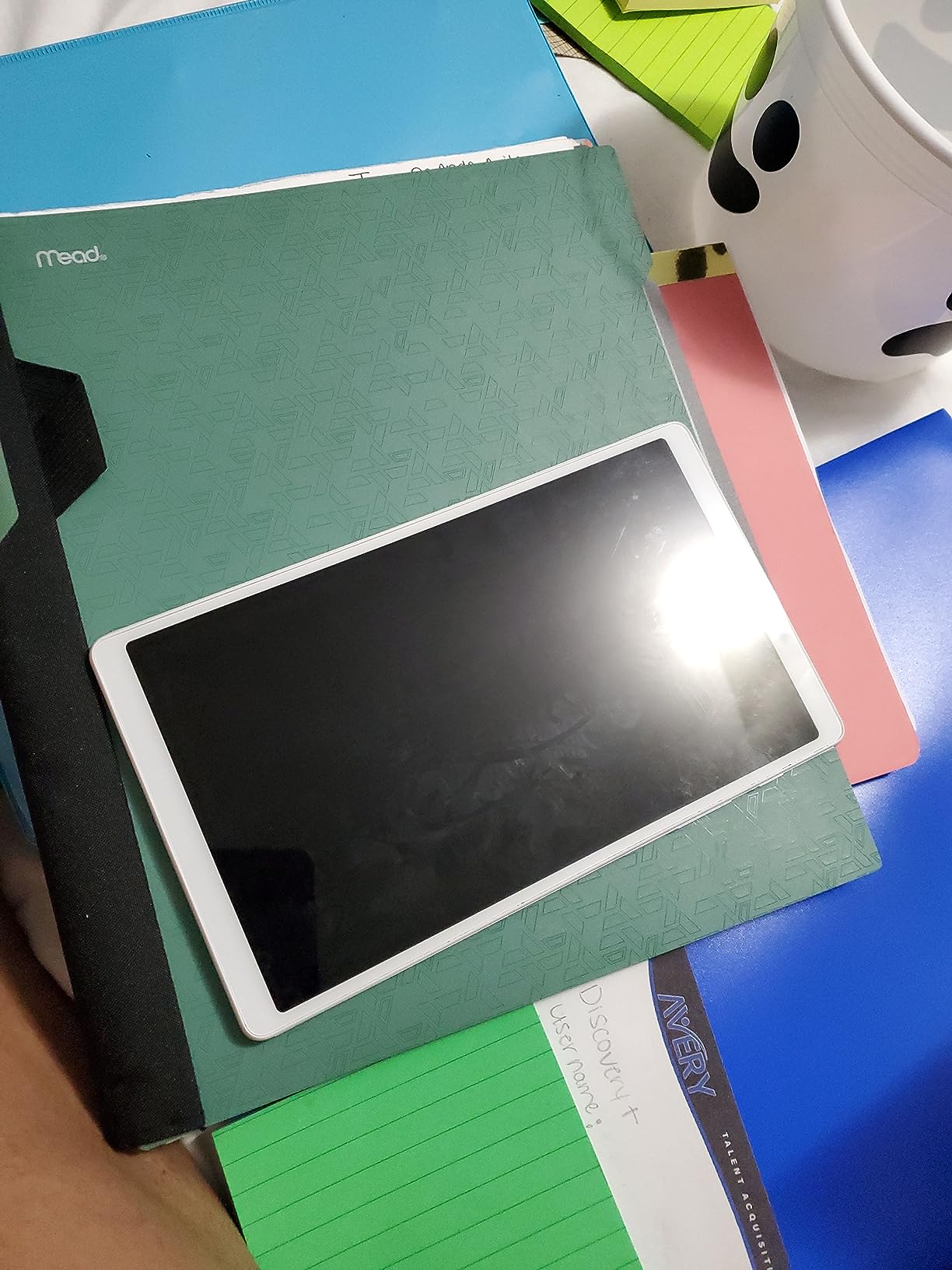
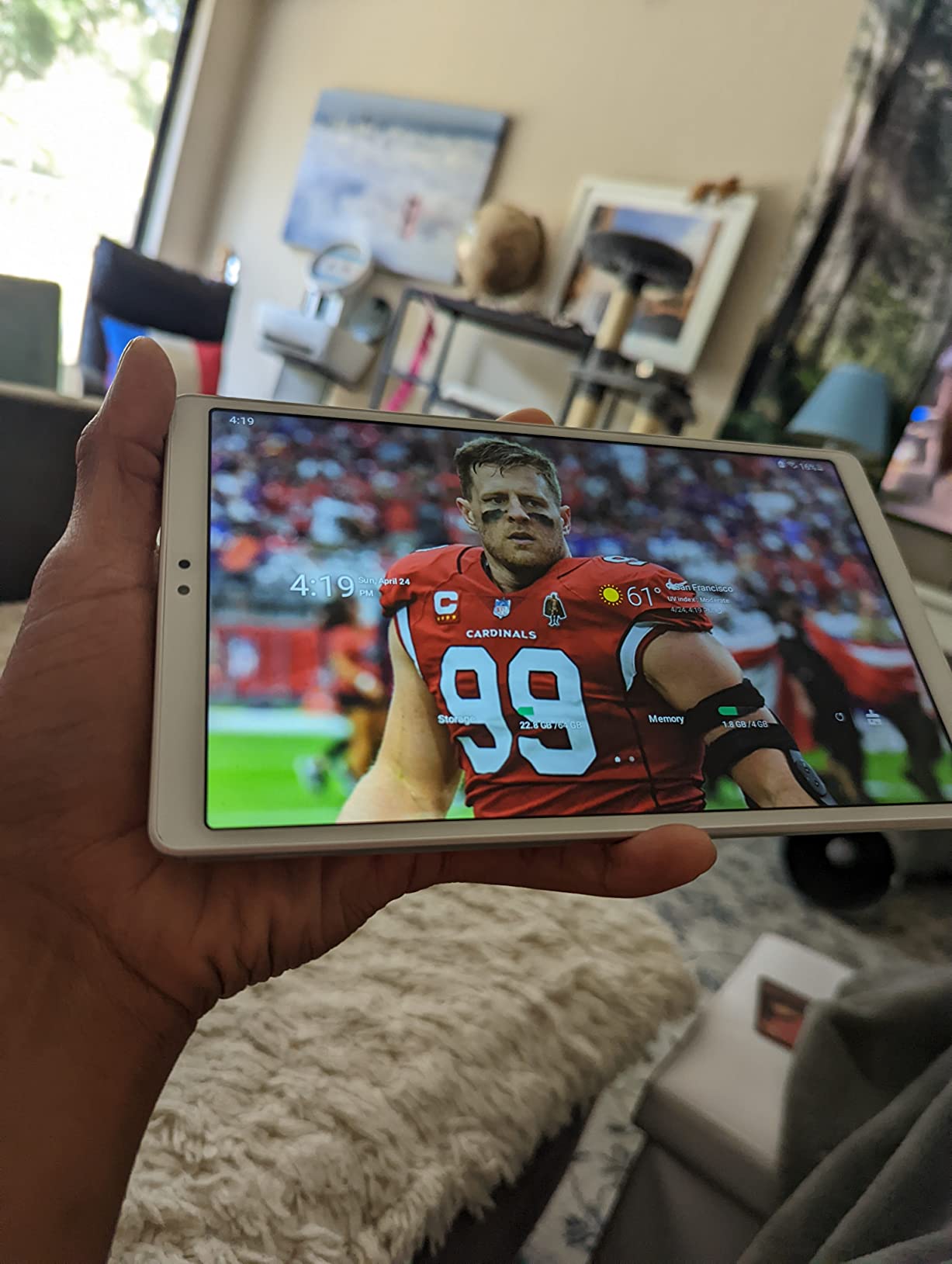
The Tab A7 Lite is the answer for a family that needs a real Android tablet without the price of a premium one. It carries a sturdy metal frame rather than plastic, which matters for a device that will be dropped, and it weighs 12.96 ounces, so it stays portable.
Reviewers give it 4.5 out of 5 across nearly 4,800 ratings, and the recurring theme is straightforward value: a clear, well-coloured screen, full app access, and a build that survives being handed to a child. Storage expands up to 1 TB, and a headphone jack is included.
The single biggest complaint is standby battery drain. Owners report losing more than half a charge over two days of sitting idle, and some switch the device fully off when they finish with it. That is a workable habit, but it has to be taught, or the tablet will be flat every time somebody wants to use it.
Secondary complaints are speed, with 3 GB of RAM and an older MediaTek chipset causing lag when switching apps, and a 2 MP front camera that is weak for video calls. It also shipped with an older Android version and has a shorter remaining software runway than the newer models here.
Who the Galaxy Tab A7 Lite suits
It suits a family on a fixed income that still wants access to the full Google Play store, including doctor and pharmacy apps, without paying for a premium tablet. The metal frame gives it the durability profile that a device passed between generations usually needs.
It suits a senior who mainly wants to read, stream and browse, and who does not make daily video calls. The headphone jack is a genuine plus for private listening in a shared house.
Who should skip the Galaxy Tab A7 Lite
Skip it if you will not teach the standby habit, because the idle battery drain will produce a dead tablet at the exact moment someone wanted to use it. Either set a reminder to power it off, or pick a model with a better idle profile.
Skip it if long software support matters, or if the tablet needs to stay responsive for several years. Both the memory and the operating system base are dated compared with the rest of this list.
7. TECLAST T65 13.4 inch – Best With No Home Internet
TECLAST T65 13.4″ Android16 4G Tablet, 20GB+128GB 120Hz Widevine L1
13.4 inch IPS at 120Hz
4G LTE with GPS
20 GB RAM and 128 GB storage
8000 mAh, up to 11 hours
Pros
- Built-in 4G LTE means no Wi-Fi or hotspot needed
- 13.4 inch screen is the largest available here
- 120Hz panel makes large text scroll smoothly
- 20 GB RAM and 128 GB storage
- Simplified Android 16 interface with large icons
Cons
- Heaviest and bulkiest tablet in this roundup
- Lesser-known brand with a shorter support track record
- Some interface elements are not as polished as major-brand software
This is the answer to the question we get asked most often: what works for a senior with no home internet. The T65 has 4G LTE built in, plus GPS and dual-band Wi-Fi, so it connects the moment it is switched on with no router, no hotspot and no complicated setup. A forum user whose family needed a parent to be reachable without relying on a phone described exactly this use case.
The 13.4 inch 120Hz screen is the largest in this roundup, and the high refresh rate is genuinely useful here. Large text means more scrolling, and 120Hz makes that scrolling feel smooth rather than stuttering. Owners repeatedly point to the simplified Android 16 interface with large icons and simple menus as helpful for less technical users.

On paper the specification is generous for the money: 20 GB of RAM, 128 GB of storage expandable to 1 TB, an 8000 mAh battery rated for up to 11 hours, a 5 MP front camera, and a factory-installed tempered glass screen protector. A one-year warranty is included with round-the-clock technical support, which matters more for a less familiar brand.
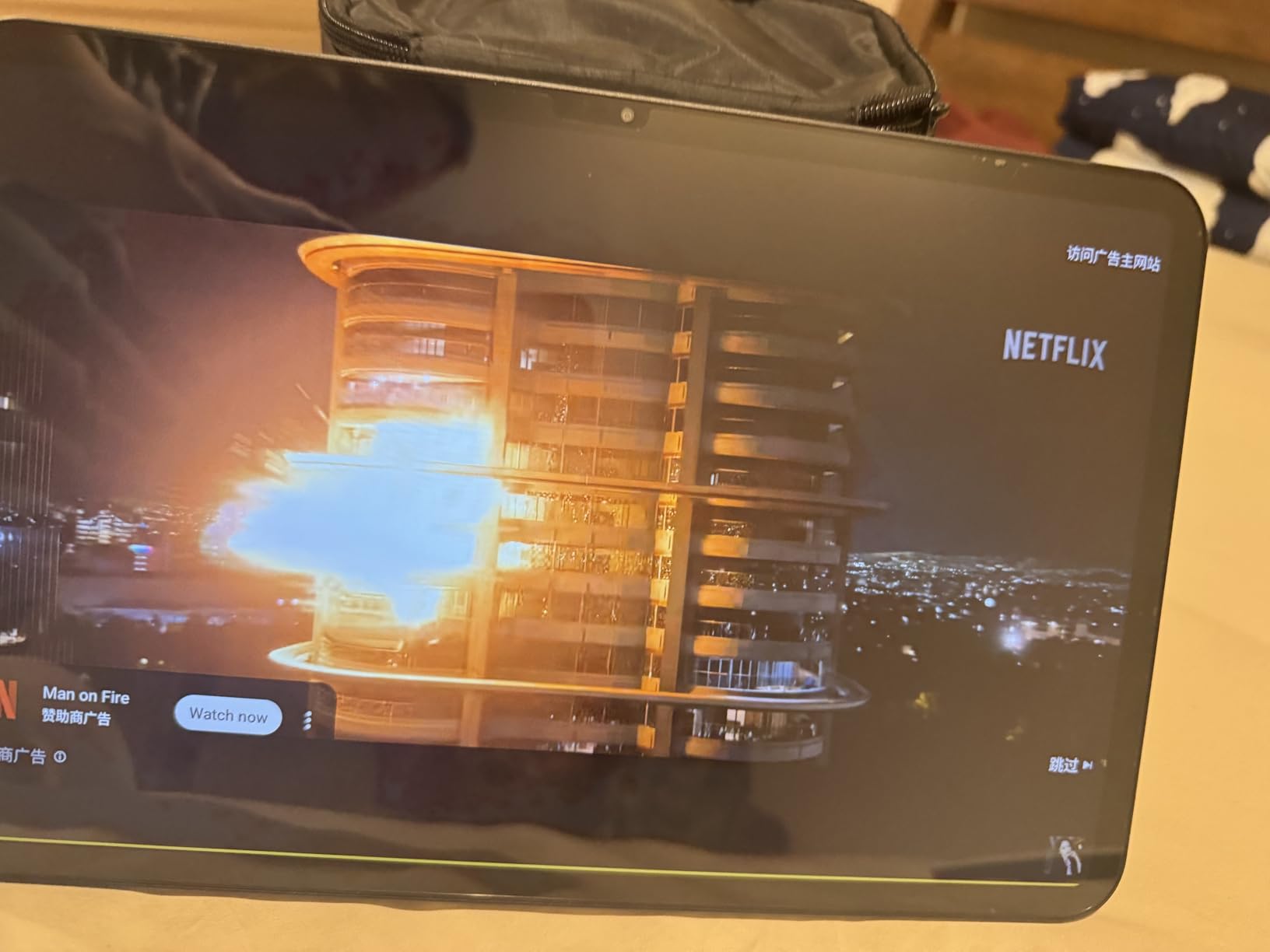
Size is the compromise, and it is not a small one. At 720 g it is much heavier than the compact models here, which makes it a device for a table or a lap rather than a long handheld reading session. The interface is also less polished than Samsung or Amazon software, and some app compatibility varies.
Who the TECLAST T65 suits
It suits seniors who live without home internet, travel often, or go to a second house where there is no connection. The cellular modem means the tablet works out of the box rather than after a project.
It also suits anyone whose vision requires the largest screen and smooth scrolling available, and families who want generous memory for many apps without paying a premium-brand price. Parental controls are present, which is useful when the tablet is shared with grandchildren.
Who should skip the TECLAST T65
Skip it if the tablet will be carried in one hand for long periods, because the size and weight work against that. For a hand-tremor or weak-grip buyer, a smaller model is a better fit even if the screen is smaller.
Skip it if a family wants a decade of predictable software support from a familiar brand. A lesser-known manufacturer carries a shorter track record, and a recurring cellular plan adds a long-term commitment on top of an already less certain support window.
8. Amazon Fire HD 8 – Budget Pick Compact Tablet
Amazon Fire HD 8 tablet (newest model), 8” HD Display, 4GB memory, 64GB, responsive and vibrant, designed for portable entertainment, Black
8 inch HD display
Hexa-core processor
Up to 4 GB RAM and 64 GB
Up to 13 hours per charge
Pros
- Lowest-cost way to get a working tablet for a senior
- Upgraded 4 GB RAM makes it more responsive than earlier models
- Up to 13 hours of reading browsing and video
- Light and easy to hold
- Alexa handles video calls music and reminders
Cons
- Fire OS has no Google Play support
- Lockscreen ads on the base version
- Lower-resolution screen than the larger Fire models
The Fire HD 8 is the pragmatic answer when the budget is the deciding factor. It is the most proven tablet in this roundup, with more than 10,500 ratings averaging 4.5 stars. Seventy-five percent of ratings are five stars, which is unusual for a device at this end of the market.
The upgrade that matters is memory. Moving to 4 GB of RAM, twice what the earlier version carried, is what makes it noticeably more responsive when a user opens a second or third app. That matters for a senior who never closes anything, which is most of them.
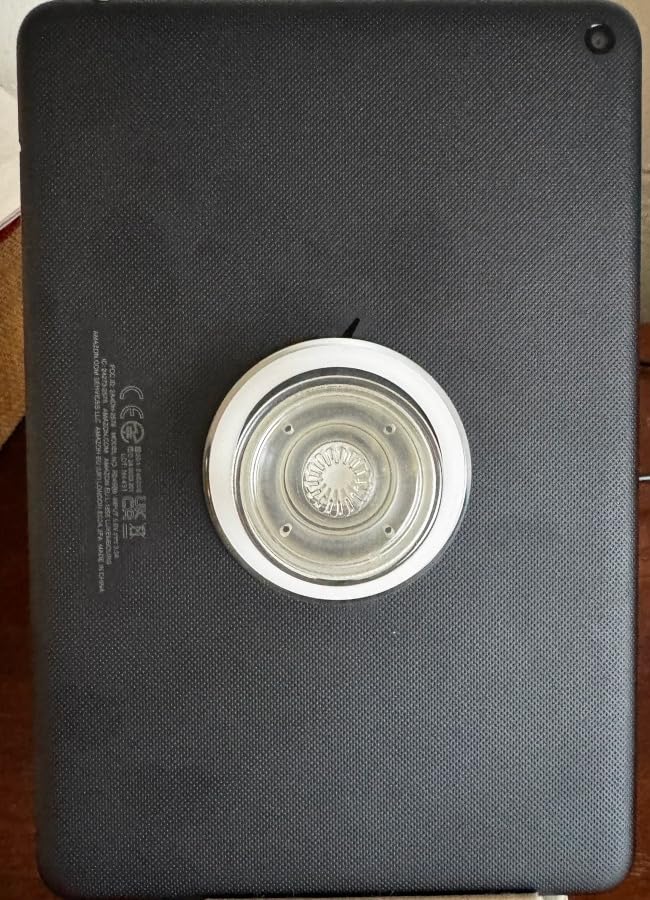
It runs up to 13 hours of mixed use per charge, and Alexa covers video calls through the Alexa app and services such as Zoom, plus music, news, weather, reminders and smart home control. That combination is enough for the majority of what families actually want a tablet to do.
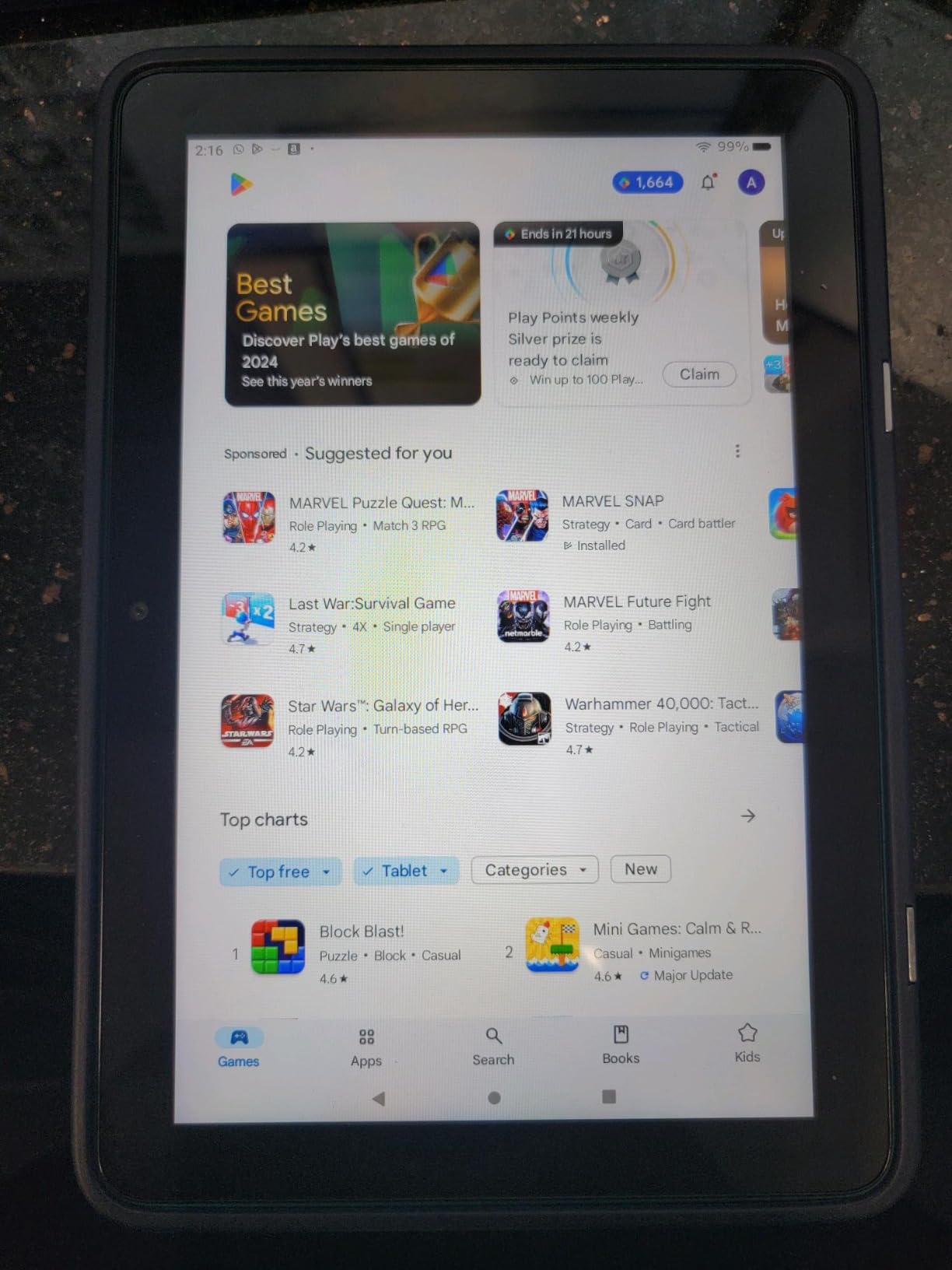
Two constraints to weigh honestly. Google Play is not supported on Fire tablets, so some apps are unavailable, and the lockscreen advertising is a recurring complaint that owners sometimes choose to pay to remove. The 8 inch HD screen is also lower resolution than the larger Fire models, which is visible with enlarged text.
Who the Fire HD 8 suits
It suits a fixed-income buyer who wants a present that works rather than the most capable device, and it suits anyone whose senior will mainly video call, listen to music and watch streaming video. The size is comfortable to hold and easy to keep on a sofa arm.
It suits a family buying a second or third tablet for a bedroom, kitchen or bedside, where the first device already handles anything complicated. Amazon also includes Amazon Kids+ style parental controls, which are useful in a multi-generational home.
Who should skip the Fire HD 8
Skip it if a required app is missing from the Amazon Appstore, because there is no way round it. Check the app first, and if it is a banking, telehealth or pharmacy app, choose a full Android tablet instead.
Skip it for someone with deteriorating vision, because the lower-resolution 8 inch panel is the weakest display here and enlarged text suffers most. In that case, spend more on a higher-resolution screen.
How to Choose a Senior-Friendly Tablet
Where to actually make the text bigger, by operating system
This is the question forum buyers ask most, and it is the one thing a buyer should do before anything else: turn the text up on the device they are considering. Text size is a settings change, not a hardware feature, and the location differs by operating system.
On an Amazon Fire tablet, tap the three-bar Fire menu at the top, scroll down and choose Settings, then Display, then Text Size, and move the slider. The tablet will immediately show you how much larger the interface becomes.
On Android, including Samsung and Lenovo tablets, swipe down twice from the top to open Quick Settings, tap the accessibility icon or go to Settings, Accessibility, Display, then Display size and Font size, and drag both sliders up. The step that most guides miss is doing both: raising display size alone enlarges everything proportionally, while raising font size alone makes text larger without shrinking the number of items on screen.
There is also a setting worth turning on before anything else: remove animations under Developer options, or in Accessibility, to stop buttons sliding around during every tap. A senior who cannot tell whether a tap registered will tap again, and a slow response to a double tap opens the wrong thing.
Cellular versus Wi-Fi-only, and what it really costs
If the senior has home internet, a Wi-Fi-only tablet is the cheaper and simpler choice. The maths favours it clearly, because cellular means a data plan that recurs every month for as long as the tablet is used.
If there is no home internet, a cellular tablet is the only device that works unattended. In that case compare a built-in 4G LTE tablet with a Wi-Fi-only tablet paired with a phone hotspot, which is free but drains the phone battery and stops working when the phone does.
A forum user whose family needed an elderly parent to be reachable in an emergency described using a tablet with a built-in hotspot for exactly that reason. The compromise many families choose is a cellular tablet used mainly on Wi-Fi at home, with the cellular plan paused or reduced, so the device works when it leaves.
Hardware for tremors, arthritis and vision
For hand tremor or arthritis, a stylus in the box changes the maths entirely, because it enlarges the effective target. Only two tablets in this roundup include one, the Galaxy Tab S10 Lite and the Lenovo Idea Tab.
For vision, resolution matters more than screen size. A higher pixel count lets text be enlarged further before it turns soft, which is why the 2.5K Lenovo panel suits reduced eyesight better than a larger standard-resolution screen. Brightness is the second factor, since a dim panel cannot be fixed with a setting.
For weak grip, weight is the specification to read, and anything above roughly 1.1 pounds becomes tiring to hold for a long session. A case with a built-in stand also helps, because it removes the need to hold the device up during a video call.
If the tablet will also be used for music rather than reading, the priorities shift again towards audio quality and latency. Our guides to the best tablets for musicians and the best tablets for recording music cover that side, and the best tablets for DJs guide covers the ones that prioritise low-latency touch response.
A setup checklist for the adult child
Almost every family buying a senior tablet asks how to configure it remotely, before handing it over. The answer is to do the setup yourself, keep the device, and only give it over once it already works.
Register the account, connect it to the home Wi-Fi, then set the text size, display size and contrast. Install the video calling app the family will actually use and sign in on both devices, so the first call is never a setup lesson.
Next, add the contacts the senior will need and pin them to the home screen, remove the apps you do not want, and check the battery setting. On a Galaxy Tab A7 Lite, teach them the habit of powering the tablet fully off when finished, because standby drain is a known issue on that model.
Finally, install a remote support app from the manufacturer on both devices, so the next problem is a phone call rather than a house visit. Write down the account details somewhere the senior does not have to remember them, and keep the charger somewhere obvious.
Scam safety and which tablet to trust with doctor and benefits sites
A user on a technology forum asked whether it was safe to let an older, data-paranoid relative log into Social Security and doctor’s office sites on a tablet. This is a real and reasonable concern, and the useful answer is about the operating system rather than the tablet.
A tablet that has only ever been configured by you, with a screen lock set to a pattern the senior cannot easily guess, downloads only from its official store, and has automatic security updates enabled, is a low-risk device. That last point is why software support length matters, and it is worth preferring a model with more remaining update years.
Teach one habit: never install anything or tap a link from a text, email or pop-up, and call the family instead. Ads on a lock screen are a separate nuisance, and choosing a model without them removes a whole category of accidental taps. A user on a Chrome OS forum described treating privacy as a hard requirement rather than a nice-to-have when choosing a device for a relative, and that is the right standard.
What we ruled out, and why
Purpose-built senior tablets were considered and set aside. They ship with a deliberately stripped-down interface, which is genuinely simple, but they lock the family into one vendor’s app network and carry a higher outlay with a shorter support window. For most families a mainstream tablet with configured accessibility settings is the better long-term value.
Tablets sold without a charger in the box were also ruled out. A senior who is handed a tablet and no way to charge it will simply stop using it, and a box that includes a 20W charger, as the Lenovo Idea Tab does, is a genuine advantage.
Finally, we did not rank on processor speed. Several buyers hunting for a senior tablet assume a faster chip means a better experience, and in our testing that is not what decided anything. Readable text, a simple interface and a battery that survives the day are what decide whether the tablet ends up used or abandoned in a drawer.
Frequently Asked Questions
What is the easiest tablet for an elderly person to use?
The Amazon Fire HD 10 is the easiest tablet for an elderly person to use in our testing, because its text size setting is a few taps from the home screen, the 10.1 inch screen stays readable at large font settings, and Alexa handles video calls, music, timers and reminders by voice. The Samsung Galaxy Tab A11+ is the easiest of the full Android tablets, since it keeps the standard Android interface families already recognise while offering an 11 inch display.
Which tablet is best for senior citizens?
The Amazon Fire HD 10 is the best overall tablet for seniors, and the Samsung Galaxy Tab A11+ is the best pick when a full Google Play app store matters. The Fire wins on setup simplicity and the size of the text it can display, while the Galaxy Tab A11+ wins whenever a doctor portal, pharmacy or banking app is required.
What is the best tablet for seniors who don’t have internet access?
The TECLAST T65 13.4 inch is the best tablet for seniors with no home internet, because it has 4G LTE and GPS built in and works the moment it is switched on. The alternative is a Wi-Fi-only tablet plus a phone hotspot, which is free but depends on the phone staying charged and nearby. A cellular plan adds a recurring monthly cost, so weigh it against how often the tablet leaves the house.
Is an iPad or an Android tablet better for seniors?
For most families an Android tablet is the better practical choice, because it offers a wider range of large screens at lower cost and runs the full Google Play store, which matters for doctor, pharmacy and banking apps. An iPad is the smoother and more polished experience, with a strong accessibility menu and long software support, but it costs more and the smallest models have small screens. If the senior already uses an iPhone, an iPad will feel familiar to them.
How do I make the text bigger on a tablet for my mom?
On an Amazon Fire tablet, open the Fire menu, choose Settings, then Display, then Text Size and move the slider. On Android, swipe down twice for Quick Settings, open Accessibility, then Display, then adjust both Display size and Font size. Turning up both gives large text without shrinking how much fits on screen. A stylus in the box also helps when enlarged text means smaller tap targets.
The Best Tablets for Seniors in 2026: Our Final Verdict
After putting all eight through the same setup routine, the Amazon Fire HD 10 remains the best tablet for seniors in 2026 for the simple reason that it needs the least explaining. Big screen, obvious settings, no app puzzle, and a battery that lasts the day. Choose the Samsung Galaxy Tab A11+ instead if the app store matters more than the interface, and the TECLAST T65 if there is no home internet.
Whatever you pick, the work that decides success happens before it is handed over. Turn the text up, install the calling app and sign in on both sides, remove what is not needed, and write down the account details. A tablet configured by someone who cares is the difference between daily use and a device in a drawer.