
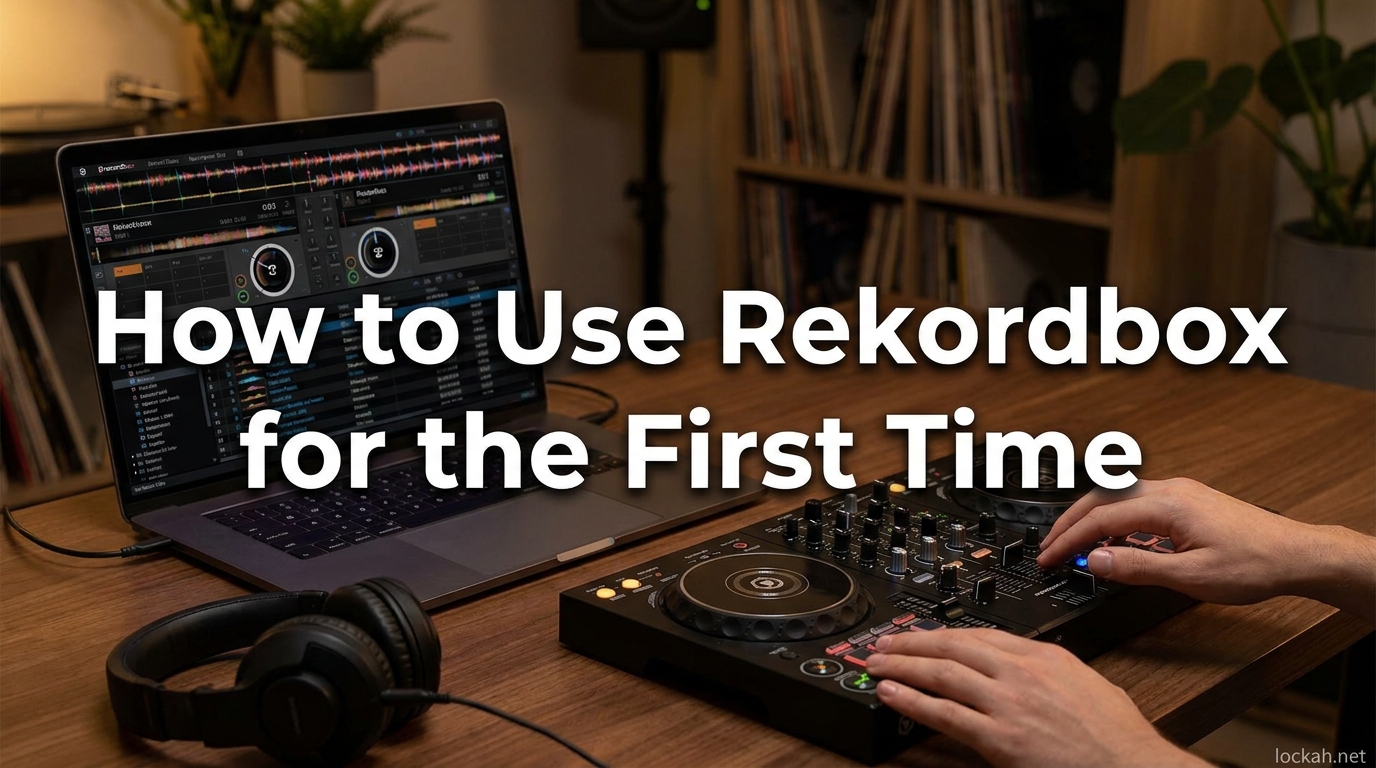
Opening DJ software for the first time feels overwhelming. I remember staring at Rekordbox’s interface with dozens of panels, buttons, and menus wondering where to even begin. You’re not alone in this experience.
Our team has guided hundreds of first-time DJs through their initial Rekordbox setup over the past three years. We’ve refined this guide to cover exactly what you need to know without overwhelming you with features you won’t use right away.
In this guide, you will learn: 1) What Rekordbox actually is and why you need it, 2) How to download and set up your account, 3) How to import and organize your music library, 4) How to analyze tracks and set hot cues, 5) How to export playlists to USB for CDJs or controllers. By the end, you’ll have a fully prepared music library ready for your first gig.
Is Rekordbox good for beginners? Yes, absolutely. While the interface looks complex at first, the core workflow is straightforward once you understand the basics. Pioneer designed Rekordbox with professional DJs in mind, but the learning curve is manageable for newcomers.
Table of Contents
What Is Rekordbox? (And Why You Need It)
Rekordbox is Pioneer’s free DJ software that organizes your music library and prepares tracks for playback on Pioneer CDJs and controllers. It serves two distinct purposes in your DJ workflow.
Think of Rekordbox as your music preparation headquarters. It analyzes every track for BPM, beat grid, and key signature. It lets you organize songs into playlists, set memory points, and add hot cues for quick access during your sets.
Rekordbox operates in two modes. Export Mode prepares your music for standalone CDJs. You export playlists to USB, plug into club equipment, and play without a laptop. Performance Mode turns Rekordbox into live DJ software when connected to a controller like the DDJ-FLX4 or DDJ-400.
Most beginner DJs start with Export Mode for CDJ preparation. Understanding this distinction early prevents confusion when you see different interface layouts online.
You need Rekordbox if you plan to play on Pioneer CDJs at clubs, festivals, or venues. Nearly every professional DJ booth worldwide runs Pioneer equipment. Having your music properly prepared in Rekordbox ensures seamless playback without technical hiccups during your set.
How to Use Rekordbox for the First Time in 2026?
Learning how to use Rekordbox for the first time breaks down into seven manageable steps. Each builds on the previous one, creating a complete workflow from raw music files to performance-ready playlists.
We recommend completing these steps in order. Skipping ahead often causes confusion, especially around file management and export procedures.
Step 1: Download and Install Rekordbox
Visit the official Pioneer DJ website to download Rekordbox. Navigate to their downloads section and select the version for your operating system. Both Mac and Windows versions are available.
You’ll see three plan options during download. The Free Plan includes Export Mode and basic Performance Mode features. This is perfect for beginners preparing music for CDJs. The Core and Creative plans add advanced features like cloud sync and stems, but you don’t need these starting out.
Download the installer and run it. The installation wizard guides you through standard setup procedures. Accept the license agreement and choose your installation location. The process takes two to three minutes on most computers.
Launch Rekordbox after installation. You’ll see the initial setup screen asking you to sign in or create an account.
Step 2: Create Your Rekordbox Account
Click “Create Account” if you’re new to Pioneer DJ. Enter your email address, create a password, and provide basic profile information.
Verify your email address by clicking the confirmation link Pioneer sends you. This step is required before you can use any Rekordbox features.
Sign in to Rekordbox with your new credentials. The software will ask about your primary use case. Select “Export Mode” if you plan to play on CDJs, or “Performance Mode” if using a controller. You can change this later in preferences.
We recommend starting with the Free plan. You can always upgrade later once you understand which features you actually need.
Step 3: Understanding the Rekordbox Interface
The Rekordbox interface contains four main areas you need to understand. The Collection Panel on the left shows your playlists, folders, and devices. The Track Browser in the center displays your music with columns for artist, title, BPM, key, and other metadata.
The Player/Deck View shows the currently loaded track with waveform display, playback controls, and cue buttons. The Bottom Panel contains your beat grid editor, hot cue pads, and memory point controls.
Don’t worry about every button right now. Focus on these four areas during your first sessions. The advanced features become relevant once you’ve mastered the basics.
Step 4: Import Music into Rekordbox
This step confuses most beginners. Rekordbox does not copy your music files. It creates a database of references pointing to your existing files. If you move or delete the original files, Rekordbox shows them as missing.
You have three ways to import music. The drag and drop method is fastest. Open your music folder and drag tracks directly into the Rekordbox collection panel. The File menu method lets you select “Import” and browse to your music folder. The iTunes integration pulls playlists directly from your iTunes library if you use that software.
Start by importing a small batch of 10-20 tracks. This lets you practice without overwhelming your library. Navigate to the folder containing your music files, select them, and drag into the Rekordbox collection area.
You’ll see the tracks appear in your browser with basic metadata already populated. Artist names, titles, and album information import automatically from the file tags.
Step 5: Analyze Your Tracks
Track analysis is where Rekordbox does the heavy lifting. It calculates BPM, detects the musical key, and creates a beat grid showing where each beat falls in the waveform.
Select a track in your browser. Right-click and choose “Analyze Track” or press the analyze button in the top toolbar. Rekordbox processes the file and displays a waveform with beat markers underneath.
For multiple tracks, select them all using Ctrl+Click (Windows) or Command+Click (Mac). Right-click the selection and choose “Analyze Tracks” to batch process your entire import.
Check the analysis results. The BPM should match what you expect for each track genre. House and techno typically show 120-130 BPM. Hip-hop usually runs 85-95 BPM. If the detected BPM is exactly double or half what you expect, the beat grid may need adjustment.
Understanding waveforms helps you visualize the song structure. Breaks and buildups appear as density changes in the waveform. The beat grid overlay shows exactly where each beat occurs for precise cueing.
Step 6: Create and Organize Playlists
Playlists are how you organize tracks for specific gigs, moods, or time slots. Right-click in the Collection Panel and select “Create New Playlist.” Name it something descriptive like “Warm Up Set” or “Peak Time Bangers.”
Drag tracks from your browser into the playlist. The same track can appear in multiple playlists without duplicating the file. Rekordbox simply references the original file in each playlist.
Create playlist folders to organize multiple playlists. Right-click and select “Create New Folder.” Name it by date, venue, or event type. Drag playlists into folders for clean organization.
Customizing your library view helps you find tracks faster. Right-click the column headers in the browser. Add or remove columns showing BPM, key, rating, or comment fields. Most DJs keep artist, title, BPM, and key visible at minimum.
Step 7: Set Hot Cues and Memory Points
Hot cues let you jump to specific points in a track instantly. Load a track into the player. Play through to where you want a cue point, typically the first beat of a breakdown or the start of a memorable vocal.
Press a hot cue button while the track is at your desired point. Rekordbox saves that position. You can set up to eight hot cues per track, color-coded for easy identification.
Memory points serve a similar function but are saved within the track file itself. These transfer when you export to USB and appear on CDJs. Set memory points at your most important cue locations.
These preparation steps transform a raw music file into a performance-ready tool. You can jump directly to the drop, skip long intros, or loop sections for mixing.
Step 8: Export Playlists to USB for CDJs
Exporting to USB is the final step before your gig. This process copies your analyzed tracks, playlists, hot cues, and memory points to a USB drive formatted for Pioneer equipment.
Insert your USB drive into your computer. Pioneer recommends USB 3.0 drives with at least 32GB capacity for most music libraries.
Format the USB drive through Rekordbox for best compatibility. Go to Devices in the Collection Panel, right-click your USB, and select “Format.” Choose FAT32 or HFS+ depending on your computer system.
Select the playlists you want to export. Right-click and choose “Export to Device” or drag them onto your USB in the Device panel.
Rekordbox copies the music files and database information to the USB. Wait for the sync to complete. Eject the drive properly through your operating system.
Test your USB on a CDJ if possible before your gig. Plug it into a CDJ-2000NXS2 or CDJ-3000. Navigate your playlists and verify tracks load with correct waveforms and hot cues intact.
Rekordbox 7: What’s New in 2026?
Pioneer released Rekordbox 7 in late 2024 with significant updates for modern DJs. The most notable addition is Stems functionality, allowing real-time separation of drums, bass, vocals, and instruments.
Stems lets you isolate or remove elements from tracks during your set. Remove the vocal for an instrumental breakdown, or solo the drums for a transition. This feature requires the Creative plan subscription.
Cloud Library Sync keeps your music library synchronized across multiple computers. Changes made on your home laptop appear automatically on your gig laptop. This requires a Core or Creative subscription and cloud storage space.
The subscription model changed with Rekordbox 7. While the Free plan still exists for Export Mode, Performance Mode now requires a subscription for full functionality. Check Pioneer’s current pricing before committing to a controller-based setup.
Controller Setup: DDJ-FLX4 and DDJ-400
Many beginners start with a Pioneer controller rather than CDJs. The DDJ-FLX4 and DDJ-400 are the most popular entry-level options compatible with Rekordbox.
Connect your controller via USB before launching Rekordbox. The software should automatically detect the device and switch to Performance Mode. If not, check the controller menu in preferences and select your model.
Performance Mode changes the interface to show two decks with full mixing controls. Your physical controller maps directly to on-screen controls. Moving a fader on the hardware moves the corresponding fader on screen.
The DDJ-FLX4 includes a built-in audio interface. Connect your headphones and speakers directly to the controller. The DDJ-400 requires your computer’s audio output or an external interface.
Start with basic mapping before exploring advanced features. Learn to load tracks, play/pause, adjust tempo, and use the crossfader. These fundamentals transfer to any DJ equipment you encounter later.
Troubleshooting Common Beginner Issues
Every beginner hits these roadblocks. Knowing the solutions saves hours of frustration.
Missing files appear with a question mark icon. This happens when you move or rename music files outside Rekordbox. Right-click the track and select “Relocate” to point Rekordbox to the new file location.
Playlists not showing on CDJ usually means improper export. Ensure you exported to the correct USB drive and the sync completed fully. Try reformatting the USB through Rekordbox and exporting again.
Incorrect BPM detection happens on tracks with unclear beats or half-time sections. Double-click the track to open the beat grid editor. Manually adjust the grid markers to match the actual beat positions.
USB not recognized by CDJ often indicates formatting issues. CDJs require FAT32 for drives under 32GB or specific formatting for larger drives. Always format through Rekordbox rather than your operating system’s format tool.
FAQ
Is Rekordbox good for beginners?
Yes, Rekordbox is excellent for beginners despite its professional features. The core workflow is straightforward: import music, analyze tracks, create playlists, and export to USB. The Free plan provides everything needed to start DJing on CDJs. Many professional DJs started with Rekordbox as their first software.
Is Rekordbox hard to use?
Rekordbox has a moderate learning curve. The interface looks complex initially, but the basic workflow becomes intuitive after a few sessions. Most beginners feel comfortable importing music and creating playlists within their first hour. Advanced features like beat grid editing and hot cue management take longer to master.
What Rekordbox plan is best for beginners?
The Free plan is best for beginners starting out. It includes Export Mode for CDJ preparation and basic Performance Mode for controller use. You can analyze unlimited tracks, create unlimited playlists, and export to USB without paying. Upgrade to Core or Creative plans only when you need advanced features like cloud sync or stems.
How do I play my music on Rekordbox?
Import your music files by dragging them into Rekordbox or using the File > Import menu. Rekordbox analyzes each track for BPM and waveform data. Create playlists to organize your tracks. For CDJs, export playlists to a USB drive and plug into the CDJ. For controllers, switch to Performance Mode and mix directly through Rekordbox.
Why are my tracks showing as missing files?
Missing files occur when you move, rename, or delete music files outside Rekordbox. Rekordbox references your original files rather than copying them. Right-click the missing track and select Relocate to point Rekordbox to the new file location. To avoid this, organize your music in a permanent folder structure before importing.
Can I use Rekordbox without a controller?
Yes, you can use Rekordbox without a controller. Export Mode works entirely without hardware, preparing your music for CDJs. Performance Mode also works with just your computer keyboard and mouse, though this is less common for live performance. Many DJs prepare their entire library in Export Mode using only their laptop.
What’s the difference between Export Mode and Performance Mode?
Export Mode prepares music for standalone CDJs without a laptop. You organize, analyze, and export to USB. Performance Mode turns Rekordbox into live DJ software when connected to a controller or using your computer interface. Export Mode is for preparation and CDJ playback. Performance Mode is for controller-based DJing with real-time mixing.
Conclusion
You now understand how to use Rekordbox for the first time from installation to gig-ready export. The workflow is simple: download the software, import your music, analyze tracks for BPM and beat grids, organize into playlists, set your hot cues, and export to USB.
Start with a small batch of 20-30 tracks to practice the workflow. Make mistakes on your bedroom setup rather than at your first gig. Every professional DJ using CDJs today started exactly where you are now.
Download Rekordbox today, import your first tracks, and begin building your DJ library. Your future self will thank you when you walk into a club, plug in your USB, and everything works perfectly.