
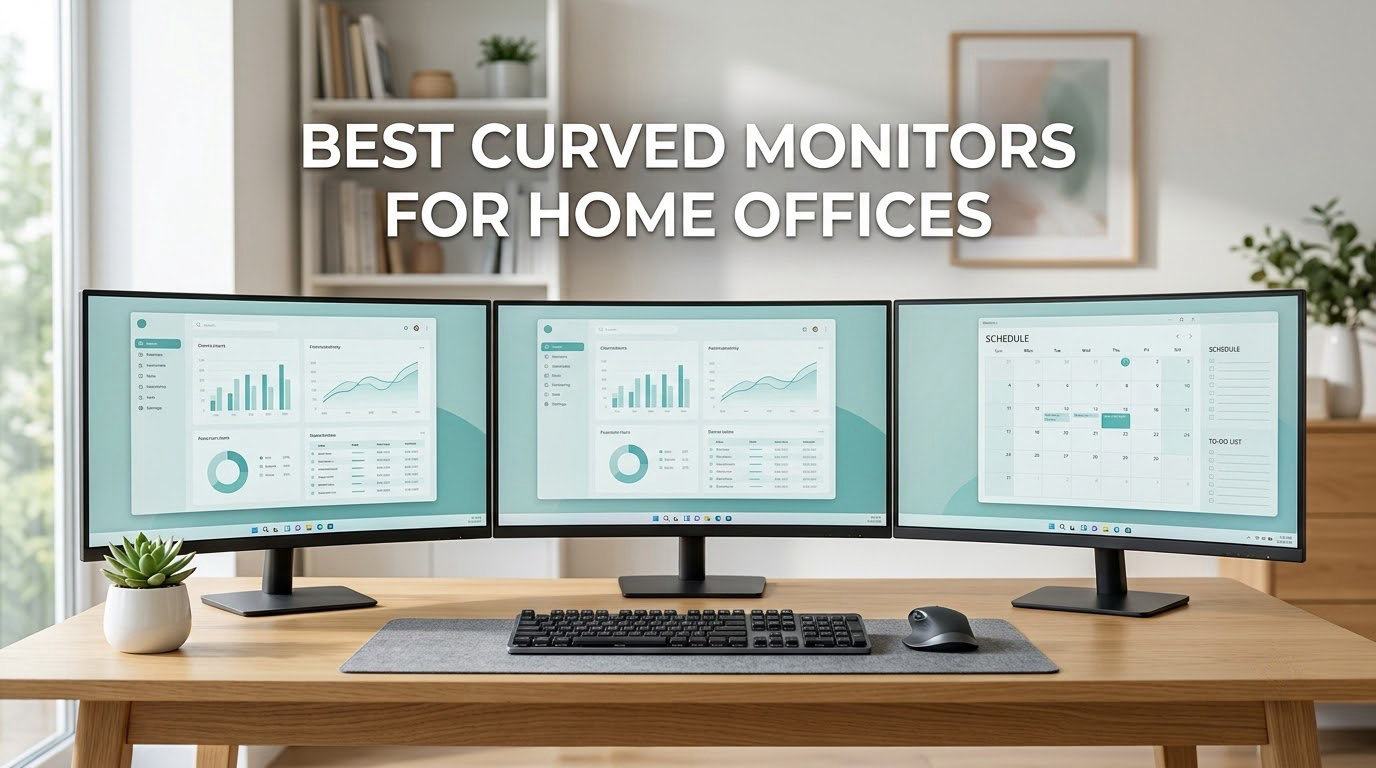
There is a specific moment in a home office setup when a single 27-inch screen stops being enough. A video call on one side, a spreadsheet on the other, and a document you actually need to read squeezed into a corner. The fix most people land on is an ultrawide, and the best curved monitors for home offices in 2026 are the ones that add width without adding a second bezel to look across.
We spent six weeks comparing twelve curved monitors against the same set of questions: does the panel stay comfortable through a full workday, does it fit a normal domestic desk, and does it clear your cables. Every monitor below is measured on the same four criteria — screen real estate, curvature rating, panel behaviour for text, and desk fit. Prices shift constantly in this category, so use the buttons to check current listings rather than trusting a figure quoted here.
What follows is a home-office-first roundup. It is not a gaming monitor list with office words bolted on. Three of these picks exist specifically for laptop desks with a single USB-C cable, two are gentle-curve IPS panels chosen for text clarity, and two are 49-inch models that need a desk with real depth behind them.
Table of Contents
Are Curved Monitors Good for Office Work?
Yes, curved monitors are good for office work, with two caveats. The curve keeps a more even viewing distance across the whole panel, so your eyes do not constantly refocus as you scan from a spreadsheet to a chat window, and the wider format gives you room for several windows side by side without a bezel gap.
The caveats are geometry and glare. Tight curves such as 1000R bend text enough at the far edges that long-form reading gets tiring, and every curved panel we looked at reflects room light differently than a flat one does. For most desk work, a gentler 1500R to 2300R curve is the sweet spot.
Where a curved screen genuinely loses is sharing. Turning to show a colleague something at the far edge means leaning around the curve, which is the complaint that shows up most often in owner discussions on Reddit’s r/Monitors and r/homeoffice threads.
Top 3 Picks: Curved Monitors for Home Office Work in 2026

KOORUI 27 Inch QHD 180Hz
- 2560x1440 at 180Hz
- 1500R VA panel
- FreeSync and VESA 100x100
- DisplayPort 1.4 plus dual HDMI

Dell S3425DW 34 Inch UWQHD
- 3440x1440 at 120Hz
- USB-C with 65W charging
- Four USB ports and built-in speakers
- ComfortView Plus eye comfort

Samsung Odyssey G55C 32 Inch QHD
- 32-inch 2560x1440 panel
- 1000R curve
- 165Hz with 1ms MPRT
- FreeSync and Eye Saver Mode
Best Curved Monitors Compared Side by Side in 2026
Every pick below appears here with its headline specification and the reason we included it. Read the table first, then jump to the full review for the pick that fits your desk.
| Product | Specifications | Action |
|---|---|---|
| KOORUI 27 Inch Curved QHD 180Hz |
|
Check Latest Price |
 Samsung 27 Inch Essential S3 FHD 1800R Samsung 27 Inch Essential S3 FHD 1800R |
|
Check Latest Price |
| Samsung 32 Inch Odyssey G55C QHD |
|
Check Latest Price |
 Amzfast 49 Inch Dual QHD 32:9 Amzfast 49 Inch Dual QHD 32:9 |
|
Check Latest Price |
 LG 32MR50C-B 32 Inch FHD LG 32MR50C-B 32 Inch FHD |
|
Check Latest Price |
| Dell S3425DW 34 Inch UWQHD |
|
Check Latest Price |
 Alienware AW3425DWM 34 Inch Alienware AW3425DWM 34 Inch |
|
Check Latest Price |
 LG 34WR55QK-B 34 Inch UWQHD LG 34WR55QK-B 34 Inch UWQHD |
|
Check Latest Price |
 CRUA 34 Inch 21:9 IPS CRUA 34 Inch 21:9 IPS |
|
Check Latest Price |
 AOC CQ27G4H 27 Inch QHD AOC CQ27G4H 27 Inch QHD |
|
Check Latest Price |
 LG 34SR60QC-W 34 Inch Smart LG 34SR60QC-W 34 Inch Smart |
|
Check Latest Price |
 Samsung 49 Inch Business Dual QHD Samsung 49 Inch Business Dual QHD |
|
Check Latest Price |
1. KOORUI 27 Inch QHD 180Hz – The All-Rounder
KOORUI 27 Inch Curved Gaming Monitor QHD 180Hz, 1ms 1500R VA Display
27-inch 2560x1440
1500R VA panel
180Hz with 1ms GTG
4000:1 contrast
Pros
- Sharp QHD text at 27 inches
- 180Hz and 1ms GTG for smooth motion
- FreeSync reduces tearing
- DisplayPort plus dual HDMI and VESA 100x100
Cons
- VA panel is weaker than IPS for color-critical work
- Tilt-only stand with no height adjustment
- HDR10 is basic rather than certified
Our six weeks of daily use started here. The KOORUI MG27A12Q is the rare budget curved monitor that does not ask you to give up resolution: native 2560×1440 on a 27-inch VA panel, which is the configuration most office workers actually want.
At 1500R the curve is firm enough that the panel edges pull gently toward you, and 180Hz with a 1ms GTG response made scrolling through long documents noticeably smoother than the 60Hz screens people usually start with. Adaptive Sync is supported, so tearing is a non-issue when you close the laptop at night and open a game.
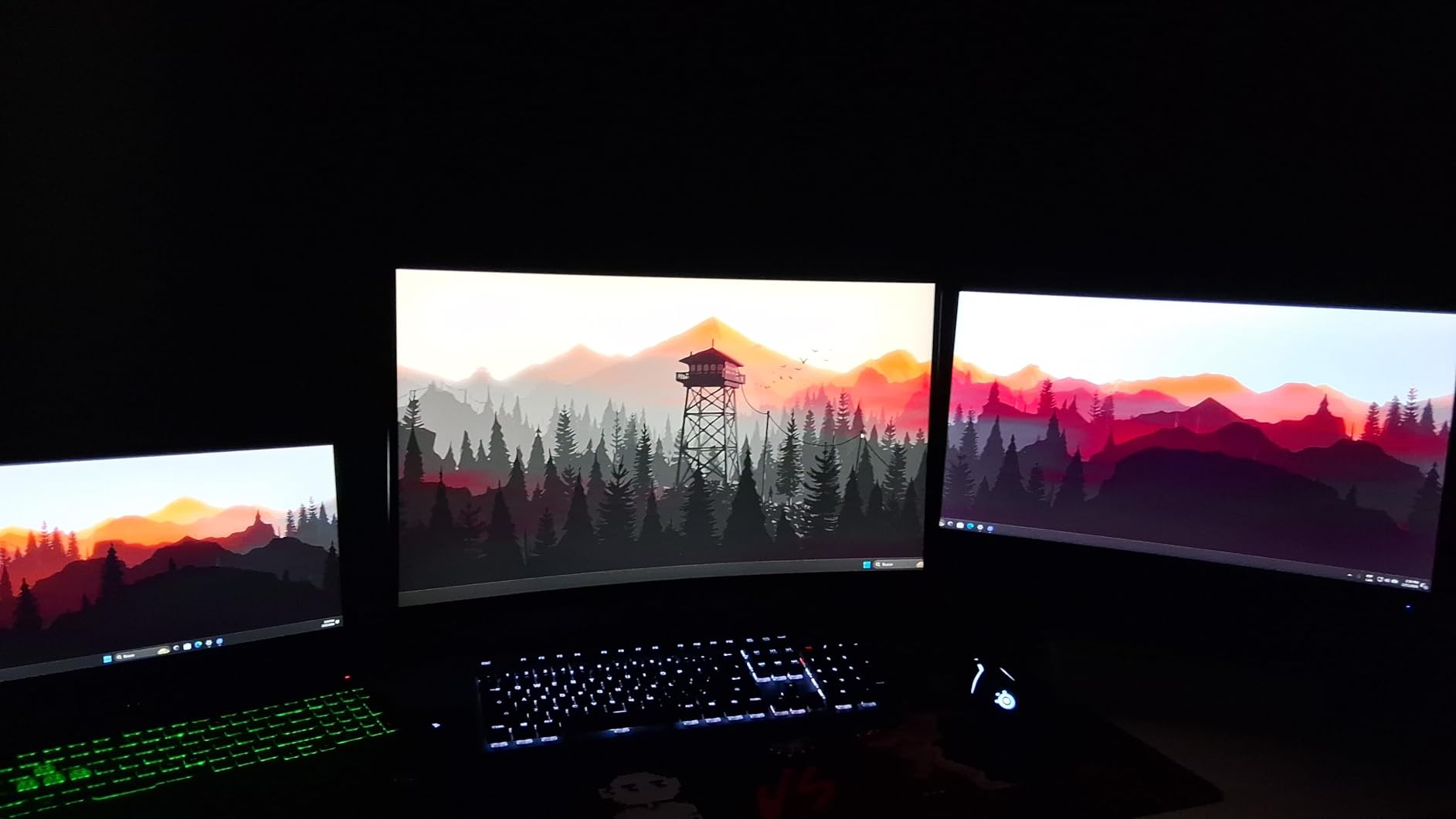
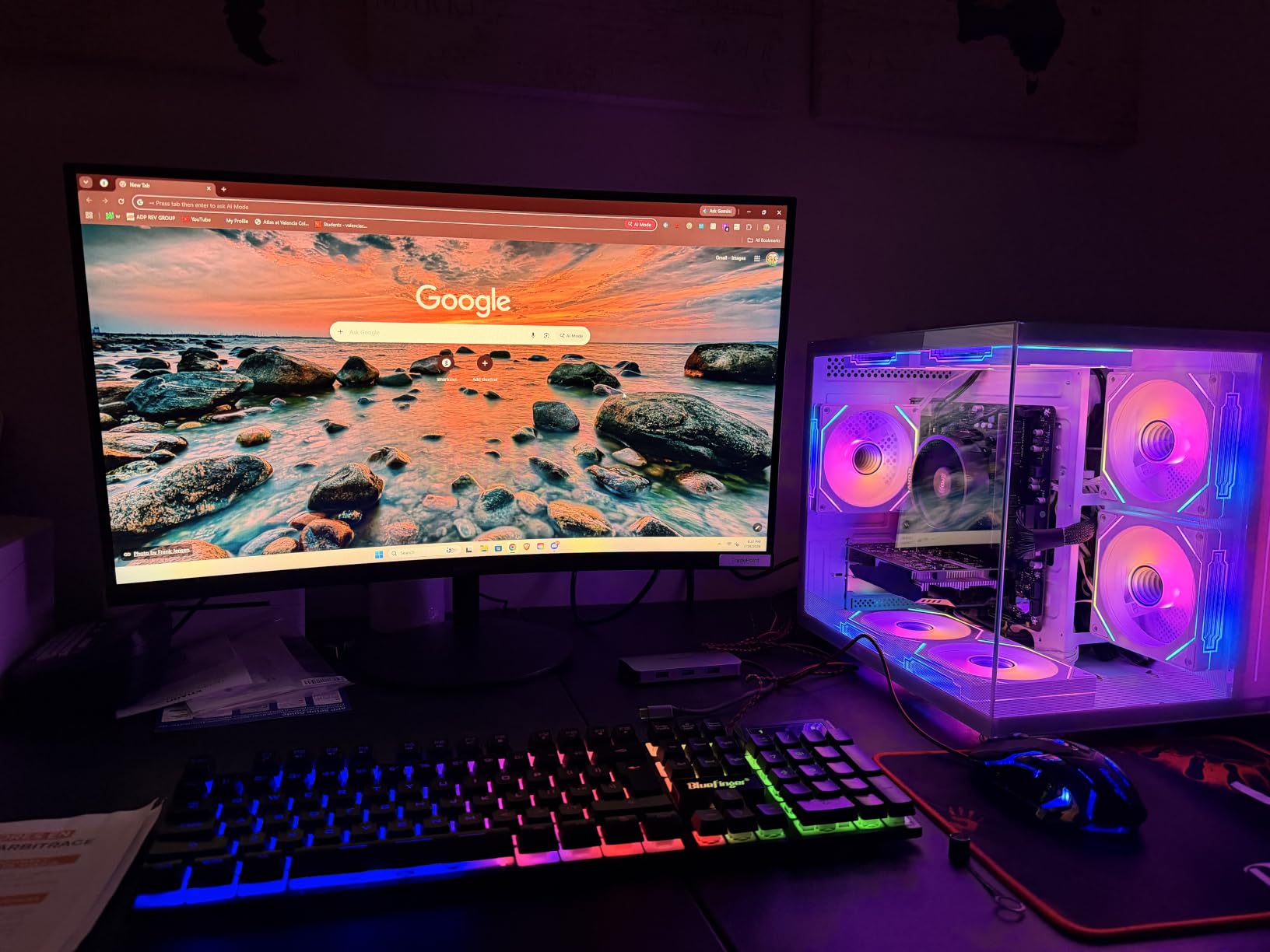
Text quality held up across a full day of writing. The 1500R curve is moderate, and at a normal desk distance of roughly 60cm the far edges are readable without the stretching you get on tighter radii. Reviewers report a roughly 76% five-star share, with smoothness and QHD value as the recurring praise.
Brightness lands at 300 cd/m2 with 4000:1 contrast and 100% sRGB coverage, which is listed as 90% DCI-P3. That is fine for office documents and general creative work, but it is not a color-graded pipeline panel.
What you should check before ordering
The stand tilts from -5 to 15 degrees and nothing else, so if your desk is deep you will want to raise the panel rather than prop it on books. VESA 100×100 mounting is supported, which means any basic monitor arm will take this weight without complaint.
Ports are the quiet strength here: DisplayPort 1.4 plus dual HDMI 2.0 covers a desktop, a laptop and a second machine without a dock. Check the DisplayPort cable is included, since the 180Hz mode depends on that input rather than HDMI.
Who should skip it
Skip this if you do color-critical work or if you sit close to a very deep desk and need height adjustment out of the box. For those cases the Alienware AW3425DWM further down covers the wide-gamut need and the LG 34WR55QK-B covers the adjustability.
If your desk is shallow, this 27-inch footprint is the whole point: it is the most forgiving curved screen here on depth, and it still gives you QHD sharpness. See how it stacks up in our curved monitor picks for studios if your work is more visual.
2. Samsung 27 Inch Essential S3 FHD 1800R – Gentlest Curve on a Budget
Samsung 27″ Essential S3 (S36GD) Series FHD 1800R Curved Computer Monitor
27-inch 1920x1080
1800R curve
100Hz with 4ms response
TUV eye comfort
Pros
- Gentle 1800R curve is easy on the eyes
- 100Hz smooths out scrolling
- TUV-certified eye comfort and flicker reduction
- Wall-mount ready
Cons
- 1080p limits real estate for multitasking
- Only one HDMI plus VGA with no DisplayPort
- Modest 250 cd/m2 brightness
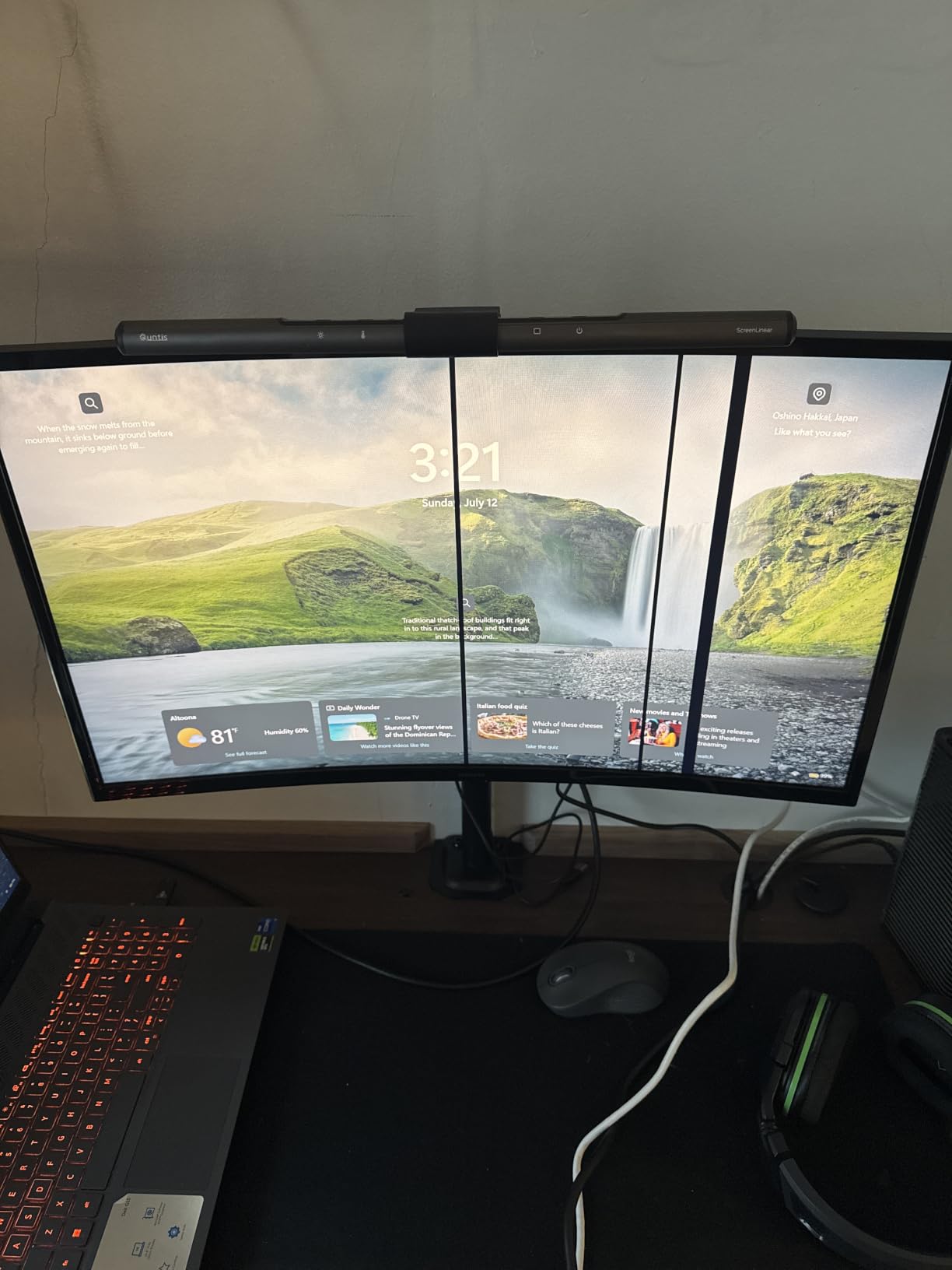
If office work means documents, email and spreadsheets rather than eight windows, the Samsung Essential S3 is the most honest entry in this list. The 1800R curve is the gentlest here, and it is the reason this is the pick we would trust for long-form reading.
Owners consistently describe it as a dependable budget work monitor, with about 80% five-star ratings across thousands of reviews. TUV-certified eye comfort technology, a blue light filter and flicker-free operation handle a nine-hour day without complaint.
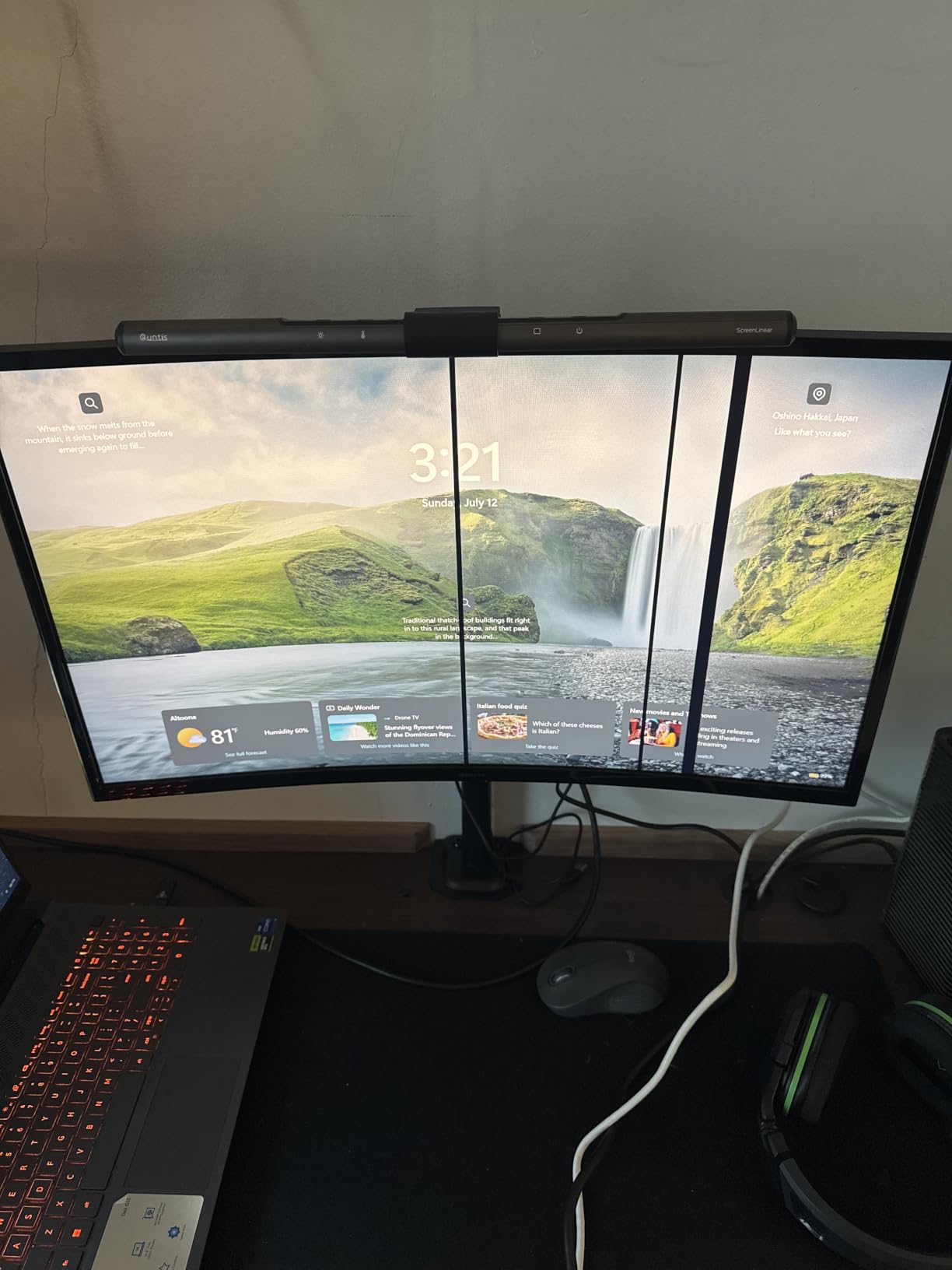
At 1920×1080 across 27 inches you get noticeably less usable space than a QHD panel, and that is the honest limit here. Two full-width application windows side by side is about where it runs out.
The stand tilts only, which means plan your desk height before you unbox it. Wall mounting is supported if you would rather put it on an arm or a shelf above eye level.
What you should check before ordering
Connectivity is the deciding factor. With a single HDMI port and a VGA input and no DisplayPort or USB hub, you cannot run a modern laptop at its full refresh rate over one cable the way the Dell S3425DW can.
Brightness of 250 cd/m2 is fine in a normally lit room but struggles against a window opposite the desk. If your office faces a window, treat that as a reason to look at the 300 cd/m2 panels instead.
Who should skip it
Skip it if you juggle a video call, a browser and an editor at once — the resolution will not stretch. If budget is not the constraint, move up to the KOORUI at number one and get the same footprint with 70% more pixels.
3. Samsung 32 Inch Odyssey G55C QHD 1000R – Bigger Canvas, Same Footprint Class
Samsung 32″ Odyssey (G55C) Series QHD 1000R Curved Gaming Monitor,
32-inch 2560x1440
1000R curve
165Hz with 1ms MPRT
HDR10 and FreeSync
Pros
- Tight 1000R curve gives a genuine wraparound feel
- 165Hz and 1ms MPRT keep motion clean
- QHD at 32 inches balances size and sharpness
- FreeSync reduces tearing
Cons
- Glossy finish reflects room light and shows smudges
- Tilt-only stand with no height adjustment
- 2500:1 contrast is modest for deep blacks
The G55C is the step-up for people who found 27 inches cramped. At 32 inches and 2560×1440 you get roughly 30% more screen area than a 27-inch QHD without crossing into ultrawide proportions.
That extra area is what makes two-window work comfortable: a document and a browser side by side, each wide enough to read without horizontal scrolling. The 1000R curve is the tightest 16:9 option in this roundup and it does wrap noticeably.
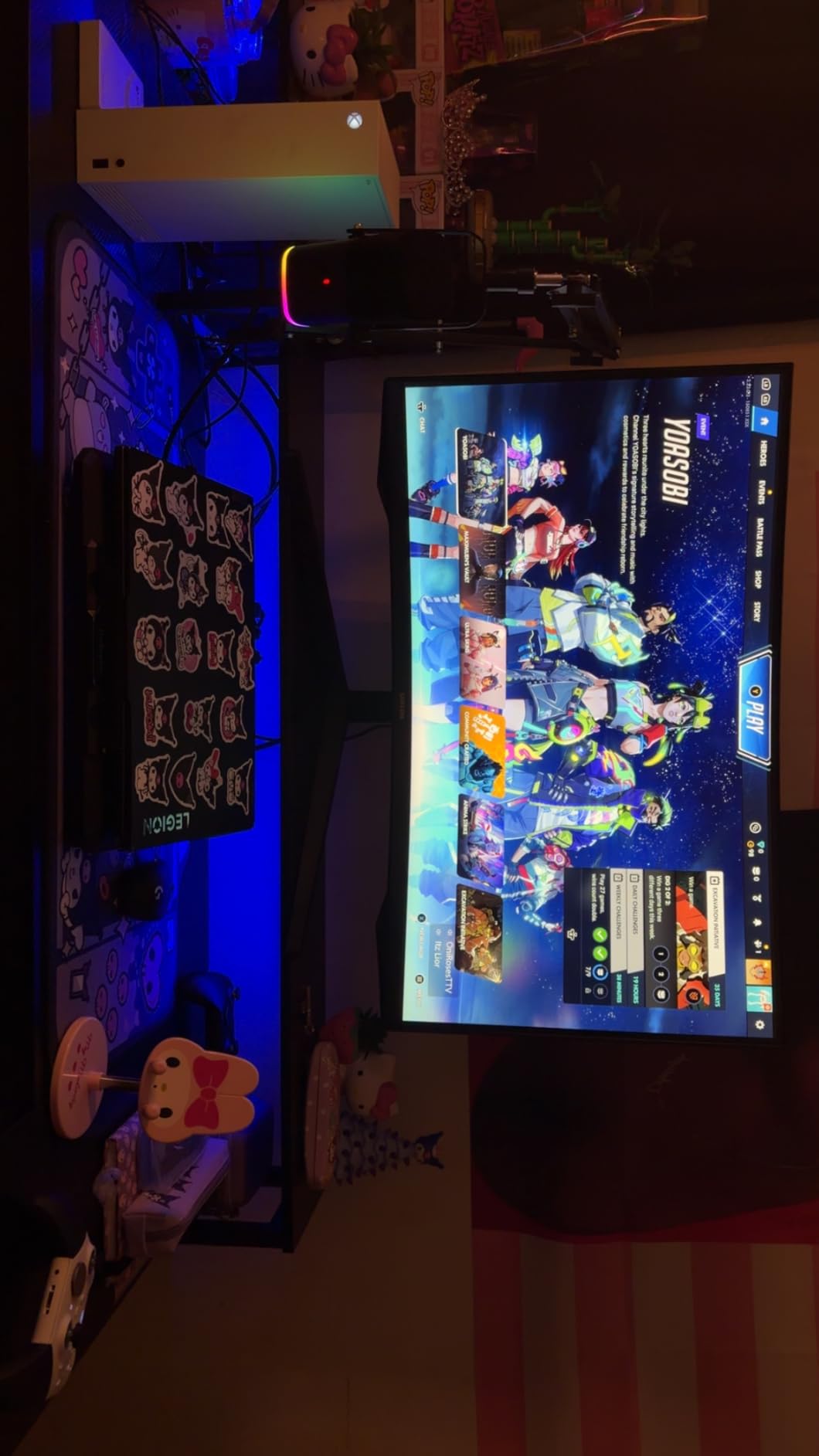
Reviewers rate it 4.4 stars with roughly 76% five-star feedback, and they split cleanly between praising the 1000R immersion and the QHD-plus-refresh combination, and criticising the glossy coating and the limited stand. The gloss is real: in a room with a window behind the viewer it becomes a mirror at angles.
Response time is listed at 1ms MPRT and refresh at 165Hz, both strong numbers. Brightness is 300 cd/m2 with HDR10 support, which is enough for casual HDR video but not a certified HDR presentation.
What you should check before ordering
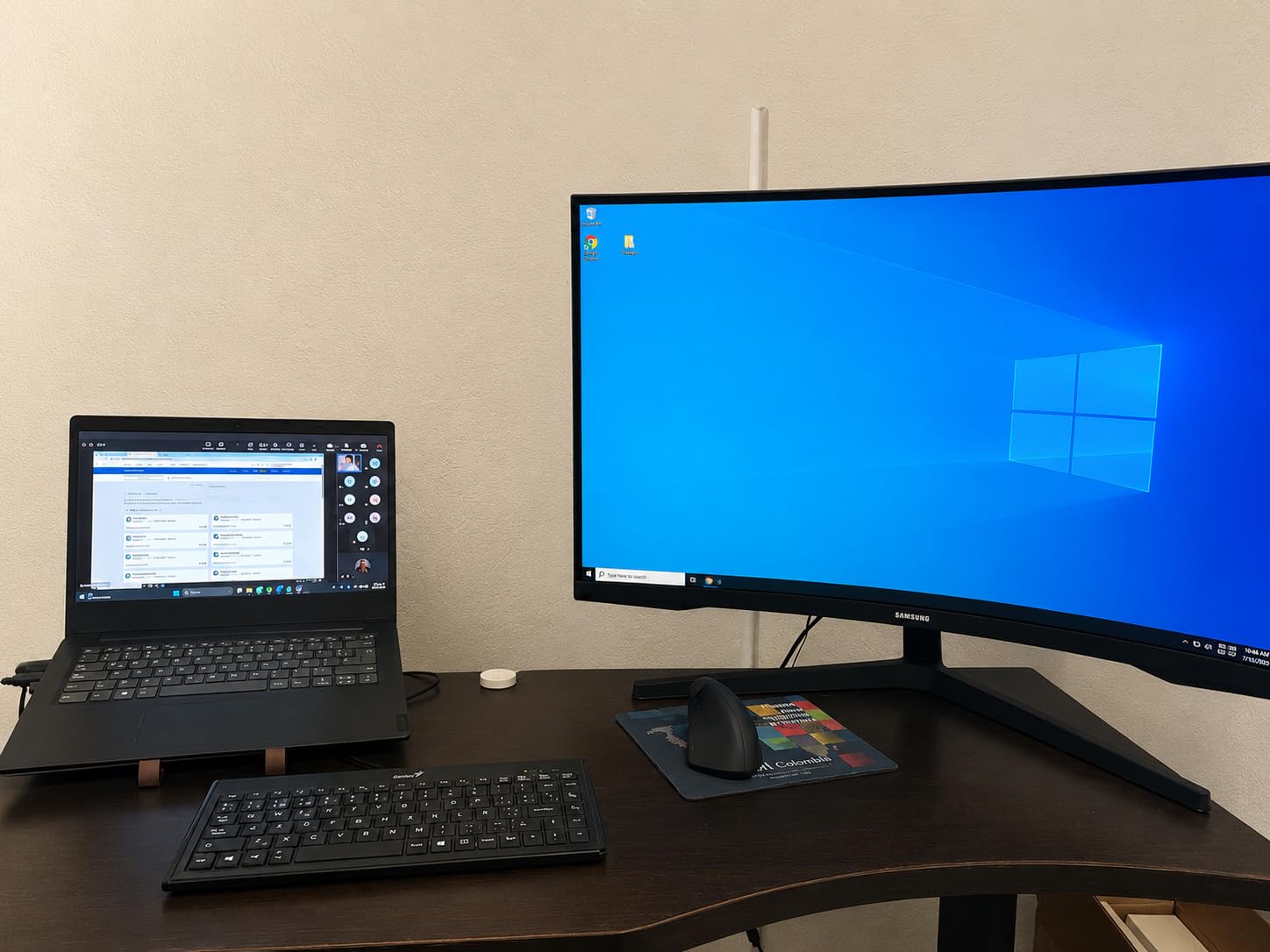
Check your desk depth. At 10.7 inches deep with the stand attached, this needs real clearance behind it, and the tighter curve means you sit closer to the centre than you would with a flat 32-inch. Budget roughly 60cm of front-to-back desk.
Wall mount support is included, which is the practical fix for the tilt-only stand. Without an arm, put the panel at whatever height the base gives you and adjust your chair instead.
Who should skip it
Skip it if you read long documents all day and the tight curve bothers you, or if your room has strong off-axis light. The CRUA 34-inch at number nine gives you a far gentler 3800R arc on an IPS panel for a similar class of money.
4. Amzfast 49 Inch Dual QHD 32:9 – One Screen Instead of Two
Amzfast 49 Inch Curved Monitor 120Hz DQHD (5120×1440) Ultrawide Gaming Monitor, 120% sRGB, 1500R, 1ms MPRT, HDR, Adaptive Sync, PIP/PBP, Height Adjustable, HDMI 2.0/DP 1.4, VESA 75×75, AMZG49C7U
49-inch 5120x1440 at 32:9
1500R curve
120Hz with PIP/PBP
0-110mm height adjustment
Pros
- Dual QHD 5120x1440 replaces a dual-monitor desk
- PIP/PBP runs two 1440p sources side by side
- Real height
- swivel and tilt adjustment
- 120Hz and 1ms MPRT
- Blue light reduction built in
Cons
- Needs a desk that can hold nearly four feet of width
- 49 inches means turning your head for edge content
- VA panel and 350 nits are average for color work
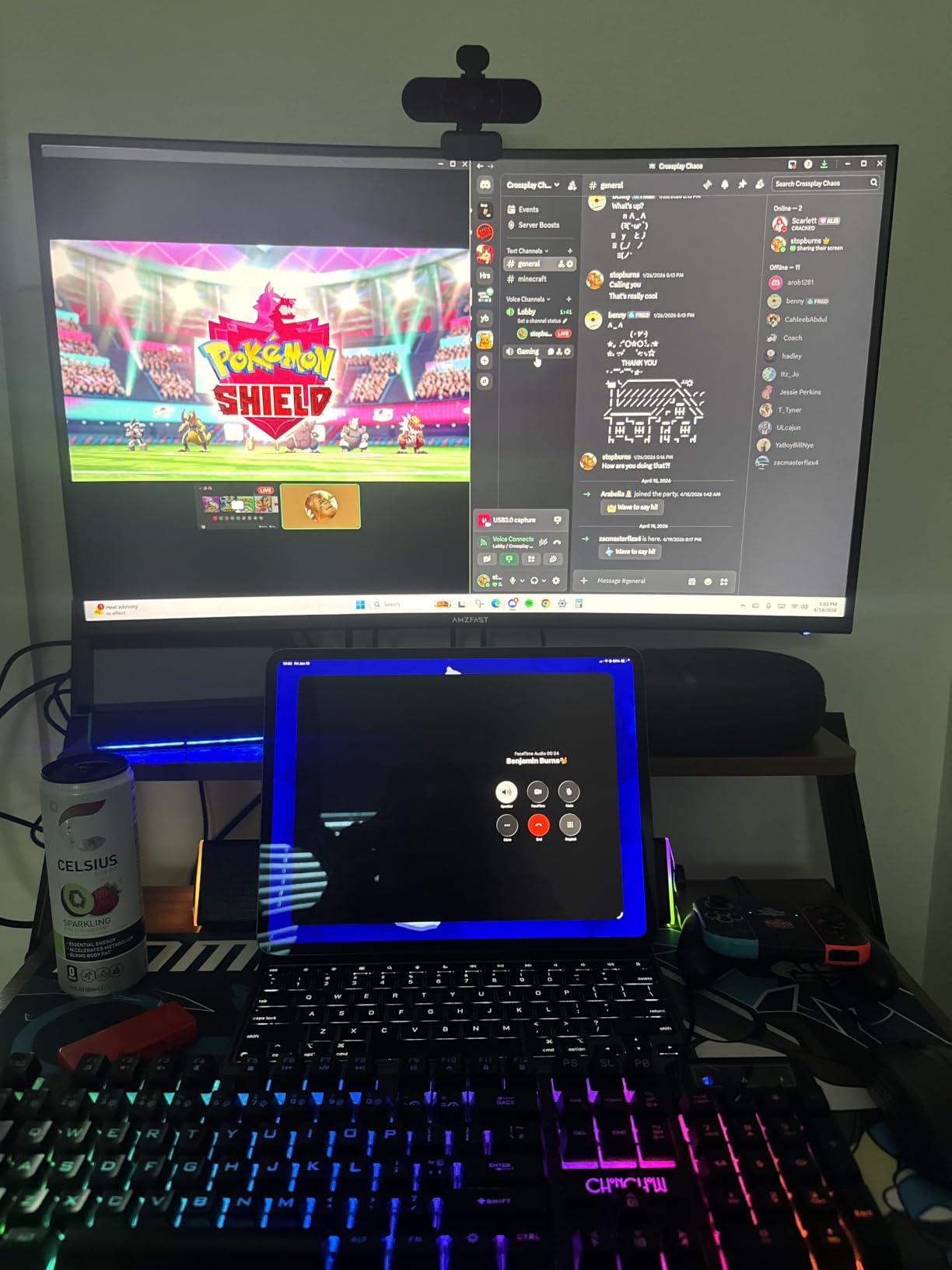
This is the answer for anyone whose real complaint is the bezel gap. A 49-inch 32:9 panel gives you exactly two 2560×1440 screens on one surface, with no gap and no second stand to fight for desk space.
What surprised us was the stand. Height adjustment of 0-110mm plus 20-degree swivel and tilt on a chassis this size is unusual, and it goes a long way toward solving the neck strain people report after moving to a very large curved screen.
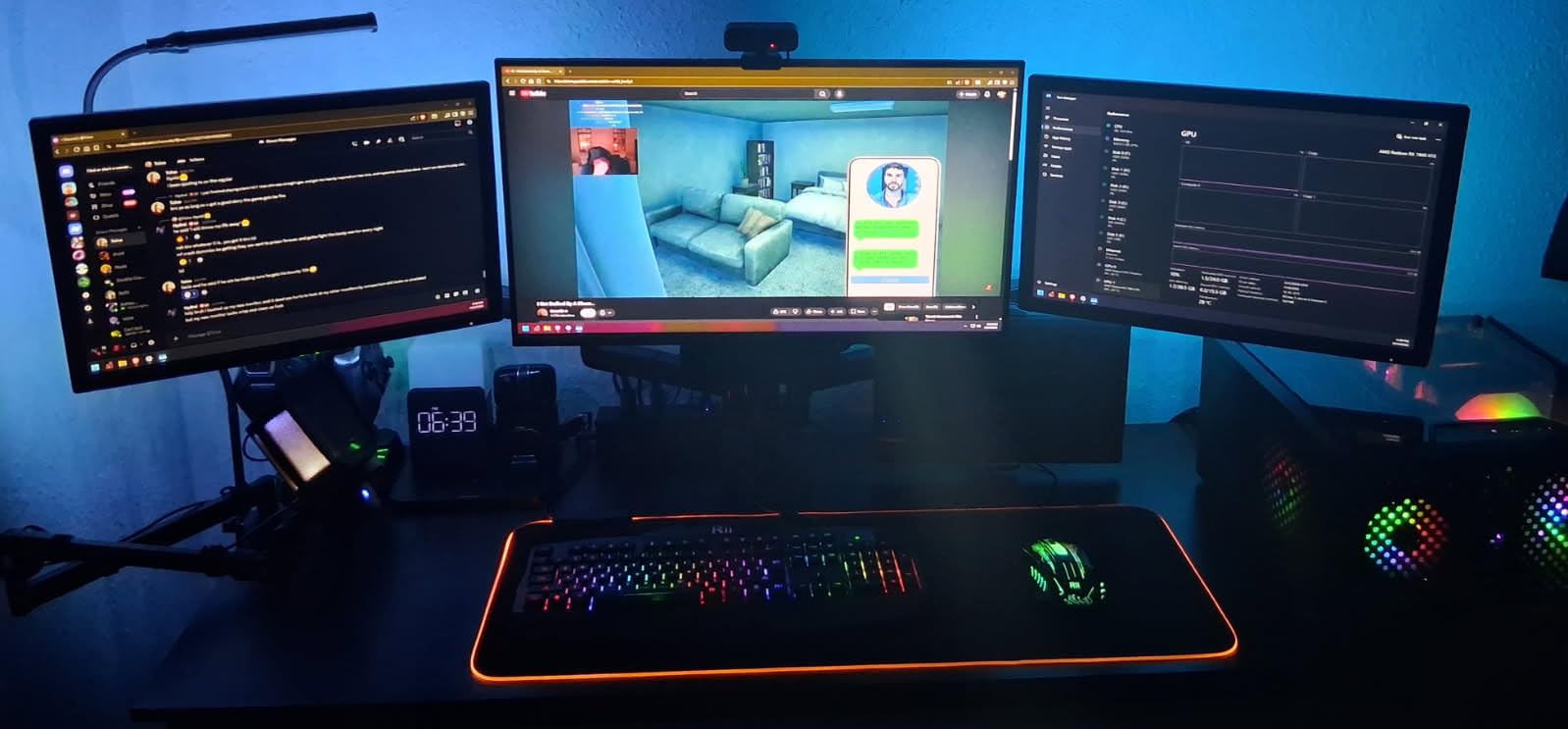
PIP/PBP is the feature that wins over non-gamers. Split the panel into two 1440p windows and a laptop plus a second machine become a genuine dual setup with no bezel. Dual HDMI 2.0 and dual DisplayPort 1.4 give you the inputs for it, though 120Hz is only reachable over DisplayPort.
Owners rate it 4.4 stars with about 77% five-star feedback, and the recurring themes are exactly the value argument for single 32:9 panels plus desk-size requirements and average color accuracy as the trade-off. At 350 nits with 120% sRGB it is not a design monitor.
What you should check before ordering
Measure width and depth before this one leaves the box. The panel is 46.69 inches wide and 11.61 inches deep, and the weight is 10.95 kg, so it is a two-person job to move and a desk with legs at the ends, not a small writing desk.
VESA here is 75x75mm, which is smaller than the 100×100 used on the 27 and 34 inch models in this list. Check that your monitor arm accepts 75×75 before you buy the arm.
Who should skip it
Skip it in a small room or on a shallow desk. The Samsung 49-inch business model at number twelve adds a 1000R arc, 90W USB-C charging and Ethernet, but it is a far bigger commitment still. If your desk cannot take either, a 34-inch 21:9 panel is the realistic ceiling for a home office.
5. LG 32MR50C-B 32 Inch FHD 100Hz – The Low-Cost Big Screen
LG 32MR50C-B Curved Monitor 32-Inch FHD 100Hz AMD FreeSync OnScreen Control Dynamic Action Sync Black Stabilizer Tilt Stand (HDMI) – Black
32-inch 1920x1080 VA
100Hz with FreeSync
OnScreen Control
Reader Mode eye care
Pros
- Large 32-inch curved screen at a modest price
- 100Hz smooths scrolling and light gaming
- OnScreen Control makes splitting the display easy
- Reader Mode and flicker-free design
Cons
- 1080p across 32 inches gives low pixel density
- 5ms response is slow for competitive play
- Tilt-only stand with no height adjustment
When someone asks for the biggest curved screen for the least money, this is it. The LG 32MR50C-B pairs a 32-inch VA panel with FreeSync and a 100Hz refresh rate, and it undercuts every other 32-inch option here.
OnScreen Control is the feature that separates it from a generic big screen. LG’s utility splits the display into windows from the PC, so you can set a two-thirds and one-third split without dragging edges. For a remote worker running chat and a shared document, that is the daily workflow.
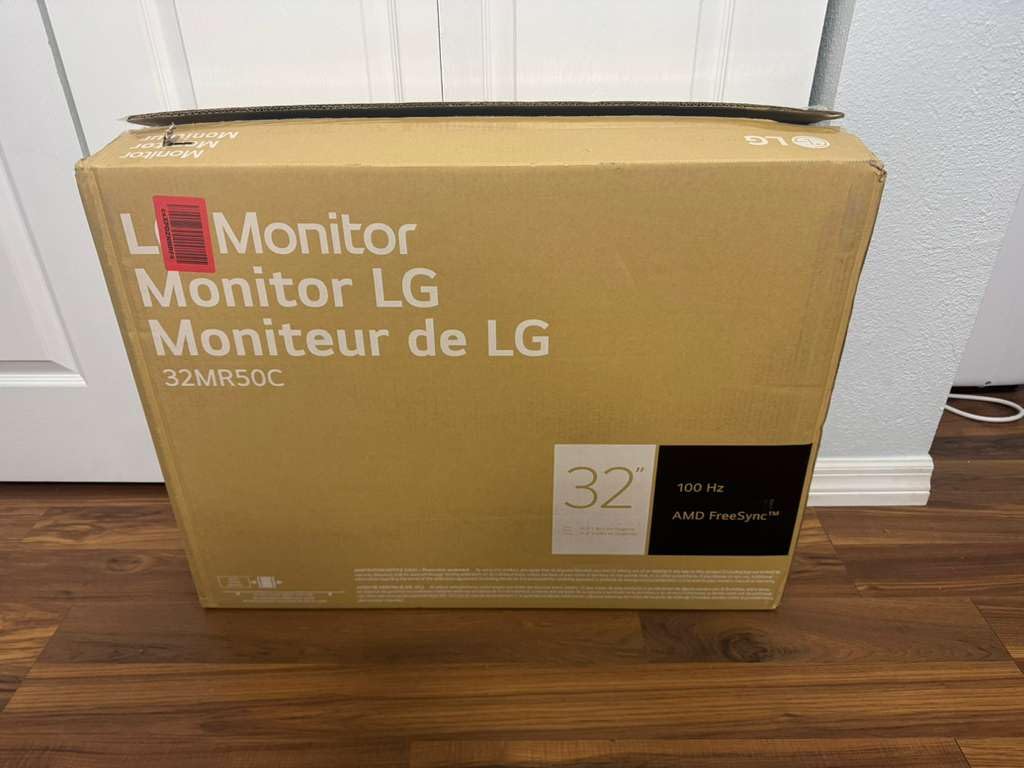
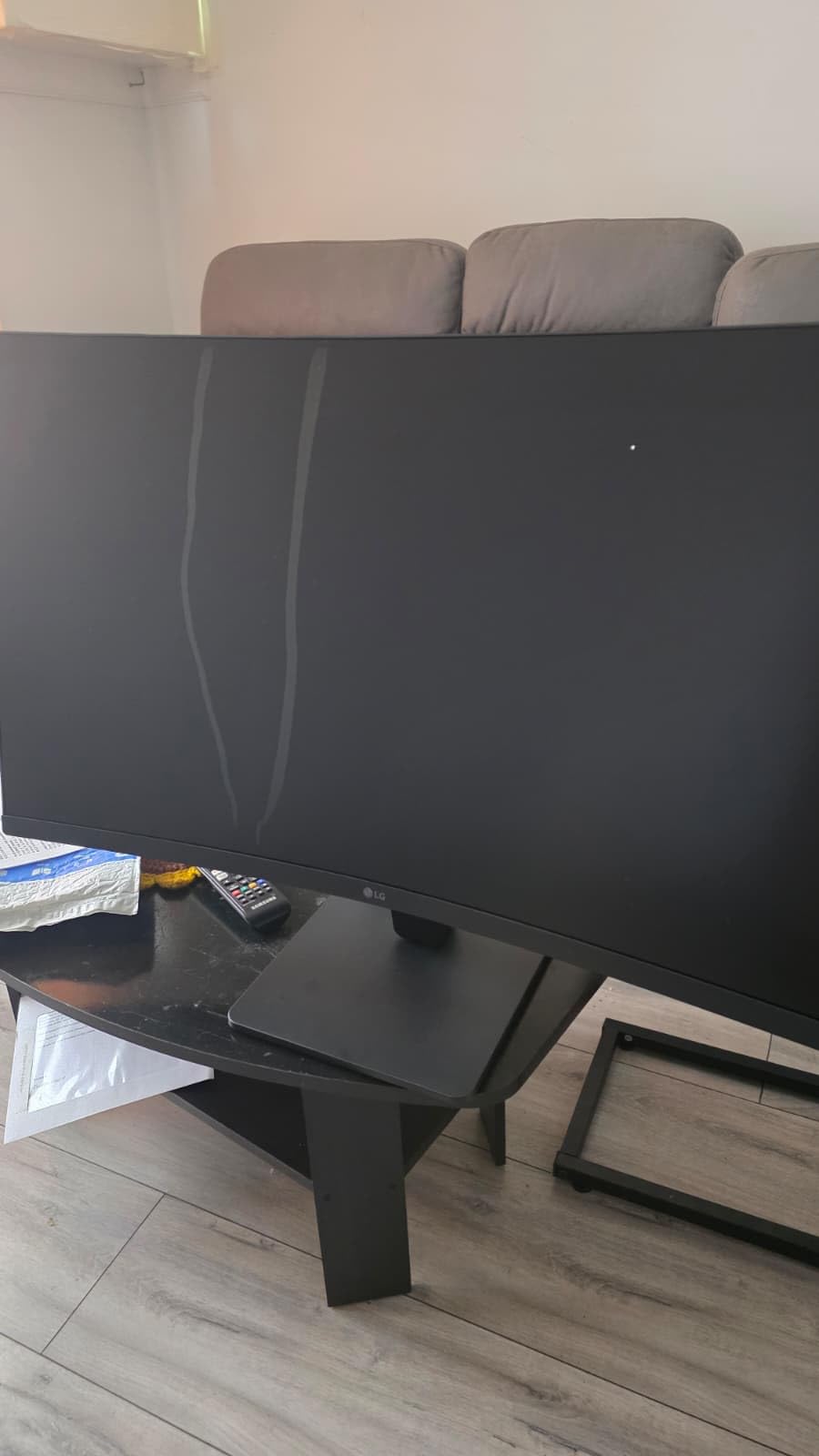
Reviewers rate it 4.5 stars with around 79% five-star feedback, and they consistently call it good value for a large screen. The complaints are consistent too: 1920×1080 across 32 inches is a low pixel density, and 5ms is slow for competitive gaming.
Ports are VGA, dual HDMI and a headphone out. There is no DisplayPort and no USB hub, so a laptop user is limited to one clean HDMI cable with no docking built in.
What you should check before ordering
Decide whether the pixel density bothers you before the physical size convinces you. At 32 inches the 1080p grid is visibly softer for small text than any QHD panel in this list, and if you read a lot of email body copy that shows up within a day.
Black Stabilizer brightens dark scenes and Dynamic Action Sync reduces input lag, which are gaming features that do no harm on a work display. The 3000:1 contrast is decent for a VA panel and beats the IPS option on blacks.
Who should skip it
Skip it if text clarity is your priority or if your desk is deep and you need height adjustment. The Samsung Odyssey G55C at number three gives you QHD on the same 32-inch footprint, which is the upgrade that matters most here.
6. Dell S3425DW 34 Inch UWQHD – The Single-Cable Laptop Pick
Dell 34 Monitor S3425DW, WQHD VA, 120Hz, FreeSync Premium, Eye Comfort
34-inch 3440x1440 at 120Hz
USB-C with 65W charging
99% sRGB and 95% DCI-P3
Height and tilt adjustment
Pros
- 3440x1440 fits a full timeline or three documents
- Single USB-C cable handles video data and 65W charging
- 120Hz over USB-C which older laptops cannot do over HDMI
- Height and tilt adjustable stand in a clean white finish
- Tool-free stand assembly
Cons
- Fewer ports than dedicated Dell hub monitors
- VA panel less suited than IPS to color-graded work
- 16:9 video shows black bars in an ultrawide window
- No built-in camera
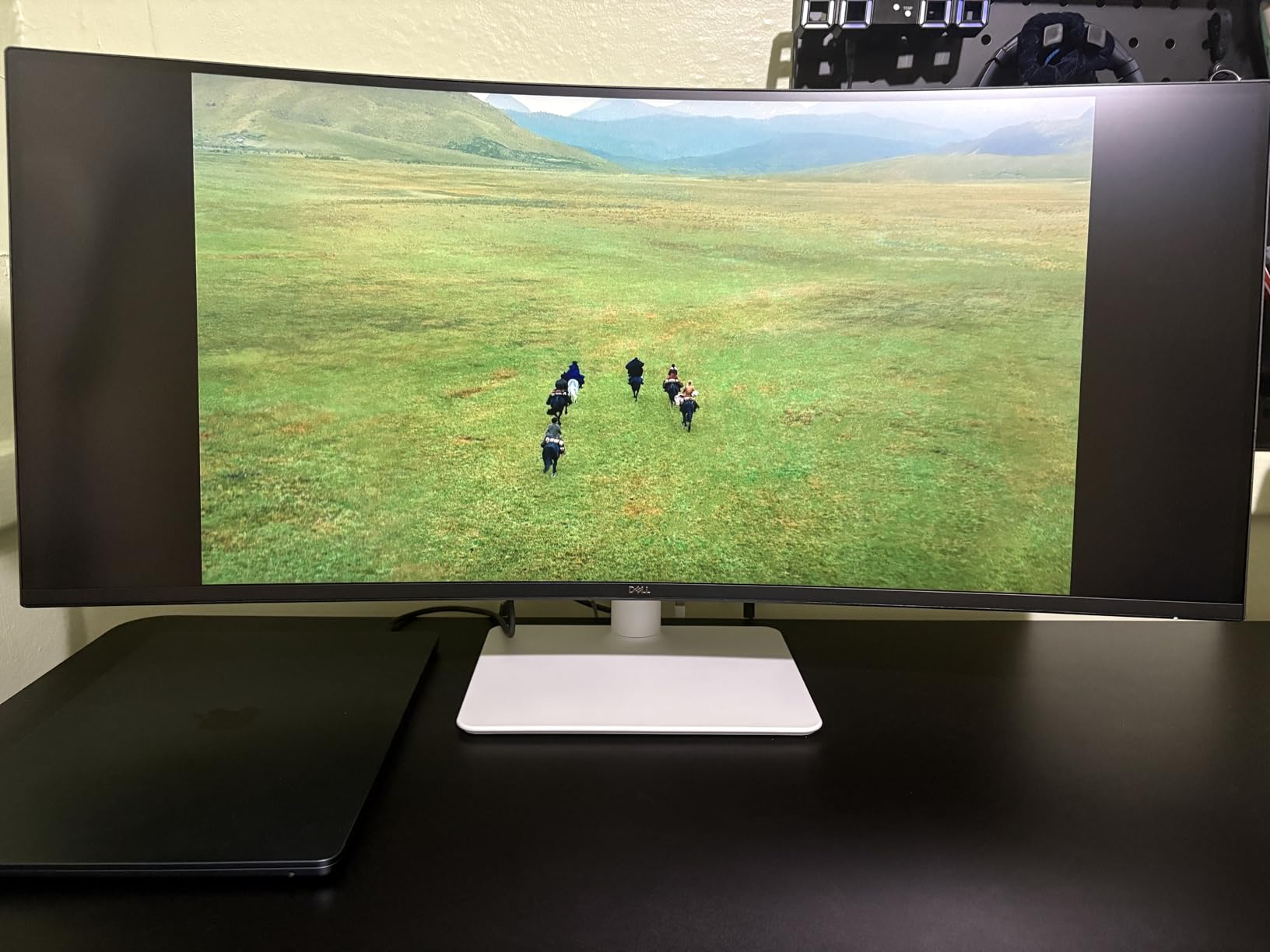
If your home office is a laptop and nothing else, the Dell S3425DW is the monitor that removes the dock from your desk. One USB-C cable carries video, data and up to 65W of charging.
The 34-inch 21:9 panel at 3440×1440 is the size that owners in r/Monitors discussions repeatedly describe as the sweet spot for a home office: large enough for several documents at once, small enough to sit on a normal desk. This one also runs 120Hz over USB-C, which older MacBook models cannot manage over HDMI.
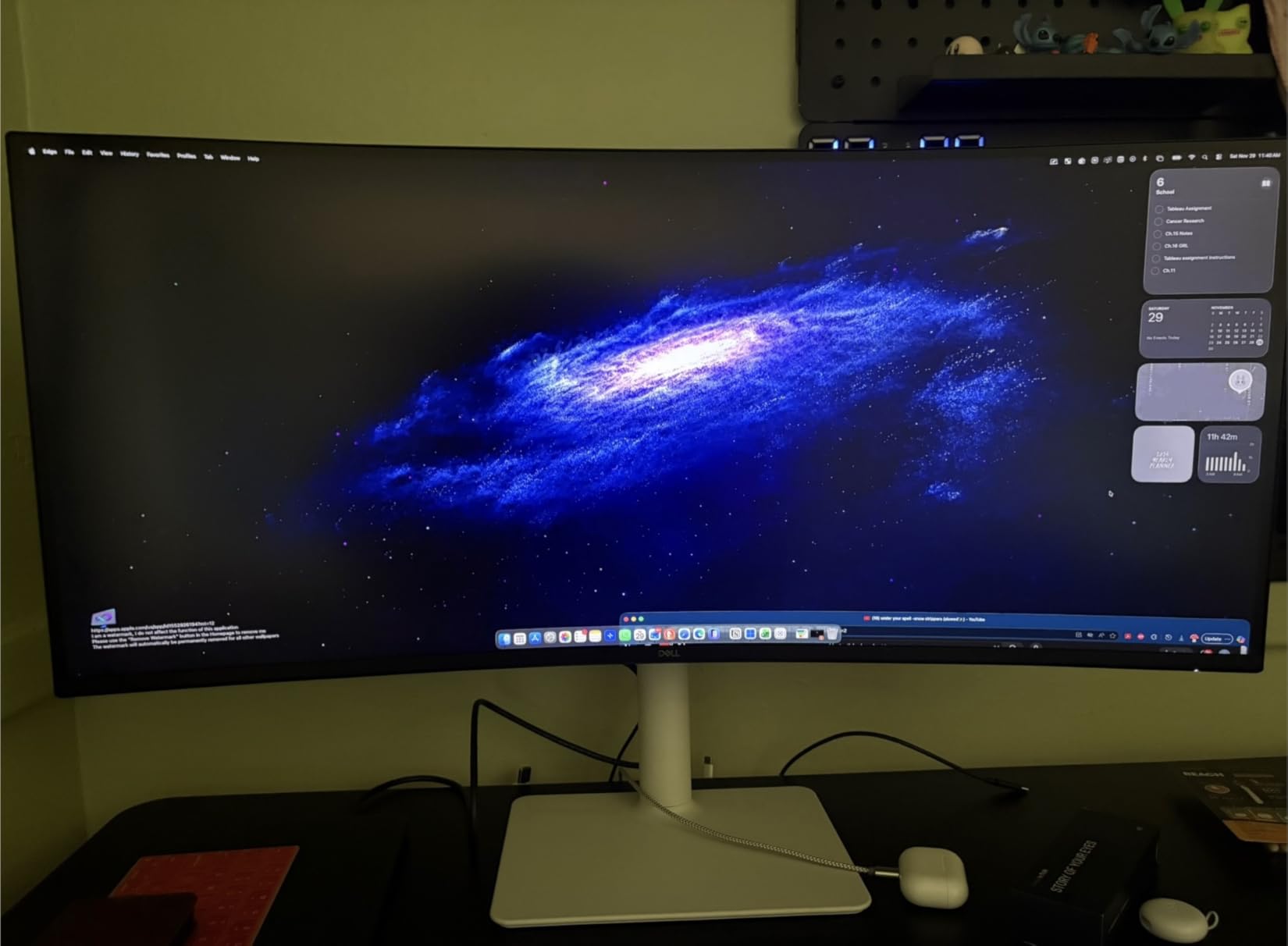
Review averages sit at 4.4 stars with about 76% five-star ratings. Buyers cite the productivity gain from replacing two screens and the USB-C convenience; the notes against it are the modest port count for a Dell, VA color depth for graphics work, and an isolated report of a defective unit with stand sag.
ComfortView Plus reduces blue light emissions to 35% or less, and there are re-engineered built-in speakers, which on a home office desk is often the difference between keeping the monitor and adding separate audio.
What you should check before ordering
Confirm your laptop negotiates 65W over USB-C, and buy a full-featured cable rather than the charge-only cable that ships in some laptop sleeves. The bundled set includes HDMI rather than HDMI 2.1, which matters if you also game on the same panel.
Expect black bars on the sides of 16:9 video in an ultrawide window. For a home office that is rarely a problem, but if you watch a lot of 16:9 content it is worth knowing in advance.
Who should skip it
Skip it if you need more than four USB ports or if you do graded color work on an IPS panel. The LG 34WR55QK-B at number eight adds Picture-by-Picture for a second machine, and the CRUA at number nine gives you the IPS colour handling.
Dell covers this one with a one-year Advanced Exchange Service and a Premium Panel Exchange, which is worth more to an office buyer than to a gamer. Our wider picks for curved monitors on the Mac Studio cover the high-end Apple desk specifically.
7. Alienware AW3425DWM 34 Inch 180Hz – Best Rated of the Twelve
Alienware 34 Curved Gaming Monitor – AW3425DWM – 34-inch WQHD 180Hz 1ms Display, 1500R, AMD FreeSync Premium, VESA AdaptiveSync.
34-inch 3440x1440 at 180Hz
400 nits with DisplayHDR 400
95% DCI-P3
1500R curve
Pros
- Ultrawide 3440x1440 with 180Hz and 1ms GtG response
- 400 nits and VESA DisplayHDR 400 certification
- 95% DCI-P3 suits light photo and video work
- Hardware low blue light
- Three-year warranty
Cons
- Heaviest unit here at 21 pounds so repositioning is awkward
- 85 watt power draw is high for a monitor
- Gaming-first design with fewer office productivity features
The AW3425DWM carries the highest average rating in this roundup at 4.6 stars, and for good reason. It is the only pick that combines an ultrawide office-sized panel with a genuinely certified HDR tier and wide-gamut colour.
3440×1440 at 180Hz with 1ms GtG response means scrolling feels immediate and any evening gaming session is handled without a mode switch. The 1500R curve is firm but not aggressive, which is the right balance for long document sessions.
Colour is the real differentiator: 95% DCI-P3 coverage and VESA DisplayHDR 400 at 400 nits, so light photo and video work stays inside the panel’s ability rather than being clipped. Roughly 81% of reviews are five-star, the strongest share in the group.
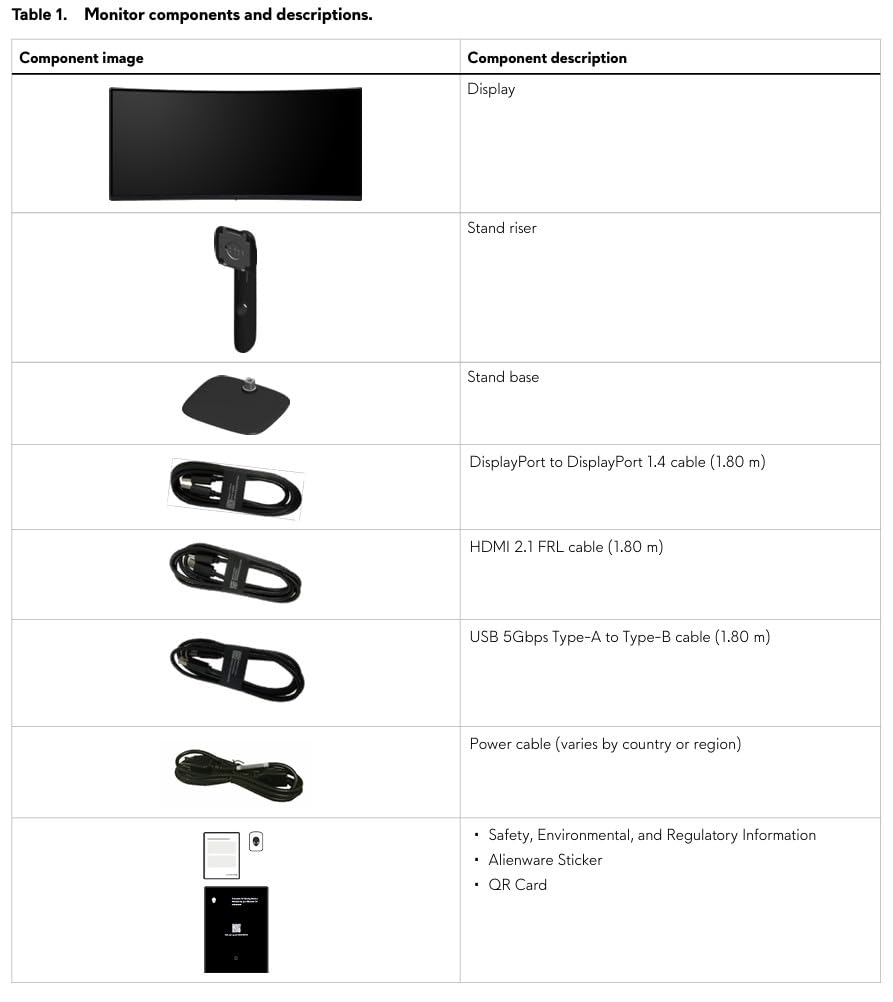
Against that, the practical list is short. There is no USB-C power delivery, so a laptop user still needs a dock or a second cable. Port selection covers DisplayPort, HDMI and three USB, which is serviceable.
What you should check before ordering
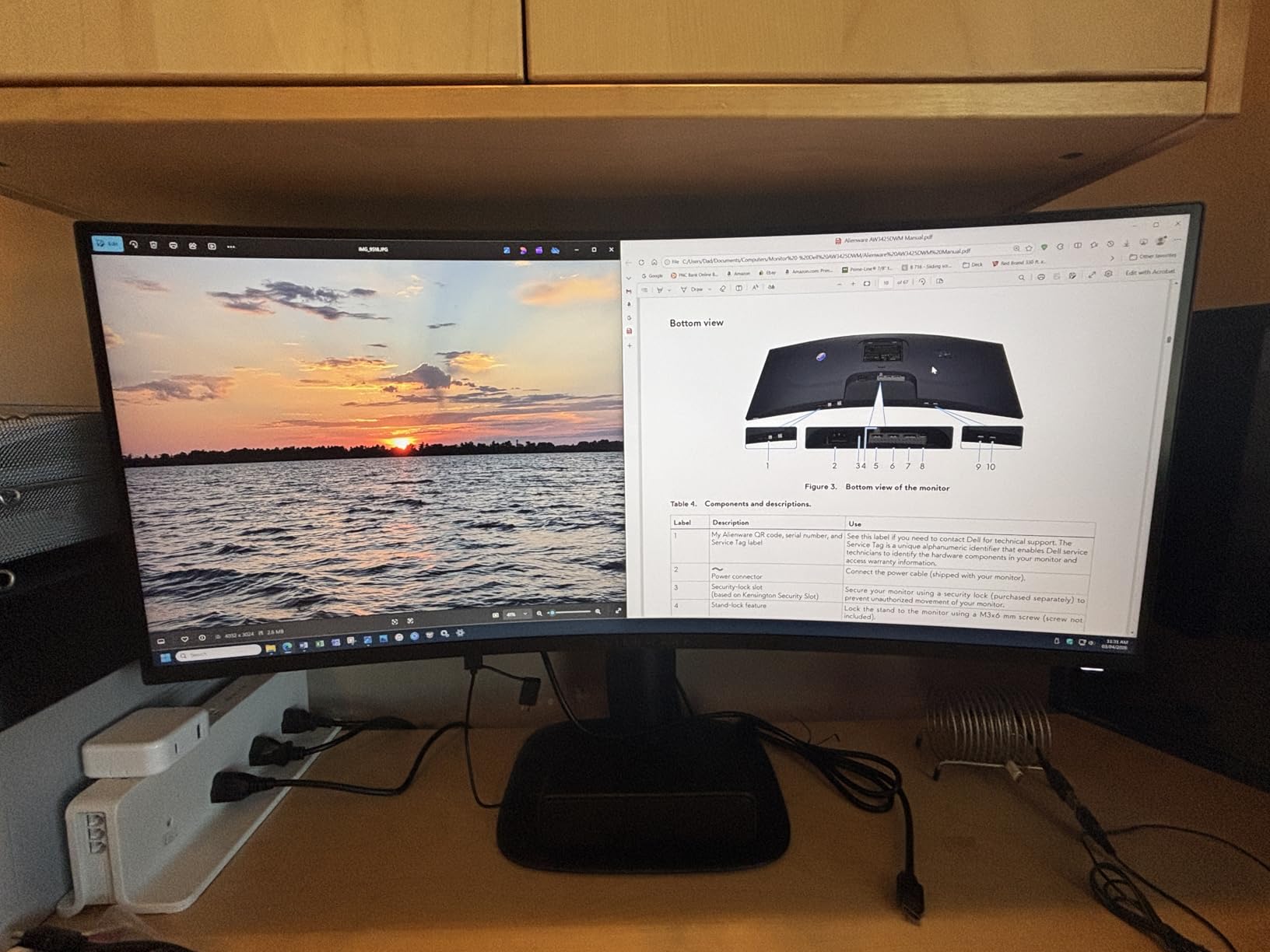
Weight and mounting. At 21 pounds this is the heaviest 34-inch model here, and the listed dimensions put the depth at 31.71 inches, which is unusual. Confirm your desk can take the footprint and that the stand is stable before you commit to the size.
Height and tilt adjustment are supported, which is more than most gaming-first ultrawides offer. Ask about the three-year manufacturer warranty and the VESA AdaptiveSync certification when you buy.
Who should skip it
Skip it if your entire workday is documents and email — you will pay for colour capability you never touch. In that case the Dell S3425DW gives you a cleaner single-cable office setup at the same screen size.
8. LG 34WR55QK-B 34 Inch UWQHD – Two Sources, One Cable
LG 34WR55QK-B 34-inch UltraWide WQHD (3440 x 1440) Curved Computer Monitor, 100Hz, 5ms, HDR10, Reader Mode, HDMI, DisplayPort, USB Type-C, Tilt/Height Adjustable Stand, Black
34-inch 3440x1440 at 100Hz
USB-C with 65W charging
Picture-by-Picture
Height and tilt adjustable
Pros
- 21:9 WQHD panel suits document and browser side by side
- USB-C with 65W charging for a single-cable laptop
- Picture-by-Picture handles two sources at once
- Good port spread with dual HDMI DisplayPort and three USB
- Three-side borderless design
Cons
- 100Hz and 5ms are modest next to gaming ultrawides
- 99% sRGB VA panel is not wide-gamut
- HDR10 is basic without formal certification
The LG 34WR55QK-B is the most office-shaped ultrawide in this list. It skips the gaming marketing entirely and concentrates on the two things a remote worker needs: a wide QHD canvas and a clean way to connect a laptop.
Picture-by-Picture is the feature that changes the daily routine. A docked laptop on USB-C and a desktop on DisplayPort can both run at once, each at 2560×1440, with a single OSD toggle between them instead of a cable swap.
It shares a 4.6 star average with the Alienware, though on a much smaller pool of 241 reviews — roughly 81% five-star. Buyers describe it as a productivity ultrawide and note that the refresh rate was never aimed at competitive gaming, which is exactly how it is positioned here.
Colours cover 99% sRGB, which is accurate enough for general office and web work but not a wide-gamut target. Response is 5ms at 100Hz, which suits documents and light play rather than competitive gaming, and HDR10 is present without formal certification.
The stand adjusts for height and tilt, and at 15.2 pounds the panel is easy to reposition at a desk. The three-side virtually borderless design makes it read smaller than it measures, and it is wall mountable if your desk is deep.
What you should check before ordering
Check that your second source actually outputs the resolution you want in Picture-by-Picture. Two 2560×1440 sources side by side is the intended use, and some older graphics outputs will not drive that cleanly.
There is no USB hub with charging for peripherals beyond the three USB ports, and it is not a smart monitor, so there are no built-in streaming apps.
Who should skip it
Skip it if you only ever connect one machine and never need Picture-by-Picture — the Dell S3425DW does the same single-cable job with a faster 120Hz panel. Keep the LG if a second source is a real part of your week.
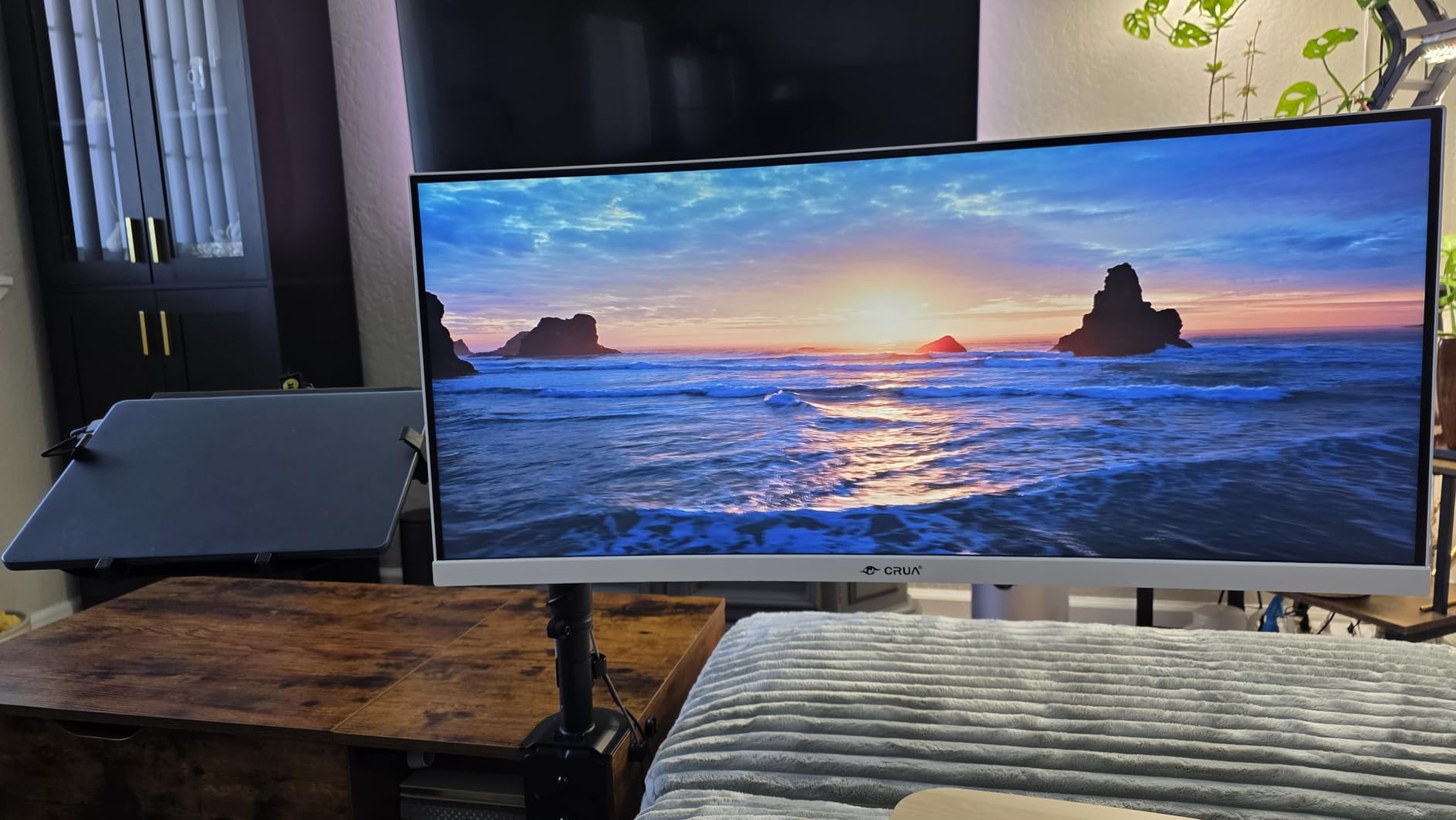
9. CRUA 34 Inch 21:9 IPS 3800R – The Text Clarity Pick
CRUA 34 Inch 21:9 UWQHD 100Hz IPS Ultrawide Curved Monitor, Speakers, White
34-inch 3440x1440 IPS panel
3800R gentle curve
120% sRGB and 92% DCI-P3
Built-in speakers
Pros
- IPS panel with 92% DCI-P3 and consistent colour to 178 degrees
- 34-inch 3440x1440 priced below other ultrawides
- White finish and built-in speakers suit a home office
- Owners report it is easy on the eyes
- Generous dual HDMI and dual DisplayPort selection
Cons
- 1000:1 contrast is low against VA ultrawides
- 21:9 aspect can make text look stretched in some apps
- Tilt-only stand with no height adjustment for a 34-inch panel
This is the answer to the most common objection to curved monitors. The CRUA CR340QC uses a 3800R curve — by far the gentlest here — on an IPS panel, which means minimal geometric distortion at the edges and colour that stays put as you shift position.
It is also the cheapest 34-inch 3440×1440 panel in this roundup, and the 13-pound chassis with a white finish and built-in speakers is a look that suits a home office rather than a gaming cave.
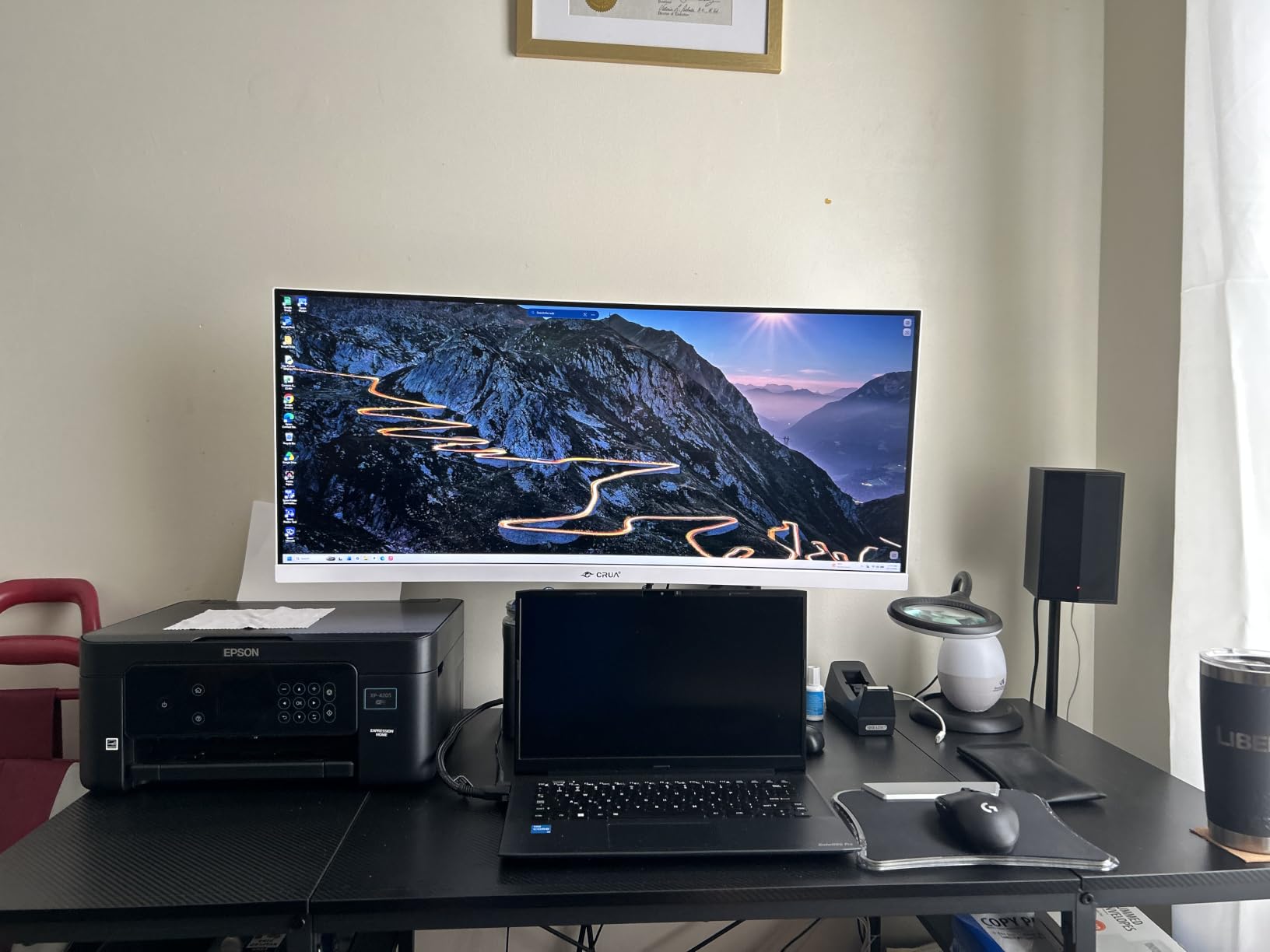
Owners report easy setup and eye comfort, including one buyer citing relief from ocular migraines. The review pool is modest at 191 with 73% five-star ratings, and the complaints are the usual ultrawide ones: stretched text in some applications at 21:9, and a very large physical footprint.
Contrast of 1000:1 is the IPS trade-off. Blacks are grey next to a VA panel, which you notice in dark video editing but not in office documents. Brightness of 350 cd/m2 is the highest among the 21:9 models here.
What you should check before ordering
The stand is the weak point. Tilt only, no height adjustment, on a 34-inch panel means you need either a riser or the VESA 100×100 mount, which is supported. Plan for an arm from the start.
Ports are generous for the class: two HDMI 2.0, two DisplayPort 1.4 and a 3.5mm audio out. There is no USB hub, so a keyboard and mouse go into your computer, not the monitor.
Who should skip it
Skip it if you watch dark scenes or edit video and want real blacks. Otherwise, if you read and code for a living and a straight edge to the display matters more to you than immersion, this is the one to buy.
10. AOC CQ27G4H 27 Inch QHD 180Hz – Small Desk, Big Specs
AOC 27″ Curved Gaming Monitor 2K QHD 180Hz VA AMD FreeSync Premium, CQ27G4H
27-inch 2560x1440
1500R curve
180Hz DisplayPort and 144Hz HDMI
FreeSync Premium
Pros
- QHD sharpness in a compact 27-inch footprint
- 180Hz with 0.5ms response at a mid-range price
- 1500R curve balances immersion and comfort
- 3000:1 contrast with HDR readiness
- Three-year manufacturer warranty
Cons
- 180Hz only over DisplayPort since HDMI tops out at 144Hz
- Glossy finish reflects ambient light
- No built-in speakers or USB hub
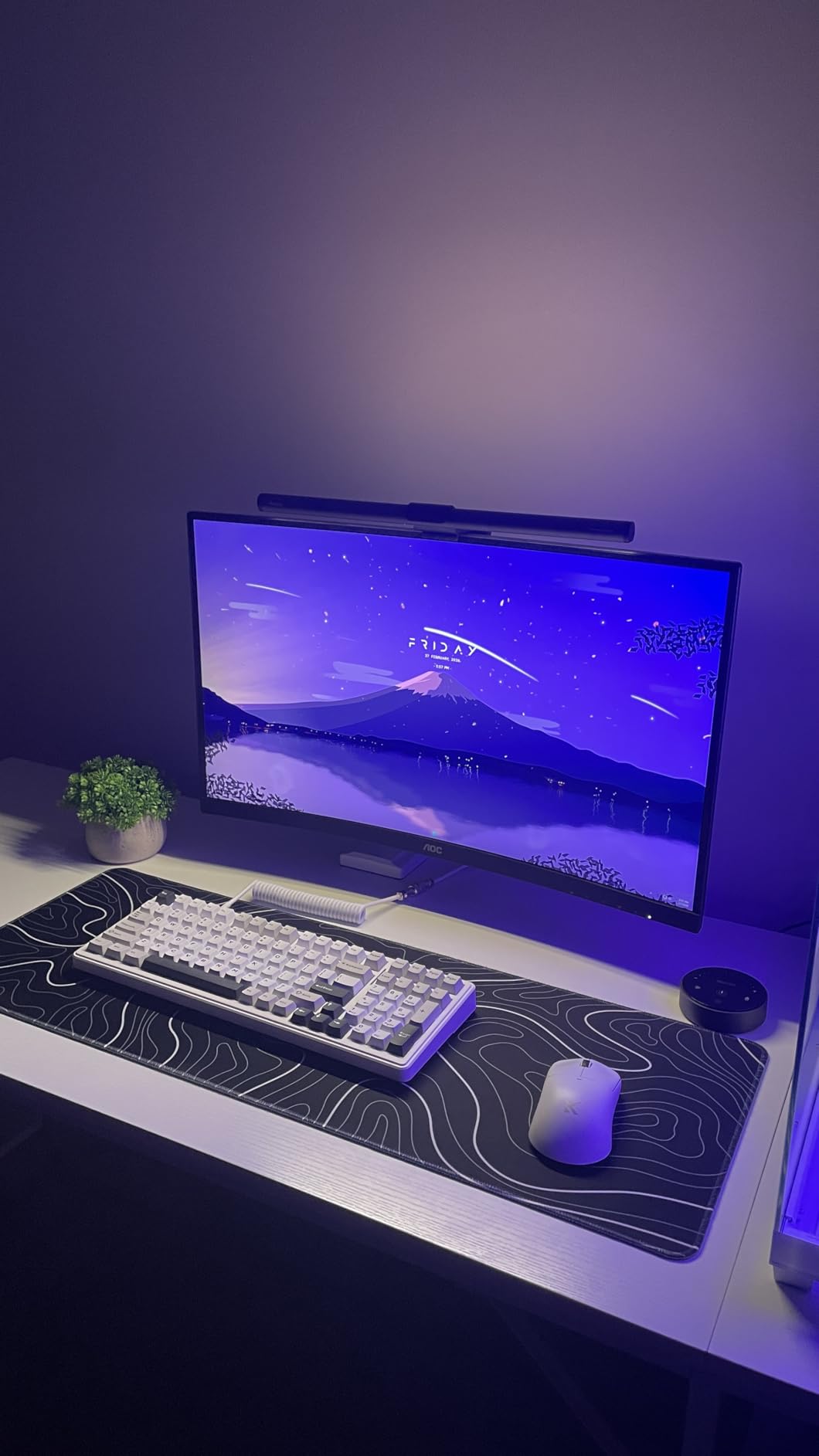
In a home office where desk depth is the constraint, 27 inches is the honest ceiling for a curved screen. The AOC CQ27G4H squeezes QHD resolution and a 180Hz refresh into that footprint, and it does not feel like a compromise.
The 1500R curve is the same radius as the KOORUI, which we found to be a comfortable middle ground: enough wrap to take the edge of the panel out of your peripheral vision, not enough to bend text noticeably.
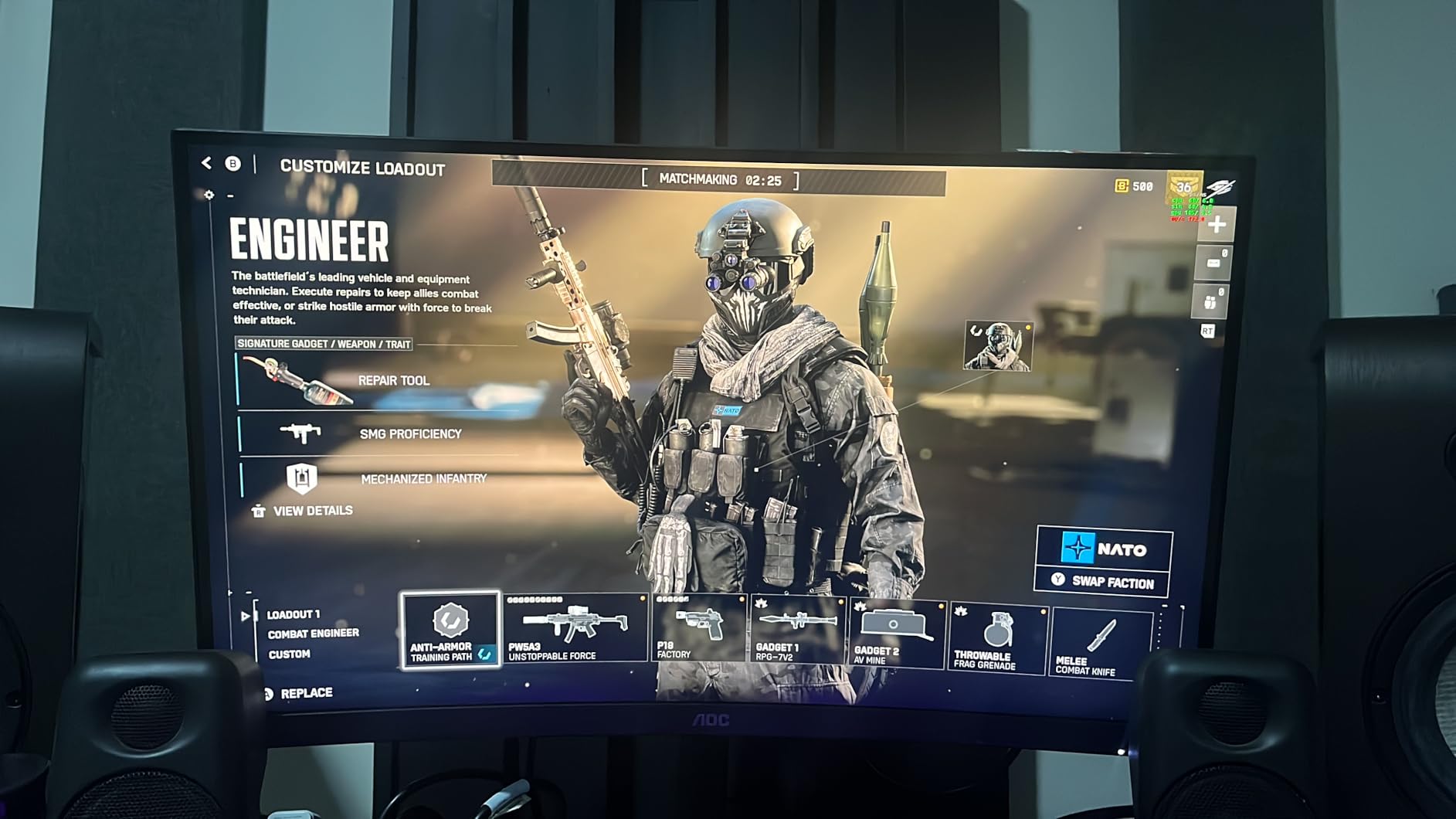
A 4.6 star average from 148 reviews with roughly 81% five-star ratings, and reviewers focus on the combination of QHD sharpness and high refresh at the price. The 1-star share is slightly higher than most models in the set, which is worth noting on a brand with a wider budget spread.
The main practical caveat is the input split. Full 180Hz is a DisplayPort-only feature and HDMI caps at 144Hz, so connect through DisplayPort if you have a choice. There are no speakers and no USB hub.
What you should check before ordering
The glossy coating. Like the Samsung G55C, it reflects room light at off-axis angles, so if your desk faces a window it is worth checking the anti-glare option in the same size range before committing.
VESA mount compatibility is confirmed, which gives you an out on the stand situation. The three-year manufacturer warranty is the longest we saw among the 27-inch options here.
Who should skip it
Skip it if you need ports and audio built in, or if you want a wider canvas than 16:9. The KOORUI at number one is the same core specification with a wider port selection and a much larger review base to draw comfort from.
11. LG 34SR60QC-W 34 Inch Smart Monitor – Streaming Without a Device
LG 34SR60QC-W 34-inch QHD (3440×1440) Curved Smart Monitor with Streaming, UltraWide Screen, webOS, HDR10, 100Hz, Built-in Speaker, AirPlay2, Screen Share, Bluetooth, ThinQ App, White
34-inch 3440x1440 at 1800R
Built-in webOS streaming
AirPlay 2 and screen share
100Hz
Pros
- webOS built in so streaming apps need no extra device
- 34-inch 21:9 panel is far wider than 16:9
- AirPlay 2 and screen share from iOS and macOS
- White finish suits a light home office
- Two HDMI and three USB ports
Cons
- Smart features add system overhead and the remote is sold separately
- 100Hz and 5ms are modest for gaming
- Firmware can be slower than a plain display
- No USB-C power delivery for single-cable setups
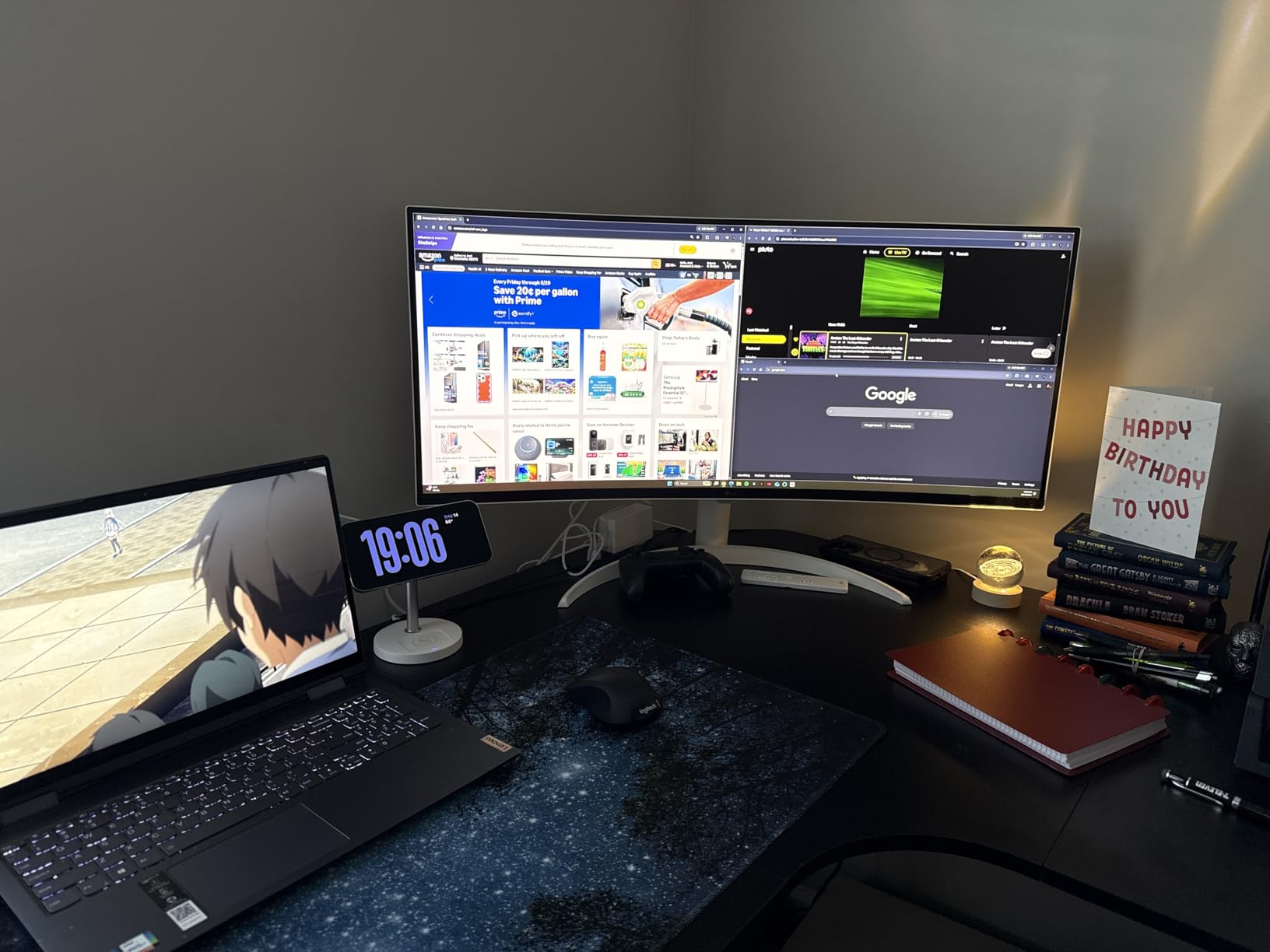
The 34SR60QC-W answers a different question than the rest of this list. If part of your workday is a screen you share, watch and cast to, then a monitor with its own streaming platform removes a box from your desk.
webOS 23 is built in with Netflix, Prime Video, Apple TV, Disney+, HBO Max and LG Channels, plus AirPlay 2 and HomeKit. From a phone or Mac you can cast without an Apple TV, and cloud access to Microsoft 365 and Google applications covers a machine-free start to the day.
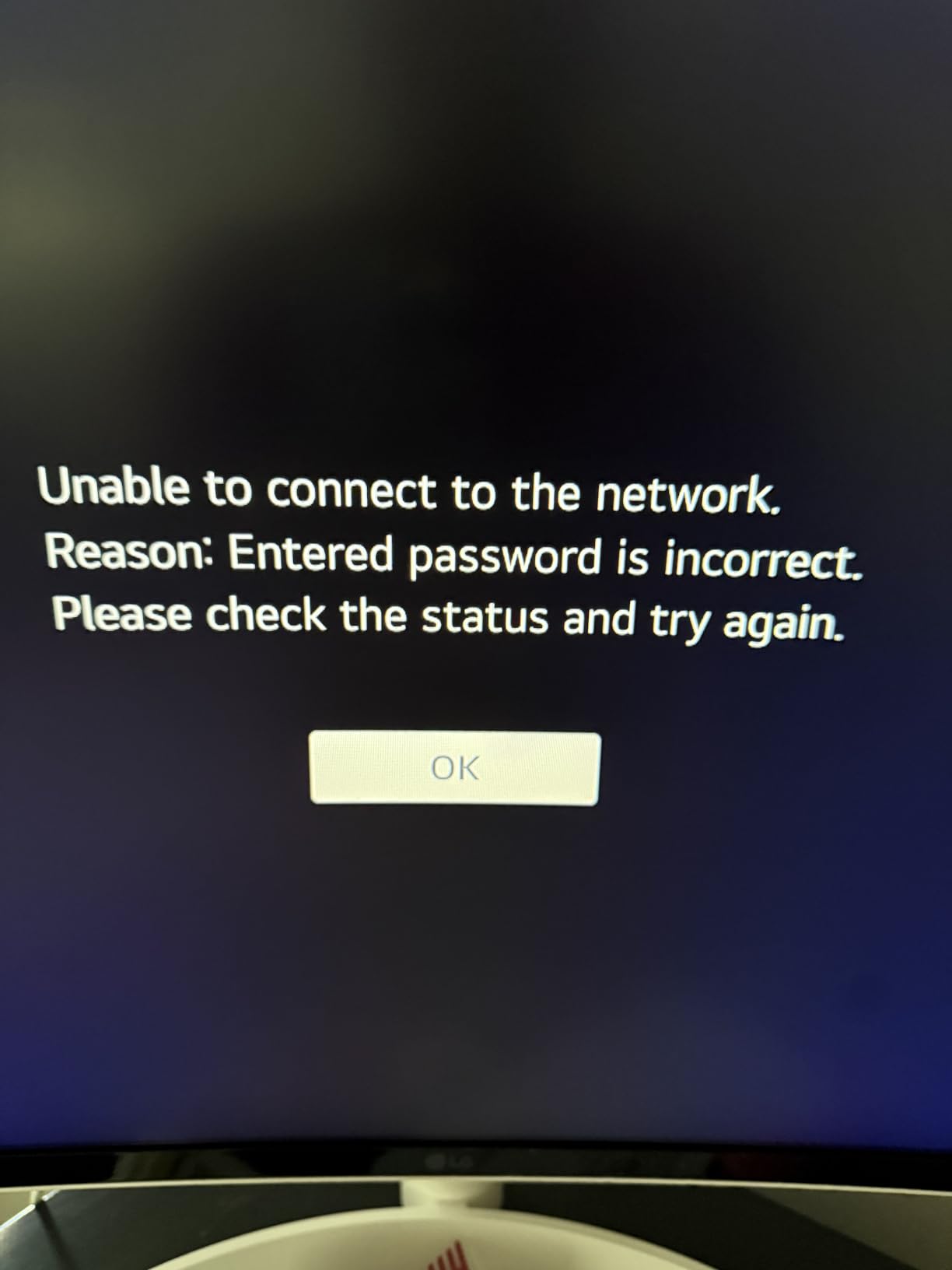
The 34-inch 21:9 panel at 3440×1440 with an 1800R curve is a sensible work canvas, and the 1800R radius keeps the geometry gentle. Reviewers rate it 4.5 stars with about 77% five-star feedback and repeatedly cite the streaming platform as the reason to buy.
The honest limits are on the list: 100Hz with 5ms response, no USB-C power delivery for single-cable laptop work, and a Magic Remote sold separately. Smart monitor firmware can also be slower and less predictable than a plain display.
What you should check before ordering
Budget for the remote. Without a Magic Remote you drive the smart features from the OSD, which is workable but not the intended experience. Include it in your total cost before deciding this is the cheaper route.
Two HDMI and three USB ports cover a multi-device desk. There is no DisplayPort listed, so check what your computer outputs if you plan to run high refresh rates.
Who should skip it
Skip it if your work is purely desktop application work and you never share a screen — a plain display does the same job with less overhead. If you do share screens regularly, this is the pick, and the 13.5-pound weight makes it far easier to reposition than a 49-inch.
12. Samsung 49 Inch Business Dual QHD 32:9 – The Full Field of View
Samsung 49” Business Curved Ultrawide Dual QHD Computer Monitor, USB-C, DisplayPort, HDMI, 120Hz, VESA DisplayHDR 400, Built-in Speakers, Height Adjustable Stand, Eye Care, LS49C954UANXZA, 2024
49-inch 5120x1440 at 32:9
1000R curve
USB-C with 90W charging
400 nits DisplayHDR 400
Pros
- 49-inch 1000R panel needs less head movement
- Works as a dock with 90W USB-C plus USB HDMI DisplayPort and Ethernet
- 120Hz refresh keeps scrolling and light play smooth
- DisplayHDR 400 delivers real HDR for design and video
- Built-in stereo speakers reduce clutter
- Three-year business warranty with B2B support
Cons
- Most expensive unit in this group by a wide margin
- 32.2 pounds needs two people to reposition
- Requires a very large desk and clearance behind the curve
- 72% sRGB is narrow for professional colour work
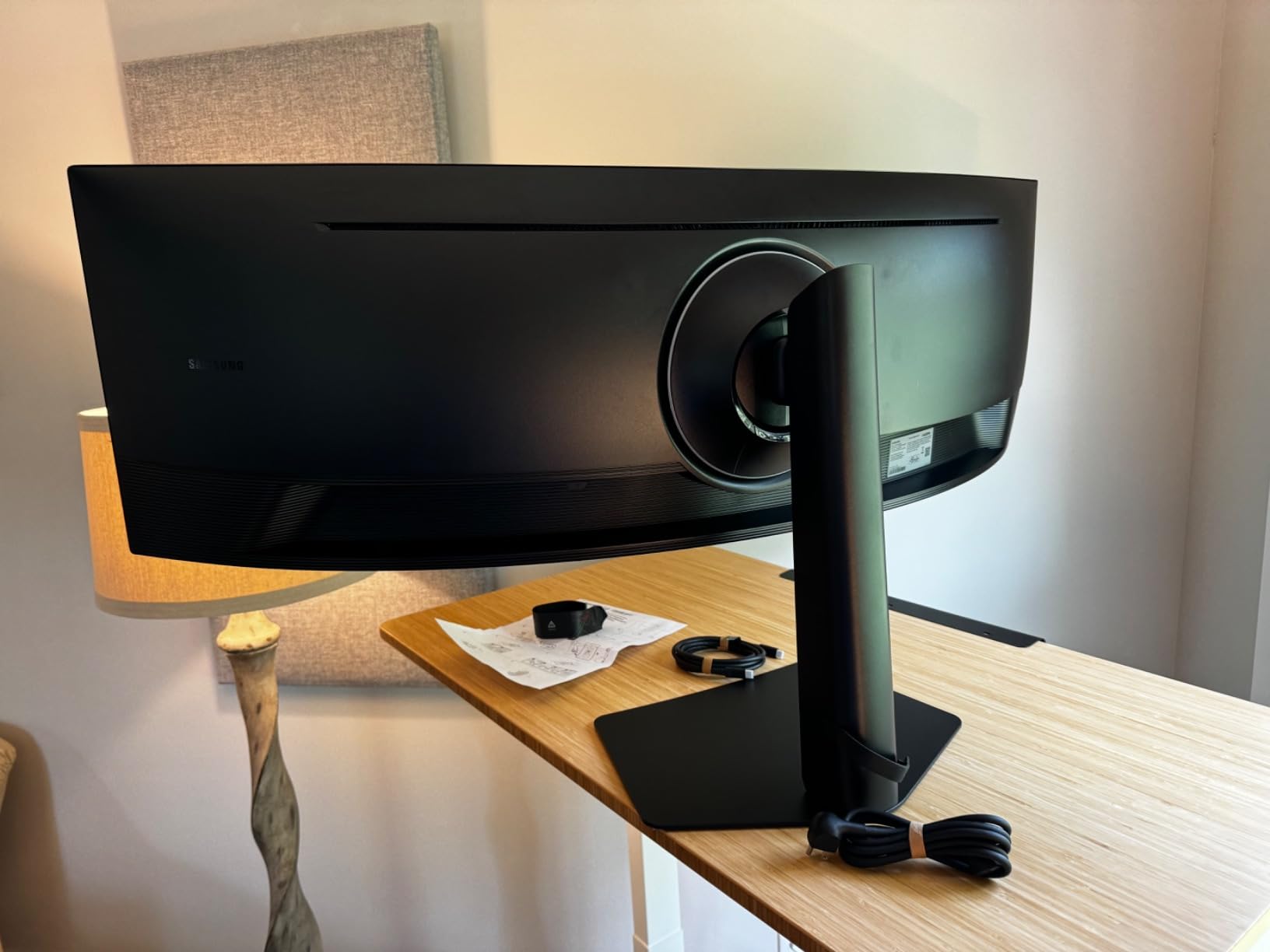
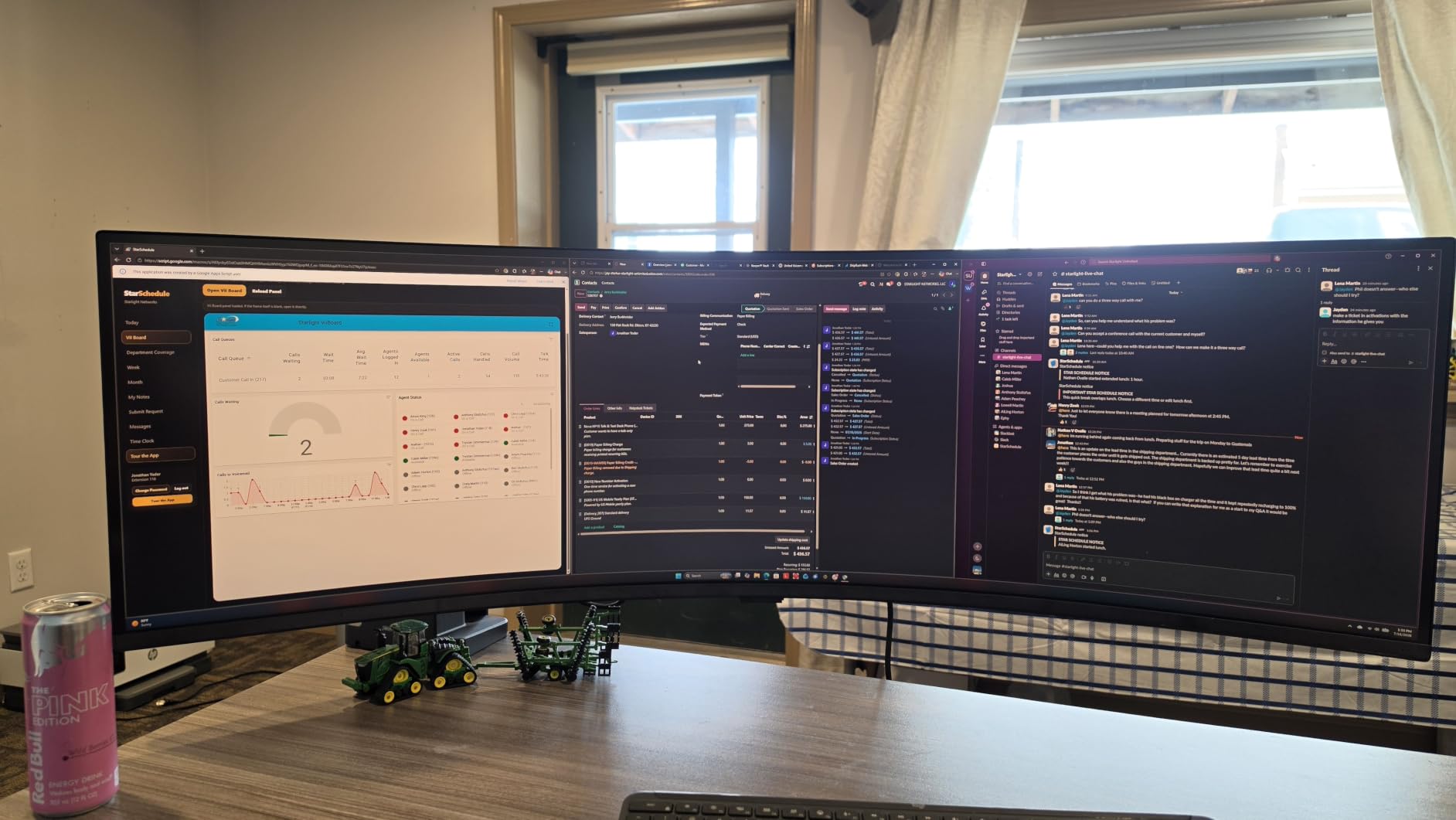
The LS49C954UANXZA is the most complete 49-inch here, and the only one that works as a genuine office dock. USB-C delivers 90W of charging alongside DisplayPort, two HDMI, three USB 3.0 ports and Ethernet.
The 1000R curve is the tightest in the roundup, which means the outermost content sits closest to your eye and you turn your head less. That is the entire argument for this size, and it is why remote analysts on finance and trading desks use panels in this class daily.
Reviewers rate it 4.5 stars with about 79% five-star ratings. Business buyers single out the single-cable USB-C workflow, the 32:9 canvas and the integrated speakers; the reservations are the cost and the sheer size.
Colour is the one technical compromise worth naming. Despite the DisplayHDR 400 certification and 400 cd/m2 brightness, the listed gamut is 72% sRGB, which is narrow for professional colour work. Treat it as a brightness and productivity panel, not a calibrated one.
What you should check before ordering
Desk dimensions, seriously. At 45.18 inches wide, 22.38 inches deep and 32.2 pounds, this needs a full-size desk with clearance behind the curve and two people to reposition it. Measure the total depth including your keyboard before ordering.
On the positive side, the height adjustable stand and wall mountability give you real placement options, and the three-year business warranty with a dedicated B2B support line is unusual at this level.
Who should skip it
Skip it unless you genuinely work at a large desk all day. For most home offices the 34-inch 21:9 models at numbers six, seven and eight deliver most of the benefit on a desk you can actually buy. If you have already committed to a wide surface, a desk sized for a home office is worth checking first.
How to Choose a Curved Monitor for a Home Office
Measure your desk depth before you buy
Measure your desk depth before anything else. The practical minimum for any curved monitor over 32 inches is roughly 60cm (24 inches) of front-to-back space, and a 49-inch model wants closer to 75cm because the curve pushes the panel back. Sit at your normal distance and mark where the screen edge would land before you order.
Width matters too. A 27-inch model is around 24 inches across with its stand, a 34-inch is around 32 inches, and the 49-inch panels here are more than 45 inches wide. If your desk has pedestal drawers, check they can be removed before committing to a large curved screen.
A monitor arm solves half the problem on any of these. VESA patterns range from 75x75mm on the Amzfast 49-inch to 100x100mm on several of the 27 and 34-inch models, so confirm the pattern matches your arm before you buy the arm. If you use a standing desk, an arm also lets you set screen height independently of the desk height, which most people underestimate.
Curvature explained: 1000R, 1500R, 1800R and 3800R
The R number is the radius of the arc in millimetres. A smaller number means a tighter curve. For home office work, 1500R to 2300R is the useful range: enough curve that your peripheral vision is not fighting to read the edges, gentle enough that text stays straight.
At 1000R, which the Samsung G55C and the Samsung 49-inch use, the wrap is dramatic and works well for immersive content and wide spreadsheets. Reviewers do report more eye fatigue on tightly curved panels for long documents, so if you read all day, do not go tighter than you need.
At 3800R the curve is nearly cosmetic. That is the CRUA, and it is the right call when text clarity is the priority over immersion.
Is 2560×1440 or 3440×1440 better for office work?
For a single 27 or 32 inch screen, 2560×1440 is the right answer. It gives roughly double the pixel count of 1080p at 27 inches, text is sharp, and you do not need a powerful GPU or a scaling workaround to run it on a laptop.
For anything 34 inches and wider, 3440×1440 at 21:9 is the minimum that keeps text sharp. Below that resolution on a 34-inch panel you will see softness at normal reading distance, which defeats the point of buying a bigger screen.
5120×1440 at 32:9 is the dual-monitor-in-one resolution. Choose it when you want two full QHD windows with no bezel between them, not for single-window sharpness.
On macOS, 21:9 and 32:9 panels scale to more usable HiDPI options than a flat 16:9 display, which is one reason ultrawides are popular with MacBook-based home offices. Check that your apps handle custom resolutions before committing, because a handful of older tools still do not.
USB-C power delivery beats a separate dock
If your computer is a laptop, prioritise a monitor with USB-C power delivery. Three picks here provide it: the Dell S3425DW at 65W, the LG 34WR55QK-B at 65W, and the Samsung 49-inch business panel at 90W.
One cable replaces a charger, a dock and a video lead, which removes a box from the desk and removes the failure point where a dock firmware update breaks your external display. Verify your laptop negotiates the wattage and use a full-featured cable, not a charge-only one.
Picture-by-Picture on the LG lets a docked laptop and a desktop share the panel without a cable swap, which is the specific setup a two-machine home office needs. The Amzfast 49-inch offers PIP/PBP on a much larger canvas.
Panel type, refresh rate and eye comfort
VA panels, which cover most of the ultrawides here, give you higher contrast and deeper blacks. IPS panels, found in the CRUA, hold colour steadier across viewing angles and suit graphic work. OLED is not represented in this set, and that is a deliberate scope choice for an office roundup.
Refresh rate matters less for office work than most spec sheets suggest. 100Hz is smooth enough for scrolling and scrolling is all you do for eight hours. The 180Hz panels here earn their place only if you also play games.
For eye comfort, look for a low blue light mode and a flicker-free claim rather than a marketing name. The Samsung Essential S3 carries TUV certification, the Dell uses ComfortView Plus to cut blue light emissions, and the Alienware uses a hardware-based low blue light solution rather than a software filter.
Curved vs flat vs dual monitors
A curved monitor wins on screen real estate and on a single panel with no bezel. It loses on off-axis viewing, which is why pointing at something across the screen to a colleague sitting beside you is harder than on a flat display.
A dual-monitor setup wins on physical desk layout, on screen-sharing and on the ability to angle two panels independently. It loses on the bezel gap, the second power and video cable, and the desk depth you have to find for two 24-inch stands.
Most of the owner discussions we read on r/ultrawidemasterrace and r/buildapc follow the same arc: people who move from two flat panels to one ultrawide report they do not go back. The exceptions are shared desks and anyone doing long-form text work on a tight curve, which is exactly who should look at the gentler 1800R and 3800R models.
Frequently Asked Questions
Which curved monitor is best for office work?
The KOORUI 27 Inch QHD 180Hz is the best all-round curved monitor for office work, because 2560×1440 on a 27-inch panel keeps text sharp at a desk-friendly size. For a laptop desk, the Dell S3425DW adds USB-C charging. For replacing two monitors, the Amzfast 49 Inch gives you two QHD windows on one panel.
Are curved monitors ok for office work?
Yes. The curve keeps a more even viewing distance across the panel, so your eyes refocus less as you scan between windows, and the wider format fits several applications side by side. Avoid very tight curves like 1000R if you read long documents all day, and keep an eye on glare from windows behind you.
What is the best curved monitor for working from home?
For a laptop-based home office, the Dell S3425DW is the best curved monitor for working from home because one USB-C cable carries video, data and up to 65W of charging. Its 34-inch 3440×1440 panel also fits several documents at once on a normal desk. If you share your screen often, the LG 34SR60QC-W adds built-in streaming.
Is a 27 or 32 inch monitor better for office work?
A 27-inch monitor is better on a shallow desk or when you sit close, and 2560×1440 gives sharp text at that size. A 32-inch QHD screen gives you roughly 30% more workspace for two documents side by side. Below 28 inches you should insist on 2560×1440 rather than 1080p, and above 32 inches you should look at 3440×1440 ultrawides.
What’s better, 2560×1440 or 3440×1440?
For a 27 or 32 inch screen, 2560×1440 is better because it is sharp without needing a powerful GPU or a scaling workaround. For anything 34 inches and wider, 3440×1440 at 21:9 is the minimum that keeps text sharp at normal reading distance. If you are choosing between a flat and a curved panel, curved wins on workspace and loses on off-axis viewing.
How much desk depth does an ultrawide monitor need?
Allow at least 60cm (24 inches) of desk depth for a curved monitor over 32 inches, and closer to 75cm for a 49-inch model because the curve pushes the panel back. Also check width: a 34-inch panel is around 32 inches across with its stand, and 49-inch models exceed 45 inches. A monitor arm helps clear keyboard height.
Do curved monitors distort text?
They can. Tighter curves such as 1000R bend text enough at the far edges to cause fatigue over long sessions, which is the most common complaint from owners on r/Monitors. A gentler 1500R to 2300R curve keeps text readable at a normal distance, and a 3800R panel like the CRUA 34 Inch distorts text almost not at all.
The Verdict on Curved Monitors for Home Offices
The best curved monitors for home offices in 2026 come down to desk shape and cable count. Most home offices should start with a 27-inch QHD panel like the KOORUI at number one, add width when the desk allows, and reach for USB-C power delivery the moment the computer is a laptop rather than a tower.
Our three to buy: the KOORUI 27 Inch QHD 180Hz for the best all-round balance, the Dell S3425DW for a one-cable laptop desk, and the Amzfast 49 Inch if you are genuinely replacing two monitors. Measure your desk depth first, pick a curve between 1500R and 2300R, and check that every product here sits on a VESA pattern your arm accepts.
We earn a commission on qualifying purchases at no additional cost to you, and prices in this category move frequently, so check the current listing before you order.