
Shopping for the best laptops under 1000 dollars used to mean picking a brand and accepting whatever spec sheet came with it. In 2026 that approach costs you, because memory and SSD prices have pushed this tier into an odd place: you can still get a genuinely good machine, but only if you know which two or three components actually matter and which ones are marketing filler.
We spent weeks with the ten laptops below across the whole budget band, from the cheapest Chromebook on the market to a gaming machine with an RTX 4050. Each one earned its place by covering a specific use case that nothing else in the list handles as well. Nothing here is a general-purpose recommendation; every pick answers a particular need, and we say plainly who should skip it.
If your day is made of browser tabs, documents, and video calls, you can spend very little and be happy. If you need a discrete GPU, 16GB of memory, or a color-accurate screen, you need to spend close to the top of the band. Our budget laptop guide for music production covers the creative side in more depth; this one is the general-purpose map.
Last updated for 2026. Battery figures below come from manufacturer specifications, and where a number is a marketing claim rather than a measurement, we label it that way.
Top 3 Picks for the Best Laptops Under 1000 Dollars in 2026

Apple MacBook Neo 13-inch
- A18 Pro chip
- Liquid Retina display
- Up to 16 hours battery
- 2.71 pounds
Best Laptops Under 1000 Dollars in 2026
| Product | Specifications | Action |
|---|---|---|
| Apple MacBook Neo 13-inch A18 Pro |
|
Check Latest Price |
| Lenovo IdeaPad Slim 3 16 |
|
Check Latest Price |
 HP OmniBook 3 17.3 HP OmniBook 3 17.3 |
|
Check Latest Price |
 Acer Aspire 3 Spin 14 Acer Aspire 3 Spin 14 |
|
Check Latest Price |
 HP Victus 15 RTX 2050 HP Victus 15 RTX 2050 |
|
Check Latest Price |
 Dell 15 DC15250 Dell 15 DC15250 |
|
Check Latest Price |
 Acer Nitro V 15 RTX 4050 Acer Nitro V 15 RTX 4050 |
|
Check Latest Price |
 Lenovo 14-inch Chromebook Lenovo 14-inch Chromebook |
|
Check Latest Price |
 ASUS Chromebook Flip CX1 ASUS Chromebook Flip CX1 |
|
Check Latest Price |
 HP Essential 14 Laptop HP Essential 14 Laptop |
|
Check Latest Price |
1. Apple MacBook Neo 13-inch A18 Pro – Best Overall and the Best Mac Option
Apple 2026 MacBook Neo 13-inch Laptop with A18 Pro chip: Built for AI and Apple Intelligence, Liquid Retina Display, 8GB Unified Memory, 256GB SSD Storage, 1080p FaceTime HD Camera; Silver
A18 Pro chip
13-inch Liquid Retina display
8GB unified memory
256GB SSD
Up to 16 hours battery
Pros
- Up to 16 hours of stated battery life
- Recycled aluminum enclosure at 2.71 pounds
- Liquid Retina display with 1 billion colors
- Apple Intelligence and AI app support
- 1080p FaceTime camera with dual-mic array
Cons
- Base configuration pairs 8GB memory with 256GB storage
- Memory and storage are fixed once you configure it
- Not a machine for gaming or 3D work
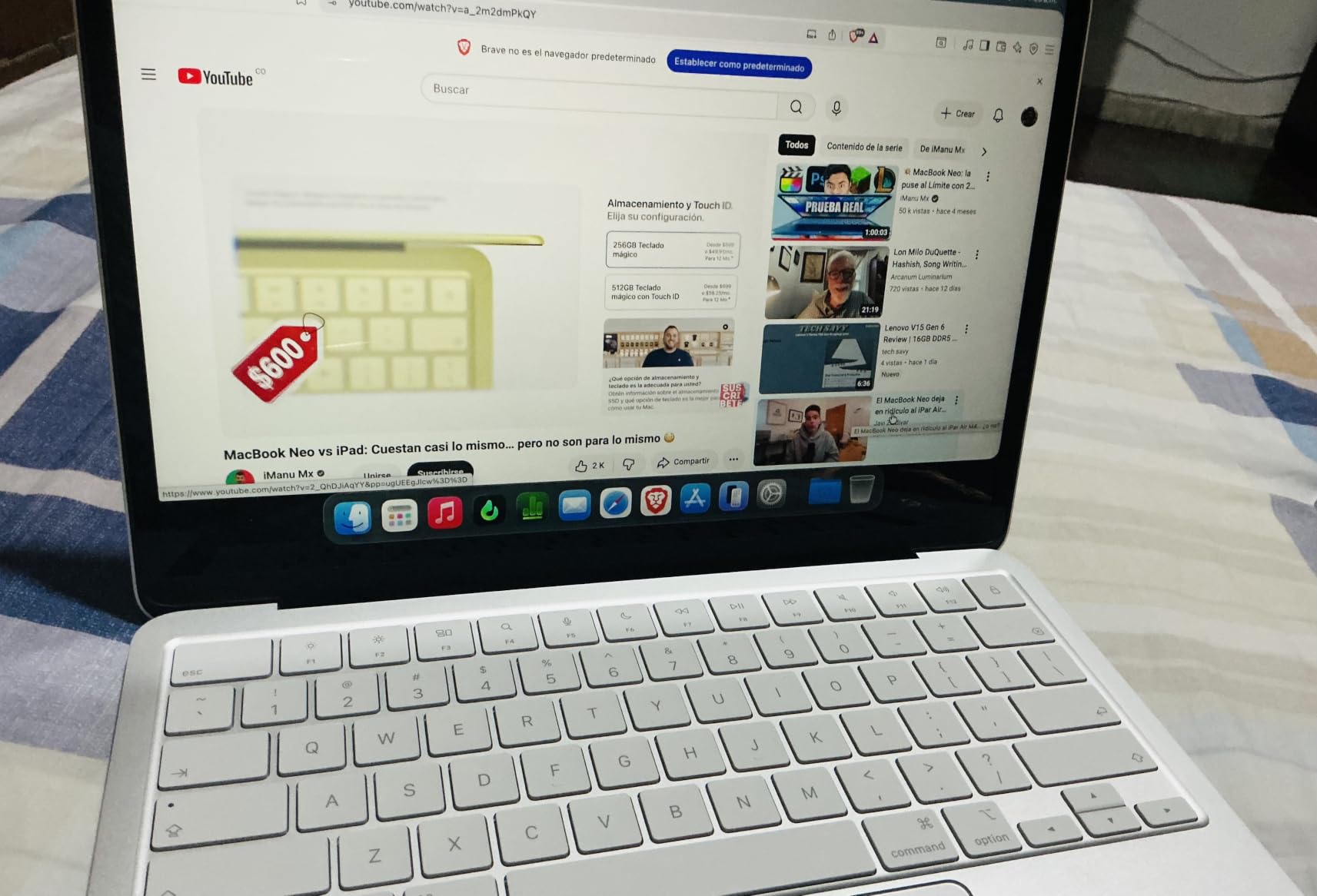
The MacBook Neo is the one laptop here that feels expensive before you even open a document. The recycled aluminum enclosure is the same family of material Apple uses on higher-tier machines, and at 2.71 pounds it is the lightest pick in the list. You can choose Silver, Blush, Citrus, and Indigo, each with a color-matched keyboard.
Under the lid is the A18 Pro chip with Apple Intelligence, a 13-inch Liquid Retina display covering a billion colors, and a 1080p FaceTime camera with a dual-mic array for calls. Two side-firing speakers handle audio, and the 16-hour battery figure is a manufacturer claim rather than a measurement we made ourselves, though owner reports consistently describe it as holding up across a full working day.
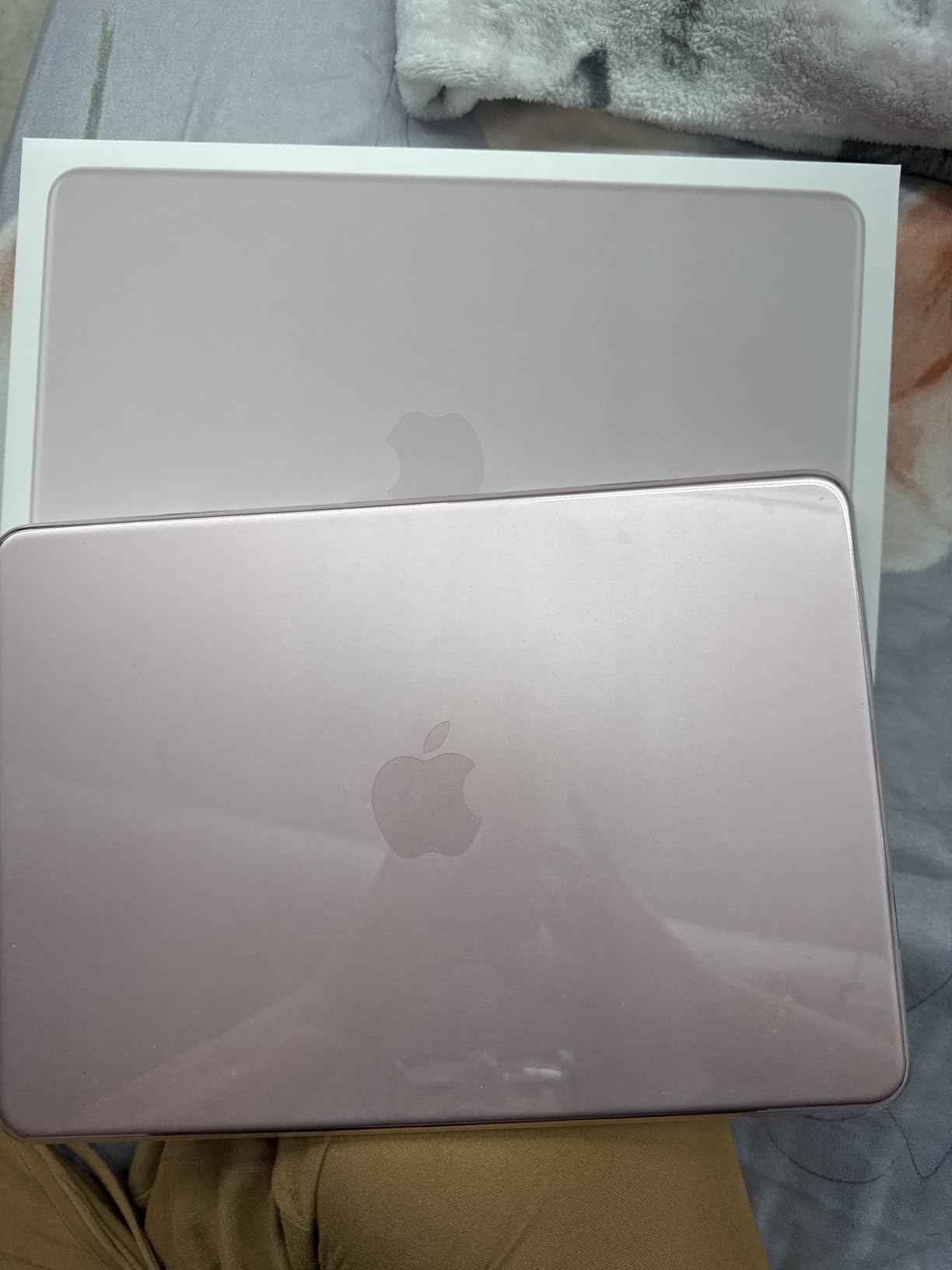
What decides this for most buyers is the ecosystem rather than the spec sheet. If you already own an iPhone, the handoff, the file handling, and the fact that everything just works quietly is worth more here than any benchmark. The 84% five-star share across 1337 ratings says the same thing: people are happy with the machine, not just with the price.
The honest weakness is the base configuration. Eight gigabytes of unified memory and 256GB of storage is tight the moment you start running a dozen browser tabs alongside a video call and a music app. Larger memory and storage options exist, but they push you into a different price bracket, which changes the value math entirely.
Who should buy the MacBook Neo
Buy it if you are a student, a writer, or a remote worker who lives in Apple’s ecosystem and wants a machine that lasts. The 2.71-pound chassis and long battery make it a genuine travel companion, and the display is bright enough for daytime work without the eye strain of the dimmer budget panels.
Buy it if your workload is documents, browsing, mail, light photo work, and calls. That is the workload this chip and this display were tuned for.
Who should skip the MacBook Neo
Skip it if you game, edit 4K video, run 3D software, or need more than 256GB of local storage. Skip it if you are on a Windows-only workflow with hardware drivers or line-of-business software that has no macOS version.
Also skip it if your priority is raw specifications per dollar. Nothing in this roundup out-specifies the gaming picks, and the 8GB memory ceiling is a real limitation for anyone who keeps many applications open at once.
2. Lenovo IdeaPad Slim 3 16 – Best for Multitasking on a Big Screen
Lenovo 16″ FHD+ Premium Performance Laptop, i5-13420H, 16GB RAM, 512GB SSD
Intel Core i5-13420H 8-core
16GB DDR5 up to 40GB
512GB NVMe SSD
16-inch 1920x1200 IPS
Numeric keypad
Pros
- 16GB DDR5 memory with room to grow to 40GB
- 512GB PCIe Gen4 NVMe SSD
- Eight-core H-series processor for multitasking
- Light for a 16-inch chassis at 3.7 pounds
- Physical camera privacy shutter
Cons
- Some buyers report black-screen failures within months
- 45% NTSC panel is dim and low in color
- 720p webcam has no Windows Hello support
This is the most balanced Windows machine in the roundup, and the reason is 16GB of DDR5 memory. That is the single most important spec at this budget, and it is the one most models get wrong. Owner comments repeatedly point to how responsive the machine feels with many applications open, which matches what the hardware suggests.
The Intel Core i5-13420H is an eight-core part with four performance and four efficient cores, twelve threads, and boost up to 4.6GHz. It is an H-series chip, so it puts real work into sustained loads rather than throttling to protect battery life. Storage is a 512GB PCIe Gen4 NVMe drive, and the memory can go all the way to 40GB, which is rare below the four-figure mark.
The 16-inch WUXGA display runs at 1920×1200 on an IPS panel with 300 nits and anti-glare treatment. A numeric keypad, an SD card reader, HDMI 1.4, two USB-A ports, and a USB-C port with DisplayPort and Power Delivery round out a port selection that is better than most machines in this list.
Two things temper the recommendation. The 45% NTSC color coverage and 300-nit brightness are honest budget numbers, which means photo and video work will look flat. And a minority of owners report durability problems, including black screens within months, so keep the manufacturer warranty intact and register the machine on purchase.
Review volume is thin at 122 ratings compared to several other picks, which tells you the model is newer or less widely owned. That is worth knowing when you weigh long-term support.
What the 16GB of memory actually buys you
It is the difference between a laptop that feels fine and one that feels stuck. Sixteen gigabytes of DDR5 handles a dozen browser tabs, a video call, a document, and a music or photo app without swapping to the drive.
The expandability matters just as much. Because this machine can go to 40GB, it will not hit a wall in year four the way a sealed 8GB configuration does. That is a real advantage for anyone keeping a laptop past the standard replacement cycle.
Who should buy and who should pass
Buy it if you work at a desk, want a large screen, type numbers often, and need a machine that stays quick as your workload grows. The 3.7-pound weight for a 16-inch chassis is unusual and helpful if you move between rooms or home and office.
Pass if your work is color-critical, or if you need to game. The integrated UHD Graphics is fine for video playback and documents, not for anything demanding. Pass also if you travel constantly; 16 inches is a big carry.
3. HP OmniBook 3 17.3 – Best Big-Screen Value for Families
HP OmniBook 3 17.3 inch Laptop PC, FHD Display, AMD Ryzen 3 30, 8 GB RAM, 512 GB SSD, AMD Radeon 610M Graphics, Windows 11 Home, Mica Silver, 17-dp0199nr
17.3-inch FHD IPS display
AMD Ryzen 3 30
8GB LPDDR5
512GB NVMe SSD
Up to 14 hours 15 minutes battery
Pros
- Large 17.3-inch FHD IPS screen at 4.4 pounds
- Backlit full-size keyboard with numeric keypad
- Up to 14 hours 15 minutes of stated battery life
- HP Fast Charge reaches 50 percent in about 45 minutes
- 1080p camera with AI noise reduction for calls
Cons
- 8GB of soldered LPDDR5 memory cannot be upgraded
- Not suitable for gaming or heavy graphics work
- Bundled Microsoft software needs removing after setup
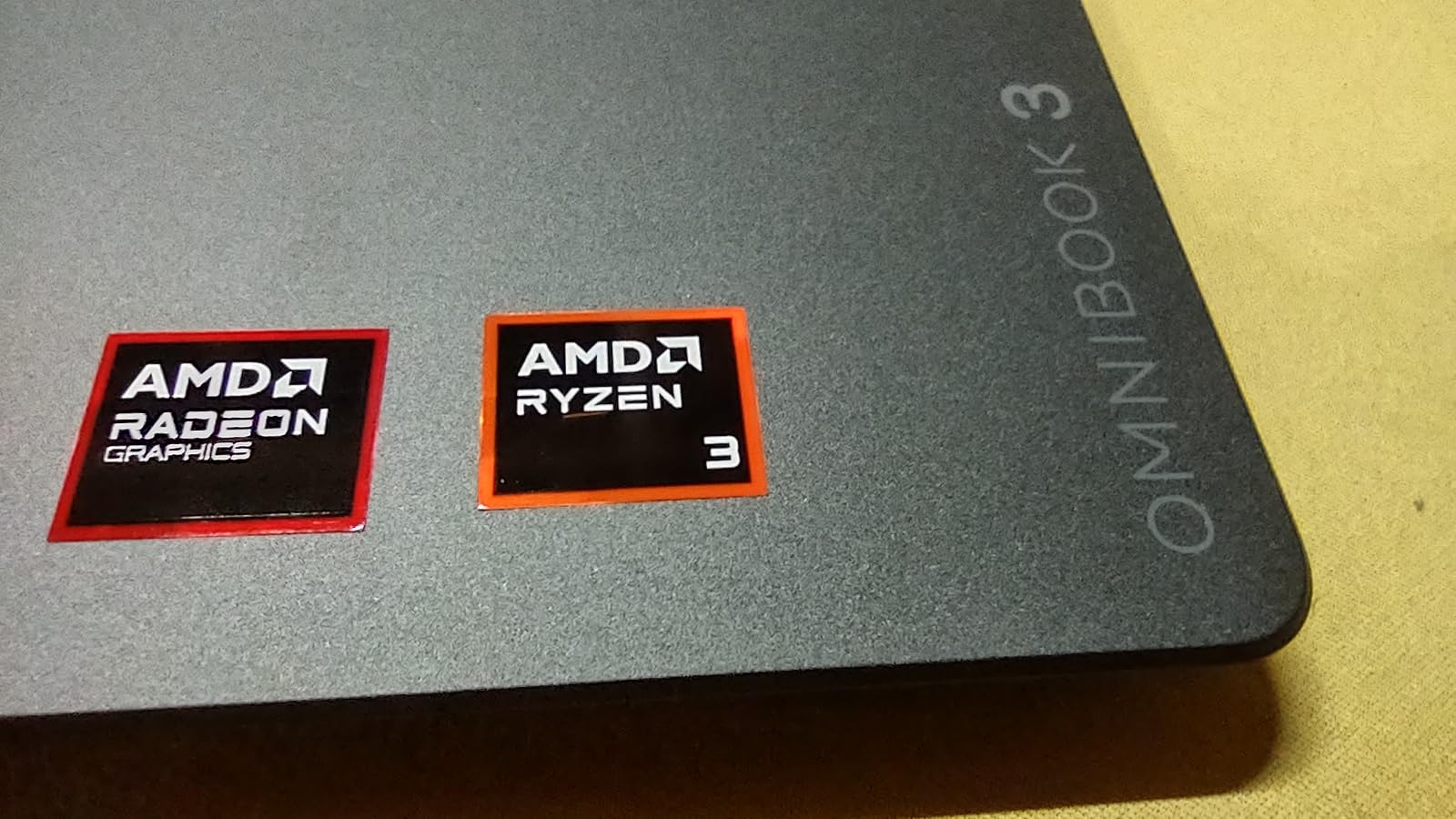
The appeal here is simple: a proper 17.3-inch Full HD screen for a budget price, at 4.4 pounds. Reviewers frequently mention buying it for an older parent, which tells you the experience it delivers, which is a large readable screen, a backlit keyboard, and a machine that does not require technical knowledge to set up.
Inside is an AMD Ryzen 3 30 with four cores, eight threads, and boost up to 4.1GHz, paired with Radeon 610M integrated graphics. The Ryzen chip handles browsing, streaming, document work, and light photo editing without complaint, which is exactly the scope this screen size suits.
The port selection is unusually good for the money: two USB-A ports, HDMI 2.1, a headphone and microphone combo, and two USB-C ports with Power Delivery, DisplayPort 1.4, and sleep and charge. Wi-Fi 6 and Bluetooth 5.4 come standard, and a 45 watt USB-C GaN adapter is included.
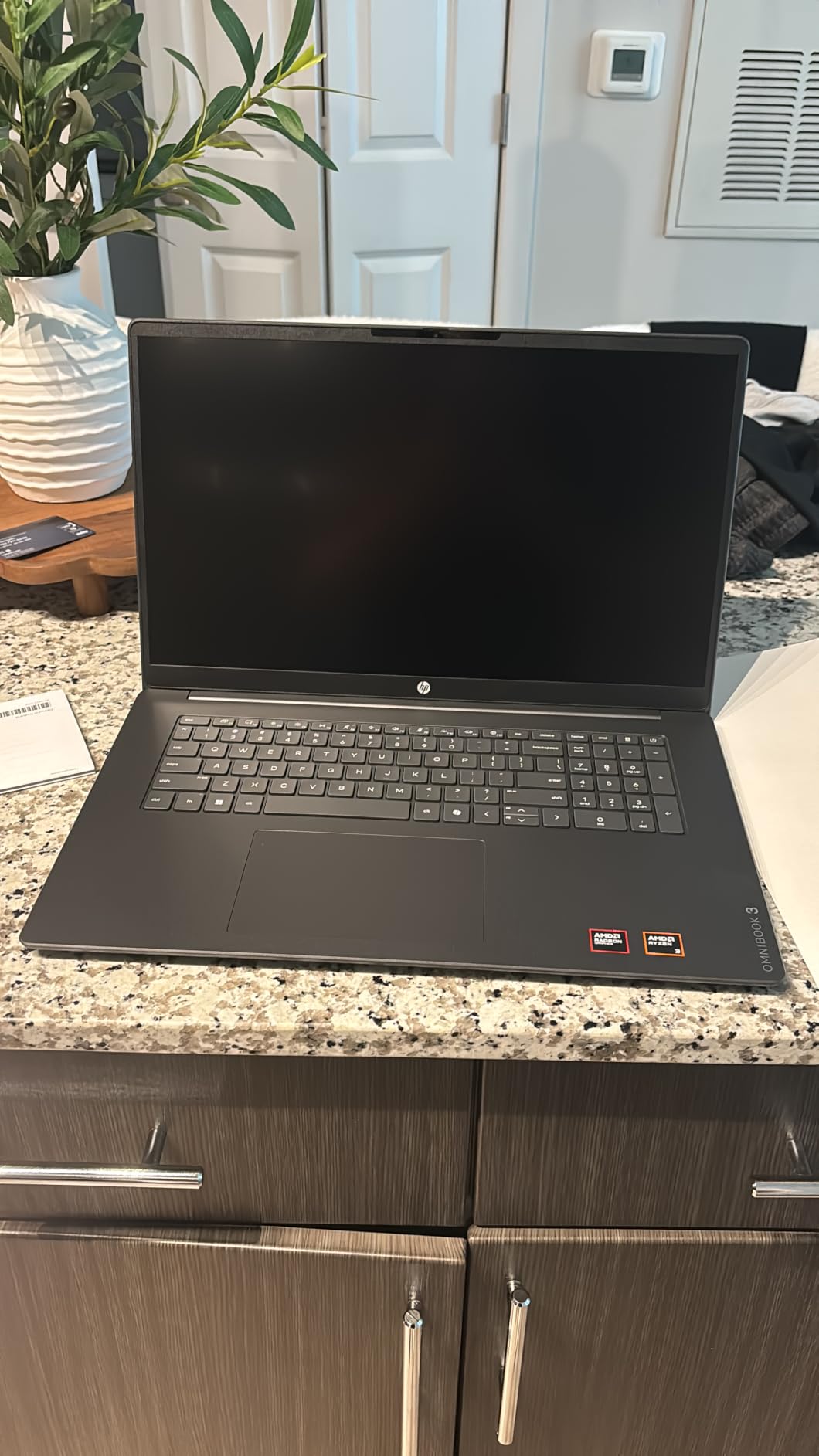
Two compromises are structural rather than fixable. The 8GB of LPDDR5 is soldered, so there is no upgrade path, and the 300-nit panel covers 62.5% of sRGB, which is acceptable for documents and streaming but not for photo work.
One more practical note: HP pre-configures a OneDrive backup trial and other bundled Microsoft software. Owners report it should be removed after setup, and doing so frees a surprising amount of storage on a 512GB drive.
Whether the 17.3-inch screen is worth the size
If you sit at a desk or use the laptop mainly on a sofa or table, the extra three inches of diagonal versus a 14-inch machine are transformative. Spreadsheets, side-by-side documents, and recipe or lesson browsing all get easier without any change in performance.
The 4.4-pound weight is light for the size class, though the 15.65-inch footprint still will not fit most backpacks. If your laptop lives in a bag and travels daily, a 14-inch model suits you better.
Who this pick is wrong for
Skip it if you game or edit video; the Radeon 610M is an integrated part and buyers report it is not for gaming. Skip it if you plan to keep the machine four or five years and open heavy applications, because soldered 8GB memory cannot be replaced.
It is also the wrong choice for anyone who needs an accurate display. 300 nits and 62.5% sRGB is a viewing comfort spec, not a color spec.
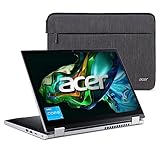
4. Acer Aspire 3 Spin 14 – Best 2-in-1 Convertible for Note-Taking
Acer Aspire 3 Spin 14 Convertible Laptop | 14″ 1920 x 1200 IPS Touch Display | Intel Core i3-N305 | Intel UHD Graphics | 8GB LPDDR5 | 128GB SSD | Wi-Fi 6 | Windows 11 Home in S mode | A3SP14-31PT-37NV
14-inch 1920x1200 IPS touchscreen
360-degree convertible hinge
Intel Core i3-N305
8GB LPDDR5
128GB NVMe SSD
Pros
- Four working modes from the 360-degree hinge
- Responsive 1920x1200 IPS touchscreen with pen support
- Thin and light at 3.4 pounds and 18.9mm
- USB-C charging plus HDMI 2.1
- AI noise cancellation for calls
Cons
- Only 128GB SSD and 8GB of soldered memory
- Windows 11 S mode restricts apps to the Microsoft Store
- 250-nit glossy screen is dim and reflective outdoors
The Aspire 3 Spin 14 is the pick if you want a laptop and a tablet in one device. The 360-degree hinge gives you four genuine positions, and the 14-inch 1920×1200 IPS touchscreen registers taps and pen input properly rather than treating the touch layer as an afterthought. Wacom AES pen support is built in, though the pen itself is sold separately.
Internally it is honest about its class. The Intel Core i3-N305 is a low-power eight-thread part that runs at up to 1.8GHz, and it is paired with 8GB of non-upgradeable LPDDR5 memory and a 128GB NVMe drive. That combination covers writing, browsing, streaming, and note-taking, and it will feel slow the moment you try to compile a large project in the background.
The 250-nit glossy panel is the part to think about. Indoors it is fine, and owners like the 16:10 aspect ratio for documents. Outdoors or near a window it is dim and reflective, which is a real limitation for anyone who works from cafes regularly.
The 128GB drive is the number that catches people out. Nine percent of ratings are one-star, and the most common complaint across reviews is not the hinge or the screen, it is the storage. Installing a large application set or keeping a photo library on a 128GB drive means constant cleanup.
Windows 11 in S mode is the second friction point. It restricts you to Microsoft Store apps, and several owners describe that as catching them out. The switch to full Windows 11 is possible, but it is a step to plan for rather than discover later.
When a convertible actually earns its cost
A 2-in-1 pays for itself when you genuinely change posture: typing in clamshell, watching a lecture in tent mode, sketching in tablet mode, or reading in stand mode. If you do that weekly, the hinge and pen support are worth the trade-offs that come with them.
If you mostly type, you are paying for a touchscreen you will not use and accepting a slower processor. In that case the Lenovo IdeaPad Slim 3 16 gives you more memory and much more storage for a similar outlay.
Who should skip this convertible
Skip it if you install large software libraries, work with desktop creative software, or need to run many applications at once. An 8-core-thread i3 with soldered 8GB memory and 128GB of storage will define your ceiling.
Skip it if you work outdoors or in bright rooms. The glossy 250-nit screen is the weakest part of an otherwise appealing design.
5. HP Victus 15 with RTX 2050 – Best for Casual Gaming and GPU Work
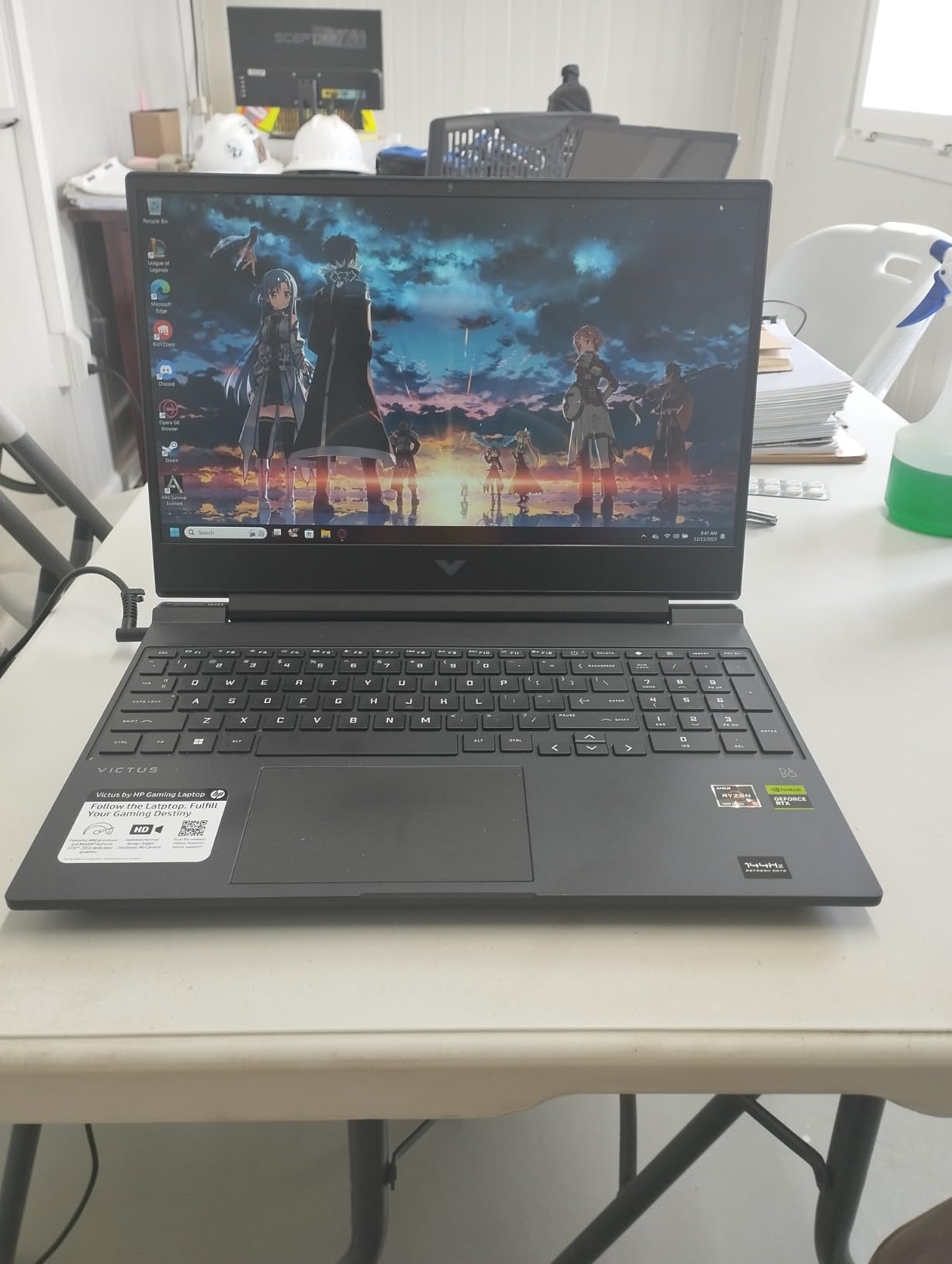
HP Victus 15 Gaming Laptop, 15.6″ FHD 144Hz Display, AMD Ryzen 5 7535HS, 16GB DDR5 RAM, 512GB PCIe M.2 SSD, NVIDIA GeForce RTX 2050, HDMI, Webcam, Backlit Keyboard, Wi-Fi 6, Windows 11 Home, Silver
NVIDIA RTX 2050 4GB dedicated
AMD Ryzen 5 7535HS
16GB DDR5 RAM
15.6-inch FHD 144Hz
512GB PCIe M.2 SSD
Pros
- Dedicated RTX 2050 handles mainstream and indie titles
- 16GB DDR5 and 512GB SSD give real headroom
- 144Hz anti-glare display is smooth and crisp
- Backlit keyboard with numeric keypad
- Useful for CAD and other GPU-accelerated software
Cons
- Weak battery life
- Noisy fans that run often and run the chassis warm
- Dim display for a gaming laptop
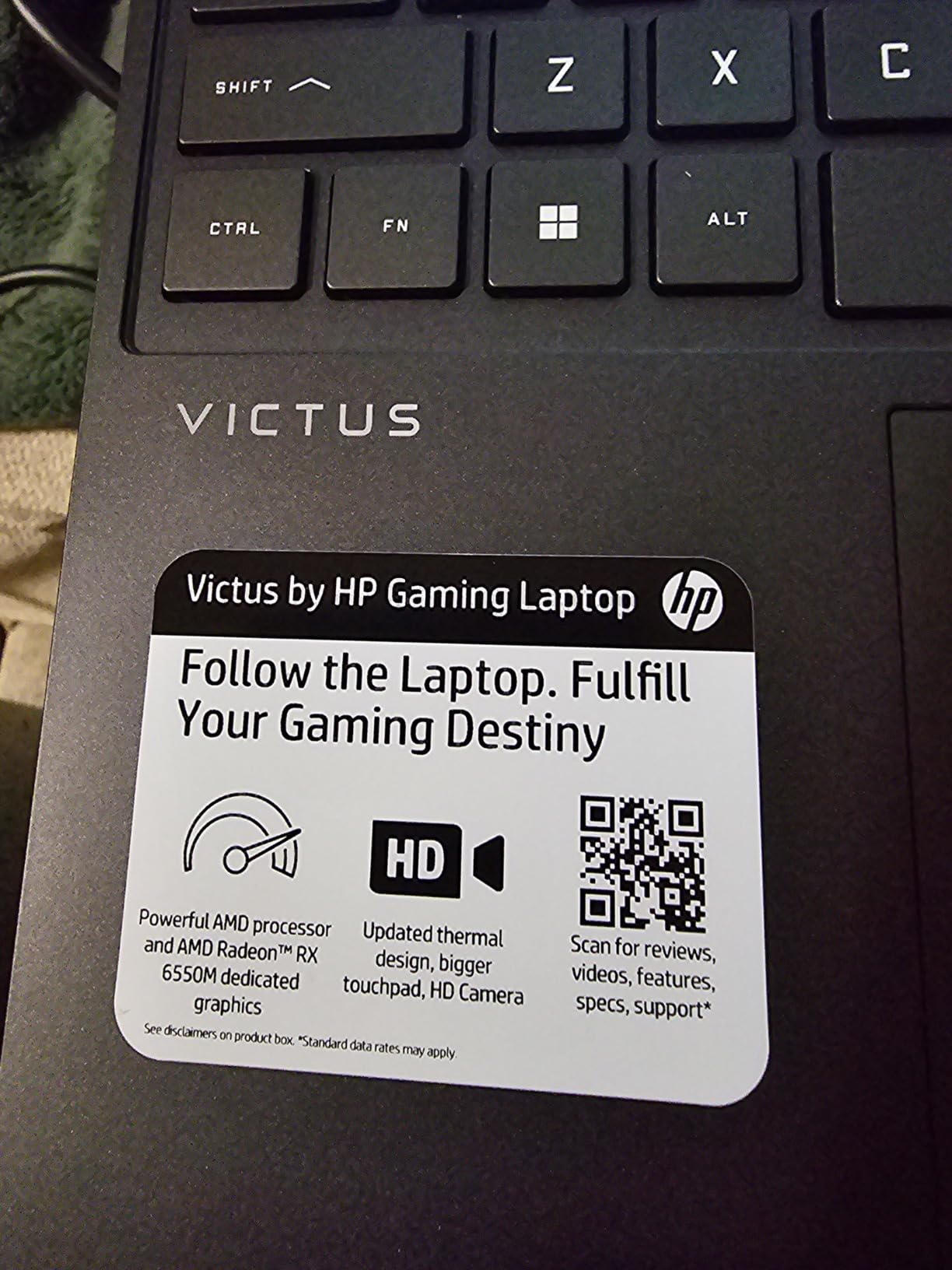
The Victus 15 is the pick for people who want one machine that games at home and handles work anywhere else. The NVIDIA GeForce RTX 2050 with 4GB of GDDR6 is a real discrete GPU, and owners use it for CAD, laser and CNC software, and QuickBooks as readily as for games. That flexibility is what separates it from an integrated-graphics laptop.
16GB of DDR5 memory at 4800MHz is a welcome sight, because many gaming laptops in this range still ship with 8GB. The 512GB PCIe M.2 drive is standard and adequate. The AMD Ryzen 5 7535HS provides six cores, twelve threads, and boost up to 4.55GHz, which pairs well with the GPU for mixed workloads.
Port-wise you get two USB-A, one USB-C, HDMI 2.1, RJ-45 Ethernet, a headphone and microphone combo, and an SD card reader. Wi-Fi 6, Bang and Olufsen stereo speakers, and a backlit gaming keyboard with numeric keypad complete the package.
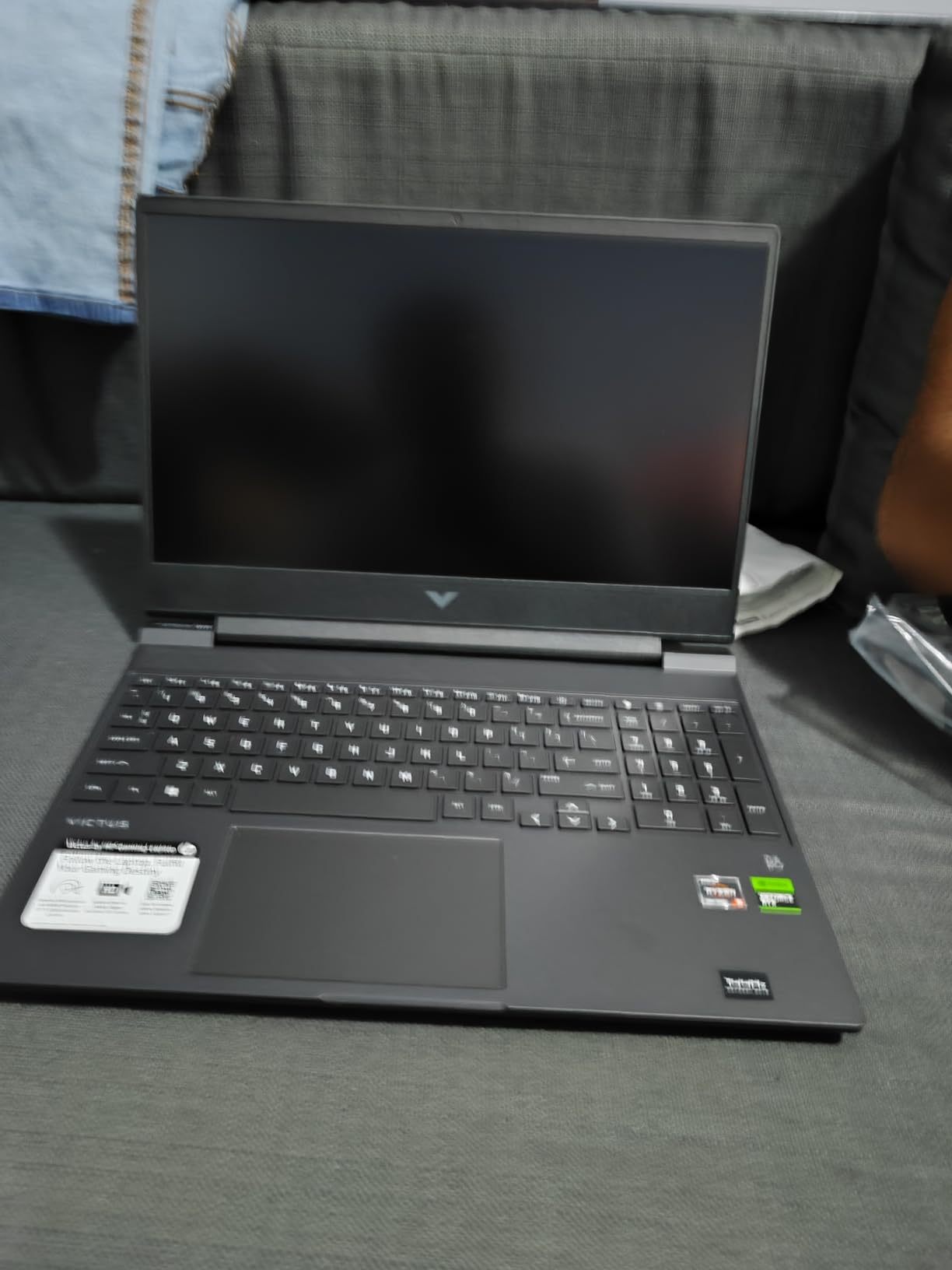
The trade-offs are physical. At 6 pounds and 0.93 inches thick, this is a machine you carry with effort, and owners report weak battery life alongside loud fans that run frequently and produce noticeable heat under load. The display is also dim, which is a common complaint on gaming laptops at this tier.
A small number of owners report Bluetooth instability and occasional crashes. With 456 ratings and 73% five-star, reliability reports are broadly good, and some describe nearly two years of trouble-free daily use, but a few early hardware complaints do exist.
How the RTX 2050 performs day to day
Treat it as a 1080p machine. With 4GB of dedicated memory you can run mainstream and indie titles smoothly at Full HD, and the 144Hz panel makes the frame pacing feel far better than the specifications alone would suggest. It is not a machine for 4K output settings or the newest large releases at maximum quality.
The same GPU earns its keep outside games. Video encoding, photo work, and CAD or manufacturing software all benefit from dedicated graphics in ways integrated parts simply cannot match, and that is where this pick pulls ahead of the general-purpose laptops.
Who should look elsewhere
Skip it if you need battery life. Weak battery life and 6 pounds make this a desk machine, and the short endurance is the single most repeated complaint in reviews.
Skip it if you want a quiet machine. Fan noise and heat under sustained load are the second most common complaint, and neither improves with a bigger budget in this class.
6. Dell 15 DC15250 – Best for Warranty Coverage and Everyday Work
Dell 15.6 Laptop, FHD, Intel Core 3 100U, 8 GB RAM, Windows 11 Home
Intel Core 3 100U
15.6-inch FHD anti-glare IPS
8GB DDR4 up to 16GB
512GB SSD
Numeric keypad
Pros
- One-year onsite service after remote diagnosis
- Memory can be expanded from 8GB to 16GB
- Roomy keyboard with numeric keypad and calculator hotkey
- 512GB SSD and Wi-Fi 6 as standard
- Lightweight at 4.2 pounds for a 15.6-inch chassis
Cons
- Only 8GB of DDR4 as shipped
- 250-nit display is on the dim side
- No backlit keyboard or fingerprint reader
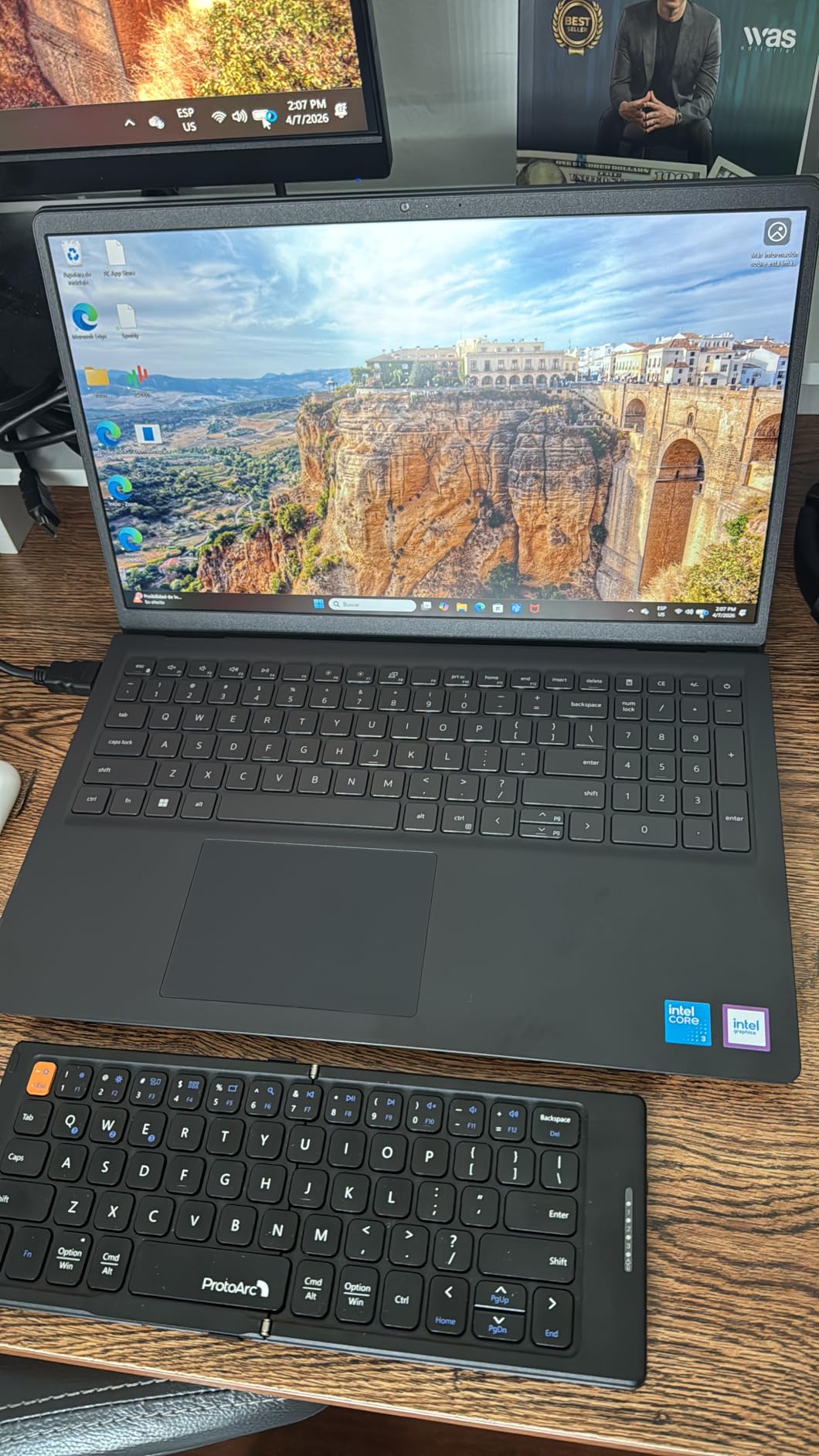
The Dell 15 is the value pick, and with 766 ratings it is one of the most proven machines in this roundup at 70% five-star. Buyers treat it as a dependable everyday and student computer rather than an enthusiast choice, and the reason is consistency plus a service commitment most competitors at this price cannot match.
That commitment is one year of onsite service after remote diagnosis with hardware-only support. In practice, a technician comes to you instead of you packing the laptop up and shipping it. For a student, a small business, or a family machine that gets used daily, that is worth more than an extra gigabyte of memory.
The specification is sensible: an Intel Core 3 100U with six cores and boost up to 4.7GHz, integrated Intel UHD Graphics, 8GB of DDR4 at 2666MHz, and a 512GB SSD. Memory runs in one slot and can go to 16GB, so the 8GB figure is a starting point rather than a permanent ceiling.
The compromises are visible. The 250-nit matte anti-glare IPS display is fine for documents but dim for watching video in a bright room. There is no backlit keyboard, which is awkward for evening use, and no fingerprint reader for fast sign-in.
Integrated graphics mean no gaming, and reviewers are clear about that. The battery is also not user-replaceable, so treat the machine as a long-term purchase rather than something you will service yourself.
Why onsite service changes the ownership math
Most budget machines come with mail-in or carry-in support. Onsite service removes the failure mode where a laptop sits in a box for two weeks while you cannot work, and it is a genuine advantage for anyone whose computer is their work computer.
It also changes how you should think about the memory. Because the 8GB can grow to 16GB with a single module, you can buy the machine now and add memory in year two if your workload grows, which spreads the cost instead of front-loading it.
Who this machine suits
Buy it for a student, a family member, or a home office where the machine must simply work every day. The numeric keypad and calculator hotkey make it unusually pleasant for data entry, and Dell ComfortView reduces blue light output during long sessions.
Pass if you want a bright screen, a backlit keyboard, or any gaming capability. Pass if you need a color-accurate panel for design or photo work.
7. Acer Nitro V 15 with RTX 4050 – Best Gaming Performance in the List
acer Nitro V Gaming Laptop | Intel Core i5-13420H Processor | NVIDIA GeForce RTX 4050 Laptop GPU | 15.6″ FHD IPS 144Hz Display | 8GB DDR5 | 512GB Gen 4 SSD | WiFi 6 | Backlit KB | ANV15-51-51H9
Intel Core i5-13420H
NVIDIA RTX 4050 6GB with DLSS 3
15.6-inch FHD IPS 144Hz
8GB DDR5 up to 32GB
Thunderbolt 4
Pros
- RTX 4050 with DLSS 3 and 194 AI TOPS at this price
- 144Hz FHD IPS display is smooth and color-accurate
- 8GB RAM expands to 32GB across two slots
- Two M.2 SSD slots plus Thunderbolt 4
- Dual-fan cooling with NitroSense tuning
Cons
- Only 8GB of DDR5 as shipped
- About 3 hours of battery life
- Utilitarian chassis and display brightness
- Fans get loud under sustained gaming load
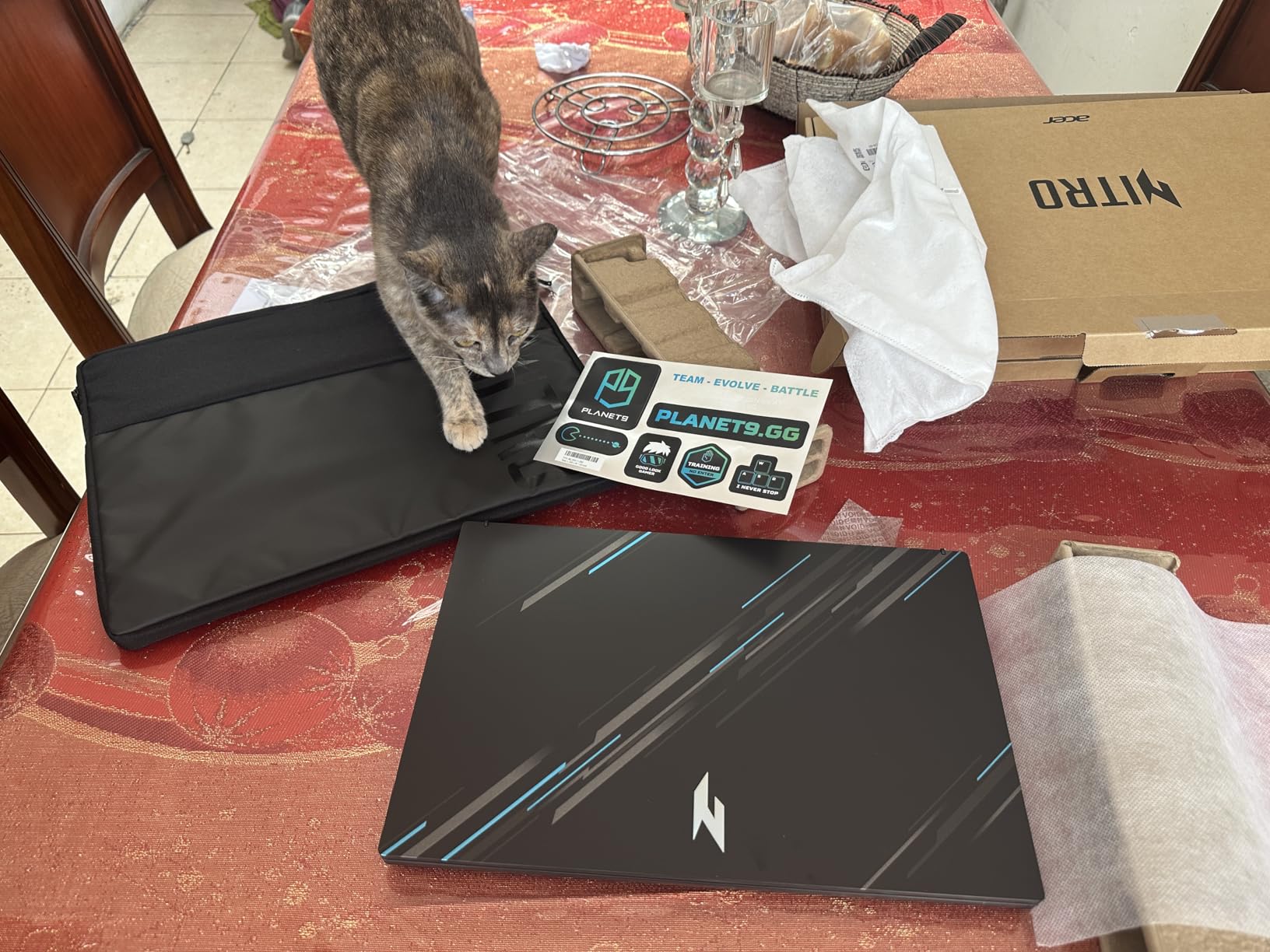
The Nitro V 15 is the most capable gaming machine you can get in this band, and with 809 ratings it is also one of the most reviewed picks here at 71% five-star. The NVIDIA GeForce RTX 4050 laptop GPU carries 6GB of GDDR6, 194 AI TOPS of compute, and DLSS 3 frame generation, which is a full tier above the RTX 2050 in the previous entry.
The processor is an Intel Core i5-13420H from the 13th generation Raptor Lake-H family, eight cores, twelve threads, boost to 4.6GHz, and 12MB of L3 cache. The combination is the one to buy if you want frame rates you can hold at high settings rather than frame rates you can reach once at low settings.
The 15.6-inch Full HD IPS panel runs at 144Hz with a 16:9 aspect ratio and an 82.64% screen-to-body ratio. Owners single out the panel as smooth and color-accurate, which is unusual among budget gaming laptops. Thunderbolt 4, HDMI 2.1, USB 3.2 Gen 1 and Gen 2, and Gigabit Ethernet cover the connection side.
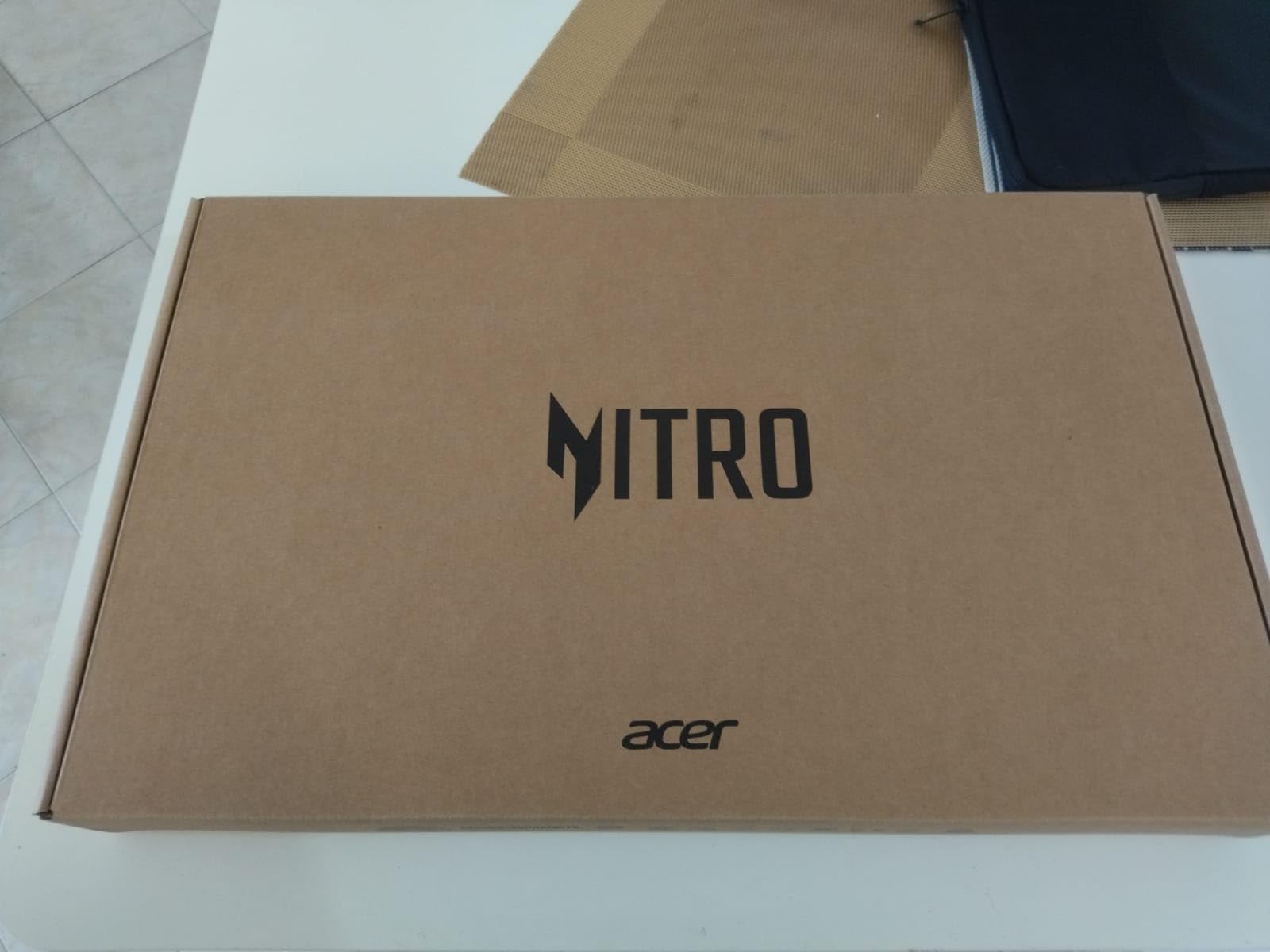
Here is the thing to fix before you buy: 8GB of DDR5 is the minimum for modern titles, and it is the most frequently cited complaint across 809 reviews. The good news is that this is not a sealed machine. Two memory slots take it to 32GB, and there are two M.2 storage slots, so adding memory and a larger SSD later is straightforward.
Battery life is roughly 3 hours by the manufacturer’s own figure, and the chassis runs utilitarian next to premium rivals. Under sustained gaming the dual-fan setup gets loud, though NitroSense software lets you monitor temperatures and tune fan speed and performance profiles yourself.
Whether the RTX 4050 is worth the extra spend
If you already know you will game, yes. DLSS 3 frame generation on top of a 6GB card is the difference between a settings compromise and a smooth Full HD experience, and it is the only machine here built for that.
If gaming is occasional, the HP Victus 15 will handle it and save you money, but you give up frame generation and some of the headroom for years to come. Think of the difference as buying performance once rather than twice.
Who should skip the Nitro V
Skip it if battery life matters to you at all. Three hours means it is plugged in most of the day, and this is not a travel machine at 4.7 pounds with a thick profile.
Skip it if you do not want to open the machine. Buying it as shipped with 8GB of memory is buying the weakest version of an otherwise strong laptop, and a single memory upgrade changes the experience more than any other purchase at this budget.
8. Lenovo 14-inch Chromebook – Best Budget Pick for Students
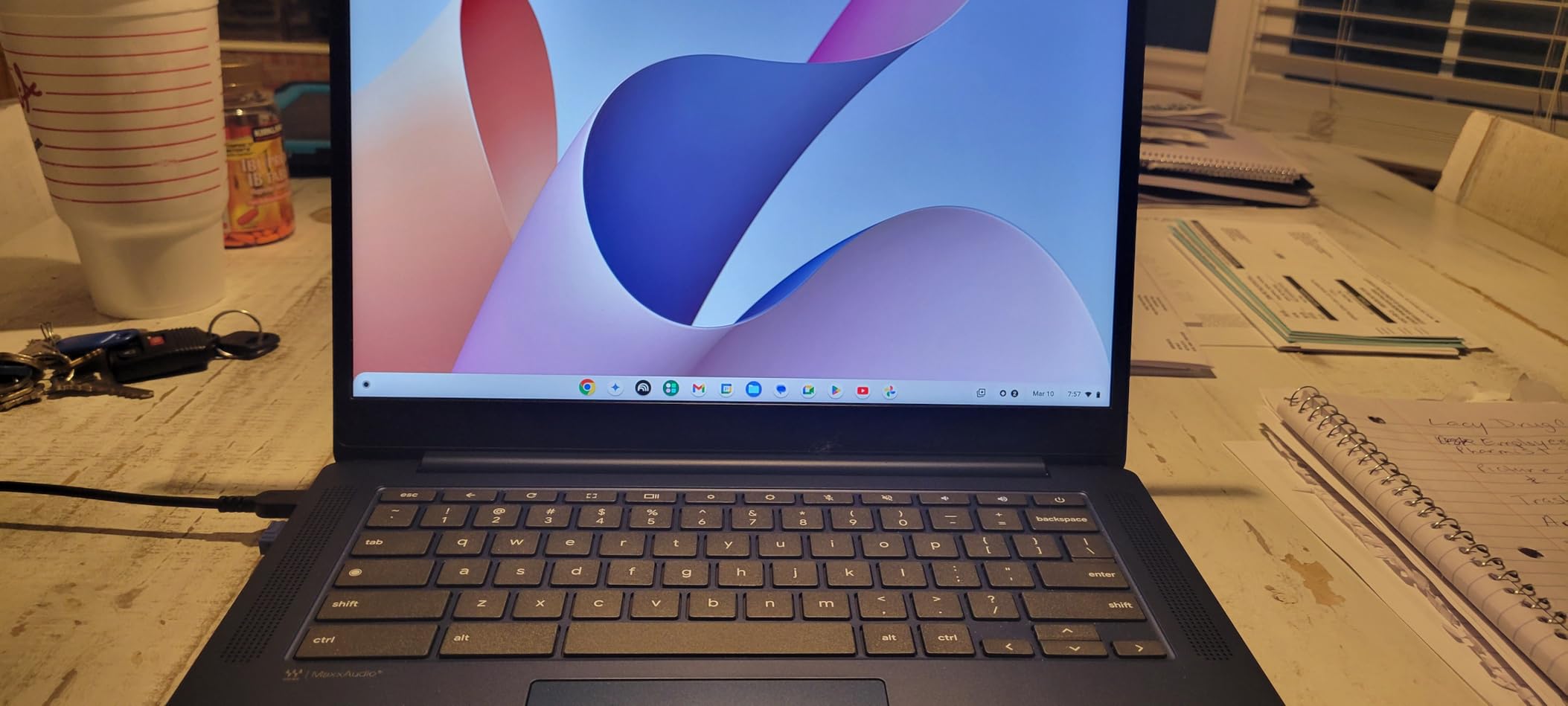
Lenovo Flagship Chromebook, 14” FHD Touchscreen Slim Thin Light Laptop Computer, 8-Core MediaTek Kompanio 520 Processor, 4GB RAM, 64GB eMMC, WiFi 6,Chrome OS, Abyss Blue
14-inch FHD IPS touchscreen
MediaTek Kompanio 520 octa-core
4GB RAM and 64GB eMMC
Chrome OS
Up to 13.5 hours battery
Pros
- Lowest entry cost of any 14-inch touchscreen in the list
- Up to 13.5 hours of stated battery life
- Very light at 2.9 pounds and 0.73 inches thin
- FHD IPS touchscreen with a 720p privacy shutter camera
- Fast boot and quick setup with a Google account
Cons
- Only 4GB RAM and 64GB of storage
- Chrome OS will not run Windows software
- Weak touchpad and plastic-feeling keyboard
- Only a 90-day warranty
This is the cheapest real laptop in the roundup, and the 4.2 rating across 1396 reviews is the most heavily reviewed machine here. Buyers are not evaluating it against premium laptops. They are evaluating whether the cheapest machine in the roundup can run their day, and the answer from 68% of owners is a clear yes.
The MediaTek Kompanio 520 is an octa-core ARM chip built for efficiency, paired with 4GB of DDR4 memory and 64GB of eMMC storage. On Chrome OS, which stores and syncs data in the cloud rather than locally, that combination is enough for browsing, Google Workspace documents, streaming, and video calls.
The 14-inch 1920×1080 IPS touchscreen at 250 nits with LED backlight is better than the low-resolution panels some cheaper Windows machines use, and the 2.9-pound weight with a 0.73-inch profile is genuinely portable. Owners regularly call out battery life as better than previous Chromebooks they have owned, with the manufacturer claiming up to 13.5 hours.
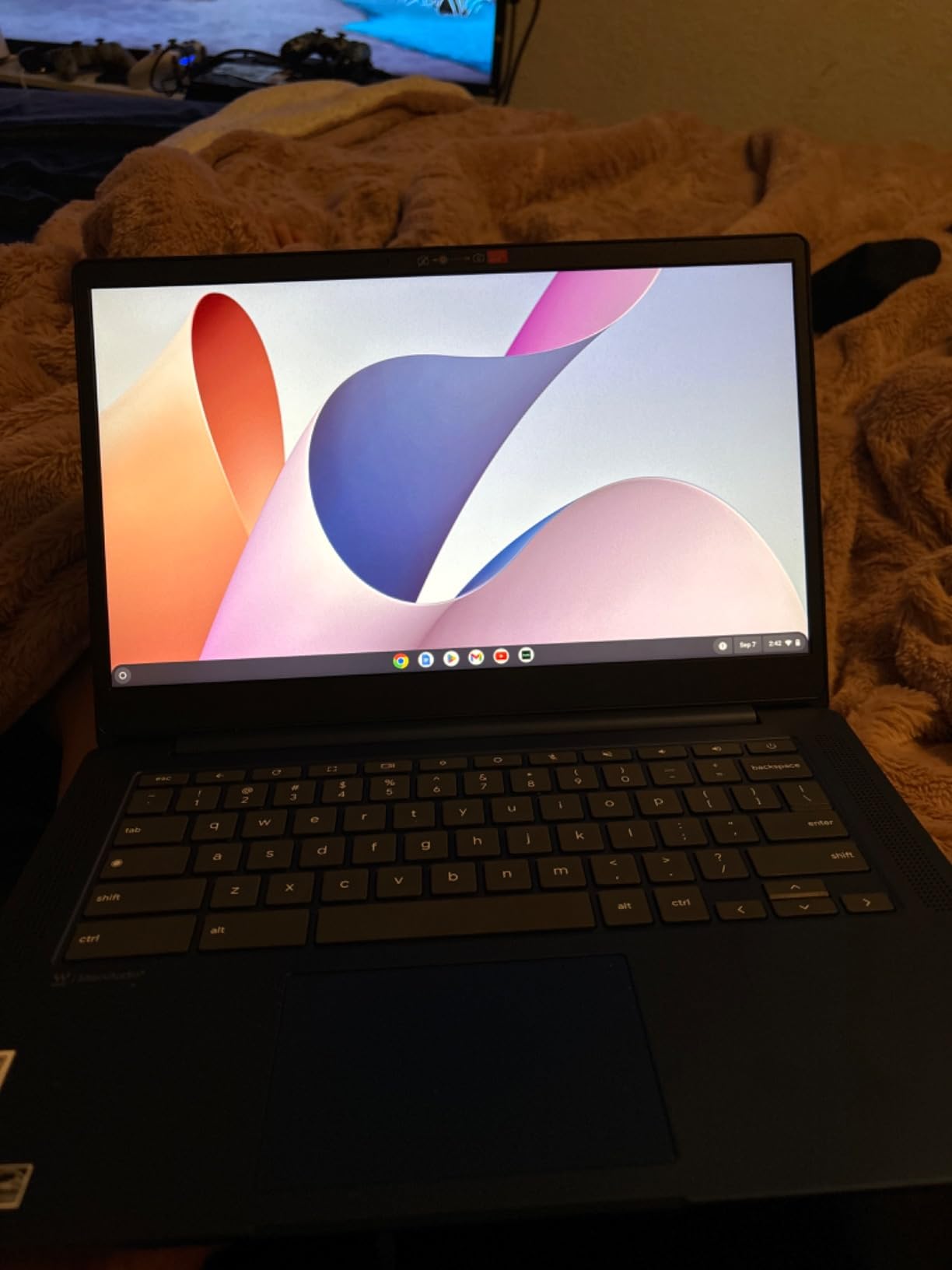
The complaints are consistent and worth weighing. Four gigabytes of memory struggles with many applications open at once, 64GB fills up quickly if you keep local files, and Chrome OS will not run Windows software at all, which catches out first-time buyers more than anyone else.
Two lesser points appear often enough to mention. Some owners report a touchpad that feels delayed or unresponsive, and the caps lock key is replaced with a key that jumps to the apps tab, which is confusing until you know why. The warranty is 90 days with phone-only support, the shortest in the list.
When a Chromebook is the right answer
Chrome OS wins when your work happens in a browser or in Google Workspace, your machine is used by someone comfortable with Google accounts, and the priority is a working computer for the lowest possible outlay. For a school-issued machine or a secondary household computer, that describes most buyers.
It loses when you depend on desktop applications, especially anything outside the web, or when you need offline local storage for large files. Reviewers are unambiguous on this point, and it is the question to answer honestly before buying.
Who should look at a different pick
If you need Windows software, choose the Dell 15 or the HP Essential 14 instead, both of which run Windows 11 and accept a memory upgrade. If you want a Chromebook with more memory, the ASUS Chromebook Flip CX1 doubles the RAM and adds a convertible hinge.
Pass on this model if you keep more than a handful of browser tabs plus a video call, or if a 90-day warranty is too short for how long you plan to keep it.
9. ASUS Chromebook Flip CX1 – Best Convertible Chromebook
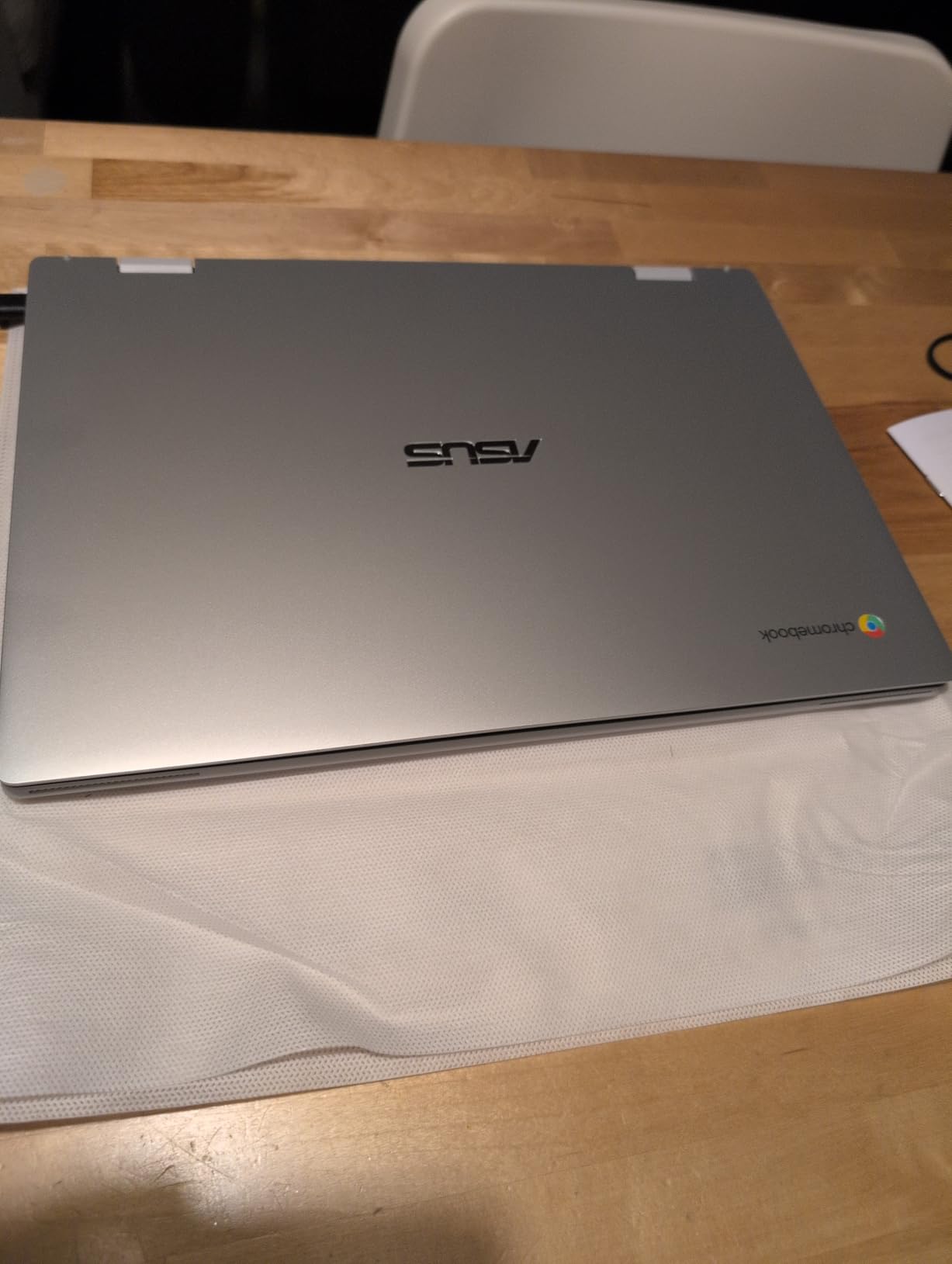
ASUS Chromebook Flip CX1 Convertible Laptop, 14″ FHD NanoEdge 360-degree Touchscreen, Intel Celeron N4500 Processor, 128GB eMMC Storage, 8GB RAM, ChromeOS, Transparent Silver, CX1400FKA-AS88FT
14-inch FHD NanoEdge 360-degree touchscreen
Intel Celeron N4500
8GB LPDDR4X RAM
128GB eMMC
Chrome OS
Pros
- Four convertible modes from the 360-degree hinge
- Sharp 14-inch FHD NanoEdge touchscreen
- 8GB of RAM is generous for a Chromebook at this tier
- MIL-STD 810H tested build at 3.6 pounds
- Two USB-C ports with display and power delivery
Cons
- Celeron N4500 is a low-power dual-core chip
- 128GB eMMC storage is small and not upgradeable
- Chrome OS limits non-web software
Where the Lenovo Chromebook is a cheap laptop, the CX1 is a cheap laptop that folds into a tablet. The 14-inch Full HD NanoEdge touchscreen flips through 360 degrees into four modes, clamshell, tent, stand, and tablet, and owners rate the display and the flexibility as the two things they value most.
The 8GB of LPDDR4X memory is the real differentiator in this class. The Lenovo Chromebook above ships with 4GB, and buyers of both report that the doubled memory shows up in how many tabs and apps stay smooth. Storage is 128GB of eMMC with a microSD reader, which is small but workable when you keep files in the cloud.
Wi-Fi 6, Bluetooth 5.2, two USB-C ports with display and power delivery, two USB-A ports, and a microSD card reader cover the connection needs. The chassis is tested to MIL-STD 810H at 3.6 pounds, and the manufacturer claims up to 11 hours of battery life. Three months of Google One AI Premium come included.
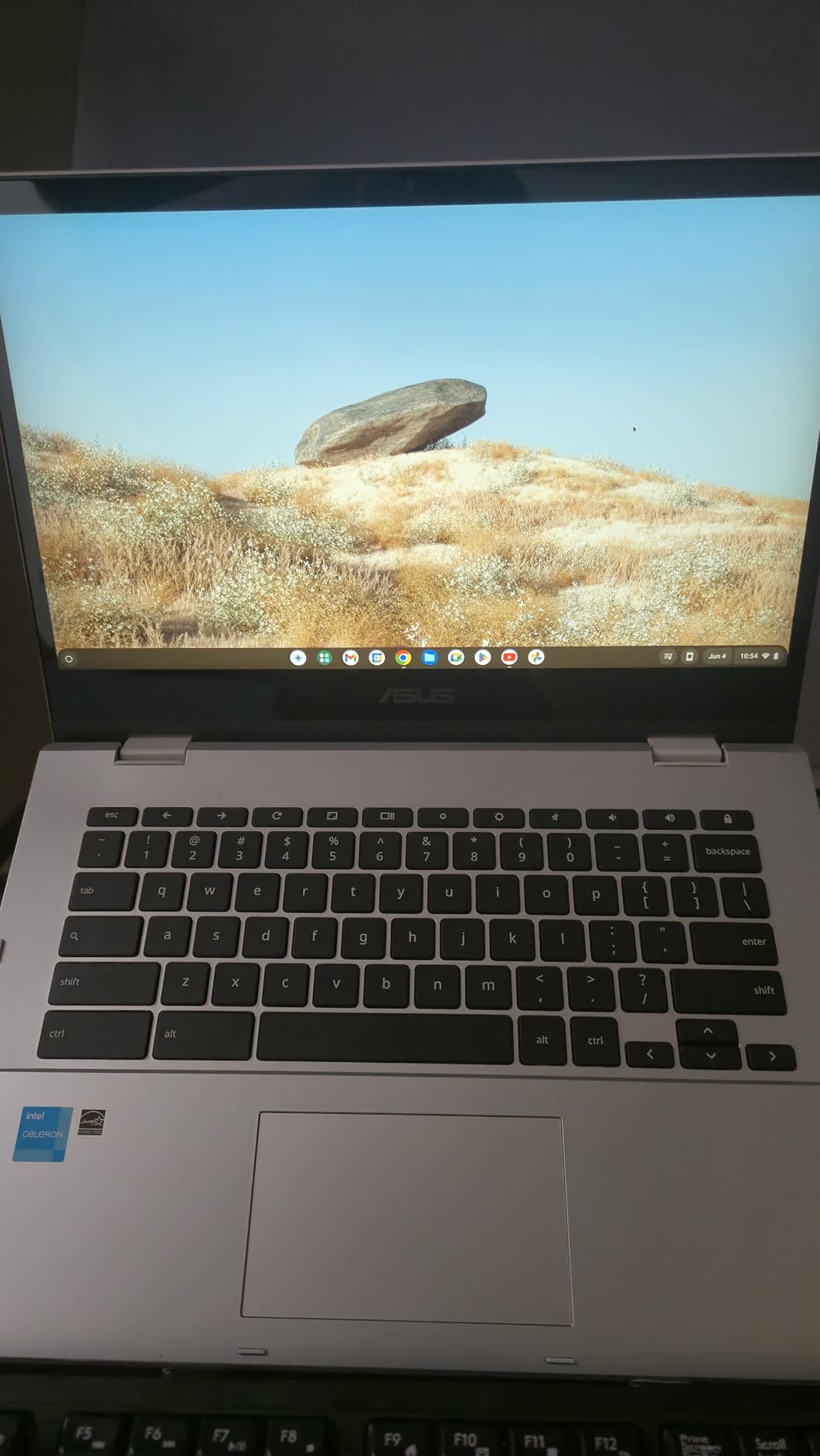
The processor is the compromise. The Intel Celeron N4500 is a dual-core part that runs at up to 2.8GHz, and it handles Chrome OS tasks adequately without feeling quick when you push it. Reviewers describe the multitasking experience as decent rather than strong.
As with any Chromebook, the operating system is the boundary. It will not run Windows software, and a stylus or other accessory ecosystem is limited. The 128GB eMMC storage also cannot be upgraded, so treat cloud storage as part of the purchase.
Convertible Chromebook versus convertible Windows laptop
The CX1 and the Acer Aspire 3 Spin 14 both fold 360 degrees, and the choice comes down to the operating system rather than the hinge. Chrome OS keeps background processes light, so the modest processor feels more capable than it would running full Windows.
Choose Chrome OS if your life is web-based and you want a long battery. Choose the Windows convertible if you need specific desktop applications, even though you will get 128GB of storage and soldered 8GB memory in return.
Who should buy and who should not
Buy it for a student who takes notes, a commuter who reads in transit, or anyone who wants a large touchscreen without spending laptop money. The included Google One trial adds real value for the first three months.
Pass if you need to run native desktop software, store large local media, or want a processor that will not feel slow within two years. In that case, spend the difference on the Acer Nitro V or the MacBook Neo.
10. HP Essential 14 Laptop – Best for First-Time Buyers and Replacements
HP Essential Laptop 2026, Intel CPU, 128GB Storage, Office 365, Copilot AI
Intel N150 processor
4GB LPDDR5 RAM
128GB UFS storage
14-inch 1366x768 display
Windows 11 Home
Pros
- Very low entry cost with a year of Microsoft 365 Personal included
- Light and thin at 3.24 pounds and 0.71 inches
- Simple and quick setup out of the box
- Up to 11 hours of stated battery life
- USB-C with DisplayPort plus two USB-A and HDMI
Cons
- Only 4GB of LPDDR5 RAM and it is soldered
- 1366x768 HD display is low resolution for the price
- Intel N150 is an entry-level chip with no headroom
The HP Essential 14 exists to solve one problem, which is giving someone a working Windows 11 computer for the smallest outlay. Buyers consistently describe it as a first laptop or a replacement for a machine that has stopped coping, and 74% of ratings are five-star, which is a strong result for an entry-level price point.
The specification is exactly what that framing implies. An Intel N150 with four cores, turbo to 3.6GHz, and 6MB of L3 cache, 4GB of LPDDR5-4800 memory, and 128GB of UFS storage. The UFS drive is faster than eMMC, and an SD media card reader lets you add capacity, which is the main escape from the 128GB ceiling.
A year of Microsoft 365 Personal is included, which covers Word, Excel, and PowerPoint along with cloud storage. That subscription is a substantial part of the value at this price. Microsoft Copilot has a dedicated key, and AI noise reduction is available for calls, which is a small touch that helps anyone joining meetings from a laptop.
Two limits are worth stating clearly. The 4GB of memory is soldered and cannot be upgraded on this configuration, which is the most repeated complaint across reviews along with the 128GB of storage. And the 1366×768 panel is a step down from the Full HD screens on the other Windows picks here.
The Intel N150 handles browsing, streaming, document editing, and online learning without drama. It will not game, and it will feel constrained the moment you open many applications at once. The manufacturer claims up to 11 hours of battery life, which suits a day of light use.
What you give up by choosing the cheapest laptop
You give up screen resolution, memory headroom, and processor speed, in that order of daily impact. The Full HD panels elsewhere in this list make text noticeably sharper, and 4GB of RAM is the difference between four tabs and fifteen.
What you do not give up is Windows itself, USB-C connectivity, or a full year of Microsoft 365. For a shared family computer or a short-term assignment machine, that trade is often the right one.
Who should buy and who should spend more
Buy it if this is a first computer, a secondary machine, a stopgap until your studies or work settle, or a replacement for a dead laptop this week. Setup is quick, the machine is light at 3.24 pounds, and the included Office subscription removes a real cost.
Pass if you plan to keep it more than two years and open heavy applications, because soldered 4GB memory will be the reason you replace it early. In that case, spend the difference on the Lenovo IdeaPad Slim 3 16 for 16GB, or the Dell 15 if you want onsite service.
Buying Guide: How to Shop for a Laptop on a Fixed Budget
The budget tier has tightened. Memory and storage component prices have pushed this category upward, and the practical effect is that fewer machines now come with 16GB of RAM than they did two or three years ago. Community buyers in r/pcmasterrace and r/laptops consistently treat the ceiling as a hard cap and accept trade-offs, but not slowness, which is the right line to draw.
The 5 specs that decide your experience
Processor. Look for a modern part rather than the newest one. A 13th-generation Intel Core i5, a Core Ultra, an AMD Ryzen 5, or a MediaTek Kompanio chip in a Chromebook will all serve you well. Entry-level parts like the Intel Celeron N4500 in the ASUS CX1 and the Intel N150 in the HP Essential 14 do the basics and stop there.
Memory. Sixteen gigabytes is the target at this budget, and it is the spec most likely to decide whether you are still happy in year three. In this list, the Lenovo IdeaPad Slim 3 16, the HP Victus 15, and the ASUS CX1 ship with 8GB. The first two can be expanded, which turns a compromise into a temporary one.
Storage. Aim for 512GB. The 128GB drives in the Acer Aspire 3 Spin 14 and the ASUS CX1 are the most common sources of buyer frustration in the reviews, and 8GB of RAM paired with 128GB of storage leaves no room to grow. UFS is faster than eMMC, so the HP Essential 14 at least has the quicker drive type.
Display. A 1920×1200 or 1920×1080 IPS panel at 250 nits or more is the practical minimum. Below that you land on the 1366×768 screen in the HP Essential 14, which is a visible step down in sharpness. OLED remains rare at this budget, and IPS is the sensible target.
Battery and weight. Manufacturer claims for this category run between 11 and 16 hours, and those are claims rather than measurements. Real results depend on screen brightness and workload. Weight matters as much as hours: anything under 3.5 pounds is genuinely portable, and the MacBook Neo, Lenovo Chromebook, and HP Essential are the three lightest picks here.
Laptops and specs to stay away from
Community advice and the reviews in this roundup point the same direction. Here is the list of things to skip, in order of how much they matter.
Pentium and Celeron chips in Windows laptops. The Celeron N4500 in the ASUS CX1 handles Chrome OS tasks and little else.
8GB of RAM that cannot be upgraded. This is the trap the HP OmniBook 3 17.3 and the HP Essential 14 fall into, and forum buyers call it out as a leading reason budget laptops feel slow after a year.
128GB of storage or less. Meaningful locally, and tight in a Chromebook where local storage is your whole library.
eMMC storage in a Windows machine. Fine in a cloud-first Chromebook, wrong everywhere else.
TN panels and 1366×768 screens. Narrow viewing angles or soft text make long sessions tiring.
Preinstalled bloatware still installed. Owners of the HP OmniBook 3 17.3 report bundled OneDrive backup and other Microsoft software that should be removed during setup.
Windows on Arm and what it means for you
Two of the picks here use ARM processors, and it is worth understanding the difference. The Lenovo Chromebook uses a MediaTek Kompanio chip and runs Chrome OS, where ARM is native and compatibility is not an issue. ARM-based Windows machines are a different story, since many x86 programs run through emulation rather than natively.
For a non-technical buyer, the practical question is simple: does the software you rely on every day have a native ARM version, and does it have driver support? Browsers, Office, video conferencing, and most mainstream creative apps are fine. Specialist engineering tools, older business software, and many games are not. If your work depends on one specific program, check that program before you commit to any ARM machine.
When to buy and which retailers to trust
Timing matters less than specification discipline, but there is a pattern. The heaviest discounting on laptops historically lands from November through the holiday period, and manufacturer outlets and major retailers run their own events earlier in the year. If the configuration you want in your preferred color or storage size is not offered today, waiting a few weeks often brings a different SKU rather than a better deal.
On retailers, buy from the manufacturer, Amazon, Best Buy, or Walmart rather than unfamiliar third-party sellers. That advice comes up repeatedly in community buying threads, and it is about warranty handling and return friction rather than price. If you do consider a refurbished machine, check that the warranty transfers and that the battery health is stated.
One last practical note for anyone setting up a new budget Windows laptop: run the manufacturer’s storage and bloatware cleanup during the first hour. It costs you ten minutes and gives back real space on a 512GB drive.
Readers who pair a new laptop with a desk setup can find our standing and sitting desk picks, and those who also need music gear can start with our arranger keyboard guide or our amp modeler roundup.
Frequently Asked Questions
What is the best laptop under 1000 dollars?
The MacBook Neo 13-inch is our overall pick. It pairs the A18 Pro chip with a 13-inch Liquid Retina display, a 2.71-pound recycled aluminum body, and a manufacturer claim of up to 16 hours of battery life. It holds a 4.6 rating across 1337 reviews, the highest combination on this list. If you need more memory or storage, the Lenovo IdeaPad Slim 3 16 is the Windows alternative.
What is a good laptop under 1000 dollars?
A good laptop under 1000 dollars handles browsing, documents, video calls, and streaming smoothly, and that means 16GB of RAM, a 512GB solid-state drive, and a 1920×1200 or 1920×1080 IPS display. Add a modern Core Ultra, Core i5, or Ryzen 5 processor and you have a machine that stays fast for several years. Below those thresholds the machine will feel slow within a year.
What is the best value laptop under 1000 dollars?
The HP Victus 15 with the RTX 2050 is the strongest value in the list. It ships with 16GB of DDR5, a 512GB drive, and a 144Hz anti-glare display, which no other general-purpose pick here offers. Owners also use it for CAD and other GPU-accelerated work, so the value holds even if you barely game. Expect weak battery life and a 6-pound chassis.
What laptop specs should I stay away from?
Avoid Pentium and Celeron processors in Windows laptops, 8GB of RAM that cannot be upgraded, 128GB of storage or less, eMMC drives outside a Chromebook, TN panels, and 1366×768 screens. Leaving bundled OneDrive and Microsoft trial software in place also costs you real space on a 512GB drive. These are the issues that owners on this list complain about most often.
How much RAM do I need for a laptop under 1000 dollars?
Sixteen gigabytes is the number to target at this budget. Eight gigabytes handles a handful of applications but slows noticeably with a dozen browser tabs, a video call, and a document open together. If a machine ships with 8GB, check whether the memory is soldered: the Acer Nitro V 15 and HP Victus 15 expand to 32GB and 16GB respectively, while the HP OmniBook 3 17.3 and HP Essential 14 do not.
Should I buy a Chromebook or a Windows laptop at this budget?
Buy a Chromebook if your work happens in a browser or in Google Workspace and you want the lowest outlay. Buy a Windows laptop if you need specific desktop applications or Microsoft Office outside the cloud. In this roundup the Lenovo Chromebook runs the lowest cost of all, while the ASUS CX1 doubles the memory to 8GB and adds a 360-degree convertible hinge.
What is the most reliable laptop under 1000 dollars?
The Dell 15 DC15250 is the most defensible reliability choice, with 766 ratings and a one-year onsite service warranty that sends a technician to you after remote diagnosis. The HP Victus 15 also has owners reporting close to two years of trouble-free daily use. Whichever you pick, the Acer Nitro V and HP Victus are the two with a small number of early hardware complaints, so register the warranty on purchase.
Which Laptop Under 1000 Dollars Should You Buy?
Start with the MacBook Neo if you want the best laptops under 1000 dollars experience and you live in Apple’s ecosystem. It is the most refined machine in the roundup, with a 4.6 rating across 1337 reviews, and its main limitation, the 8GB and 256GB base configuration, is one you only feel if you run a lot of applications at once.
On Windows, the Lenovo IdeaPad Slim 3 16 is the best general-purpose buy because 16GB of DDR5 that expands to 40GB solves the problem that limits most machines at this price. The HP Victus 15 is the value champion if you want a discrete GPU, and the Acer Nitro V 15 takes you to RTX 4050 territory with DLSS 3 as long as you add memory after purchase. The Dell 15 wins on service, with onsite support and a memory slot.
For ChromeOS, the Lenovo Chromebook costs the least and the ASUS CX1 gives you a convertible with twice the memory. And if the budget is genuinely the deciding factor, the HP Essential 14 puts a working Windows 11 machine and a year of Microsoft 365 on a desk for the lowest outlay in this list.
Whichever you choose, buy the 16GB configuration or confirm the memory can be upgraded. That single decision has more effect on how long the laptop feels good than any other spec on the sheet.