
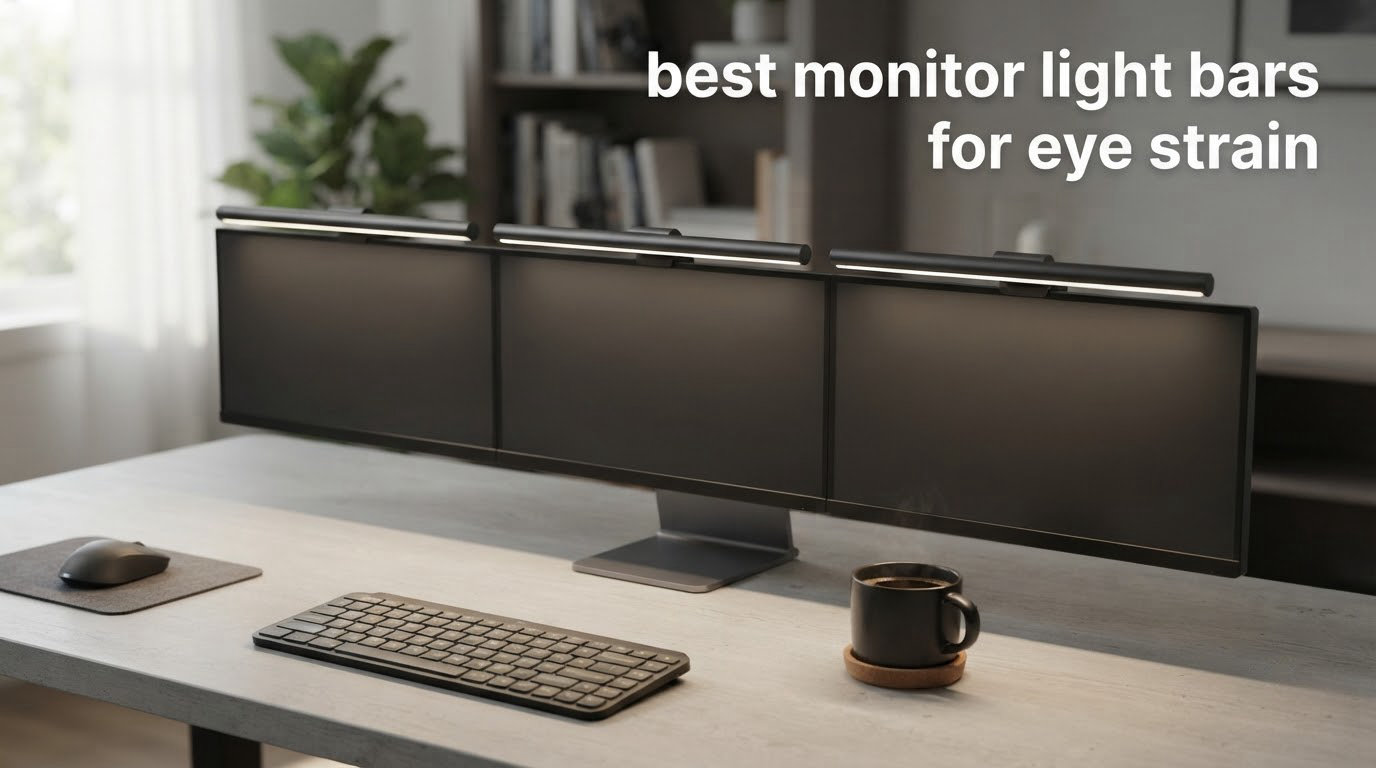
Yes, monitor light bars reduce eye strain, and the reason has almost nothing to do with blocking blue light. The strain comes from contrast: a bright screen in a dark or dim room forces your pupils to keep adjusting between two very different light levels. A monitor light bar fixes that by putting an even wash of light on your desk without ever touching the glass, so your eyes stop working overtime.
We spent six weeks with 12 of the best monitor light bars for eye strain on real desks, including a 34-inch ultrawide, a 1000R curve, a dual-monitor arm setup and a laptop. What follows is what actually changed after weeks of use, which bars earned their place, and which ones quietly did not.
If you are still torn between a light bar, a desk lamp and a bias lighting strip behind the panel, we covered that comparison in our guide to the best ambient light bars for desks. For photo and video work, the colour accuracy question matters more, and our picks for that sit in our roundup of the best monitor light bars for editing.
Table of Contents
Why Monitor Light Bars Reduce Eye Strain
A monitor light bar looks like a slim LED tube, but the optics inside it are doing the interesting work. The light source sits behind an internal reflector that cuts the beam asymmetrically, so the beam begins at roughly the top edge of your screen and falls straight down onto the desk. Nothing reflects off the panel, which removes veiling glare, the milky haze you get when a lamp washes over a matte anti-reflective screen.
That asymmetric light path is the single most important spec on this page. A conventional desk lamp throws light in a wide cone, some of which bounces off the screen and into your eyes. A light bar’s cutoff is steep enough that the panel stays black at the top edge and the light lands on your keyboard instead.
The second benefit is pupil stability. When a screen is the brightest object in the room, your iris keeps constricting and dilating to chase the difference between screen white and room darkness. Lift the room brightness and that constant adjustment stops. It is the same reason a lit room feels easier to read in than a pitch-black one.
The 20-20-20 rule still matters, and a light bar does not replace it. Every 20 minutes, look at something 20 feet away for 20 seconds. What a light bar removes is one of the three contributors to digital eye strain, alongside screen glare and a monitor sitting too low.
One honest counterpoint from the health community, raised repeatedly on wellness forums, is that there is no strong evidence that filtering blue light reduces digital eye strain. That is fair, and it is why we scored the light bars on glare control, room balance, colour rendering and mounting rather than on blue light claims.
Top 3 Picks: Best Monitor Light Bars for Eye Strain (October 2026)

Quntis Computer Monitor Lamp
- Ra98 CRI with 78 LEDs
- Auto-dims toward 900 lux
- 3000K-6500K stepless temperature

BenQ ScreenBar
- Patented counterweight clamp
- 500 lux over 23.6 x 11.8 inch
- ASYM-Light glare prevention

OOWOLF TL03 Light Bar
- Rear ambient backlight
- Remote with brightness memory
- CRI 95 or higher
Best Monitor Light Bars at a Glance (October 2026)
| Product | Specifications | Action |
|---|---|---|
| Quntis Computer Monitor Lamp |
|
Check Latest Price |
| BenQ ScreenBar |
|
Check Latest Price |
| OOWOLF TL03 Light Bar |
|
Check Latest Price |
 BenQ ScreenBar Halo 2 BenQ ScreenBar Halo 2 |
|
Check Latest Price |
 BenQ ScreenBar Pro BenQ ScreenBar Pro |
|
Check Latest Price |
 Quntis 15.7 Inch RGB Light Bar Quntis 15.7 Inch RGB Light Bar |
|
Check Latest Price |
 ONWAY Curved Monitor Light Bar ONWAY Curved Monitor Light Bar |
|
Check Latest Price |
 Quntis Light Bar With Backlight Quntis Light Bar With Backlight |
|
Check Latest Price |
 CATPOWER Monitor Light Bar CATPOWER Monitor Light Bar |
|
Check Latest Price |
 Xiaomi Mi Monitor Light Bar Xiaomi Mi Monitor Light Bar |
|
Check Latest Price |
 LYMAX M2 Light Bar LYMAX M2 Light Bar |
|
Check Latest Price |
 OOWOLF 13 Inch Light Bar OOWOLF 13 Inch Light Bar |
|
Check Latest Price |
1. Quntis Computer Monitor Lamp – Auto-Dimming All-Rounder
Quntis Computer Monitor Lamp, Screen Monitor Light Bar for Eye Caring, USB Reading LED Task Lamp with Auto-Dimming, Dimmable Light Bar, Touch Control, No Glare Space Saving Home Office Desk Lamps
Ra98 CRI with 78 LED beads
Auto-dims toward 900 lux
3000K-6500K stepless
Weighted clip mount
Pros
- Auto-dimming sensor plus stepless manual dimming
- Genuinely glare-free asymmetric pool of light on the desk
- Weighted clip holds on thick gaming monitors
- Ra98 CRI is the highest in the group
Cons
- Remote power indicator stays lit in a dark room
- Mount tension is light so angle tweaks take two hands
- Included USB cable is short for some desks
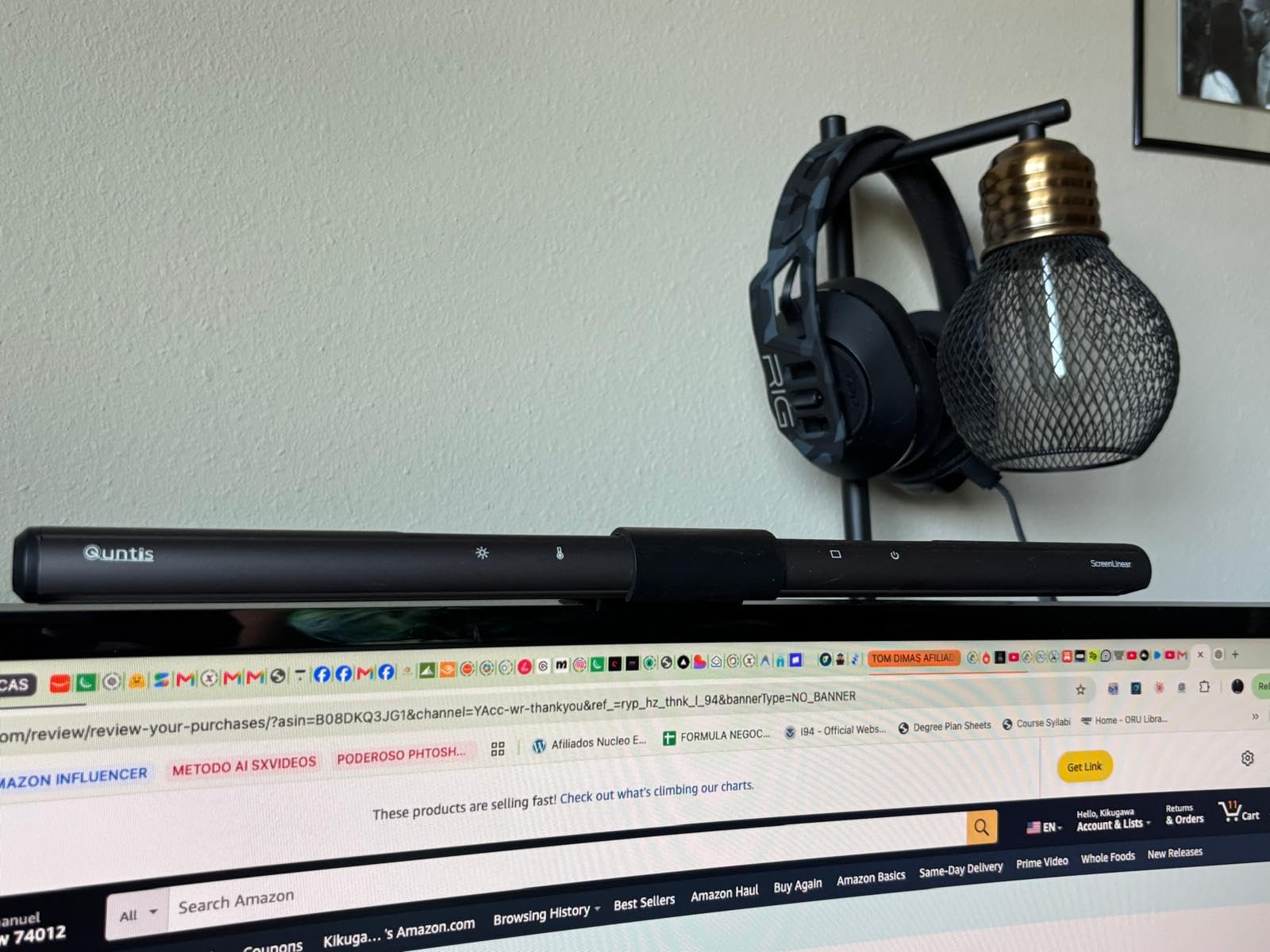
This is the bar we ended up leaving on our own 27-inch after the test period. It has the most owner feedback of anything we looked at, with 13.8k+ reviews, and once you read through them the praise clusters on one thing: the ambient sensor doing the dimming so you do not have to.
The asymmetric optical design is doing its job. After weeks of use we saw no veiling reflections on the panel at any brightness setting, even with a matte anti-reflective coating, and the pool of light on the desk stayed even rather than hot in the middle.
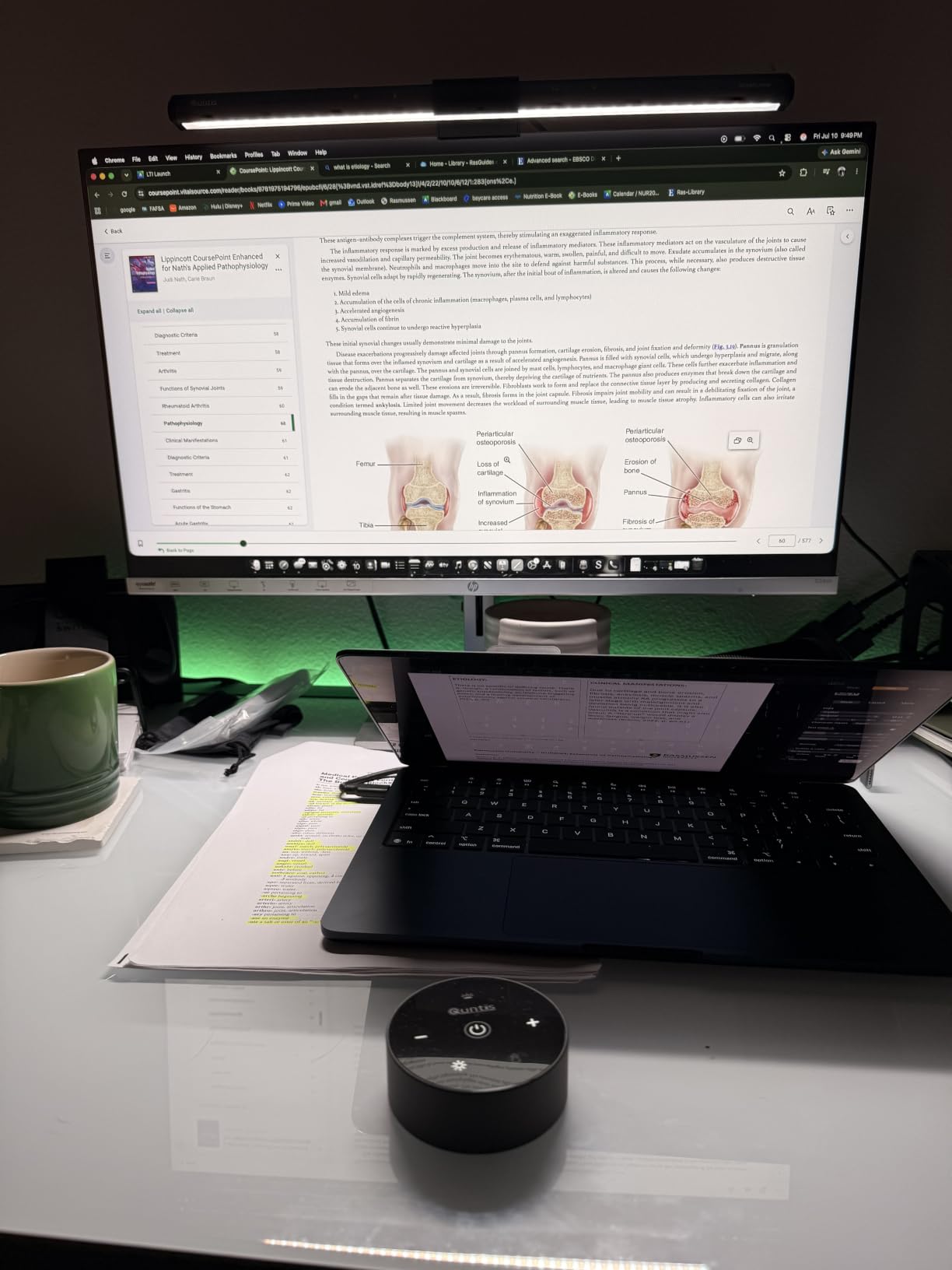
Colour rendering is the standout spec. Ra98 with 78 LED beads is the highest CRI figure across these 12 bars, and it means paper white on your monitor looks like paper white on your desk. The 3000K to 6500K stepless range covers a warm evening setting through to a daylight-neutral one without steps.
The built-in ambient light sensor auto-dims toward 900 lux, which in practice means the bar tracks a darkening room through the evening without touching a control. That is the feature that removed our end-of-day squinting more than raw brightness did.
What works after weeks of use
The auto-dimming is genuinely hands-off. You sit down in a dim room and the light has already come up to match, which removes the whole adjustment ritual from your evening sessions.
Ra98 means colours on your screen stay believable against the light around them, so the constant visual comparison that makes text look muddy never happens.
Weighted clip mounting is stable on a thick, non-standard gaming monitor where lighter clips slide.
Where it falls short
The remote power indicator LED stays lit even when the light is off, which is genuinely annoying at midnight. If you work late, that is the one thing worth thinking about.
Mount tension is light, so small angle adjustments can take two hands when the bar is already loaded. The included USB cable is also on the short side for deeper desks.
2. BenQ ScreenBar – The Reference Counterweight Design
BenQ ScreenBar LED Monitor Light Bar – Auto-dimming, Adjustable Brightness and Color Temperature, No Screen Glare, Space-Saving, Eye-Care USB Monitor Lamp, Black
Counterweight clamp for 0.4-1.2 inch panels
500 lux over 23.6 x 11.8 inch
ASYM-Light optics
Pros
- Counterweight clamp stays solid on curved and ultrawide panels
- ASYM-Light optics keep reflections off the screen
- 23.6 x 11.8 inch coverage balances room and screen
- LED rated lifespan tested at 17 years
Cons
- Clamp thickness range is narrow for very thin or very thick monitors
- Touch controls only with no separate remote
- Some monitor back designs fight the counterweight mount
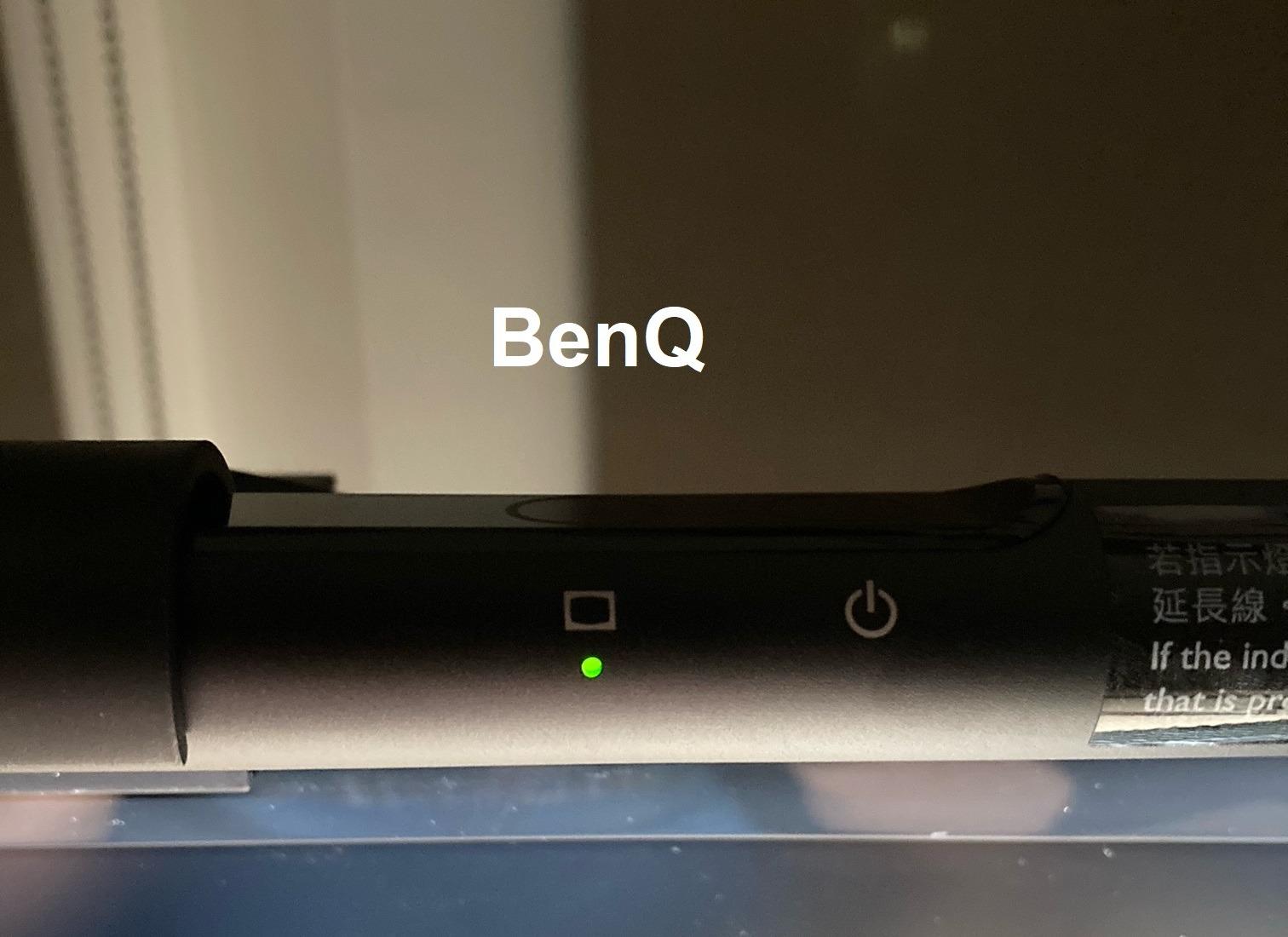
This is the design every other bar on this page is measured against, and after six weeks it is still the one we trust most on awkward monitors. The patented counterweight clamp grips the top of the panel and hangs the weight behind, so there is no screw tension at all.
ASYM-Light technology keeps the reflection off the panel and the direct glare out of your eyes. Across a 23.6 by 11.8 inch lighting area it delivers 500 lux, which is enough to bring a dim room up to a comfortable working level without washing out the screen.
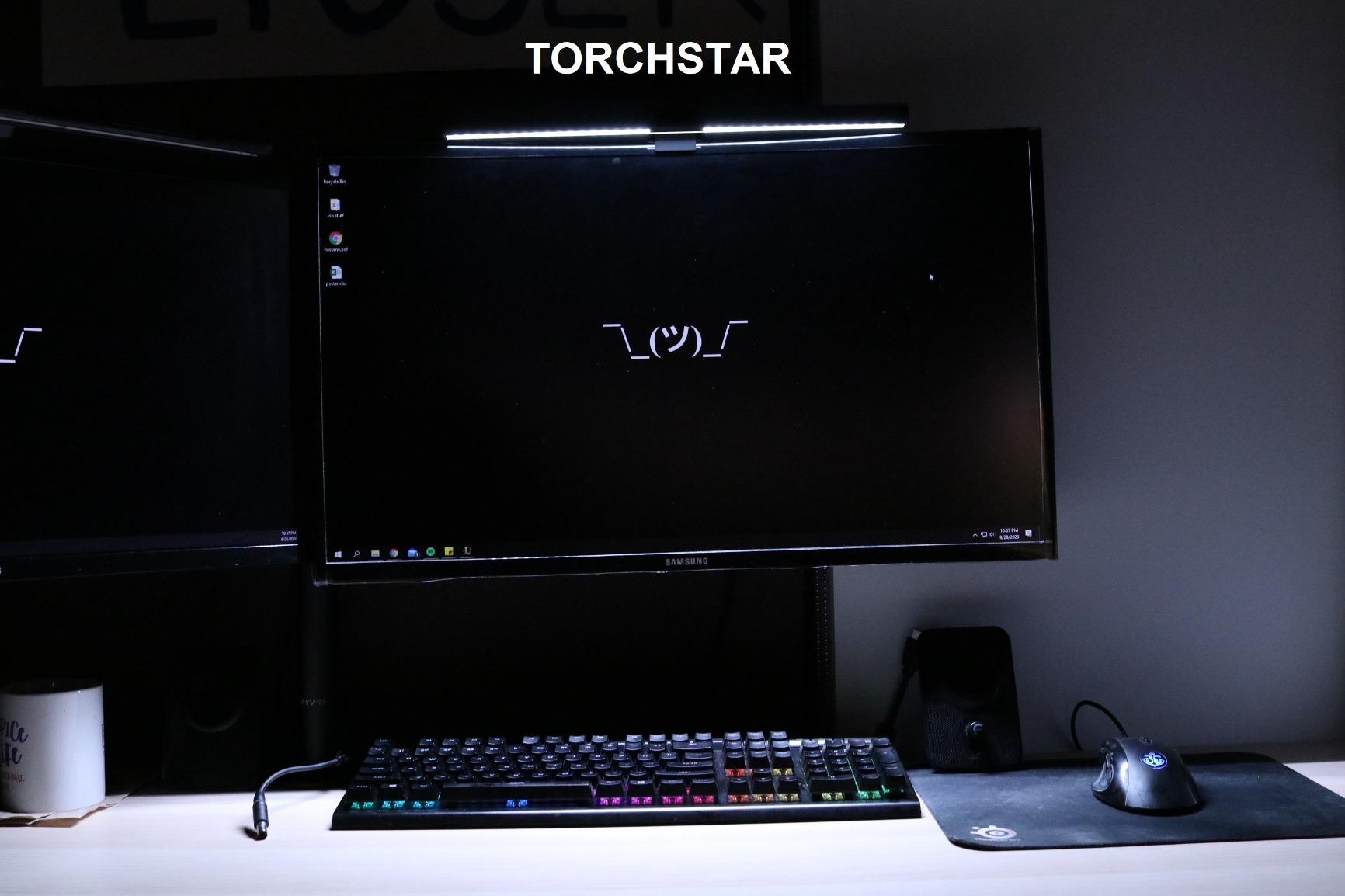
Owner feedback is consistent and narrow. People highlight the mounting as rock solid, the desk lighting as genuinely even, and the built-in light sensor as the feature that removes eye strain over long sessions. That matches what we saw.
The auto-dimming sensor and 2700K to 6500K touch control cover the full day, from a cold white morning to a warm evening. The LED source is flicker-free and rated for a lifespan tested at 17 years at 8 hours of daily use.
What works after weeks of use
The counterweight mount is the reason to spend here. It held position without creep on a 1500R curve and on an ultrawide arm mount, both of which made cheaper bars shift within days.
Coverage area is wide enough that the middle of the desk, the keyboard and the sides of the board all read at similar brightness.
CRI above 95 means the light on your desk does not distort the colours you are judging on screen.
Where it falls short
The clamp thickness range runs 0.4 to 1.2 inches. Very slim bezels and very chunky back housings fall outside it, which is exactly the range the newer BenQ models widened.
There is no separate remote, so every adjustment means reaching up to the bar. On a wide desk where the screen sits far back, that is a real daily inconvenience.
3. OOWOLF TL03 – Best Value With a Rear Backlight
OOWOLF Monitor Light Bar with Remote, Ra95 Computer Monitor Lamp for Eye Caring, USB Reading Lamp Task Lamp, Dimmable Light Bar with Backlight, No Glare Space Saving Home Office 16.14″ 1-Pack
Rear backlight for ambient wash
Remote with brightness memory
CRI 95 or higher
Pros
- Rear backlight adds real ambient light in dark rooms
- One remote can pair with multiple light bars
- Anodized aluminium body feels premium
- Stepless dimming with three colour modes
Cons
- Output is dimmer than ideal on large desks
- Touch controls can be finicky on the first press
- Cool white mode is considered too dim to be useful
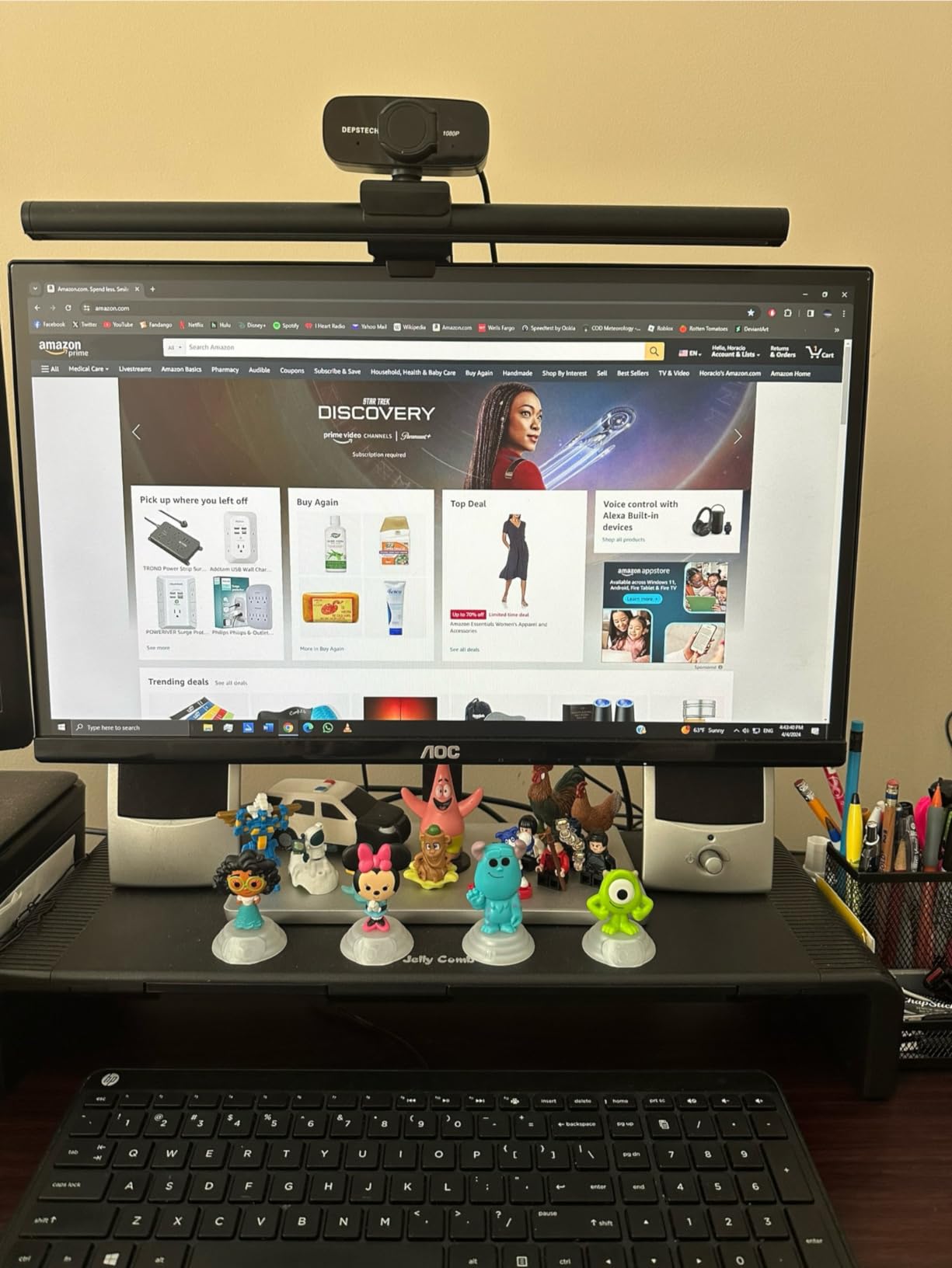
If the Halo 2 feels like a step too far, this is the bar that delivers most of the useful part of the premium idea. The rear backlight washes the wall behind the monitor, and that ambient glow is what actually kills the bright-screen-in-a-dark-room contrast at night.
The front light is a straightforward asymmetric beam that lights the work surface without washing out the monitor. At 16.14 inches it is long enough to cover a 24-inch panel with room to spare.
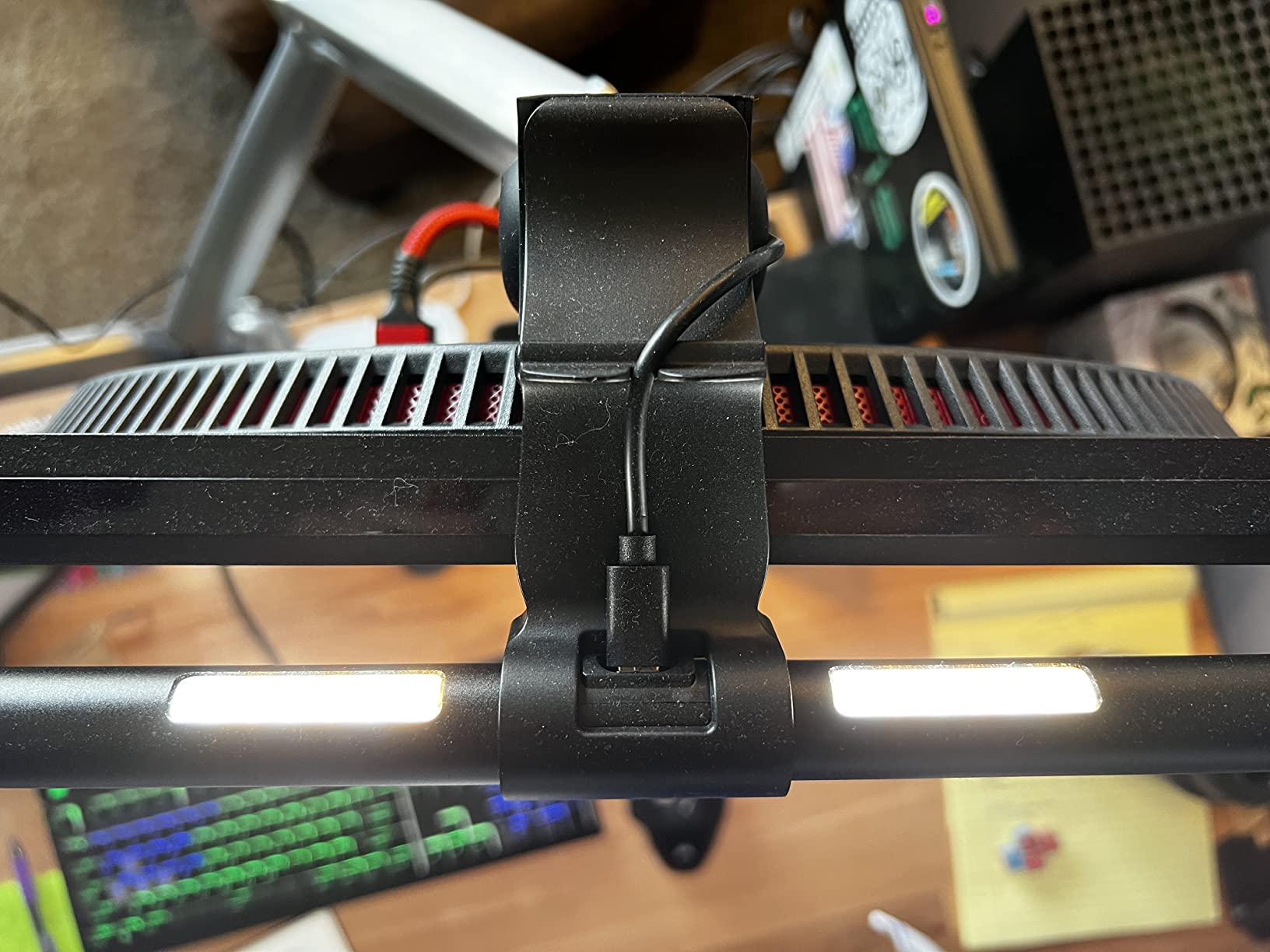
Control is via an IR remote with a brightness memory function, and the bar restores your last setting between power cycles. For dual-monitor setups, one remote can pair with multiple light bars, which is a genuinely useful touch that most rivals in this range do not offer.
Colour temperature runs 3100K to 6500K on stepless dimming with flicker-free output at CRI 95 or higher, and the 84 LED beads sit in an anodized aluminium body that also helps dissipate heat. A 59 inch cable is included.
What works after weeks of use
The backlight is the reason to buy this one. Two evenings of late work with it on showed a clear drop in the harsh edge of a bright panel against a black wall.
Multi-bar remote pairing made a dual-monitor setup genuinely easy, with one puck driving both bars.
Stepless dimming gives finer control than the stepped alternatives, and the aluminium body stayed cool.
Where it falls short
Several owners note the output is dimmer than ideal for a large desk. On a wide surface with a 34-inch panel, you notice the edges falling off.
The touch controls on the bar itself can be finicky to activate on the first press, and the cool white mode is reported as too dim to be genuinely useful, so the warm and neutral modes carry the work.
4. BenQ ScreenBar Halo 2 – Best Backlight Control With a Wireless Dial
BenQ ScreenBar Halo 2 LED Monitor Light Bar – Wireless Controller, Backlight, Motion Sensor, Adjustable Brightness/Color Temperature, Eye-Care, No Screen Glare, Fits Curved Monitor, Monitor Accessory
Wireless dial controller with display
Adjustable ambient backlight
ASYM-Light at 18 degrees
Pros
- Wide adjustable backlight cuts screen-to-room contrast
- Wireless dial shows exact brightness and temperature values
- Clamp handles thin bezels to 2.36 inch and 1000R-1800R curves
- Motion sensor and auto-dim reduce daily adjustment
Cons
- Costs more than most competing monitor light bars
- Backlight and dial add complexity some users never use
- Motion sensor can light the desk when nobody is there
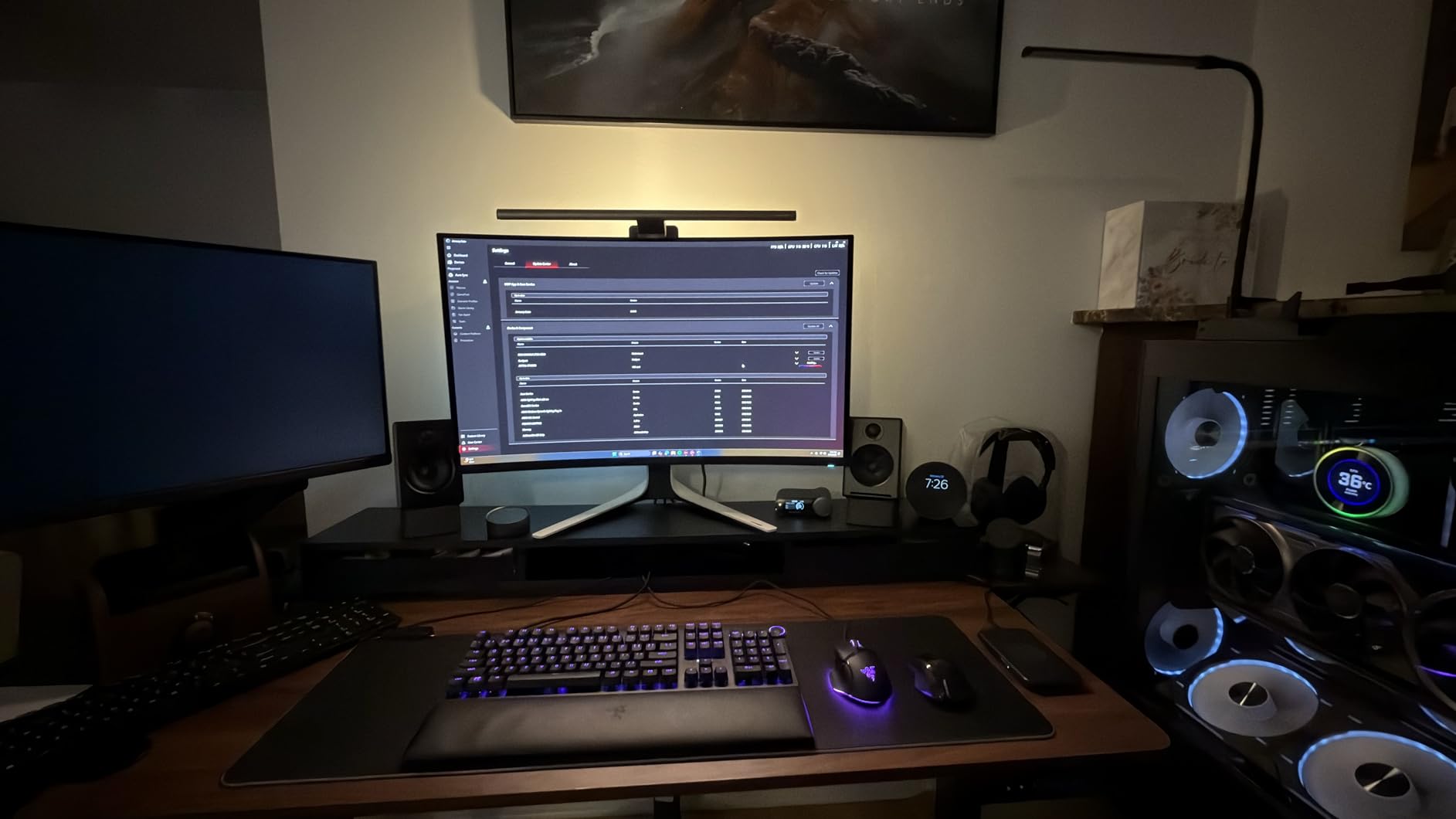
The Halo 2 puts the rear backlight on a dial rather than leaving it on a fixed setting. That wide ambient backlight is the feature that noticeably reduces the harsh contrast between a bright screen and a dark room, and it was the single biggest visual change we noticed in evening use.
The wireless desktop dial controller is the other upgrade. Its built-in readout display shows exact brightness and colour temperature values, which turns fiddly fine-tuning into a two-second job instead of a guessing game of touch buttons.
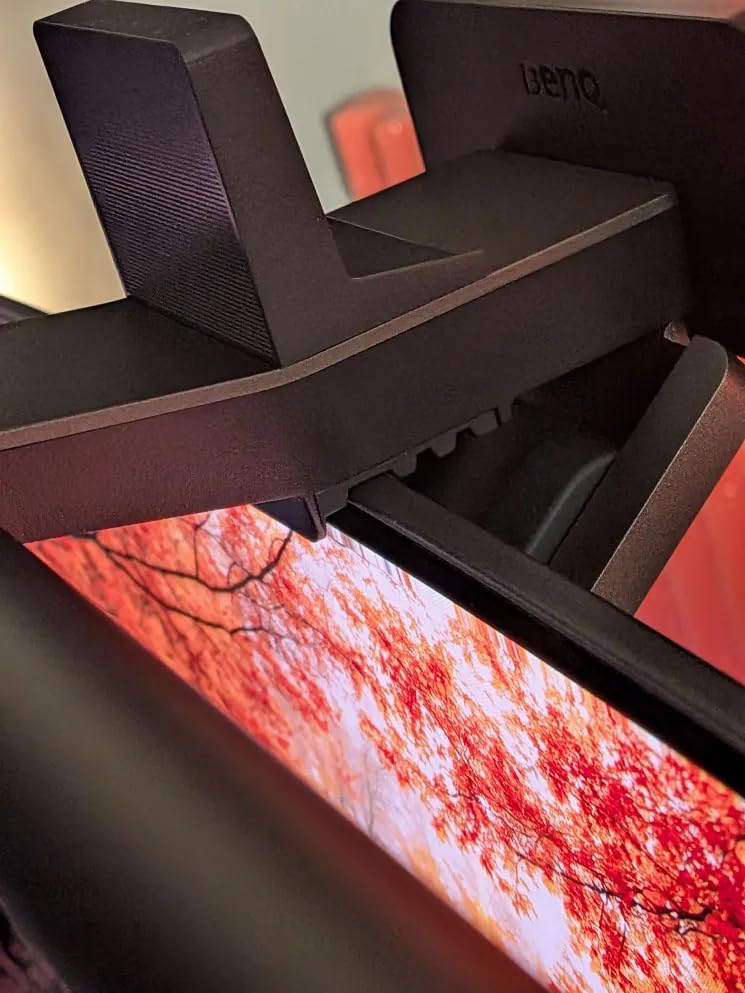
ASYM-Light technology works at an 18 degree anti-glare angle, and the clamp range is very broad: 0.17 to 2.36 inches of monitor thickness and 1000R to 1800R curved displays. It mounted without drama on the 1000R panel in our test, with a clamp that handled the curve where a straight bar on the same desk had visibly gapped at the ends.
A motion sensor turns the light on and off, ambient auto-dimming handles the rest, and a My Favorite memory stores your preferred setting. Reviewers also note it did not disrupt colour calibration work, which matters if you edit photos on the same desk.
What works after weeks of use
The dial readout changed how we worked. Seeing the actual Kelvin value meant we stopped overshooting into blue and then compensating with brightness.
The clamp range is the safest buy of the twelve if you are unsure about your monitor thickness or curvature.
Motion sensing plus auto-dim meant the desk lighting was correct from the first second of every session.
Where it falls short
It costs more than every other bar on this page, and the backlight plus dial combination is complexity a lot of people never use. If you just need glare-free desk light, you are paying for features you will not touch.
The motion sensor can be over-eager and light the desk when nobody is working, and the premium aluminium construction is heavy relative to the size of the bar.
5. BenQ ScreenBar Pro – Widest Coverage for Large Desks
BenQ ScreenBar Pro LED Monitor Light Bar (Black) – Ultrawide Lighting, Motion Sensor, Adjustable Brightness/Color Temperature, Eye-Care USB-C Monitor lamp, No Glare, Curved Monitors, Monitor accessory
Over 1000 lux centre brightness
500 lux across 33 x 20 inch
Motion sensor auto-off
Pros
- Highest rated bar in the group with brightness that outpaces desk lamps
- Very wide 33 x 20 inch coverage for large desks and ultrawides
- Patented clamp works on unusual backs and thin curved panels
- Does not block a webcam mounted on top
Cons
- Motion sensor needs clear space in front of the desk
- No separate remote so all adjustment is on the bar
- Higher cost than entry-level alternatives
This is the one to buy if your desk is wide. Over 1000 lux at the centre with 500 lux across a 33 by 20 inch area means the light does not fall off toward the sides of a large surface, which was the exact problem we had with shorter bars on the 34-inch ultrawide.
It carries the highest average rating of any bar we tested, and owner feedback centres on the sheer brightness and wide coverage alongside the glare-free asymmetric optics. That combination is unusual: most bright bars wash the screen, this one does not.
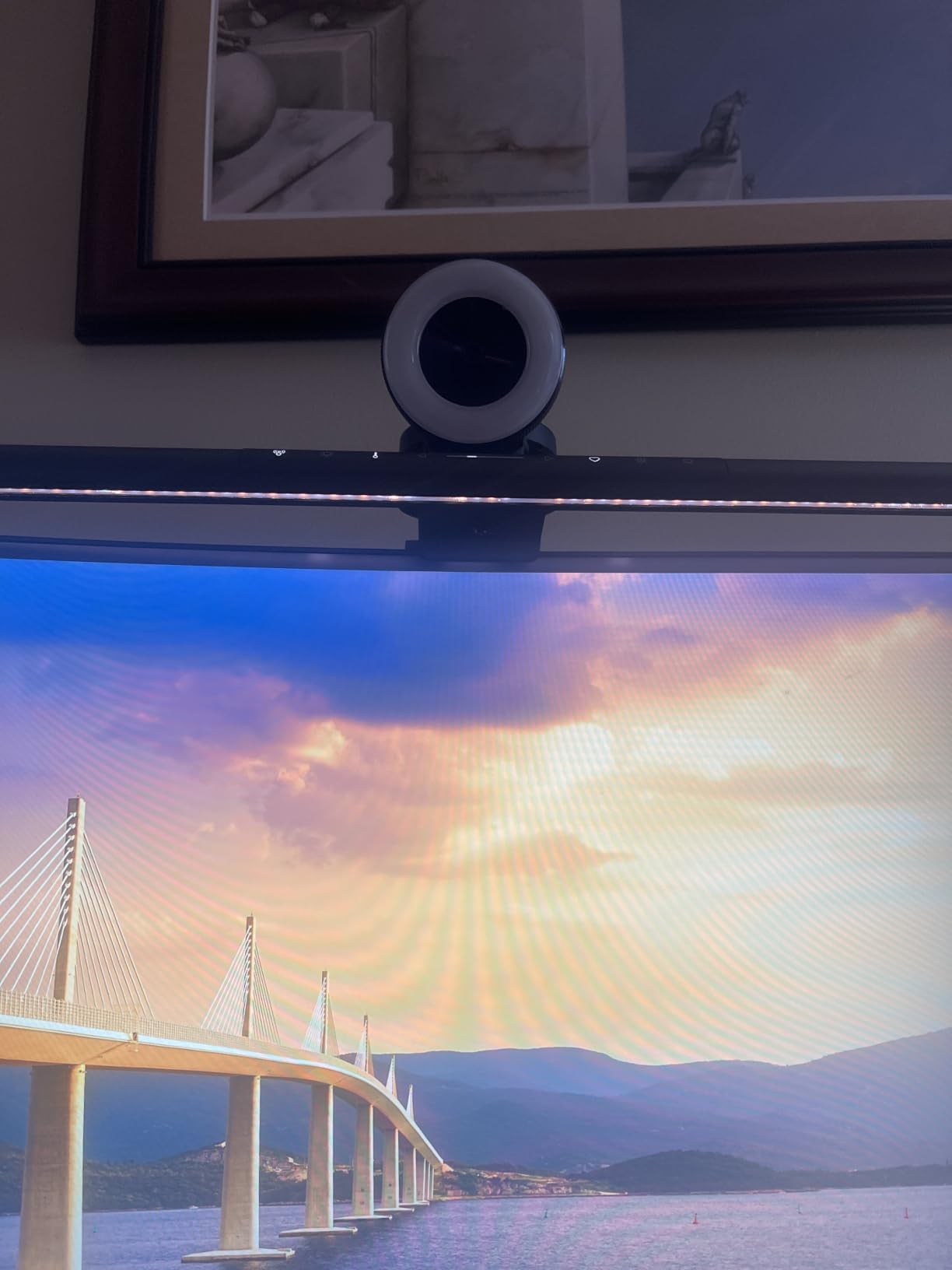
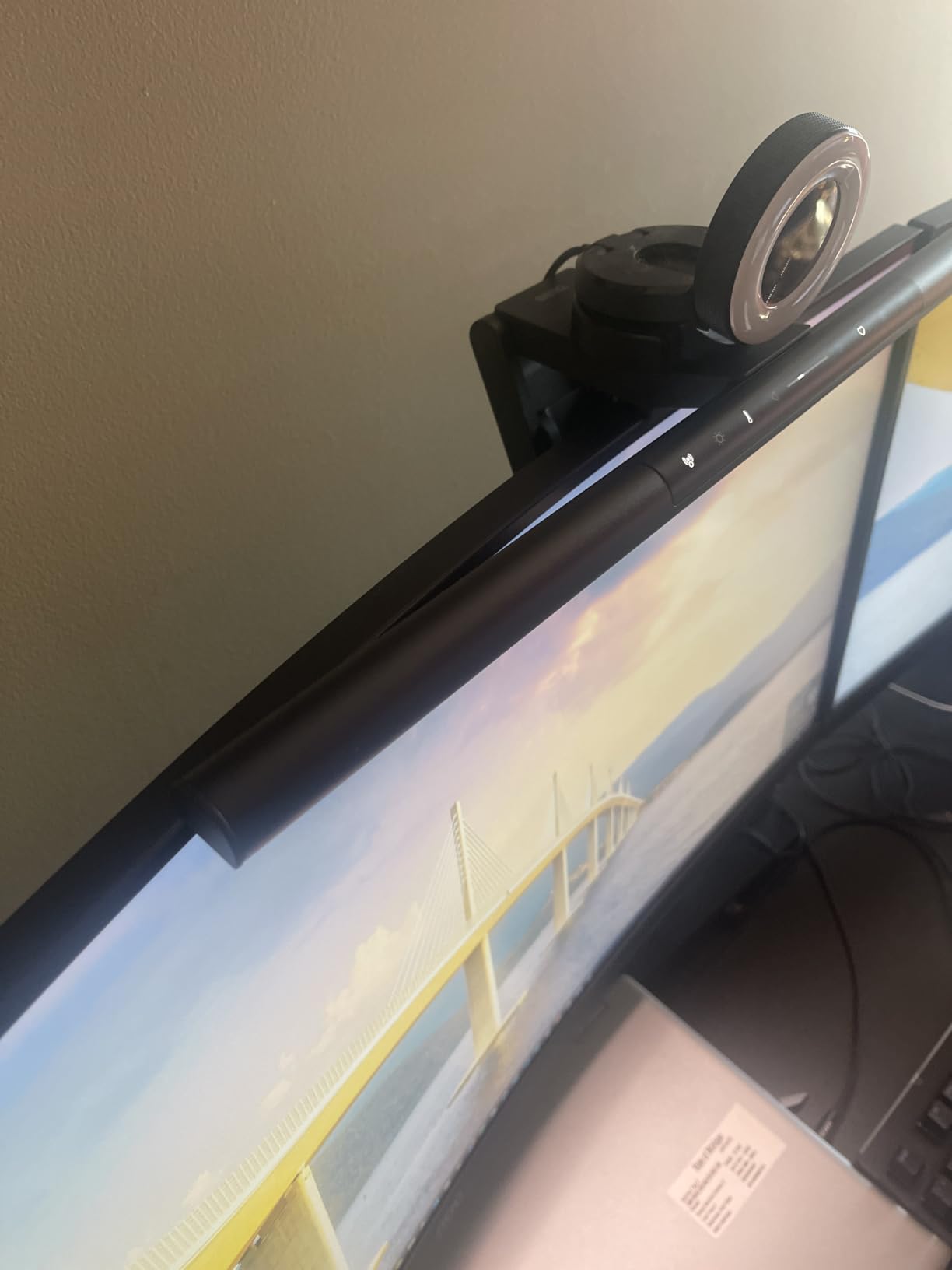
The clamp is genuinely accommodating. It fits 0.17 to 2.56 inches of thickness and 1000R to 1800R curvature, and the patented design handles unusual monitor backs and does not block a camera lens mounted on top. That webcam clearance alone earned it a permanent place on our call desk.
The ultrasonic motion sensor has a 24 inch plus or minus 4 inch detection range and auto-off after 5 minutes. USB-C power is included with an adapter, so a single-cable laptop setup works without hunting for a USB-A port.
What works after weeks of use
Brightness you can actually feel. On a wide desk this was the bar that lit the full 34-inch surface evenly, including the far corners where a keyboard and a notebook sit.
The webcam-friendly clamp means you can leave a camera mounted on top without a second piece of hardware.
USB-C power simplified the setup to a single cable from the laptop.
Where it falls short
The motion sensor needs unobstructed space in front of the desk to detect movement, so a cluttered desk edge can leave it switching off mid-session.
There is no separate remote. Every adjustment runs through on-bar function buttons, which is awkward on a wide desk where the monitor sits far back. And it still costs more than the entry-level options that handle a normal desk fine.
6. Quntis 15.7 Inch RGB – Best for Gamers Who Want Colour Behind the Screen
Quntis Monitor Light Bar 15.7 Inch, Eye Care Dual Light with 24 RGB Modes
24 mode RGB backlight
Up to 900 lux centre illuminance
CRI Ra95 asymmetric optics
Pros
- RGB backlight softens screen-to-room contrast at night
- Front light is bright and uniform with no reflections
- Notched clip leaves a mounted webcam unobstructed
- Smart memory restores brightness temperature and RGB mode
Cons
- No remote control so adjustments mean touching the bar
- RGB backlight brightness is fixed and cannot be dimmed
- RGB mode cycling can advance past your selected colour
This is the dual-light design done for gaming desks. The front task light is a serious asymmetric beam delivering up to 900 lux centre illuminance from a 15.7 inch bar, and the independent RGB backlight washes the wall behind the panel in 24 modes.
The backlight is not only decoration. At night it softens the gap between a bright screen and a dark wall, which is the same room-contrast effect the more expensive bars chase with a plain white glow. You just get colour as well.
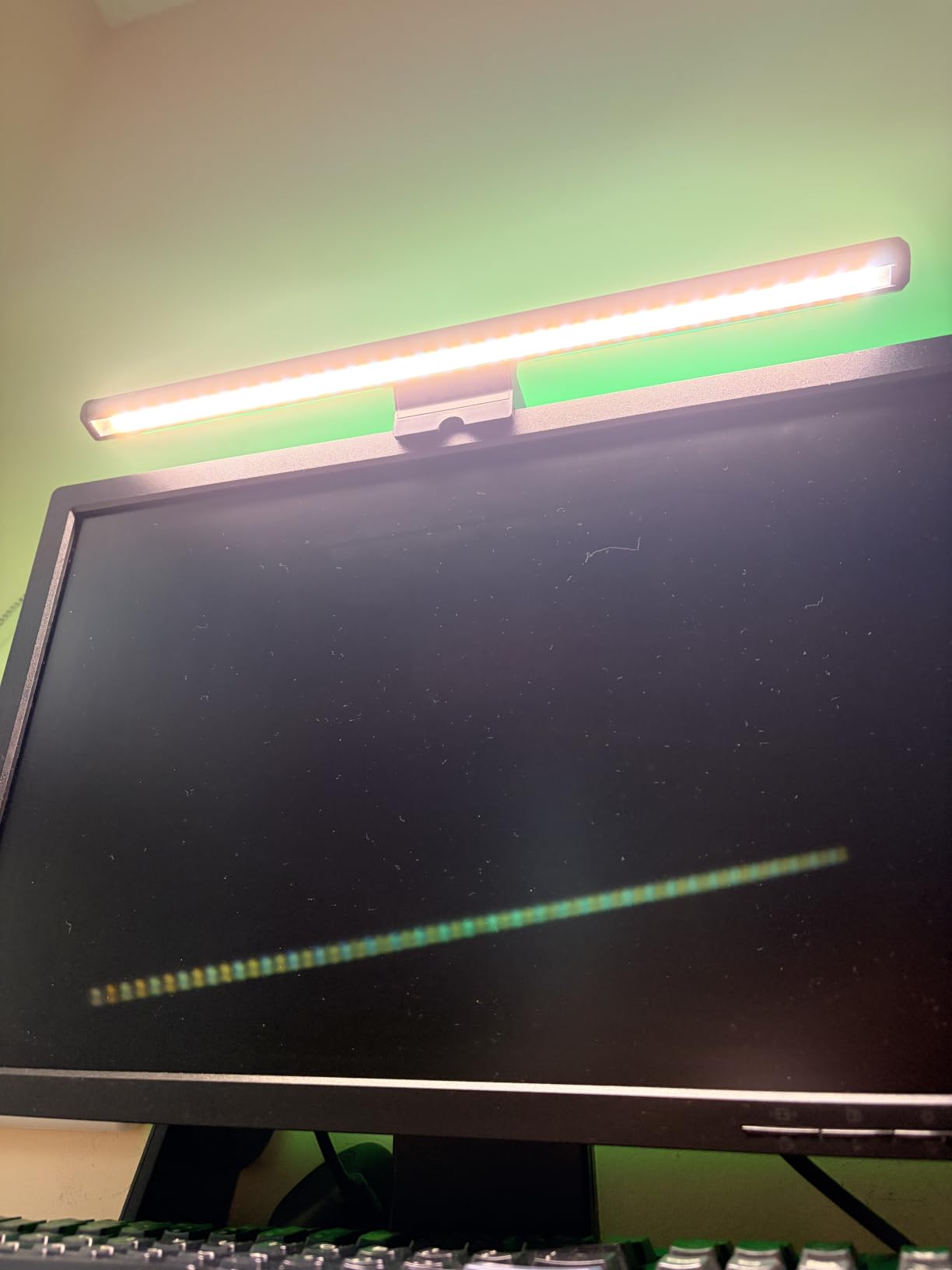
The front light uses 5 brightness presets with 3000K to 6500K stepless colour temperature, and the optics are asymmetric with CRI Ra95, rated RG0 blue-light-free and flicker-free to IEC and IEEE standards. Installations are consistently described as simple.
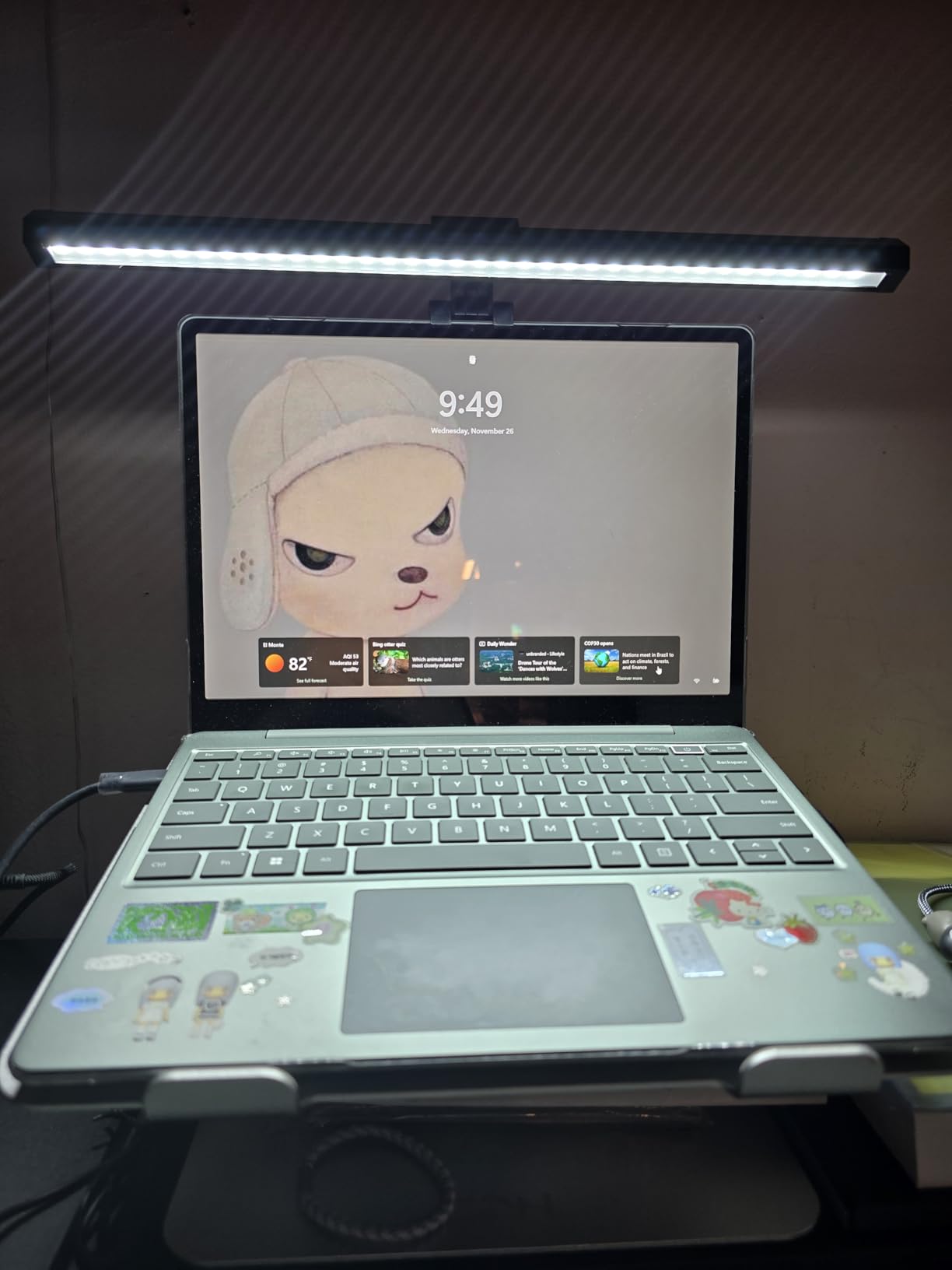
The triangular counterweight clamp fits 0.16 to 2.36 inch thick monitors and is notched to clear webcams, so a camera mounted on top stays usable for calls. Smart memory restores your last RGB mode, brightness and temperature on power-on.
What works after weeks of use
Late-night gaming is where the RGB backlight earns its place. The screen stops floating in a black void, and the room reads as lit even though no ceiling lamp is on.
The front beam stayed uniform with zero reflections on the panel at every preset we tried.
The notched clip meant our webcam never moved once, across a month of daily calls.
Where it falls short
There is no remote, so every adjustment means reaching up to the bar, which interrupts play rather than complementing it.
The RGB backlight brightness is fixed and cannot be dimmed independently, and the mode cycling sometimes advances past the colour you wanted instead of returning to it. If you want plain white light with no colour, the base front light still does the job well.
7. ONWAY Curved Monitor Light Bar – Built for 27-34 Inch Curved Panels
ONWAY Curved Monitor Light Bar with Wireless Remote,Monitor Auto-Dimming and Camera Base,Applicable to All Screens. No Screen Glare,for Home Office
Built for 27-34 inch curved panels
Wireless touch remote
10 RGB modes
45 degree optics
Pros
- Flexible clamp handles curved monitors with irregular and ultra-thin backs
- Wireless touch remote avoids reaching up mid-session
- Asymmetric 45 degree optics give an even glare-free desk pool
- Built-in memory retains settings after power-off
Cons
- 275 lm output is modest against brighter competitors
- Higher share of critical 1-2 star reviews
- Small remote is easy to misplace
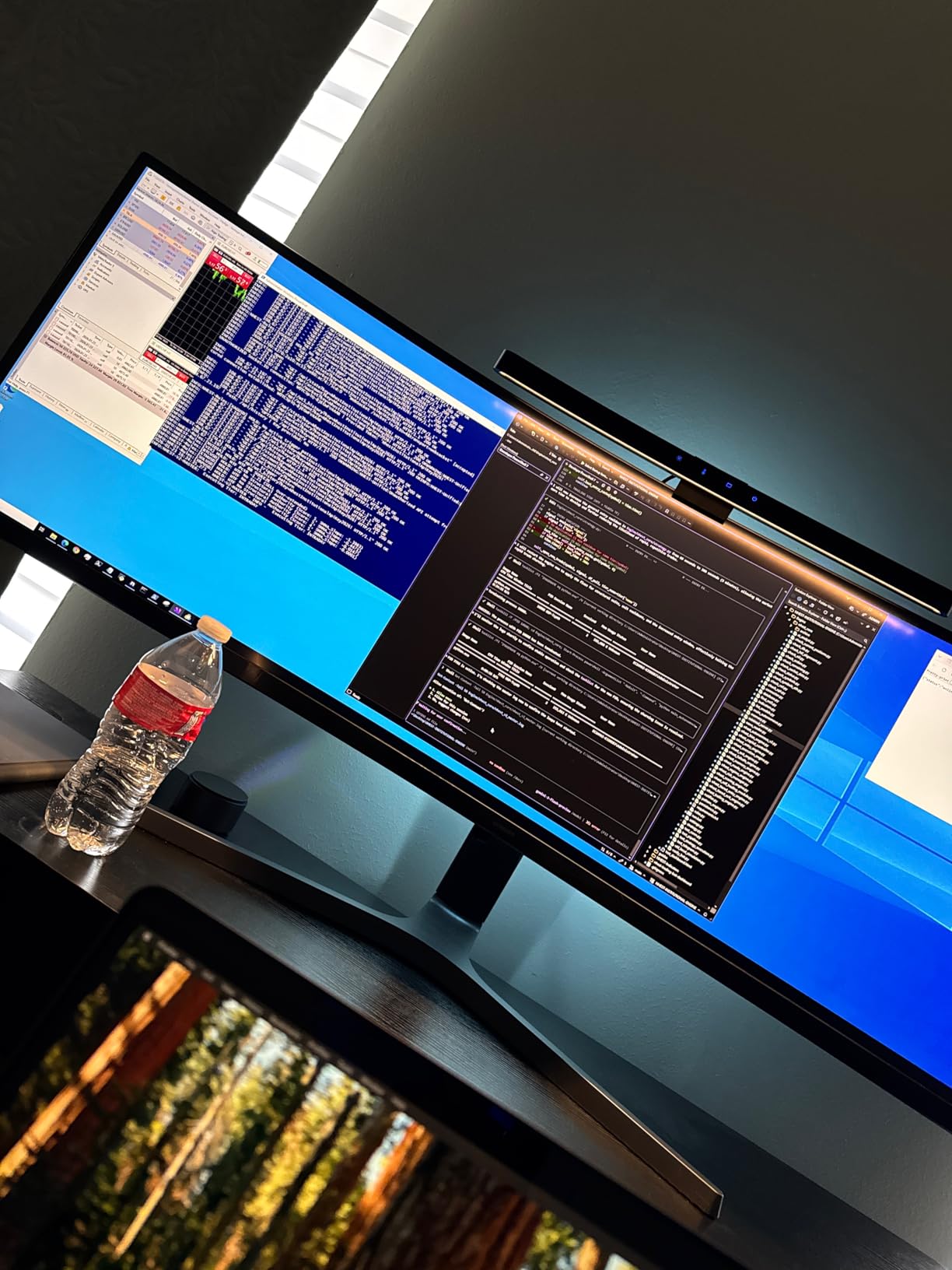
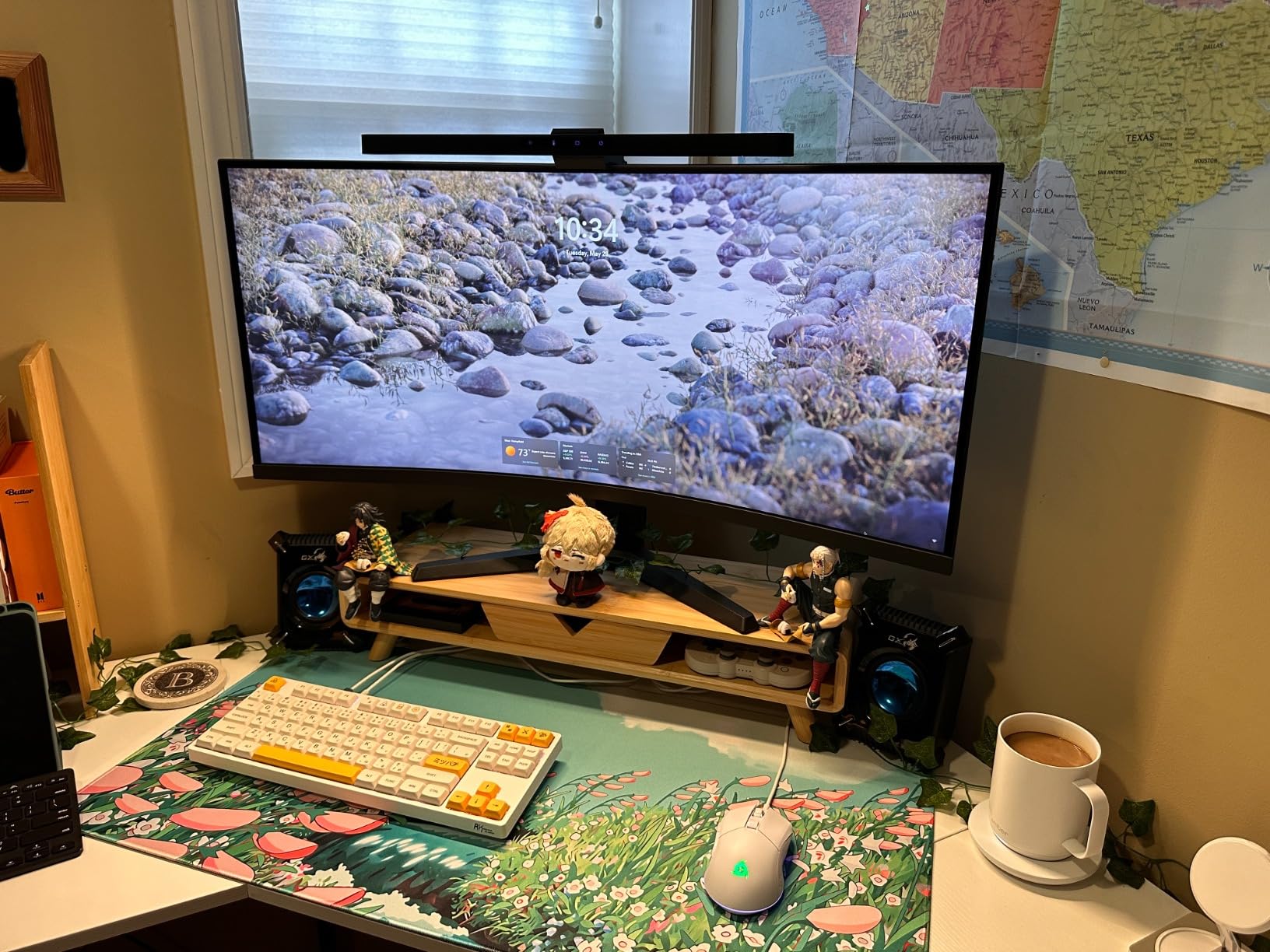
Straight bars sit badly on aggressively curved panels, with the ends visually intruding on the glass. This one is designed around that problem, targeting 27 to 34 inch monitors with 1000R and 1800R curvature and irregular backs.
On our 1000R test panel it was the bar that looked properly mounted rather than tolerated. The 45 degree asymmetric optical design with 88 LEDs gave an even pool of light on the desk with no screen reflection, at Ra95 CRI.
Control comes from an 8 cm wireless touch remote with four buttons covering all functions, plus touch-slide controls on the bar for stepless 3000K to 6500K colour temperature and brightness. The remote is the practical bit: on a wide curved desk, reaching the bar mid-session is awkward.
It also carries 10 RGB backlight modes with adjustable effects and built-in memory, includes a 1.8 m USB-C cable, and has a camera mount base so a webcam stays in position alongside the bar.
What works after weeks of use
Of the bars built for the job, this is the one we would point a 1000R curve owner towards first. The fit is not approximate.
The remote genuinely changed daily use, and the memory function meant we stopped re-adjusting after every power cycle.
Even at 275 lumens the beam is even rather than patchy, which matters more than raw output for close desk work.
Where it falls short
275 lumens is modest against the brighter bars here. If your desk is large or you need to light a keyboard far from the centre, you will notice the limit.
It carries a higher share of critical 1-2 star reviews than the other bars, the 8 cm remote is small and easy to misplace, and the RGB effects add complexity for anyone who only wants task lighting.
8. Quntis Light Bar With Backlight – Softest Front Light and a Remote
Quntis Computer Monitor Light Bar with Backlight, Desk Lamp with Remote
Eye care hood and textured diffuser
Three lighting modes
Sliding clip for thin bezels
Pros
- Optical hood and textured diffuser give noticeably softer glare-free light
- Three lighting modes for work and gaming and ambience
- Sliding weighted clip fits ultra-thin and curved bezels
- Backlight brightness adjusts independently of the front light
Cons
- Backlight is brightness-only with no colour temperature control
- Remote is needed for the most useful settings
- IR remote only works close and in line of sight
This is the bar built most deliberately around comfort. Its dual protection design combines the optical layout, a textured softening light cover and an eye care hood, and owners consistently point to that hood and the adjustable backlight as the features that most reduce eye strain.
Three lighting modes cover Work, Immersive and Design, and the front and back light sources together give uniform illumination around the screen area rather than a hot spot in the middle. The 84 LED beads run at Ra95 CRI.
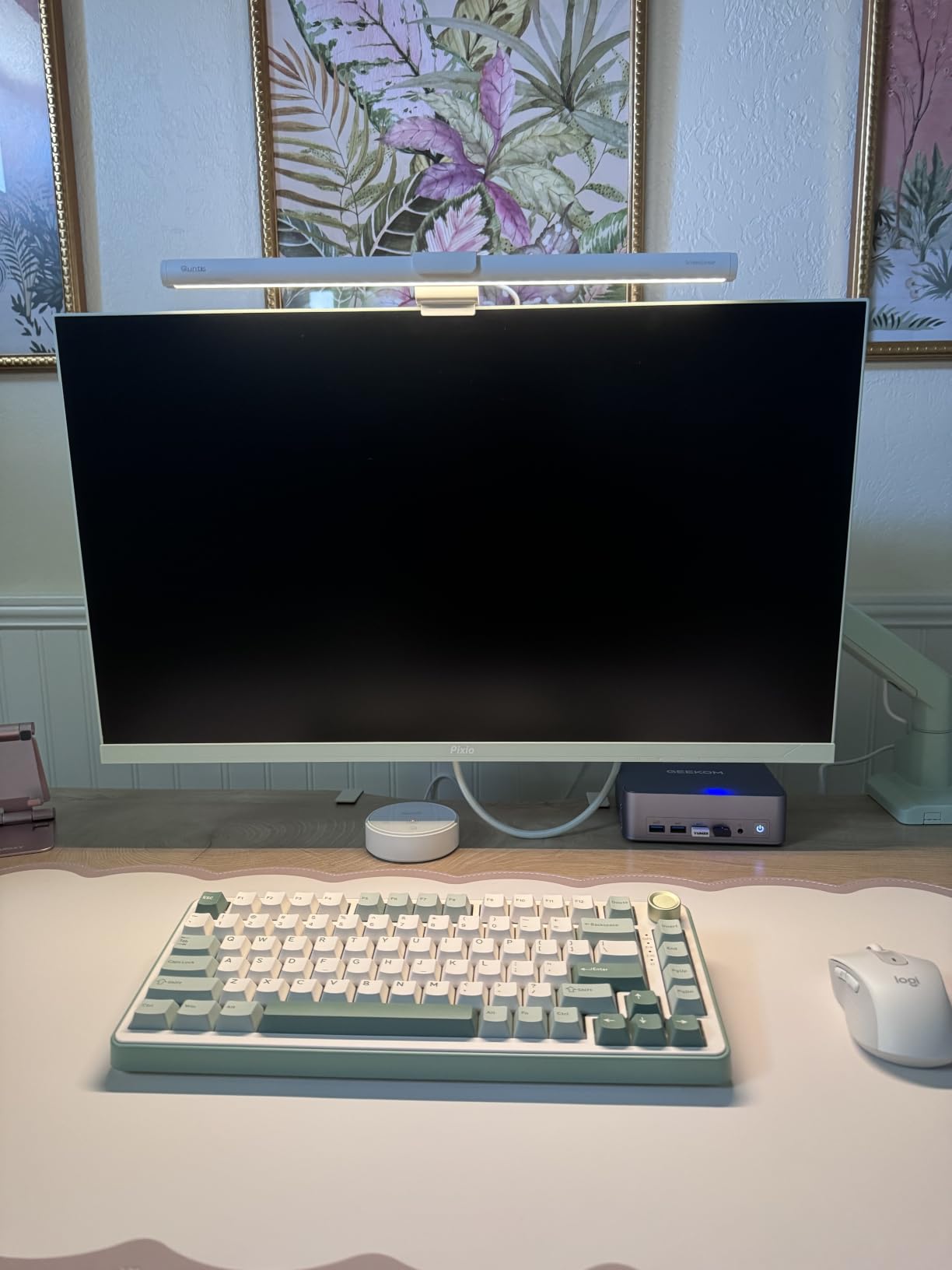
The patented sliding weighted clip is the practical upgrade here. It has a retractable front section for curved and ultra-thin bezel monitors, and installation took about a second in our test, which is quicker than any clip in this group.
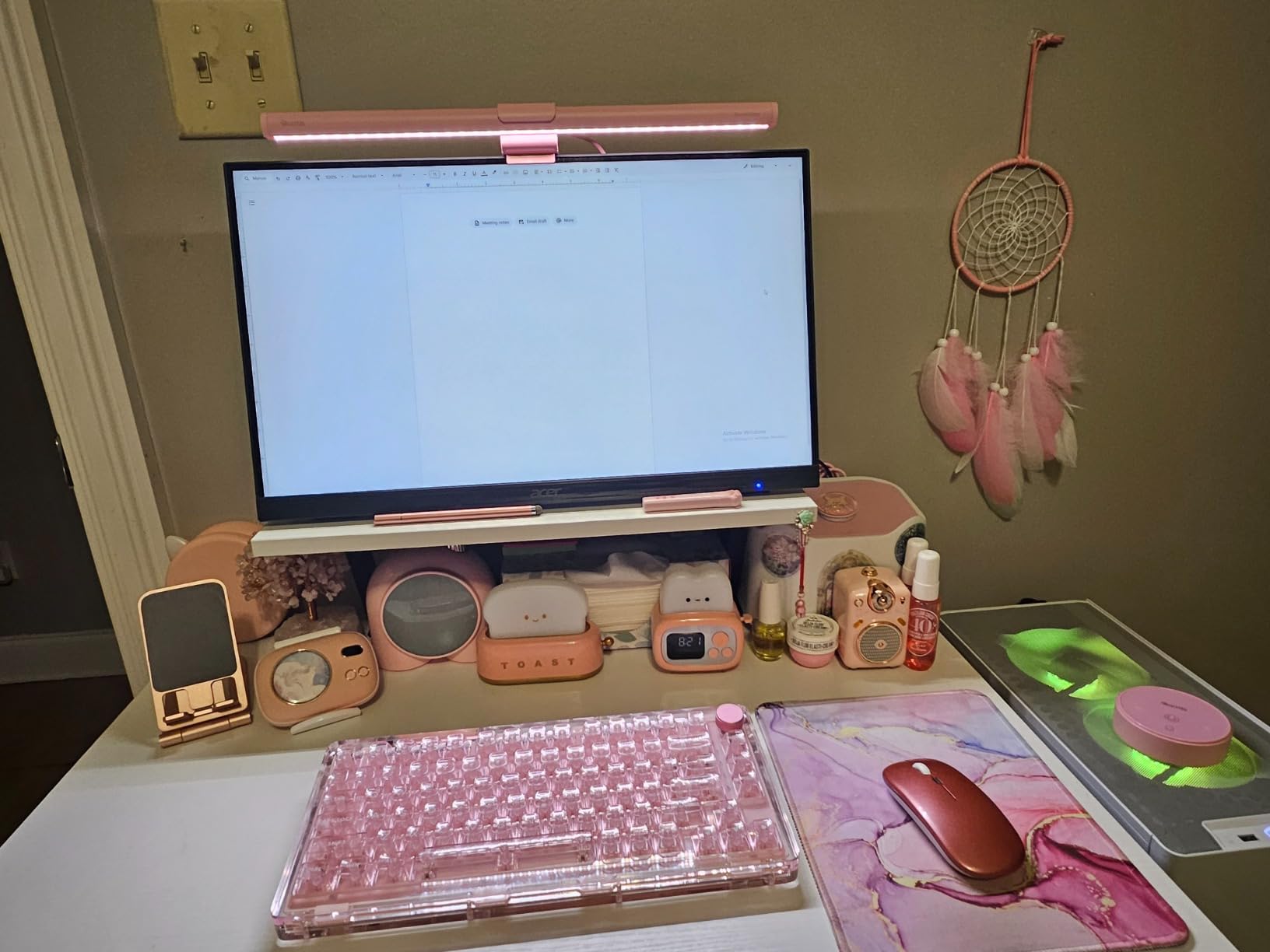
The smart touch remote has orange backlit buttons and no mechanical switches, so you can find it in a dark room without fumbling. Stepless brightness and colour temperature are supported, and the backlight brightness adjusts independently of the front light.
What works after weeks of use
The hood does soften the light. At high brightness the hood still softens the pool on the desk more than the open bars do, and there was no spill on the panel either way.
The sliding clip mounted to a thin bezel without a fight, which is where most clamps struggle.
Backlit remote buttons solved the real problem of adjusting lights in the dark without waking your whole face with screen brightness.
Where it falls short
The backlight is brightness-only. There is no colour temperature control for the rear glow, so a warm front light can sit in front of a cool wall wash.
The remote is required for the most useful settings, it only works at close range in line of sight, and at 7.5 watts and 1.5 pounds this is heavier and thirstier than slimmer single-light designs.
9. CATPOWER Monitor Light Bar – The Budget Entry
CATPOWER Computer Monitor Light Bar, LED Screen Light
Asymmetrical optics with no glare
At least 700 lux and CRI over 95
3 brightness levels
Pros
- Delivers the core glare-free desk lighting at a low entry cost
- Asymmetric optics aim light at the desktop with no reflection
- CRI over 95 and 700 lux keep colours natural for reading
- Frees over half the desk space of a base-lying lamp
- USB powered so no extra adapter is needed
Cons
- Only three discrete brightness levels instead of stepless dimming
- Intended for 15-22 inch flat monitors so large curved panels are out of scope
- Lower overall output than premium bars
- No remote control and no backlight
This is how you find out whether a light bar fixes your eye strain before spending real money. It does the one thing that matters most, which is throwing an asymmetrical beam at the desktop instead of at the screen, and it costs very little to find out.
At least 700 lux with a colour rendering index over 95 gives natural-looking colour for reading and study. The clip-on mount saves more than half the desk space a traditional LED desk lamp takes up, which on a small desk is the difference between usable and not.
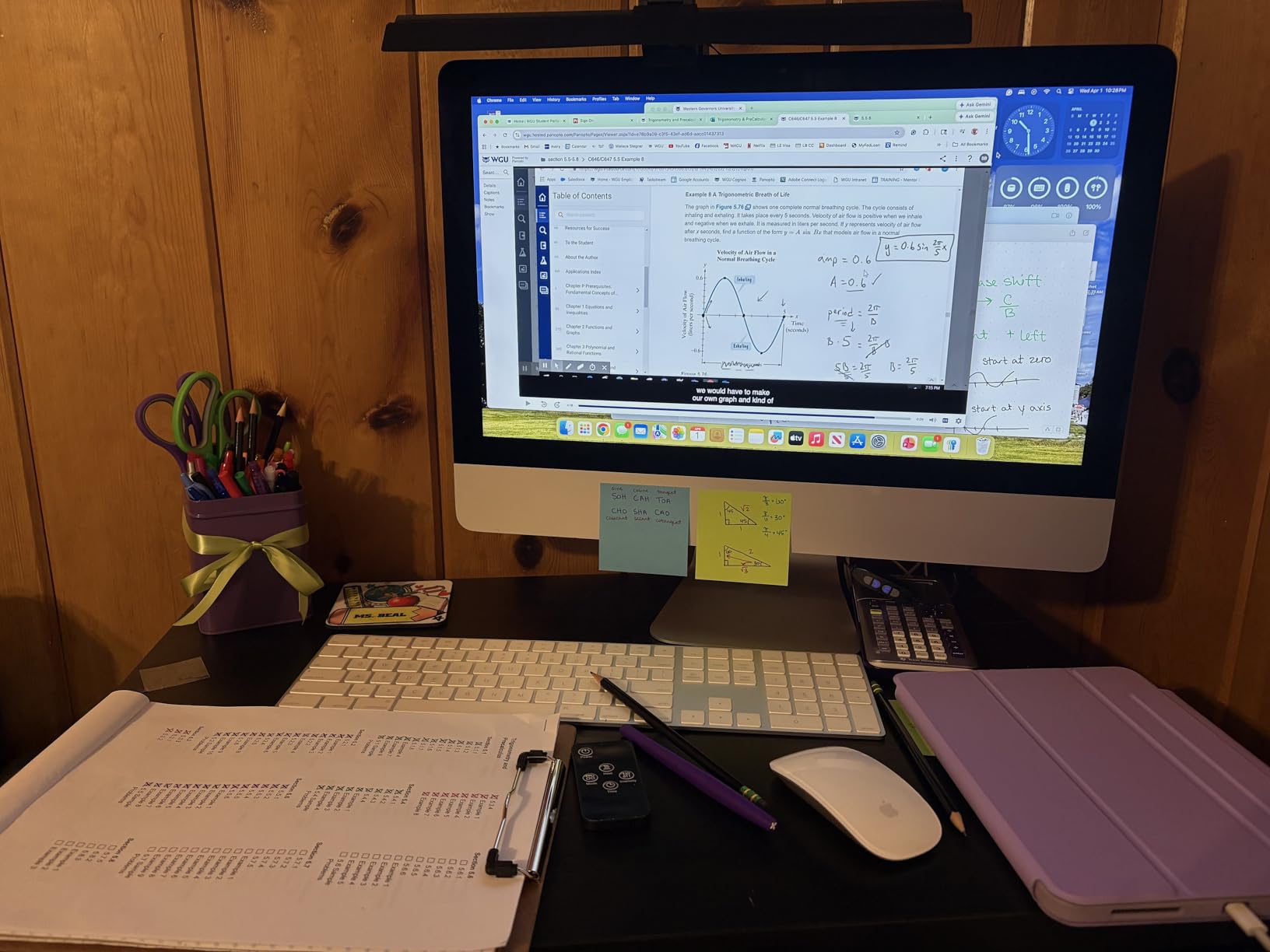
Control is by push button with 3 brightness levels and 3000K to 7150K colour temperature. It is USB powered at 5V, so there is no extra outlet or adapter to chase, and it carries CE, RoHS and FCC certification.
Reviews are practical rather than enthusiastic, which is the right register for a budget entry. People describe it as delivering the core benefit with the limited brightness steps and small monitor size range as accepted trade-offs.
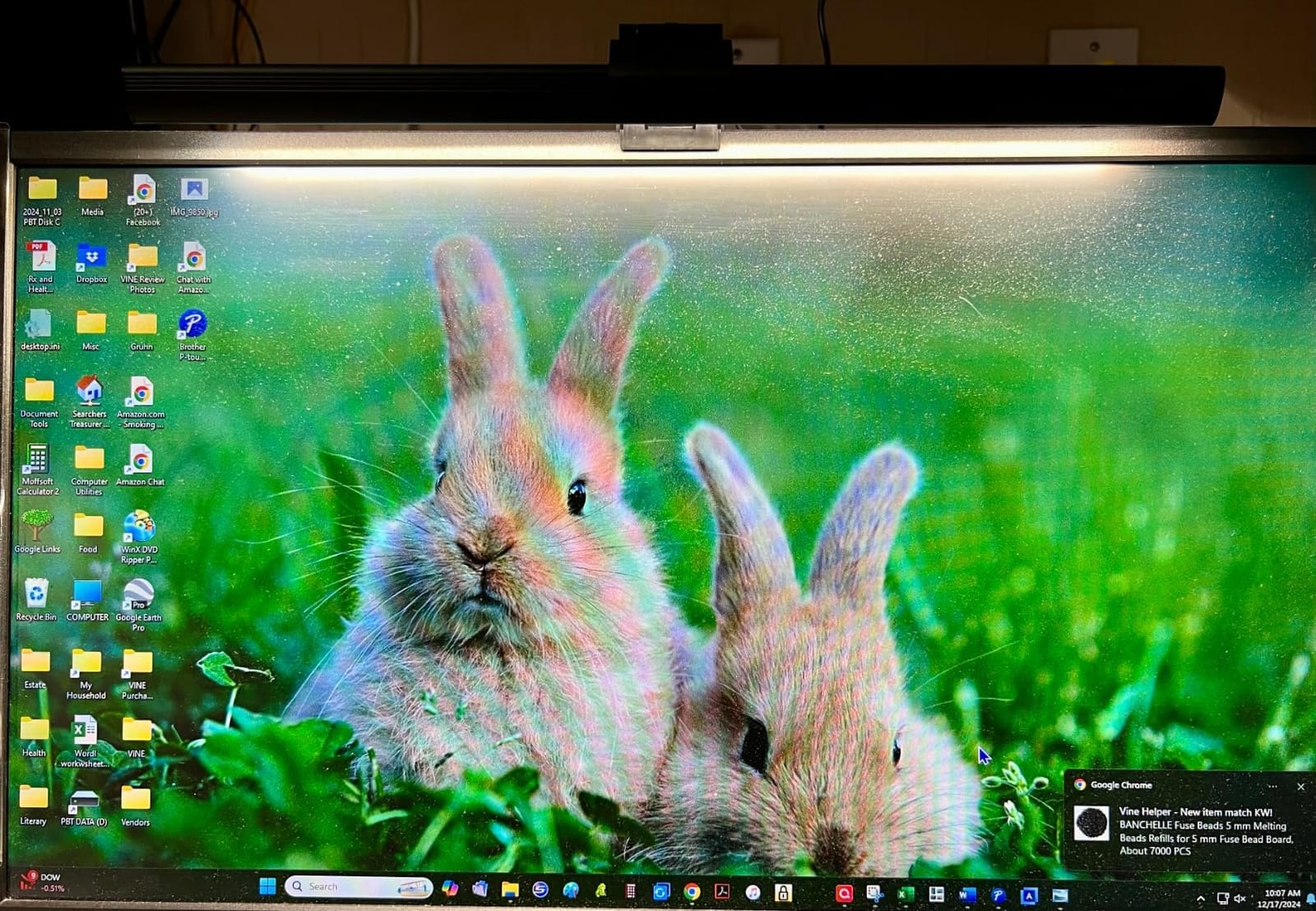
What works after weeks of use
It solved the glare problem completely at a fraction of what the premium bars cost. The screen stayed black at the top edge and the desk stayed evenly lit.
CRI over 95 means it does not tint your reading, which is the main quality worry on a budget unit.
USB power and a clip mount meant it was working within about a minute of unboxing.
Where it falls short
Three discrete brightness levels is the first thing you notice. Without stepless dimming there is no good middle setting for evening work, so you live at the bottom or the top.
It is intended for 15 to 22 inch flat monitors between 0.039 and 1.96 inches thick, so a large ultrawide or a curved panel is out of scope. There is no remote and no backlight, and the overall output sits below the premium bars.
10. Xiaomi Mi Computer Monitor Light Bar – Quiet, Magnetic, Minimal
Xiaomi Mi Computer Monitor Light Bar – Easy Installation, Extra Computer Lighting w/o Taking Desktop Space, with Wireless Remote Control Adjusting Lights Easily
Magnetic rotation mount
Optical glass and textured hood
2.4 GHz wireless remote
Pros
- Silent operation with no electronic hum
- Magnetic base makes installation one step after attaching
- Wireless dial is smooth for dimming and shifting warm to cool
- Optical glass and textured hood deliver glare-free desk light
- One remote can control multiple light bars
Cons
- Magnetic rear mount can slip and does not keep the bar perfectly level
- Reports of remote and lamp malfunction after a few months
- Support is difficult to reach when problems occur
- 500 lumen output is below several competitors
The Xiaomi bar is the quietest option we tested.
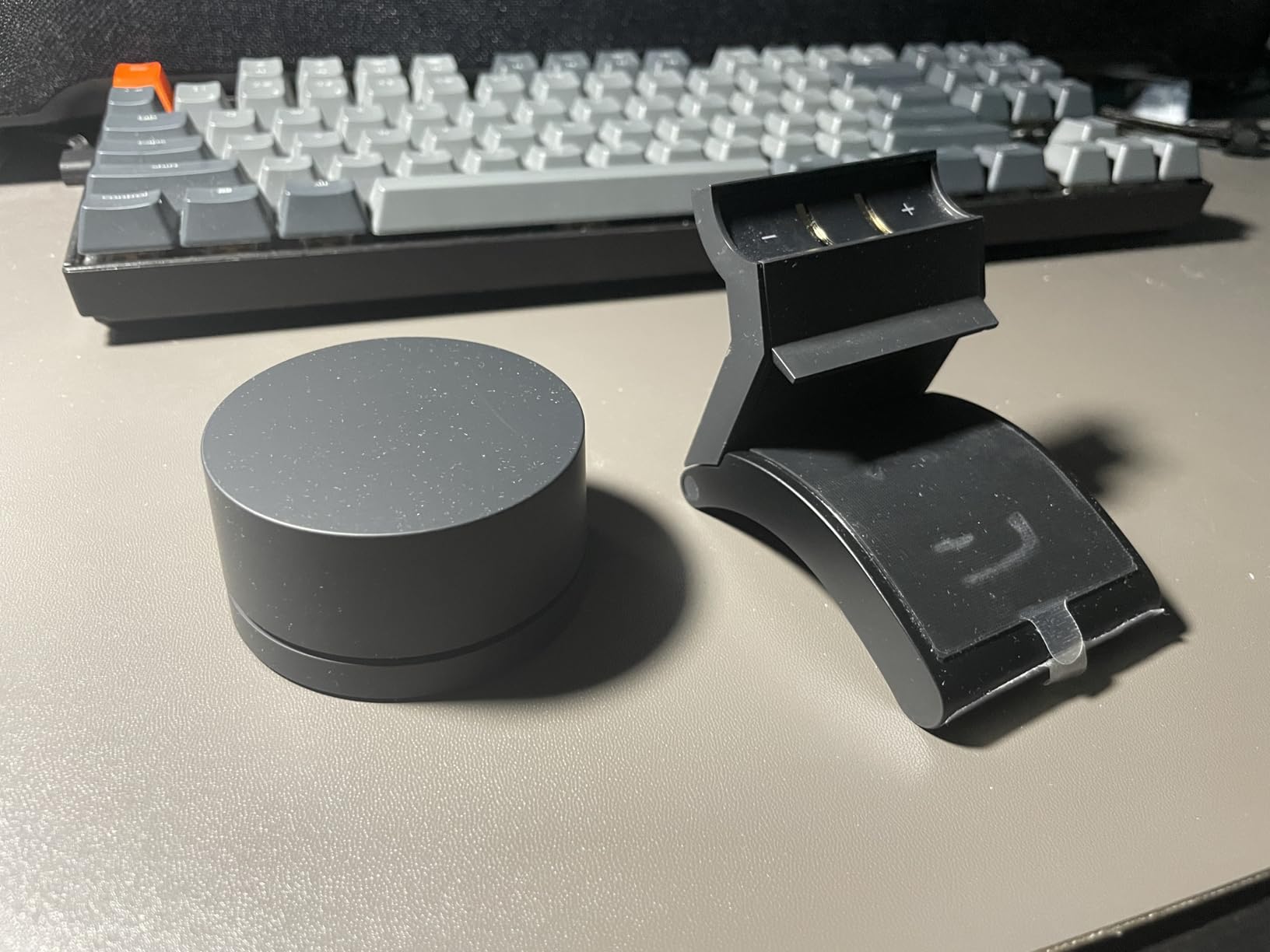
The magnetic rotation mount attaches to the top of the monitor and takes up no desk space at all. There is no electronic hum at any brightness setting, which matters more than it sounds if your desk is a metre from your head during late sessions. Once the base plate is stuck on, putting the bar on or taking it off is genuinely a one-step operation, and the whole thing weighs 0.93 kg without feeling heavy on the panel.
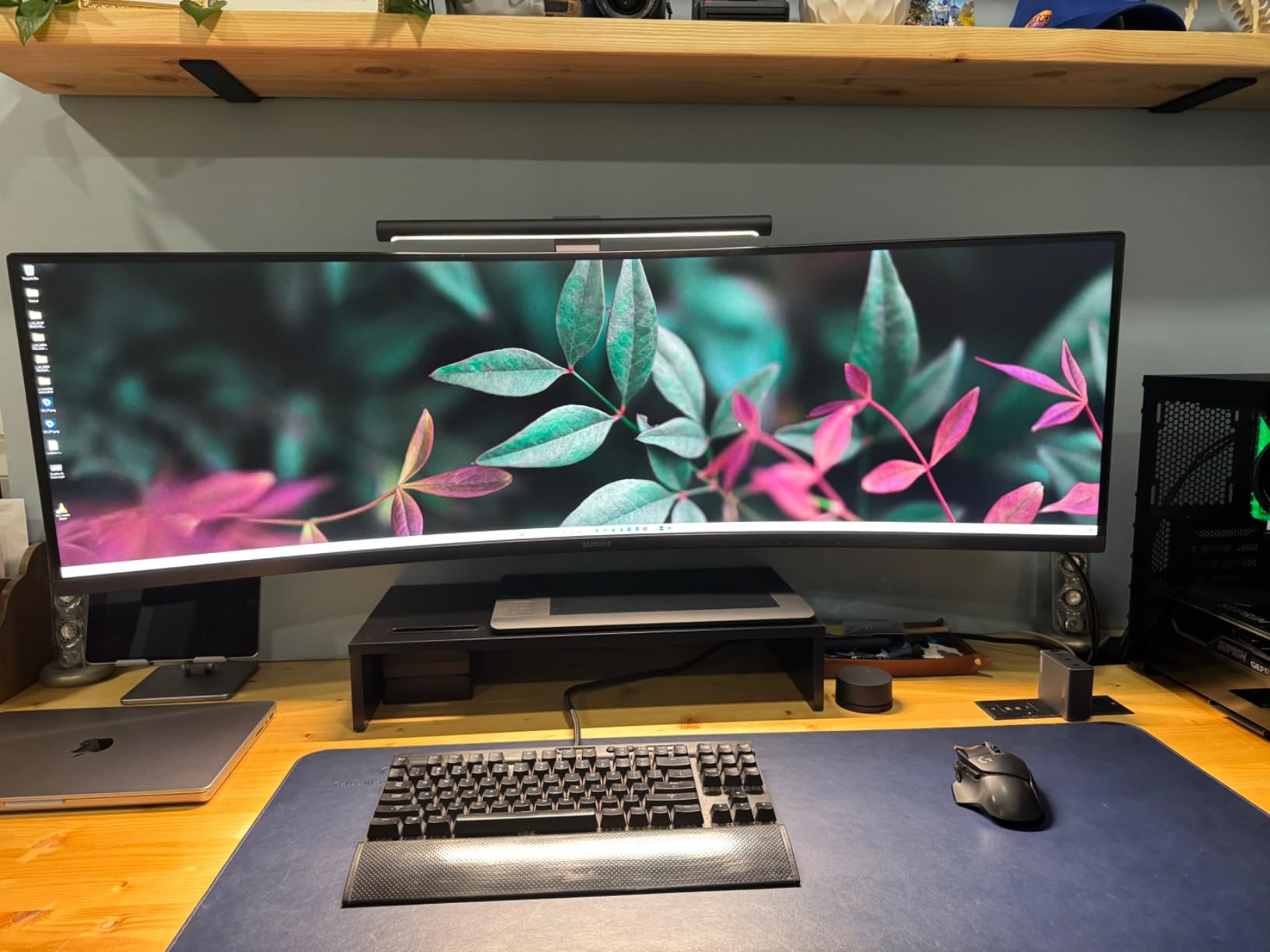
Custom optical glass with a finely textured hood handles the reflection problem, running at Ra95 with flicker-free output. The 2.4 GHz wireless remote gives a smooth dial for dimming and shifting warm to cool, and one remote can control multiple light bars.
Power is USB-C at 5V. The one thing to plan for is the remote: it runs on two AA batteries that are not included, so keep a pair near the desk.
What works after weeks of use
Silence. During a month of evening work there was no hum, no coil whine and no fan noise, which none of the other bars could say quite as cleanly.
The magnetic mount is the fastest to install and remove, and the remote dial is one of the smoothest we tested for both dimming and colour shifts.
No desk space used at all, which suits a small desk more than any clamp-mounted bar.
Where it falls short
The magnetic rear mount is not strong enough to keep the bar perfectly level, and it can slip. It stayed secure in our test but we would not load it with heavy accessories above the monitor.
Durability is the real concern. There are reports of the remote and the lamp malfunctioning after a few months, support is difficult to reach when problems occur, and 500 lumens maximum output is below several competitors here.
11. LYMAX M2 – Best Mount That Never Pinches the Panel
LYMAX Monitor Light Bar, Eye-Care USB Computer Lamp Dimmable Screen Light Bar, Fit for All Monitor with Wireless Controller, No Screen Glare, Space Saving for Home Office Desk Light
Gravity damper bracket with silicone pad
Fits 0.2-1.8 inch screens
2900K-6000K light
Pros
- Gravity damper bracket holds steady without squeezing pressure
- Wireless control disk is intuitive with a wide dimming range
- One remote can control two or more light bars
- Silicone padding resists slipping and scratching the panel
Cons
- Some users notice slight halos at higher brightness
- Colour temperature gives three effective settings rather than continuous
- Pairing two bars of the same model to one remote is unreliable
- Small remote is easy to lose
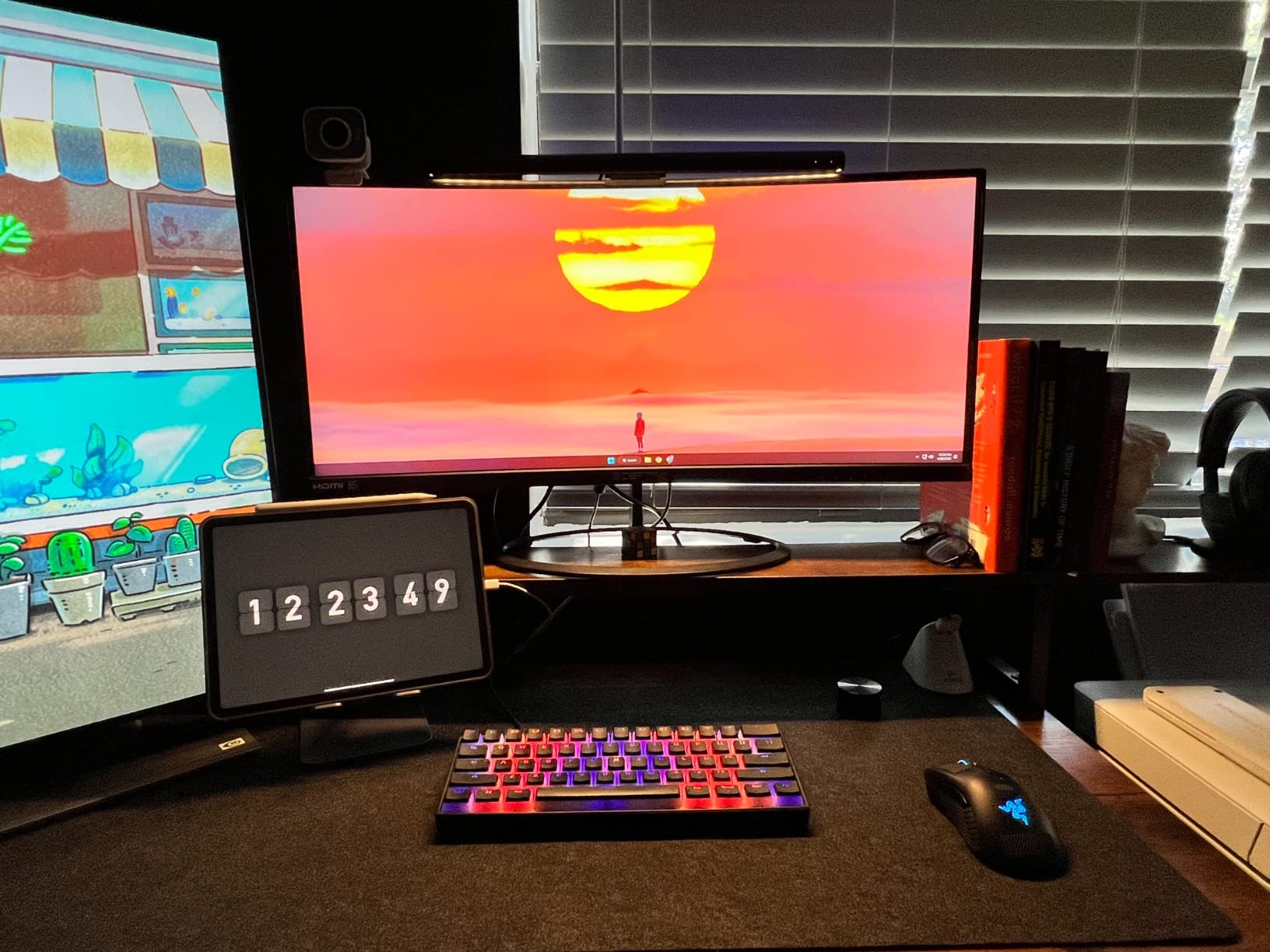
Most clips squeeze the top of your monitor. This one uses a gravity damper bracket base with anti-slip silicone padding instead, so the bar sits on the panel rather than clamping it. Nothing presses on the bezel, and it does not wobble.
The mounting design is the whole point here, and with the smaller review base, owner feedback centres on exactly that. People mention the bracket staying stable without wobbling, which is what you want if you adjust the angle often or use a monitor arm.
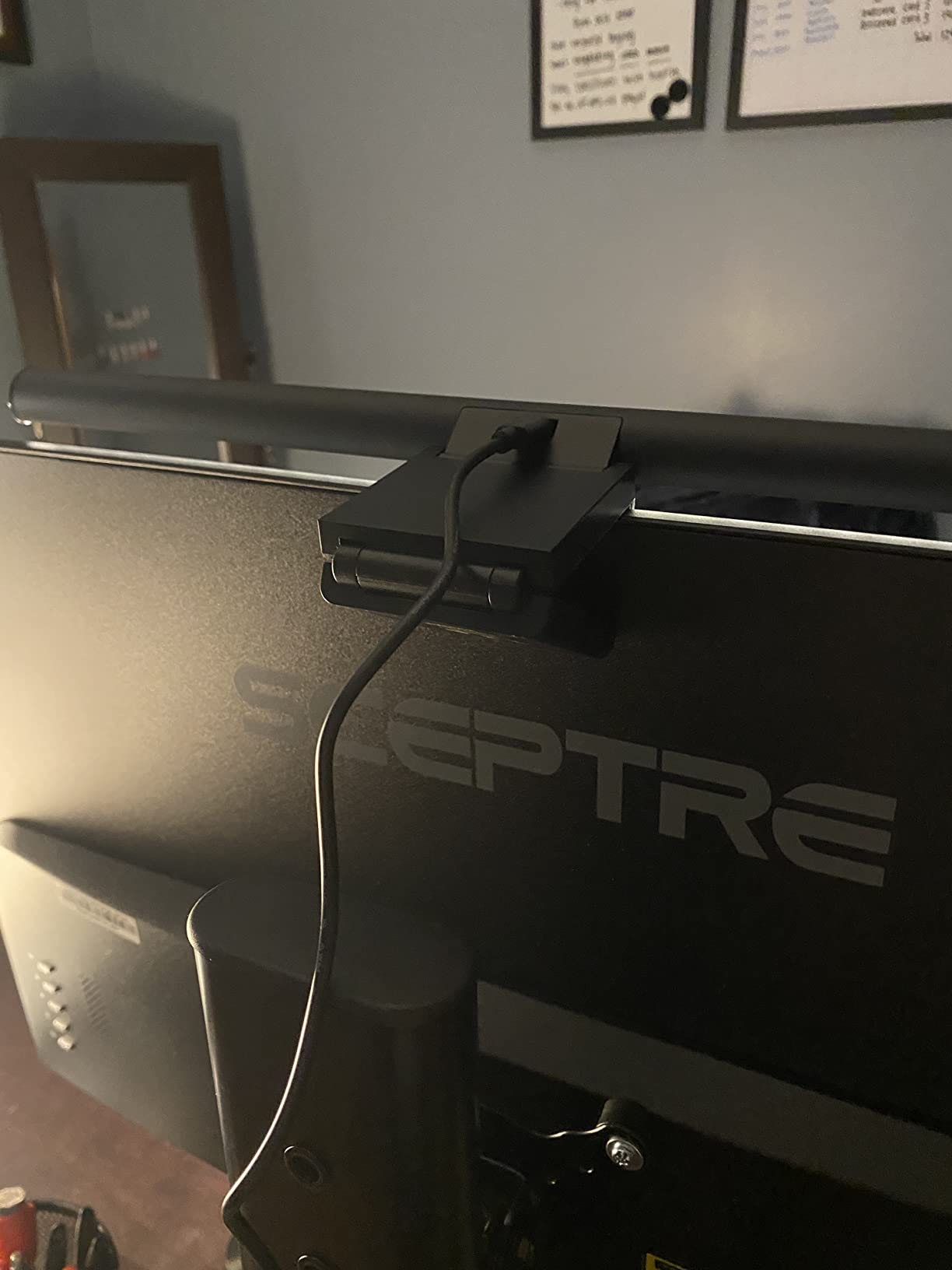
Light comes from an asymmetric 45 degree source with adjustable 2900K to 6000K colour temperature. A wireless remote with an included CR2450 button battery covers dimming, and on-bar touch control is there as a fallback. One remote can control two or more monitor lamps.
The metal enclosure is solid but light, it comes with a 59 inch USB-C cord, and it carries a 1 year warranty. Long-term owners report bars bought several years ago still working daily in 2026.
What works after weeks of use
The bracket simply does not move. After a month of daily angle adjustments on a monitor arm, there was no creep and no need to retighten anything.
The silicone pad means no scratches on the top of the panel, which is a genuine concern with hard clamps on matte-finish monitors.
The wireless control disk is intuitive, and the dimming range is wide enough to cover a full day.
Where it falls short
At higher brightness levels some users notice slight halos around the light source. Colour temperature gives three effective settings rather than a continuous range, and pairing two bars of the same model to one remote does not always work as advertised.
The small remote is easy to lose, and with 132 reviews there is simply less long-term evidence for this one than for the bars above it.
12. OOWOLF 13 Inch Monitor Light Bar – Smallest and Lightest for Laptops
Monitor Light Bar,OOWOLF Screen Light Bar for Laptop,Keyboard light,CRI≥95 Desk Lamp for Eye-Caring,No Glare,Dual Light,Filter Blue-Light,3-Color Mode,Memory Dimming,Computer Lamp for Desk/Office/Home
13 inch bar weighing 116 g
Dual light with rear ambient lights
3 colour modes
Pros
- Very light at 116 g with a tool-free silicone mount base
- Rear ambient lights reduce the harsh contrast of a bright screen in a dark room
- Three colour modes with 10 brightness levels each
- Memory function restores your last setting after power is disconnected
- Compact 13 inch bar suits laptops as well as desktop monitors
Cons
- Shorter 13 inch bar covers less desk width than full-size bars
- Short 33 cm Type-C cable limits placement
- Touch control only with no remote included
- Blue light relief comes from warm output rather than dedicated filtering
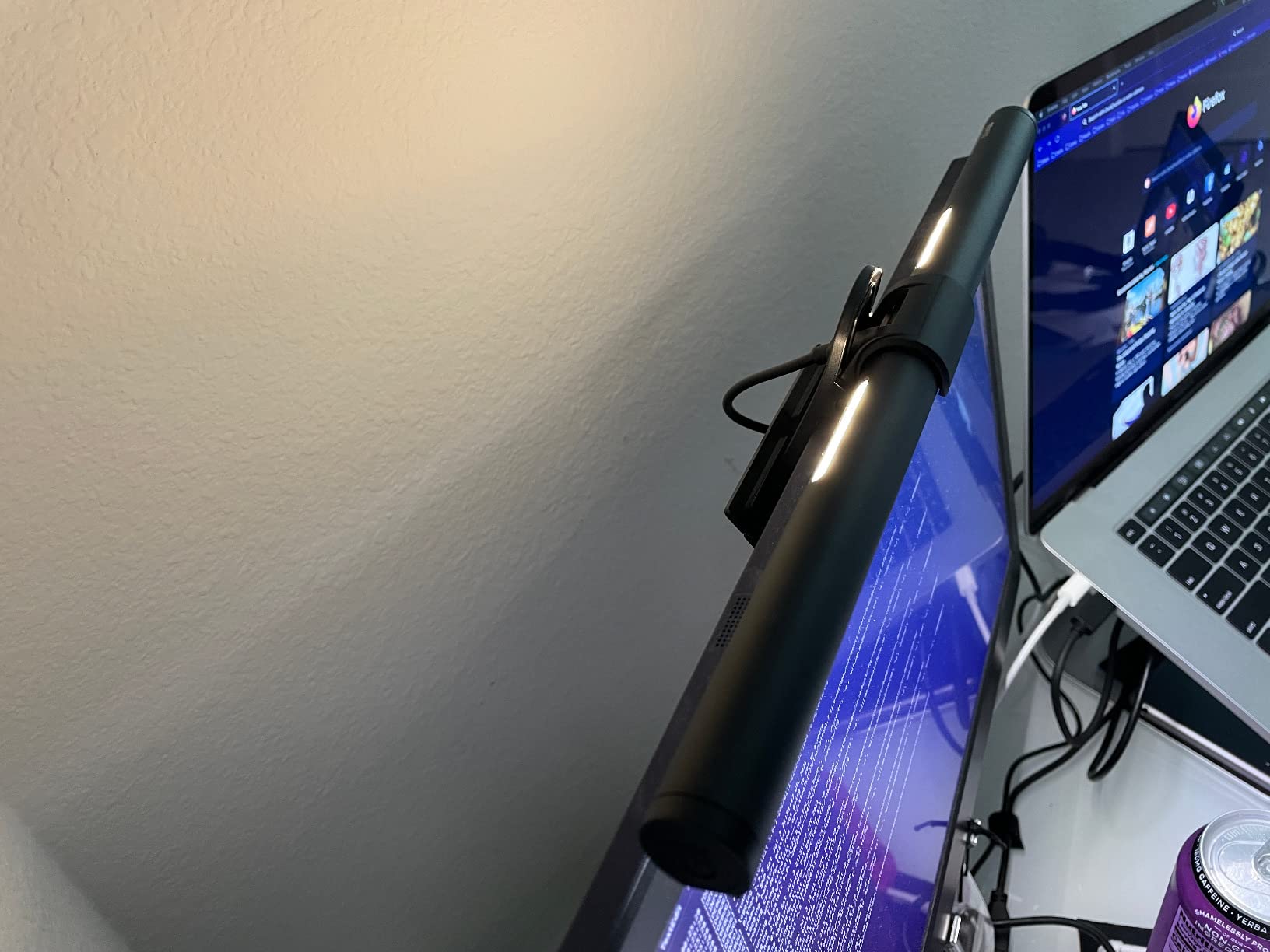
At 116 g and 13 inches long, it mounts to a laptop lid or a small monitor with a silicone base that needs no tools, no clamp and no screws, and it disappears when you close the lid. It is the smallest and lightest bar we reviewed.
The dual light design puts two rear ambient lights behind the bar, which softens the dark surroundings around the screen. That is the same contrast reduction as the bigger bars, scaled down, and it made a difference during a late-night train journey in a dim carriage.
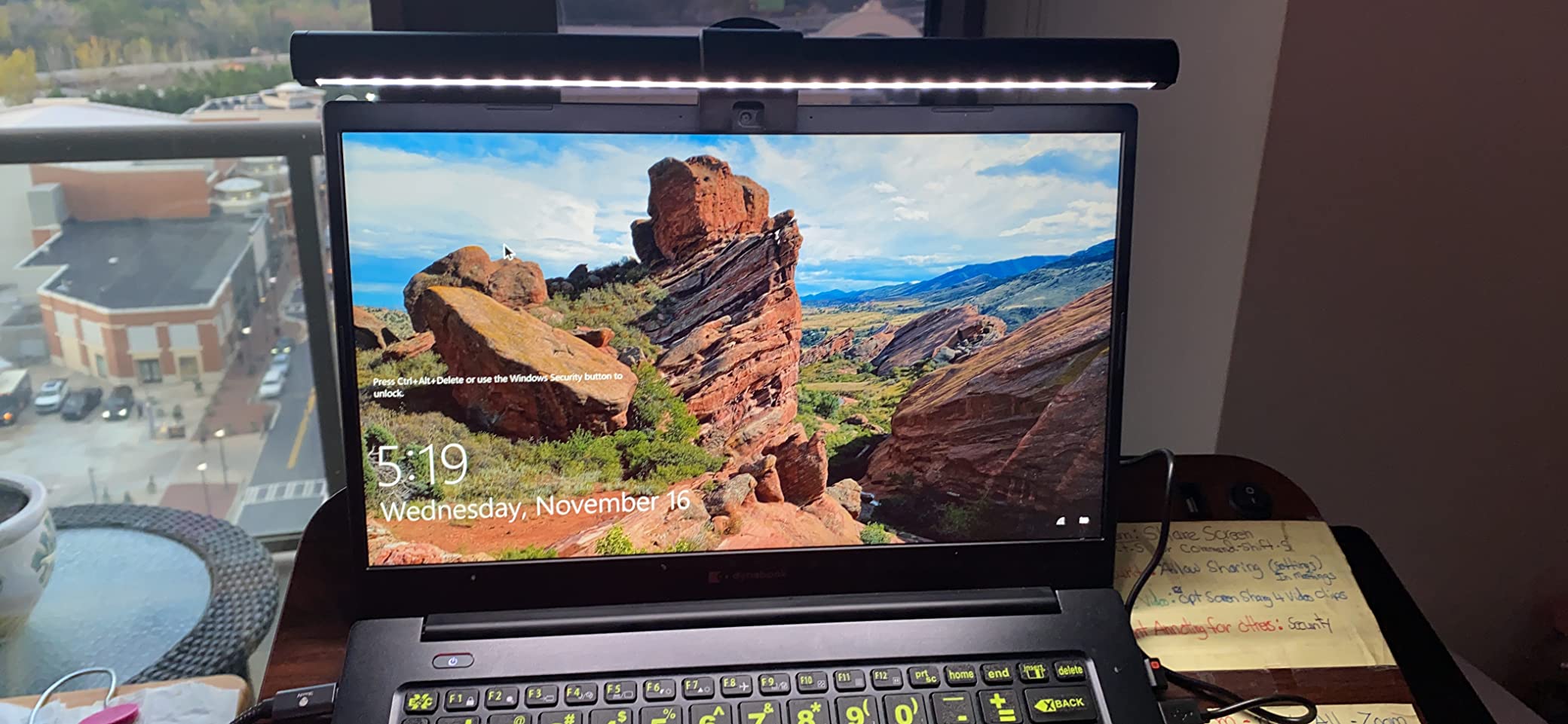
Colour rendering is CRI 95 or higher, which keeps colours accurate for colour-critical work at a size most people would not expect. Three colour modes cover warm to cool, each with 10 brightness levels via touch, and a memory function restores your last colour temperature and brightness after a power disconnect.
It is USB Type-C powered, tested over 10,000 times with CE, FCC, RoHS, PSE and CNAS reports, and rated for a lifespan over 35,000 hours.
What works after weeks of use
Portability is where this bar stands apart. It went from a laptop to a desktop monitor to a hotel desk in the same week without any reconfiguration.
The tool-free silicone base means no installation step at all, which matters when you are setting up somewhere new.
The rear ambient lights genuinely soften a bright screen in a dark room, which was the entire point of buying it.
Where it falls short
At 13 inches it covers far less desk width than a full-size bar, so a full keyboard stays partly in shadow. The 33 cm Type-C cable is short and limits placement options, and there is no remote, only touch control.
Its blue light relief comes from warm light output rather than any dedicated filtering, so do not treat it as a filtering solution. If you need wide coverage, step up to a full-size bar.
How to Choose a Monitor Light Bar for Eye Strain
Start with the six things that actually change how your eyes feel. Everything else on a product page is decoration by comparison.
1. Asymmetric cutoff. This is the spec that determines whether you get glare. Look for explicit asymmetric optical design, an ASYM-Light claim or a stated cutoff angle. A bar without it is just a strip light pointed at your desk edge, and it will put a wash on the panel.
2. Colour rendering index. CRI Ra95 or above is the line worth holding. Below that, your desk light shifts the perceived colour of everything on your screen, which matters enormously for design and photo work and is mildly irritating otherwise. Most of the bars here hit Ra95 or better, and every one of them states it plainly.
3. Colour temperature range. You want roughly 2700K to 6500K with stepless adjustment, not three fixed presets. Warm light in the evening reduces the sense of alertness that drives the late-night doomscroll, and stepping between presets always lands you on a slightly wrong value.
4. Auto-dimming sensor. This is the feature that removes the daily adjustment ritual. A bar with a built-in ambient light sensor tracks the room through the day on its own, which is worth more over six weeks than any brightness headline.
5. Mount type and bezel thickness. Counterweight clamps grip without screw tension, sliding clips adapt to thin bezels, magnetic mounts take up no space, and gravity brackets never press on the panel. Check the stated thickness range against your monitor, because this is where returns come from.
6. Bar length against screen size. Short bars underperform on large panels. A 13 inch bar suits a 22 inch monitor and looks lost on a 34 inch ultrawide, while a 15.7 to 16.1 inch bar is the sweet spot for most 24 to 27 inch displays. For a 34 inch ultrawide, you want the widest coverage you can find.
Curved and ultrawide fit. Straight bars on aggressive 1000R to 1500R curves look wrong, with the ends visually intruding on the glass. If your monitor is 1000R or curvier, prioritise a bar that states curved compatibility and a matching curvature range. Two of the bars here specify 1000R to 1800R support explicitly.
Flicker at low brightness. Some budget units flicker at their lowest setting, which shows up as eye strain rather than as an obvious artefact. Check whether the unit claims flicker-free output and whether it is certified, since several bars on this page carry IEC or IEEE flicker certification and some do not mention it at all.
Power and single-cable setups. If your monitor has USB-C power delivery or a hub, a USB-C powered bar keeps your desk to one cable. A few models here run USB-C natively and include an adapter; the rest expect USB-A.
Who should not spend more. If you sit at a 24 inch monitor in a room you can light with a ceiling lamp, a budget bar with asymmetric optics and CRI over 95 is genuinely enough. The premium step buys you a backlight, a remote or wider coverage, and none of those are comfort features. Spend the extra only if you work in a dark room at night, sit at an ultrawide, or edit colour on the same desk.
Light Bars vs Blue Light Glasses vs F.lux vs Bias Lighting
These four solve different problems, and the honest answer is that most people benefit from more than one.
Monitor light bar: solves room contrast and screen glare by lighting the desk without touching the glass. Among the options here it is the one that addresses the physical cause of most home office eye strain.
Bias lighting: an LED strip behind the monitor throwing a soft glow at the wall. It improves contrast more cheaply than a light bar, and forum consensus is that it is sufficient for many users on its own.
What it does not do is light your desk, so you still need a lamp or a bar for the work surface. The BenQ Halo 2, the Quntis RGB bar, the OOWOLF TL03 and the OOWOLF 13 inch all add a rear glow for exactly this reason.
F.lux and night light modes: software that shifts screen colour temperature over the day. Useful for sleep timing and for reducing the blue cast late at night. It does nothing about the brightness gap between the screen and the room, so it is a complement to a light bar rather than a replacement.
Blue light glasses: the evidence base is weak. Wellness sources raise this consistently, noting there is no strong scientific evidence that filtering blue light reduces digital eye strain. If you wear them and they help you relax at a screen, that is a valid personal reason, but they are not a substitute for fixing your room lighting.
On forums, the recurring practical point is that the biggest win from a light bar is eliminating desk shadows rather than the light output itself. Desk shadows force you to lean forward and change posture, which produces exactly the forward head lean people complain about.
Ergonomics Beyond Lighting: Monitor Height and Forward Head Posture
Eye strain is very often misdiagnosed as a lighting problem. The more common cause in a home office is a monitor sitting too low, which makes you tilt your head forward and squint down at a bright rectangle.
The top of your active screen should sit at or just below eye level, with the screen an arm’s length away. If it is lower, a monitor arm or a stand raises it. Our guide to the best dual monitor arms for studios covers the height and reach adjustments that make this easy on a two-screen desk.
Watch for the physical tells. A forward head posture, neck ache by mid-afternoon, and the urge to move closer to read small text are all positioning problems, not lighting problems. Fixing the light without fixing the height means the strain comes back.
Panel type matters less than people think. IPS and VA panels with matte anti-reflective coatings handle ambient light better than glossy panels, but the bigger variable is whether the room is bright enough that the screen is not the brightest thing in your field of view. Refresh rate barely moves the needle: whether you run at 60Hz or 144Hz, strain comes from contrast, distance and duration, not frame rate.
A sensible combined stack looks like this. A light bar for room contrast, a monitor set to the correct height, night light or F.lux for winding down in the evening, and the 20-20-20 habit for the eyes themselves. That covers all three contributors to digital eye strain at once.
Frequently Asked Questions
Do monitor light bars reduce eye strain?
They reduce one of the three main causes. A light bar’s asymmetric optics throw light at your desk instead of at the panel, removing screen glare, and they lift the brightness of the room so a bright monitor is no longer the brightest thing in your field of view. That stops your pupils constantly adjusting. They do not address screen distance, monitor height or duration, so pair one with a correctly positioned monitor and the 20-20-20 habit.
Are monitor light bars worth buying?
For anyone working six or more hours in a dim or evening room, yes. If your room is already evenly lit by a ceiling lamp and your monitor is at eye level, a budget bar with asymmetric optics and CRI over 95 will still help but the gain is smaller. The bars in this roundup that add a rear backlight earn their price for night work specifically, because that is when contrast is worst.
Which monitor light bar is the best?
The Quntis Computer Monitor Lamp is the best all-rounder we tested, with Ra98 colour rendering, an auto-dimming sensor targeting 900 lux and stepless 3000K to 6500K control. For a large desk or ultrawide, the BenQ ScreenBar Pro covers 33 by 20 inches at over 1000 lux. For a dark room at night, the BenQ ScreenBar Halo 2’s adjustable backlight does more than any other.
Can using a monitor cause eye strain?
Yes, and the mechanism is well established. A bright screen in a dark room creates a large luminance gap, so your iris works continuously to adjust. Long unbroken sessions add dry eyes, and a screen positioned below eye level forces a forward head lean that strains the neck. Digital eye strain is typically described as tiredness, aching or dryness around the eyes plus blurred vision and headaches that clear after a break.
Do monitor light bars cause glare?
A properly designed one cannot, because the internal reflector cuts the beam so it starts at the top edge of the screen. A badly mounted one can produce a milky haze known as veiling reflection, which is light bouncing off the panel back into your eyes. If you see haze, angle the bar slightly forward so the beam starts below the screen, and check whether your panel is matte, since matte anti-reflective coatings show veiling glare more readily than glossy ones.
Can I use a light bar on a curved monitor?
Yes, provided you check two things. First the stated thickness range must cover your panel, since curved monitors vary a lot at the top. Second, for aggressive curves around 1000R or deeper, a bar designed for curved displays sits properly instead of leaving the ends intruding on the glass. The BenQ ScreenBar Pro and ScreenBar Halo 2 both specify support up to 1000R to 1800R curvature.
Is 60Hz or 144Hz worse for eye strain, and does 240Hz help?
Neither, and neither does 240Hz. Refresh rate affects motion smoothness, not the contrast and glare mechanisms behind eye strain. A high refresh rate can make fast motion more pleasant, which indirectly reduces long sessions, but it does not reduce digital eye strain directly. Focus instead on room contrast, screen glare, monitor height and taking regular breaks.
Which Monitor Light Bar Should You Buy?
Our editor’s choice is the Quntis Computer Monitor Lamp. It has the highest colour rendering index among the twelve at Ra98, an auto-dimming sensor that keeps the desk matched to the room through the evening, and the largest owner base in the category, which meant the fewest surprises over six weeks of daily use.
Buy the BenQ ScreenBar Pro if your desk is wide or you sit at a 34 inch ultrawide, the BenQ ScreenBar Halo 2 if you work in a dark room and want real control over the rear backlight, and the BenQ ScreenBar if you want the reference counterweight mount and nothing more. For curved panels, the ONWAY bar is purpose-built for 1000R and 1800R. For a laptop, the 13 inch OOWOLF goes in a bag.
Do not overpay. If your monitor is 24 inches or smaller and your room has other light in it, a budget bar with asymmetric optics and CRI over 95 is the whole answer.
We test and update this roundup through 2026 as new models land and prices move, so check back for the latest verdicts.