
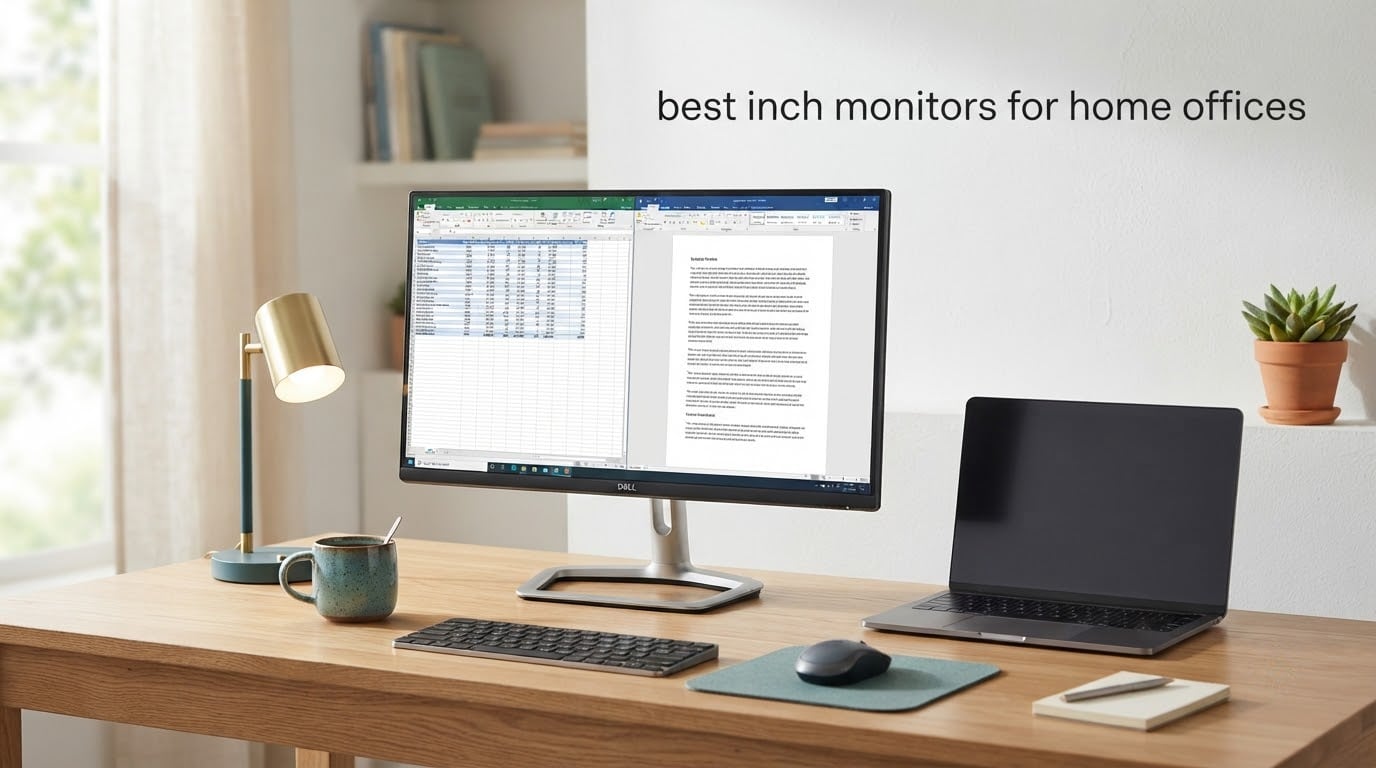
Short answer: the Dell S2725QS is the best 27-inch monitor for most home offices in 2026. It pairs a 27-inch 4K IPS panel with a 120Hz refresh rate, a fully adjustable stand and ComfortView Plus, covering text sharpness, smooth scrolling and neck comfort in one package. For colour-critical or shared-desk work, the ASUS ProArt PA278CV and Samsung S40GD are the picks instead.
Twenty-seven inches is the size most home offices land on, and the reason is practical. It fits a spreadsheet and an email client side by side without the neck-craning a 32-inch panel asks for, and it still suits a 120cm desk. Size alone does not decide quality, though. A 27-inch Full HD panel runs at roughly 92 pixels per inch and text looks soft, QHD reaches about 109 PPI, and 4K reaches about 163 PPI. Resolution does more for daily comfort than any other single spec.
Every pick below is strictly 27 inches. No 24-inch, 32-inch or ultrawide panels appear, which is the gap both ranking competitors on this topic leave open. We compared all ten on pixel density, refresh rate, brightness, port selection, stand adjustment and eye-comfort features, then cross-checked those specs against thousands of buyer reviews. Each entry names who should skip it, which is the filter readers ask for most often on monitor forums.
The desk around the monitor matters too. Our picks on executive desks for home offices cover desk depth and stability, and shared and hybrid home offices usually need one of the paper shredders worth having at home before they need a second display.
Top 3 Picks for 27-Inch Home Office Monitors in 2026

Dell S2725QS 27 inch 4K 120Hz
- 4K UHD at 27 inches
- 120Hz refresh
- Fully adjustable stand
- ComfortView Plus

Acer KB272 G0bi 27 inch FHD
- 27-inch IPS panel
- 120Hz refresh
- FreeSync adaptive sync
- 3 year warranty

LG 27UP850K-W 27 inch 4K
- 90W USB-C power delivery
- 95% DCI-P3 colour
- DisplayHDR 400
- Two HDMI ports
Best 27 Inch Monitors for Home Offices (October 2026)
| Product | Specifications | Action |
|---|---|---|
| Dell S2725QS 27 inch 4K 120Hz IPS |
|
Check Latest Price |
 ASUS ProArt PA278CV 27 inch QHD USB-C ASUS ProArt PA278CV 27 inch QHD USB-C |
|
Check Latest Price |
 Dell S2722DC 27 inch QHD USB-C Dell S2722DC 27 inch QHD USB-C |
|
Check Latest Price |
| LG 27UP850K-W 27 inch 4K |
|
Check Latest Price |
 Samsung S40GD 27 inch Business Borderless Samsung S40GD 27 inch Business Borderless |
|
Check Latest Price |
 Amazon Basics 27 inch IPS 75Hz Amazon Basics 27 inch IPS 75Hz |
|
Check Latest Price |
| Acer KB272 G0bi 27 inch FHD 120Hz |
|
Check Latest Price |
 LG 27U411A-B 27 inch FHD 120Hz LG 27U411A-B 27 inch FHD 120Hz |
|
Check Latest Price |
 Samsung S32GF 27 inch FHD 120Hz Samsung S32GF 27 inch FHD 120Hz |
|
Check Latest Price |
 Samsung S30GD 27 inch FHD 100Hz Samsung S30GD 27 inch FHD 100Hz |
|
Check Latest Price |
1. Dell S2725QS – Best 27-Inch Monitor for Office Work Overall
Dell 27 Monitor S2725QS, 4K UHD IPS, 120Hz, 5ms, FreeSync Premium
4K UHD 3840x2160 IPS
120Hz with FreeSync Premium
350 nits and 99% sRGB
Height tilt swivel pivot
Pros
- 4K text is crisp for code and long documents
- 120Hz makes scrolling feel responsive
- Stand adjusts fully in every direction
- ComfortView Plus trims blue light
- Improved built-in speakers for calls
Cons
- No USB-C and no USB hub so laptops need a dock
- No 3.5mm audio out jack
- Ghosting and 4-8ms response hurt competitive FPS play
Of everything we compared, this panel changes daily work the most. Small text in a document or a line of code looks nearly printed, and 350 nits holds up in a room that gets some afternoon light.
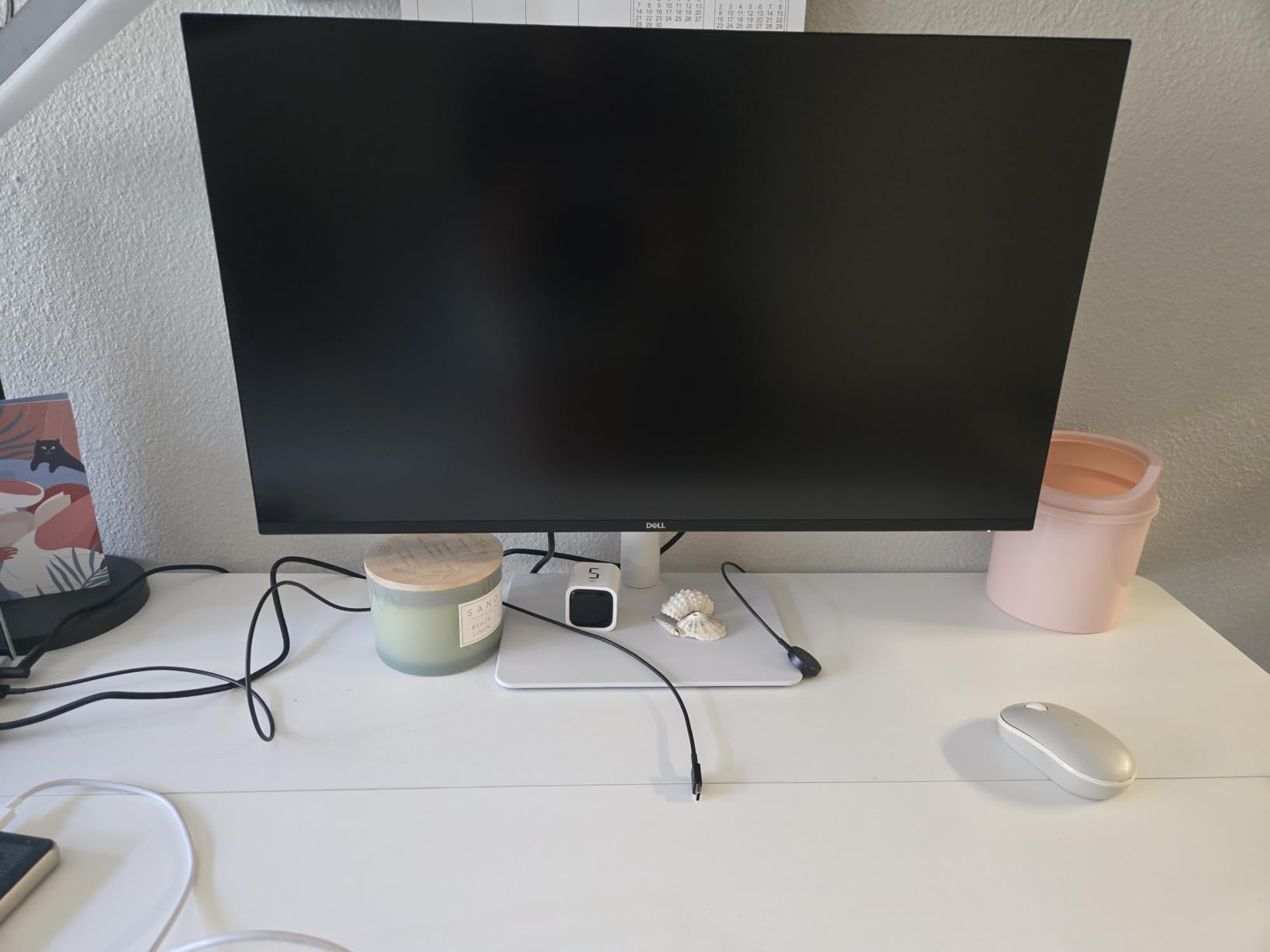
The 120Hz rate is the quiet hero here. Desktop scrolling and window dragging feel immediately more responsive than a 60Hz office panel, even though nothing on the spec sheet is aimed at games.
The stand adjusts in height, tilt, swivel and rotation, and VESA 100×100 mounting is there if you decide an arm is worth adding later. ComfortView Plus trims blue light emissions to 35% or less.
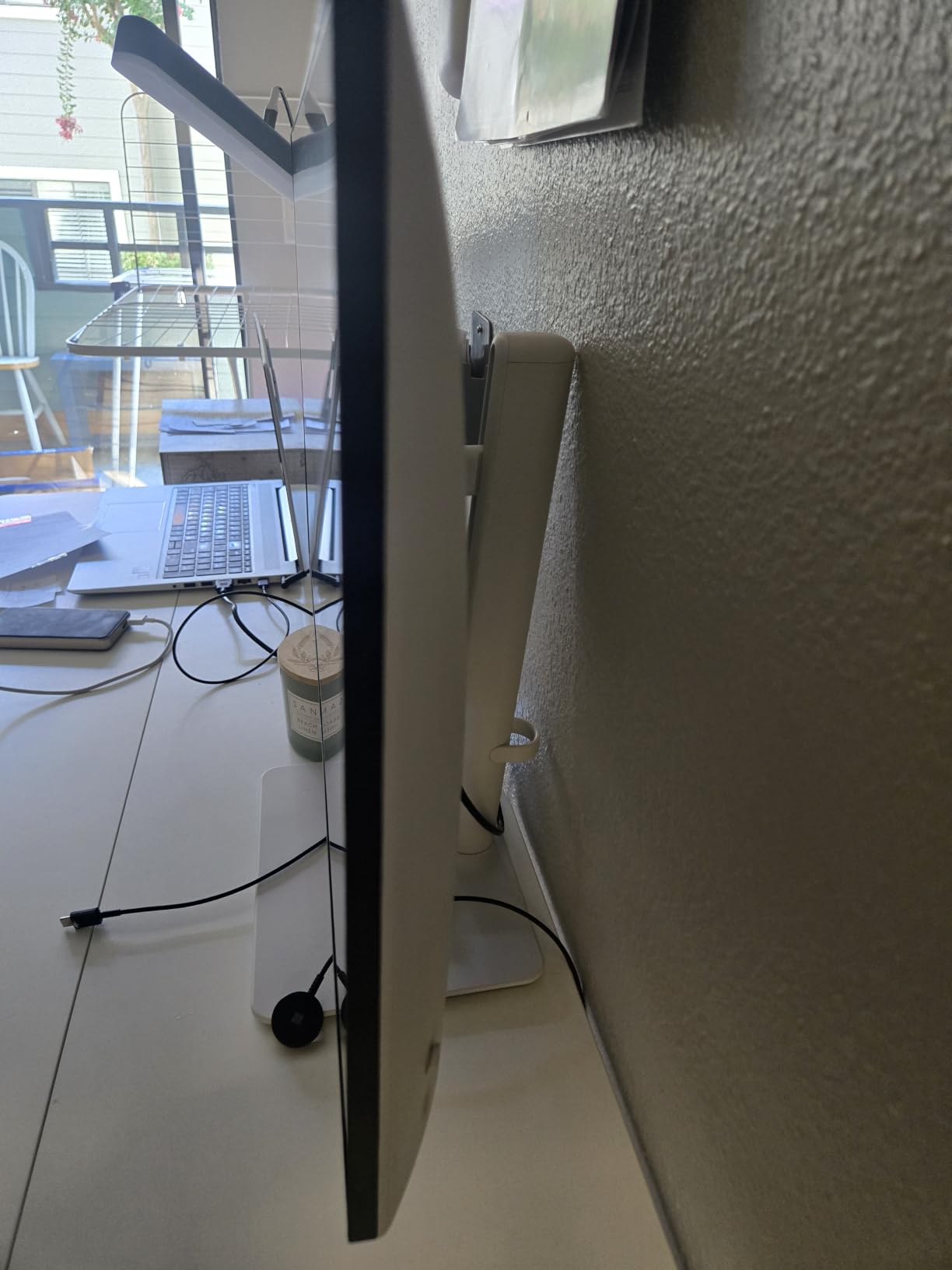
What makes it the pick for most desks
It covers documents, spreadsheets, code, calls and light photo work without a second screen, and three video inputs handle most hybrid arrangements. Response is listed at 5ms, which is fine for office work.
Owners single out the reworked built-in speakers for daily video calls, and 99% sRGB with 1500:1 contrast gives deeper blacks than a typical 1000:1 IPS panel. If you also record audio, our 5 inch studio monitor roundup covers the other half of a creator desk.
Who should skip it
Skip it if you run a laptop-first setup with no dock in the drawer, because there is no USB-C port and no USB hub. A MacBook user will be plugging and unplugging rather than using a single lead.
Also skip it for competitive first-person-shooter play. Owners report visible ghosting and slow pixel response despite the 120Hz rate, and there is no audio out jack for external speakers.
2. ASUS ProArt PA278CV – Best 27-Inch Monitor for Colour-Creative Work
ASUS ProArt PA278CV 27 Inch 1440p QHD USB-C Professional Monitor
QHD 2560x1440 IPS
Calman Verified Delta E under 2
65W USB-C with data
Height tilt swivel and 90 degree pivot
Pros
- Factory calibration at Delta E under 2 for photo and video
- 100% sRGB and Rec.709 coverage
- USB-C carries video data and 65W charging
- Stand pivots 90 degrees to portrait
- Five year warranty
Cons
- 75Hz refresh rate feels dated next to 120Hz panels
- 5ms response smears in fast motion
- 18.5 pound weight and deep footprint
- 65W will not fully power a workstation laptop
The ProArt is the pick when colour accuracy is part of the job description. It ships factory-calibrated to a Calman Verified Delta E under 2 with 100% sRGB and Rec.709 coverage, which you can hand to a client without hedging.

Resolution is QHD 2560×1440 rather than 4K, so the workspace is smaller than the Dell above. In exchange you get 350 cd/m2 brightness, 178-degree viewing angles and a five-year warranty that extends with online registration.
USB-C delivers 65W of charging plus video and data over one lead, enough for most ultrabooks. DisplayPort daisy-chaining lets a second display run from a single upstream port, and three USB 3.2 Gen 1 ports cover peripherals.
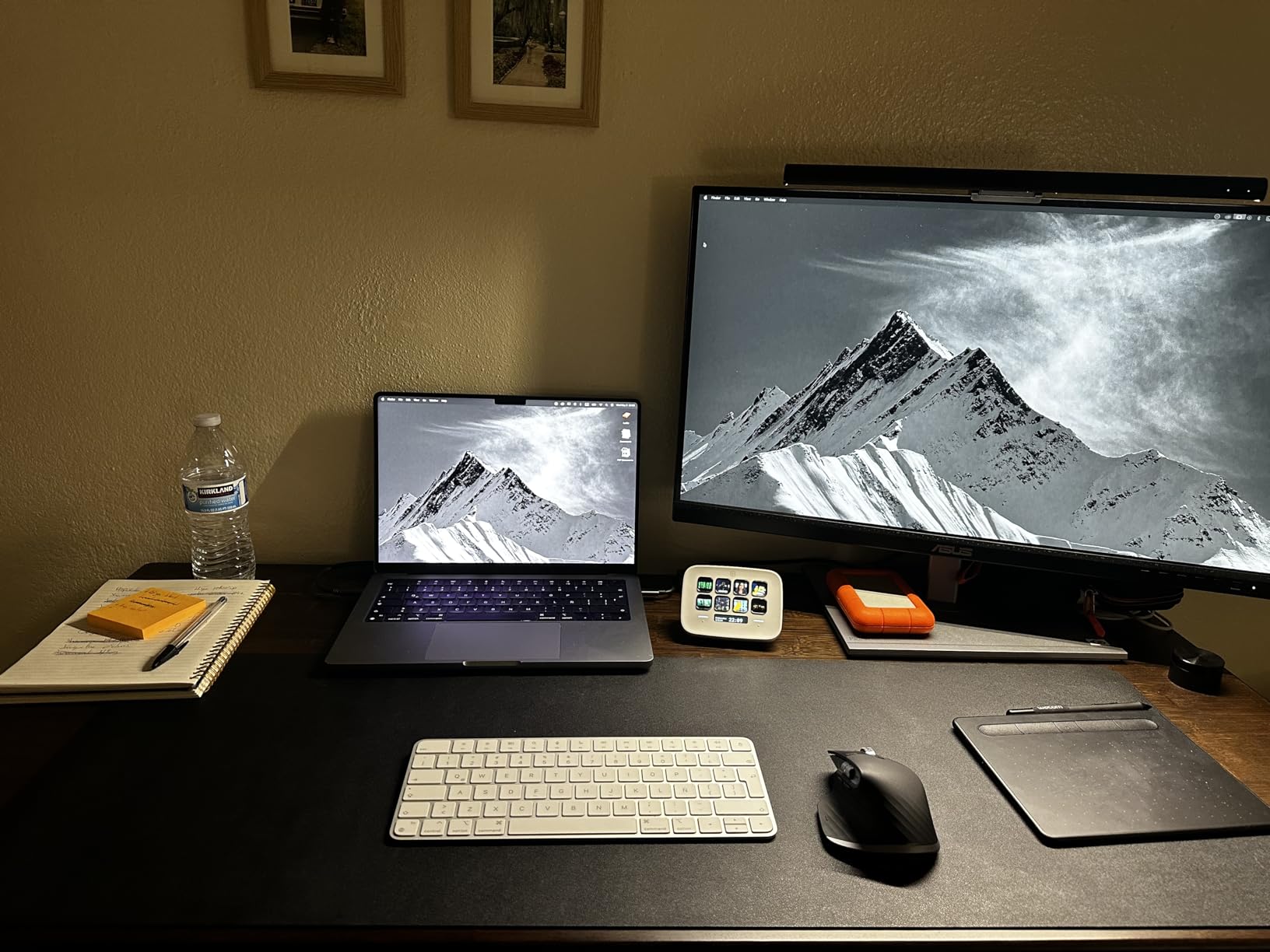
When the calibration justifies the spend
Choose it when you deliver work other people judge on colour: brand assets, product photography, video grading or print proofs. A Delta E under 2 means skin tones and gradients land where you expect without a hardware calibrator.
Creators who also record audio will want our 8 inch studio monitor roundup. As a display, the pivot to portrait is the feature that quietly separates this from most QHD panels at the same money.
Where it falls short
The 75Hz refresh rate is the weakness owners mention most. Scrolling feels less fluid than on a 120Hz panel, and 5ms response smears in fast motion, which on an eight-hour screen is felt more than it is noticed.
Check your desk depth too. At 18.5 pounds and 14.7 inches deep with the stand, this is a substantial footprint, and 65W charging falls short for a large workstation machine under load.
3. Dell S2722DC – Best 27-Inch QHD Monitor for Productivity
Dell S2722DC Monitor – 27-inch WQHD (2560×1440) 75Hz 4Ms Display, AMD FreeSync, Built in Speaker, USB Type-C Connectivity, Height/Pivot/Swivel/Tilt Adjust – Platinum Silver
QHD 2560x1440 IPS
65W USB-C with data and video
350 nits and 99% sRGB
Height tilt swivel and pivot
Pros
- QHD text stays crisp through a full working day
- 65W USB-C replaces a dock for most laptops
- Quick access USB 3.2 Gen 1 port near the base
- Full four way stand adjustment
- Built-in speakers for calls
Cons
- 75Hz feels sluggish against 120Hz panels
- 65W will not fully power a workstation laptop
- Typical 1000:1 contrast with no local dimming
- 4ms response is slow for gaming
The S2722DC is the value answer in the QHD tier and the cleanest single-cable office monitor we found. USB-C sends 65W of charging with video and data, so a laptop connects with one lead and the desk stays free of adapters.
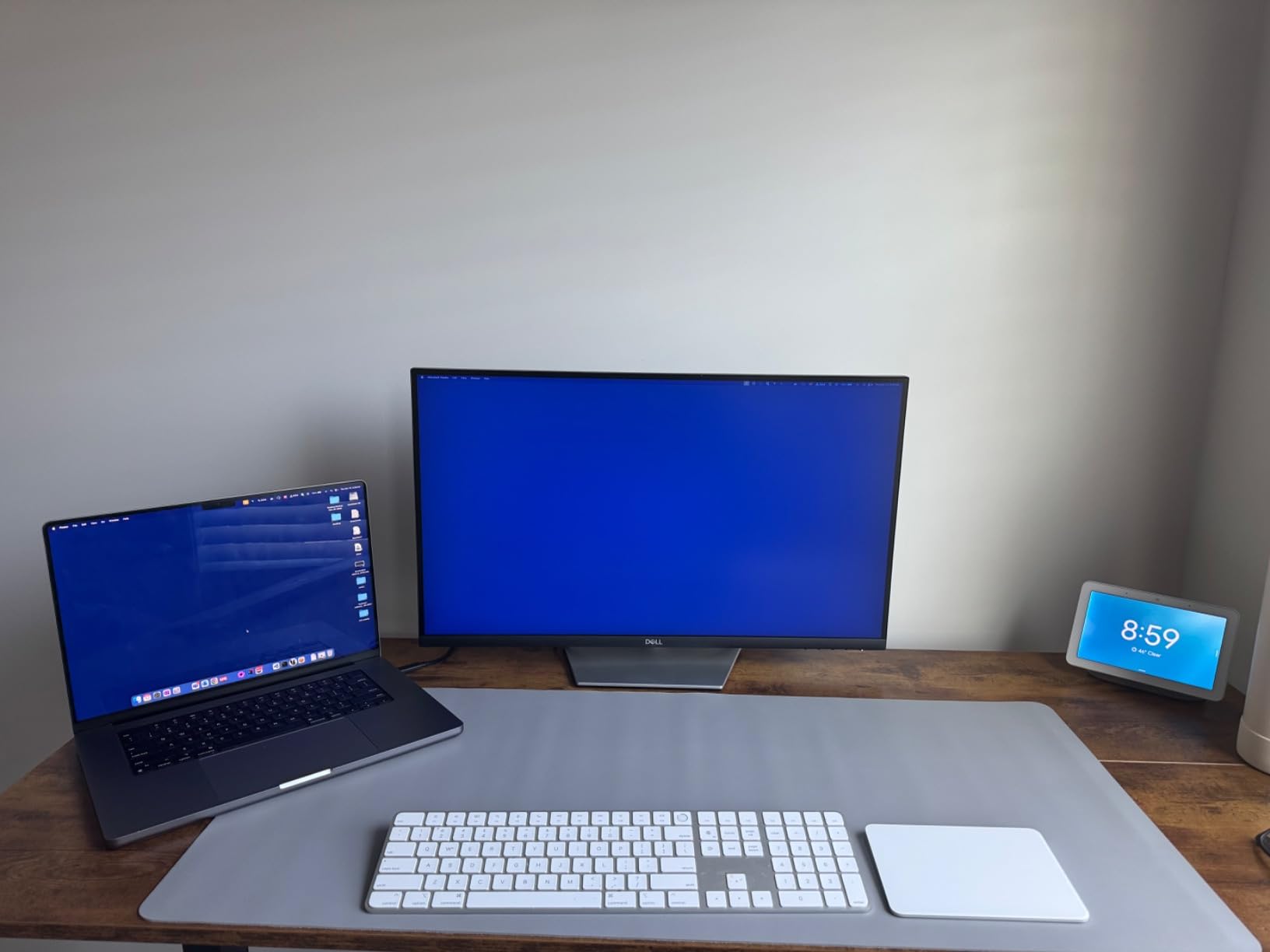
The QHD 2560×1440 IPS panel runs at 350 nits with 99% sRGB and a matte anti-glare finish. Owners in programming and document-heavy roles report that text sharpness holds across long sessions.
A USB 3.2 Gen 1 Type-A port sits within reach of the base for a drive, a phone or a wired keyboard. A flicker-free backlight and a three-year warranty suit a device that lives in a spare room for eight hours a day.
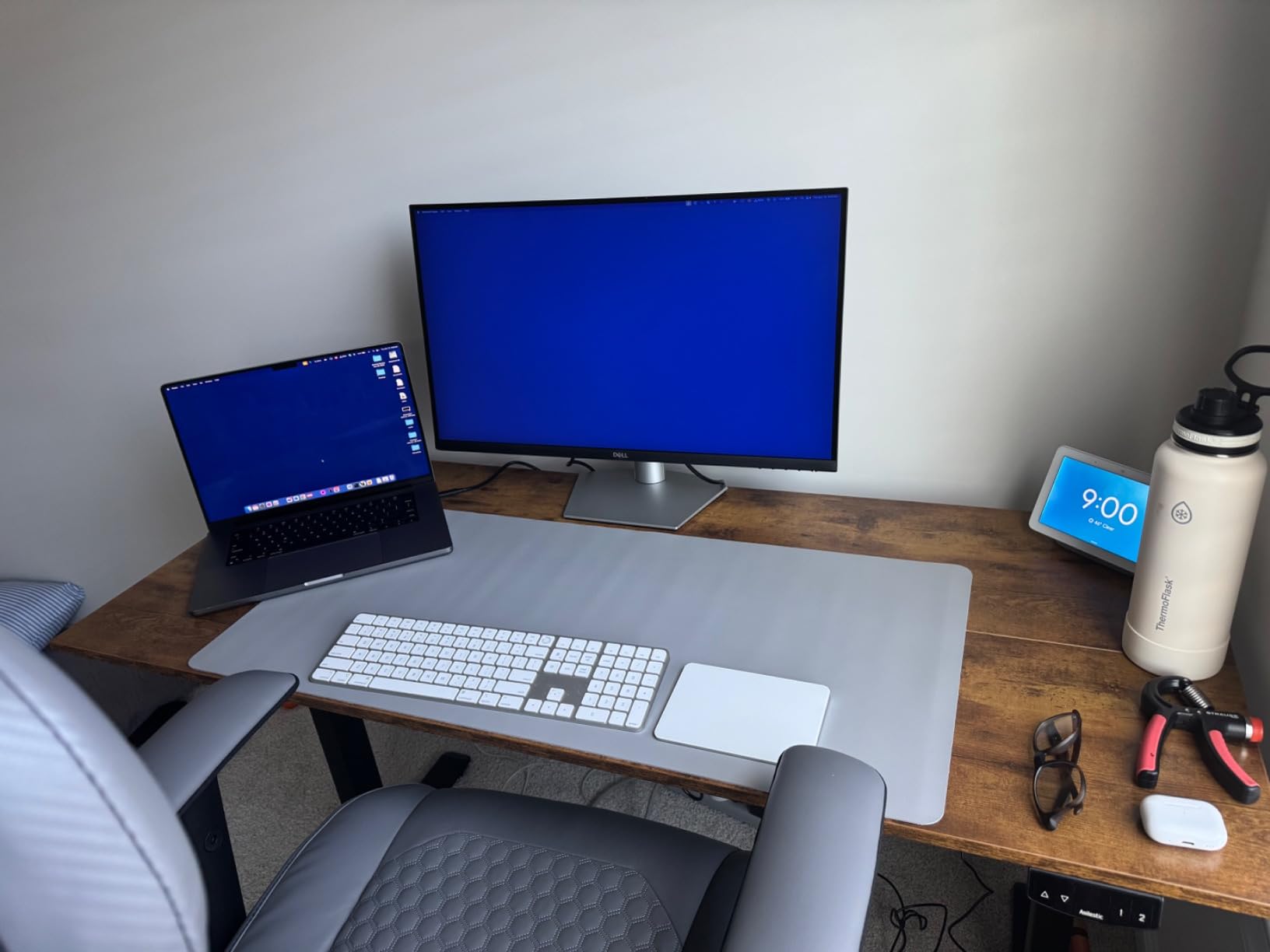
Who this suits best
This is the pick for a laptop-first home office where QHD is more practical than 4K. You get more usable space than Full HD without the 150% display scaling that 4K usually demands, and one lead replaces a dock for most ultraportables.
The port selection also makes a second screen straightforward later, so a personal desktop and a work laptop can share the same hub instead of a second cable run.
Who should skip it
Skip it if you need 90W or more. The 65W ceiling will not fully power a large workstation-class machine under sustained load, so the day tends to end with a flat battery.
Skip it if you dislike the 75Hz rate. Owners describe scrolling as dated next to 120Hz panels, and 1000:1 contrast with no local dimming means no real HDR behaviour.
4. LG 27UP850K-W – Best 27-Inch Monitor for Laptop Docking
LG 27UP850K-W 27-inch Ultrafine 4K UHD IPS DisplayHDR 400 Computer Monitor
4K UHD 3840x2160 IPS
90W USB-C power delivery
95% DCI-P3 with DisplayHDR 400
Two HDMI and two USB 3.0
Pros
- Only pick here charging above 65W over USB-C
- 90W covers larger performance laptops
- 95% DCI-P3 coverage opens up colour work
- Generous port set needs no dongle
- Built-in Waves MaxxAudio speakers
Cons
- 60Hz is the slowest refresh rate in the list
- DisplayHDR 400 has no local dimming
- 1200:1 contrast is low for IPS
- 5ms response smears in fast motion
This is the only monitor here that charges a larger laptop at full speed over USB-C, which makes it the answer to the most common home-office question on forums: can the display replace the dock. At 90W it covers mainstream performance laptops, not just thin ultraportables.
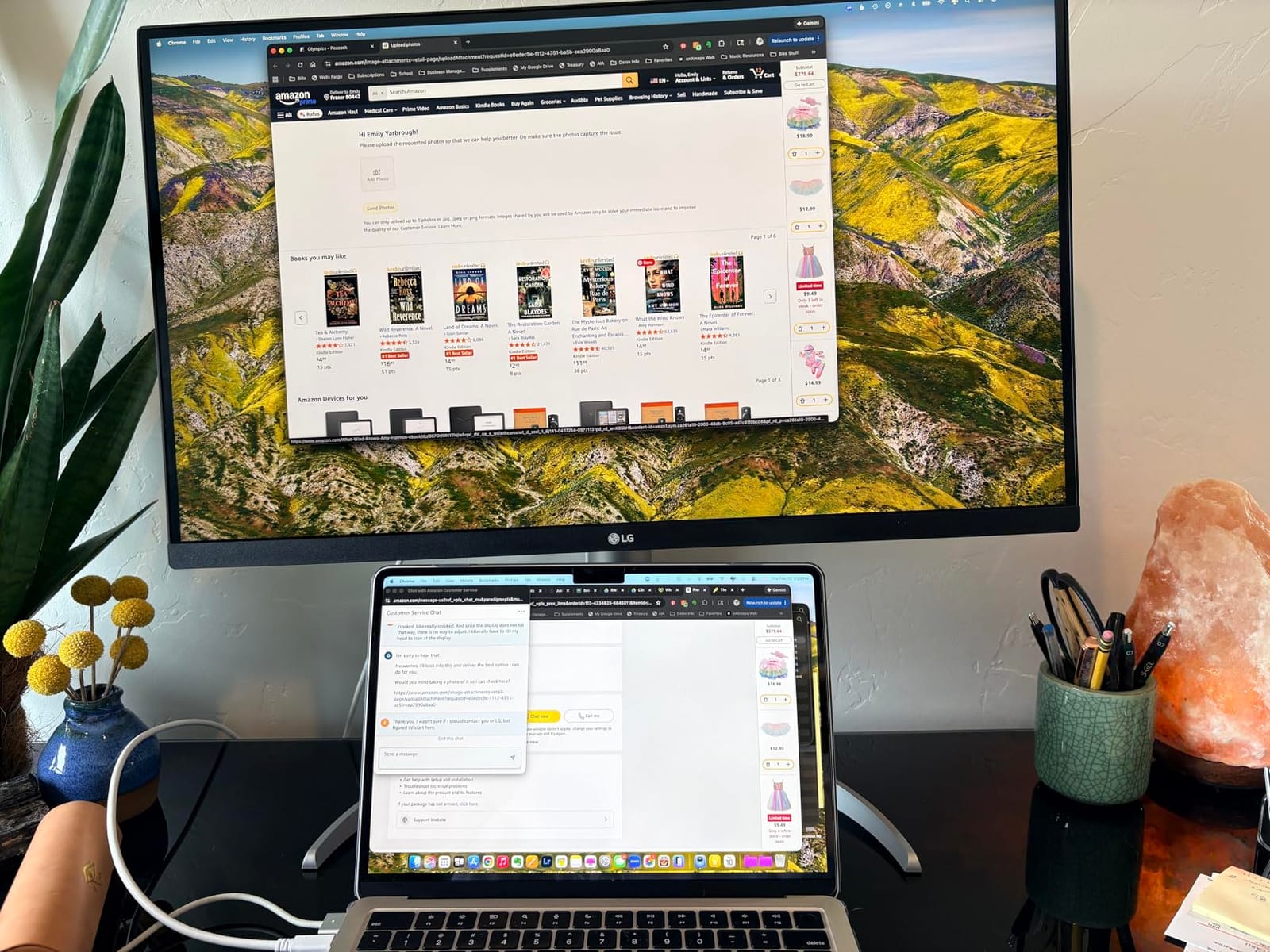
The 4K UHD 3840×2160 IPS panel delivers 400 cd/m2 brightness and up to 95% DCI-P3 coverage, so it handles photo and video work better than the other office panels here. DisplayHDR 400 is present, though it is an entry certification without local dimming.
Ports are the real story: two HDMI, DisplayPort, two USB 3.0 ports, a headphone jack and the USB-C input. A keyboard, mouse and headset connect directly with no adapter, and the Switch app splits the screen into six sections from one hotkey.
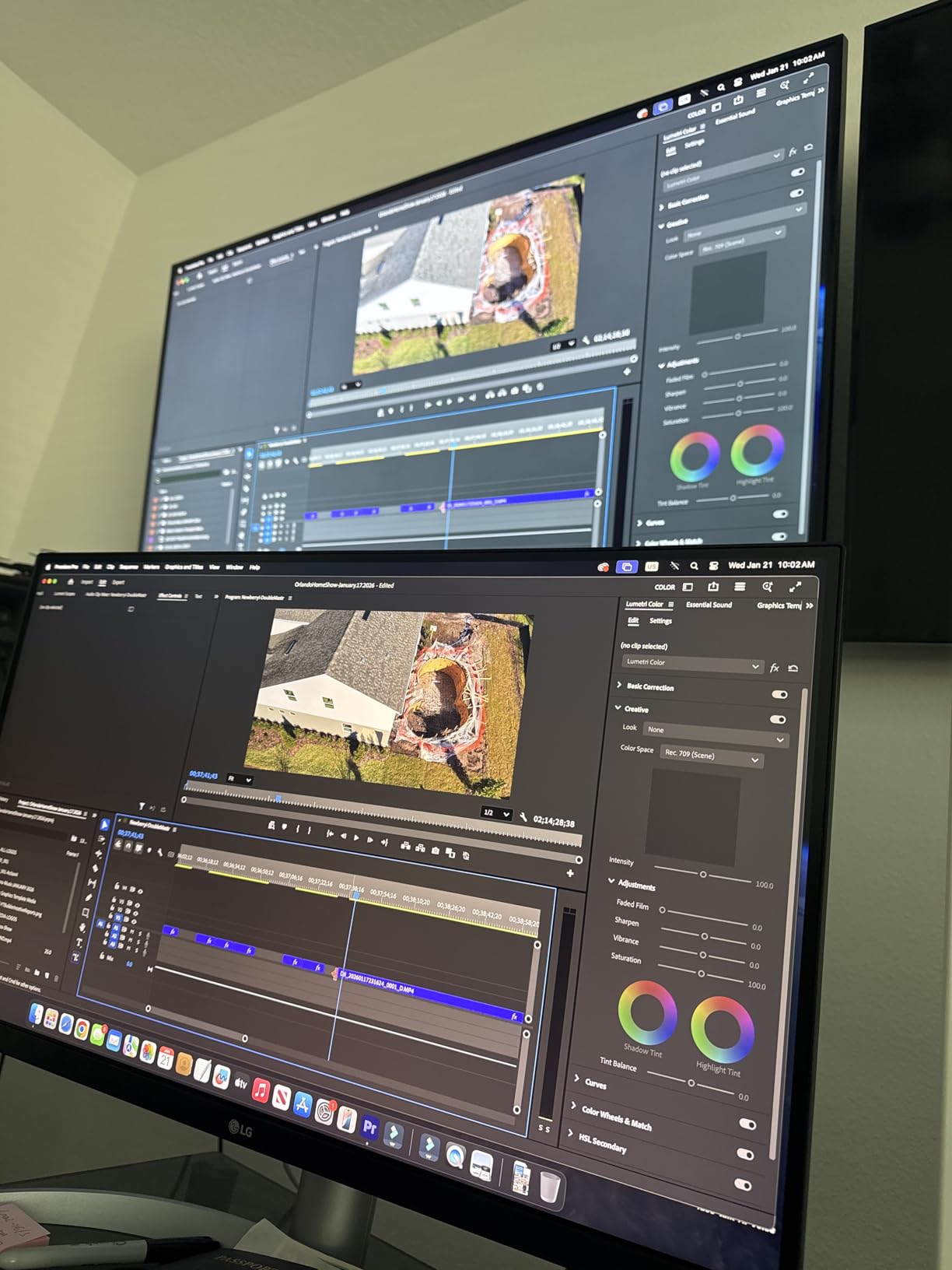
When 90W changes the whole setup
If your laptop charges slowly or drains while plugged into a 65W monitor, wattage is the problem and this is the fix. One lead then handles charging, video, peripherals and the hub, which removes a dock from the desk entirely.
That makes it the natural partner for a hot-desking arrangement, where the same monitor and one cable serve you at home and a colleague during the week.
Where the 60Hz rate costs you
The 60Hz refresh rate is why this is not our first pick. Owners consistently describe scrolling and cursor movement as visibly less fluid than 100 to 120Hz alternatives, and over a full day that gap tires people.
The 1200:1 contrast ratio is also modest for IPS. Expect a good working picture rather than reference-grade blacks.
5. Samsung S40GD – Best 27-Inch Monitor for Ergonomics on a Budget
Samsung 27” (S40GD) Borderless Business Monitor with IPS Panel
Full HD 1920x1080 IPS
Height adjustment with portrait pivot
DisplayPort and two HDMI
Two port USB hub
Pros
- Height adjustable stand that pivots to portrait from either side
- Three video inputs plus a USB hub
- Thin bezels on all four sides for multi monitor desks
- Built-in power supply removes the power brick
- Anti-glare finish and flicker-free operation
Cons
- USB and headphone ports require tilting the screen to reach
- Cable routing is awkward with the rotating stand
- Single joystick menu control is poorly documented
- Full HD is soft for dense text
Stand adjustment is what almost every budget 27-inch monitor refuses, and the S40GD does not. It raises and lowers, and it pivots into portrait from either side, which is why several owners use it in a vertical multi-monitor workflow where documents run long.
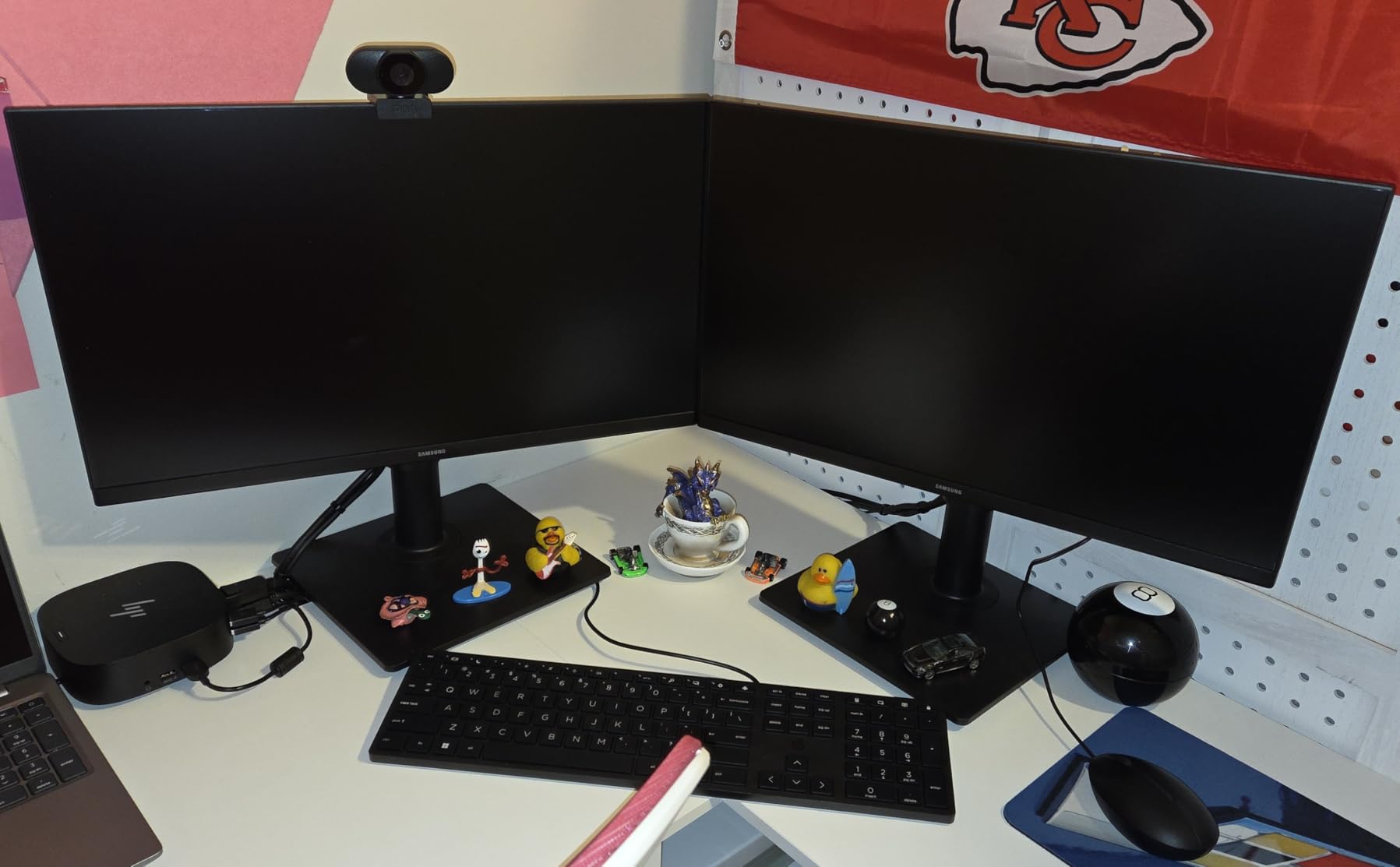
The panel is a 27-inch Full HD 1920×1080 IPS running at 100Hz with 250 cd/m2 brightness and 178-degree viewing angles. Colour rendering is described as excellent in reviews, with owners reporting no dead pixels on the panels they received.
Connectivity is atypically generous: two HDMI, DisplayPort, a two-port USB hub and a headphone output. The built-in power supply means no power brick, so the monitor plugs straight into a strip and the desk stays clear.
When the stand is the reason to buy
Buy it if your work is reading-heavy. Long documents, PDFs and code all benefit from a portrait panel, and a height range puts the top of the screen at eye level rather than forcing you to look down all day.
Thin bezels on all four sides let two of these sit side by side with a minimal gap, which is a low-cost path to a dual-monitor setup. Keep the audio side of a creator desk in mind too, because two panels do not solve that half of the job.
Where the compromises sit
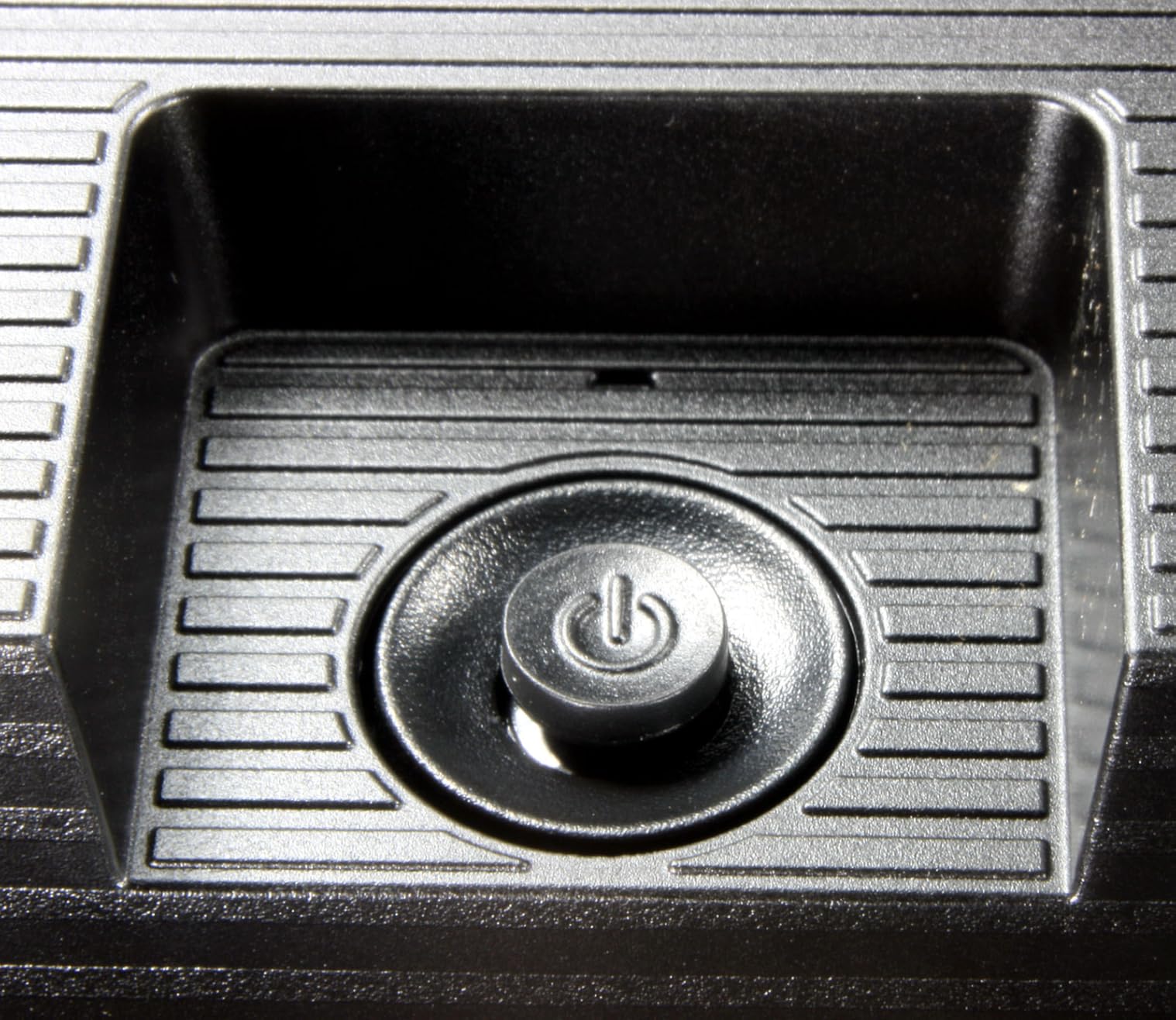
Port placement is the flaw owners raise most. The USB and headphone sockets sit so you must tilt the screen up to reach them, which is awkward several times a day, and cable routing needs slack for the rotating stand.
Beyond that, Full HD at 27 inches is about 92 PPI, so dense documents look softer than on the QHD and 4K picks here. Budget for that softness or move up a resolution.
6. Amazon Basics 27E2UA – Best Budget 27-Inch Monitor With the Most Ports
Amazon Basics 27 in IPS Monitor, Full HD 1080P, 75 Hz, Adjustable Stand, HDMI, Display Port, VGA Input, Built-in Speakers, VESA Compatible, Black
Full HD 1920x1080 IPS
HDMI DisplayPort and VGA
Four USB 3.2 ports with audio in and out
VESA 100x100 wall mount
Pros
- Rich port selection for the money including four USB 3.2 ports
- Built-in speakers remove a desk device
- IPS colour accuracy is good out of the box
- VESA 100x100 works on a monitor arm
- Standard plug instead of a power brick
Cons
- 75Hz is the lowest refresh rate in the list
- Built-in speakers are tinny and echoey
- Stand adjustment is very limited
- Full HD gives less desktop space
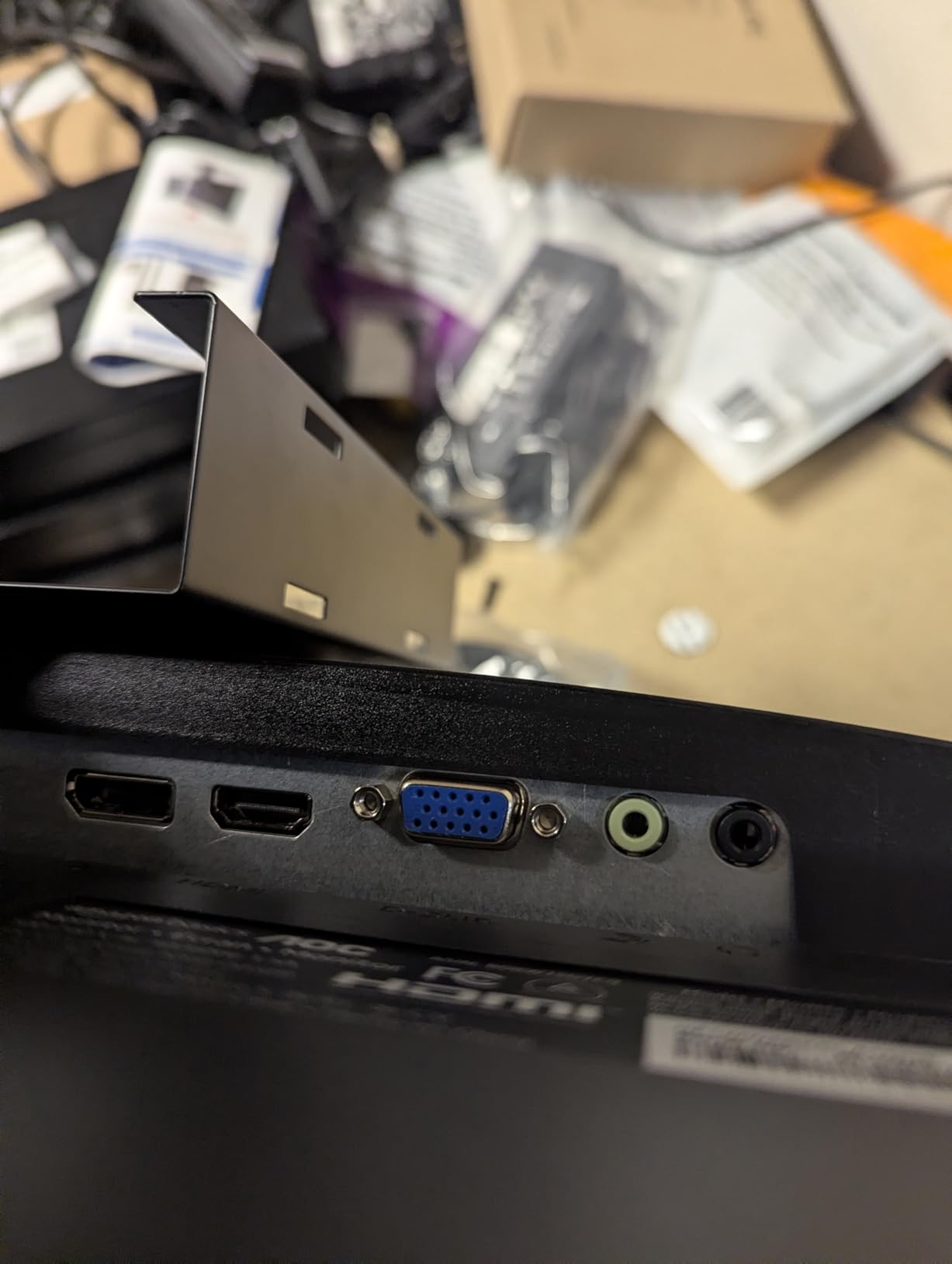
What makes this the budget pick is not the panel, it is the ports. HDMI, DisplayPort, VGA, four USB 3.2 ports, a USB-B upstream port and 3.5mm audio in and out appear on a monitor at the bottom of the price range, which is genuinely rare.
The 27-inch Full HD IPS panel gives accurate colour and 170-degree viewing angles, and 1500:1 contrast beats the usual 1000:1 office figure. The matte finish handles a bright room without turning into a mirror, and it is Energy Star certified.
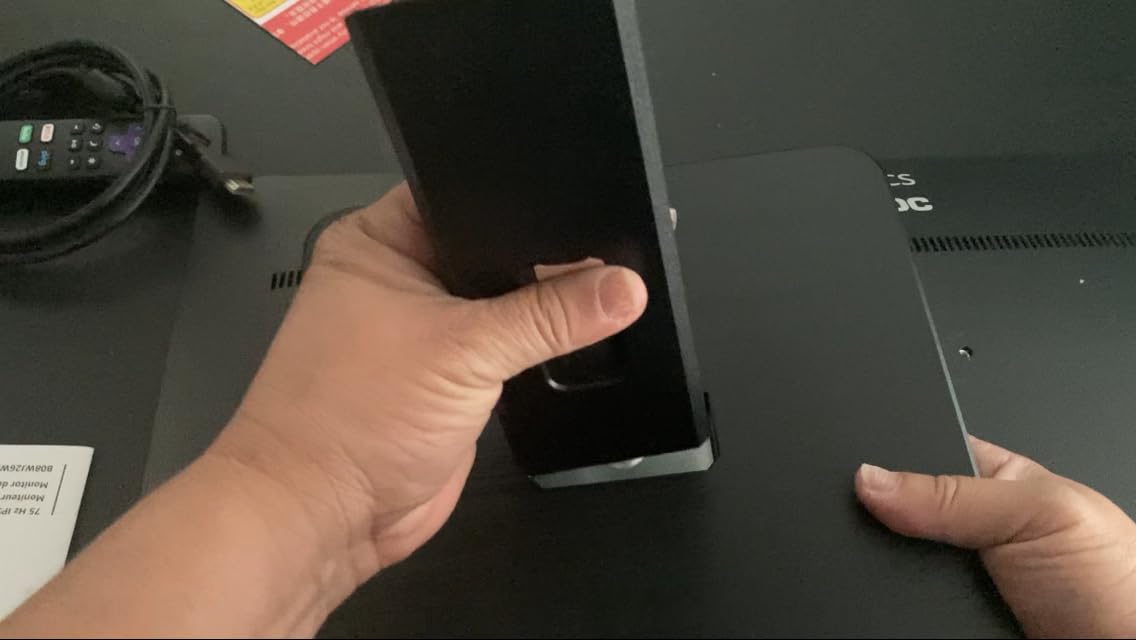
Owners using it as a secondary display praise how easily it joins a monitor arm on the standard VESA 100×100 pattern. The stand tilts from -5 to 20 degrees, which covers most seated positions but little else.
What you give up to save the money
You give up smoothness. At 75Hz this is the lowest refresh rate in the list, and while it is usable for documents and video calls, scrolling feels less fluid than on the 100 to 120Hz panels above it.
You also give up screen real estate. Full HD at 27 inches is about 92 PPI, so side-by-side documents have less room than on a QHD panel, and spreadsheet-heavy weeks feel that difference.
Who should skip it
Skip it if you are replacing a dock rather than adding a display, since there is no USB-C input and the USB ports are not fed from one upstream lead. Plan on bringing your own adapter.
Skip it if you take calls from the monitor speakers alone, since owners describe the audio as tinny and echoey. A second monitor arm is also likely part of your real budget.
7. Acer KB272 G0bi – Best 27-Inch Monitor for Value and Longevity
Acer 27in FHD 1920×1080 IPS 120Hz Gaming Monitor | Office KB272 G0bi
Full HD 1920x1080 IPS
120Hz with 1ms VRB response
250 nits and 99% sRGB
3 year parts and labour warranty
Pros
- More than 2000 reviews behind the panel
- 120Hz and 1ms response at the entry level
- 99% sRGB colour with wide viewing angles
- Matte finish cuts reflections in a bright room
- Three year parts and labour warranty
Cons
- Full HD is soft for dense text
- Single HDMI and VGA with no DisplayPort or USB hub
- Tilt adjustment only with no height swivel or pivot
- 250 nits is modest for a sunny desk
With more than 2,000 reviews at 4.6 stars and an 80% five-star share, the KB272 G0bi is the most proven panel here. On office equipment that matters, because a dead pixel or a flickering backlight is a real annoyance and this one has a long record of avoiding both.
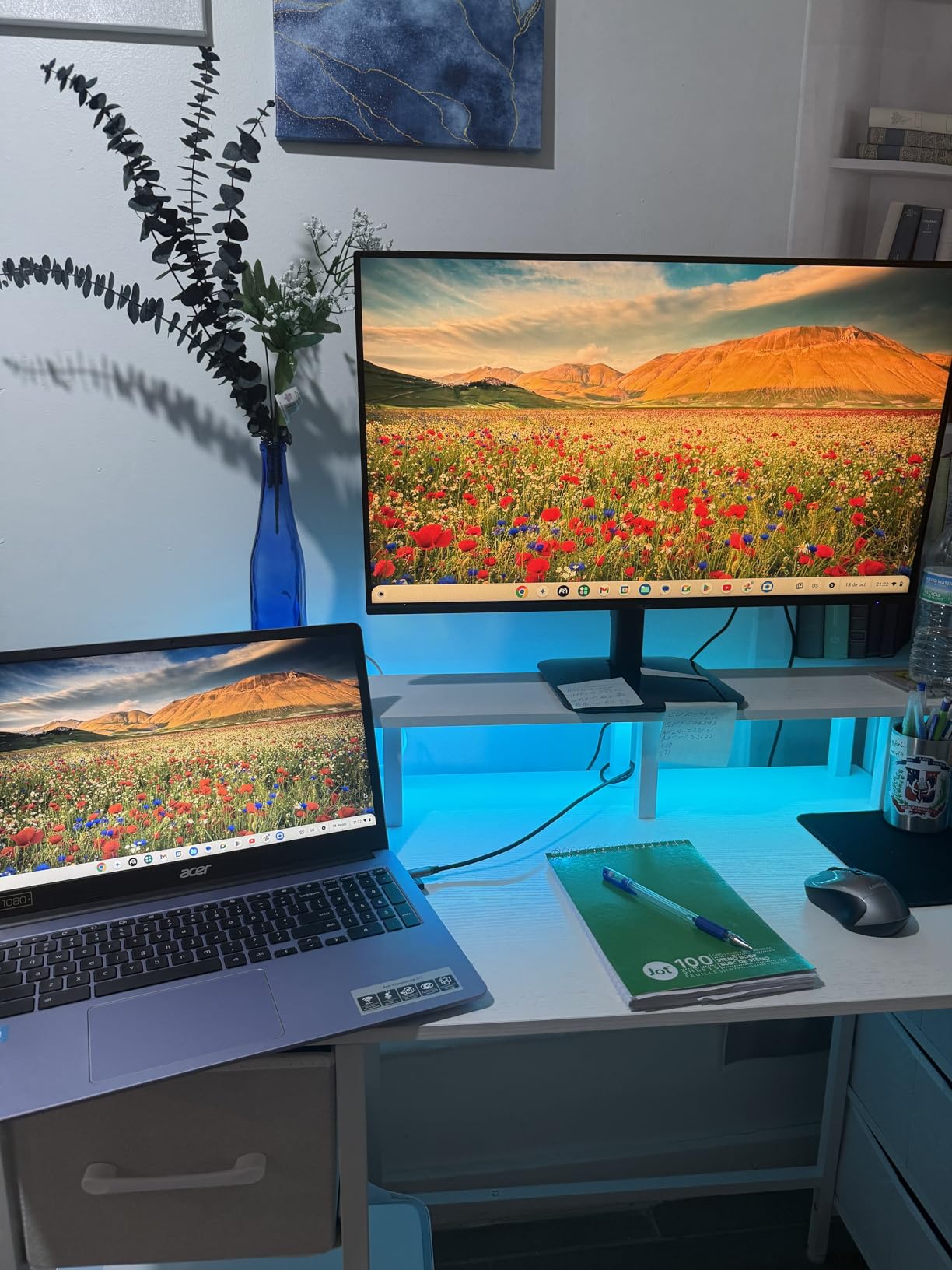
It is also faster than the price suggests. A 120Hz refresh rate and 1ms VRB response put it ahead of the other entry-level 27-inch panels here, with FreeSync keeping video and desktop motion tear-free and colour coverage at 99% sRGB.
Two details stand out. The matte anti-glare finish keeps window reflections manageable on a desk facing a bright wall, and the three-year parts and labour warranty is unusually long at this level, covering the panel itself.
Why the review count matters here
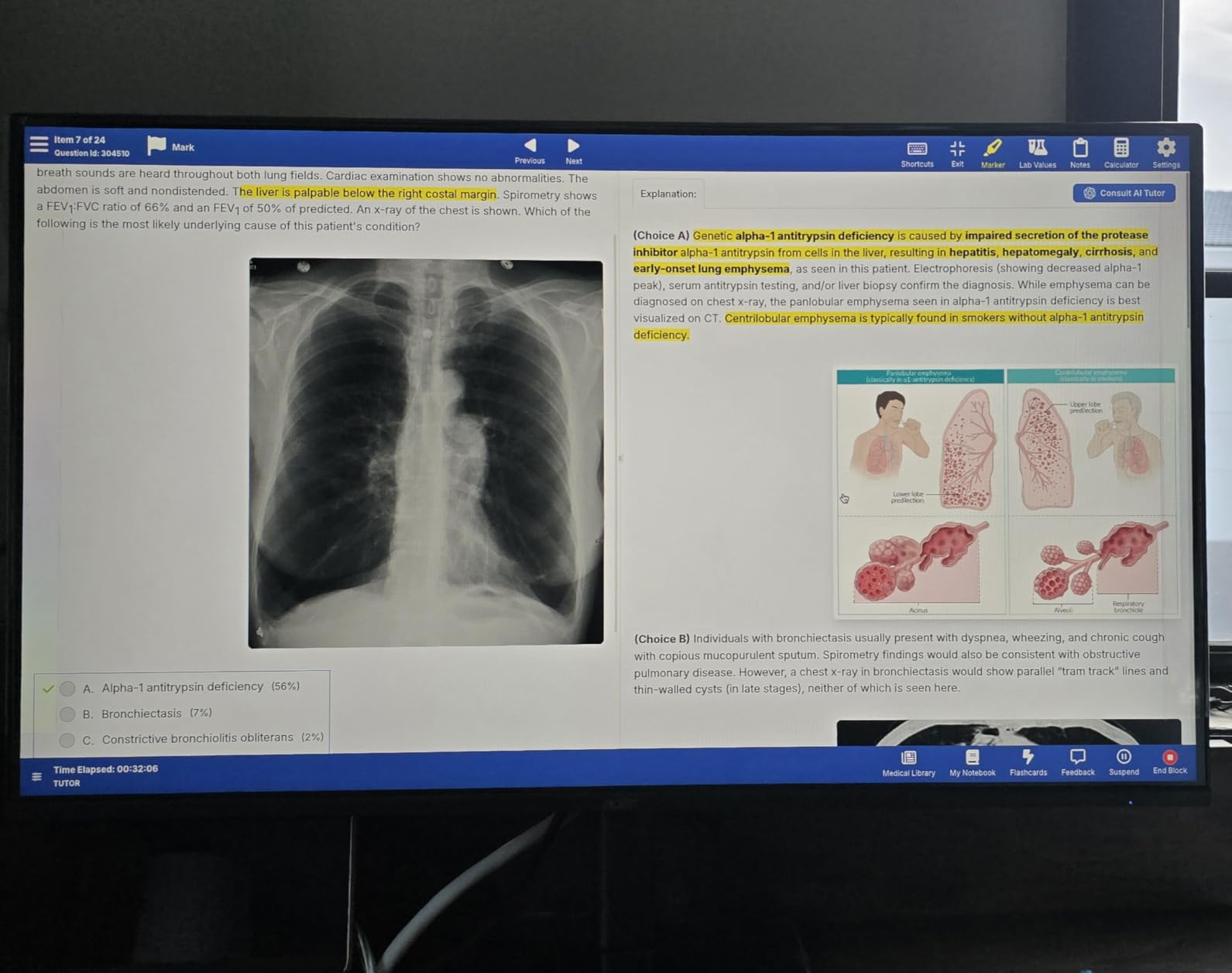
On a monitor you will face for eight hours a day, reliability beats a spec-sheet advantage. The three-year warranty and a large body of owner feedback make this the pick for anyone who does not want to think about the purchase again.
It is also the straightforward choice for a second screen, a dorm room or a spare office, where spending heavily on a display makes little sense. Power consumption is 18 watts and an HDMI cable comes in the box.
Who should skip it
Skip it if you are a serious multitasker. Full HD at 27 inches gives about 92 PPI, so two documents side by side leave less usable space than any QHD or 4K option here, and owners report the same limit.
Skip it if neck position matters across a long day, because the stand offers tilt only. With no DisplayPort or USB hub, a monitor arm bought for the height range is doing double duty as your only port solution.
8. LG 27U411A-B – Best 27-Inch Monitor for Smooth Scrolling on a Budget
LG 27U411A-B 27-inch Full HD (1920 x 1080) IPS Computer Monitor, 120Hz, HDR10, Reader Mode, Flicker Safe, HDMI, Slim Stand Base, Black
Full HD 1920x1080 IPS
120Hz with 5ms response
99% sRGB with HDR10
Reader Mode and Flicker Safe
Pros
- 120Hz beats the 60Hz office standard at a mid range price
- Reader Mode and Flicker Safe target long reading
- Three side virtually borderless design suits dual monitors
- HDR10 with 99% sRGB and 178-degree angles
- Switch app splits the screen into six sections
Cons
- Single HDMI with no DisplayPort or USB-C or hub
- Tilt only stand from -5 to 20 degrees
- 5ms response and 250 nits trail brighter panels
- Full HD limits desktop real estate
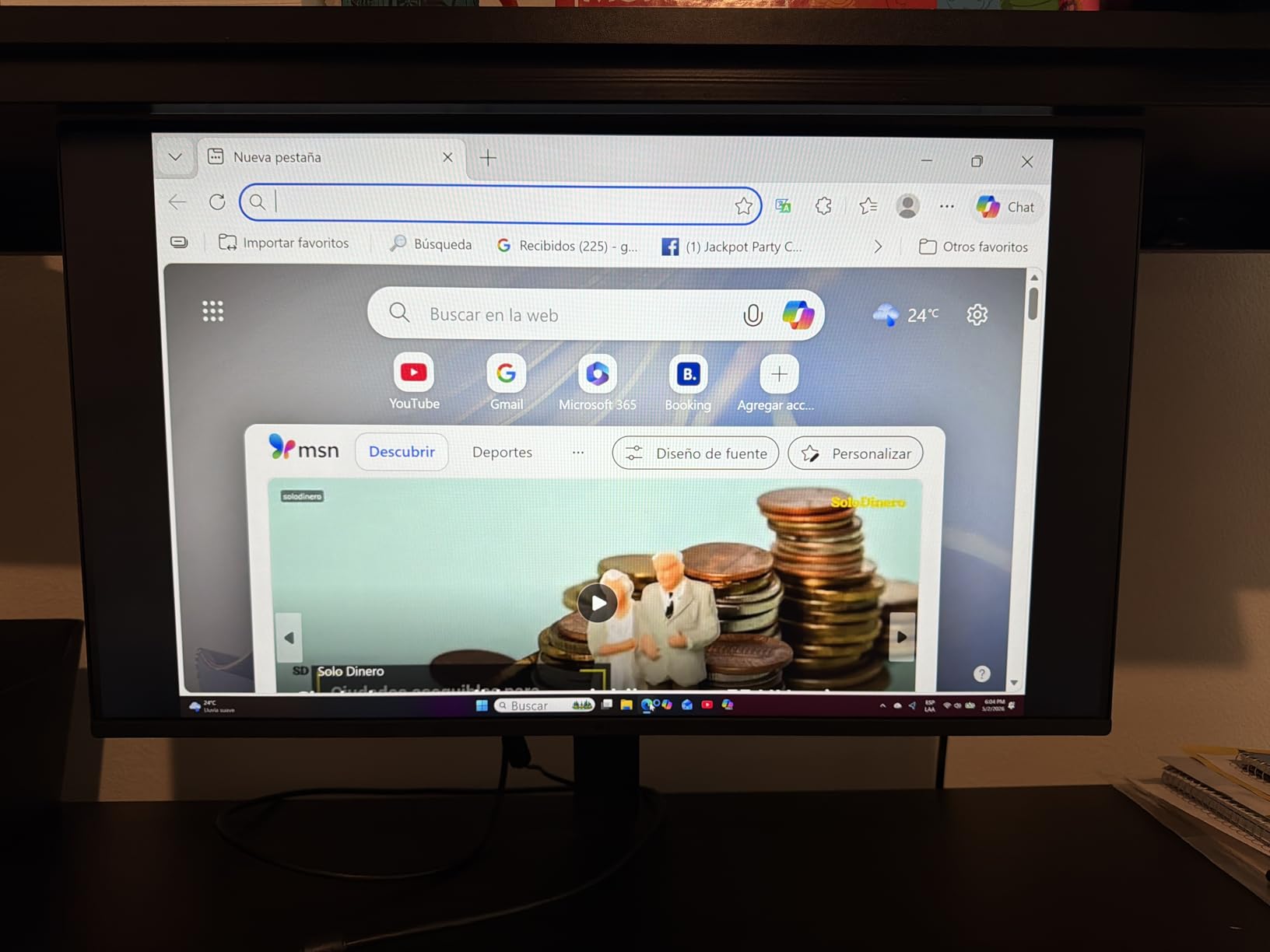
The 27U411A-B is the smoothest-feeling entry-level 27-inch screen on this list. At 120Hz, dragging a window, scrolling a page and moving the cursor all feel better than a 60Hz office panel, and 5ms response keeps motion clean enough for casual gaming.
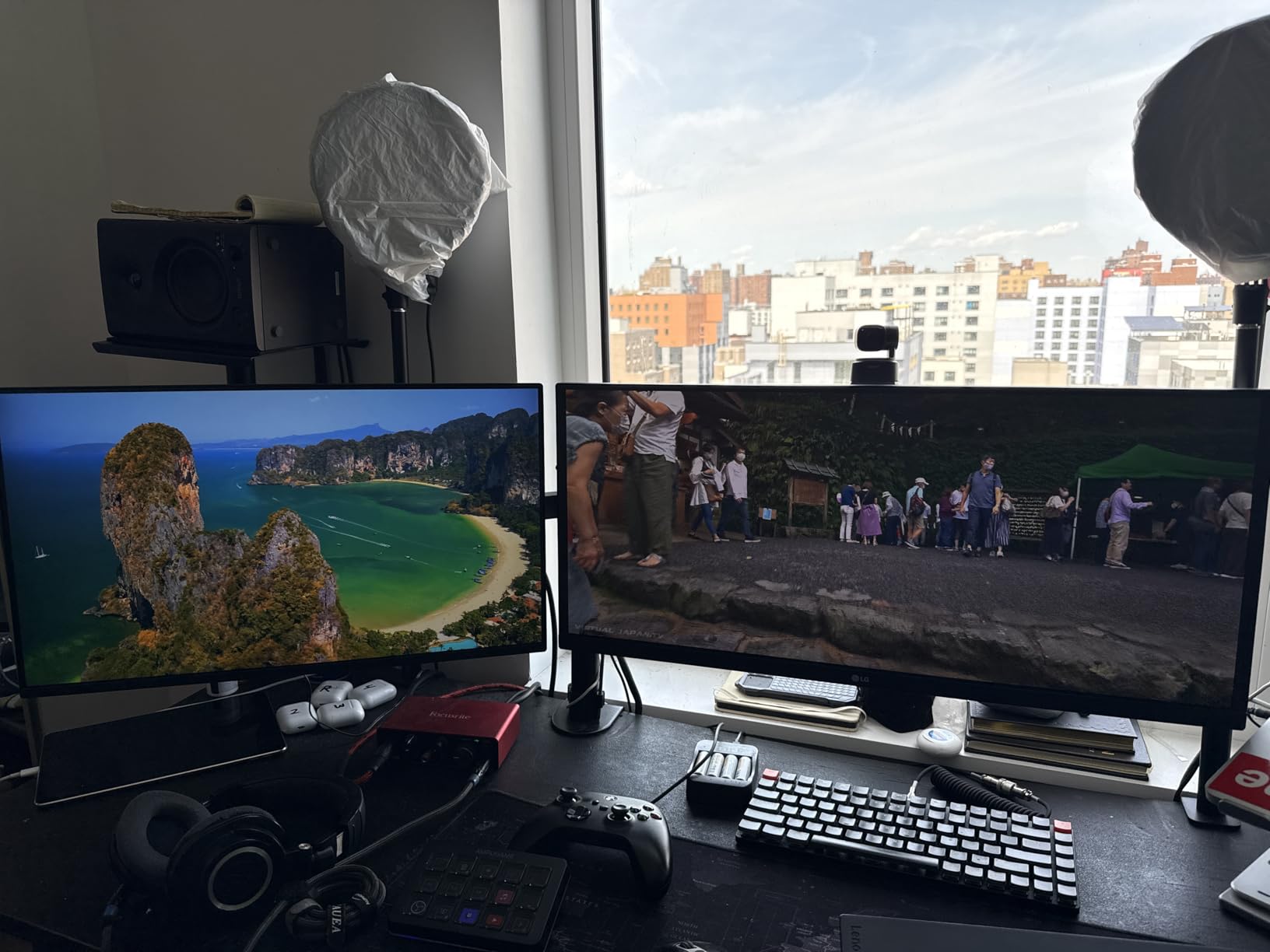
Eye comfort is the other theme in the reviews. Reader Mode lowers blue light levels and Flicker Safe reduces flicker during dimming, which is what experienced users actually mean when they talk about eye strain. Nearly 1,000 reviews at 4.5 stars reflect that.
The three-side virtually borderless design with a slim stand is what owners point to for dual-monitor arrangements, where a thin bezel gap makes two screens look like one wide panel.
When 120Hz at this tier makes sense
It makes sense if your day is spent moving windows rather than reading static pages. Anyone arriving from a 60Hz office panel notices the difference within a minute, and it is the most visible upgrade that does not require a resolution change.
It also works as a tidy second screen, where the thin bezel keeps the pair visually clean and the Switch app handles quick call launches from a single hotkey.
Where the limits are
Connectivity is the limitation owners mention first. A single HDMI means no DisplayPort, no USB-C and no hub, so a laptop user needs an adapter and a desktop-plus-laptop setup means swapping cables by hand.
The stand tilts from -5 to 20 degrees and nothing more, so this is not an ergonomic choice over a long day. Brightness of 250 nits is also dim for a desk near a window.
9. Samsung S32GF – Best 27-Inch Monitor for Two Video Inputs
Samsung 27″ S3 (S32GF) Series FHD High Resolution Monitor
Full HD 1920x1080 IPS
120Hz with 5ms response
250 cd/m2 and 178-degree angles
Two HDMI inputs
Pros
- Two HDMI inputs let a laptop and desktop share one screen
- 120Hz is the standout feature at this price
- IPS colour stays consistent at off-axis angles
- Eye Care mode reduces blue light and flicker
- Light 6.6 pound design keeps the desk tidy
Cons
- Glossy finish shows room and overhead reflections
- 250 nits is dim for a window-side desk
- Full HD limits how much you can fit
- Stand has no height or pivot adjustment
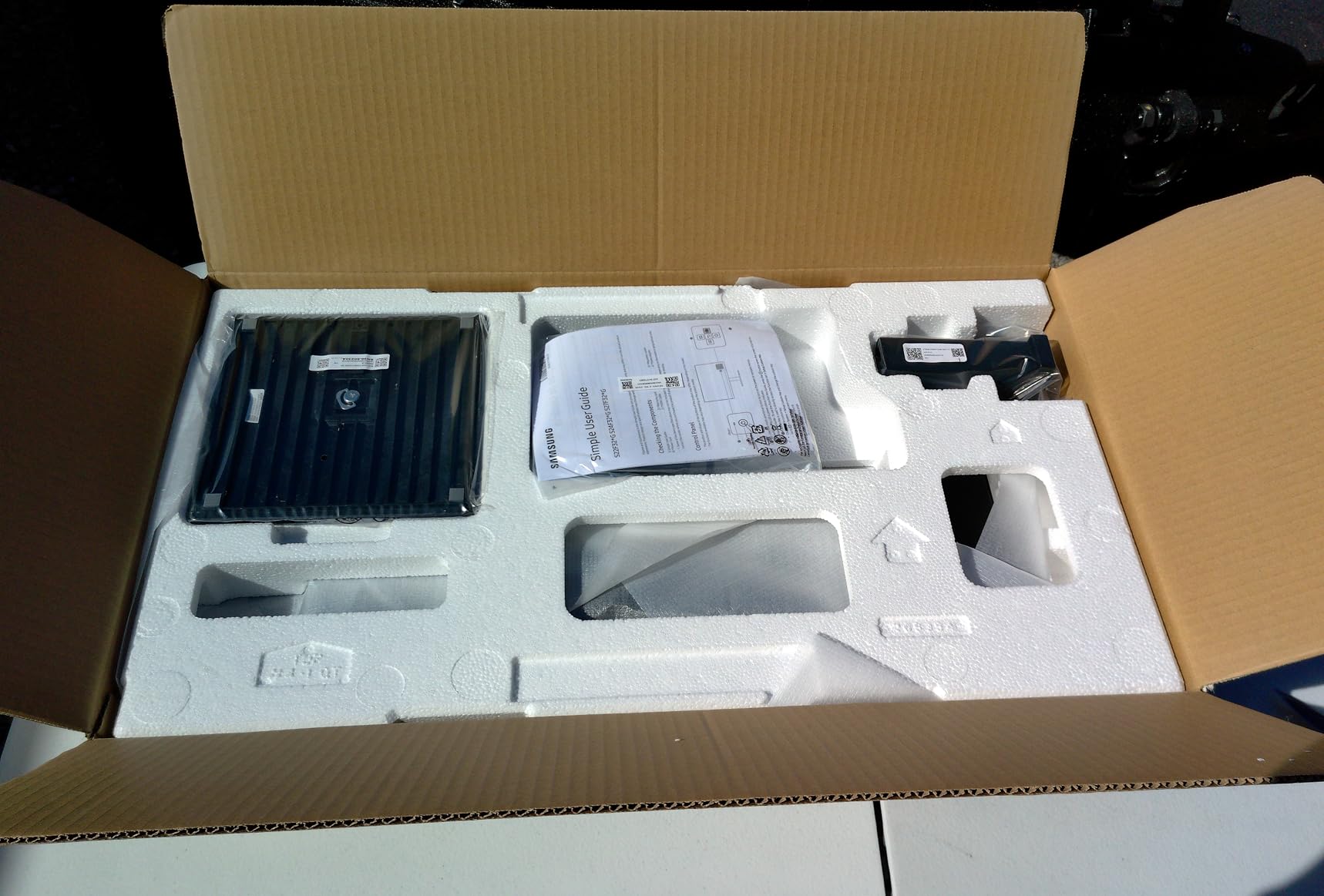
The S32GF solves one problem well: running a desktop and a laptop off a single 27-inch screen without touching cables. Two HDMI inputs let you leave both plugged in and switch from the menu, which removes a daily friction in a hybrid home office.

The rest is a balanced 27-inch IPS package at 120Hz with 5ms response, 1000:1 contrast and 178-degree viewing angles. Game Picture Mode adjusts contrast and scaling per genre, and Eye Care handles blue light and flicker for long sessions.
Owners like the super-slim design with ultra-thin bezels, which keeps the weight at 6.6 pounds and easy to reposition. The dual inputs are the most-praised feature across 656 reviews at 4.5 stars.
When dual inputs earn their place
They earn their place in a hybrid setup where the same screen serves a work machine and a personal one. Avoiding a manual cable swap twice a day removes a small but persistent friction, and no hub or KVM switch is needed to do it.
It also suits a desktop-first office where a console or a second device gets plugged in occasionally, since the extra input is simply spare capacity.
Who should skip it
Skip it for a bright, window-facing desk. The glossy finish picks up room reflections and overhead light, which is the most common complaint in reviews, and 250 nits is dim for a sunlit workspace.
Skip it if you need to raise the screen. There is no height or pivot movement, so a monitor arm is required for proper positioning, and Full HD limits how many windows you keep open.
10. Samsung S30GD – Best 27-Inch Monitor for a Two-Screen Desk
Samsung 27″ (S30GD) Essential Monitor with IPS Panel
Full HD 1920x1080 IPS
100Hz with 5ms response
250 nits and 178 degree angles
Blue light filter and flicker free
Pros
- IPS colour stays consistent from off-axis angles
- 100Hz is smoother than the 60Hz office standard
- Blue light filter and flicker-free backlight
- Ultra-thin bezels suit a multi-monitor desk
- Setup is reported as quick and simple
Cons
- 100Hz and 5ms response trail 120Hz panels
- Glossy finish reflects a window-lit room
- One HDMI plus D-Sub with no DisplayPort or USB-C
- Tilt only stand with no height or pivot
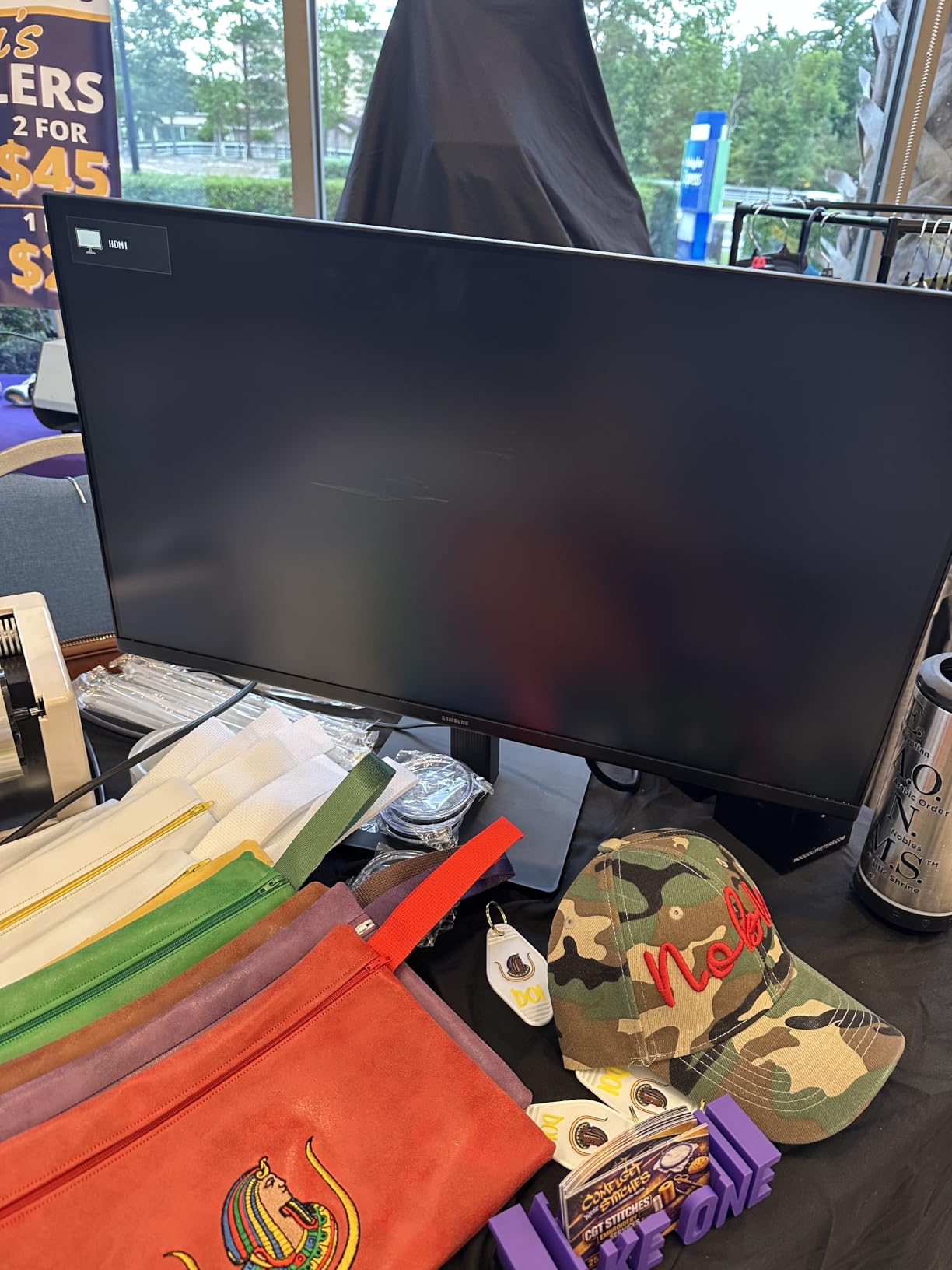
Two S30GD panels side by side are the cheapest route to a dual-monitor home office, and the ultra-thin bezels on three sides make the pair look like one wide surface. Buyers on multi-monitor desks report adding a second unit without hesitation.
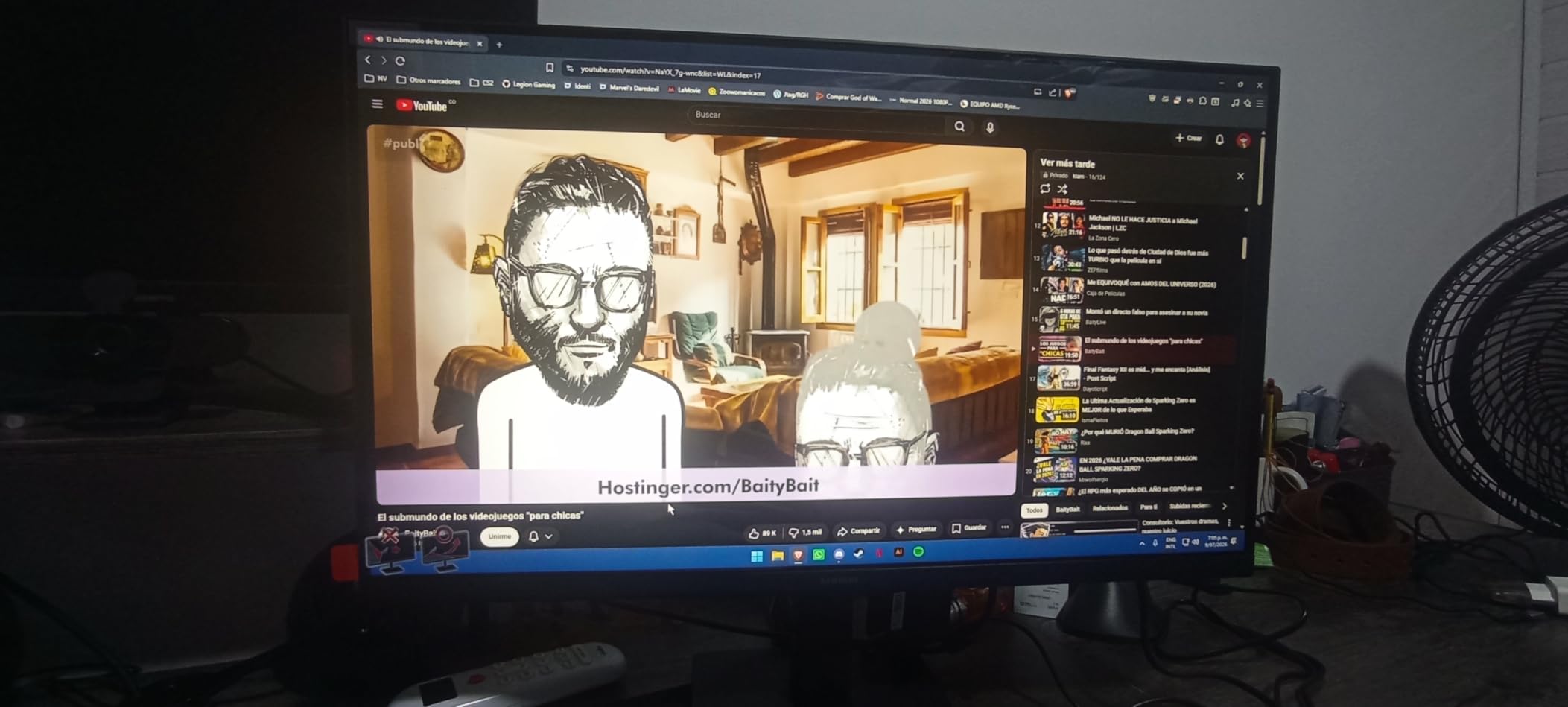
The 27-inch IPS panel holds colour steady at off-axis angles, which matters specifically when a second screen sits beside an open laptop. Refresh rate is 100Hz with 5ms response, 1000:1 contrast, 250 nits and 178-degree angles, with Eye Care combining a blue light filter and a flicker-free backlight.
Setup is reported as quick and the menu controls are easy to navigate. Compatibility covers laptops, desktops and consoles, so the panel moves between setups without friction.
When two screens beat one
Two 27-inch screens win when your work is genuinely parallel. A document on one side and a spreadsheet on the other, or an email client beside a code editor, is a permanent arrangement rather than an occasional one, and two of these is the least expensive way to get there.
They also work as a large and small display, with the second panel taking chat, mail and monitoring. Two screens that match beat one large and one mismatched when colour consistency matters.
Where it falls short
Full HD at 27 inches is about 92 PPI, so text is soft relative to the QHD and 4K picks here. For spreadsheet and document work specifically, that softness is the limit worth naming before you commit to two of them.
Connectivity is one HDMI plus a legacy D-Sub with no DisplayPort or USB-C, the glossy finish shows reflections in a window-lit room, and the stand tilts only, so both screens may need arms.
27-Inch Monitor Buying Guide: What Actually Matters
Resolution and pixel density decide text sharpness at 27 inches
A 27-inch panel is only as sharp as its pixel density, and the three common resolutions land in very different places. Full HD 1920×1080 gives roughly 92 pixels per inch, QHD 2560×1440 gives about 109 PPI, and 4K 3840×2160 gives about 163 PPI. Text looks noticeably soft at 92, comfortable at 109 and sharp at 163.
That is the most common trap in this category. A 27-inch Full HD panel delivers a bigger version of a 24-inch Full HD experience, which is the exact complaint that appears again and again in buyer reviews of the budget picks on this list.
Operating system scaling matters as much as the panel. QHD at 27 inches is comfortable at 100 or 125% scaling, while 4K generally needs 150% to make interface text a sensible size. If you are sensitive to small text, a QHD panel at 100% often feels better than 4K at default settings, and it leaves more usable desktop space.
USB-C power delivery decides whether you still need a dock
USB-C power delivery sends charging, video and data down one lead, and the wattage tells you whether that lead replaces your dock. At 60W it comfortably charges thin ultraportables, at 90W it covers mainstream performance laptops, and at 100W or more you can charge workstation-class machines. Below 60W is worth avoiding for a laptop-first setup.
Wattage is only half the question. To genuinely retire a dock you also want a built-in USB hub for peripherals and, ideally, RJ-45 Ethernet. Most monitors in this list offer a hub but no Ethernet, so if your home office runs on wired internet, budget for an adapter or keep your dock.
IPS is the right default for all-day text
IPS is the sensible default for office work because it combines accurate colour with wide viewing angles and consistent text rendering across the panel. That stability matters when a second screen sits beside your laptop, because colours do not shift as your gaze moves.
VA panels offer deeper blacks and higher contrast, which helps with media, but text rendering is less consistent and viewing angles are narrower. OLED gives the best contrast and fastest response, and owners do report good results with 27-inch OLED panels for work. The hesitation is long-term, since forum readers consistently worry about subpixel text rendering and burn-in over ten-hour days.
100 to 120Hz is the work-first refresh rate
For a work-first monitor in 2026, 100 to 120Hz is the sensible baseline, and 60Hz now feels sluggish even in ordinary system animations. Scrolling a long document, dragging a window between screens and moving a cursor all read as smoother at 120Hz, and that difference shows up every hour you work.
Beyond 120Hz you are buying gaming performance rather than office comfort, which is not a bad trade if you play competitively but does nothing for a spreadsheet. Two panels here run at 75Hz and one at 60Hz, and that is the main thing to know before choosing a 4K screen.
Desk fit, viewing distance and the 27 versus 32 question
For a 27-inch panel, sit roughly 60 to 76 centimetres away, which keeps the whole screen in a normal field of view without eye movement across the edges. A 32-inch panel pushes that to about 76 to 91 centimetres, which is why larger screens need deeper desks and why neck strain is the usual report from people who jump from 24 to 32 too quickly.
That question comes up constantly in home-office discussions. The practical answer is that 27 inches suits most desks, while 32 needs real desk depth and a habit of sitting back, and a 34-inch ultrawide makes sense only as a replacement for two screens since it cannot tilt. Stand adjustment range matters more than most buyers expect, with height adjustment and pivot to portrait the two movements used daily.
Eye comfort claims are worth less than the numbers behind them
Blue light filters are treated sceptically by experienced users, and the scepticism is fair. What reduces strain over a long day is flicker-free dimming, a matte anti-glare finish to kill reflections, brightness matched to your room, and a viewing distance that does not make you lean forward.
Certification marks such as Eyesafe or TUV Rheinland eye comfort indicate a panel met a defined flicker and blue light threshold, which is more than nothing. Treat 250 nits as the practical floor for a normally lit room and 350 nits or more for a desk near a window, since four panels here sit at 250 nits and reviewers flag them as dim.
Frequently Asked Questions
Is a 27-inch monitor too big for office work?
No. Twenty-seven inches is the sweet spot for most home offices, because it fits a spreadsheet and an email window side by side on a 120cm desk while keeping the panel within a normal field of view. Sit about 60 to 76 centimetres from the screen and prioritise height adjustment. Move to 32 inches only if your desk has real depth behind it.
Which monitor is better for text clarity, IPS or OLED?
IPS is the safer choice for all-day office text. Its subpixel arrangement renders characters consistently across the panel and holds colour steady at off-axis angles when a second screen sits beside a laptop. OLED is very good on 27-inch QHD and 4K panels, but buyers still hesitate over ten-hour days because of text rendering and burn-in anxiety.
Should I get a 27 inch or 32 inch monitor for a home office?
Stay at 27 inches unless your desk is deep and you already sit back from the screen. A 27-inch panel needs about 60 to 76 centimetres of viewing distance, while a 32-inch panel needs 76 to 91 centimetres plus more desk depth. Choosing 32 on a shallow desk is the most common cause of the neck strain people report on monitor forums.
Do I need 4K for a 27 inch monitor, or is QHD enough?
QHD is enough for most people, and 4K is the upgrade for text-heavy work. At 27 inches, QHD 2560×1440 gives roughly 109 PPI, comfortable at 100 or 125% scaling, while 4K gives about 163 PPI. Full HD gives only about 92 PPI and looks soft at this size, and 4K generally needs 150% OS scaling.
Do I need USB-C docking on a home office monitor, and how many watts?
If you run a laptop, you need at least 60W for a thin ultraportable and 90W for a mainstream performance laptop. To fully replace a dock you also want a built-in USB hub, and ideally RJ-45 Ethernet, which most monitors here lack. For a hot-desking desk, a single-cable 90W setup removes the most friction.
Which 27-Inch Monitor Should You Buy?
For most people, the Dell S2725QS is the answer. A 4K panel at 120Hz with a fully adjustable stand covers documents, spreadsheets, code, calls and light photo work in one box, and it is the only pick here that solves sharpness, smoothness and neck position together.
Use the shortcuts for everything else. A larger laptop on a single cable means the LG 27UP850K-W, the only panel charging above 65W. Colour-critical output means the ASUS ProArt PA278CV, calibrated to Delta E under 2. QHD on a budget with a real adjustable stand means the Dell S2722DC, and reading-heavy work that benefits from portrait means the Samsung S40GD. A second screen on a tight budget means the Samsung S30GD, smooth scrolling on a budget means the LG 27U411A-B, and a desk shared between a laptop and a desktop means the Samsung S32GF with two HDMI inputs.
Two rules cover most of the rest. Avoid Full HD at 27 inches unless your budget is genuinely tight, because 92 PPI is why buyers return monitors claiming the text looked soft. And match brightness to the room before you commit, since four panels here sit at 250 nits and reviewers flag them in bright spaces.
We will revisit this list as models change, and the fastest way to re-check it yourself is to ignore the panel size and answer two questions first: what resolution suits my desk distance, and how many watts does my laptop need. Everything else follows from those. For the audio side of a creator desk, see our 6 inch studio monitor roundup.