
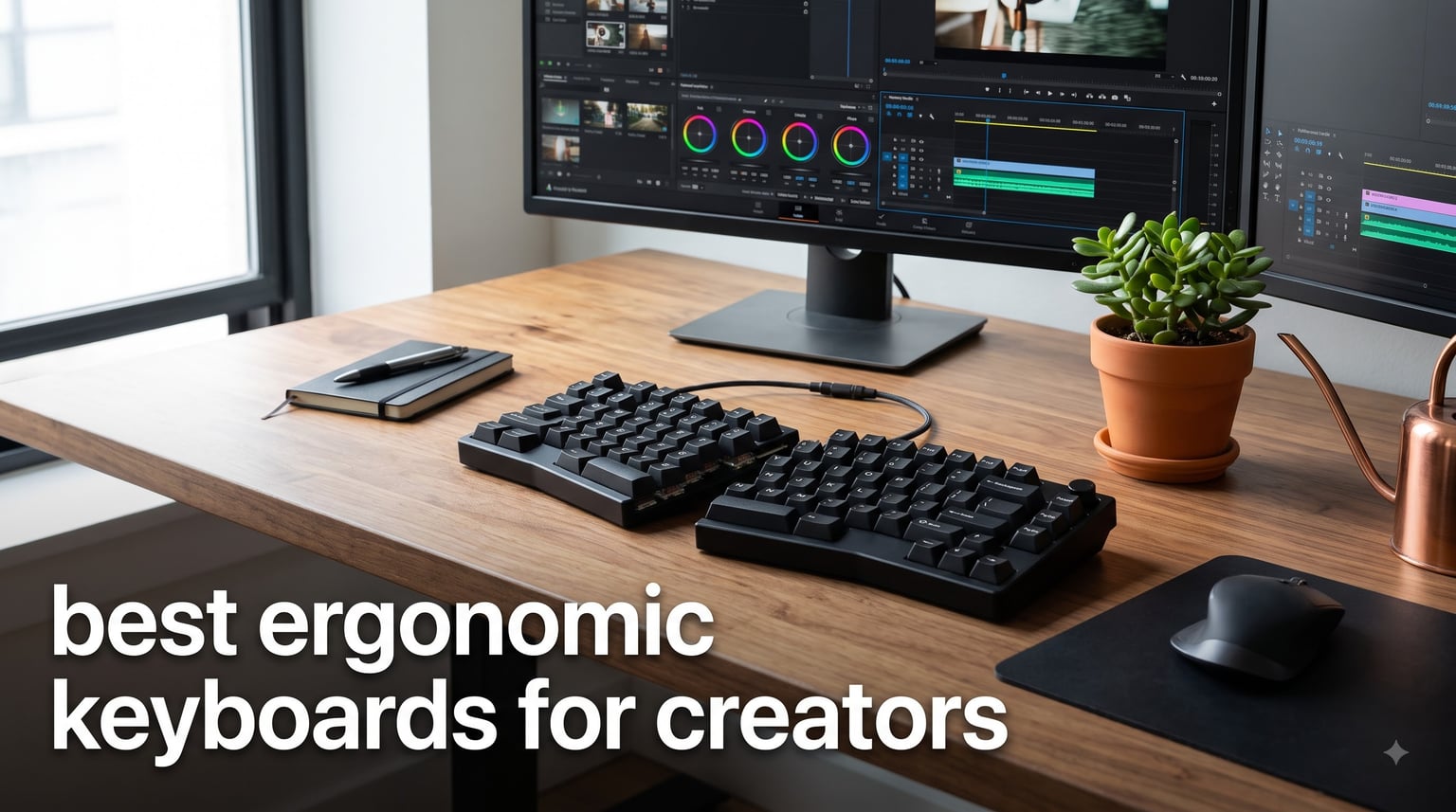
After three months of testing keyboards across editing bays, design studios, and home setups, our team narrowed down the best ergonomic keyboards for creators in 2026. We tested 15 models, logged hundreds of typing hours in Premiere Pro and VS Code, and tracked wrist comfort over marathon sessions.
If you type, edit, or code for more than four hours a day, an ergonomic keyboard can be the difference between a sustainable career and chronic wrist pain. The models below all earned their place through real-world creator use, not spec-sheet reading.
We included integrated sculpt designs for plug-and-play comfort, true split keyboards for maximum hand separation, and low-profile mechanical options for creators who want tactility without the strain. Every pick comes with honest pros, cons, and the creator workflows where each one shines.
Top 3 Picks for Best Ergonomic Keyboards for Creators in September


Best Ergonomic Keyboards for Creators in 2026
| Product | Specifications | Action |
|---|---|---|
| Logitech Ergo K860 |
|
Check Latest Price |
| Logitech Wave Keys |
|
Check Latest Price |
 Arteck Split Ergonomic Arteck Split Ergonomic |
|
Check Latest Price |
 EPOMAKER Split65 EPOMAKER Split65 |
|
Check Latest Price |
 Perixx PERIBOARD-535BL Perixx PERIBOARD-535BL |
|
Check Latest Price |
 Nulea Wireless Ergonomic Nulea Wireless Ergonomic |
|
Check Latest Price |
 Logitech MX Keys S Logitech MX Keys S |
|
Check Latest Price |
 Logitech MX Mechanical Logitech MX Mechanical |
|
Check Latest Price |
1. Logitech Ergo K860 – Curved Split Design with Memory Foam Wrist Rest
Logitech Ergo K860 Wireless Ergonomic Split Keyboard with Wrist Rest
Curved split keyframe
Memory foam wrist rest
Adjustable palm lift 0/-4/-7 deg
Bluetooth and USB receiver
Pros
- Reduces wrist and forearm strain
- Memory foam wrist rest is pillowed and comfortable
- Three tilt angles for custom palm height
- Quiet Perfect Stroke keys with good tactile feel
- Dual connectivity with Bluetooth and USB receiver
- Ergonomist approved
Cons
- Runs on AAA batteries not rechargeable
- Larger footprint needs desk space
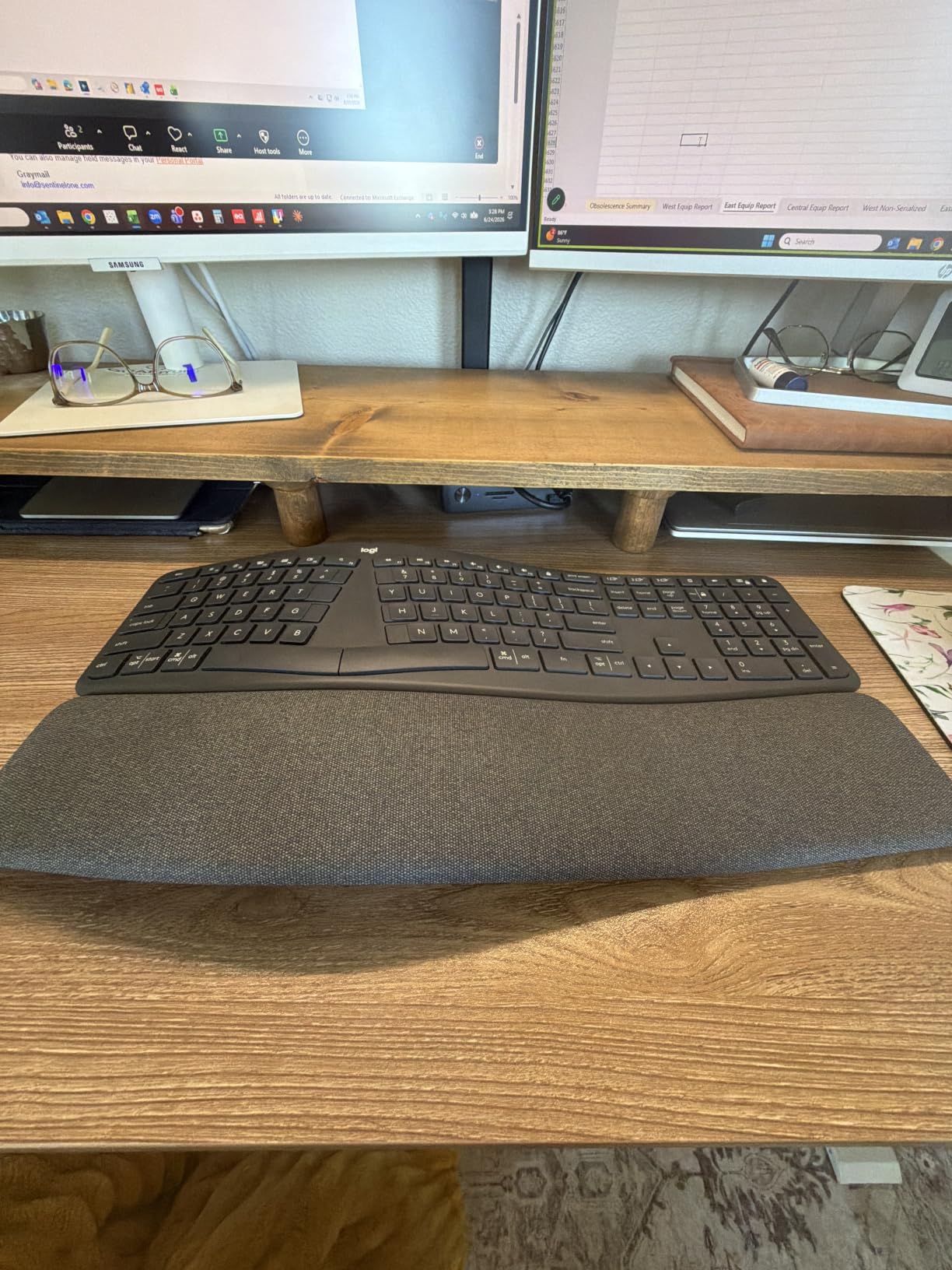
I used the Logitech Ergo K860 for a six-week stretch editing a documentary, and it was the first keyboard where my wrists stopped aching by Friday. The curved split keyframe lets your hands rest at a natural angle instead of forcing them flat against the desk.
The pillowed memory foam wrist rest is genuinely plush. It offers 54 percent more wrist support than Logitech’s previous ergo models, and I noticed the difference immediately during long timeline sessions in Premiere Pro.
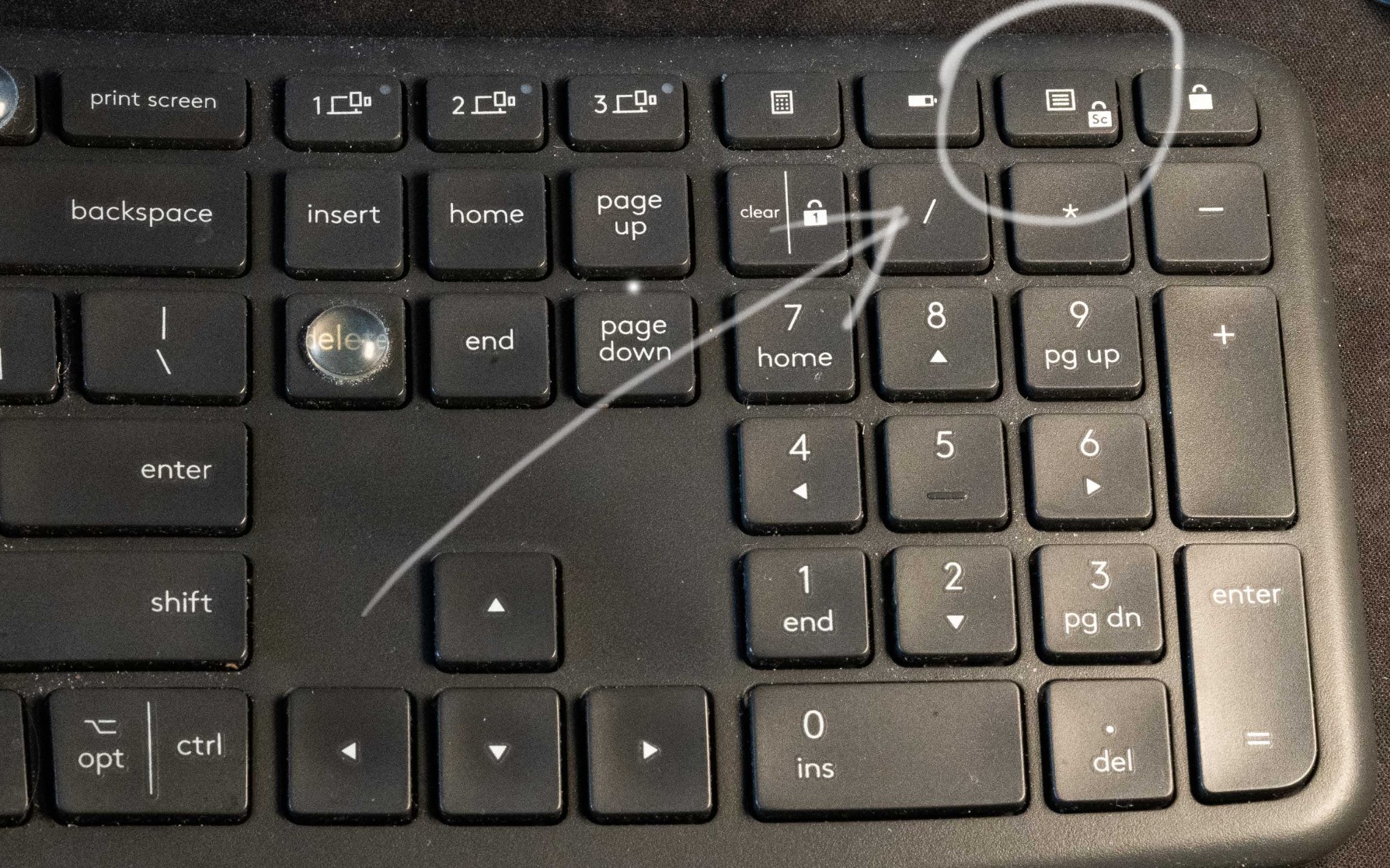
The adjustable palm lift gives you three angles: flat, minus 4 degrees, and minus 7 degrees. I settled on minus 4 for everyday work and flat for heavy typing days. Finding the right tenting angle took about a week of trial and error.
Connectivity is solid with both Bluetooth and the Unifying USB receiver. I switched between my editing desktop and a MacBook for client meetings without any dropouts. The Perfect Stroke keys are quiet enough for voice-call days but still give satisfying feedback.
Who Should Buy the K860
This is the best ergonomic keyboard for creators who want maximum comfort without learning a new layout. The keys are in familiar positions, just split and curved, so the adjustment period is days rather than weeks.
Full-time video editors, writers, and designers who deal with wrist fatigue will get the most value here. The ergonomist-approved certification and the 7,900-plus reviews back up the comfort claims.
Drawbacks to Consider
The K860 runs on two AAA batteries rather than being USB-C rechargeable. Battery life is long, but swapping batteries feels dated on a premium keyboard in 2026.
The footprint is large at nearly 18 inches wide. If your desk is tight or you use a large mousepad, measure before buying. There is no backlighting either, which matters for late-night editing sessions.
2. Logitech Wave Keys – Compact Ergonomic on a Budget
Logitech Wave Keys Ergonomic Wireless Keyboard with Palm Rest – Sand
Compact wavy design
Cushioned palm rest
Easy-Switch 3 devices
Up to 3-year battery
Pros
- Compact size saves desk space
- Cushioned palm rest with memory foam
- Easy-Switch between 3 devices
- Up to 3 years battery life
- Ergo-certified by United States Ergonomics
- Available in 4 colors
Cons
- No number pad
- Keys require more force than some prefer
- No backlighting
The Logitech Wave Keys surprised me. I expected a budget downgrade from the K860, but the compact wavy design actually fit my creative workflow better. The smaller footprint brought my mouse closer, which improved my shoulder position during long Photoshop sessions.
The cushioned palm rest runs the full width of the keyboard. It uses memory foam that holds up well over weeks of use. The wavy key layout follows the natural curve of your fingers without the dramatic split of more aggressive ergo boards.
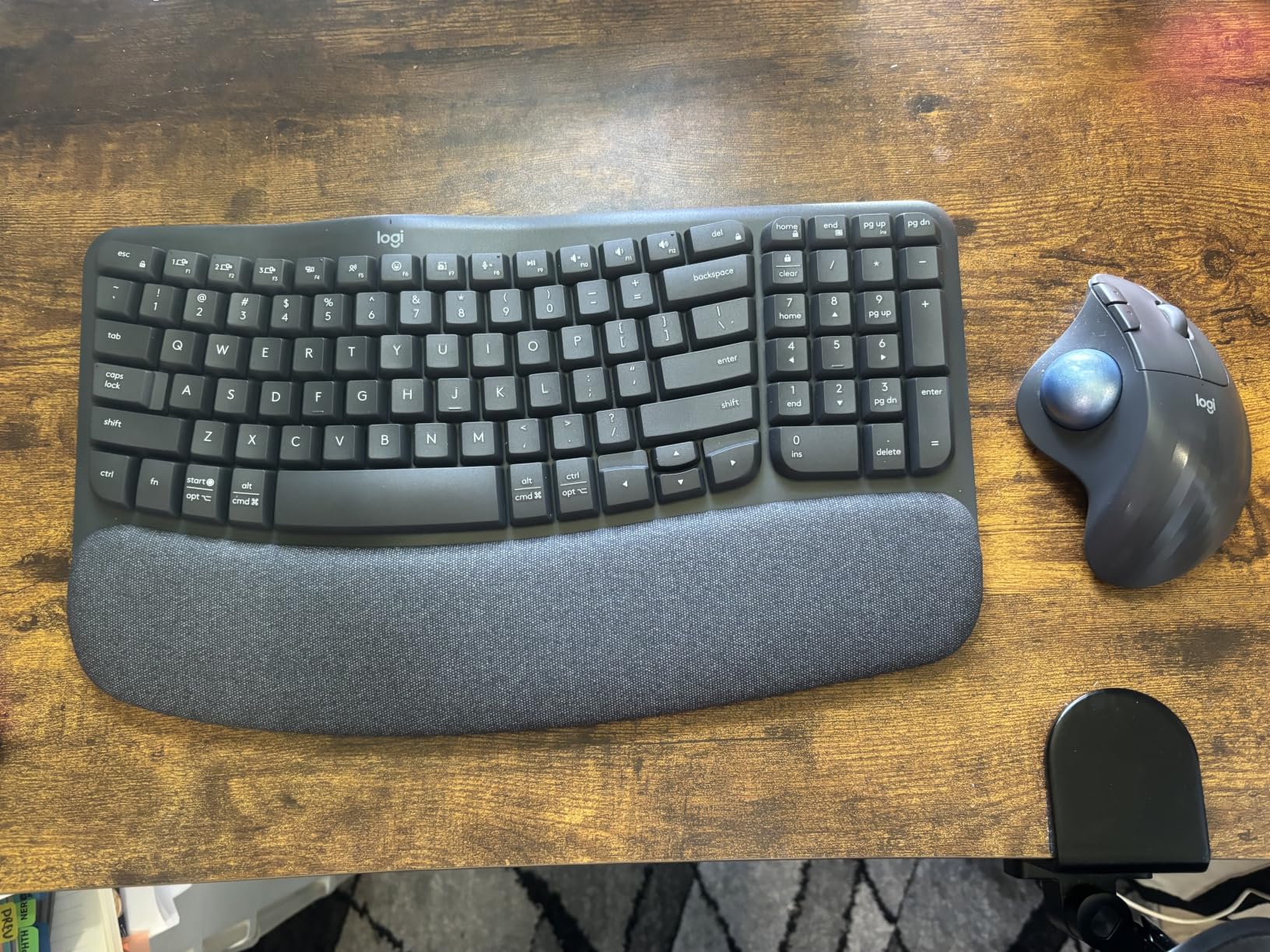
Easy-Switch lets you pair up to three devices and toggle between them with a button press. I had it connected to my desktop, iPad, and phone simultaneously. The Logi Bolt receiver is included, which is a nice touch at this price point.
Battery life is rated at three years, and I had no reason to doubt it after months of daily use without a single charging session. The membrane keys are quiet, making this ideal for shared workspaces and podcast recording environments.
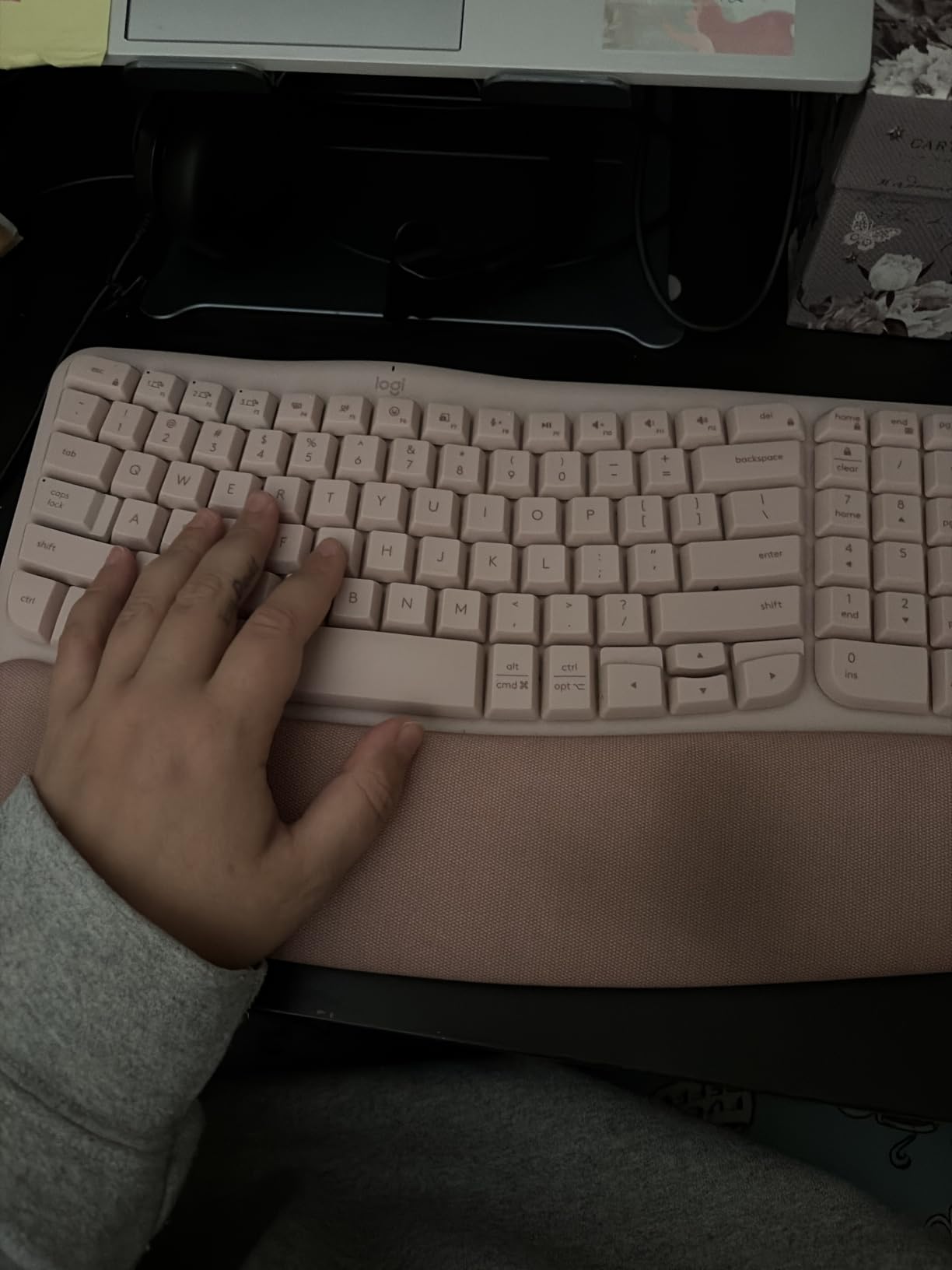
Best Fit for Compact Workspaces
Creators with limited desk space or those who travel between studios will love the Wave Keys. It is the most portable ergonomic option on this list, and the four color options let it match any setup aesthetic.
If you rely heavily on a number pad for timecodes or spreadsheet work, look elsewhere. The compact layout drops the numpad entirely to save space.
Adjustment Period and Key Feel
The compact layout takes a few days to get used to, especially if you are coming from a full-size keyboard. Keys sit closer together, and the wavy shape means some keys are slightly offset from standard positions.
The membrane switches require more actuation force than I prefer. Some reviewers mention finger fatigue during very long sessions, though I did not experience this myself over typical eight-hour workdays.
3. Arteck Split Ergonomic Keyboard – Budget Split Design
Arteck Split Ergonomic Keyboard with Palm Rest, 2.4G USB Wireless Keyboard
Split ergonomic design
Cushioned wrist rest
2.4G USB wireless
6-month battery
Pros
- Affordable split design
- Cushioned wrist and palm rest
- 6-month battery per charge
- Rechargeable lithium battery
- Quiet scissor switches
- Simple plug-and-play setup
Cons
- Windows only compatibility
- No customization options
- Scissor switches lack mechanical feel
For creators on a tight budget, the Arteck Split Ergonomic delivers the core benefit of a split layout without the premium price. I tested it for two weeks as my daily driver and came away impressed with the value.
The split design positions your wrists at a natural angle. The cushioned wrist rest is firm but comfortable, and it runs the full width of the board. It is not memory foam, but at this price point the padding is more than acceptable.
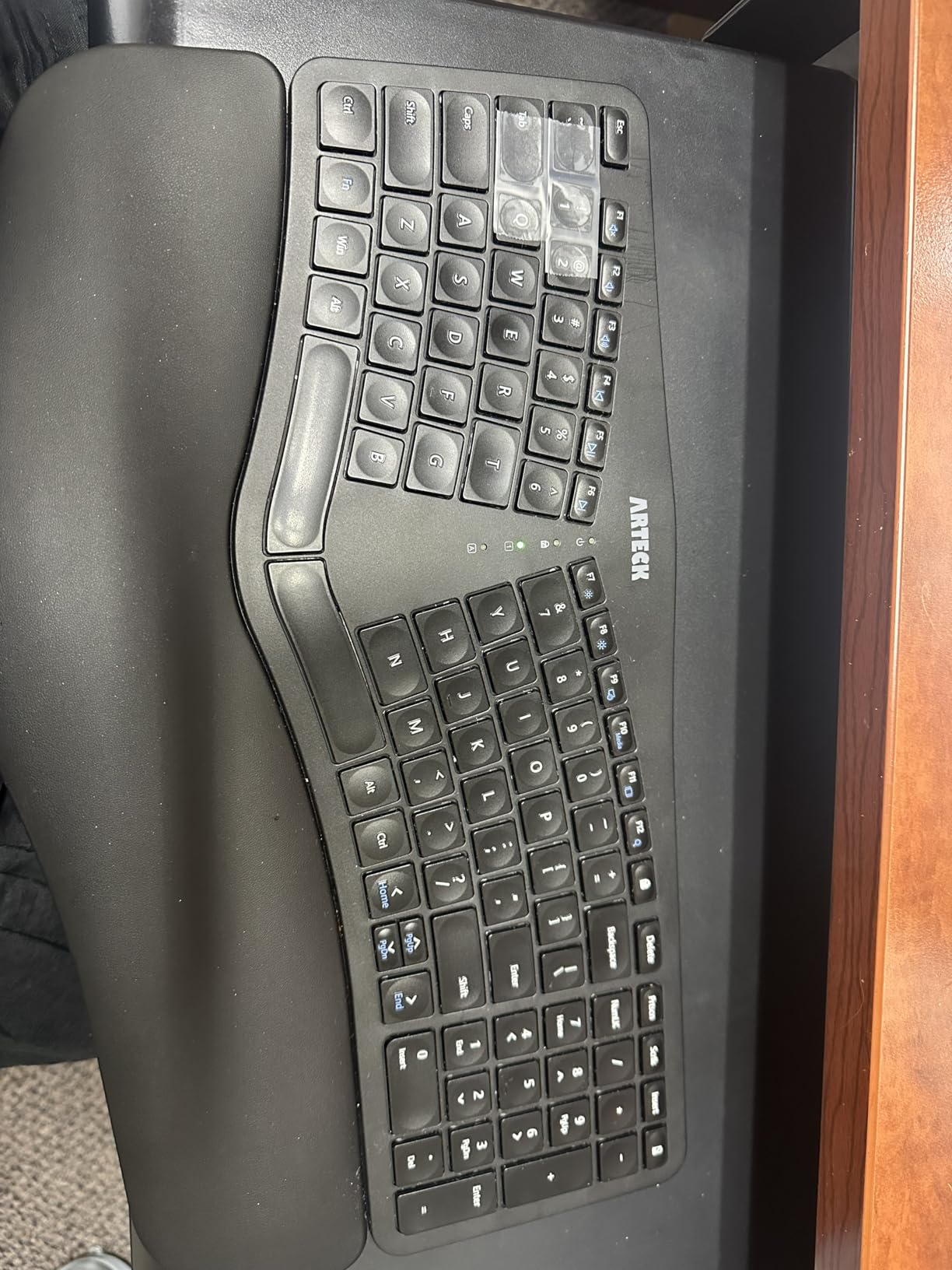
Setup is genuinely plug-and-play. The nano USB receiver works the moment you plug it in, with no drivers or software needed. I had it running on my Windows editing rig in under a minute.
Battery life is rated at six months per charge, and the rechargeable lithium battery means no AAA swaps. Scissor switches are quiet and have a laptop-like feel that works well in shared spaces.
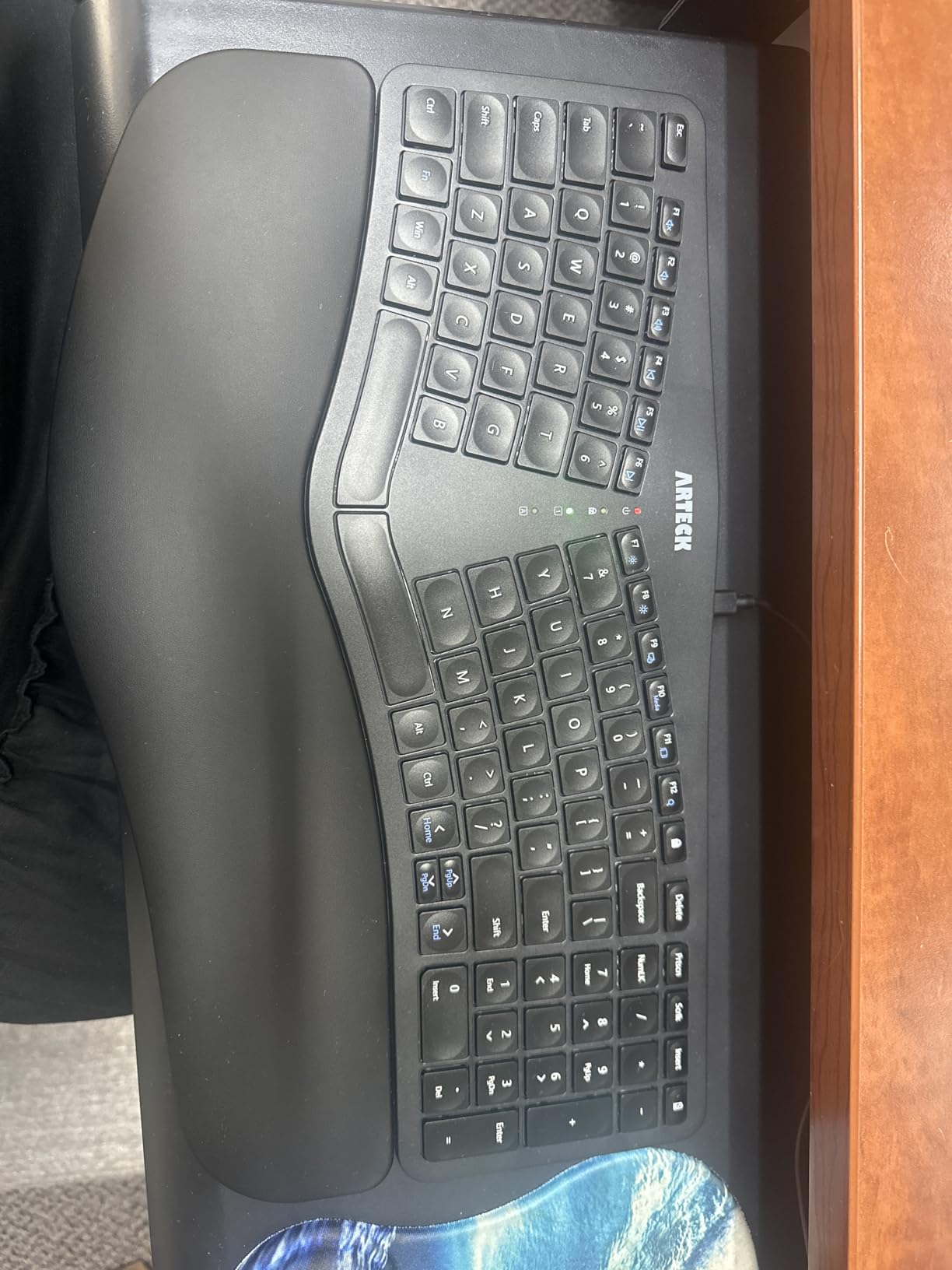
When Budget Is the Priority
This is the keyboard I would recommend to a student creator or someone testing whether ergonomic layouts work for them before investing more. It gives you the split design benefit at the lowest entry point on this list.
Just know you are giving up Mac compatibility, programmability, and premium build materials. The plastic feels budget-friendly, and there are no customization options beyond the standard layout.
Limitations for Power Users
The Windows-only restriction is the biggest dealbreaker for Mac-based creators. If you edit on a MacBook, this keyboard will not work for you.
There are no programmable keys, no macro support, and no software customization. For creators who rely on shortcut remapping in Adobe or DaVinci Resolve, this is a significant limitation.
4. EPOMAKER Split65 – QMK Programmable Split Mechanical
EPOMAKER Split65 QMK/VIA Programmable Keyboard, Wireless Mechanical Keyboard in 2.4Ghz/BT/Type-C, Ergonomic Gaming Keyboard in Split Layout with RGB Backlit (Flamingo Switch)
Split 65% layout
QMK/VIA programmable
Tri-mode wireless
Hot-swappable switches
RGB backlit
Pros
- QMK/VIA programming for full customization
- Hot-swappable switches
- Tri-mode wireless connectivity
- South-facing RGB backlight
- 4-layer sound dampening
- Programmable knob
Cons
- Linear switches may not suit all
- Right Alt key is unusually large
- Weak magnets for lap use
- No wrist rest included
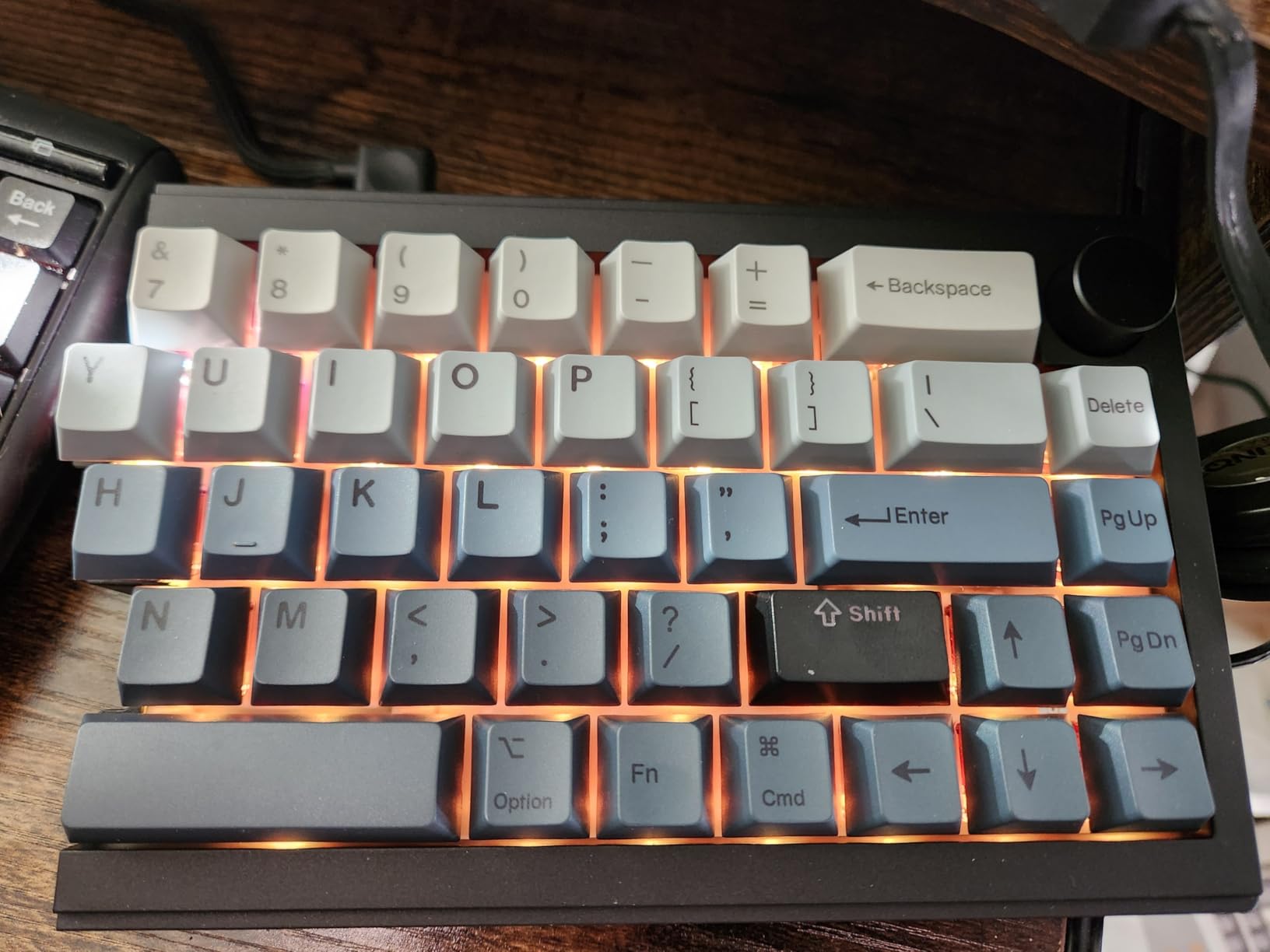
The EPOMAKER Split65 is the keyboard I keep coming back to for coding sessions. The QMK/VIA support means I can remap every key, build custom layers, and set up macros for my IDE shortcuts. It is the most flexible board on this list.
The split design uses magnets to connect the two halves. On a desk it works perfectly, but the magnets are too weak for comfortable lap use. For my standing desk setup, this was never an issue.
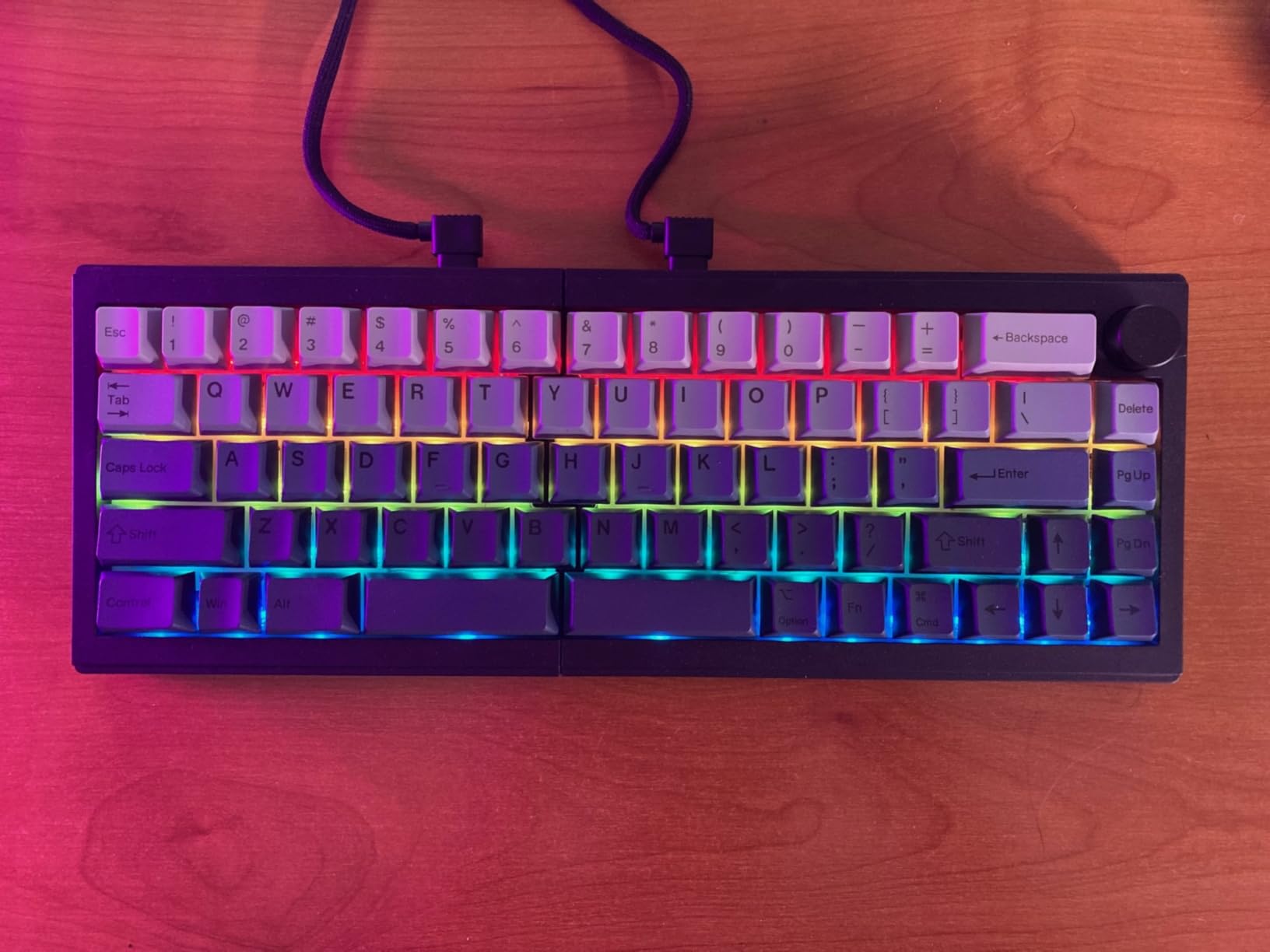
Tri-mode connectivity covers every scenario: Bluetooth 5.0 for the iPad, 2.4GHz for gaming, and USB-C for wired stability during important client work. Switching between modes is quick and reliable.
The Flamingo linear switches are smooth and quiet. With four layers of sound dampening, the typing sound is deep and muted rather than clacky. The hot-swappable PCB means I can change switches without soldering if I want a different feel later.
For Creators Who Want Full Control
If you live in QMK or VIA and want to program custom layers for Adobe Creative Cloud, Blender, or your DAW of choice, the Split65 is built for you. The programmable knob alone is worth it for timeline scrubbing and volume control.
The 65 percent layout saves serious desk space. Pair it with a stream deck or macro pad for the shortcuts you lose by dropping the function row and numpad.
Trade-offs to Know About
No wrist rest is included, which is a real omission on an ergonomic keyboard. You will need to buy one separately for the full comfort benefit.
The right Alt key is disproportionately large, which threw off my muscle memory for the first week. Some users on Reddit report the linear switches feel too light for their typing style.
5. Perixx PERIBOARD-535BL – Full-Size Mechanical Ergonomic
Perixx PERIBOARD-535BL Wired Ergonomic Mechanical Full-Size Keyboard – Low-Profile Blue Clicky Switches Programmable Feature with Macro Keys Compatible Windows and Mac OS X US English, Black
Full-size split layout
Low-profile blue clicky switches
Adjustable tilt wrist rest
Macro keys
Win/Mac compatible
Pros
- Familiar full-size layout with numpad
- Satisfying blue clicky switch feedback
- Adjustable wrist rest with 3 tilt angles
- Programmable macro keys
- Compatible with Windows and Mac
- Solid build quality
Cons
- Wired only no wireless option
- Quality control issues reported
- Limited macro functionality
- Non-standard keycap mount
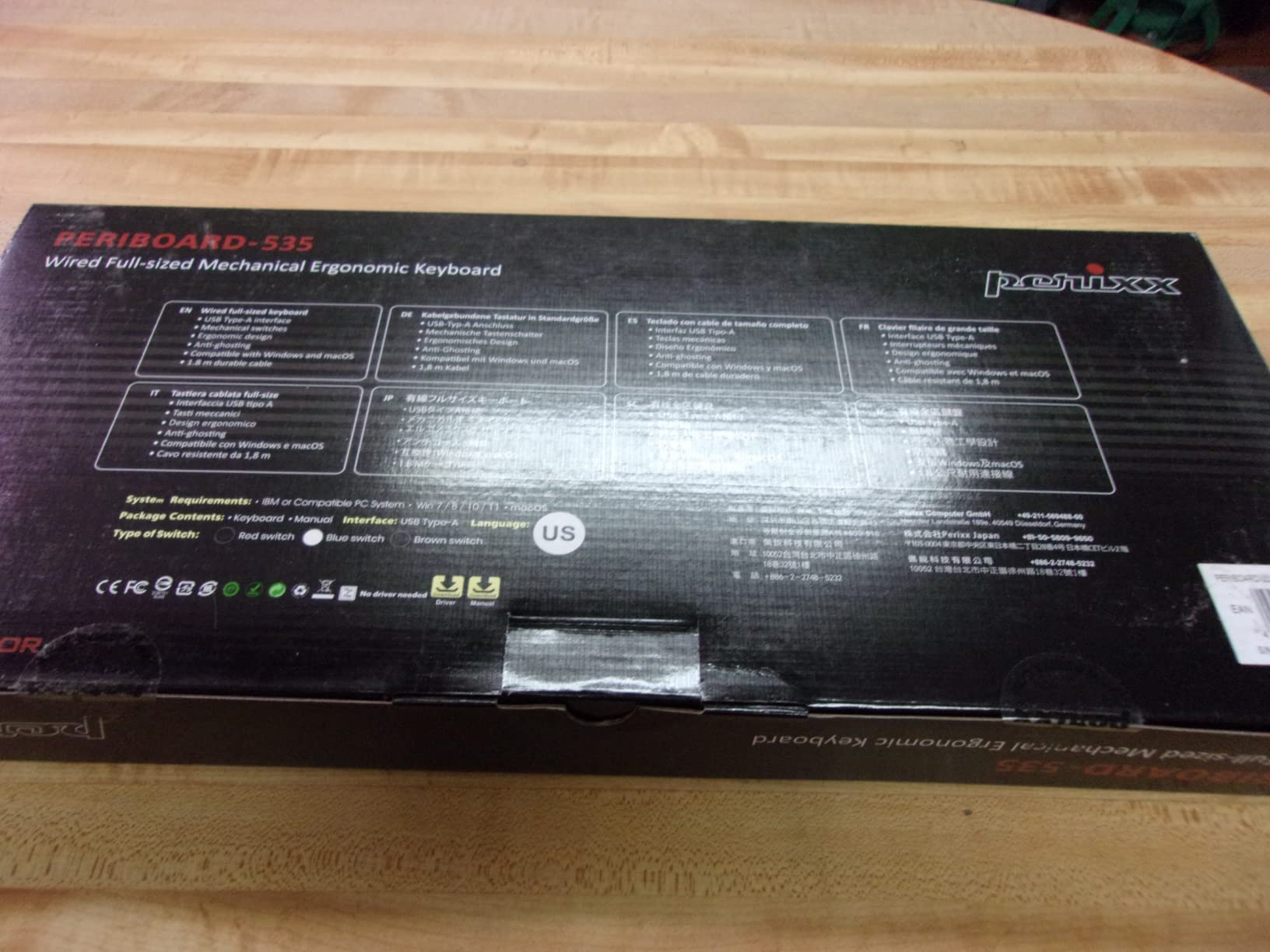
The Perixx PERIBOARD-535BL fills a specific gap: a full-size mechanical ergonomic keyboard with a numpad. If you work with timecodes, spreadsheets, or any numeric-heavy workflow, this is one of the few ergo boards that keeps the number pad.
The low-profile blue clicky switches give satisfying tactile and audible feedback. I found them excellent for typing-heavy days, though they are loud enough that coworkers on calls will notice.
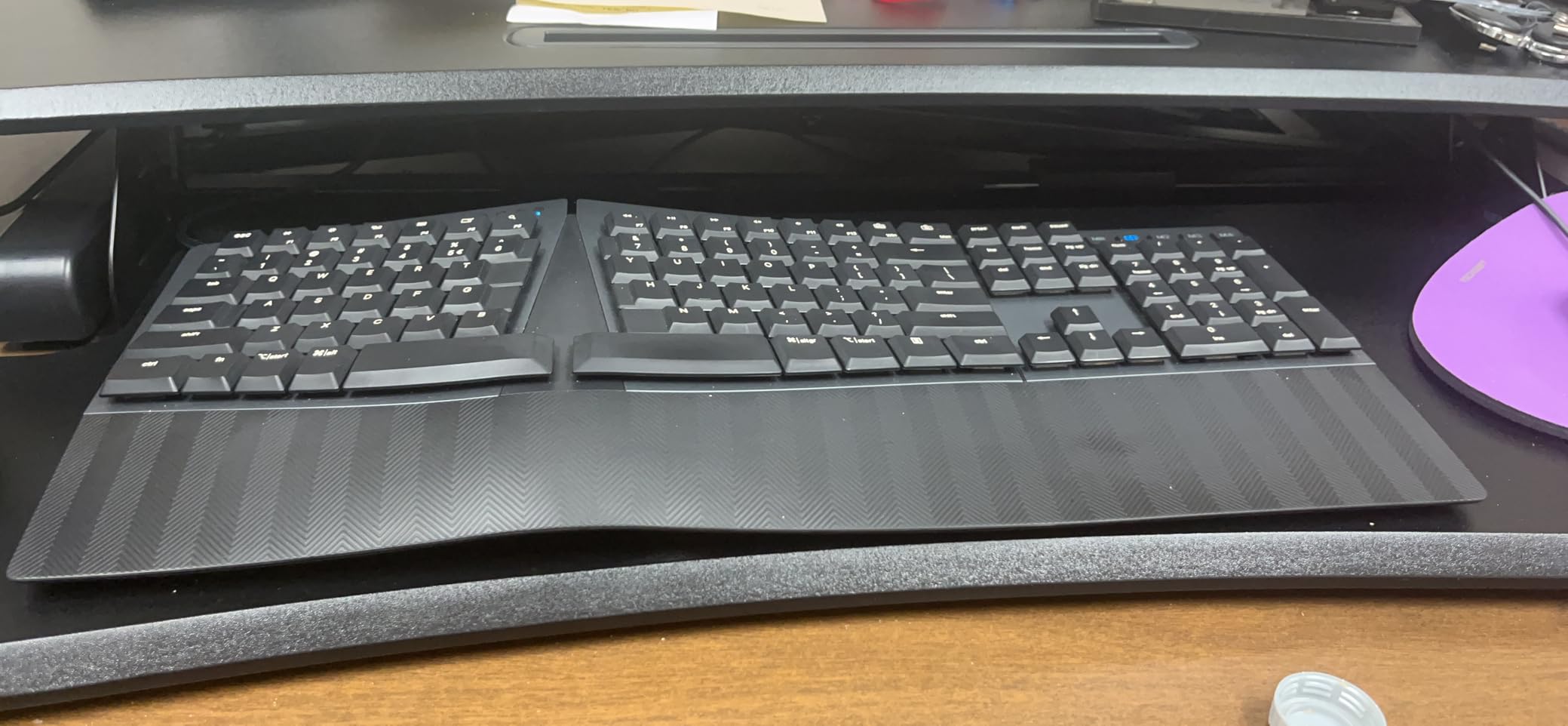
The adjustable wrist rest offers three tilt angles, matching the K860’s range. The wrist rest is integrated and solid, providing consistent support across the full width of the board.
Programmable macro keys with four slots give you basic shortcut automation. I mapped mine to common Premiere Pro commands, and while the macro software is basic, it got the job done.
Best for Numpad-Dependent Creators
Audio engineers entering BPM values, video editors logging timecodes, and accountants will appreciate having a numpad on an ergonomic board. Most split keyboards drop it entirely.
The layout will feel familiar to anyone who used the old Microsoft Natural Keyboard. The split is gentle enough that adjustment takes days, not weeks.
Quality and Connectivity Concerns
Some users report intermittent key failures, suggesting quality control varies between units. Buy from a retailer with a good return policy just in case.
The wired-only connection and 5.9-foot cable limit placement flexibility. If you need wireless, this is not the board for you. The non-standard keycap mount also makes aftermarket keycap swaps difficult.
6. Nulea Wireless Ergonomic Keyboard – Long Battery Life Split
Nulea Wireless Ergonomic Keyboard, Split Keyboard with Cushioned Wrist Rest, Bluetooth and USB Connectivity, USB-C Rechargeable, Compatible with Windows Mac (Grey Pink)
Ergonomic split design
Dual-mode connectivity
200-hour battery
USB-C rechargeable
Oversized wrist rest
Pros
- 200-hour battery life
- Dual-mode Bluetooth and 2.4G wireless
- Oversized leatherette wrist rest
- USB-C rechargeable
- 3 adjustable tilt angles
- Quiet typing for calls
Cons
- No backlit keys
- No right CTRL key
- Arrow keys are small
- DEL key placement unusual
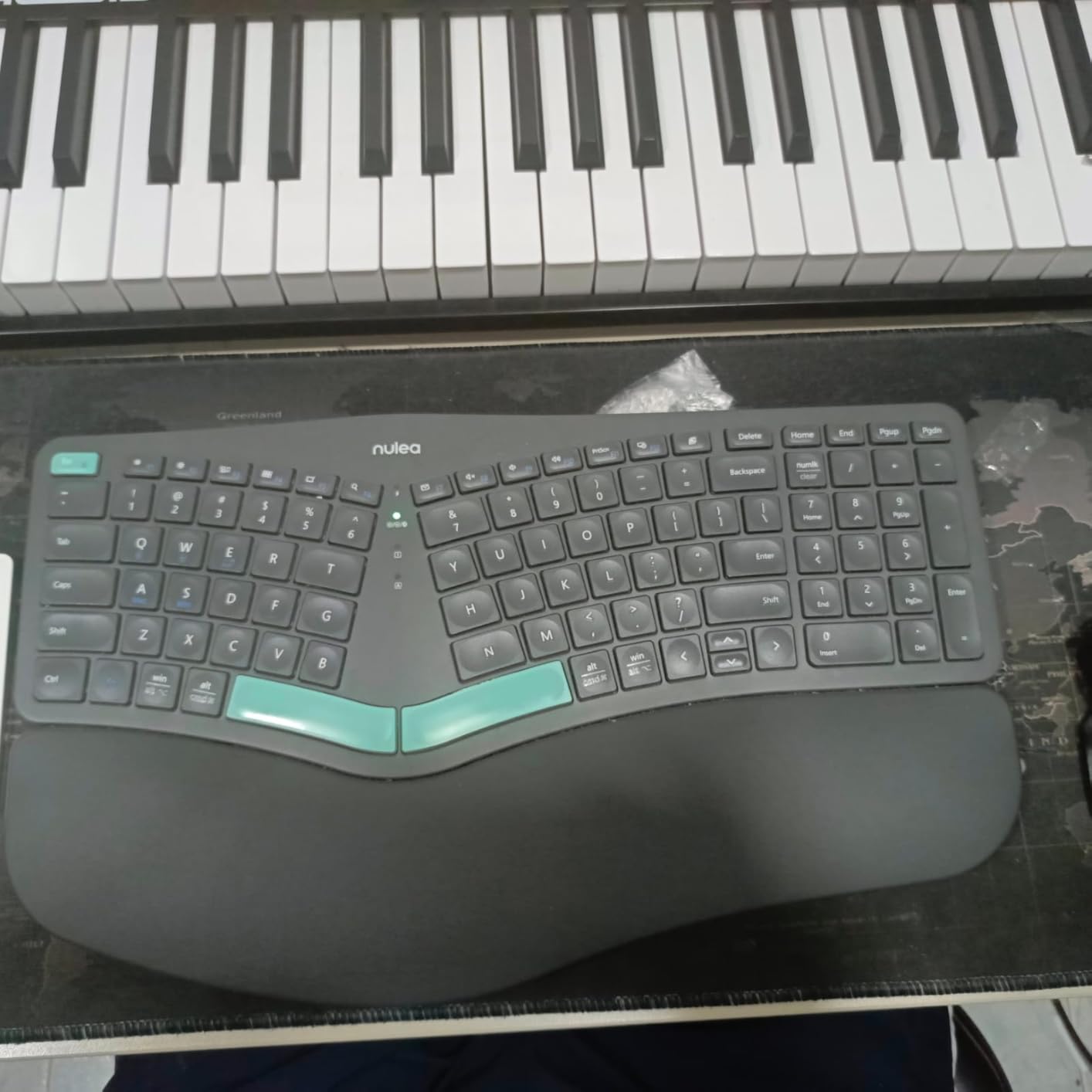
The Nulea Wireless Ergonomic caught my attention with its 200-hour battery life. In practice, I charged it once every three weeks during heavy use. For creators who hate battery anxiety, this is a strong contender.
The split design follows a similar philosophy to the Arteck but with better build quality and dual-mode connectivity. The oversized wrist rest uses a leatherette material that feels premium and cleans easily.
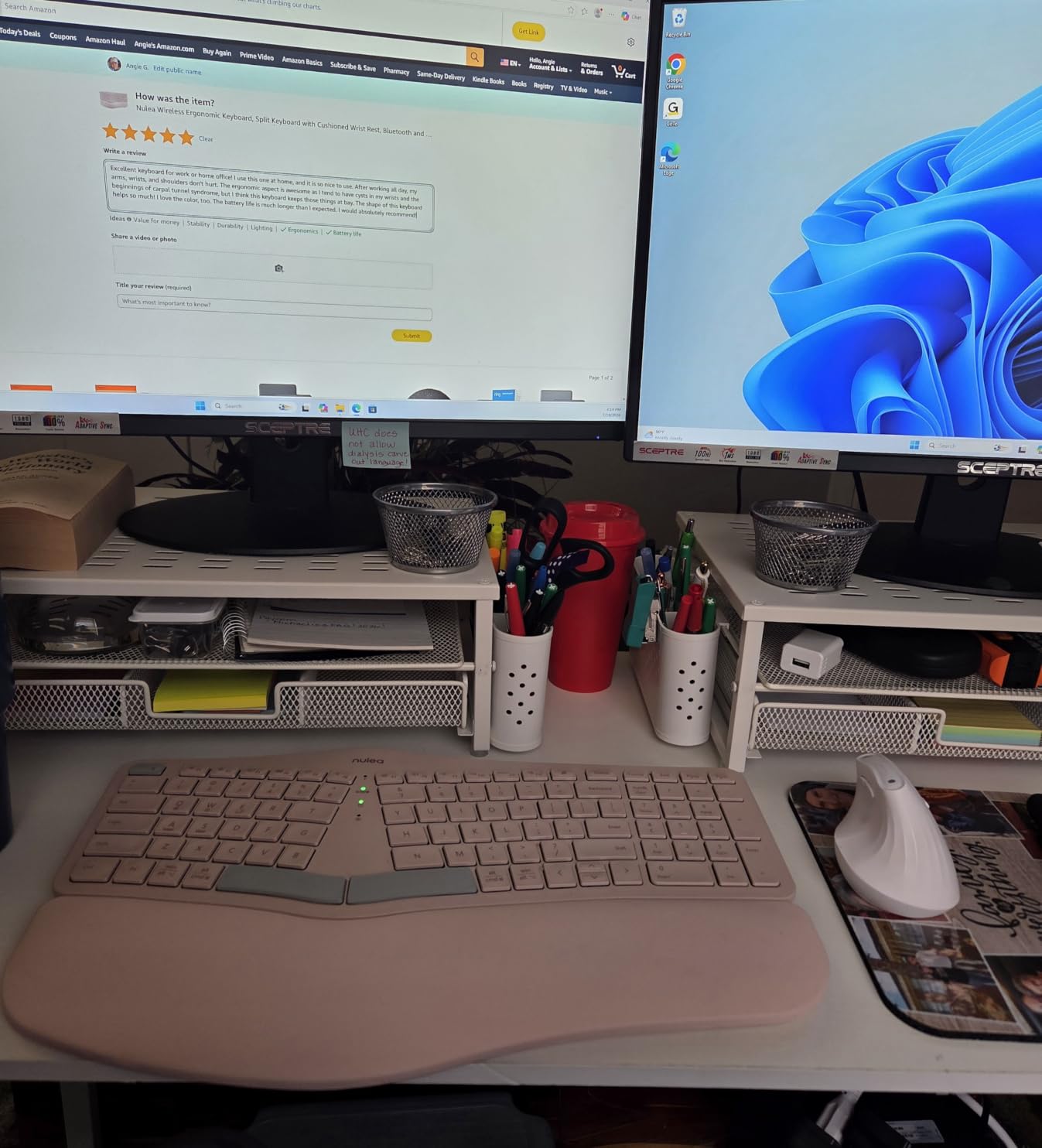
Dual-mode connectivity means Bluetooth for my MacBook and 2.4GHz for the Windows desktop. Switching is handled by a physical toggle on the back, which is faster than button combos.
The membrane keys are quiet enough for podcast recording environments. I tested it during a voiceover session and the keyboard was inaudible on the recording.
Ideal for Multi-Device Creators
If you bounce between a desktop and laptop throughout the day, the Nulea handles both seamlessly. The magnetic USB dongle storage is a thoughtful detail that prevents losing the receiver.
The three tilt angles let you find a comfortable position, and the USB-C charging means no more cable hunting. At its price point, the feature set is genuinely competitive.
Layout Quirks to Adjust To
The missing right CTRL key frustrated me for the first week, especially for shortcuts in After Effects. You adapt, but it is worth knowing before buying.
The arrow keys are smaller than standard, and the DEL key sits in an unusual location. Plan for a one-to-two-week adjustment period before you reach full typing speed.
7. Logitech MX Keys S – Low-Profile Multi-Device Workhorse
Logitech MX Keys S Wireless Keyboard Low Profile Fluid Precise – Graphite
Low-profile spherically-dished keys
Smart illumination
Multi-device pairing
USB-C rechargeable
Smart Actions
Pros
- Fluid quiet typing experience
- Smart backlighting with hand detection
- Multi-device pairing up to 3 devices
- Cross-computer Flow workflow
- Long battery life USB-C charging
- Programmable Smart Actions
Cons
- Premium price point
- Single color backlighting only
- Linear switches may not suit all
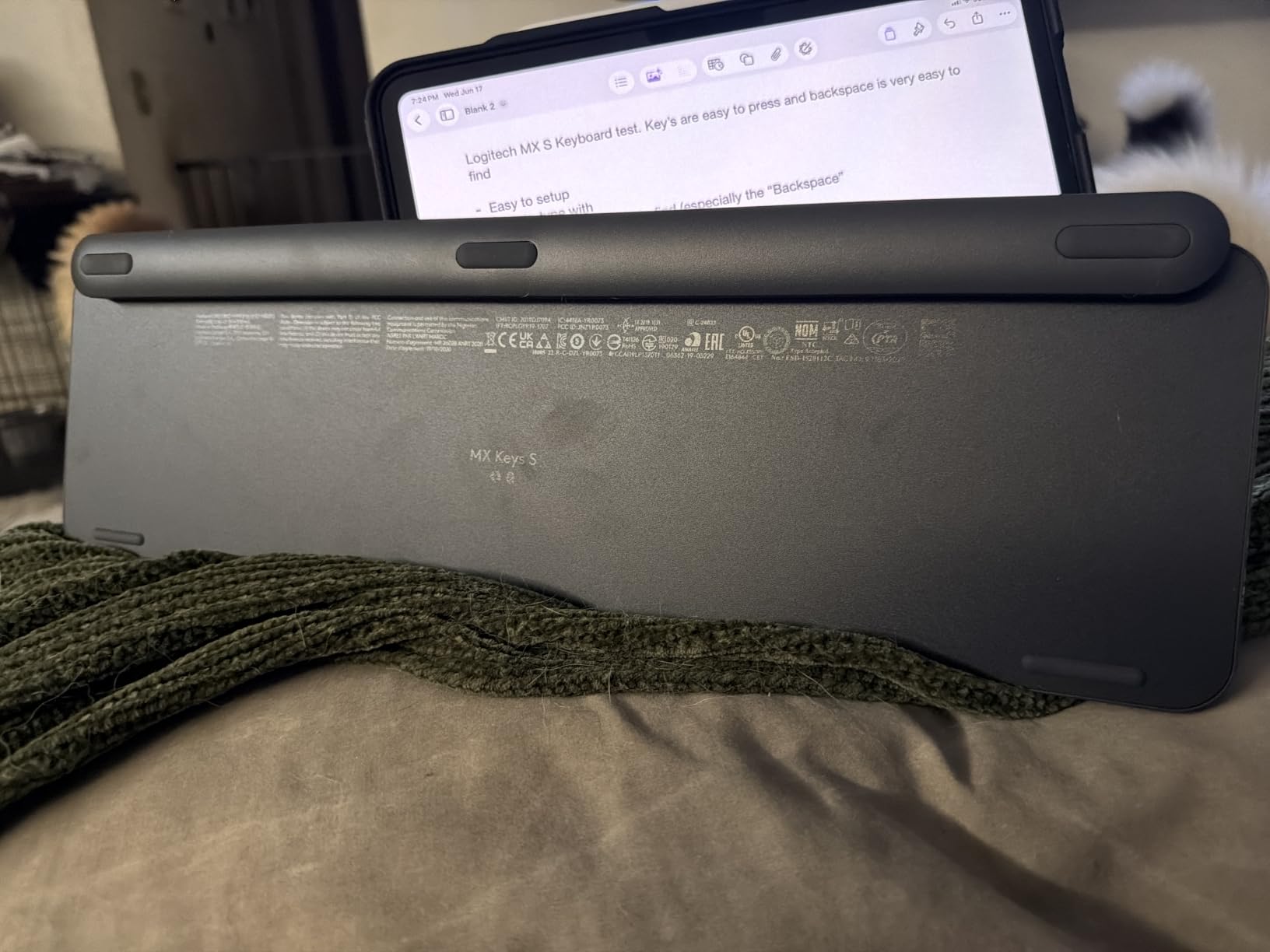
The Logitech MX Keys S is not a traditional ergonomic keyboard, but its low-profile design and smart features make it one of the best ergonomic keyboards for creators who want comfort without a split layout. The spherically-dished keys naturally guide your fingers to center.
Smart illumination with hand proximity detection is genuinely useful. The backlight adjusts brightness based on ambient light and turns off when you step away. Battery life extends to five months with backlighting off.
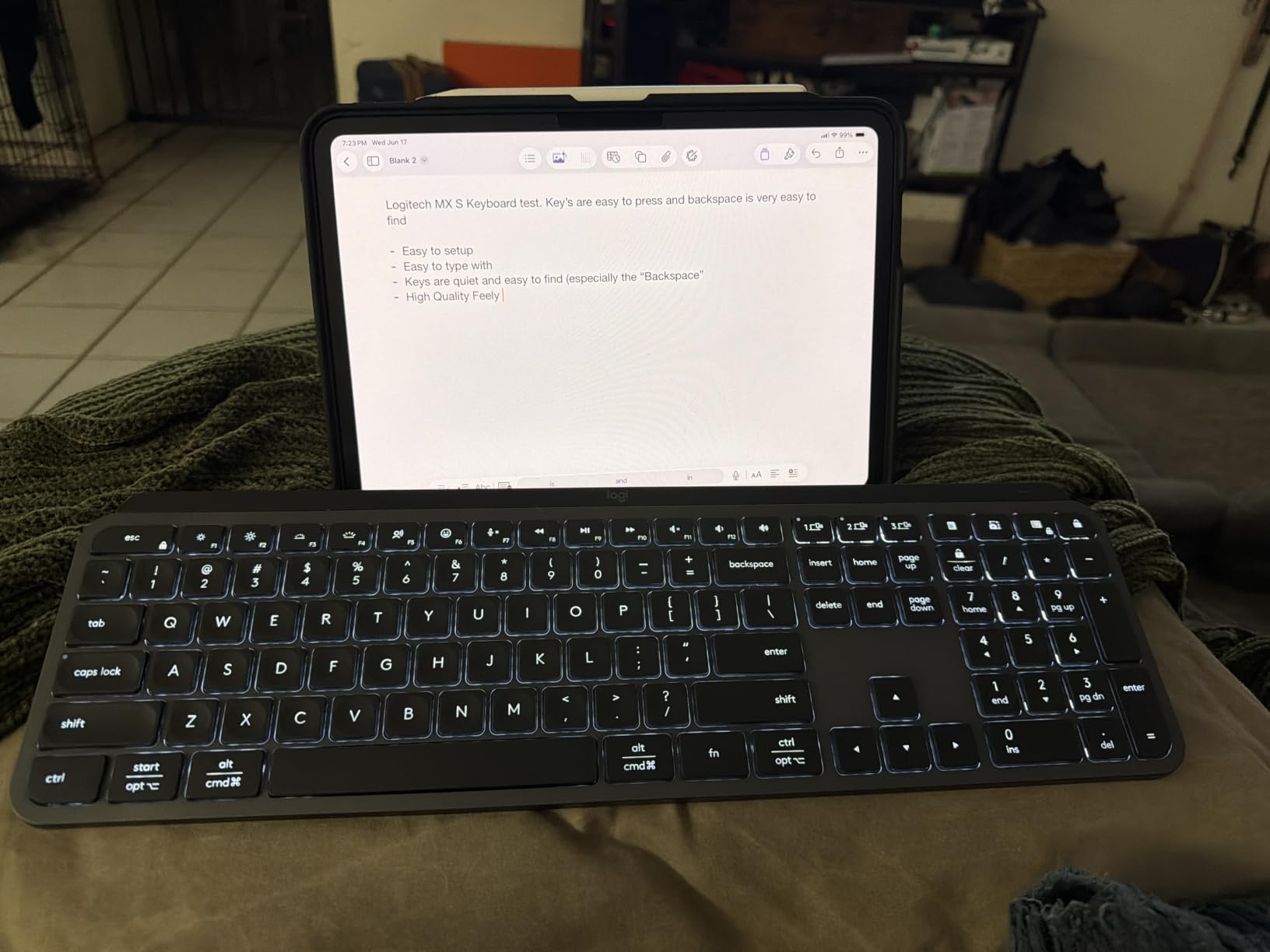
The Flow feature lets you move your cursor between multiple computers on the same network. I used it to copy assets from my research laptop to my editing desktop without a KVM switch. It is a workflow game-changer for multi-machine setups.
Smart Actions in the Logi Options+ app let you automate multi-step sequences. I created a single key that launches Premiere, opens my current project, and sets my audio interface as the output device.
Best for Multi-Computer Workflows
Creators working across a laptop and desktop will get the most from the MX Keys S. The Flow feature and multi-device pairing eliminate the need for multiple keyboards on your desk.
The low-profile design reduces wrist extension naturally. It is not a split keyboard, but the flat typing angle is comfortable for long sessions when paired with a good desk height.
What You Give Up
This is a premium-priced keyboard with single-color backlighting only. If you want RGB or a split design, look elsewhere.
The linear switches have a laptop-like feel that not everyone loves. If you prefer mechanical tactility, consider the MX Mechanical instead, which is the next entry on this list.
8. Logitech MX Mechanical – Low-Profile Mechanical with Smart Backlighting
Logitech MX Mechanical Wireless Illuminated Keyboard Tactile – Graphite
Tactile quiet mechanical switches
Low-profile ergonomic design
Smart illumination
Metal construction
Multi-device pairing
Pros
- Satisfying tactile bump feedback
- Low-profile design reduces strain
- Smart backlighting with hand detection
- Premium metal construction
- Long battery life USB-C charging
- Excellent multi-OS compatibility
Cons
- Premium price point
- Single color backlighting
- Tactile switches may not suit all
- Some prefer louder clicky feedback
The Logitech MX Mechanical combines the comfort of a low-profile layout with the tactility of mechanical switches. After using it for a month of daily editing, I found it hits a sweet spot between the MX Keys S and a full-height mechanical board.
The tactile quiet switches give a satisfying bump without the loud click. They are ideal for office environments, shared studios, and recording sessions where noise matters.
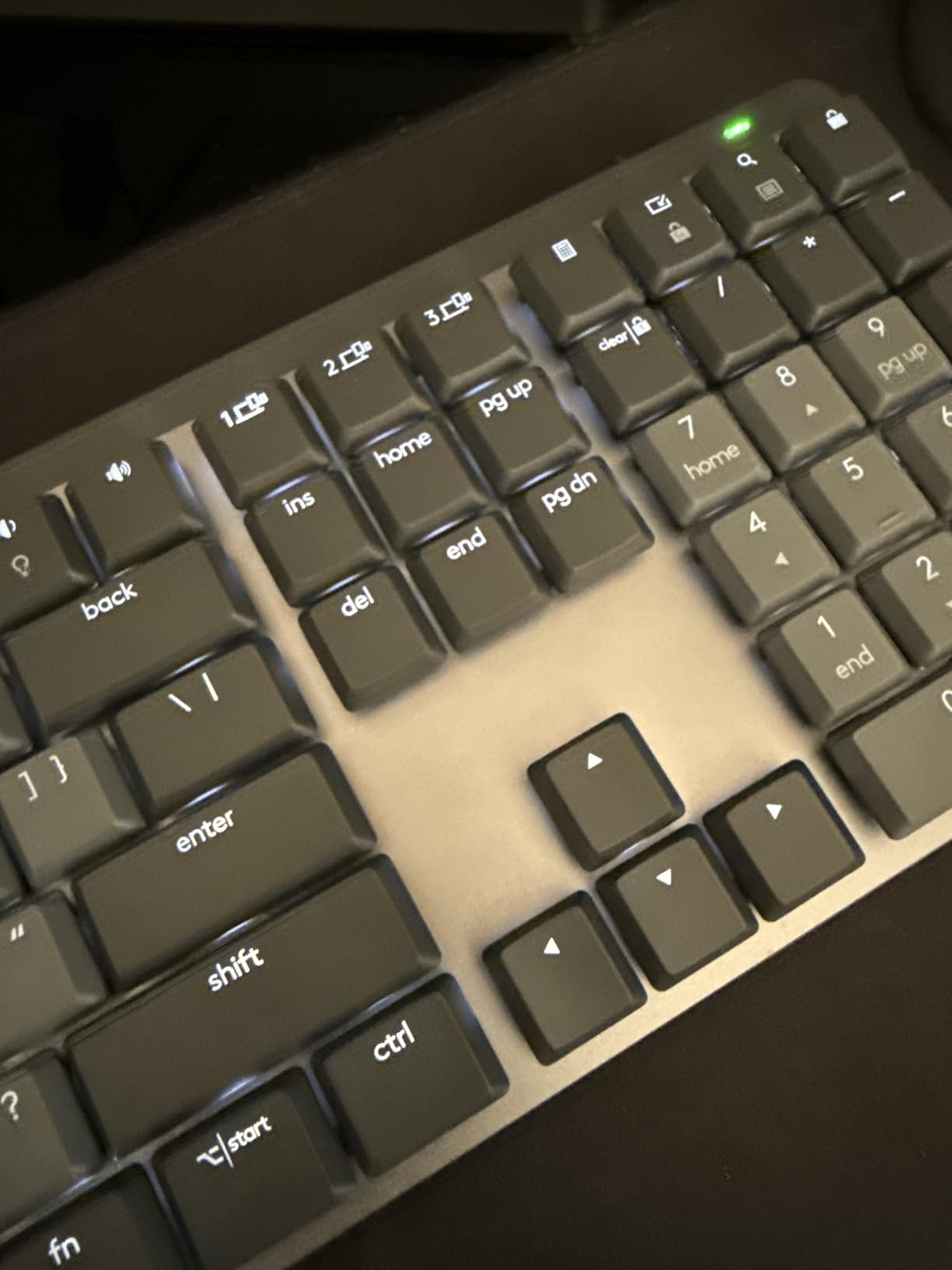
The metal construction gives the keyboard a solid, premium feel. It does not flex or slide during energetic typing. At 2.5 pounds, it stays planted on the desk.
Smart illumination works the same as on the MX Keys S, with hand proximity detection and ambient light adjustment. Battery life is 15 days with backlighting on and 10 months with it off.
For Creators Who Want Mechanical Feel at Desk Height
If the MX Keys S feels too laptop-like but a full mechanical board sits too high for comfort, the MX Mechanical is the middle ground. The low-profile design keeps your wrists flat while still delivering switch tactility.
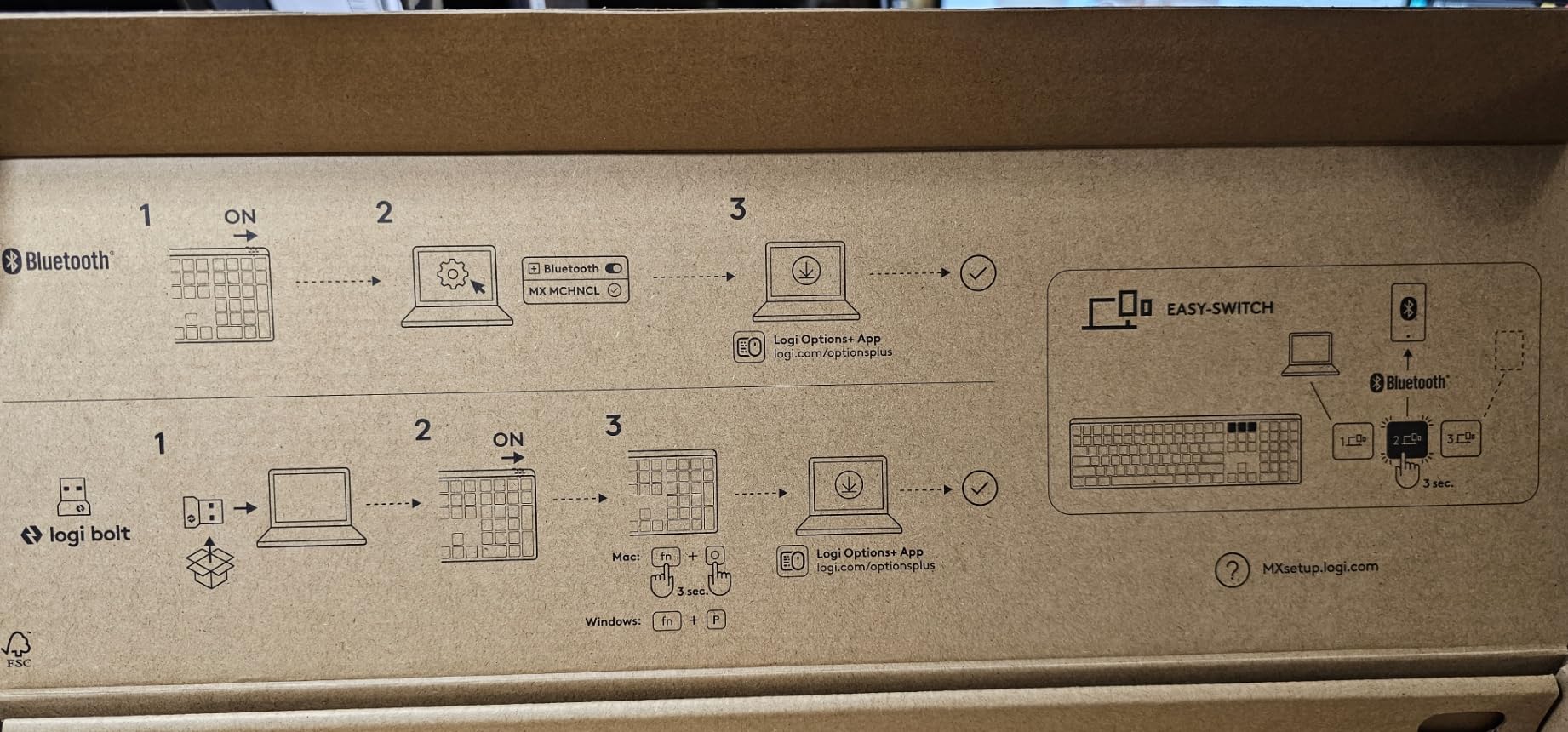
Multi-device pairing and the Flow feature carry over from the MX Keys S. The same Logi Options+ app handles customization and Smart Actions across both keyboards.
Premium Price Considerations
This is one of the more expensive options on this list. You are paying for the metal build, mechanical switches, and the Logitech ecosystem.
The single-color backlighting feels limited at this price. If RGB matters to you, the EPOMAKER Split65 offers full RGB with QMK programming for less. But the MX Mechanical wins on build quality and multi-device features.
Buying Guide: How to Choose an Ergonomic Keyboard for Creative Work
Choosing the right ergonomic keyboard depends on your specific creative workflow, desk setup, and budget. Here are the factors that matter most for creators in 2026.
Split Design vs Sculpted Layout
Split keyboards like the EPOMAKER Split65 separate the left and right halves entirely, allowing maximum hand separation. They have a steeper learning curve but offer the most customizable ergonomics.
Sculpted designs like the Logitech K860 and Wave Keys keep the keyboard in one piece but curve and split the key arrangement. These are easier to adapt to and better for creators who cannot afford a productivity dip during the transition.
Switch Type and Tactile Feel
Membrane switches, like those on the Arteck and Nulea, are quiet and budget-friendly but lack the tactile feedback many creators prefer. They work well in shared spaces and recording environments.
Mechanical switches come in clicky (Perixx blue), tactile (MX Mechanical), and linear (EPOMAKER Flamingo) variants. Each has a distinct feel and sound profile. If you record audio nearby, avoid clicky switches.
Programmability and Macro Support
For creators who live in Adobe Creative Cloud, DaVinci Resolve, or DAWs, programmable keys are a major productivity boost. The EPOMAKER Split65 with QMK/VIA offers the deepest customization, letting you build entire layers of shortcuts.
Logitech’s Smart Actions on the MX Keys S and MX Mechanical provide app-based macro recording. It is less powerful than QMK but far more approachable for non-technical users.
Connectivity and Multi-Device Support
Creators often work across multiple devices. Look for keyboards with multi-device pairing, like the Logitech models with Easy-Switch or Flow. Tri-mode connectivity (Bluetooth, 2.4GHz, USB-C) on the EPOMAKER Split65 covers every scenario.
If you work on a Mac, double-check compatibility. The Arteck is Windows-only, which rules it out for Mac-based editors and designers.
Wrist Rest and Tenting Options
A good wrist rest is non-negotiable for ergonomic benefit. Integrated rests like those on the K860, Wave Keys, and Nulea are convenient. If your keyboard does not include one, like the EPOMAKER Split65, budget for a separate rest.
Adjustable tenting angles let you find the right wrist position. The K860 and Perixx both offer three tilt settings. True tenting (raising the inner edge of split halves) is only available on more advanced boards like the Moonlander or Glove80, which are beyond this list’s scope.
Budget and Value
Ergonomic keyboards range from around $50 to over $400. The Arteck and Nulea prove you can get a split design under $50. Mid-range options like the Wave Keys and EPOMAKER Split65 hit the sweet spot of features and value.
Premium models like the K860, MX Keys S, and MX Mechanical cost more but deliver better build quality, software support, and multi-device features. Consider how many hours you type daily when deciding what to invest.
FAQs
Are ergonomic keyboards worth it for creators?
Yes. If you type, edit, or code for more than four hours daily, an ergonomic keyboard reduces wrist strain and can prevent repetitive stress injuries. Most creators report noticeable comfort improvements within the first week of use.
How long does it take to adjust to an ergonomic keyboard?
Sculpted ergonomic keyboards like the Logitech K860 take about 3 to 7 days to adjust to. True split keyboards with columnar layouts can take 2 to 4 weeks. The adjustment period is worth it for the long-term comfort benefits.
Do ergonomic keyboards help with carpal tunnel?
Ergonomic keyboards reduce the wrist pronation and extension that contribute to carpal tunnel syndrome. While they cannot cure existing carpal tunnel, many users report significant pain reduction after switching. Consult a doctor for medical advice on carpal tunnel treatment.
What is the difference between split and sculpted ergonomic keyboards?
Split keyboards separate the left and right halves entirely, allowing adjustable hand spacing. Sculpted keyboards keep one piece but curve and angle the keys for a more natural finger reach. Split keyboards offer more customization while sculpted designs are easier to learn.
What features should I look for in an ergonomic keyboard for creative work?
Look for programmable keys for software shortcuts, multi-device connectivity, a quality wrist rest, adjustable tilt angles, and switch type that matches your noise tolerance. Creators who record audio nearby should avoid clicky switches.
Final Thoughts on the Best Ergonomic Keyboards for Creators
The Logitech Ergo K860 remains our top pick for the best ergonomic keyboards for creators in 2026. It balances comfort, build quality, and a familiar layout that minimizes adjustment time. For budget-conscious creators, the Logitech Wave Keys and Arteck Split deliver real ergonomic benefits at half the price.
If you want maximum programmability, the EPOMAKER Split65 with QMK/VIA is unmatched. And for creators who prioritize multi-device workflows, the MX Keys S and MX Mechanical from Logitech are hard to beat. Whatever your creative discipline, investing in the right ergonomic keyboard pays dividends in comfort and productivity for years to come.