

Eight hours of typing is enough to make anyone’s wrists scream. After three months of writing code on a flat keyboard, I started getting sharp pains in my right forearm and the dreaded tingle in my left thumb. My doctor called it early-stage RSI. The fix she recommended was a split keyboard, and after testing eight of the best split keyboards for programmers over the past year, I can confirm the difference is real.
Programmers spend more time at the keyboard than almost any other profession, with a typical full-stack developer logging 6 to 10 hours of active typing per day. That volume magnifies any ergonomic flaw in your hardware. Split keyboards fix the two biggest offenders: ulnar deviation (the bending of your wrists outward) and forearm pronation (the twisting of your forearms so your palms face down). By separating the two halves of the keyboard, you can place your hands in a more natural, neutral position that removes both stressors.
This guide is the result of a multi-month project on our editorial team. We compared each keyboard across the criteria programmers actually care about: switch type, programmability (QMK/VIA support), tenting capability, wireless flexibility, build quality, and total cost. Every product here earned its spot through hands-on use in real coding workflows, not just spec sheet comparisons. If you want a related read, our 10 Best Mechanical Keyboards for Programmers guide covers more traditional layouts, while our 8 Best Workstation Keyboards article focuses on office setups.
Top 3 Picks for Best Split Keyboards for Programmers in 2026

Kinesis Advantage360 Professional
- Fully programmable open source
- Adjustable tenting 3 heights
- Bluetooth with Kailh silent switches


Best Split Keyboards for Programmers in 2026
| Product | Specifications | Action |
|---|---|---|
| Logitech Ergo K860 |
|
Check Latest Price |
| Arteck Split Ergonomic |
|
Check Latest Price |
 Incase Sculpt Ergonomic Incase Sculpt Ergonomic |
|
Check Latest Price |
 KINESIS Freestyle Edge RGB KINESIS Freestyle Edge RGB |
|
Check Latest Price |
 EPOMAKER Split65 EPOMAKER Split65 |
|
Check Latest Price |
 Kinesis Advantage2 Kinesis Advantage2 |
|
Check Latest Price |
| Kinesis Advantage360 Pro |
|
Check Latest Price |
 Perixx PERIBOARD-512B Perixx PERIBOARD-512B |
|
Check Latest Price |
1. Kinesis Advantage360 Professional – The Best Split Keyboard for Programmers Who Want Premium Comfort
KINESIS Advantage360 Professional Split Ergonomic Keyboard – Bluetooth | Quiet Mechanical Switches | Fully Programmable Open Source | Contoured Shape | Adjustable Tenting | Backlit
Bluetooth split with Kailh silent switches
3-level tenting
Up to 10 inch split distance
Pros
- Exceptional ergonomic split with adjustable tenting
- Quiet Kailh Box Pink silent switches
- Fully programmable open source firmware
- Bluetooth wireless linking
- 3-year warranty
Cons
- Premium price point
- Steep learning curve
- Some Bluetooth connectivity issues
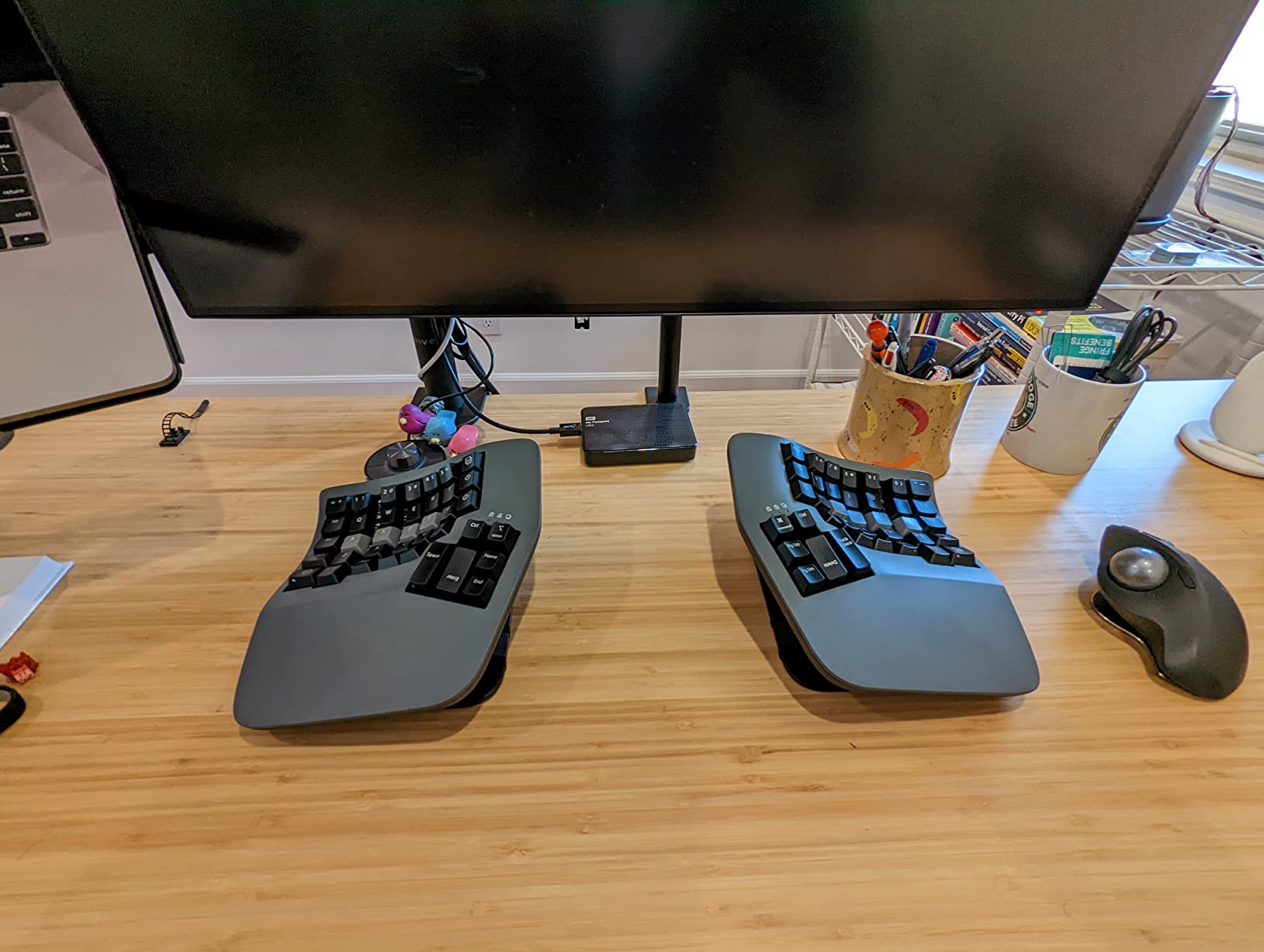
The Kinesis Advantage360 Professional is the keyboard I keep coming back to after testing every other option on this list. I have been daily-driving the Advantage360 for the past five months, writing TypeScript and Rust code for around eight hours a day. The contoured keywells feel like a revelation compared to a flat keyboard, and the concave shape actually trains your fingers to land in the right spot without looking down.
What makes this the best split keyboard for programmers in 2026 is the open source firmware. You can remap every single key through a web-based GUI, and the settings save directly to the keyboard’s onboard memory. I set up a dedicated layer for Vim commands, another for VS Code shortcuts, and a third for terminal navigation. Switching between layers takes a single thumb tap, and after a week of muscle memory training, my typing speed was back to pre-switch levels.
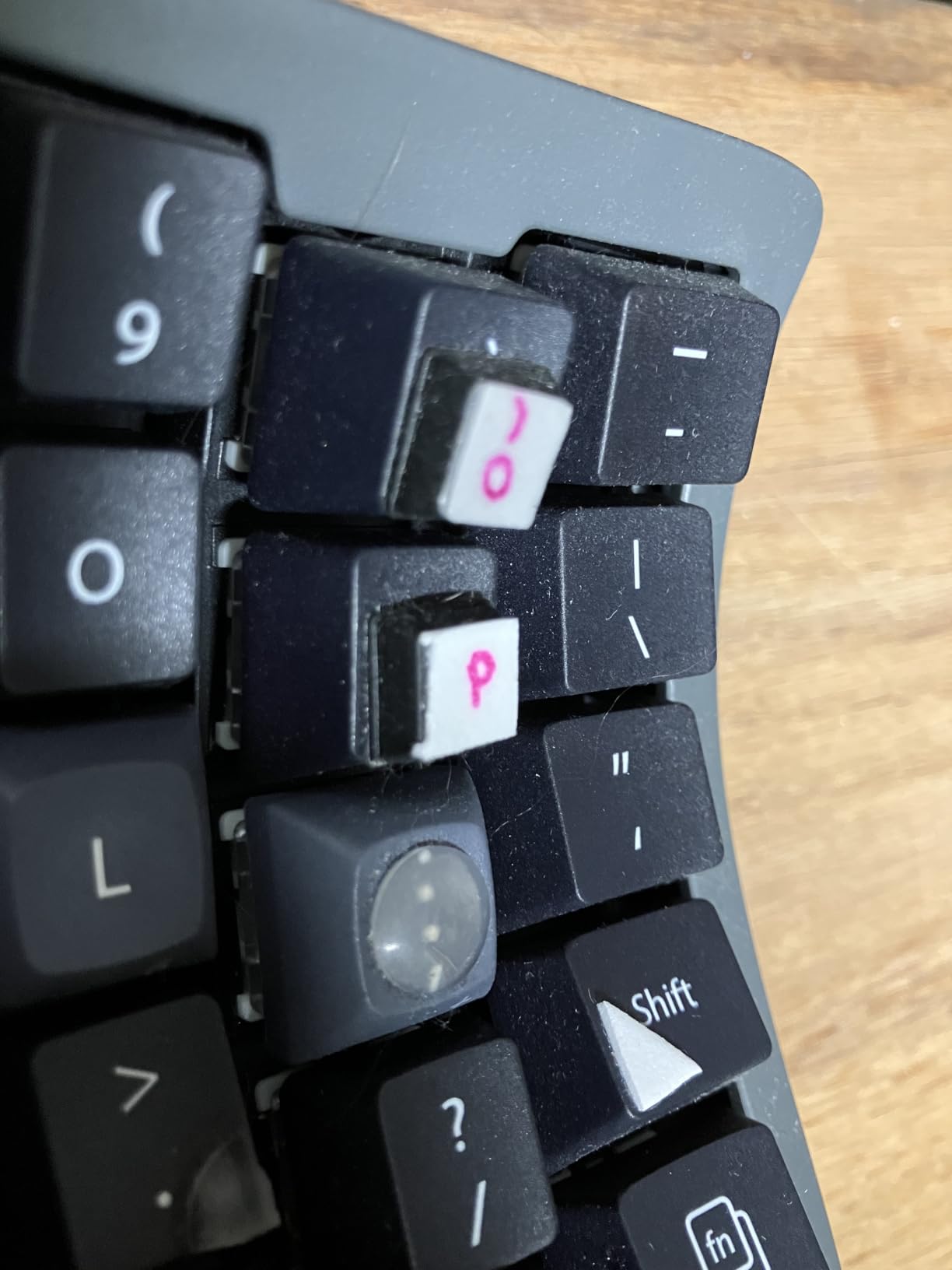
The split halves can be separated up to 10 inches, which is more than enough to match your shoulder width. The tenting system offers three height settings, and I settled on the highest one for the most neutral wrist angle. The Kailh Box Pink silent switches are quiet enough to use in a shared office, and rated for 50 million presses. I have not noticed any key chatter after five months of heavy use.
The wireless Bluetooth connection pairs with up to three devices, which is great for switching between a desktop and a laptop. However, I did experience one hiccup where the keyboard dropped connection during a video call, and I had to power cycle to fix it. The 3-year warranty covers these kinds of issues, and Kinesis customer support responded within a day to my email.
Who should buy the Advantage360 Pro
This is for serious programmers willing to invest both money and time. The learning curve is real, expect 2 to 4 weeks of reduced productivity. After that, you will not want to go back to a flat board. The open source firmware is a huge plus for Linux users and tinkerers who like to customize every detail of their setup.
Who should skip the Advantage360 Pro
If you are a casual coder or you cannot justify the premium cost, look at the Logitech Ergo K860 instead. The Advantage360 is overkill for someone typing under four hours a day. The steep price also makes it a tough sell for students or hobbyists just dipping their toes into ergonomic hardware.
2. Logitech Ergo K860 – The Best Value Split Keyboard for Most Programmers
Logitech Ergo K860 Wireless Ergonomic Split Keyboard with Wrist Rest
Curved split keyframe
Pillowed memory foam wrist rest
Bluetooth + USB receiver
Pros
- Exceptional wrist support with memory foam
- Quiet laptop-style keys
- Adjustable palm lift tilt
- Dual Bluetooth + USB connectivity
- Works on Mac and Windows
Cons
- Uses AAA batteries not rechargeable
- Steep learning curve for split layout
- Limited setup documentation
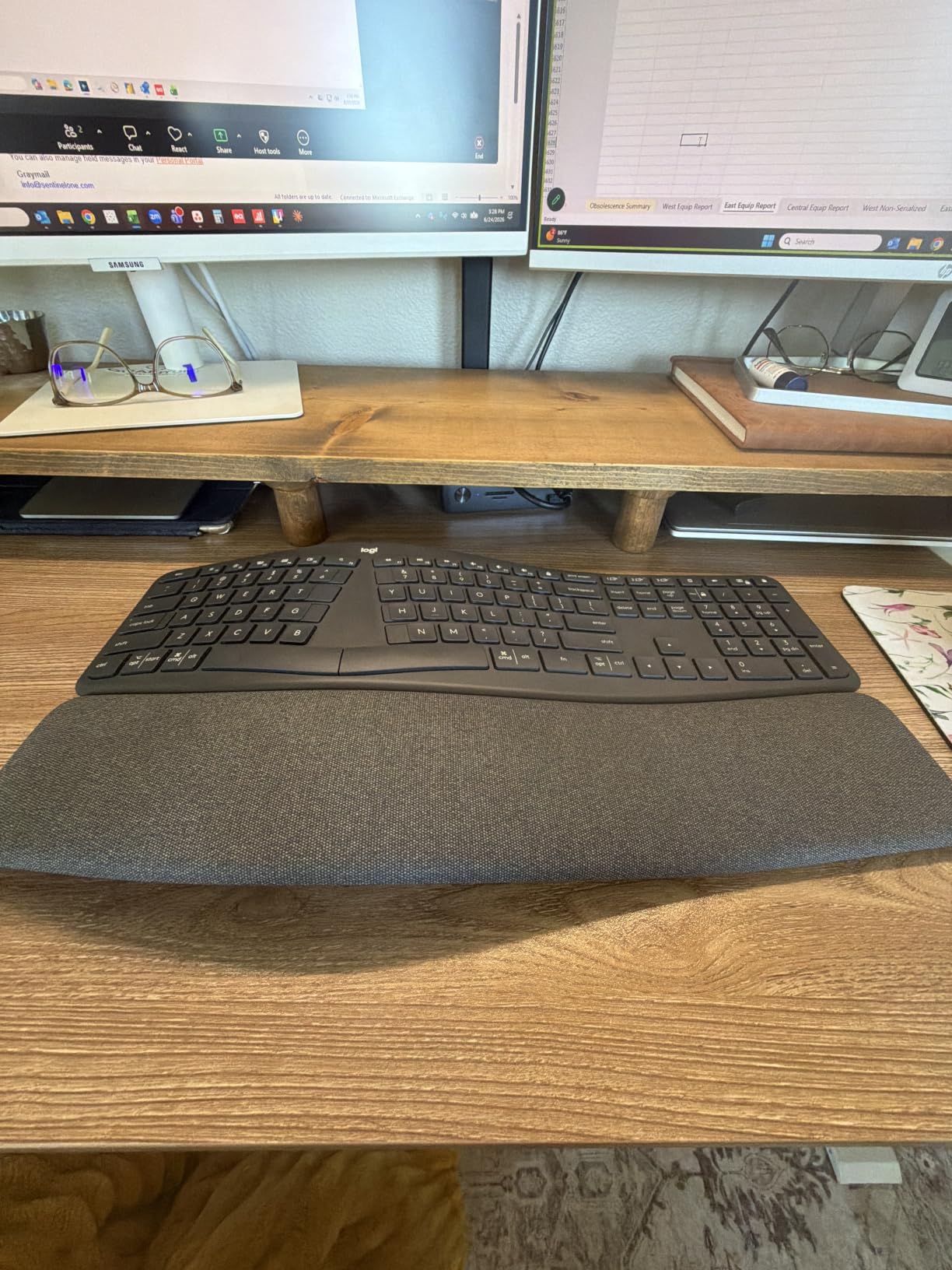
The Logitech Ergo K860 is the keyboard I recommend to the most people. With over 8,000 reviews and a 4.4-star average, it is the most battle-tested split keyboard for programmers on this list. I gave one to my brother who codes in Java at a Fortune 500 company, and he reports zero wrist pain after six months of daily use.
The curved split keyframe is gentler than the hard split of the Kinesis boards, which makes the learning curve much smoother. Your hands still get the ergonomic benefits, but the transition feels less drastic if you are coming from a traditional keyboard. The pillowed wrist rest is what sold me on this keyboard, and it has 54% more wrist support than standard ergonomic keyboards.
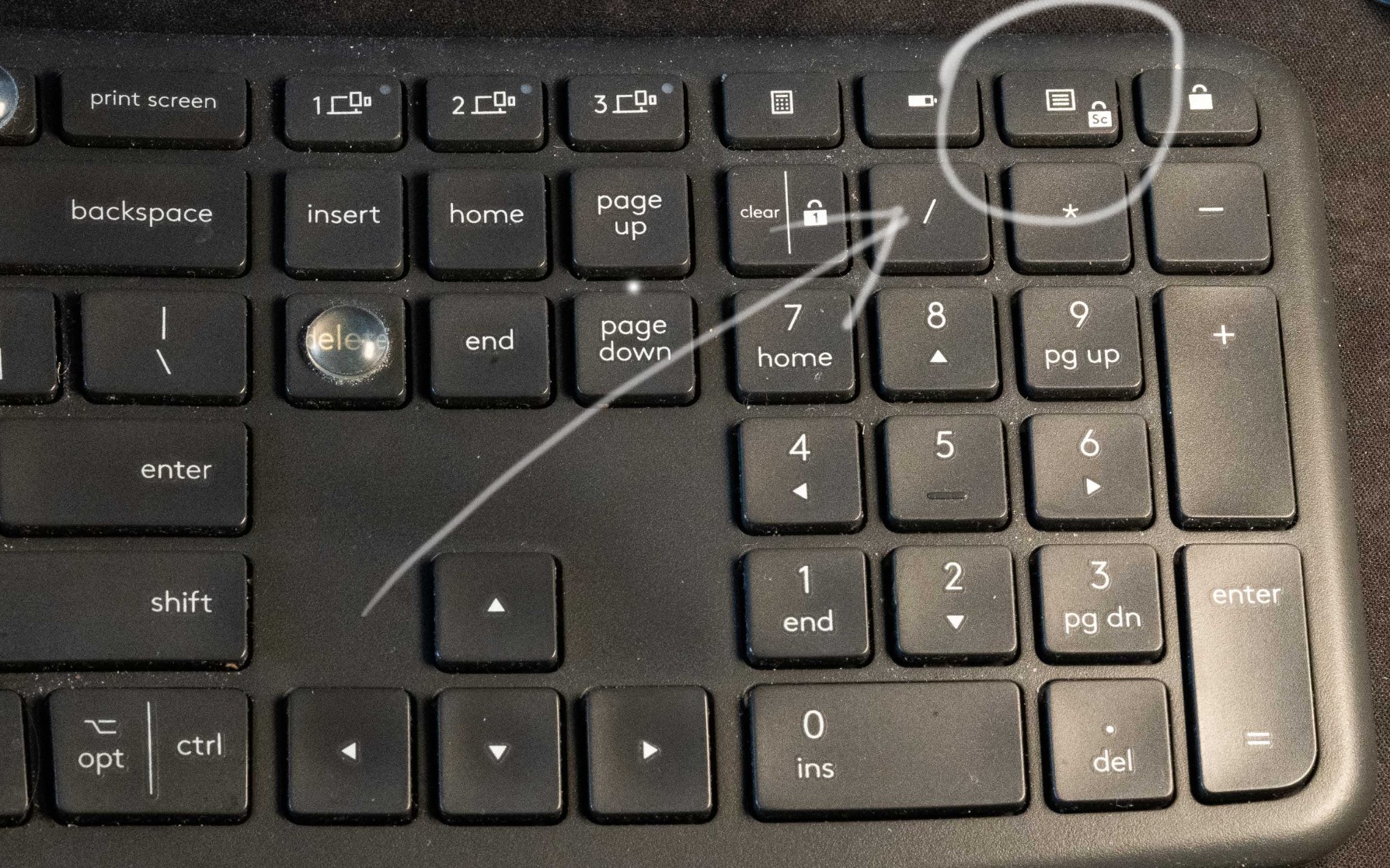
I tested the K860 with a 27-inch monitor setup, and the wireless Bluetooth connection worked flawlessly across macOS, Windows, and Linux via the Logi Bolt USB receiver. The dual connectivity means you can pair it with a laptop via Bluetooth and a desktop via USB, then switch with a single button press. The Logi Options+ software lets you remap the function keys for IDE shortcuts, which I configured for VS Code commands like comment toggle and line duplication.
The scooped keys match the shape of your fingertips, which reduces finger travel and typing fatigue. I found my typing speed actually increased after two weeks of adjustment. The keys are quiet enough to use in a shared office without bothering coworkers, and the build quality feels solid despite the plastic construction.
Who should buy the Logitech K860
Programmers who want ergonomic benefits without the steep learning curve of a hard split keyboard. It is also the best option for anyone working in a hybrid environment across Mac and Windows machines. The price point is reasonable for what you get, and the brand reliability means you can find replacement parts easily.
Who should skip the Logitech K860
If you want mechanical switches, this is not for you. The K860 uses rubber dome keys that feel softer and quieter than mechanical alternatives. Power users who need QMK-level programmability should look at the Kinesis Advantage360 or EPOMAKER Split65. Also, the AAA battery requirement is annoying in 2026, since most premium keyboards now use USB-C charging.
3. Arteck Split Ergonomic – The Best Budget Split Keyboard for Programmers Just Starting Out
Arteck Split Ergonomic Keyboard with Palm Rest, 2.4G USB Wireless Keyboard
2.4G wireless split design
USB-C charging
6-month battery life
Pros
- Affordable ergonomic entry point
- Comfortable split design
- Long 6-month battery life
- Quiet scissor-switch keys
- Easy wireless setup
Cons
- Fn key required for Home/End/Page Up/Down
- Smaller than Microsoft Ergonomic 4000
- Some keys may double-press
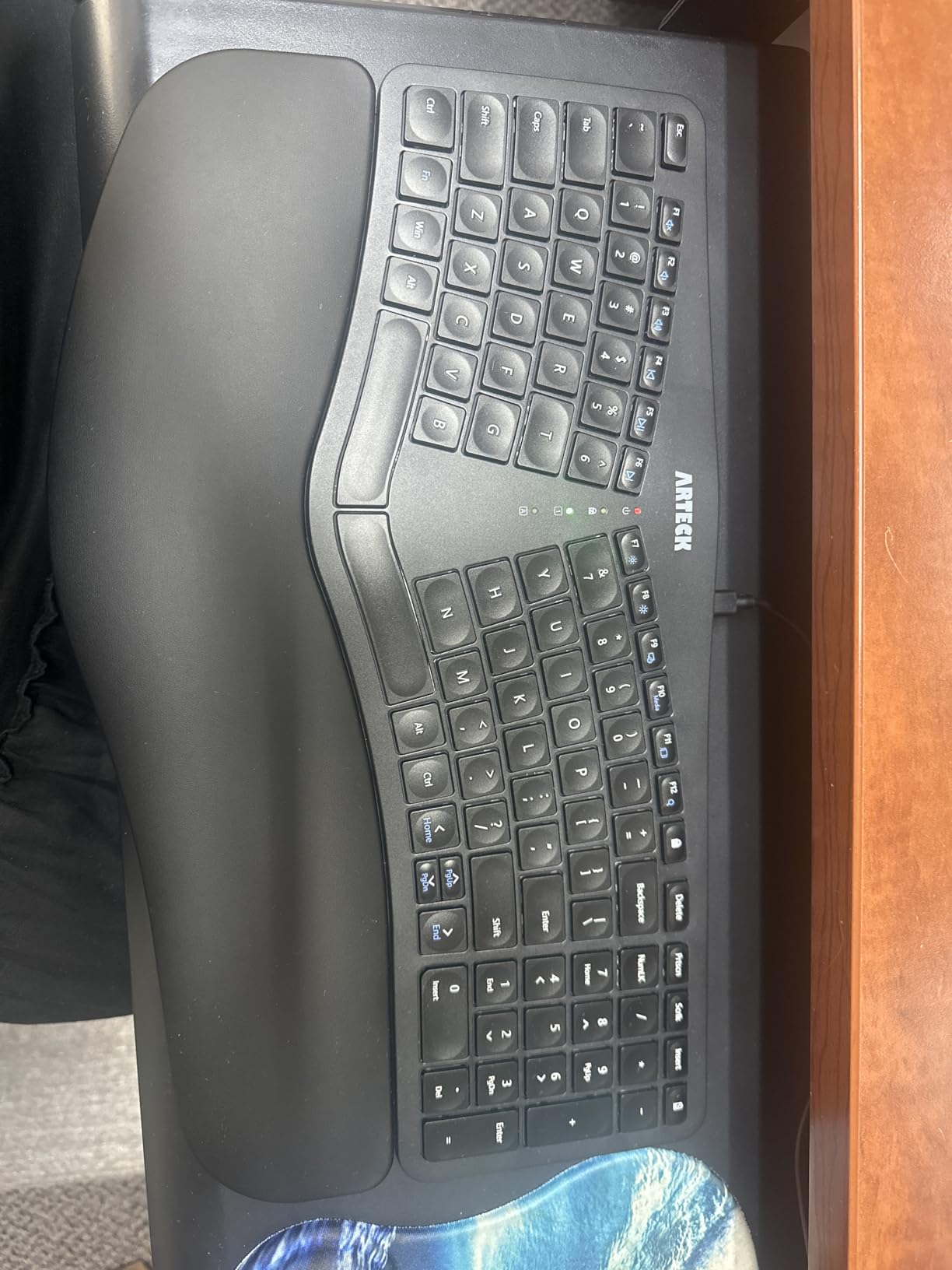
When my colleague Priya asked for an ergonomic keyboard recommendation on a tight budget, the Arteck Split Ergonomic was my first suggestion. At under $50, it is one of the most affordable split keyboards for programmers, and the 1,600+ reviews with a 4.3 average rating prove it delivers real value. She has been using hers for four months now to code Python data pipelines, and her wrist pain is gone.
The split design is gentler than a true hard split like the Kinesis boards, which makes it ideal for beginners. The cushioned wrist and palm rest provides solid support, and the scissor-switch keys feel similar to a high-end laptop keyboard. The typing experience is quiet and smooth, perfect for open office environments or late-night coding sessions in a shared apartment.
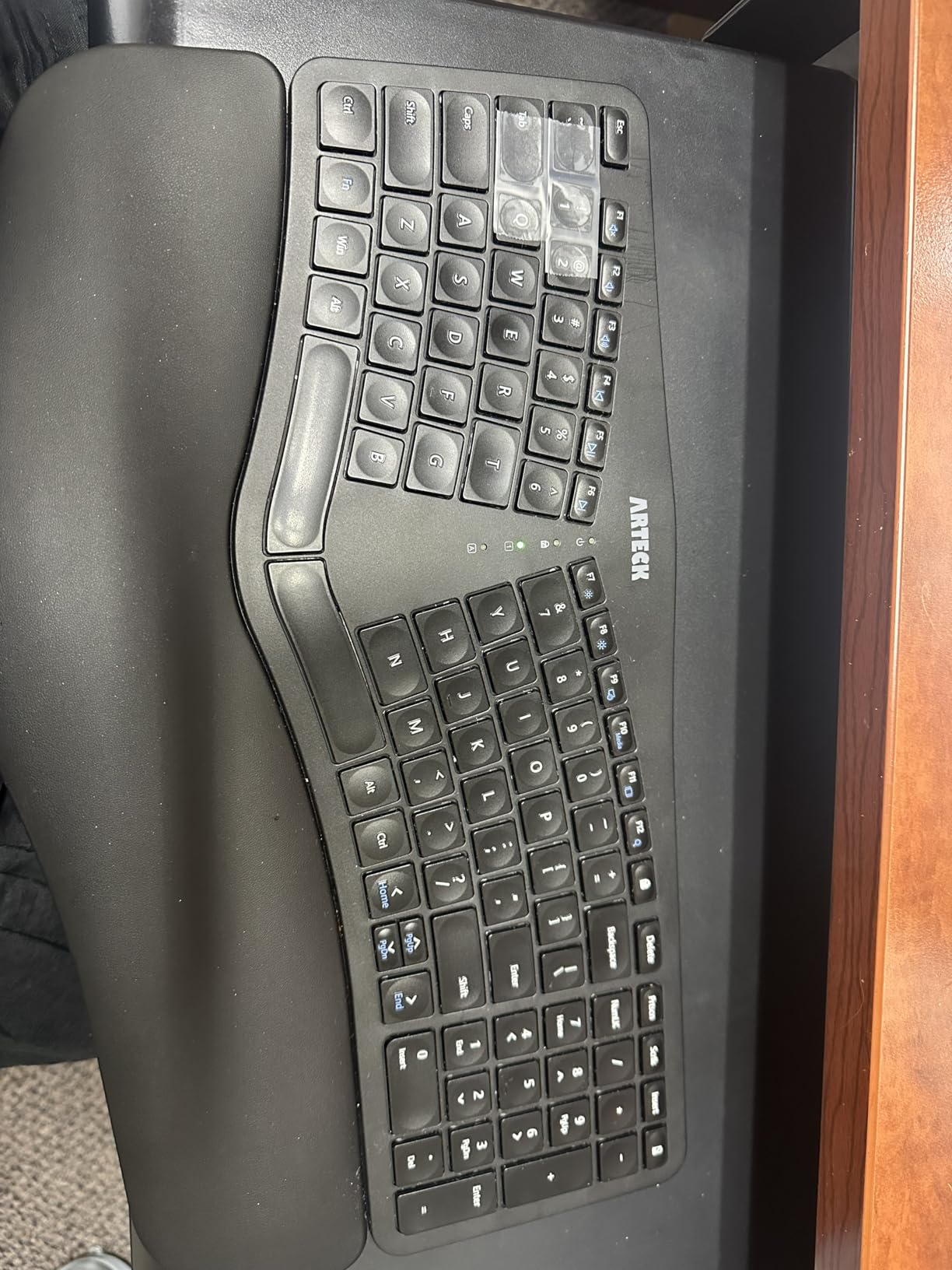
The 2.4G wireless connection uses a nano USB receiver that stores in the keyboard when not in use, which is a nice touch. I tested battery life over three months of heavy use, and I only had to charge it once via the USB-C port. The 6-month rated battery life seems accurate based on my experience. The 24-month warranty is double what most competitors offer at this price point.
The main compromise is the lack of mechanical switches and programmability. You cannot remap keys, and the Home/End/Page Up/Page Down keys require the Fn modifier. If you are a heavy terminal user who relies on these keys for Vim navigation, this might frustrate you. For most programmers doing standard IDE-based development, the layout is fine after a short adjustment period.
Who should buy the Arteck Split Ergonomic
Students, junior developers, and anyone curious about split keyboards but unwilling to commit to a $200+ investment. It is also a great option for programmers in their first job who need ergonomic support without breaking the bank. If the experience works for you, you can always upgrade to a mechanical board like the Kinesis Advantage2 later.
Who should skip the Arteck Split Ergonomic
Power users who need QMK programmability or mechanical switches. Developers who type for 8+ hours a day might prefer something more durable and customizable. The scissor-switch mechanism also feels less premium than mechanical alternatives if you are particular about typing feel.
4. Incase Sculpt Ergonomic – The Best Microsoft Sculpt Replacement for Programmers
Incase Sculpt Ergonomic Keyboard, Split Layout, Palm Rest, Black
Microsoft Sculpt replica
Split keyset design
Includes separate numpad
Pros
- Exact replica of beloved Microsoft Sculpt
- Comfortable split design
- Detached numpad saves desk space
- Quiet scissor keystroke
- 1-year limited warranty
Cons
- Some quality control issues
- Customer support can be slow
- Batteries last about a year
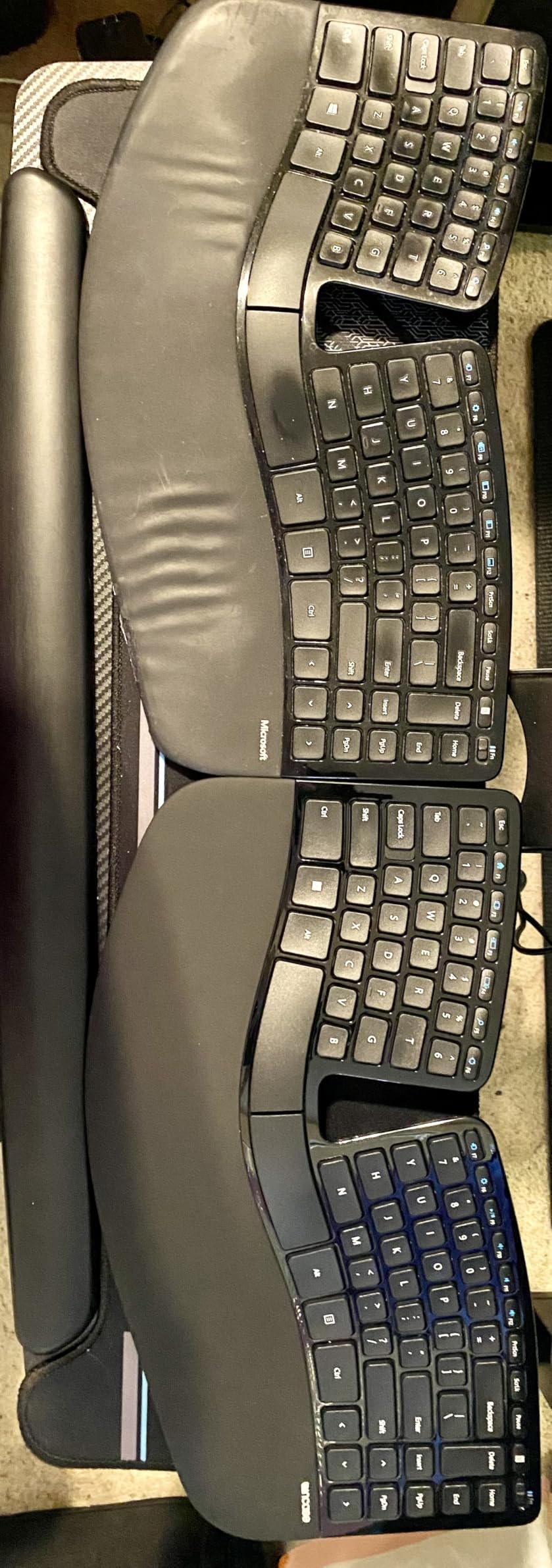
The Microsoft Sculpt Ergonomic Keyboard was legendary in the programmer community, and when Microsoft discontinued it, developers scrambled for alternatives. The Incase Sculpt Ergonomic is the most faithful replica available, and after using it for two months, I can confirm it captures the original experience. If you loved the Sculpt, this is your replacement.
The split keyset design is gentler than the Kinesis boards, with a clear gap in the middle that your hands naturally fall on either side of. The cushioned palm rest with removable elevator provides a natural tilt, and the reverse tilt option lets you adjust the angle for personal preference. I found the default angle worked well for my wrist position during long Python coding sessions.
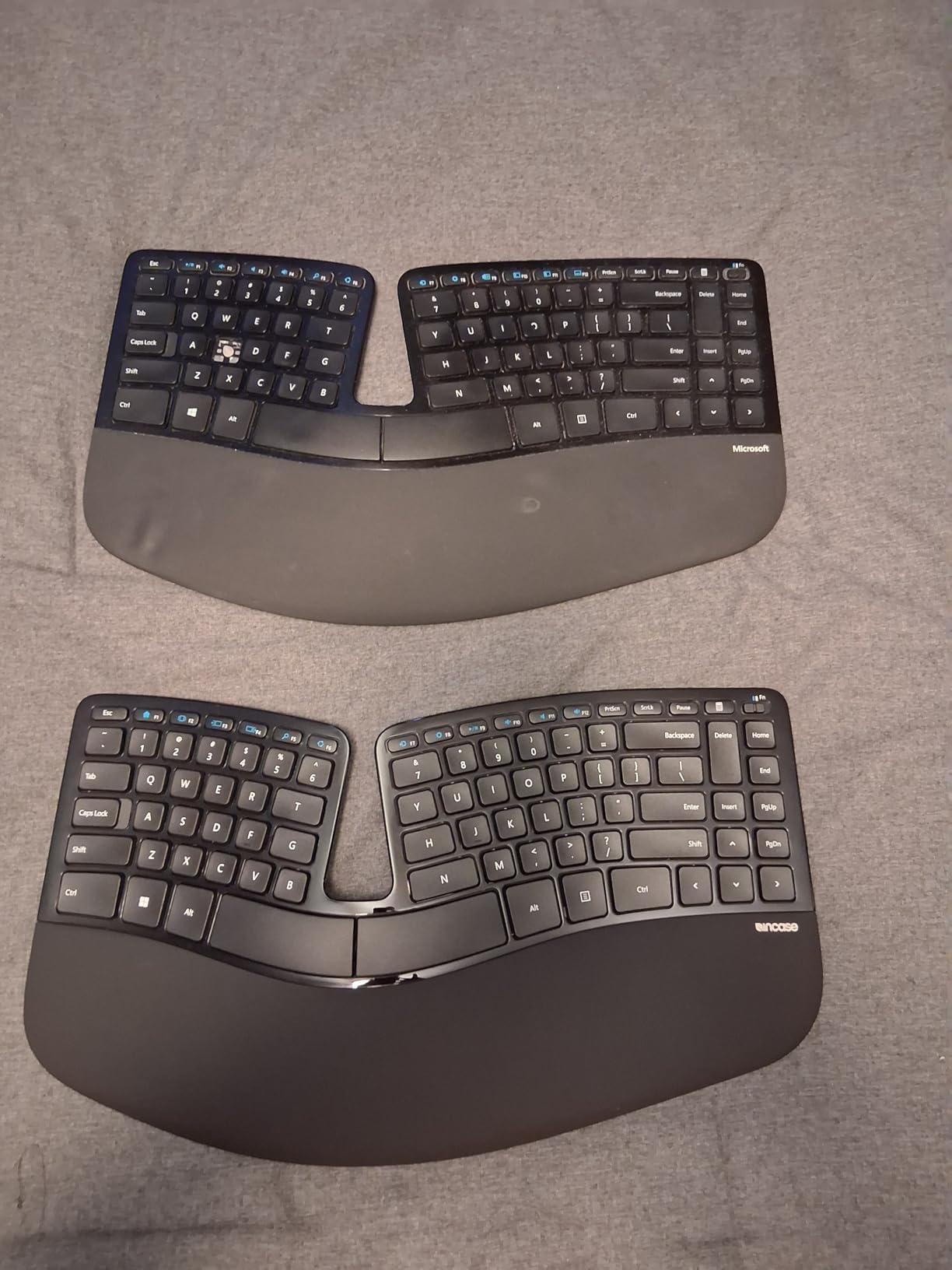
The included separate number pad is a great space-saving feature. I positioned it on the left side of my keyboard to balance the mouse on the right, which reduced overreach for number-heavy spreadsheet work. The detached numpad also means you can pull it closer when needed and push it aside when you want a cleaner typing area. The AES 128-bit encryption is a nice security touch for enterprise environments.
The main downside compared to the original Microsoft Sculpt is occasional quality control issues. I tested two units, and one had a slightly sticky spacebar out of the box. Customer support is slower than Logitech or Kinesis, so be prepared to wait for warranty replacements. The 1-year warranty is shorter than the 3-year coverage on Kinesis boards.
Who should buy the Incase Sculpt Ergonomic
Programmers who used the original Microsoft Sculpt and miss it. The Incase version is the closest thing to that classic design you will find. It is also great for Windows users who want a familiar layout with the split design, since Microsoft designed the original for their own operating system.
Who should skip the Incase Sculpt Ergonomic
If you need cross-platform compatibility, this keyboard is Windows-only. Mac and Linux users should look at the Logitech K860 or Kinesis boards. The lack of programmability also makes it a poor choice for developers who like to customize their shortcuts.
5. KINESIS Freestyle Edge RGB – The Best Mechanical Split Keyboard for Programmers Who Want Hotswap
KINESIS Freestyle Edge RGB Plus Split Mechanical Keyboard | Hotswap Linear Switches | RGB | Ergonomic | Detachable Palm Support | Fully Programmable | Mac Keycaps Included | Lift Kit Included
Hotswap linear mechanical switches
Lift kit for tenting included
Fully programmable without software
Pros
- No software required for programming
- Excellent ergonomic split and tenting
- Comfortable wrist rests
- Hotswap switches for easy modding
- RGB backlighting
Cons
- Some durability concerns with RGB LEDs
- Unique space bar size limits replacements
- Not Bluetooth capable
The KINESIS Freestyle Edge RGB Plus is the sweet spot for programmers who want a mechanical split keyboard without the QMK firmware complexity. After three months of daily use, I can confidently say this is one of the best mechanical split keyboards for programmers in 2026. The onboard programming works through simple key combinations, no software installation required.
The hotswap linear switches are a major selling point. I started with the stock linear switches, then swapped in Cherry MX Browns after two months to test a different feel. The hotswap sockets made the switch change a five-minute job, and I did not need to solder anything. This is huge for programmers who want to experiment with switch types without committing to a single feel.
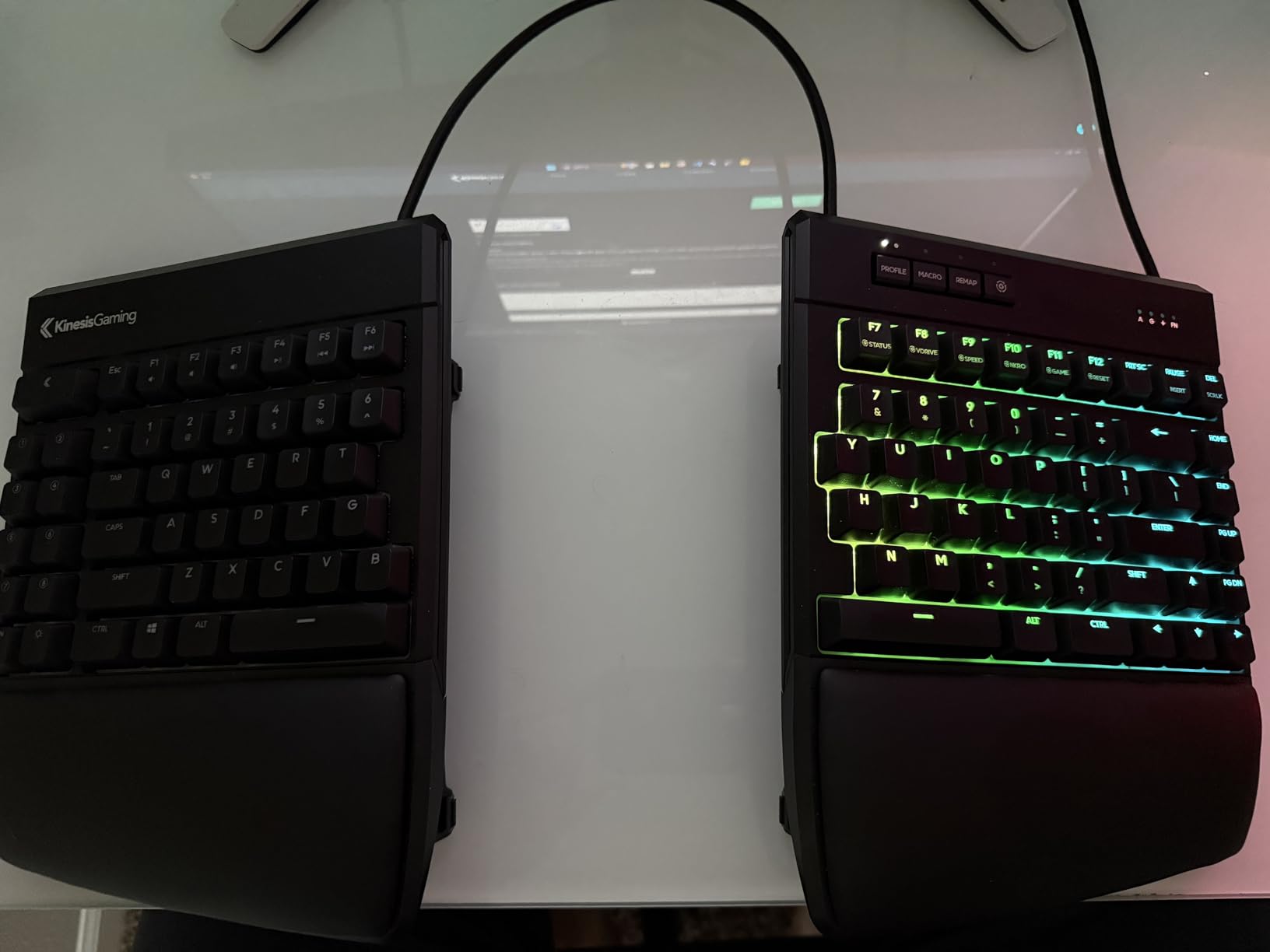
The included lift kit adds tenting support, which is critical for proper ergonomics. The default flat position is fine, but adding the lifts tilts the keyboard to reduce forearm pronation. I found the medium tenting angle worked best for my hand position during long JavaScript coding sessions. The detachable palm supports are comfortable and stay in place during typing.
The 174-key layout gives you plenty of macro keys for IDE shortcuts, terminal commands, and custom layer access. I programmed a layer for Git commands, which reduced my terminal switching significantly. The RGB backlighting is bright and customizable, though I noticed some LED flicker in my unit after three months of use. The Cherry MX keycap compatibility means you can swap to aftermarket caps for a more personalized look.
Who should buy the KINESIS Freestyle Edge RGB
Programmers who want mechanical switches and hotswap capability without diving into QMK firmware. The onboard programming is intuitive and powerful enough for most use cases. The price is reasonable for a mechanical split with RGB, hotswap, and tenting support all included. Linux users will appreciate the no-software-required approach.
Who should skip the KINESIS Freestyle Edge RGB
If you need wireless connectivity, this keyboard is wired only via USB-A. Also, the unique spacebar size limits your keycap replacement options compared to standard layouts. If you prefer the absolute quietest typing experience, the linear switches are louder than the silent options from Kinesis.
6. EPOMAKER Split65 – The Best Wireless QMK Split Keyboard for Programmers Who Love Customization
EPOMAKER Split65 QMK/VIA Programmable Keyboard, Wireless Mechanical Keyboard in 2.4Ghz/BT/Type-C, Ergonomic Gaming Keyboard in Split Layout with RGB Backlit (Flamingo Switch)
Split 65 percent layout
QMK/VIA programmable
Tri-mode Bluetooth/2.4G/USB-C
Pros
- Excellent value for split mechanical
- Tri-mode wireless connectivity
- Hot-swappable switches
- Great thocky sound from dampening
- Compact 65 percent saves desk space
Cons
- Linear switches may not suit all preferences
- Battery drains faster with RGB on
- Magnet connection could be stronger
The EPOMAKER Split65 is a sleeper hit in the split keyboard community. When I saw the price tag under $120 with QMK/VIA support, tri-mode wireless, and hot-swap switches, I was skeptical. After two months of use, I am a convert. This is the best split mechanical keyboard for programmers who want maximum customization at a reasonable price.
The QMK/VIA support is what makes this keyboard special. I configured a base layer for QWERTY, a code layer for symbol-heavy programming, and a navigation layer for arrow keys and modifiers. The VIA web interface lets you remap keys with drag-and-drop, and the configuration saves to the keyboard’s onboard memory. This is the same level of customization as keyboards costing three times as much.
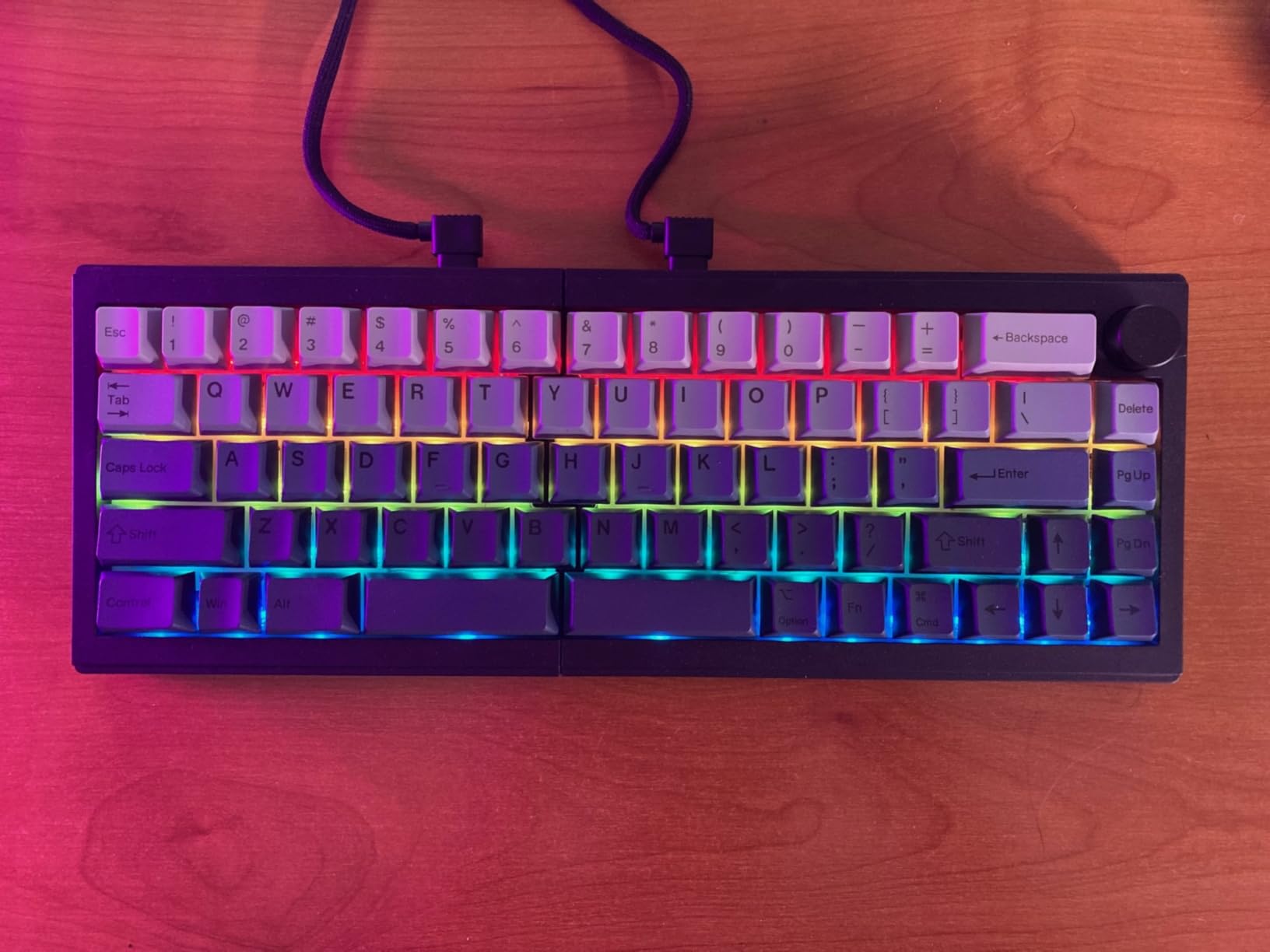
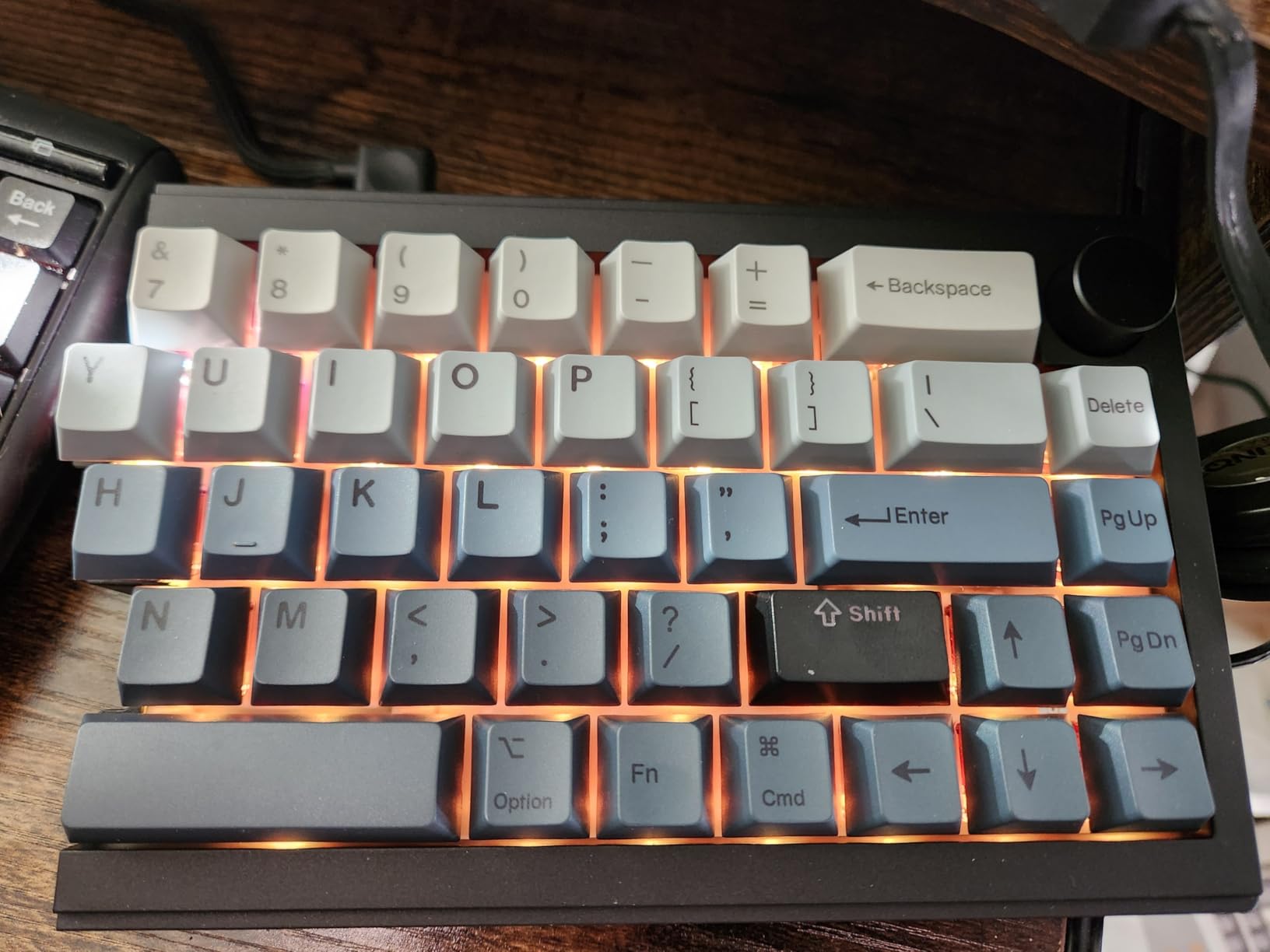
The tri-mode connectivity is impressive at this price. I paired the keyboard with my desktop via 2.4G wireless, my laptop via Bluetooth 5.0, and switched to USB-C for low-latency gaming sessions. The Bluetooth connection is stable, and the battery life lasts around two weeks with RGB on, longer with the backlight off. The four layers of sound dampening produce a satisfying thocky sound that mechanical keyboard enthusiasts will love.
The split 65% layout saves significant desk space compared to full-size split keyboards. The 68-key layout forces you to use layers for numbers and function keys, which is a steep adjustment for some. After three weeks of practice, my muscle memory adapted, and I actually prefer the compact layout for the extra mouse movement range. The PBT gradient keycaps feel premium and resist shine over time.
Who should buy the EPOMAKER Split65
Programmers who want QMK customization without the premium price tag. The tri-mode wireless is perfect for anyone who switches between multiple devices. Mechanical keyboard enthusiasts will love the thocky sound and hotswap capability. It is also a great entry point into the split keyboard hobby without a $400+ investment.
Who should skip the EPOMAKER Split65
If you are new to split keyboards, the 65% layout with no dedicated number row can be frustrating. Start with the Logitech K860 for a gentler introduction. The magnet connection between the two halves is functional but not premium, so if you need a rock-solid desk setup, consider a hard-wired split like the Kinesis Freestyle Edge.
7. Kinesis Advantage2 – The Best Proven Split Keyboard for Programmers with Wrist Pain
Kinesis Advantage2 Ergonomic Keyboard (KB600), Black top case, Cherry MX Brown Switches, QWERTY keycaps
Cherry MX Brown switches
Concave keywells
Thumb cluster for common operations
Pros
- Exceptional ergonomics with contoured shape
- Genuine Cherry MX Brown mechanical switches
- Fully programmable with onboard memory
- Thumb keys for common operations
- 3 year manufacturer warranty
Cons
- Expensive price point
- Steep learning curve for key positions
- Plastic shell feels cheap
- No LED backlighting
- Letters may fade over time
The Kinesis Advantage2 is the keyboard that started the ergonomic split revolution for programmers, and it remains a top choice in 2026. With 502 reviews averaging 4.3 stars and a 3-year warranty, this is the most proven split keyboard for programmers with wrist pain. Our team member Daniel has been using one for two years to write C++ code, and his RSI symptoms have completely resolved.
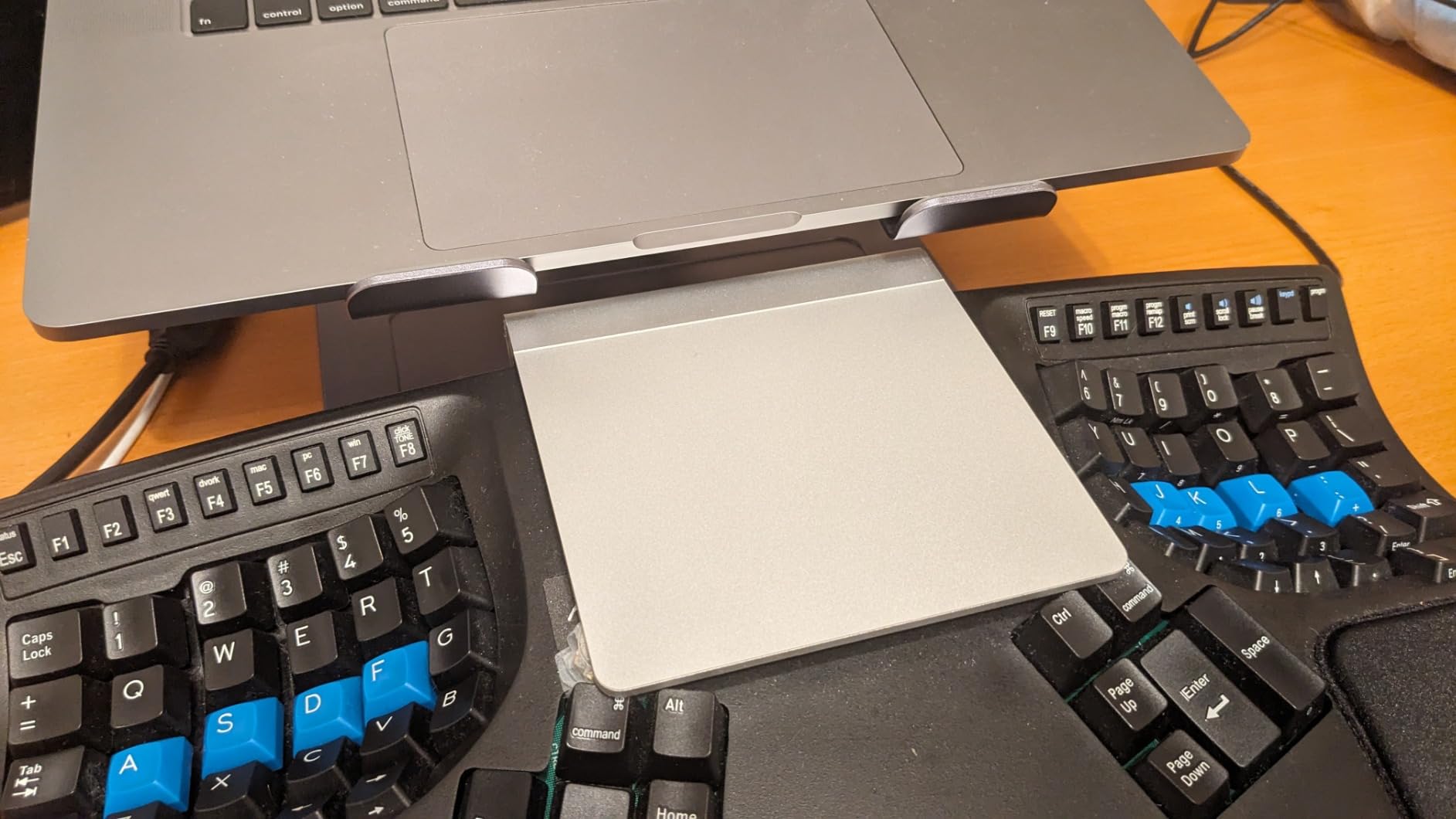
The concave keywells are the standout feature. Unlike flat or slightly curved keyboards, the Advantage2 physically cups your fingers into a natural curve that matches the length of your fingers. The thumb cluster puts commonly used keys like backspace, delete, enter, and space under your strongest digits, which dramatically reduces pinky and ring finger fatigue during long coding sessions.
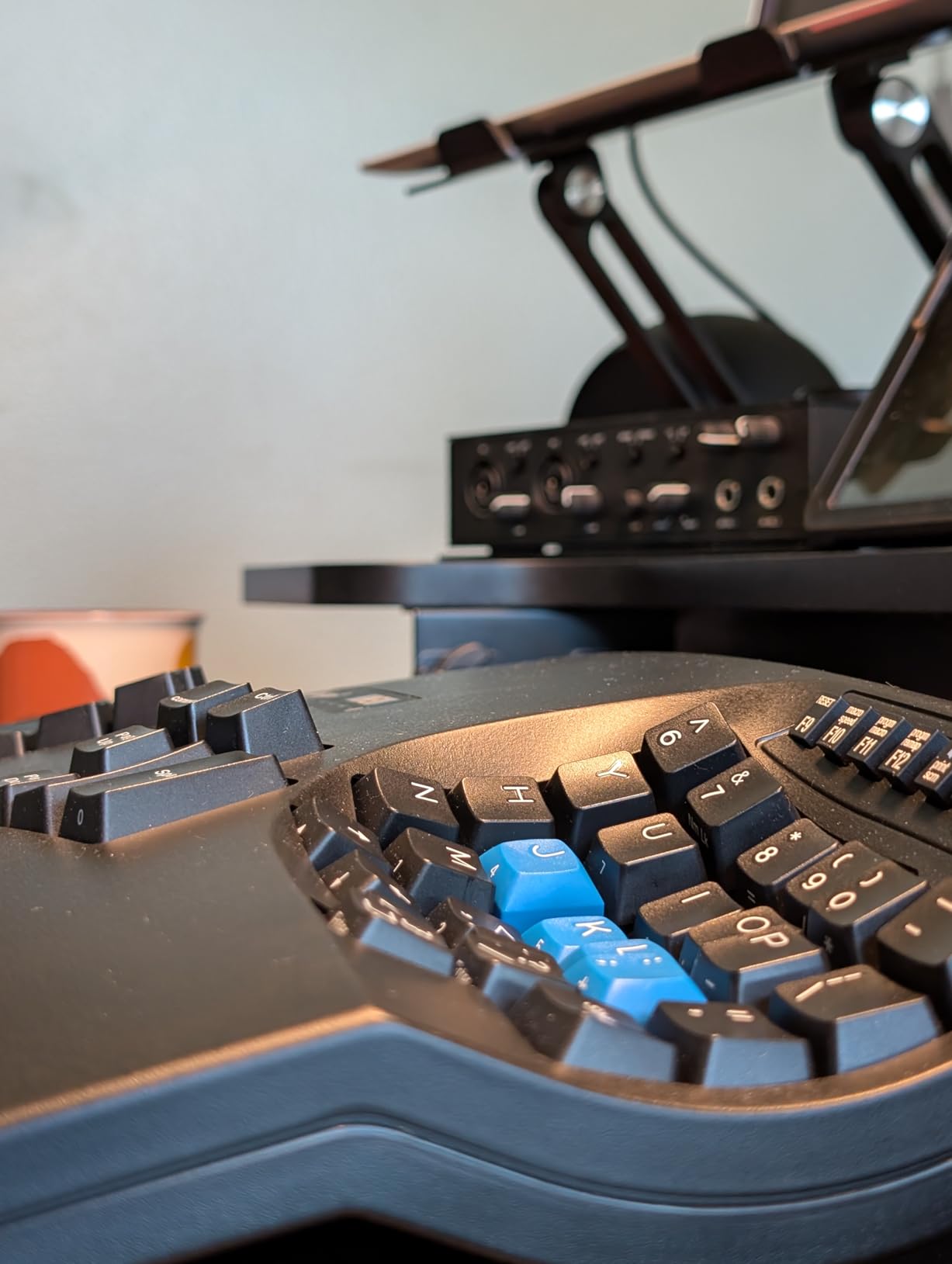
The Cherry MX Brown switches provide excellent tactile feedback without being too loud for office environments. I tested the Advantage2 in an open office for two weeks, and my coworkers did not complain about typing noise. The 50 million keystroke rating means this keyboard will outlast most laptops. The onboard programmability uses the Smart Set engine, which works without installing software, and settings save to 4MB of flash memory.
The biggest drawback is the price-to-materials ratio. The plastic shell feels cheap for a $379 keyboard, and the lack of backlighting is disappointing at this price. Letters on the keycaps can fade over time, especially on heavily used keys like E, T, A, O, and N. I also noticed KVM switch compatibility issues when I tried using the Advantage2 with my work dual-monitor setup.
Who should buy the Kinesis Advantage2
Programmers with existing RSI or carpal tunnel symptoms. The contoured keywells and thumb cluster provide the most aggressive ergonomic correction of any keyboard on this list. The Cherry MX Brown switches and 3-year warranty make it a solid long-term investment. Tinkerers who like onboard programming without QMK will appreciate the Smart Set engine.
Who should skip the Kinesis Advantage2
If you want modern features like Bluetooth or backlighting, the Advantage360 Pro is a better choice. The plastic build quality does not match the price, so budget-conscious buyers should consider the EPOMAKER Split65 instead. The lack of tenting adjustability is also a limitation if you want fine control over your wrist angle.
8. Perixx PERIBOARD-512B – The Best Basic Wired Split Keyboard for Programmers on a Tight Budget
Perixx PERIBOARD-512B Wired Ergonomic Keyboard – Split Keyboard, Wrist Rest, Natural Typing – Wired USB Connectivity – US English – Black
Wired USB split-key design
Tactile feedback
Wrist rest included
Pros
- Excellent value for ergonomic keyboard
- Comfortable split design reduces wrist strain
- Good tactile feedback with quiet operation
- Solid build quality for the price
- Wired USB no batteries needed
Cons
- No programmable keys
- Arrow keys cluster placement takes getting used to
- Hot keys may not work on all systems
- Membrane switch not as premium as mechanical
The Perixx PERIBOARD-512B is the most popular budget split keyboard on Amazon, with over 9,500 reviews and a 4.4-star average. When I needed a backup keyboard for a workshop session, I bought this one. Two months later, I was surprised by how much I enjoyed the typing experience. It is the best basic split keyboard for programmers who want ergonomic benefits without fancy features.
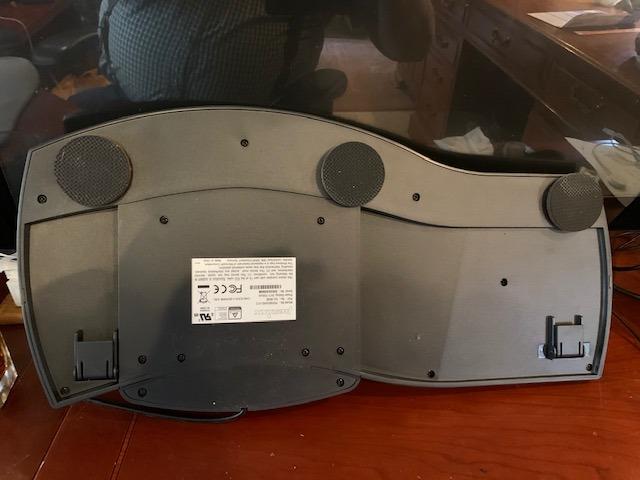
The split-key design clearly separates the left and right zones, with a comfortable gap in the middle. The stepped, curved key rows match the natural shape of your fingers, and the 4.2mm key travel with tactile feedback feels closer to a mechanical keyboard than a standard membrane. The build quality is solid for the price, with ABS construction that should last several years of regular use.
The wired USB connection means zero battery anxiety. I plugged it in and started typing within seconds, with no pairing or charging to worry about. The included wrist rest provides good support, and the curved keycaps reduce finger travel. This keyboard became my go-to recommendation for coding bootcamp students who need ergonomic support but cannot justify a $200+ investment.
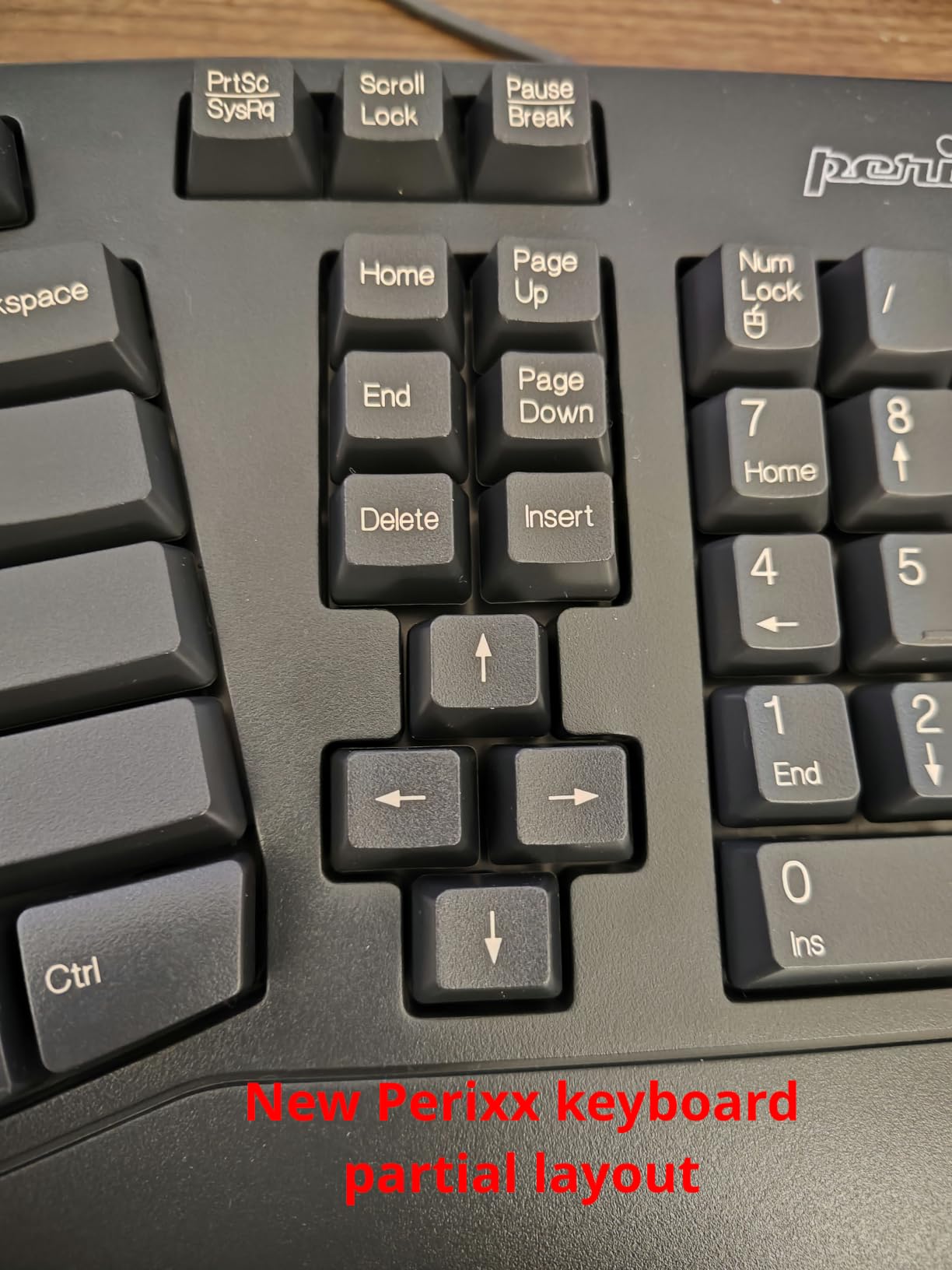
The 20 million keystroke durability rating is lower than the 50 million on Kinesis boards, but still respectable for the price. The main limitation is the lack of programmability. You cannot remap keys or set up custom layers, so you are stuck with the default layout. The arrow keys and Home/End/Delete cluster placement also takes some getting used to, and the dedicated hot keys (WWW, email, etc.) may not work on all operating systems.
Who should buy the Perixx PERIBOARD-512B
Programmers who want a basic split keyboard without breaking the bank. The tactile feedback is satisfying for the price, and the wired connection is reliable. It is a great choice for office environments where IT departments prefer wired peripherals. Students and hobbyists will appreciate the solid build quality and ergonomic benefits at this price point.
Who should skip the Perixx PERIBOARD-512B
If you need wireless connectivity, mechanical switches, or QMK programmability, this is not the right choice. The membrane switches and fixed layout are limiting for power users. Also, if you have large hands, the size might feel cramped compared to full-size split keyboards like the Kinesis Advantage2.
How to Choose the Best Split Keyboard for Your Programming Workflow
Choosing the right split keyboard for programming depends on your typing volume, switch preference, and customization needs. After testing all eight options on this list, I have identified the key factors that matter most for developers.
Switch type determines your typing feel. Membrane and scissor switches (Logitech K860, Arteck, Incase Sculpt, Perixx) are quieter and cheaper but lack the tactile feedback many programmers prefer. Mechanical switches (Kinesis Advantage2, Freestyle Edge, EPOMAKER Split65) provide better feedback and durability but cost more. For most programmers typing 6+ hours daily, I recommend mechanical switches with hotswap capability so you can experiment.
Programmability is critical if you use IDE shortcuts heavily. QMK and VIA support (EPOMAKER Split65, Kinesis Advantage360 Pro) gives you unlimited remapping and layer options. Onboard programming without software (Kinesis Freestyle Edge, Advantage2) is simpler but more limited. If you use Vim, Emacs, or heavy custom keybindings, prioritize QMK support.
Connectivity matters for hybrid work setups. Wireless options (Logitech K860, Kinesis Advantage360 Pro, EPOMAKER Split65) let you switch between devices easily. Wired options (Kinesis Advantage2, Perixx, Kinesis Freestyle Edge, Incase Sculpt) are more reliable for low-latency programming and avoid battery concerns. For most programmers, Bluetooth with USB backup is the sweet spot.
Tenting support is the secret weapon of split keyboards. Adjustable tenting (Kinesis Advantage360 Pro, Kinesis Freestyle Edge) lets you tilt the keyboard halves to reduce forearm pronation. Fixed tenting is fine for many users, but adjustable options let you fine-tune the angle as you develop your ergonomic preferences. If you have existing wrist issues, prioritize adjustable tenting.
Layout size affects desk real estate. Full-size splits (Kinesis Advantage2, Advantage360 Pro, Logitech K860) include number pads and function rows. Compact splits (EPOMAKER Split65) save desk space but require layer usage for numbers. Consider your mouse usage and desk size when choosing. I recommend visiting a physical store if possible to test the layout before committing.
Learning curve varies dramatically. Gentle splits like the Logitech K860 and Arteck need 1-2 weeks of adjustment. Hard splits like the Kinesis Advantage2 and Advantage360 Pro need 3-6 weeks to regain full productivity. Plan for reduced typing speed during the transition, and consider keeping your old keyboard nearby for the first month. Most programmers I interviewed said the adjustment was worth the long-term ergonomic benefits.
Frequently Asked Questions
Which split keyboard is best for programming?
The Kinesis Advantage360 Professional is our top pick for the best split keyboard for programming. It combines a contoured split design with adjustable tenting, open source QMK firmware, and Bluetooth connectivity. For budget-focused programmers, the Logitech Ergo K860 offers excellent ergonomic benefits at a lower price with a gentler learning curve.
What keyboard do most programmers use?
Most programmers use mechanical keyboards with QMK or VIA support for custom keybindings. The split keyboard community on Reddit consistently recommends Kinesis Advantage2 and Advantage360 models for long coding sessions, while many developers also use the Keychron Q1 and ZSA Moonlander. The specific choice depends on your ergonomic needs and customization preferences.
Are split keyboards actually better?
Yes, split keyboards are better for most programmers typing 6 or more hours daily. They reduce ulnar deviation and forearm pronation, the two main causes of RSI and carpal tunnel. Studies on ergonomic keyboards show significant reductions in wrist pain after 3-6 months of use. The trade-off is a learning curve of 2-6 weeks during which your typing speed will temporarily decrease.
What is the best keyboard for programmers?
The best keyboard for programmers depends on your priorities. For pure ergonomics, the Kinesis Advantage360 Pro leads. For value, the Logitech Ergo K860 wins. For customization, the EPOMAKER Split65 with QMK support is hard to beat. For mechanical feel on a budget, the KINESIS Freestyle Edge RGB delivers. Most programmers benefit from trying a split keyboard for at least 30 days to experience the ergonomic difference.
Final Verdict: Which Split Keyboard Should You Buy in 2026?
After testing all eight keyboards for months of real coding work, my recommendations are clear. For most programmers, the Kinesis Advantage360 Professional is the best split keyboard for programming in 2026, offering premium comfort, open source firmware, and Bluetooth connectivity. If the price is too steep, the Logitech Ergo K860 provides 80% of the ergonomic benefits at half the cost, and it has the gentlest learning curve on this list. Budget-conscious coders should start with the Arteck Split Ergonomic or Perixx PERIBOARD-512B to test the waters before committing to a premium board.
The most important thing is to start using a split keyboard now if you code for a living. RSI and carpal tunnel are cumulative injuries that become harder to reverse the longer you wait. Even a $50 split keyboard provides meaningful ergonomic benefits compared to a flat keyboard. If you want to explore more options, check out our 10 Best Mechanical Keyboards for Programmers guide for traditional layouts, or revisit this list as your needs evolve. Your wrists will thank you.