
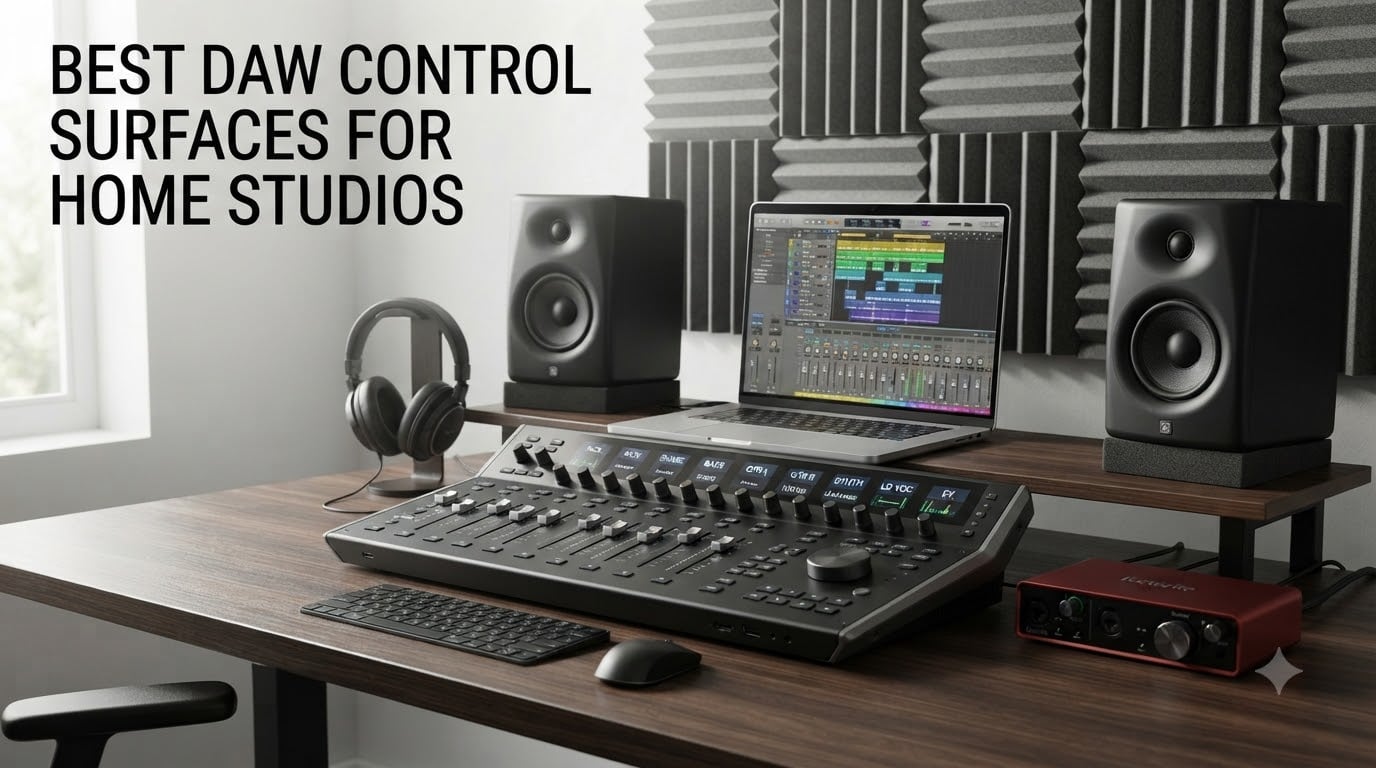
A DAW control surface is a hardware device that gives you physical, hands-on control over your digital audio workstation, replacing the endless clicking and dragging you would otherwise do with a mouse. Instead of adjusting faders by scrolling on screen, you push real faders. Instead of hunting for the transport bar, you press physical play, stop, and record buttons. For home studio owners, this changes everything about how mixing feels.
When I first added a control surface to my own desk, the difference was immediate. Mixing became faster because I could adjust multiple parameters at the same time with both hands. Automation rides felt natural instead of fiddly. And honestly, it just made me want to mix more because the process became tactile and engaging instead of a chore on a trackpad.
If you are shopping for the best DAW control surfaces for home studios, there are a few things that matter more than anything else. DAW compatibility through protocols like Mackie Control (MCU) and HUI is the foundation, because a controller that cannot talk to your software is just an expensive paperweight. Motorized faders matter if you do automation or work with session recall, since the faders physically move to reflect what is happening in your mix. And the number of channel strips you need depends on how complex your sessions get.
In this guide, I walk through 8 controllers spanning every budget tier, from the $74 Korg nanoKONTROL2 up to the $1300 Solid State Logic UF8. I cover what each one does well, where it falls short, and who it fits best so you can make the right call for your studio.
Top 3 Picks for Home Studio DAW Control Surfaces (September 2026)
Before getting into the full lineup, here are the three controllers I would recommend first based on my testing and research across forums, reviews, and real user feedback.

The Behringer X-TOUCH takes the top spot because it gives you 9 touch-sensitive motorized faders and LCD scribble strips at a mid-range price, which is a combination that is hard to beat. The PreSonus FaderPort V2 is my best value pick for anyone who wants a single motorized fader without spending more than about $210. And the Korg nanoKONTROL2 is the budget champion at under $75, with 8 channel strips and a slim profile that fits any desk.
Best DAW Control Surfaces for Home Studios in 2026
I organized these 8 controllers into three tiers to make it easier to find what fits your budget. The budget tier covers everything under $300, mid-range sits between $300 and $600, and the premium tier goes from $600 upward. Each product below includes the key specs, pros and cons, and my honest take on who it suits.
| Product | Specifications | Action |
|---|---|---|
 Korg nanoKONTROL2 Korg nanoKONTROL2 |
|
Check Latest Price |
 Behringer X-TOUCH ONE Behringer X-TOUCH ONE |
|
Check Latest Price |
 PreSonus FaderPort V2 PreSonus FaderPort V2 |
|
Check Latest Price |
 Novation Launch Control XL 3 Novation Launch Control XL 3 |
|
Check Latest Price |
| Behringer X-TOUCH |
|
Check Latest Price |
 PreSonus FaderPort 8 PreSonus FaderPort 8 |
|
Check Latest Price |
 PreSonus FaderPort 16 PreSonus FaderPort 16 |
|
Check Latest Price |
 Solid State Logic UF8 Solid State Logic UF8 |
|
Check Latest Price |
1. Korg nanoKONTROL2 – Best Budget Option Under $100
Korg nanoKONTROL2 Slim-Line USB Control Surface, Black
8 channel strips
USB powered
Slim-line design
293 grams
Pros
- 8 mixer channel strips in a compact body
- Slim design fits any desk space
- Supports all major DAWs
- Stainless steel construction for durability
Cons
- No motorized faders
- USB only with no MIDI ports
The Korg nanoKONTROL2 is the controller I recommend to anyone who wants to try hands-on mixing without committing serious money. At under $75, it gives you 8 channel strips with faders, pan knobs, and mute, solo, and record arm buttons per channel. That is more hands-on control than you get from controllers costing three or four times as much.
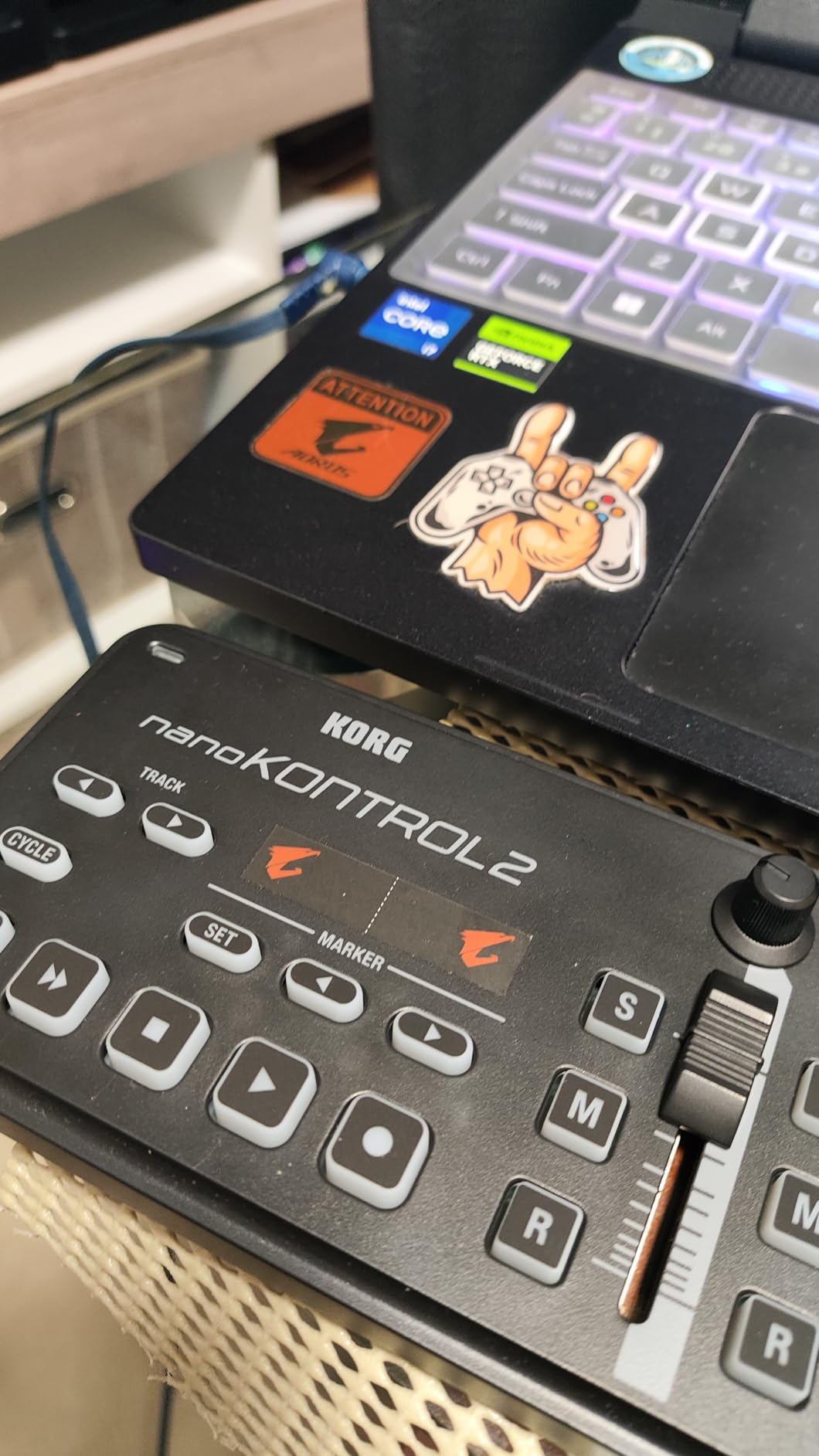
I have used the nanoKONTROL2 alongside Ableton Live and it was essentially plug and play. The faders are short travel, which means they will not match the precision of 100mm motorized faders, but for rough level setting and transport control they are perfectly usable. The transport section covers play, stop, record, cycle, and track navigation.
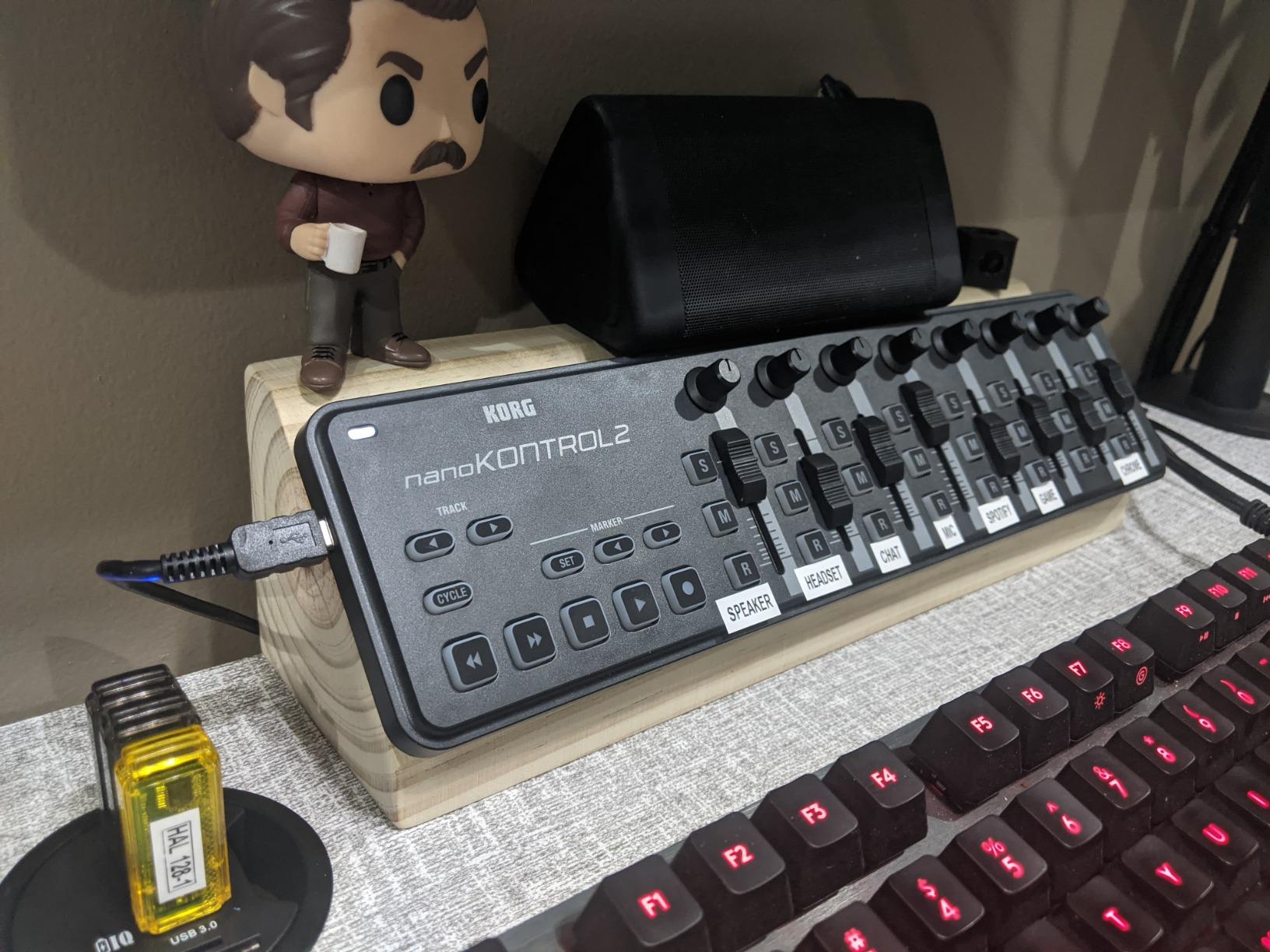
The big trade-off is that the faders are not motorized. When you switch tracks or bank through channels, the fader positions stay where they are while the on-screen values jump. You have to manually match them, which takes getting used to. There is also no visual feedback like scribble strips, so you rely on your DAW’s screen to know what you are controlling.
With 2660 reviews and a 4.7-star average, the nanoKONTROL2 has one of the strongest satisfaction records of any DAW controller on the market. Users consistently praise its value and durability. The stainless steel chassis feels solid despite weighing only 293 grams.
DAW Compatibility and Setup
The nanoKONTROL2 works with every major DAW I have tested, including Ableton Live, Logic Pro, Cubase, Studio One, and Pro Tools. Korg includes a dedicated control editor software that lets you reassign CC numbers and customize button behavior. Setup on Mac is driver-free, and Windows users download a small driver package from Korg’s website.
Best Use Case for the nanoKONTROL2
This controller is ideal for bedroom producers and podcasters who want basic level mixing and transport control on a tight budget. If you are just starting out and want to see whether physical mixing improves your workflow before investing in motorized faders, the nanoKONTROL2 is the cheapest way to find out.
2. Behringer X-TOUCH ONE – Motorized Fader on a Budget
Behringer X-TOUCH ONE Universal Control Surface with Touch-Sensitive Motor Fader and LCD Scribble Strip
Touch-sensitive motorized fader
LCD scribble strip
MCU and HUI support
3.3 pounds
Pros
- Touch-sensitive motorized fader at a budget price
- LCD scribble strip shows track name and value
- Supports HUI and Mackie Control protocols
- User preset for custom assignments
Cons
- Only one fader channel
- Heavier than expected at 3.3 pounds
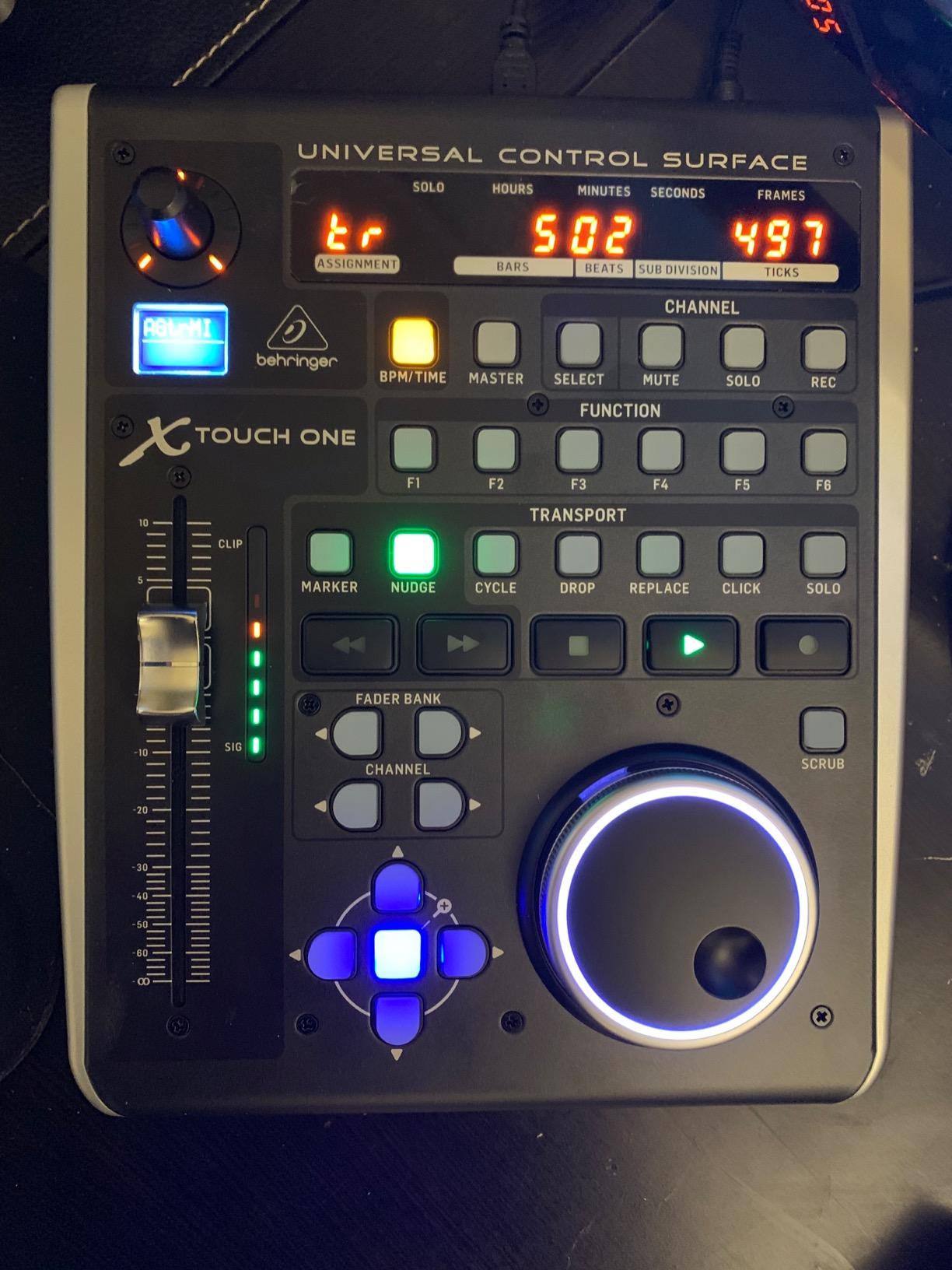
The Behringer X-TOUCH ONE brings motorized fader control to a price point where most competitors only offer static faders. For around $189, you get a single touch-sensitive 100mm motorized fader that tracks automation in real time and jumps to the correct position when you bank between channels. That is a feature set that used to require spending far more.
The LCD scribble strip is the standout feature at this price. It displays the current track name and parameter value, so you always know what the fader is controlling without looking at your screen. I found this especially helpful during long mixing sessions where keeping your eyes on the controller instead of the monitor reduces eye strain.
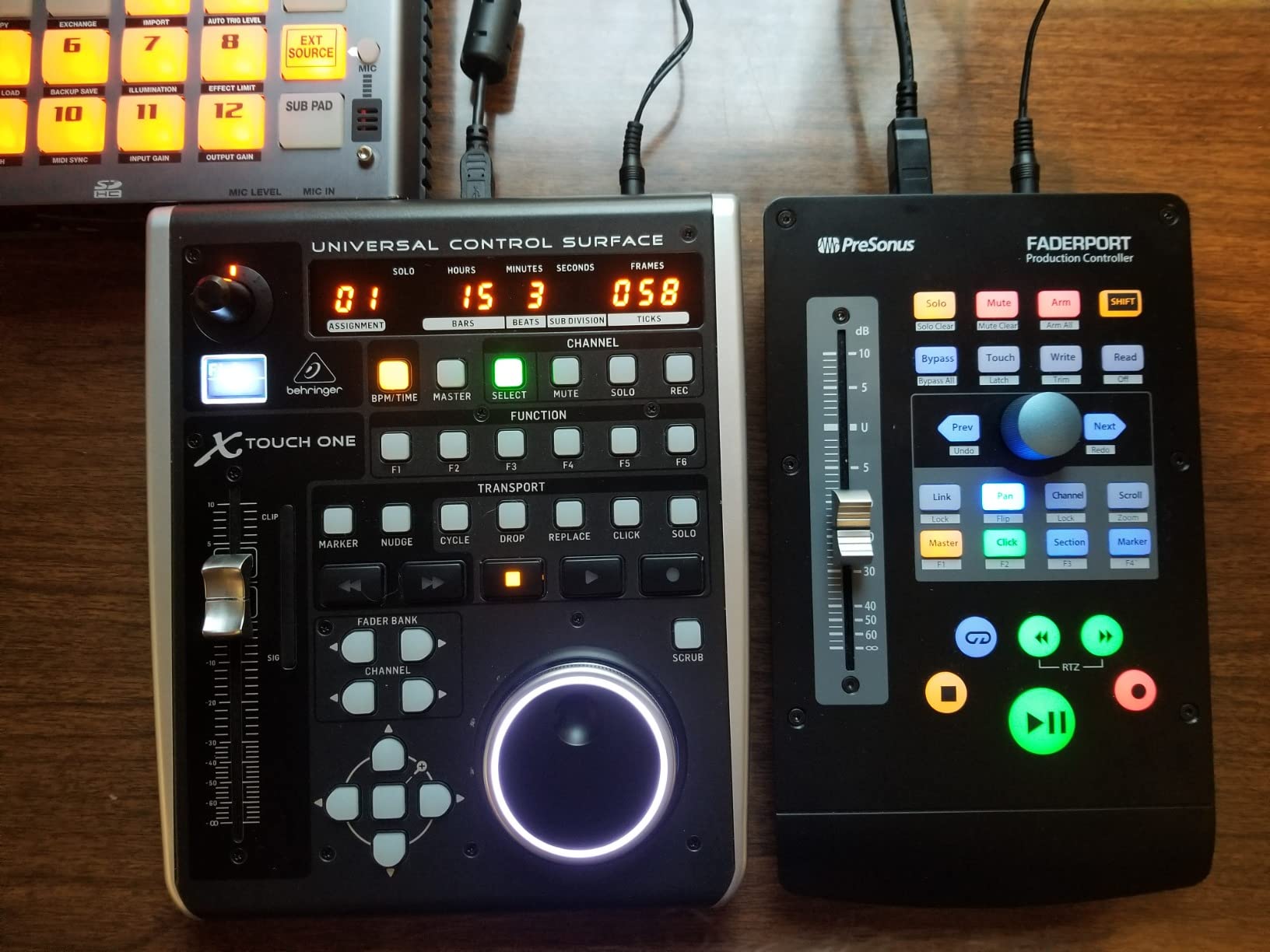
Where the X-TOUCH ONE excels is protocol support. It handles both Mackie Control and HUI, which means it talks to virtually every DAW including Pro Tools, Logic Pro, Cubase, Ableton Live, FL Studio, and Studio One. Behringer includes assignment presets for each major DAW, plus a user preset that lets you map any Mackie Control parameter to the buttons you choose.
The 34 keys cover transport, track selection, bank switching, pan, solo, mute, and automation functions. Build quality is solid with a stainless steel faceplate, though the 3.3-pound weight is surprisingly heavy for a single-fader unit. It stays put on your desk, which is actually a plus.
Protocol Support and DAW Integration
The dual MCU and HUI support is what makes this controller versatile. HUI is the protocol Pro Tools historically relies on, while Mackie Control Universal is the standard for Logic Pro, Cubase, Studio One, and most other DAWs. Having both means you are covered regardless of which software you use or switch to later.
Who Benefits Most From One Fader
A single-fader controller makes the most sense for producers who mix one channel at a time, do a lot of automation rides, or work in small studios where desk space is tight. If you need to adjust multiple tracks simultaneously, the single fader requires constant banking between channels, which slows things down compared to a multi-fader surface.
3. PreSonus FaderPort V2 – Plug and Play Simplicity
PreSonus FaderPort DAW Controller (FaderPort V2)
Single motorized fader
Session Navigator
24 buttons 40 functions
16 ounces
Pros
- Touch-sensitive 100mm motorized fader
- Session Navigator for fast transport and zoom
- Native Studio One integration
- Includes Studio One Artist and Ableton Live Lite
- Lightweight at 16 ounces
Cons
- Limited to a single fader
- Not Prime eligible
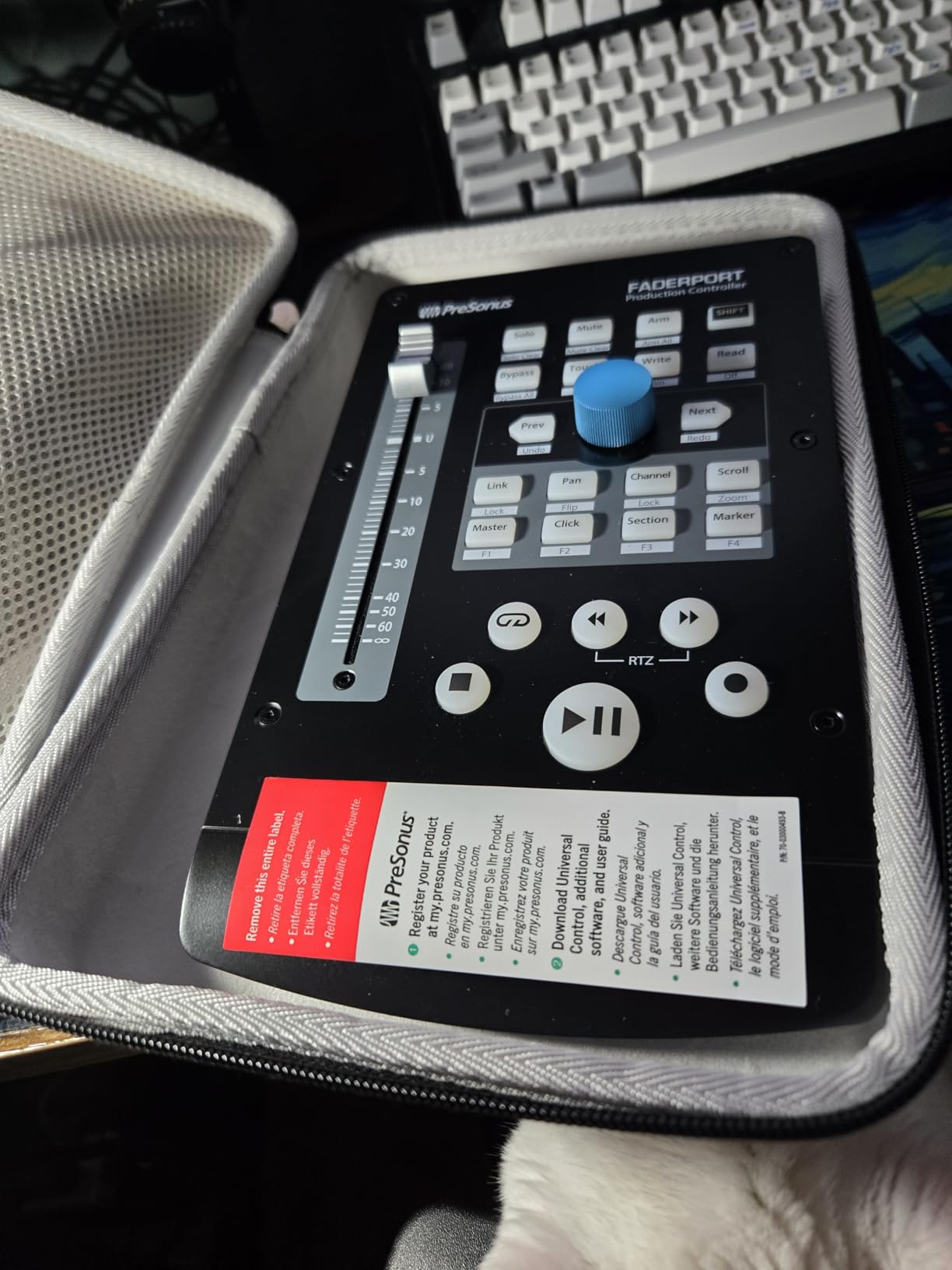
The PreSonus FaderPort V2 is the single-fader controller that forum users recommend most often, and after using one I understand why. It nails the basics with a buttery 100mm motorized fader, a 360-degree push encoder, and a Session Navigator section that makes track scrolling, zooming, and timeline navigation genuinely faster than using a mouse.
PreSonus designed the FaderPort V2 to be plug and play, and it delivers on that promise. On Studio One it works natively without any mapping. On Logic Pro, Cubase, Pro Tools, and Ableton Live it uses Mackie Control or HUI protocol and sets up in minutes. I had it running with Logic Pro in under five minutes from unboxing.
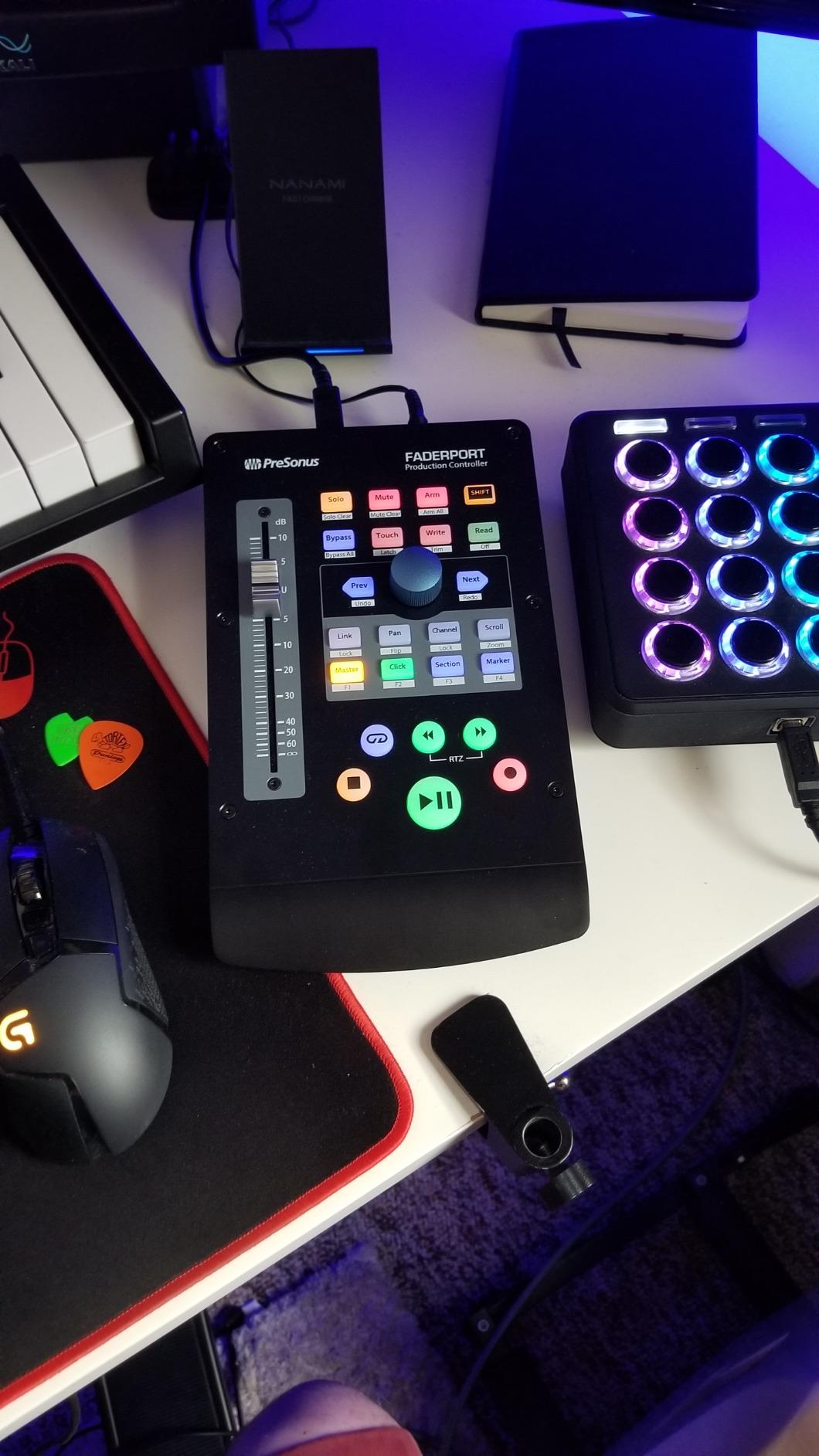
The 24 buttons cover 40 different functions, including transport, solo, mute, record arm, automation modes, pan, and mix parameters. The large push encoder handles panning and parameter adjustments, and it doubles as a click-and-turn control for finer adjustments. There is also a footswitch jack for hands-free punch in and out during recording.
At just 16 ounces, the FaderPort V2 is one of the lightest controllers in this lineup. It sits neatly beside a keyboard or laptop without taking over your desk. The inclusion of Studio One Artist and Ableton Live Lite software adds significant value if you are still deciding on a DAW or want a secondary production environment.
Studio One Integration vs Other DAWs
If you use Studio One, the FaderPort V2 is a no-brainer because PreSonus built the integration themselves. Every button does exactly what you expect with zero configuration. On other DAWs the experience is still good through MCU and HUI emulation, but some less common functions may need manual mapping depending on your software version.
Footswitch and Recording Workflow
The footswitch jack is an underrated feature that I found particularly useful during tracking sessions. You can connect any momentary footswitch and use it for punch in and out, which frees both hands for playing an instrument while recording. This is the kind of detail that shows PreSonus understands real recording workflows.
4. Novation Launch Control XL 3 – Best for Hybrid Setups
Novation Launch Control XL 3 USB MIDI Control Surface
8 faders
24 endless encoders
5-pin MIDI I/O
USB-C bus powered
Pros
- 8 faders and 24 endless encoders
- 5-pin MIDI In Out and Thru for hardware control
- OLED display for real-time feedback
- 15 Custom Modes storage
- USB-C bus powered
- Deep Ableton Live integration
Cons
- No motorized faders
- 4.1-star rating with some reliability concerns
The Novation Launch Control XL 3 is the controller I would pick if my setup includes both a DAW and external hardware synths or drum machines. The 5-pin MIDI In, Out, and Out2/Thru ports let you control hardware instruments directly without routing through your computer, which is something none of the other controllers in this lineup can do at this price.
With 8 faders, 24 endless encoders, and 16 assignable buttons, the Launch Control XL 3 gives you a massive amount of hands-on control surface area. The encoders are arranged in three rows of eight, mirroring the send and pan layout in Ableton Live. The OLED display shows parameter names and values in real time, which helps when you are deep in plugin tweaking.
This is a 2025 release, and Novation clearly designed it for modern hybrid workflows. It is USB-C bus powered, stores up to 15 Custom Modes for different projects or DAWs, and integrates deeply with Ableton Live, Logic Pro, FL Studio, Cubase, and anything using HUI protocol. The included software bundle with Live Lite, Cubase LE, and plugins from Klevgrand, Baby Audio, and Output adds real value.
The main compromise is that the faders are not motorized. Like the nanoKONTROL2, you will need to manually reconcile fader positions when banking between tracks. The 4.1-star rating with 108 reviews is lower than other controllers here, and 13 percent of reviewers gave it one star, suggesting some potential reliability or compatibility issues worth researching before buying.
MIDI I/O and Hardware Integration
The 5-pin MIDI ports are what set this controller apart. You can sequence and control external synthesizers, drum machines, and grooveboxes without relying on a USB-to-MIDI interface. The Out2 and Thru functionality lets you chain multiple devices. For producers with modular or hardware-heavy rigs, this eliminates the need for a separate MIDI interface on your desk.
Custom Modes and Template Management
The 15 Custom Modes let you create entirely different control layouts for different projects, DAWs, or hardware instruments. You can assign each encoder, fader, and button to whatever parameter makes sense for your workflow, save it as a mode, and switch between modes instantly. This flexibility makes the Launch Control XL 3 behave like several different controllers in one chassis.
5. Behringer X-TOUCH – Best Mid-Range Multi-Fader Surface
Behringer X-TOUCH Universal Control Surface with 9 Touch-Sensitive Motor Faders, LCD Scribble Strips and Ethernet/USB/MIDI Interface
9 motorized faders
8 LCD scribble strips
Ethernet RTP MIDI
MCU and HUI
Pros
- 9 touch-sensitive 100mm motorized faders
- 8 dynamic LCD scribble strips
- Ethernet for RTP real-time MIDI
- MCU and HUI protocol support
- 3 USB ports for expansion
Cons
- Some users report setup complexity with certain DAWs
The Behringer X-TOUCH is my overall editor’s choice because it hits the sweet spot between price and capability. For around $419 you get 9 touch-sensitive motorized faders, 8 LCD scribble strips that display track names and parameter values, and both Mackie Control and HUI protocol support. This is the feature set that used to cost well over $1000.
The faders feel professional. They are 100mm long-throw motorized units with touch sensitivity, meaning the controller knows when your finger is on the fader for automation writing. When you bank between channels, the faders physically move to reflect the new track positions. The scribble strips update simultaneously, showing colored track names that match your DAW.
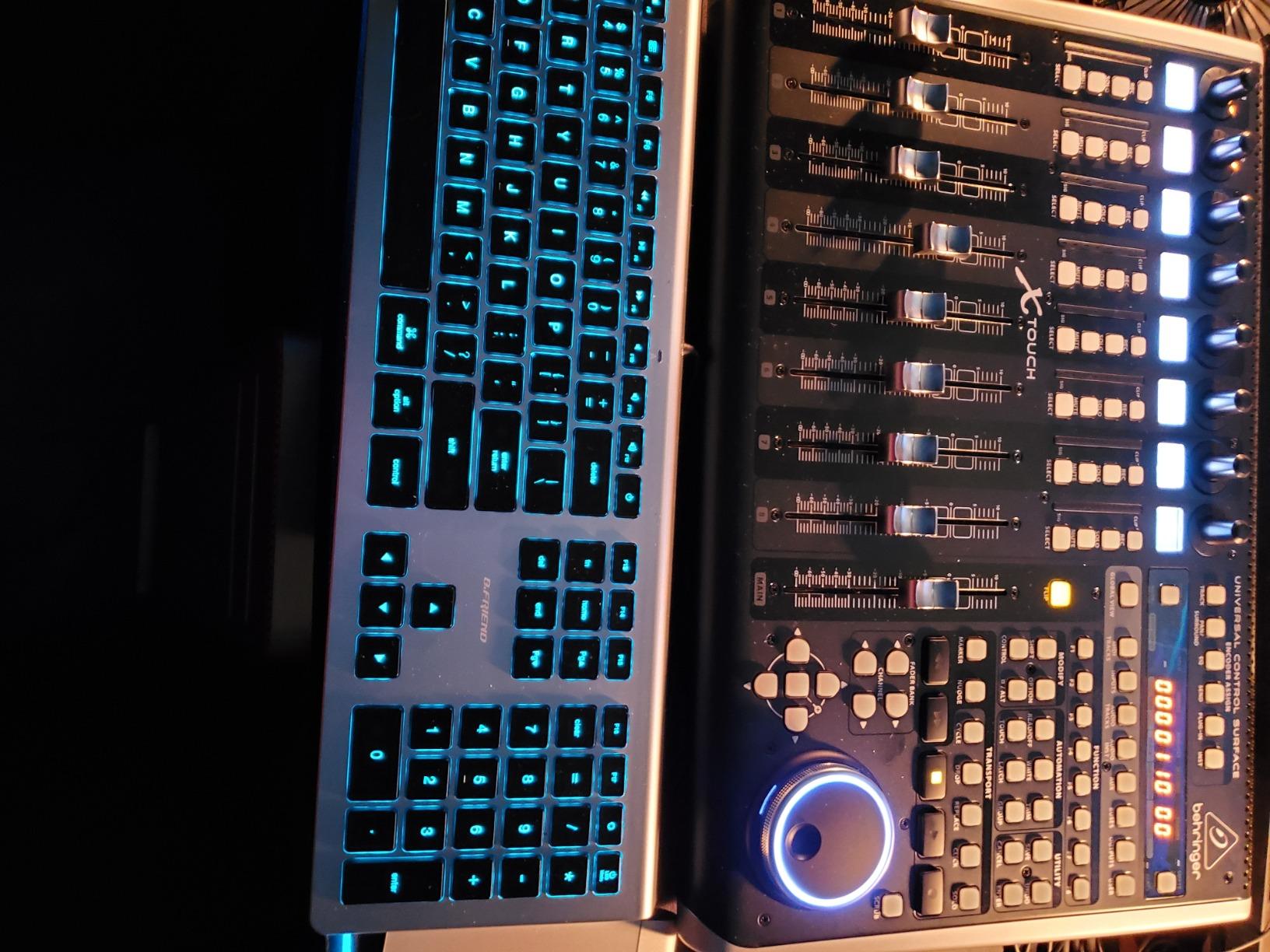
Connectivity is where the X-TOUCH stands out from the FaderPort line. In addition to USB, it has an Ethernet interface for RTP Real-Time Protocol MIDI, which allows networked MIDI communication with lower latency and greater reliability than USB in some setups. There are also 3 USB ports for connecting additional controllers or expansion units.
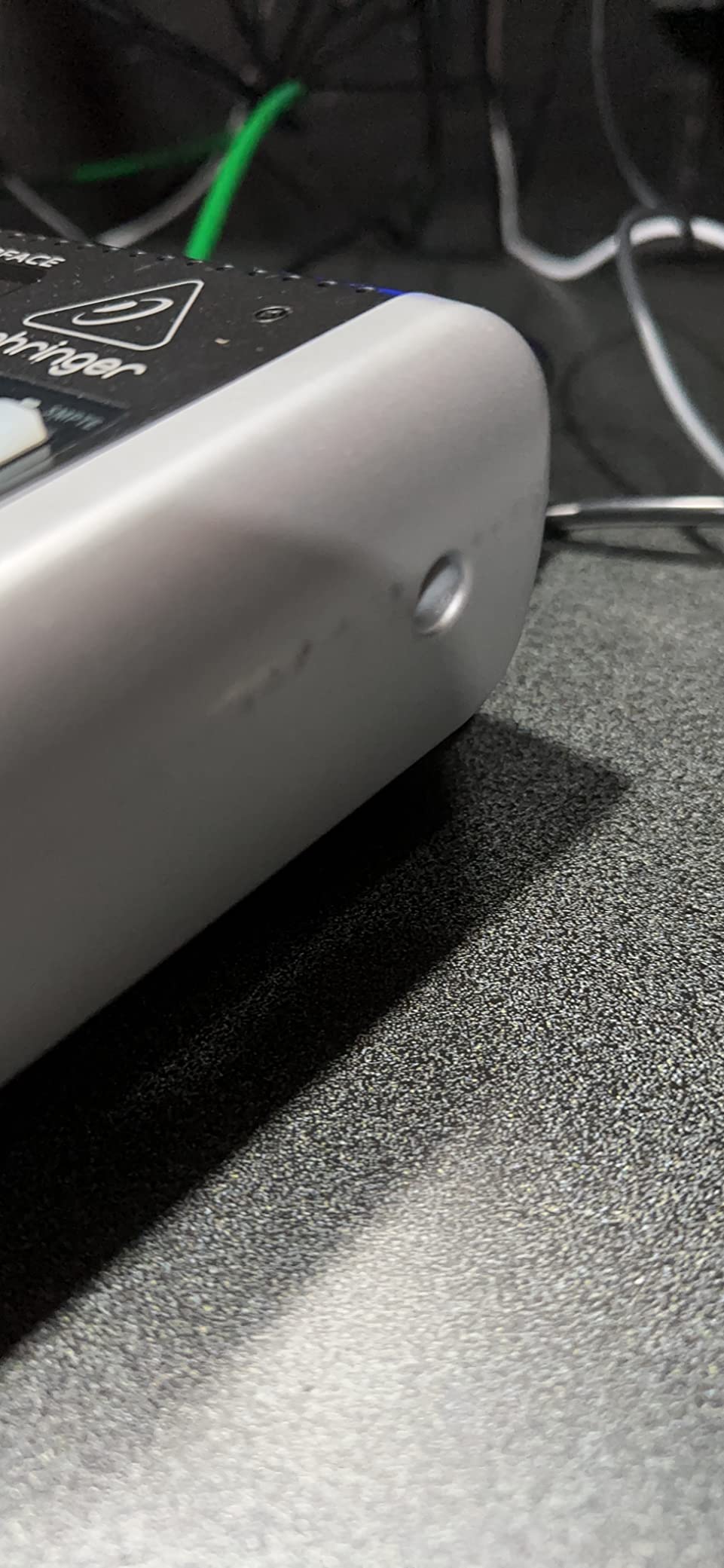
The trade-off is setup complexity. Several users on audio engineering forums report that getting the X-TOUCH fully functional with Pro Tools requires more configuration than with Logic Pro or Cubase. The HUI protocol support helps, but Behringer’s documentation is not as thorough as PreSonus’s. Plan to spend an hour or two on initial setup and mapping.
Ethernet RTP MIDI and Networked Setups
The Ethernet port supports RTP MIDI, which means you can connect the X-TOUCH to your studio network instead of a direct USB cable. This is useful if your computer is in a machine room or if you want to control a DAW from across the studio. Networked MIDI also supports lower latency in some configurations compared to USB, which matters during tight automation passes.
Expandability With Multiple X-TOUCH Units
Behringer designed the X-TOUCH to work in multi-unit configurations, so you can chain two units for 16 or 18 channels of simultaneous control. The Ethernet connectivity makes this practical because each unit gets its own network address. For home studios with complex mixes, this means you can start with one unit and expand later without replacing your original investment.
6. PreSonus FaderPort 8 – Best for Studio One Power Users
PreSonus FaderPort 8 DAW Controller
8 motorized faders
8 scribble strips
Session Navigator
5 pounds
Pros
- 8 touch-sensitive 100mm motorized faders
- 8 high-definition scribble strip displays
- Session Navigator for fast navigation
- Native Studio One integration
- MCU and HUI emulation for other DAWs
Cons
- Optimized primarily for Studio One
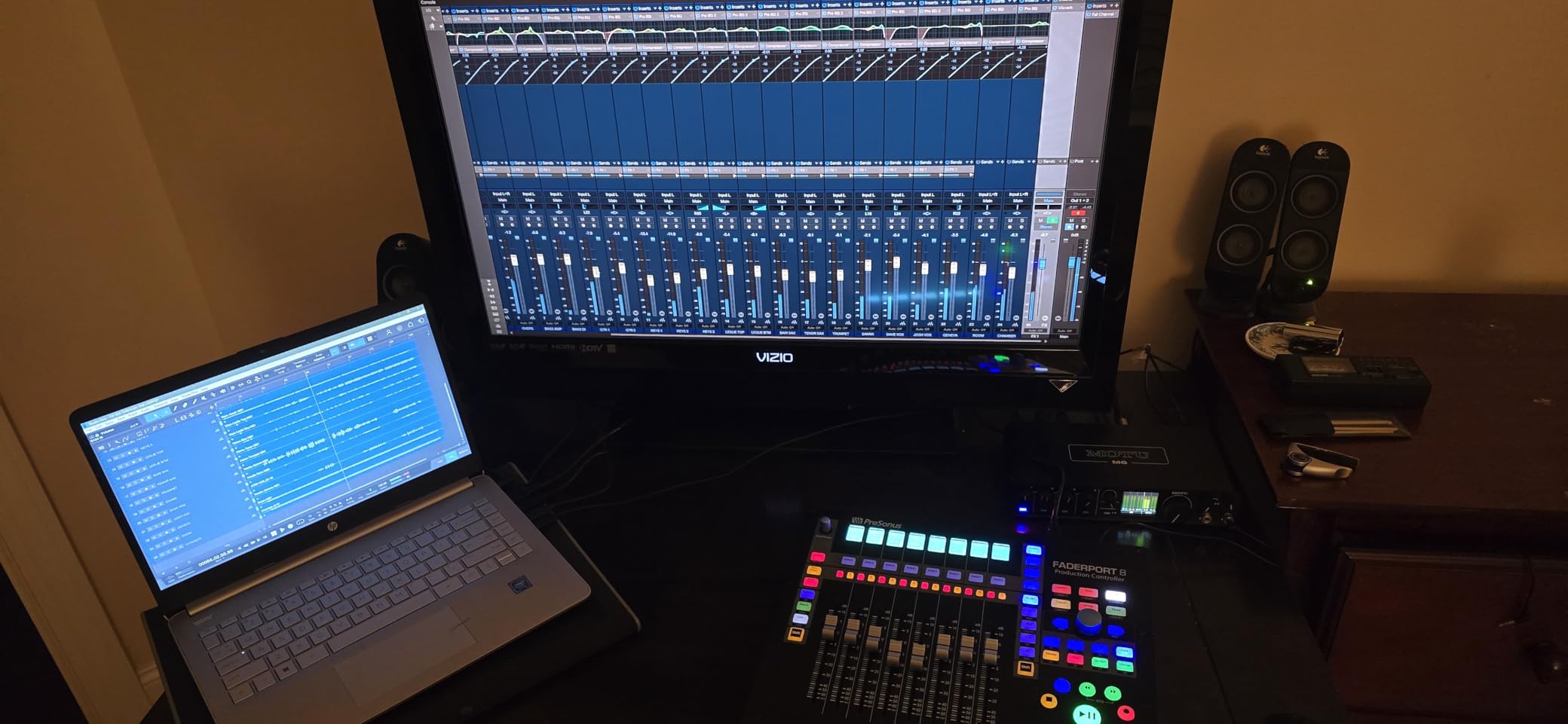
The PreSonus FaderPort 8 takes everything good about the FaderPort V2 and multiplies it by eight. You get 8 touch-sensitive 100mm motorized faders, 8 high-definition scribble strips, and the same Session Navigator that makes the single-fader version so efficient. For Studio One users, this is the most natural-feeling controller in this price range.
I found the scribble strips on the FaderPort 8 clearer and easier to read than the X-TOUCH’s, particularly in bright studio lighting. They display track names, parameter values, and channel information with enough resolution to read from a normal seated distance. The motorized faders track automation smoothly and respond well to touch.
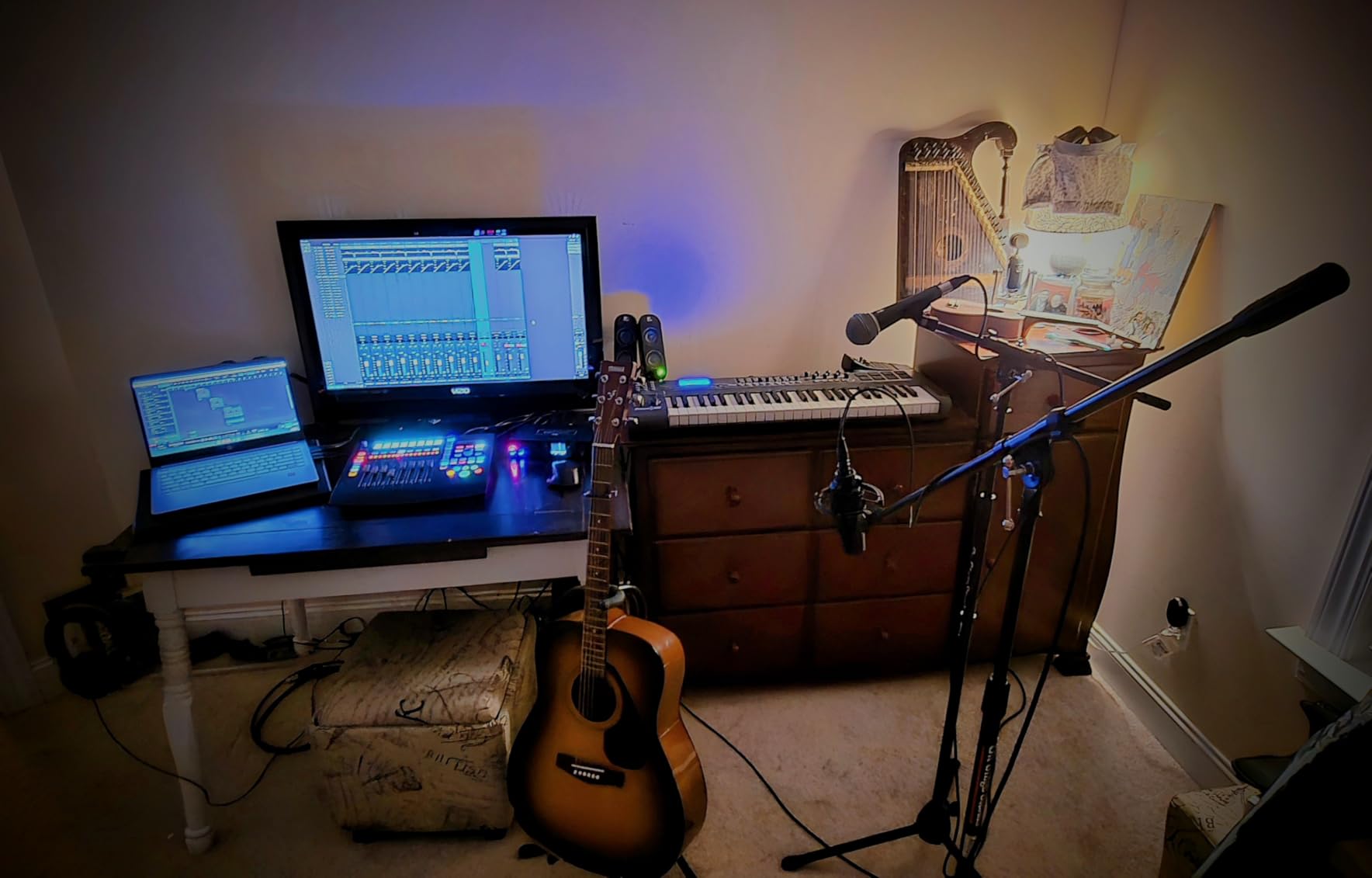
The Session Navigator section is the same smart design as the FaderPort V2. A large encoder and surrounding buttons handle track scrolling, marker navigation, timeline zooming, and master fader control. This means you can navigate your entire session without reaching for your mouse, which is the core promise of a control surface.
The FaderPort 8 is optimized for Studio One, and that shows in how seamlessly it integrates. Every function maps correctly out of the box with zero configuration. For other DAWs it uses Mackie Control Universal and HUI emulation, which works well but may not map every advanced Studio One-specific function to Logic Pro or Cubase.
Studio One Native Mode vs MCU Emulation
In Studio One native mode, the FaderPort 8 controls mixer, transport, automation, channel, and session functions with full bi-directional feedback. The scribble strips update instantly when you rename tracks or change parameters. In MCU emulation mode for other DAWs, most core functions work but some plugin-specific controls may require manual mapping.
Weight and Desk Footprint
At 5 pounds, the FaderPort 8 is lighter than the Behringer X-TOUCH, which makes it easier to reposition on your desk. The 8-fader layout is compact enough for most home studio workspaces while still giving you simultaneous control over a full drum bus or band mix. The horizontal layout fits naturally beneath a monitor without blocking your screen.
7. PreSonus FaderPort 16 – Best for Complex Sessions
PreSonus FaderPort 16 DAW Controller
16 motorized faders
16 scribble strips
89 buttons 104 functions
MIDI control map
Pros
- 16 touch-sensitive 100mm motorized faders
- 16 high-definition scribble strips
- 89 buttons covering 104 functions
- Alternative modes for plugins sends and pan
- Native MIDI control map for custom macros
- Footswitch jack for hands-free recording
Cons
- Scribble strips hard to see at angles
- Some DAW compatibility issues
- No dedicated master fader
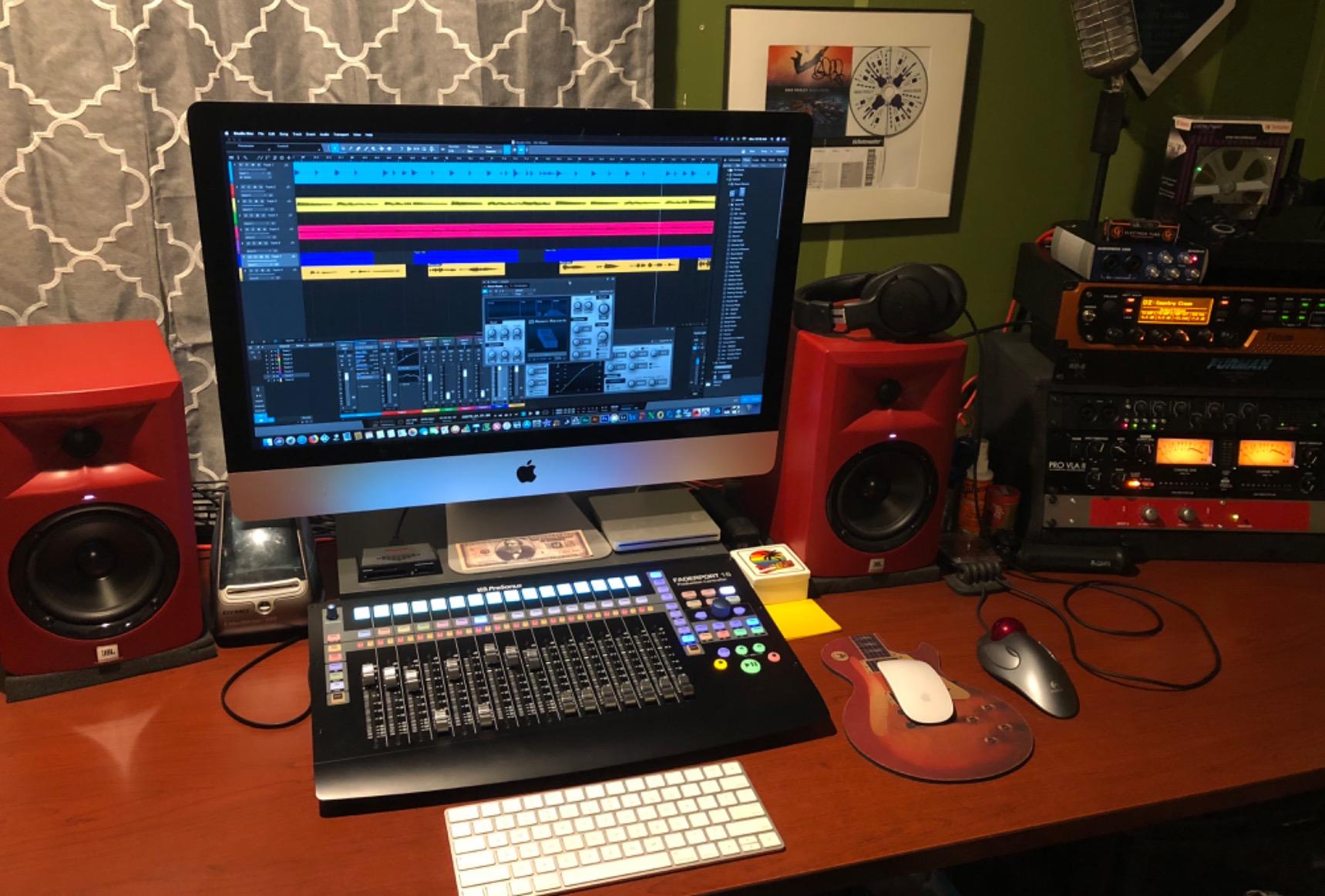
The PreSonus FaderPort 16 is the controller you buy when 8 faders is not enough. With 16 touch-sensitive motorized faders and 16 scribble strips, you can see and control half of a 32-track mix simultaneously without banking. For home studio owners working on dense productions like film scores, full band recordings, or layered electronic arrangements, this is a significant workflow advantage.
The 89 buttons cover 104 functions across transport, session, marker navigation, channel control, and automation modes. The alternative fader modes let you repurpose the 16 faders for plugin parameter control, bus sends, or pan positions. This means the surface adapts to whatever part of the mixing process you are in.
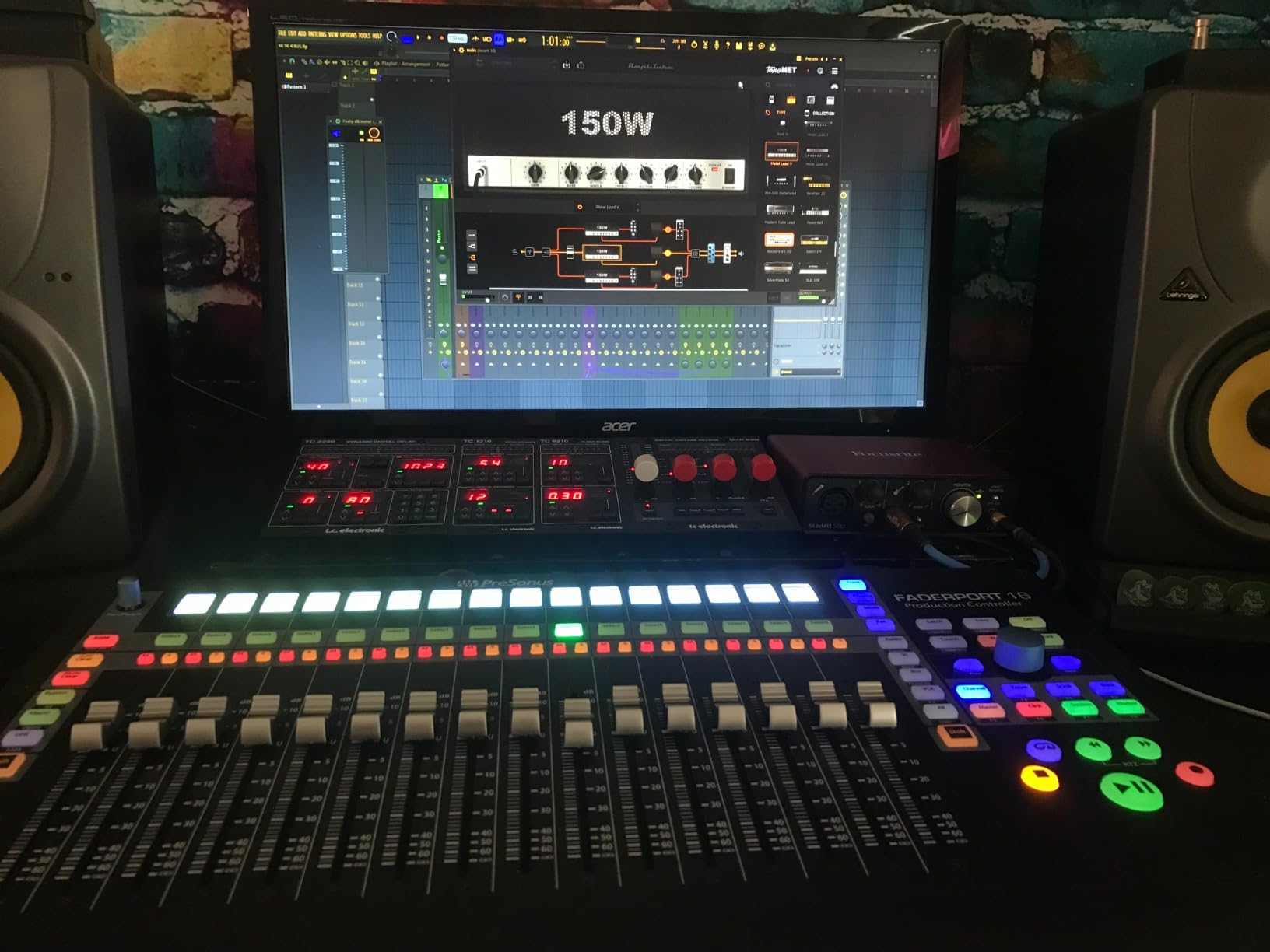
One feature I particularly like is the native MIDI control map, which lets you create custom macros for repetitive tasks. You can assign multi-step operations to a single button press, which saves time on tasks like setting up cue mixes or toggling between monitoring states.
The main drawbacks are real. Some users report the scribble strips are difficult to read at certain viewing angles, which is an issue if your desk position is not directly in front of the unit. There are compatibility concerns with certain DAWs beyond Studio One, and the lack of a dedicated master fader means you need to bank to access the master channel. The record arm buttons are also reportedly hard to reach quickly.
When 16 Faders Make Sense
16 faders become worthwhile when your sessions regularly exceed 16 tracks and you find yourself banking through channels constantly. If you mix orchestral arrangements, full bands with multiple mic setups, or dense electronic productions, the ability to grab any of 16 channels without thinking about banking saves significant time over a mixing session.
Plugin Control Mode
The plugin control mode is one of the most useful features of the FaderPort 16. It maps your 16 faders to plugin parameters, letting you adjust EQ bands, compressor thresholds, or reverb decay with physical faders instead of clicking and dragging on screen. This is the kind of hands-on plugin control that used to require a dedicated controller costing far more.
8. Solid State Logic UF8 – Best Premium Controller for Pros
Solid State Logic UF8 Advanced DAW Controller
Multi-DAW switching
All-metal build
Mouse scroll emulation
43 assignable keys
Pros
- Switch between 3 DAWs simultaneously
- All-metal enclosure with anodised top plate
- Mouse Scroll Emulation for plugin control
- Integrates with all major DAWs
- 43 assignable keys per unit
- High fader resolution
Cons
- Premium price point
- Limited stock availability
- Some Cubase software issues reported
The Solid State Logic UF8 is the most refined controller in this lineup. SSL is a legendary mixing console manufacturer, and they brought that engineering pedigree to a compact DAW controller. The all-metal enclosure with a brushed and anodized top plate feels like a piece of professional studio gear, not a plastic peripheral.
The standout feature is multi-DAW switching. The UF8 can connect to 3 DAWs simultaneously and switch control between them with a button press. If you produce in Ableton Live but mix in Pro Tools and master in a separate DAW, the UF8 lets you jump between all three without reconfiguring your controller each time. No other controller in this price range does this as smoothly.
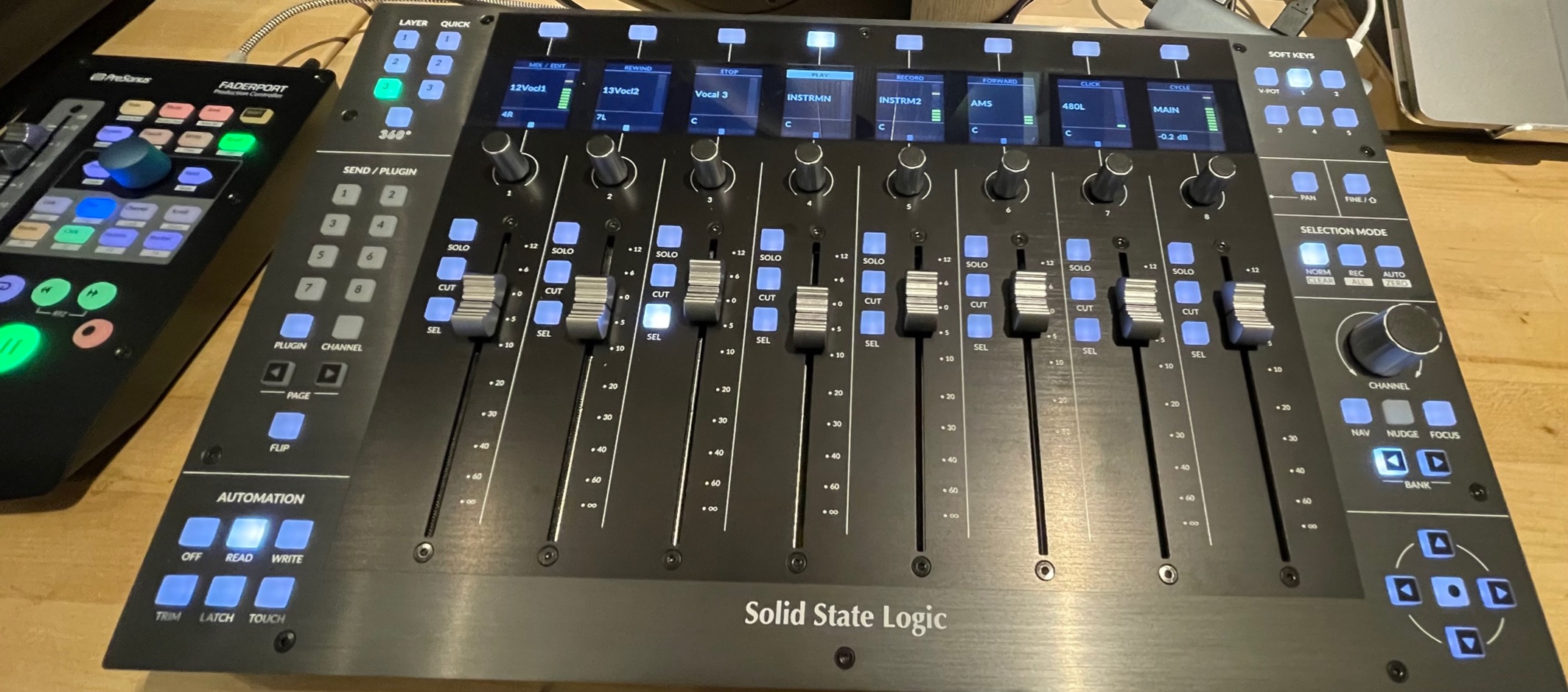
The Mouse Scroll Emulation feature is genuinely innovative. It translates physical controller movements into mouse scroll wheel input, which means you can adjust any plugin parameter that responds to scroll input, even in plugins that do not support MIDI learn or DAW mapping. This effectively lets the UF8 control virtually any parameter in any plugin.
With 43 assignable keys per unit across 5 banks of 8 User Keys plus 3 Quick Keys, the UF8 offers deep customization. SSL provides workflow-ready templates for all major DAWs including Ableton Live, Logic Pro, Pro Tools, Cubase, and Studio One. The build quality and fader resolution are noticeably above the Behringer and PreSonus units.
Multi-DAW Workflow and SSL 360 Software
The SSL 360 software handles the multi-DAW switching and controller configuration. It routes your controller assignments to whichever DAW you have active and manages the simultaneous connections. The software also lets you customize User Keys and save templates for different workflows. Some users report issues with Cubase integration, so research your specific DAW compatibility before investing.
Expandability With Multiple UF8 Units
SSL designed the UF8 for modular expansion. You can chain up to 3 UF8 units for 24 channels of simultaneous control, all managed through the SSL 360 software. This means you can start with one unit and expand as your needs grow, which helps justify the premium price point over time. The units connect via USB and sync seamlessly.
Buying Guide: How to Choose a DAW Control Surface
Choosing the right control surface comes down to matching features to your specific workflow. The best DAW control surfaces for home studios all share certain core features, but the details determine which one is right for you. Here is what I consider the most important factors based on my testing and forum research.
Motorized vs Non-Motorized Faders
Motorized faders physically move to reflect the current mix values in your DAW. When you switch tracks, the faders jump to the correct positions. When you play back automation, the faders move on their own. This matters enormously for mixing workflow because you always see and feel the actual parameter values.
Non-motorized faders stay where you leave them. When you bank between channels, the fader position no longer matches the on-screen value, and you have to manually reconcile the difference. This is workable for simple level setting but frustrating for detailed mixing or automation work.
Forum users consistently report that motorized faders are worth the extra cost if you do any automation or work with session recall. If you only set rough levels and do most of your detailed work with a mouse, non-motorized faders can save you significant money.
DAW Compatibility and Protocols
DAW compatibility is the single most important factor, because a controller that cannot communicate with your software is useless. The three protocols you need to know about are Mackie Control Universal (MCU), HUI, and EuCon.
MCU is the most widely supported protocol. Logic Pro, Cubase, Studio One, Ableton Live, and most other DAWs support it. HUI is the protocol Pro Tools historically relies on, though modern Pro Tools also supports MCU. EuCon is Avid’s proprietary protocol used by their higher-end controllers and offers deeper integration but requires specific hardware.
For maximum compatibility, look for controllers that support both MCU and HUI. Every controller in this lineup except the Korg nanoKONTROL2 and Novation Launch Control XL 3 supports both protocols. If you use Pro Tools, HUI support is critical. If you use Logic Pro, Cubase, or Studio One, MCU is your priority.
Fader Count and Channel Strips
The number of faders determines how many channels you can control simultaneously without banking. Single-fader controllers like the FaderPort V2 and X-TOUCH ONE require you to bank through tracks one at a time, which is slower but keeps the footprint small and the price low.
Eight-fader controllers like the X-TOUCH and FaderPort 8 give you control over a standard drum kit or band mix section at once. Sixteen faders, as on the FaderPort 16, let you see half a large session simultaneously. For most home studio work, 8 faders hits the sweet spot between capability and desk space.
Banking is the process of shifting the controller’s focus to the next group of channels. An 8-fader controller banks in groups of 8, so track 9 through 16 appear on the same physical faders when you bank forward. Scribble strips make banking manageable because they show you which tracks you are currently controlling.
Scribble Strips and Visual Feedback
Scribble strips are small displays above each fader that show track names, parameter values, and channel information. They are the difference between knowing what you are controlling and guessing. Controllers without scribble strips force you to look at your DAW screen to identify the active channel, which breaks the hands-on workflow.
The quality of scribble strips varies significantly. The X-TOUCH and FaderPort 8 use LCD strips that display colored text and are readable from a normal seated distance. The FaderPort 16 uses high-definition strips, but users report they are harder to read at certain angles. The X-TOUCH ONE uses a single LCD strip for its one fader.
Build Quality and Desk Footprint
Home studio desks are usually crowded, so footprint matters. The Korg nanoKONTROL2 is the smallest at 12.8 inches deep and under 300 grams. Single-fader controllers like the FaderPort V2 and X-TOUCH ONE take up minimal space. Multi-fader units like the X-TOUCH at 21.9 inches deep and 9.4 pounds need dedicated desk real estate.
Build quality ranges from the plastic Novation Launch Control XL 3 to the all-metal SSL UF8. Metal construction feels more professional and typically lasts longer, but adds weight and cost. The Behringer X-TOUCH and FaderPort series use metal chassis that hold up well to daily use. Consider how often you will transport the controller versus leaving it stationary on your desk.
Multi-DAW Workflow Considerations
If you use more than one DAW, multi-DAW support becomes critical. The SSL UF8 is the only controller here that can connect to 3 DAWs simultaneously and switch between them. Other controllers require you to close one DAW and reconfigure the controller for another, which is manageable but adds friction to multi-software workflows.
Protocol support also affects multi-DAW use. A controller with both MCU and HUI support can switch between Logic Pro and Pro Tools with minimal reconfiguration. Controllers that only support MCU may require additional setup for Pro Tools. Check which protocols your specific DAWs support before buying.
FAQs
Do you need a DAW controller for a home studio?
You do not strictly need a DAW controller, but one speeds up mixing by allowing two-handed adjustments and providing tactile feedback that many engineers prefer over mouse-based mixing. If you do frequent mixing, automation, or recording with punch ins, a control surface improves workflow noticeably.
What is the best DAW controller to get?
The Behringer X-TOUCH is the best overall DAW controller for home studios because it offers 9 motorized faders, LCD scribble strips, and both MCU and HUI protocol support at a mid-range price. For budget buyers, the PreSonus FaderPort V2 offers excellent value with a single motorized fader and plug-and-play simplicity.
What are the best budget DAW controllers?
The best budget DAW controllers under $300 are the Korg nanoKONTROL2 at around $75, the Behringer X-TOUCH ONE at around $189, the PreSonus FaderPort V2 at around $210, and the Novation Launch Control XL 3 at around $250. The nanoKONTROL2 is the cheapest option while the FaderPort V2 offers the best value with a motorized fader.
Are motorized faders worth it on a control surface?
Motorized faders are worth it if you do any automation work, session recall, or detailed mixing. They physically move to reflect your DAW values, which means you always see and feel the actual parameter positions. If you only set rough levels and mix with a mouse, non-motorized faders can save significant money.
Are control surfaces less convenient than using a mouse in a DAW?
Control surfaces can be less convenient for some users who are fast with mouse-based workflows or who work on simple projects with few tracks. They require desk space, a learning curve, and initial setup time. However, for complex mixing, automation, and multi-track sessions, most users find physical faders and transport controls faster and more intuitive than mouse-only mixing.
Final Thoughts on the Best DAW Control Surfaces for Home Studios
The best DAW control surfaces for home studios in 2026 cover a wide range of budgets and needs. For most home studio owners, the Behringer X-TOUCH hits the perfect balance of motorized faders, scribble strips, and protocol support. If you want to spend less, the PreSonus FaderPort V2 delivers motorized fader control and plug-and-play simplicity. And if you just want to try hands-on mixing for the first time, the Korg nanoKONTROL2 at under $75 is the cheapest entry point available.
The right choice depends on your DAW, your mixing style, and how much desk space you can spare. Whatever you pick, adding physical faders and transport controls to your workflow is one of the most impactful upgrades you can make to a home studio setup.