
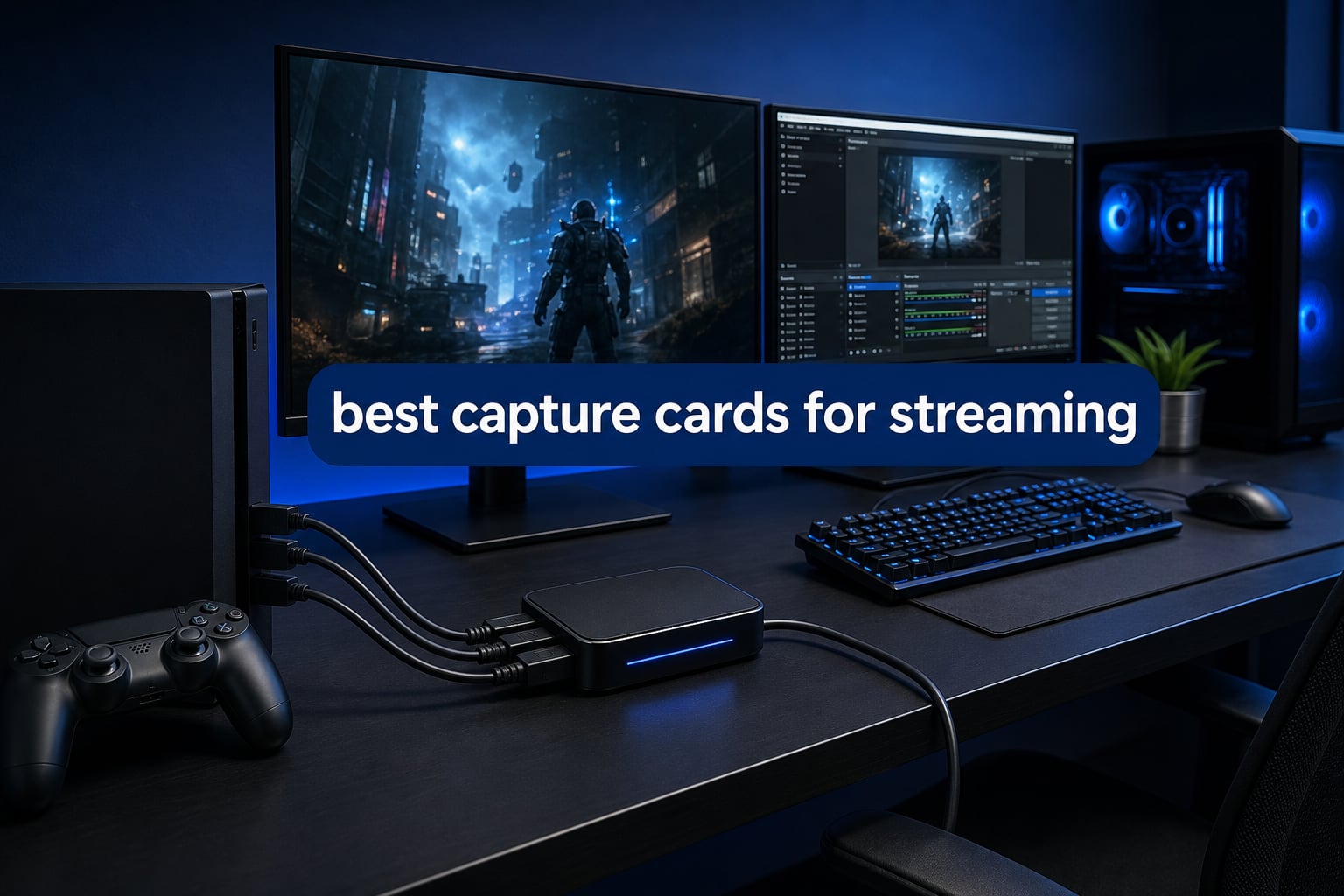
The best capture cards for streaming send video and audio from a console, camera, or second PC to your streaming computer. That separation can protect the machine running your game, and it gives console players an OBS-ready video source instead of relying on a console’s built-in broadcast tools.
A capture card takes HDMI input from the source device and sends a signal through USB or PCIe to a computer for recording or live streaming. If you play on a PS5, Xbox Series X/S, Nintendo Switch, or a dual-PC setup, it is usually the cleanest path to scenes, alerts, microphones, and local recordings in one place.
I compared the 10 verified listings below by their stated capture resolution, passthrough, connection type, platform support, latency claims, rating, and review volume. The short answer is that capture cards are good for streaming when you need a separate source in OBS; the right one depends more on your display mode and computer ports than on a brand name alone.
One practical warning matters: low-latency capture does not make a software preview identical to a monitor. Play through HDMI passthrough when timing matters, then treat the OBS preview as the broadcast feed; that approach also answers the frequent forum complaint about delayed gameplay.
Table of Contents
The top 3 capture cards for streaming cover most setups.
My first pick is the Elgato 4K S for its stated 4K60 capture, HDR10 support, USB-C connection, and broad console coverage. The AVerMedia GC553Pro is the USB option to consider when you want 4K capture with stated low latency, while Acer’s compact card keeps the focus on driver-free 1080p60 capture and wide device support.
These 10 capture cards for streaming make the differences clear.
This quick overview is a comparison table rather than a promise that every card fits every display. Read the capture specification separately from passthrough: capture is what reaches your streaming PC, while passthrough is what your gaming display receives.
| Product | Specifications | Action |
|---|---|---|
 Elgato 4K S Elgato 4K S |
|
View Product |
 Elgato 4K Pro Elgato 4K Pro |
|
View Product |
 AVerMedia GC571 AVerMedia GC571 |
|
View Product |
 Acer USB 3.0 Video Capture Card Acer USB 3.0 Video Capture Card |
|
View Product |
 AVerMedia CamStream 4K AVerMedia CamStream 4K |
|
View Product |
 Portta DX20R Portta DX20R |
|
View Product |
 AVerMedia Live Gamer Ultra S AVerMedia Live Gamer Ultra S |
|
View Product |
 UGREEN 4K Video Capture Card UGREEN 4K Video Capture Card |
|
View Product |
 AVerMedia Live Gamer ULTRA 2.1 AVerMedia Live Gamer ULTRA 2.1 |
|
View Product |
 AVerMedia Live Gamer Extreme 3 AVerMedia Live Gamer Extreme 3 |
|
View Product |
1. The Elgato 4K S is the best all-round external choice.
Elgato 4K S Capture Card for PS5, Xbox Series X/S, Switch 2
4K60 capture
HDR10
1440p120 passthrough
Pros
- 4K60 capture
- HDR10 support
- USB-C connection
- Analog audio input
- Cross-platform support
Cons
- HDR tone mapping is stated for Windows
- Needs a USB 3.0 Type-C port
The Elgato 4K S is the straightforward recommendation for a streamer who wants modern console support without opening a PC case. Its listing states 4K60 capture, HDR10 support, near-zero latency, and compatibility with PS5, Xbox Series X/S, Switch 2, PCs, and USB-C iPad devices.
I like the split between capture and gameplay options here. You can capture at 4K60 while using 1440p120 or 1080p240 passthrough, so a fast-display setup does not automatically force you to broadcast at the same frame rate.
The 4K S fits console streamers who need one portable card.
This is the sensible pick when you move between a PS5, Xbox, and Switch-type setup, because the card is external and its stated compatibility spans those source devices. The 3.5 mm analog audio input is also useful when your workflow needs game chat or commentary to enter the capture chain.
Its 0.09-kilogram body and USB-C connection suit a desk where the streaming computer is separate from the gaming hardware. I would still check that the computer has the required USB 3.0 Type-C connection before treating it as plug-and-play.
The HDR setup needs a Windows-side check before you commit.
Elgato specifically states HDR10 capture with tone mapping on Windows, and the system requirements call for Windows 11, macOS 13 or later, or iPadOS with USB-C. That detail matters because HDR is the feature most likely to depend on both the card and the host computer’s graphics configuration.
The card carries a 4.5 rating from 1,579 reviews in the supplied data, which is the largest review base among the high-spec external options here. For standard SDR streams, the key choice is simpler: connect the console to HDMI input, route HDMI output to the display, and add the card as a video source in OBS.
2. The Elgato 4K Pro is the strongest PCIe pick for HDMI 2.1 passthrough.
Elgato 4K Pro Internal Capture Card, 8K60 Passthrough
8K60 passthrough
4K60 HDR10
HDMI 2.1
Pros
- 8K60 passthrough
- 4K60 HDR10 capture
- VRR support
- 1080p240 recording
- Dual-PC support
Cons
- Requires internal PCIe installation
- Windows 10 is listed as required
The Elgato 4K Pro is an internal capture card for a streaming PC that has an available PCIe slot. The stated headline is 8K60 passthrough alongside 4K60 HDR10 capture, HDMI 2.1, VRR passthrough, and recording support up to 1080p240.
That combination answers a specific problem: you want the gaming display to retain a high-resolution, high-refresh signal while the stream receives a practical 4K60 or 1080p feed. It is built for a fixed dual-PC station rather than a portable laptop workflow.
The 4K Pro makes sense when your monitor settings come first.
HDMI 2.1 and VRR support are the decision points, not the 8K figure in isolation. A player with a VRR-capable console and display can keep a tear-free gameplay path through passthrough while sending capture to the second computer.
The listing also calls out ultra-low latency and dual-PC compatibility. I would use the passthrough display for play and reserve the capture software window for monitoring scenes, audio meters, and stream health.
The PCIe requirement makes this a desktop-only decision.
An internal card removes the extra USB device from the desk, but it requires opening the streaming PC and fitting the board. Confirm the available PCIe slot, the Windows 10 requirement in the listing, and the case clearance before choosing it.
With a 4.5 rating from 371 reviews in the supplied product data, the 4K Pro has a smaller review base than the 4K S but the more ambitious passthrough specification. It is the better fit when your second computer is permanent and the display chain needs HDMI 2.1 features.
3. The AVerMedia GC571 is the practical driver-free PCIe alternative.
AVerMedia HDMI Capture Card for Streaming and Video Gaming, 4K60 Pass-Through with Ultra-Low Latency on PS5, PS4 Pro, Xbox Series X/S, Xbox One X, Switch Games – GC571 Live Streamer Ultra HD
4K30 capture
4K60 passthrough
PCIe x4
Pros
- 4K60 passthrough
- VRR support
- 1080p120 support
- Driver-free setup
- Three-year warranty
Cons
- Requires internal PCIe installation
- 4K capture is limited to 30fps
AVerMedia’s Live Streamer ULTRA HD GC571 is another internal card, but its stated capture target is 4K30 rather than 4K60. It pairs that with 4K60 passthrough, VRR support, 1080p120 capture support, and driver-free installation through a PCIe x4 interface.
I see this as a clean middle path for a desktop streamer who values the gaming signal more than 4K60 recording. It also works in PCIe x1, x4, x8, and x16 slots according to the supplied features, which gives a builder more installation flexibility.
The GC571 fits a 1080p120 stream with a 4K60 gameplay display.
The listed 1080p120 capability is relevant for creators who record fast shooters or racing games and want more motion detail than 60fps offers. At the same time, 4K60 passthrough lets the monitor retain a 4K60 console signal.
VRR support is worth treating as a display-chain feature. Check that the console, television or monitor, and chosen HDMI path all support the mode you intend to use; one unsupported link can change the final result.
The internal format is best when your streaming PC will stay in place.
The card’s driver-free claim removes one common setup concern, though a PCIe board still needs physical installation. The listing names Windows 10 64-bit or Windows 11 64-bit or later, so it is not the option I would select for a Mac-based streaming computer.
The supplied data gives the GC571 a 4.5 rating from 224 reviews and a three-year manufacturer warranty. That makes it an appealing capture card for streaming from a dedicated Windows tower where 4K30 capture is sufficient.
4. The Acer USB 3.0 card is the easiest 1080p60 starter option.
acer USB 3.0 HDMI Capture Card, 4K HDMI Loop-Out, 1080P 60Hz for Streaming
4K input
1080p60 capture
USB A/C
Pros
- Driver-free setup
- 1080p60 output
- Mic input
- USB A and C support
- Wide device support
Cons
- Capture is limited to 1080p60
- Requires a USB 3.0 port
The Acer USB 3.0 Video Capture Card focuses on the format many new channels actually use: 1080p at 60Hz. Its supplied specifications state 4K input with 1080p60 output, 4K loop-out, a 3.5 mm microphone input, YUY2 color support, and both USB-A and USB-C connectivity.
That is a more honest match for a starter OBS scene than paying for modes your computer or channel will not use. The card’s listed compatibility includes PS5, PS4, Xbox, Switch, Switch 2, DSLR cameras, Windows, macOS, and Android devices.
The Acer card is right when simple 1080p60 is your real target.
For console gameplay, 1080p60 is still a dependable streaming format, and a 4K input path means the source does not have to be limited to 1080p. The 4K loop-out lets you place a gaming display after the card while the USB feed goes to the computer.
The microphone input gives a direct commentary route, but plan the rest of your audio chain first. If you use a USB microphone, party-chat adapter, or separate audio interface, map those sources in OBS instead of assuming one connection covers every voice channel.
The USB flexibility makes laptop and mixed-device desks easier.
The USB-A and USB-C support is a real convenience when a laptop has one type of port and an adapter would otherwise become part of the chain. Acer says no additional driver or external power is required, which addresses a common concern for first-time capture card owners.
This model holds a 4.4 rating from 207 reviews in the supplied data. I would choose it for a 1080p60 workflow, not for someone whose non-negotiable requirement is 4K60 capture.
5. The AVerMedia CamStream 4K is the camera-first streaming choice.
Pros
- 4K60 RGB24 capture
- Zero-lag claim
- Driver-free connection
- DSLR webcam support
- iPad compatibility
Cons
- Built around camera workflows
- Small review base
The AVerMedia CamStream 4K BU113G2 is different from the console-centered cards because its listing emphasizes DSLR, camcorder, and action-camera capture. It states 4K60 capture in RGB24, plug-and-play operation, zero-lag audio and video synchronization, USB-C, and compatibility with Windows, Mac, iPad, and Android.
If your stream depends on a clean HDMI feed from a mirrorless camera, this card speaks directly to that use case. It can turn a compatible camera into a webcam source for OBS, Zoom, Twitch, or other video applications named in the listing.
The CamStream 4K suits creators who want their camera in the scene.
RGB24 capture is the key specification for a camera image where color detail matters. I would connect the camera only after turning off any automatic standby setting and confirming that it can output clean HDMI; those camera settings are outside the capture card itself.
The card lists 4K60 capture and an audio/video sync claim, so it is positioned for a main camera angle rather than only a small face-cam box. A USB-C host connection also keeps the physical arrangement compact on a laptop or tablet desk.
The compatibility list is unusually broad but still needs a port check.
The published requirements name Windows 10 64-bit or later, macOS 14 or 15 or later, iPadOS 17 or later, Android 14 or later, and USB-C. That breadth is useful for mobile creators, though the host device still needs a suitable USB-C port and enough system resources.
The supplied data reports a 4.4 rating from 38 reviews and a three-year manufacturer warranty. That review count is much smaller than the main console picks, so I would buy it for its verified camera-oriented features rather than compare its review volume with gaming-first models.
6. The Portta DX20R is the external high-refresh passthrough option.
PORTTA DX20R HDMI Video Capture Card, Stream & Record in 4K 60Hz with Ultra-Low Latency, Passthrough for 1080p@240Hz & 2K@120Hz, USB 3.0 to PC, Support HDR, VRR, Compatible with PS5, Xbox, OBS
4K60 capture
HDR and VRR
1080p240 passthrough
Pros
- 4K60 capture
- 1080p240 passthrough
- HDR support
- VRR support
- Plug-and-play
Cons
- Smaller review base
- Requires USB 3.0 connection
The Portta DX20R is an external HDMI capture card that lists 4K60 capture, HDR and VRR support, plus 1080p240 and 2K120 passthrough. It uses USB 3.0 Type-C to connect to a Windows or macOS computer, and it is explicitly presented as plug-and-play.
Those passthrough figures make it a serious candidate for players using a high-refresh 1080p or 1440p display. The important distinction is that its stated capture mode is 4K60 while the elevated 1080p240 and 2K120 figures apply to passthrough.
The DX20R fits players who refuse to give up a fast display mode.
For a competitive game, 1080p240 passthrough can be more useful than a higher capture number because it keeps the monitor’s responsive mode in the signal path. Capture can then be set separately in the streaming software for the broadcast platform and computer workload.
The listed HDR and VRR support are welcome for newer consoles, but I would test the full chain at the final resolution and refresh rate. HDMI cables, a display setting, or a console video mode can be the limiting factor even when the capture card lists the feature.
The Portta card is a USB choice with modest review history.
At 68 grams and 3.78 by 3.78 by 0.91 inches, the DX20R is physically small enough for a laptop-centered setup. Its listing covers macOS and Windows, which gives it a broader host-platform statement than several internal cards.
The supplied rating is 4.4 from 31 reviews, so there is less customer history here than on the Elgato 4K S or UGREEN option. I would value its stated passthrough specification, two-year warranty, and port compatibility most when choosing between this and a more established external alternative.
7. The AVerMedia Live Gamer Ultra S is a compact 4K USB console card.
Pros
- 4K capture
- True low-latency claim
- USB connection
- PS5 Xbox Switch support
- OBS compatibility
Cons
- Smaller review base
- No standalone recording is listed
The AVerMedia Live Gamer Ultra S GC553Pro is listed as a USB capture card with 4K capture, true low latency, and compatibility with PS5, PS5 Pro, Xbox, Switch 2, PC, Twitch, and OBS. That makes its purpose clear: connect a current console to a computer-based streaming workflow without installing a PCIe card.
I would treat the card as a flexible, external option for someone who needs OBS and Twitch compatibility stated on the listing. It weighs 0.39 kilograms and is listed for Windows 11 and macOS, which makes it relevant to both desktop and laptop streaming stations.
The GC553Pro fits current-console streamers who use OBS.
OBS compatibility is one of the most useful claims in this listing because it answers the basic setup question. In OBS, add the capture device as a video capture source, set the resolution and frame rate to match the card’s available mode, then build your scenes around that source.
Use the monitor connected through the card’s HDMI path for gameplay if your workflow includes a passthrough display. That separates game timing from the software preview and aligns with the low-latency goal stated for this model.
The USB design is preferable when a PCIe install is not on the table.
The supplied hardware interface is USB, so the GC553Pro does not ask you to open a desktop case. Check the minimum requirements that accompany the listing, including the stated operating-system support, before connecting it to an older host computer.
The data shows a 4.3 rating from 62 reviews. The review base is limited compared with the most established models in this guide, but its verified console list and USB format are strong reasons to put it on a short list.
8. The UGREEN 4K card is a broad-platform 1080p60 alternative.
UGREEN Full HD 2K 30Hz 1080P 60FPS Video Capture Card USB C 3.0
4K input
1080p60 capture
USB-C
Pros
- 4K input
- 1080p60 capture
- Mic input
- USB-C 3.0
- Linux Mac and Windows support
Cons
- Capture tops out at 1080p60
- 2K capture is limited to 30Hz
The UGREEN 4K Video Capture Card accepts 4K input and lists capture modes of 2K at 30Hz or 1080p at 60Hz. It also lists low latency, a microphone input, USB-C 3.0, and host support for Linux, Mac OS, and Windows.
This is not the model to choose for native 4K60 capture, but it has a very clear role for creators who are happy broadcasting in Full HD. Its supplied review total of 1,133 is the second-largest in this group, which gives buyers more customer feedback to inspect.
The UGREEN card is a good fit for a 1080p60 multi-platform desk.
1080p60 remains a practical target for live streaming because it balances motion quality and host-computer work. The card can receive a 4K source, but the listed output modes tell you exactly where the capture ceiling sits.
The microphone input is useful for a direct commentary route, though I would not expect it to replace a complete audio plan for game chat, a USB microphone, and alerts. Set every source deliberately in OBS and listen to a short local recording before going live.
Linux and Mac support make this card stand out among simple USB options.
The operating-system list is a meaningful distinction if the streaming computer is not Windows-based. USB-C 3.0 keeps the connection current, while the 24-month warranty in the supplied data gives a defined support period.
The 4.2 rating comes from 1,133 reviews, with the listing’s own tradeoff plainly stated in its capture modes. I would select it when platform compatibility and 1080p60 matter more than recording 4K footage.
9. The AVerMedia Live Gamer ULTRA 2.1 is built for 4K144 passthrough.
AVerMedia Live Gamer Ultra 2.1 4K144 HDMI 2.1 USB Capture Card, GC553G2
4K60 HDR
4K144 passthrough
HDMI 2.1
Pros
- 4K60 HDR capture
- 4K144 passthrough
- HDMI 2.1
- VRR support
- 5.1-channel audio
Cons
- Windows-only OS support is listed
- No standalone recording is listed
The AVerMedia Live Gamer ULTRA 2.1 GC553G2 is aimed at the player who wants a modern display path and an external card. Its listing states 4K60 HDR capture, HDMI 2.1, 4K144 or 4K120 passthrough, VRR support, low latency, and 5.1-channel audio.
The 4K144 passthrough claim is the feature that sets it apart from 4K60-only paths. It is designed to let the display remain at a very high refresh rate while the capture feed is handled at 4K60.
The Live Gamer ULTRA 2.1 is for a high-end display chain.
Pick this card if the console or PC source, HDMI 2.1 display, and desired refresh rate all line up. The card cannot add 4K144 capability to a source or screen that lacks it, so verify those two endpoints before treating the passthrough number as your final result.
VRR is also listed, and that is useful for gamers who prioritize smooth output during frame-rate changes. Keep in mind that VRR behavior is determined by the complete connection path, so test the selected mode before the first serious stream.
The Windows requirement narrows its host-computer fit.
The supplied operating-system requirement is Windows 10 64-bit or Windows 11 64-bit or later. That makes it a less direct fit for a creator whose primary streaming machine is a Mac, despite the convenience of an external device.
The product data reports a 4.2 rating from 282 reviews and a three-year manufacturer warranty. RGB lighting is also part of the stated feature list, but the HDMI 2.1 and 4K144 or 4K120 passthrough capabilities are the reasons to choose it.
10. The AVerMedia Live Gamer Extreme 3 is the simple 1440p120 passthrough pick.
AVerMedia 4K Capture Card for Streaming,1440p120 Video Capture Device for PS5/Pro, Xbox Series X/S, Nintendo Switch, PC, compatible with Twitch, OBS, Windows, Mac – GC551G2 Live Gamer Extreme 3
4K30 capture
1440p120 passthrough
USB
Pros
- 1440p120 passthrough
- VRR support
- Zero-latency passthrough
- Plug-and-play
- Console support
Cons
- 4K capture is limited to 30fps
- No standalone recording is listed
The AVerMedia Live Gamer Extreme 3 GC551G2 combines USB connectivity with stated 4K30 capture, 1440p120 passthrough, VRR support, and zero-latency passthrough. The listing names PS5, PS5 Pro, Xbox Series X/S, Nintendo Switch, Windows, Mac, Twitch, and OBS compatibility.
Its appeal is easy to explain: many players use a 1440p high-refresh monitor but do not need to record in 4K60. This card lets the monitor receive 1440p120 while the capture workload stays within the 4K30 limit stated by the listing.
The Extreme 3 matches a 1440p120 gameplay display.
A 1440p120 passthrough path is a meaningful match for fast console games where motion responsiveness matters on the display. For the stream, choose a resolution and frame rate that the service, the host computer, and your internet connection can sustain.
VRR support appears on the feature list, so it is a sensible contender for a compatible console-and-monitor chain. The card’s zero-latency statement refers to passthrough; do not plan to play from the delayed software preview.
The USB format suits creators who switch between Windows and Mac.
The listed Mac and Windows support makes this more flexible than an internal PCIe card, and plug-and-play operation is helpful for a less permanent desk. Its external form also makes it easier to move between a console station and a laptop recording setup.
The supplied rating is 4.1 from 164 reviews, with a three-year manufacturer warranty. I would pick it when 1440p120 passthrough is the requirement and 4K30 capture is an acceptable recording ceiling.
The right capture card depends on your computer, display, and console.
Start with the video path you already own. A 4K60 card is not automatically the right buy if your screen runs at 1440p120, and a 4K144 passthrough card is unnecessary if you stream a Nintendo Switch at 1080p60.
External cards are best for flexible desks and laptop streaming.
External capture cards connect through USB and are the natural choice for laptops, Macs where support is listed, and desks that change often. They are also easier to isolate when troubleshooting: verify the console-to-card HDMI cable, the card-to-display cable, then the USB connection to the host computer.
PCIe cards sit inside a Windows desktop and suit a permanent dual-PC setup. They can reduce desk clutter, but you must have a free compatible slot, install the hardware, and work within the card’s listed operating-system requirements.
Passthrough is what protects your gameplay experience.
Capture resolution describes what the streaming PC receives; passthrough resolution and refresh rate describe the signal that reaches your gaming display. If you play at 120Hz or use VRR, prioritize a card that explicitly lists the matching passthrough support.
Low latency is important, but play from the passthrough display whenever possible. A capture preview in OBS is designed for monitoring and can lag behind the console, so it should not be the screen used for reaction-timing games.
OBS is software, while a capture card is the video source.
OBS and a capture card do different jobs, so it is not an either-or choice for console streaming. The card supplies the console or camera feed; OBS arranges that feed with scenes, microphones, alerts, overlays, recordings, and a streaming destination.
For a basic setup, connect the console HDMI output to the card, route the card’s HDMI output to the display, attach USB or install PCIe on the streaming PC, then add a Video Capture Device source in OBS. Record a short test clip and check picture, game audio, microphone, and sync before a live session.
PS5 streamers should prioritize HDMI 2.1 or 4K60 passthrough when needed.
For a PS5 setup that uses 4K60 HDR, the Elgato 4K S captures at 4K60 with HDR10 and offers 1440p120 or 1080p240 passthrough. For HDMI 2.1, VRR, and higher-end display paths, the Elgato 4K Pro and AVerMedia Live Gamer ULTRA 2.1 state the relevant passthrough features.
The AVerMedia GC571 is a sensible internal PS5 alternative when 4K60 passthrough and VRR matter but 4K30 capture is enough. Before choosing any option, confirm that the exact console video mode, display, HDMI cables, and card agree on HDR and VRR behavior.
Xbox Series X/S streamers should match VRR and their display refresh rate.
Xbox Series X/S players who use 120Hz should look at the passthrough specification first. The Portta DX20R lists 1080p240 and 2K120 passthrough with VRR, while the Live Gamer Extreme 3 lists 1440p120 passthrough and VRR.
For 4K60 gameplay and a simple external design, the Elgato 4K S has the clearest stated capture specification. The Elgato 4K Pro is the internal option when HDMI 2.1, VRR, and a dedicated streaming PC are part of the plan.
Nintendo Switch streamers can focus on stable 1080p60 capture.
Nintendo Switch output makes a 4K60 capture card unnecessary for many channels, because the console itself is built around 1080p output when docked. The Acer and UGREEN models both state 1080p60 capture, while the Acer listing explicitly names Switch and Switch 2 compatibility.
If you also want to capture PS5 or Xbox content later, the Elgato 4K S and the AVerMedia Live Gamer Extreme 3 give a wider path for future console changes. For a Switch-only desk, choose based on USB port type, microphone routing, operating-system support, and the 1080p60 capture mode rather than chasing unused 4K features.
HDR recording needs a computer-side check, especially on a mixed GPU setup.
HDR support on the card is only one part of the result. The Elgato 4K S specifically calls out HDR tone mapping on Windows, and forum discussions repeatedly flag HDR recording as an area where the host GPU and software setup need attention.
Check the current support notes for your graphics hardware and OBS version before building an HDR workflow. If you are not prepared to test HDR locally, a well-configured SDR 1080p60 or 4K60 stream is the safer choice than a signal path with uncertain color handling.
Standalone recording is not a feature to assume from this group.
These listings focus on USB or PCIe capture to a computer, not recording directly to an SD card. That matters because portable recorders can be convenient, but forum feedback also raises file-reliability concerns; none of the ten products here should be selected on an assumed standalone-recording feature.
For any important session, record to the streaming computer and review a sample file before relying on it. A short check of resolution, audio sync, and dropped frames is more useful than discovering a configuration issue after a long stream.
These common capture-card questions have direct answers.
Are capture cards good for streaming?
Yes. A capture card is useful when you stream a console, a camera, or a second gaming PC because it sends that source to your streaming computer as a video input. It lets OBS handle scenes, audio, overlays, and recording while you play through the HDMI passthrough display.
Is it better to use OBS or a capture card?
They do different jobs. A capture card brings HDMI video from a console, camera, or second PC into the streaming computer, while OBS mixes that source with scenes, microphones, alerts, and a broadcast destination. Console streamers usually use both together.
Is Elgato or AVerMedia better?
Elgato is the better fit here for the 4K S external card or 4K Pro internal HDMI 2.1 setup, while AVerMedia has more specialized choices for camera capture, 1440p120 passthrough, 4K144 passthrough, and PCIe capture. Compare the required capture mode, passthrough, host operating system, and physical connection rather than choosing by brand alone.
Do I need a capture card for PS5 or Xbox streaming?
You need one when you want the console feed in a computer-based OBS stream, a separate recording workflow, or a dual-PC production. The PS5 and Xbox can broadcast directly, but a capture card provides more control over scenes, audio sources, overlays, and local video files.
How do I set up a capture card with OBS?
Connect the console HDMI output to the card input, connect the card HDMI output to the gaming display, and connect USB to the streaming computer or install the PCIe card. In OBS, add a Video Capture Device source, choose the card, set the available resolution and frame rate, then make a short test recording to verify video and audio sync.
The Elgato 4K S is the safest all-purpose recommendation.
Among these capture cards for streaming, the Elgato 4K S has the most balanced external feature set: stated 4K60 capture, HDR10, high-frame-rate passthrough, USB-C, analog audio input, and wide console support. Choose the Elgato 4K Pro or AVerMedia Live Gamer ULTRA 2.1 for a display chain that specifically needs HDMI 2.1 features, and choose Acer or UGREEN when a clear 1080p60 workflow is the goal.
Before ordering, write down your console, computer operating system, host port, display resolution, refresh rate, and whether VRR or HDR is required. That five-minute check will point you to the card that fits your actual setup in 2026.